
Running Remote Applications
One of the advantages to using a GNU/Linux system is the separation of the display system from the underlying operating system. The Linux desktop has at its core the X Window System, a software architecture that provides layering of display components. Each component provides its own set of display features. These features include the ability to change out window managers, directly drive hardware, provide alternative desktop environments and even remotely display some or all of a desktop.
Most Linux users will be familiar with window manager and video display hardware tools, because the desktop paradigm has long assumed the user is sitting in front of the system running the desktop applications. Remote display, although not new to the X Window System, is discussed less often, because end users were thought to have only one system in use. But, end-user needs have grown more sophisticated, and applications like media and Web servers, for example, provide ample reasons to manage multiple PCs remotely, even within a single household.
In this article, I discuss the variety of methods available to Linux users for running Linux applications on a remote system for display locally. I cover basic configuration issues, discuss limitations and advantages, consider security implications and contrast the reasons for using each method. All of the tools discussed in this article should be available from any popular Linux distribution, although package names may vary. Examples and discussion focus on GNOME-based solutions running on Fedora, although similar functionality and applications exist for KDE users. This article does not specifically address display of Mac or Windows applications on Linux systems; however, the section on VNC is closely applicable.
From a very high level, the GNU/Linux display system can be viewed as three distinct components (Figure 1). At the lowest level comes the Linux kernel and the X.org display server and its associated libraries (referred to commonly and collectively as X11). The display server and kernel work together to provide management of the display hardware, and the libraries provide higher-level software a convenient means of using them.
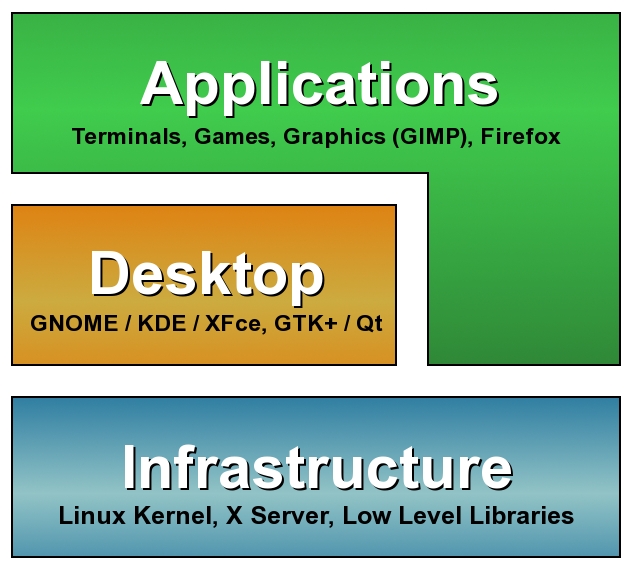
Figure 1. The Linux Display System Stack
The desktop environment sits in the middle of this stack. This includes GNOME, KDE and Xfce, the three most popular desktop environments. In support of these environments are application libraries, such as GTK+ and Qt, as well as a variety of other general-purpose libraries used by desktop applications.
Applications sit above the desktop environment. These are the actual tools users run to view movies, listen to music, communicate with friends and coworkers and purchase products from the Internet.
Remote display of applications is handled by features found within the Infrastructure and Desktop layers. Applications that run in the desktop and X11 environments can be told to display remotely but leave the details of how that is done to the underlying layers of the stack.
There are three methods by which users can run an application on a remote system and have it display locally—that is, on the screen in front of which they are seated. The first method involves the use of the X Display Manager Control Protocol (XDMCP). This protocol is part of the X11 specification and is implemented on Linux systems using the GNOME Desktop Manager (GDM) or when using KDE, by the KDE Display Manager (KDM), both of which are replacements for the X Display Manager (XDM). This method is focused on running individual applications, although there are applications that can provide a complete remote desktop.
The second method relies on OpenSSH support of X11 protocols. It also is focused on running individual applications and is typically easier to configure and use.
The last method is based on Virtual Network Computing (VNC) mechanisms that are operating-system-independent and more suited to complete desktop sharing.
In X11 parlance, the server is the thing that manages your display hardware, and the client is the application that needs the server to display windows. This often confuses people, because it's backward from one's normal understanding of the terms client and server, as now the server is the computer in front of you and the client is the remote computer.
Most applications on the Linux desktop provide the -display command-line option. This option is equivalent to setting the DISPLAY environment variable, and it tells X11 clients (applications) which X server to display on. The default setting is to display on the local server, referenced as :0.0. A remote server can be specified by prefixing this value with the hostname (or IP address), such as galileo:0.0. The reference to galileo:0.0 works only if the host galileo is running at least one instance of an X server.
The use of the -display option is tied to the configuration of XDMCP on the X server. XDMCP is the old-school method of displaying remote applications on a local display. Most old-time UNIX and X11 users are familiar with its use, although configuration issues have evolved with the Linux desktop.
On GNOME systems, XDMCP is controlled by GDM. GNOME users are familiar with GDM from the graphical login screen. That screen is actually only one part of GDM and not related to our discussion. GDM also controls XDMCP usage for an X session, otherwise known as a graphical login. The graphical login starts a new X server with various options. By default, GDM does not permit XDMCP connections to the X server from remote client applications. To enable it, edit the file /etc/gdm/custom.conf to look like this:
# GDM configuration storage
[xdmcp]
Enable=true
[chooser]
[security]
DisallowTCP=false
[debug]
The [xdmcp] section has a single option, Enable, which when set to true, allows XDMCP connections. However, GDM also needs to be told to allow TCP connections in order for the remote applications actually to use XDMCP when communicating with the X server. The [security] section option DisallowTCP must be set to false in order to disable the feature that denies TCP connections.
Note that XDMCP is the higher-level protocol (the way a client application and an X server will communicate), while TCP is a lower-level protocol, which for our purposes can be defined as the networking port that the communication flows through.
Once configured, restart GDM. You can do so by changing the run state to 3 and then back to 5 with the following commands, with a short pause between them recommended. Be aware that if you execute the first command in a terminal/shell window, the window will disappear, because this command kills the X server. You'll be dropped into a virtual console/terminal, at which point, you probably will have to log in to execute the second command:
sudo init 3
sudo init 5
Now the local X server is configured to allow remote applications to connect to it. One additional step is required to specify which hosts have access to the local X server. There are two ways to do this. One is to edit the /etc/hosts.allow and/or /etc/hosts.deny files. A simpler method is to run the xhosts command after logging in to the local system:
xhost +<hostname-or-ip>
xhost -<hostname-or-ip>
xhost +
The first command allows a specific host to display locally, and the second denies a host. The third method allows any host to display locally. This option should be used only on a trusted network, such as your network at home that is behind your firewall. The xhost settings are applicable only to the current login session.
Now, open a terminal window, log in to the remote system (preferably with SSH, but Telnet if you must), and start another terminal with the display option set to the local X server:
xterm -display galileo:0.0
The xterm started here is running on the remote system but displaying on the local X server (on the computer in front of you). You can start other applications the same way with each appearing as an ordinary window on the local desktop. In this way, the remote applications mix seamlessly with the local desktop. If for some reason your shell prompt doesn't include the name of the host in the prompt, you probably should set it so that you know on which system each xterm is running.
GDM comes with GNOME, so as long as you have GNOME installed, you can use this method of remote application display. With KDE, you normally would use KDM, but its configuration is not covered here.
The -display option allows a single application to display remotely, but what about an entire desktop? It is possible to start a graphical login remotely over XDMCP using the Xnest or Xephyr X servers. These servers act like application windows on your local display but connect to the remote display manager (GDM) to offer up a graphical login. GNOME doesn't include these servers, and on most Linux distributions, they are likely not installed by default. However, if you do a quick search of your distribution's software repositories, you should find packages similar to these Fedora-specific packages: xorg-x11-server-Xephyr and xorg-x11-server-Xnest.
After installation, the servers can be run manually to connect to a remote system:
Xnest :10 -query <host-with-gdm-configured> -geometry 1024x768
Xephyr -query <host-with-gdm-configured> -screen 1024x768 :1
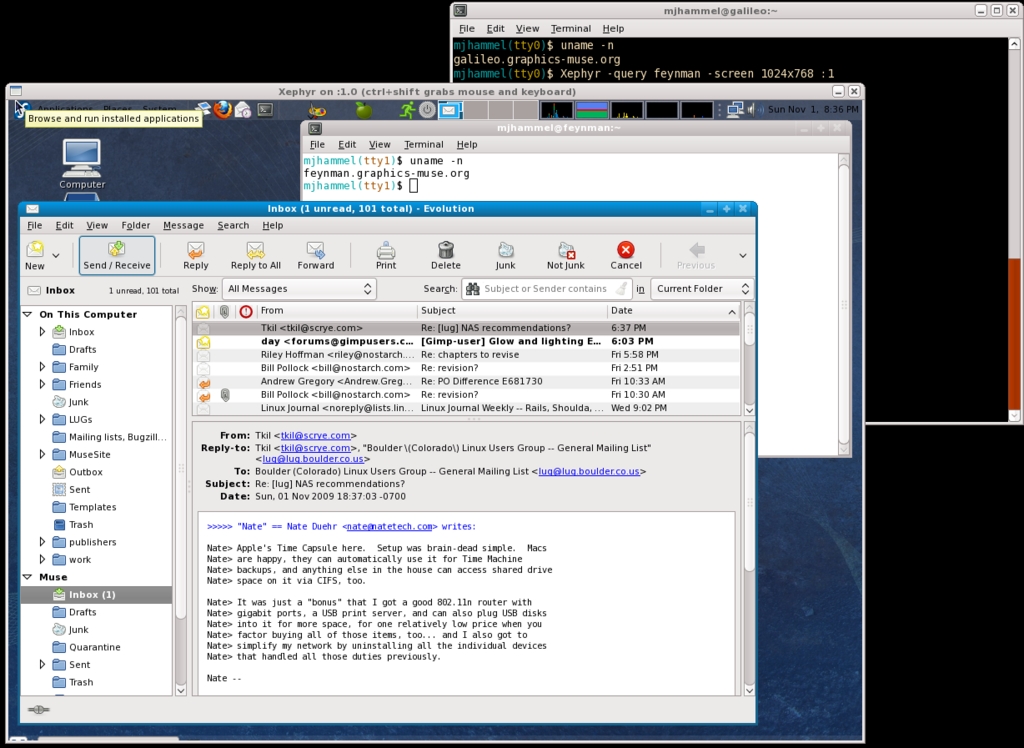
Figure 2. Xephyr-Based Remote Desktop Running Evolution
Experiments with both shows that Xephyr (Figure 2), the more modern and more actively developed of the two, was more stable. Unfortunately, logging out of a session prevented further connections. That may be because GDM was configured to allow only a single session from a remote system and may be fixed with additional research into GDM configuration. In these tests, however, the only solution was to restart GDM on the remote host.
XDMCP via GDM acts as a conduit for remote applications to display on a local machine. This means it does not control remote desktops. In fact, there doesn't need to be anyone logged in to the remote system at all, although GDM does need to be running. Because it doesn't take control of an existing X session remotely, it is possible to have a different display size on the local display. For example, if the remote system provides only a display resolution of 800x600, it still would be possible to display at 1024x768 on the local display using a Xephyr and a GDM/XDMCP-managed connection. It also means you can use different desktop environments (GNOME, KDE, Xfce or others) for the remote and locally displayed sessions.
XDMCP Pros and Cons
Pros:
Uses native X11 functionality.
Easy to configure via GDM.
Convenient for use behind a firewall.
Separate X server session.
Cons:
Does not support video or audio.
Insecure protocol (clear-text passwords under XDMCP; considered a security issue in business environments).
Native protocol means it's not compatible with non-Linux native desktops.
By far, the easiest of the three methods for remote application display is to use SSH. SSH is the secure shell, a tool for connecting to remote systems using encrypted communications. Linux systems use the open-source OpenSSH implementation of SSH. This package offers X11Forwarding, a configurable option in the server and client (the SSH server and client) that end users utilize with the -X command-line option.
SSH uses a client/server architecture. The server side is the remote system, and the client is the local system (the configuration that we normally think of as client/server and the opposite of X). The remote server must be configured to allow X11 forwarding. This is done by enabling the X11Forwarding option in /etc/ssh/sshd_config:
...
AcceptEnv LANG LC_CTYPE LC_NUMERIC LC_TIME LC_COLLATE
AcceptEnv LC_MONETARY LC_MESSAGES
AcceptEnv LC_PAPER LC_NAME LC_ADDRESS LC_TELEPHONE
AcceptEnv LC_MEASUREMENT LC_IDENTIFICATION LC_ALL LANGUAGE

#AllowAgentForwarding yes
#AllowTcpForwarding yes
#GatewayPorts no
X11Forwarding yes
...
X11 forwarding also can be enabled on a per-user basis in this file by placing the X11Forwarding option after a user specification:
...
Match User bilbobaggins
   X11Forwarding no
...
These changes will not take affect until the SSH server is restarted. If your distribution provides it, the service command is the easiest way to do this:
sudo service sshd restart
The client-side configuration, found in /etc/ssh/ssh_config, requires enabling the Forward11Trusted option. This is enabled by default on Fedora systems, although other distributions may require the option to be enabled manually:
...
ForwardX11Trusted yes
...
Note that the location of the SSH client and server configuration files may vary with different Linux distributions. Consult the OpenSSH package for your distribution to find the configuration files.
Once the server and client sides are configured for SSH, a user can use X11Forwarding by adding the -X option to an SSH login. The -X option passes the required DISPLAY information to remote applications, which automatically open on the local display. Note that using SSH X11Forwarding means the remote application should not use the -display option nor should the DISPLAY environment variable be set. SSH will take care of all of that automatically.
SSH X11Forwarding does not require the remote machine to be running GDM or an X server. This means remote systems can be run in headless mode, which means they have no display at all. Instead, users log in remotely using ssh -X, run graphical applications on the remote system and have them display locally. This places far less load on the remote system than using the GDM-based remote application display.
Although in most instances, you will need to have an X server installed on the remote system, because most X applications, which are on the remote system, will need the associated X libraries, and most package managers will end up installing the entire X server to provide them:
ssh -X <remote host>
# login to remote host succeeds...
xterm -geometry 80x50
X11Forwarding Pros and Cons
Pros:
Very secure—as secure as SSH.
Simple to configure.
Simple to use.
Works with port forwarding.
Does not require remote GDM or X server to be running.
Safest way to display remote app on other side of firewall to the local display.
Multiple applications with a single connection.
Can work with video.
Cons:
Potentially very slow compared to VNC and GDM.
Audio doesn't work.
X11 protocol is a bandwidth hog.
XDMCP is the old-school method, and SSH is the safe method. But, the method best integrated into the desktop is Virtual Network Computing (VNC). VNC is a system based on the Remote Frame Buffer protocol from Olivetti Research Labs, which is available for anyone to implement. This protocol isn't based on X11, but lives at a lower level in the Infrastructure layer. This means VNC software can work with any desktop system, including Linux, Windows and Mac OS/X. With VNC, you can display remote Linux desktops next to remote Mac desktops on your local display.
VNC is essentially a protocol definition—it describes how something should work. There are numerous implementations available for Linux systems. Clients are referred to as viewer applications. One open-source implementation is TigerVNC, a fork of the popular TightVNC implementation. TigerVNC offers both server and client viewers and was created to help increase development activity on the project.
GNOME users will find Vino as the default VNC server and Vinagre as the most full-featured client viewer, and they are tightly integrated with the desktop, meaning GNOME provides menu options to configure and enable both the client (Vinagre) and server (Vino).
Unlike XDMCP/GDM and SSH, VNC is not used to launch remote applications for display on the local system. Instead, it is used to view and/or grab control of the remote desktop. Thus, the remote desktop must already be running. Additionally, VNC would not be useful if the remote system were running in headless mode, although Xvnc can remove this restriction also. Xvnc provides a remote “virtual” X server to which VNC clients can connect. Because the remote desktop is virtual, Xvnc also can be used to enable an alternate remote desktop and/or multiple remote desktops, perhaps of different sizes.
The VNC server must be enabled on the remote system for the client viewer to connect to it. The server is configured from GNOME using the System→Preferences→Remote Desktop menu option. The configuration dialog requires enabling desktop sharing, configuring security constraints and setting methods of notification (Figure 3).
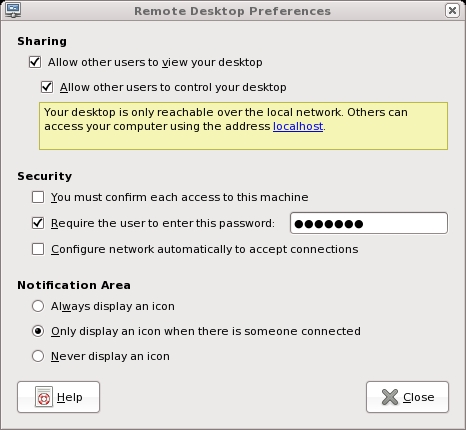
Figure 3. Vino Configuration under GNOME
Sharing refers to how the desktop will be accessed. Sharing is enabled by allowing remote users to view the desktop and, if desired, allowing them to take control of the desktop. In the latter case, the user of the desktop where the server is enabled will no longer be able to use the desktop while the remote user controls it. For administration of systems on your local network at home, the server should be configured to allow other users to control the desktop.
Under Security, the only option required for home use is specifying a password. This password is not encrypted for Vino or TigerVNC, so this protection is not very helpful outside of a local network protected by a firewall. If the option to confirm each connection is set, every time you use a VNC client viewer to connect to that machine, you also must walk over to that machine to allow the connection. For home use, this option should not be set.
Notifications are a personal preference. Because the idea of VNC, at least for our purposes here, is that the server is on a machine you don't want to be in front of, the notifications are of little use. However, it is helpful to have an icon displayed when a connection is active, in case you forget when one machine is controlling the one you're trying to use.
On the client side, the GNOME Vinagre VNC client viewer is started from Applications→Internet→Remote Desktop Viewer. The Vinagre client looks like any other desktop application (Figure 4), with a menu bar and an obvious Quit option (File→Quit). This is in contrast to, for example, Xephyr for displaying a remote desktop. Vinagre also allows opening connections to multiple remote servers with each remote desktop connection accessed by a tabbed folder (Figure 5). This makes using VNC very convenient and easy to understand, as it uses the usual desktop application widget paradigms.
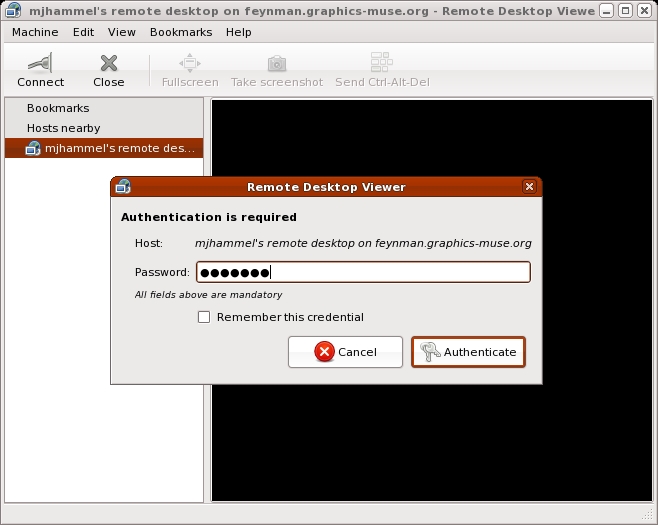
Figure 4. Vinagre Login to Remote Server
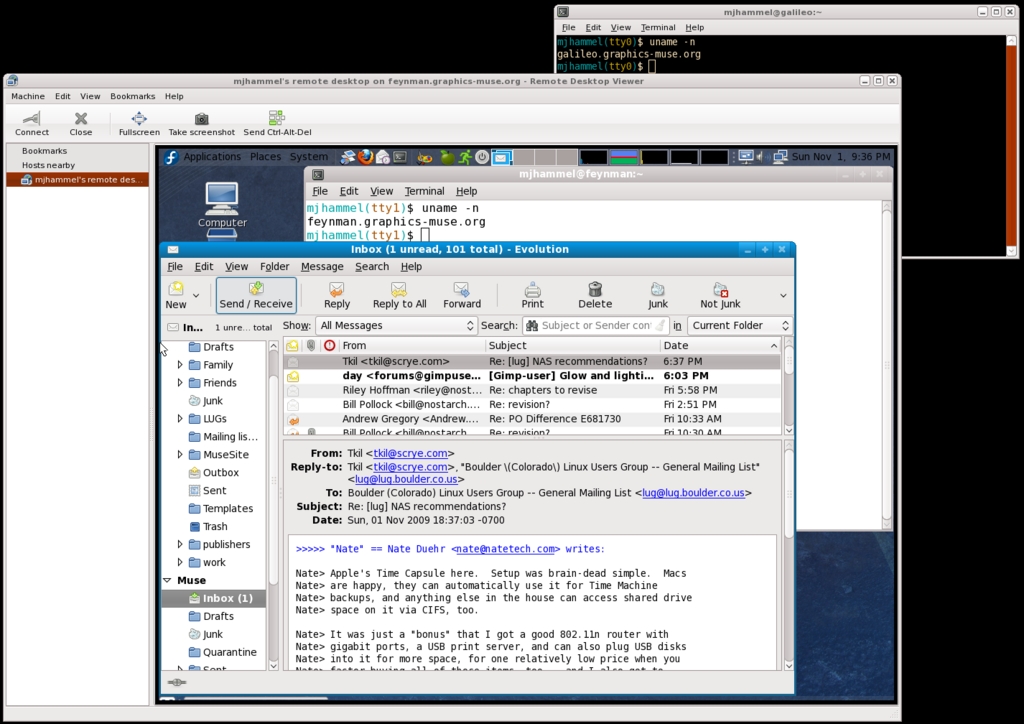
Figure 5. Vinagre Remote Desktop Display
One of the clever ways to use VNC is to connect the local keyboard and mouse to the remote desktop. This simulates a multihead configuration where two monitors act as a single screen. Using x2vnc, the local computer acts like the first monitor, and the remote desktop acts like the second monitor. Moving the mouse off the right edge of the local monitor moves it into the left edge of the remote desktop. This is a clever way of using a laptop to control a MythTV client connected to your TV without having to deal with IR remote controls or IR keyboard/mouse combinations. For example:
x2vnc <remote host> -east (or -west, -north, -south)
Above, the -east option configures the remote desktop to act as if were to the right of the local desktop, and -west reverses this setup. Various other options are available to refine the use of this configuration.
VNC extensions provide various forms of compression and security. These extensions must be supported on both ends of the communication. If the server supports these but the client does not, VNC still will function between the two but without those extensions.
VNC Pros and Cons
Pros:
Extremely easy to configure under GNOME, especially for a local network (behind firewall).
Can be secured with passwords.
Displays the entire desktop—in fact, it actually controls the remote desktop.
Can link single keyboard/mouse to multiple computers.
Cons:
Displays the entire desktop, not just individual applications, all within a single window.
Does not support audio or video playback.
Use of multiple ports may require use of setting up VPN first to use over the Internet.
Not secure by default.
Remote desktop must be running—login session must be active.
From a bandwidth perspective, the use of SSH is likely to provide the best performance of these three options, as long as only a single remote application is displayed locally. GDM-based connections are likely to be roughly similar in performance, depending on the compression available in the SSH connection and what, if any, compression may be configured in GDM.
VNC has the potential to be the fastest of all three if extensions are introduced that compress the frame buffer data sufficiently. Because VNC is based on a tile architecture, where rectangles of frame buffer memory are resent if they have been updated, any compression that improves the transfer of tiles will have serious performance implications. However, at the time of this writing, there were no such extensions currently in use.
XDMCP uses UDP port 177, and the X server uses TCP port ranges from 6000 + display number. XDMCP also is prone to DoS attacks. GDM has some configuration options to address this, but XDMCP use still should be considered insecure. Therefore, GDM and XDMCP should be limited to use behind firewalls and should not be used across the Internet.
SSH connections are, by design, secure if properly used. Because of built-in encryption, there is no reason SSH X11Forwarding could not be used across the Internet. Note that the use of X11 protocols over SSH can be bandwidth-intensive, and therefore, only a small number of applications from the remote system should be displayed locally using SSH.
VNC can be used across the Internet as long as the remote server's firewall forwards port 5900 to that server. VNC does not include security extensions by default and, therefore, is insecure in nature. Various server implementations provide security extensions, but Vino does not. VNC use across the Internet using Vino as the server should be done only over VPN or SSH connections.
None of these options support playing media files, such as movies or music. I mentioned that media servers could be managed remotely, and I stand by that. The management of those systems—starting and stopping servers, configuring them and so forth—is easily done using any of these methods. But, making use of those media provided by those servers is best left to streaming media players that connect from the local system to the remote servers.
For home users who need to manage remote systems on their local network that sit behind a well configured firewall, VNC offers the most complete and easy-to-use option. Home office users who need to connect to remote systems may find SSH a better option (as this author does). GDM/XDMCP is the least-favored solution, because SSH is faster and arguably easier to use for single applications, and VNC offers easier-to-use solutions for accessing remote desktops. Still, GDM/XDMCP is the only option if your needs include starting a new session on a remote system, as neither SSH nor VNC supports that type of use.
Resources
TigerVNC: tigervnc.org
Vino: www.gnome.org/~markmc/remote-desktop-2.html
Vinagre: projects.gnome.org/vinagre
x2vnc: fredrik.hubbe.net/x2vnc.html
Michael J. Hammel is a Principal Software Engineer for Colorado Engineering, Inc. (CEI), in Colorado Springs, Colorado, with more than 20 years of software development and management experience. He has written more than 100 articles for numerous on-line and print magazines and is the author of three books on The GIMP, the premier open-source graphics editing package.



