
OOo Off the Wall: That's Your Version--Document Control in OOo Writer
OpenOffice.org has multiple Undo levels. You can set the levels as high as you like from Tools -> Options -> OpenOffice.org -> Memory -> Undo. However, if your files receive extensive revision or if more than one person writes or edits them, you need more sophisticated tools to handle changes. OpenOffice.org Writer provides three such tools: Changes, Compare Documents and Versions. All share some common interface features and are quick to learn, although possibly confusing for users unfamiliar with version control.
Keep in mind, though, that these three tools do not add up to a complete version control system, such as CVS or Subversion. None of them, for example, automatically assigns version numbers. And you can't create development trees with them. You can, however, enter version numbers manually as comments. You also can merge different versions of a document into the current one. In short, although OOo's three change tools are less sophisticated than programmers' version control systems, they still are useful for people working at the office-suite level.
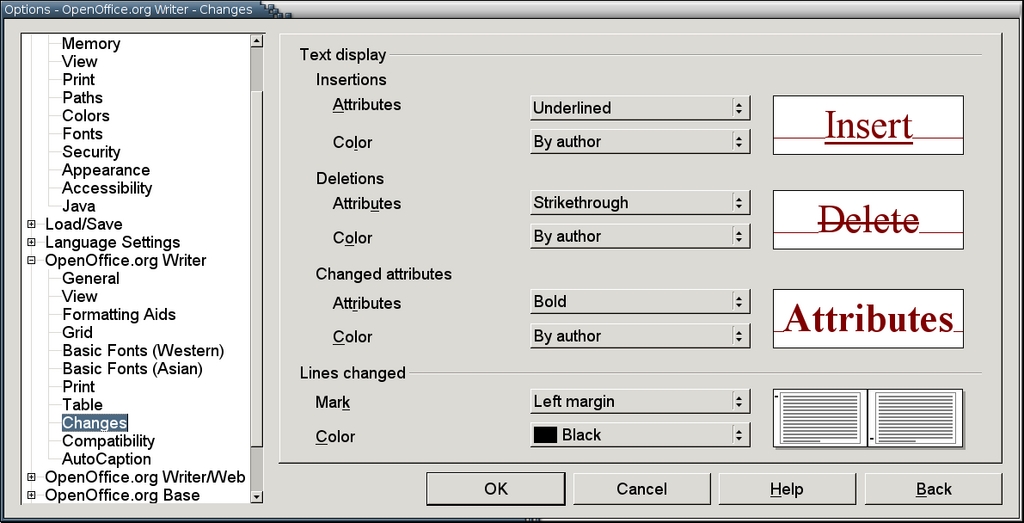
Changes, Compare Documents and Versions are customized in Tools -> Options -> OpenOffice.org Writer -> Changes. From this tab, you can set four aspects of the material you'll be dealing with:
Insertions: content that is unique to the second document or version.
Deletions: content that is unique to the first document or version.
Change Attributes: any formatting change.
Lines Changed: the position of the change bar indicates that something in a line has changed. You can set this option to the left, right, inner or outer margin. Usually, you can keep it on the default setting of the left margin. You may want to change it, however, to the outer margin if you are using mirror-image left and right page styles. You also can turn off change bars altogether, but doing so robs you of a useful tool.
As you work, remembering the definitions of Insertions and Deletions is particularly important. Forget these definitions, and you quickly can become confused when trying to merge all of the content into a single document.
For the first three aspects--insertions, deletions and change attributes--you can set colors to mark changes made from the current user account. In most cases, though, you can let OpenOffice.org assign a color to each editor of the document as needed.
If the document is being edited by more than one user account, you'll likely want to make sure that at least the First Name, Last Name and Initial fields are filled out in each account, under Tools -> Options -> OpenOffice.org -> Personal Data. Changes made from accounts that don't have this information are listed as being made by Unknown, making changes much harder to sort through later.
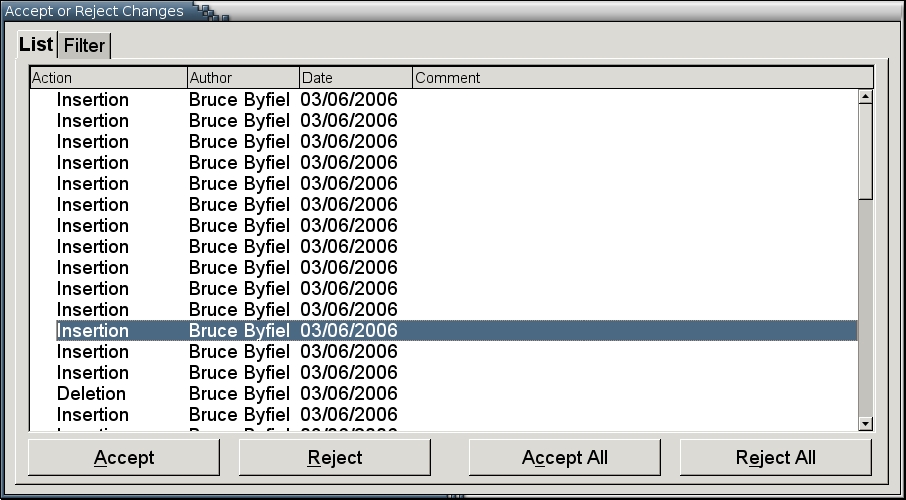
Whether you are working with Changes, Compare Documents or Versions, you will reach a point at which you have to decide how to deal with each change. At this point, you be using the Accept or Reject Changes window.
The Accept or Reject Changes window essentially is a graphic equivalent of running the diff command on two text files. It's a floating window that you can keep open while referring to the document. The window opens on the list tab, which displays all the insertions, deletions and changes in attributes--which, rather confusingly, it calls Formats--in the order they were made, from the start of the document.
For each change, the list tab shows the type of action, its author and its date. In addition, the Version tool also allows you to enter comments along with the change, and these comments are shown in the list tab as well. The Compare Documents and Changes tools, however, don't allow you to enter comments with your changes, although Changes has a permanently grayed-out sub-menu item for them.
If a document has been changed frequently or has been edited by several writers, the list tab can be confusing. In such cases, you can use the filter tab to change the display of actions by using any of the four attributes listed for each action. For example, the date of displayed actions can be set to different ranges, an exact date or "since the last save". Sorting by an author's name works best if all of the editors fill out the Personal Data while viewing the document from their own accounts. Otherwise, all editors except the current one will be listed simply as "Unknown", as described above, and you'll have one less filter to use later.
When you are ready to make decisions about changes, open the list tab. To deal with an action individually, click on it and then select the Accept or Reject button. The first few times you work with changes, you may want to remind yourself periodically of how insertion and deletion are defined in this context, so you actually do what you mean to do: to keep a deletion, reject it; to keep an insertion, accept it. Conversely, accepting a deletion confirms the deletion, and rejecting an insertion removes the selection from the document.
Once you are sure of what you are doing, you can deal with all of the actions currently displayed in the list tab by selecting the Accept All or Reject All button. Provided you take the time to set up suitable filters, the All button greatly can reduce the time you spend dealing with document changes.
When the last action is accepted or rejected, the window stays open. The document, however, is no longer marked by the attributes you set up in Tools -> Options -> OpenOffice.org Writer -> Changes. They come back when you start writing again.
One last word: the Accept or Reject Changes window can be remarkably hard to close sometimes. To get rid of it, go to the sub-menu of Edit -> Changes. Un-selecting Accept or Reject should close it, but you may need to un-select all of the items in the sub-menu.
The simplest tool for document control in Writer is Edit -> Compare Documents. The Compare Documents tool works with the current document and any file with which you want to compare it. Obviously, though, the tool doesn't have much point unless you use it with an earlier or later version of a document, or perhaps one edited by someone else. The documents can be in any format that is readable by Writer.
When you select the Compare Documents tool, it opens a file manager for selecting the second file. Both files then are presented in the first document, and the Accept or Reject Changes window opens for your use.
Again, as you go through the diffs in this document with the Accept or Reject Changes window, it is important to remember how these options work. To save content unique to the first document, you need to accept it. However, to save content unique to the second document, you need to reject it. Confuse the source of the material, and your fingers will need to fly to the Ctrl+Z keys, as you hope you have set the Undo levels high enough to repair the damage.
Edit -> Changes works for changes within the same document. Some people prefer to use Changes even if no one else is working on the document. Using it allows them to find changes quickly and revert to earlier content without worrying about how many levels of Undo they have enabled. Others reserve it for times when more than one person is writing or editing a document.
Either way, to use changes, you need to turn on Edit -> Changes -> Record and Show. Depending on the situation, you also may want to select Edit -> Changes -> Protect Changes so nobody without the password can accept or reject changes.
When you are ready to deal with changes, select Edit -> Changes -> Accept or Reject to open the standard window. If you prefer, you may select Merge to sync the current file with another one of the same name.
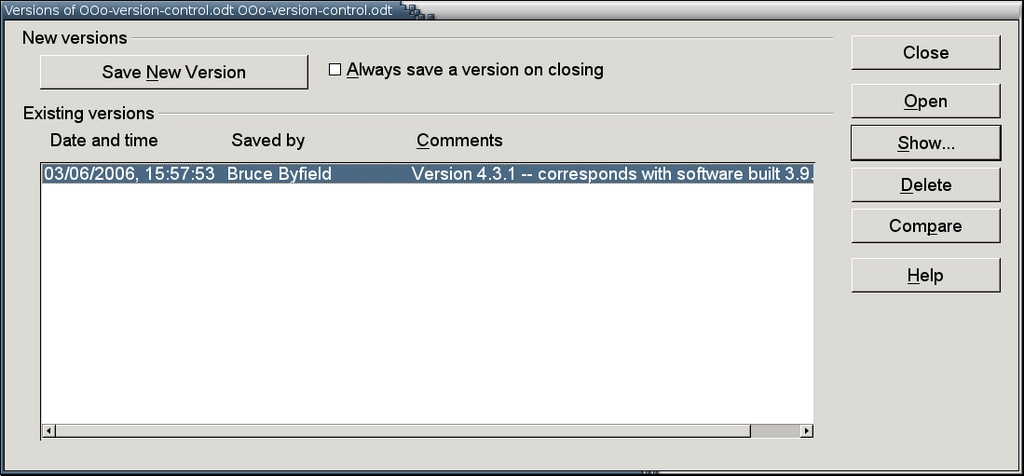
In Writer, versions are copies of a document saved within the same file. If you look at the compressed collection of XML files that make up a Writer document, you can see a master list for versions and a Versions folder for storing them.
To save a version, select File -> Versions instead of File -> Save. Selecting the Save New Version button opens the Insert Version Comment window, allowing you to add a plain-text comment to the version. Most likely, the comment is a brief note explaining the unique features of that particular document version. The date and time, as well as your name--if you have filled out the User Data in Tools -> Options--are added automatically to the version.
If you want to save a version each time you close the document, you can check the "Always save a version on closing" box. The drawback to this option is the only comment it saves reads "Automatically saved version", which may not be too informative later on when you look back through several versions.
In addition, File -> Version lists all existing versions of the document. In the same window, you can select a version and:
Open it in a separate window
Show its comment
Delete the version
Compare it with the currently open version, using the Accept or Reject Changes window
Fair warning: versions are highly addictive. Remember that each one adds substantially to the size of the file, so you periodically should delete unneeded version. Provided that you are sure you no longer need the versions, you can use File -> Save As to dump the saved versions and save only the current one. In short, without some form of regular pruning, loading, saving and closing the file may slow to a crawl, especially if your computer has limited memory. You even may find that the document crashes regularly as the file grows out of proportion.
Even used together, Compare Documents, Changes and Versions give only rudimentary version control to your work. However, you can extend their usefulness with a little ingenuity. For example, you can use comments in Versions to add a manual version number. Similarly, you can set up something like a development tree using directories, creating new branches and using Changes or Compare Documents to merge files as necessary.
Most likely, the first reaction of programmers is to rebel against these makeshift workarounds. However, people who are working with OpenOffice.org regularly enough to need these tools are unlikely to be programmers. In fact, for these users, the mention of something such as CVS may make them panic stricken. Furthermore, OpenOffice.org files are not easy to store in many other versioning tools. For these reasons, instead of criticizing these Writer tools for their very real shortcomings, consider them to be a way to establish some basic order with minimal on-the-job training. In many cases, the alternative may be no version control at all.
Find all of Bruce Byfield's OOo articles here.
Bruce Byfield is a computer journalist and course designer. His articles appear regularly on the Linux Journal and Newsforge Web sites.


