
OOo Off the Wall: Find and Replace
In long documents, a strong search-and-replace tool is essential for editing duties. Although many users confine themselves to simple text searches, OpenOffice.org's various searches are a match for any rival's. They also are remarkably consistent throughout Writer, Calc, Draw and Impress, the four main OOo applications.
The Find & Replace window is haphazardly arranged into basic options and advanced options that are available when the More Options button is selected. The search options fall into three main categories:
Location searches: searches for text strings that can be limited to specific areas or directions in the document.
Format searches: searches for design elements, sometimes with specific text strings but also without text strings.
Pattern searches: searches for patterns rather than exact text strings.
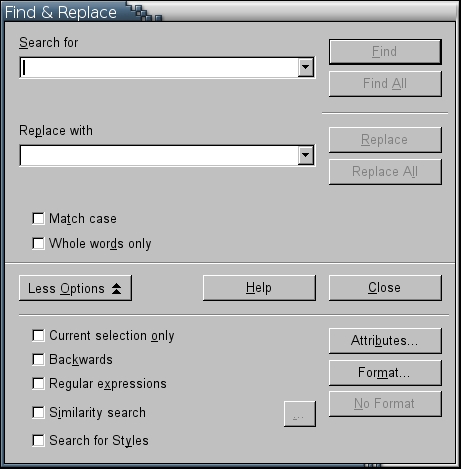
Although arranged with little logic as various check boxes and buttons, OpenOffice.org's search options provide a quick revision tool for both text and layout.
The basic operation of the Find & Replace tool in Writer is identical to similar tools found in other office applications. The text to search for is entered in the Search for field, and the replacement text--if there is any--goes in the Replace with field.
Searches are started by selecting either the Find or Find All button. If you select the Find button, the application starts at the current position of the cursor and stops successively at each instance of the text you are searching for. When it reaches the end of the document, you have the option to continue from the beginning of the text. Unfortunately, OpenOffice.org applications do not remember the starting point, so reaching the end of the document is the only marker you have for the progress of a search. This limitation makes it advisable to start a search at the beginning of every document.
By contrast, if you select the Find All button, each string that matches the search is highlighted. The text remains highlighted after you close the Find & Replace window.
When you select the Find button and a match is found, selecting the Replace button makes the substitution. Note that if the Replace with field is blank, selecting the Replace button leaves a blank where the match was.
Alternatively, once a search and replace is set up, you can select the Replace All button and have all of the substitutions made in a few seconds. This is a useful feature, but it can lead to disaster if your search is poorly planned. Usually, you are safer using the Find and the Replace buttons for one or two substitutions. Select the Replace All button once you are confident of the results.
Location searches are the most basic types of searches available in OpenOffice.org. As you might guess from the window layout, Whole words only is one of the most basic ways to refine a search. It ensures that results don't include, for example, "orange" when you want "range". Backwards reverses the usual search direction, which always is useful if you get ahead of yourself with multiple instances. Current selection only limits the search to the text selected with the mouse. All these location specifiers are available throughout OpenOffice.org.
Calc, the spreadsheet program, contains additional location specifiers. Entire cells is Calc's equivalent of Whole words only. It sets the search for cells that match what is entered in the Search for field rather than strings of characters. Calc searches also can be limited by Search in, which confines the search to formulas, values or notes. And, in addition to Backwards, Calc also includes Search direction, which sets whether the spreadsheet is scanned by rows or by columns. Usually, Calc searches are confined to the current sheet, but you can broaden a search by selecting Search in all sheets.
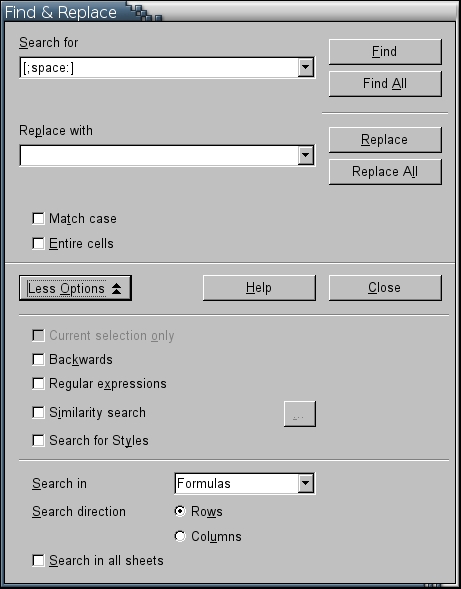
A history for the two fields in the Find & Replace window is available from its drop-down list. You can use the history to repeat a search quickly.
Format searches look for layout elements rather than a particular string of text. The simplest format search is Match case. When this option is selected, results must use upper- and lower-case letters in exactly the same way as the text is entered in the Search for field. This option is especially useful when you want to find a word that also is being used as a proper name. For example, you might to replace windows, meaning a screen in a program, while leaving references to the Windows operating system alone.
To this basic option, Writer adds the ability to search by Attributes or Formats. The difference between these two options is obscure, but it seems to come down to this: when you search for Attributes, you are looking for any departures from the default formatting, but you cannot specify which variations. By contrast, when you search for Format, you can specify the exact design elements, such as the precise Font or Font Size. On the whole, Attributes are useful for searching a manually formatted document. Formats, on the other hand, are useful for documents that use character and paragraph styles throughout. In both Attributes and Format, you can make multiple selections to focus your search precisely. If a search with the format specified does not work, you can search for the text without the format simply by selecting the No format button, rather than undoing all your format selections.
In both Writer and Calc, you also can search for specific styles. For some reason, when this option is selected, the Search for field does not contain a list of styles in the drop-down list, although the Replace with field does. Fortunately, this limitation can be overcome by pressing the F11 key and opening the Styles and Formatting floating window for a list of styles. Because the Find & Replace window does not lock the mouse, you can keep it open while changing the view in the Styles and Formatting window. Despite this limitation, this feature is one of the major paybacks for having the self-discipline to use styles, allowing you to make major alterations to the design of a document in seconds.
One of the most powerful ways to search in OpenOffice.org is to use a pattern search. The Find & Replace window includes two tools for searching for patterns. Both are available by selecting the More Options button.
The Similarity search option looks for near duplicates of the text in the Search field. You can specify the complexity of the similarity by selecting the button beside it, which opens a small dialogue window. The options in the dialogue are:
Exchange characters: the number of characters that can be different in the results. For example, if the setting is 2, then searching for "father" would include "mother" in the results, but not "brother".
Add characters: the number of additional characters that results can have. For example, if the setting is 2, then searching for "sister" would include "sisterly" in the results, but not "spinster".
Remove characters: how many characters less than the search text the results can have. For example, if the setting is 1, then searching for "brother" would include "bother" in the results, but not "both".
Combine: use all three of the other options. Needless to say, use this setting sparingly, as it can result in a large number of results.
When you select Tools -> Options -> Language Settings -> Languages -> Asian languages support, two additional Similarity search tools are available for Japanese, Sounds like and Match character width.
Undoubtedly, though, the most powerful pattern search tool is regular expressions, which are search patterns created by using a handful of standard characters in different combinations. Many programmers should find the regular expressions available in OpenOffice.org to be familiar, but they should watch for unusual variations. For example, . indicates any single character, and * is zero or more characters in front of the symbol--but not the non-printing characters that mark the end of a line or paragraph. Similarly, although $ indicates the end of a paragraph, users may take a while to realize that it can be used to find pilcrows, the non-printing character that marks the end of a paragraph.
In addition, Writer uses several regular expressions all its own. As might be expected, \ indicates that the following character represents something to search for rather than a regular expression. For instance, \* indicates a search for an asterisk rather than a pattern of zero or more characters. It therefore makes sense that \t stands for a manual tab. In the same way, \x followed by a four character code--such as \x2018--searches for a special character.
Other useful regular expressions in Writer include [:space:] to search for a space and [:cntrl:] for any non-printing character. You also can combine searches using AND and OR operators.
To see a complete list of regular expressions, select Help -> OpenOffice.org Help and then search for "regular expressions". If you use regular expressions frequently, you may want to bookmark the Help page so you can find it quickly--there are just enough unusual features to make a crib useful.
The Find & Replace tool isn't the only tool available for finding your way through an OOo document. If you know a heading or the name of an object, such as a table or a graphic, the Navigator (Edit -> Navigator or F5) may be quicker to use. The Navigator lists the names of all headings and objects in the document. It's especially handy to use if you get into the habit of using distinct names, such as "CompanySidebar", instead of default names, such as "Frame1". However, if you need to search for formatting or body text, Find & Replace has the toolkit you need.
Find all of Bruce Byfield's OOo Off the Wall Articles here.
Bruce Byfield is a computer journalist and course designer. His articles appear regularly on the Linux Journal and Newsforge Web sites.
