
OOo Off the Wall: Fielding Questions, Part 1 - The Basics
Many OpenOffice.org users have a love-hate relationship with fields. On the one hand, they hardly can avoid using them. Items such as page numbers and bullet lists use fields automatically to eliminate corruption while editing. On the other hand, fields can be difficult to grasp. More than one new user has been alarmed by the gray backgrounds used by default to display fields in Writer and needed to be reassured that the backgrounds don't print. More experienced users may be nervous because fields are associated with difficult concepts, such as conditions, data sources and mail merges. And this nervousness is not reduced by the help system, which often fails to explain these concepts at a beginner's level.
In fact, even the Fields window itself can be puzzling. For example, although you obviously can add the fields on the Database tab to a document, why and when would you want to do so? Furthermore, the arrangement of fields on the tabs of the Fields window is not as logical or as consistent as it could be.
This article is the first of a series that aims to demystify fields so that you use them to enhance your work. In this article, we start with the basics of fields, explaining how to use them and the simplest versions of them, user fields and document information.
Fields are containers for information that is updated automatically. To put it another way, fields hold variables. By placing information in fields, you isolate it from other text and protect it from basic editing, although not from deletion or copying.
The tasks you can do with fields vary. Basically, though, they fall into one of several categories:
Adding information from another source, such as document statistics, user data or cross-references. In Windows versions of Writer, this category also includes DDE links, which Linux doesn't support.
Keeping a running total of something, such as page or caption numbers.
Selecting which of two or more pieces of information is added, as in an input list or conditional text, or whether information should be revealed or concealed, as with hidden text and paragraphs.
Creating multiple copies of documents that differ in only a few places, such as in mail merges.
Performing a mathematical or statistical calculation and displaying the result. In this case, table cells can serve the same function as fields.
Fields are used automatically for such things as page, list and caption numbers or for tables of contents, indexes and bibliographies. Other fields are added manually by selecting Insert > Fields. Some of the most commonly used fields, such as page numbers, are listed in the submenu so that you can add them quickly. Many more fields are available by selecting Other from the submenu and opening the Fields screen. In the Fields screen, you can configure fields before adding them to your document by selecting the Insert button. Fields are added at the current position of the mouse cursor.
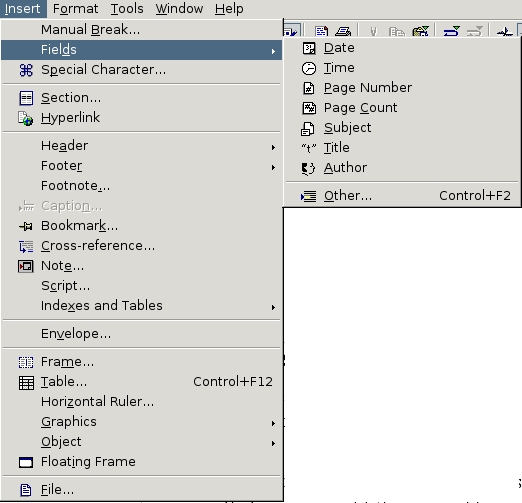
Insert > Fields > Other displays fields in six tabs, as shown in the table below.
| Tab | Contents |
|---|---|
| Document | Fields from information in File > Properties or from the file itself. These fields are some of the most commonly used ones. |
| References | Fields for setting up and inserting cross-references and book marks. These fields are very specific in their functions. If you are doing academic or technical work, you will become familiar with them. You also can access them through Insert > References or Insert > Bookmarks. |
| Function | Fields for setting up multiple input entries or for a specific function, such as running a macro. These fields are intermediate to advanced in complexity. |
| DocInformation | Files from information in File > Properties, including four blank, user-defined fields. These fields are some of the most commonly used ones. |
| Variables | Fields that contain variable information, such as page numbers and captions. Includes fields in which you can re-define an existing variable and define your own fields. Some of these fields are commonly used ones. About half are for advanced users. |
| Database | Fields to use when setting up a source document for a mail merge. You need to have at least one data source set up before you can use them. Several have no visible effect, even when they are used the way they are supposed to be, because they are markers that indicate how other fields are used. |
By default, fields are displayed with gray backgrounds. This background does not print. It can be changed in Tools > Options > OpenOffice.org > Appearance > Custom Colors > Field Shading. You also can turn off the shading by de-selecting View > Field Shadings. However, if all you need is a quick view of how a page is going to print, use File > Page Preview instead. The gray background makes fields easier to find if you need to edit them.
You also can display the type of content in each field instead of the actual contents by selecting View > Fields. When this option is selected, the page number field displays Page Numbers. That's also what will be printed. For some reason, new users seem prone to turning on this selection, possibly because it sounds vaguely desirable. Fortunately, it can be turned off as easily as it can be turned on.
Update options for fields are set in Tools > Options > Text Document > General. If you want to update a field immediately, select Tools > Update > Fields or Update All.
To edit a field, click on it twice to open the Fields screen. Blank fields or fields such as the Next Record field for mail merges that serve as markers are so small that they may be hard to select. If you do have trouble selecting a field, use View > Zoom to get a larger view. A few field types, such as hidden text or hidden paragraph, have arrow buttons that let you jump to the previous or next field of the same type.
One of the simplest uses of fields is to add user data. Names, addresses, phone, fax and e-mail addresses all are listed under user data. Those who are patient may have added this information during the installation of OpenOffice.org. The rest of us can add it later or update it using Tools > Options > OpenOffice.org > User Data.
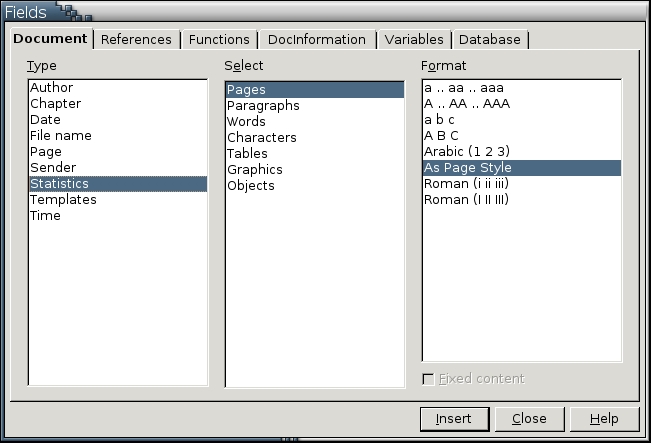
To add personal information to a document:
Place the mouse cursor where you want the user data to appear.
Select Insert > Fields > Other > Document > Type > Sender.
Choose the user data field from the list in the Select field.
If you want to add only the current entry for your selection and never have it updated, then select the Fixed content box.
Otherwise, if you change the user data, the field is updated the next time you select Tools > Refresh > Fields or the next time you open the document.
Document information is collected automatically in Writer. It includes information about the file name and date and statistics about the number of words in the document. Document information can be added from two tabs in Insert > Fields > Other, the Document tab and the DocInformation tab. These tabs are so similar that they easily could be combined. Rather untidily, both contain mixtures of information from:
The current document format.
Tools > Options > OpenOffice.org > User Data.
File > Properties.
The following table lists the location of different types of document information and the source of the information.
| Field (Insert > Fields > Other) | Information Source | Options / Comments |
|---|---|---|
| Document > Author | Tools > Options > OpenOffice.org > User Data > First /Last Name/ Initials | Name and Initials; this is the same option available from Insert > Fields. |
| Document > Chapter | From the selected level of paragraph style in Tools > Outline Numbering, Heading 1 by default. If the top level is not numbered, then a blank field is entered. | Select the level of heading to use in the Layer field. |
| Document > Date | The current date on the computer. | Date (fixed): The current date is inserted. Opening the document on another day does not change the date. Date: The date is changed to whatever day that the document is opened. Use the Offset in days field to insert a date in the future. This is the same option available from Insert > Fields. |
| Document > File name | File > Properties > General | Select the Fixed Content box to insert the current file name and/or path. Any changes will not update the field, including saving the file in another location. |
| Document > Page | Current document | Page numbers: adds the current page, whether the page is numbered or not. Previous page: adds the previous page number. Next page: adds the next page. Use the Offset field to renumber. The page corresponding to the number in the offset actually must exist. This is the same option available from Insert > Fields. |
| Document > Sender | Tools > Options > OpenOffice.org > User Data > First /Last Name/ Initials | All User Data fields are available for use. |
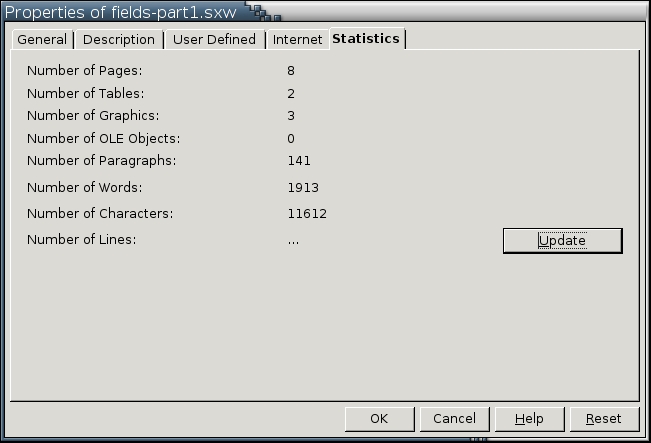
| Document > Statistics | File > Properties > Statistics | All statistics are available for use. The Pages statistic is the same as Insert > Fields > Page Count. The Words statistic probably is the most used statistic. To see your progress in a document, insert the field and then add the current count beside it in text so you can see how it changes. Word count for a section is not supported in the current version of Writer. However, you can download a macro for the task from www.darwinwars.com/lunatic/bugs/oo_macros.html. |
| Document > Templates | File > Properties > General | The template on which the current document is based. If the default template is used or if the link between the document and the template has been broken, this field is blank. |
| Document > Time | Current time on the computer | Time (fixed): the current time is inserted. Opening the document at another time does not change the time listed. Time: the time is changed to whatever the current time is when the document is opened. Use the Offset in minutes field to insert a time in the future. This is the same option available from Insert > Fields. |
| DocInformation > Comments | File > Properties > Description > Comments | Notes that you might have added to a document. |
| DocInformation > Created | File > Properties > General > Created | Author, Time, Date |
| DocInformation > Editing Time | File > Properties > General > Editing Time | The amount of time that the document has been open for editing. |
| DocInformation > Info | File > Properties > User Defined | User-defined fields. |
| DocInformation > Keywords | File > Properties > Description > Keywords | The keywords listed for an on-line document. Key words appear as meta-tags in the HTML. |
| DocInformation > Last Printed | File > Properties > General > Last Printed | |
| DocInformation > Modified | File > Properties > General > Subject | |
| DocInformation > Subject | File > Properties > Description > Title | |
| DocInformation > Title | File > Properties > Description > Title |
User data and document information are the most straightforward uses of fields, but even they have practical uses. Often, they are used to set up headers and footers in page styles. The page number and Document > Statistics > Pages are especially useful for this purpose. Other fields, such as DocInformation > Modified > Date or Document > Statistics > Words can be added for use while a document is drafted and then deleted before printing.
Within the body of a document, fields especially are useful in templates. A letter template, for example, can use user data to set up the return address for multiple users. Similarly, a teacher could set up a standard template for assignments that automatically adds each student's name as a by-line below the title.
No matter how you use them, fields can automate your work. As with styles and templates, fields reduce effort and make updating easier. With a little bit of organization, even the simplest of fields can offer these conveniences.
