How to Install and Configure Oracle on Linux
Oracle RDBMS is a full-featured relational database management system from Oracle Corporation. It includes a set of administration tools, and precompilers for most programming languages. This article will cover how to install and configure an Oracle database on Linux.
The installation file for Oracle 8.0.5 Enterprise Edition is named Oracle8051EE_Intel.tgz. It can be downloaded from ftp://technet.oracle.com/. If needed, the glibc patch file glibcpatch.tgz can be downloaded from ftp://ftp.oracle.com/pub/www/otn/linux/.
Oracle currently uses glibc 2.0 rather than glibc 2.1. Oracle has supplied a patch which, when combined with compatibility RPM packages, allows it to run on Red Hat 6.0. I chose to use the Linux-Mandrake 6.0 distribution for this installation. If you are not using 6.0, you can skip the steps for installing the compatibility RPMs and the glibc patch. It is possible to install Oracle on other distributions, but since Oracle uses Red Hat for its development, Red Hat (or some variation of Red Hat) is preferred.
The C Development package must be installed when you install Linux. If you want to install Oracle's Intelligent agent, you must have tcl-8.0.3-20.i386.rpm installed. To install the JDBC drivers, you must define a path to your classesxxx.zip file.
I recommend creating a minimum of three partitions for Oracle. This allows you to use Oracle's Optimum Flexible Architecture (OFA) standard. Using OFA gives you the capability to segregate data from indexes and have multiple control files. The partitions should be named u01, u02 and u03. You can create more partitions if you have the disks to support them. I have two disks on my machine, so I created a partition of 1GB for /u01 and 150MB for /u02. I then created a directory called /u03 to give me the equivalent of another mount point. The first partition (/u01) is where the Oracle executables and all associated files will be placed during the installation process. The remaining mount points will be used for data files, indexes and control files.
A multitude of directories are created during the installation process. Some of the more important ones are:
$ORACLE_HOME/bin contains the executables for the database and administrative software.
$ORACLE_HOME/rdbms/admin contains the SQL scripts used to create the catalog, and other useful scripts too numerous to cover here. Refer to the Oracle Database Administration Manual for an explanation of the scripts contained in this directory.
$ORACLE_BASE/admin/SID/bdump contains the alert log for the instance. The name of the alert log is alert_SID.log, where SID is the system identifier for the instance (i.e., alert_greg.log for this installation). This file is extremely important in determining where problems lie. Any time you have an error or database crash, this is the first place to look for information on what might have happened to cause the problem.
$ORACLE_HOME/network/admin contains the tnsnames.ora and listener.ora files. Both of these files are described in the section on modifying configuration files.
$ORACLE_HOME/precomp/demo/proc contains several Pro*C example programs.
The data files, indexes and control files will be placed in /oradata/SID, where SID is the system identifier for the instance (i.e., /u01/oradata/greg, /u02/oradata/greg and /u03/oradata/greg for this installation).
The installation is broken down into 8 steps:
Pre-installation sets up the groups and users, and performs all the tasks prior to actually installing the software.
Software installation is the process of installing the software.
Documentation installation is the process of installing the on-line documentation for Oracle. This must be done in a separate step due to a bug in the installation process.
Binary patching is the process of applying the glibc patch supplied by Oracle.
Database creation creates the initial database.
Post-installation is the process of running a post-install script as root.
Configuration file modification is the process of identifying and modifying the configuration files used by the database and Net8.
Testing and automation is the final process of determining that the database is installed and configured properly, and setting the instance up to start automatically when the machine is rebooted.
Download the compatibility RPMs from Red Hat. The necessary RPMs are compat-binutils-5_2-2_9_1_0_23_1_i386.rpm, compat-glibc-5_2-2_0_7_1_i386.rpm, compat-egcs-5_2-1_0_3a_1_i386.rpm, compat-egcs-c++-5_2-1_0_3a_1_i386.rpm and compat-libs-5_2-1_i386.rpm. Issue the following commands to install the RPMs:
rpm -ivh compat-binutils-5_2-2_9_1_0_23_1_i386.rpm
rpm -ivh compat-glibc-5_2-2_0_7_1_i386.rpm
rpm -ivh compat-egcs-5_2-1_0_3a_1_i386.rpm
rpm -ivh compat-egcs-c++-5_2-1_0_3a_1_i386.rpm
rpm -ivh compat-libs-5_2-1_i386.rpm
Edit /etc/passwd for root and change the shell from /bin/bash to /bin/sh. This will make the installation scripts supplied by Oracle run without errors.
Create the groups and users used by Oracle. At a minimum, you will need a group called dba for the oracle user. You may also want to create a group called oper for the operation of the database. Refer to the Database Administrator's Guide for Oracle to determine whether you want to create this group. In the following example, I used only the dba group, with a group ID of 601. You may need to use a different group ID if 601 is already in use on your system. Be sure to change the password for the oracle user.
groupadd -g 601 dba
useradd oracle -g 601
passwd oracle
Edit /etc/passwd as root to change the default shell.
Create the directories for your mount points if you didn't create them as partitions. Repeat the commands for all three mount points if necessary.
mkdir /u01
chown -R oracle.dba /u01
Change to the directory where you have unpacked the Oracle8051EE_Intel.tgz file (this is your staging directory for the installation process), and run the script to create the /etc/oratab file. This file is used by Oracle's startup script to determine which instances are running on the machine, and whether they should autostart when the machine is rebooted. More on this file later.
cd /home/oracle/orainst/orainst
ORACLE_OWNER=oracle; export ORACLE_OWNER
sh oratab.sh
See Figure 1 for prompts and their replies.
Log out as root and log in as oracle. Make sure umask is set to 022 by typing umask. If it is not set to 022, you will need to add a line to your .profile file. Set the following environment variables in oracle's .profile:
ORACLE_BASE=/u01/app/oracle
ORACLE_HOME=/u01/app/oracle/product/8.0.5
ORACLE_SID=greg #(replace with your system
                #identifier)
ORACLE_TERM=386
PATH=$PATH:/u01/app/oracle/product/8.0.5/bin
TMPDIR=/var/tmp
export ORACLE_BASE ORACLE_HOME ORACLE_SID\
  ORACLE_TERM
export PATH TMPDIR
umask 022 #(only if the umask is not already
          #set to 022)
Log out, then log back in as oracle. Make sure the environment variables are set by using the env command, and that /bin:/usr/bin:/usr/local/bin is in your path.
Change to your staging directory and start the Oracle installer.
cd /home/oracle/orainst/orainst
./orainst /c
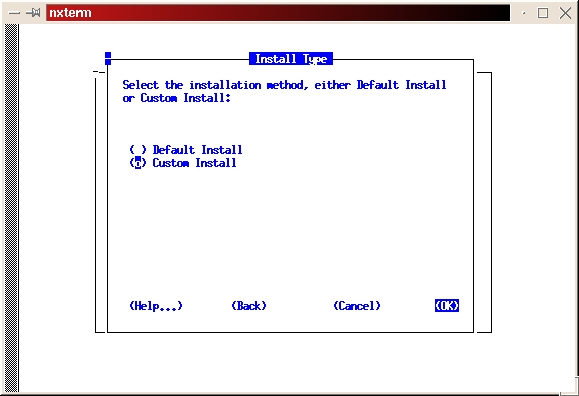
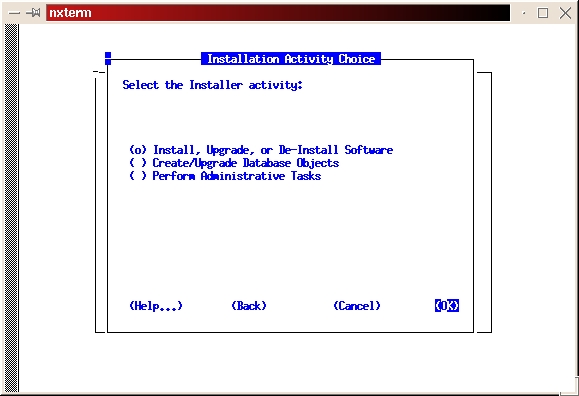
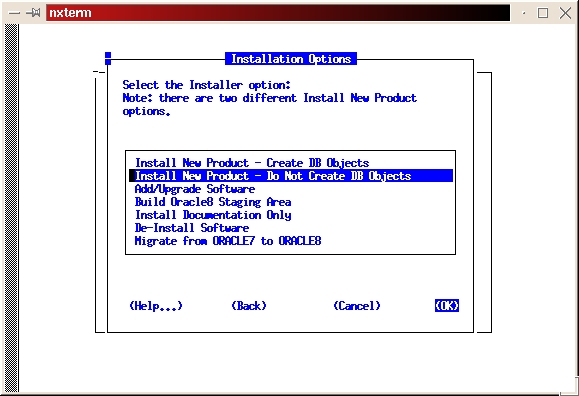
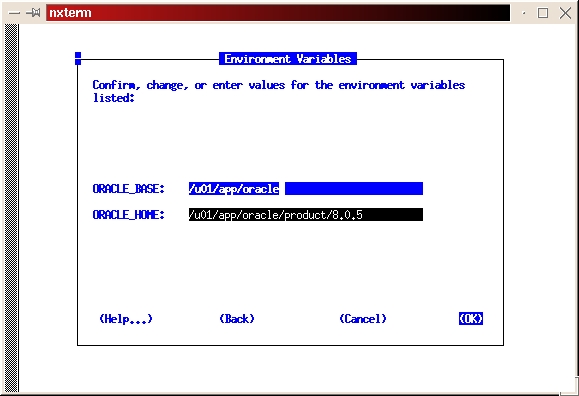
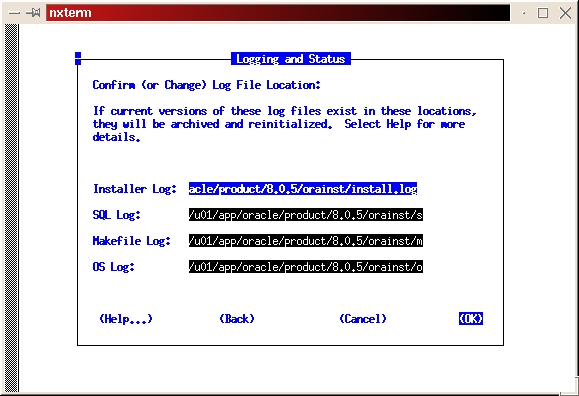
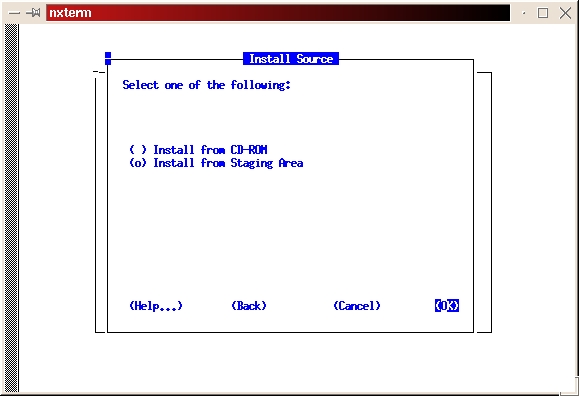
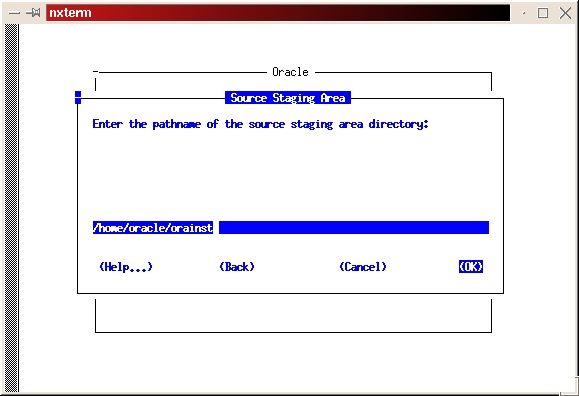
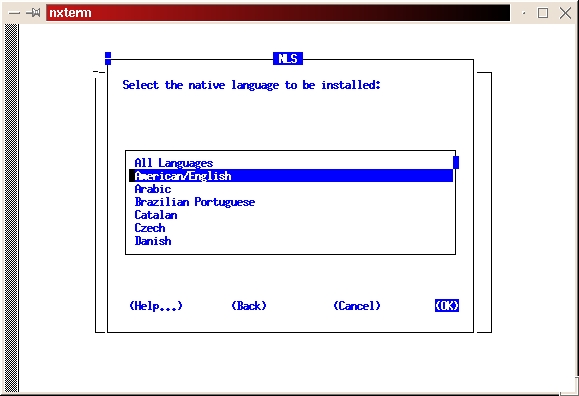
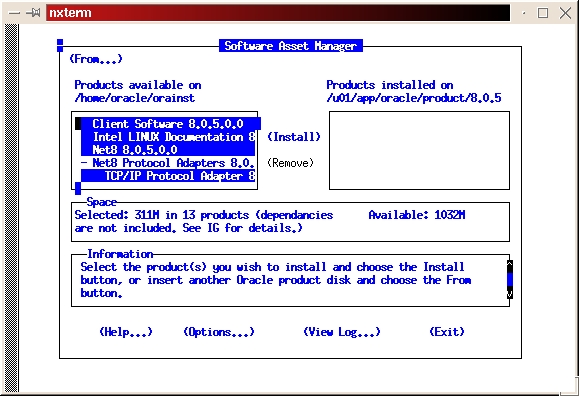
Select the custom install (see Figure 2). Read the preamble.txt file and press return to continue. Read the README.FIRST file and press return to continue. Select Install, Upgrade or De-install Software (see Figure 3). Select Install New Product—Do Not Create DB Objects (see Figure 4). Make sure the ORACLE_BASE and ORACLE_HOME environment variables are set correctly (see Figure 5). Press return to accept the defaults for your log files. It's a good idea to make a note of their locations, too. If anything goes wrong during the installation process, you may need to look at them. It is also a good idea to look at them even if everything works fine in order to learn more about the installation process (see Figure 6). Select Install from Staging Area (see Figure 7); make sure the staging area is set correctly. In my example, I used /home/oracle/orainst (see Figure 8). Select your language (see Figure 9). Press return to acknowledge the location of the root.sh post-install script. The default location is /u01/app/oracle/product/8.0.5/orainst/root.sh. Select the following products to install (see Figure 10):
Client Software
Net8
TCP/IP Protocol Adapter
Object Type Translator
Oracle ConText Cartridge
Oracle8 Objects Option
Oracle8 Partitioning Option
Oracle Unix Installer
Oracle8 Enterprise (RDBMS)
PL/SQL
Pro*C/C++ (precompiler for C and C++)
SQL*Plus
At this point, the installer will begin copying the software. This is a good time to take a break, since this could take a while—how long will depend on the speed of your machine.
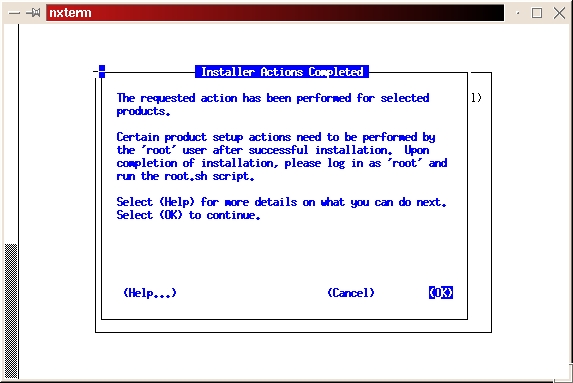
When the software installation process is complete, you should get a message that says “The requested action has been performed for selected products.” (See Figure 15) Press return to acknowledge the message, tab to Exit, then press return. tab to indicate Yes on the Confirmation and press return to exit the installer. The installer should exit with the message “Result: Success”.
Make the directory where the on-line documentation will be installed (mkdir /u01/app/oracle/doc). Link the directory to correct a bug in the install process:
ln -s /u01/app/oracle/doc /u01/app/oracle/product/8.0.5
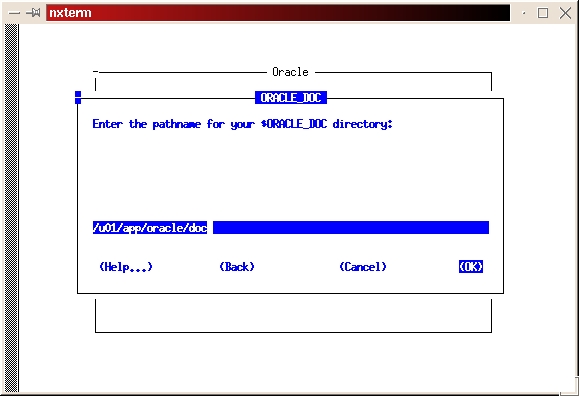
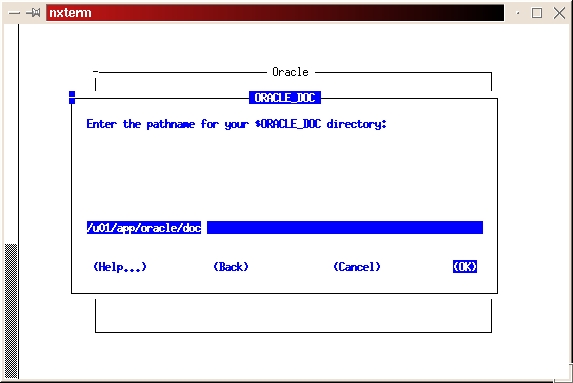
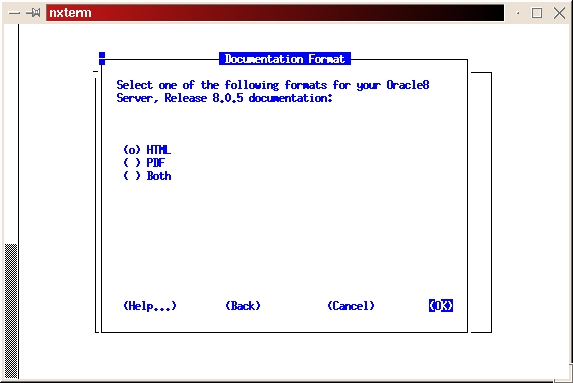
Start the installer from your staging directory (./orainst /c). Select custom install. Click on OK to bypass the README files. Select Install, Upgrade or De-install software. Select Add/Upgrade Software. Press enter to acknowledge the environment variable setting for ORACLE_HOME. Press enter to acknowledge the location of the log files. Select Install from Staging Area. Press enter to acknowledge the path of the staging area. Select the appropriate language. Select Append to append to the root.sh script created during the software installation process. This is done because we haven't run the script yet, and we don't want to overlay the script created in the previous step. Press return at the Information screen, which gives the location for the root.sh script. Select the Intel LINUX Documentation and tab to install. Press return to begin the installation process. Press return to acknowledge the location of the on-line documentation (see Figure 16). Select the format (HTML or PDF) you want for the on-line documentation (see Figure 17). Once again, we're looking for the message, “The requested action has been performed for selected products.” Press return to acknowledge the message, tab to Exit, then press return. Select Yes from the Confirmation screen to exit the installer. Again, we hope to see the installer exit with a message of “Result: Success”.
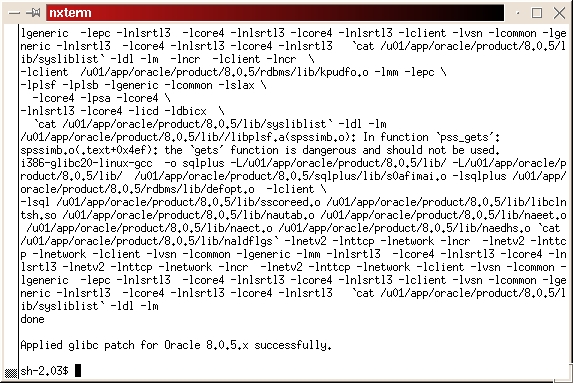
Change to the directory where you downloaded the glibc patch file, glibcpatch.tgz. Unpack the file, tar -xvzf glibcpatch.tgz. Run the patch script glibcpatch.sh, sh glibcpatch.sh. The final screen should look something like Figure 18.
Now it is time to create the original database.
Change to your staging directory (cd /home/oracle/orainst/orainst).
Start the installer (./orainst /c).
Select Custom Install.
Press enter twice to bypass the README files.
Select Create/Upgrade Database objects.
Select Create Database Objects.
Press return to acknowledge the environment variables ORACLE_HOME and ORACLE_BASE.
Press return to acknowledge the locations for the log files.
Press return to acknowledge the environment variable ORACLE_SID.
Select Oracle8 Enterprise (RDBMS), tab to INSTALL and press return.
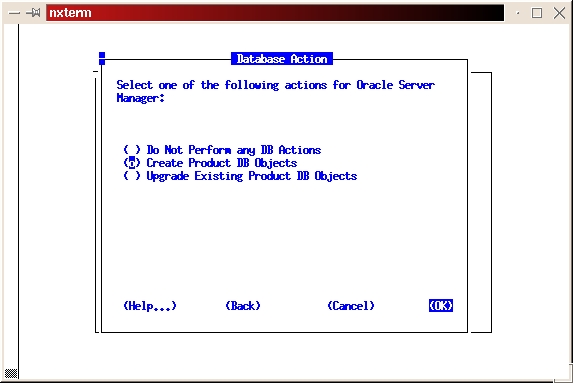
Select Create Product DB Objects (see Figure 19).
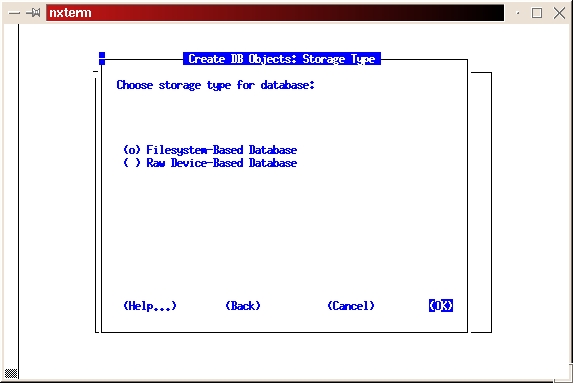
Select Filesystem-based Database (see Figure 20).
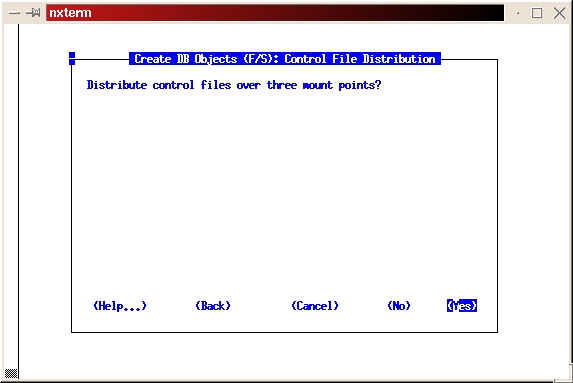
Select Yes to distribute control files over three mount points (see Figure 21).
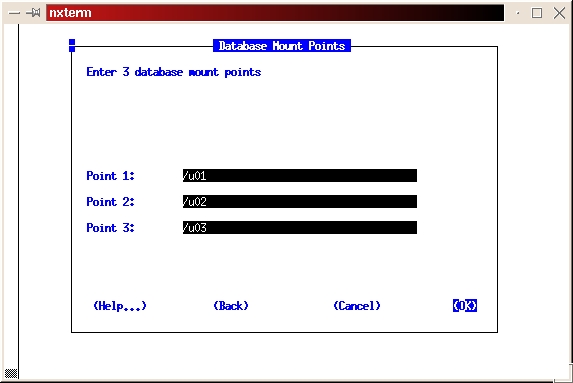
Enter the three mount points of /u01, /u02 and /u03 (see Figure 22).
Select the appropriate character set.
Select the appropriate national character set.
Enter the password you want to use for the SYSTEM account. You will be asked to enter it a second time to confirm the password.
Enter the password you want to use for the SYS account. You will be asked to confirm that too.
If you want an internal password for dba and operator, tab to Yes at this prompt. If you don't want an internal password tab to No.
Enter and confirm the password you want to use for the TNS listener.
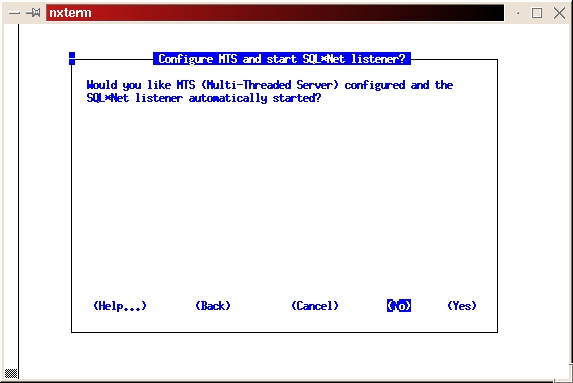
Click on No to configure the MTS Listener (see Figure 23).
Press return to acknowledge the defaults for the location of the control files.
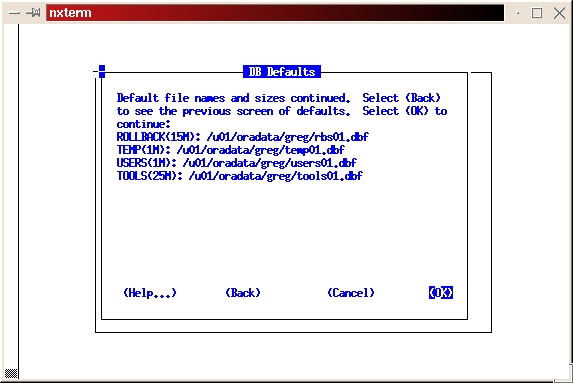
Press return twice if you wish to accept the defaults for the paths to your data files and their sizes. If you have not done any database sizing and thereby determined you need more space, the default sizes should be appropriate (see Figure 24). You can add space to any data file at a later time, if necessary.
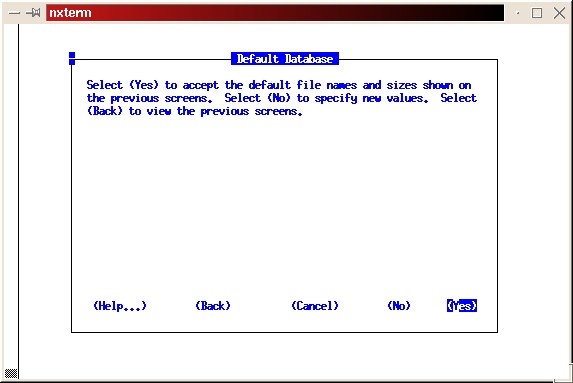
Select Yes to accept the default file names and sizes (see Figure 25).
The installer will now create the initial database. As with the software installation, this is another good time to take a break. As before, we hope to see “The requested action has been performed for selected products.” message. Press return to return to the main install screen; tab to Exit, then press return; select Yes at the confirmation screen.
Log out, then log back in again as root. Copy the oracle user's .profile to root's home directory (cp ~oracle/.profile /root/.profile). Log out, then back in as root. Check that the environment variables in the .profile are set properly by issuing an env command.
Change to the /orainst directory and run the root.sh script.
cd $ORACLE_HOME/orainst
sh root.sh
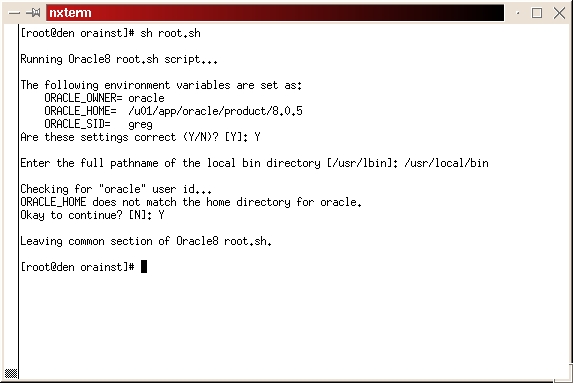
Verify ORACLE_OWNER, ORACLE_HOME and ORACLE_SID are correct. If they are, enter Y.
When it asks for the full path name to your local bin directory, enter /usr/local/bin. The script then tells you ORACLE_HOME does not match the home directory for oracle. This is not a problem. Type a Y and continue. The script will complete. (See Figure 26)
Log on as oracle and shut down the instance (see Figure 27).
svrmgrl
connect internal
shutdown
exit
Now for some cleanup and file modifications. The initSID.ora, where SID is the system identifier for the instance, file is located in the $ORACLE_HOME/dbs directory. This file is read by Oracle when the instance is started. It is used to set parameters for the instance, such as the amount of memory reserved for the database. There are too many parameters to go over in this article. Refer to the Oracle database administrator's guide for an explanation of the parameters and their recommended settings. You will probably be fine with the default values. However, if you have a large amount of memory on your machine, you may want to uncomment either the medium or large settings of the parameters in the initSID.ora file.
The oratab file is located in the /etc directory. This file is read by the dbstart file which we will use to automatically start the instance when the machine is rebooted. There are comments in the oratab file which explain the three fields and what they contain. Change the last field to Y for instances in which you want to start when the machine is rebooted. The file should look something like Listing 1.
The listener.ora file is located in the $ORACLE_HOME/network/admin directory. This file is used by Net8 to determine how network connections are made to the instance(s) on your machine. Update the listener.ora file with the sid to which the Net8 listener should listen. Replace oracle_sid with the sid name. The file should look something like Listing 2.
The tnsnames file is located in the $ORACLE_HOME/network/admin directory. This file is used by Net8 to determine the location for remote databases you can connect to. Replace oracle_sid with the sid name. The file should look something like Listing 3.
As root, issue the following commands to set the permissions correctly for the Net8 files:
chown oracle.dba $ORACLE_HOME/bin/tnslsnr
chmod 750 $ORACLE_HOME/bin/tnslsnr
chown oracle.dba $ORACLE_HOME/network/log
chmod 775 $ORACLE_HOME/network/log
chown root.dba \
  $ORACLE_HOME/network/log/listener.log
chmod 664 $ORACLE_HOME/network/log/listener.log
If you receive an error because the listener.log doesn't exist, you will need to enter the last two commands after you stop and start the listener.
Start the instance:
svrmgrl
connect internal
startup
exit
Connect to the database using SQL*Plus:
sqlplus
system
system_password
select count(*) from dba_objects; #(This should
 # return a count of the number of objects in the
 # database)
exit
Start the TNS listener:
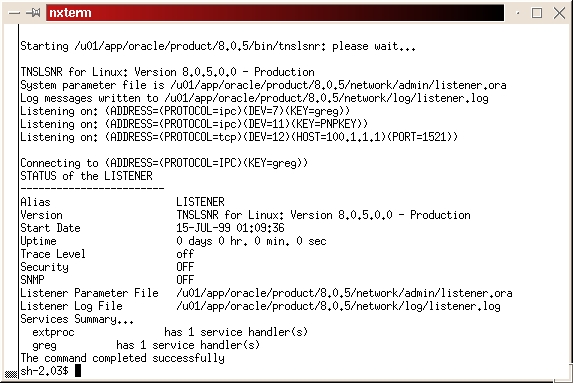
lsnrctl startYou should see something like Figure 28.
Connect to the database using SQL*Plus through a network connection. This can be done using only one machine if you don't really have a network installed.
sqlplus system/system@greg
greg refers to the entry in the $ORACLE_HOME/network/admin/tnsnames.ora file
select count(*) from dba_objects;
exit
Create the following symbolic links to automatically start and shut down the listener and Oracle instances:
ln -s/etc/rc.d/init.d/dbora /etc/rc.d/rc0.d/K10dbora
ln -s/etc/rc.d/init.d/dbora /etc/rc.d/rc2.d/S99dbora
ln -s/etc/rc.d/init.d/dbora /etc/rc.d/rc3.d/S99dbora
ln -s/etc/rc.d/init.d/dbora /etc/rc.d/rc5.d/S99dbora
ln -s/etc/rc.d/init.d/dbora /etc/rc.d/rc6.d/K10dbora
Place the file dbora (Listing 4) in /etc/rc.d/init.d. Place the file lsnrstart (Listing 5) in the $ORACLE_HOME/bin directory. Place the file lsnrstop (Listing 6) in the $ORACLE_HOME/bin directory.
The listener and all Oracle instances designated to automatically start in the /etc/oratab file should shut down and restart when the machine is rebooted.
At this point, the database has been created. You can use SQL*Plus to create tables. If you are unfamiliar with SQL, there are a number of good books available on the subject.
The install process for the latest release of Oracle for Linux (8.1.5 or Oracle8i) is slightly different. The installer has been rewritten in Java so the look and feel along with some of the responses are different. This section will cover the differences in the new install process.
You still need to create your dba group, oracle user, directories and mount points.
Download and install JRE (or JDK) 1.1.6 v5 from http://www.blackdown.org/. Create a symbolic link for the directory in which you installed JRE.
ln -s jre_install_location /usr/local/jre
Mount the CD-ROM which contains the Oracle8i software:
mount -t iso9660 /dev/cdrom /mnt/cdromLog on as oracle and change directories to the CD-ROM and start the installer:
cd /mnt/cdrom
 ./runInstaller
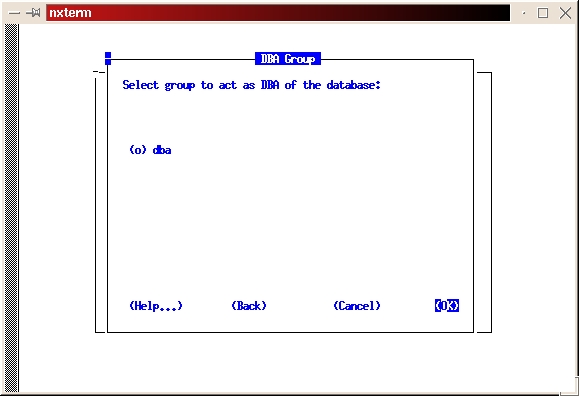
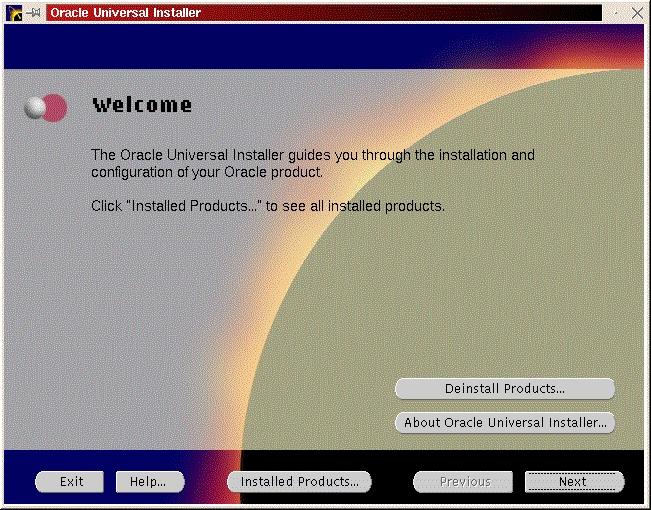
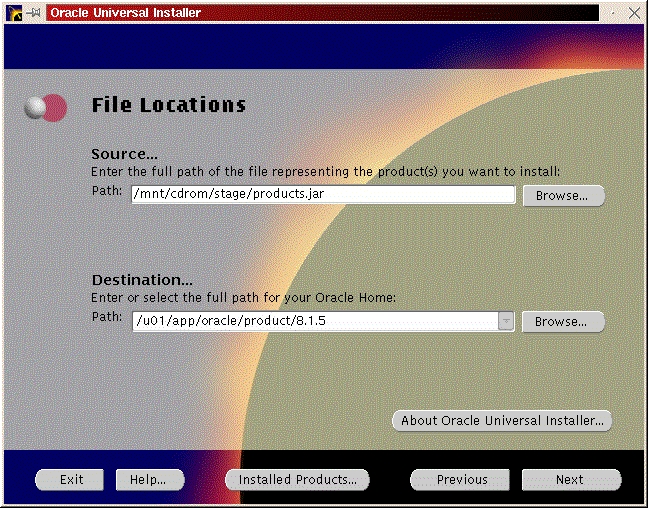
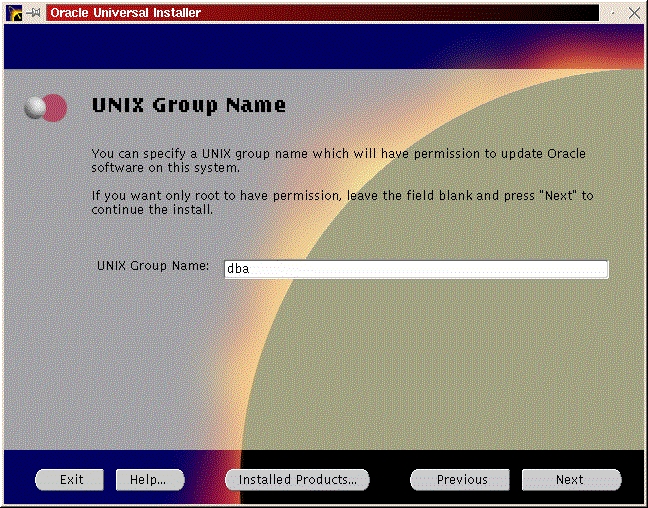
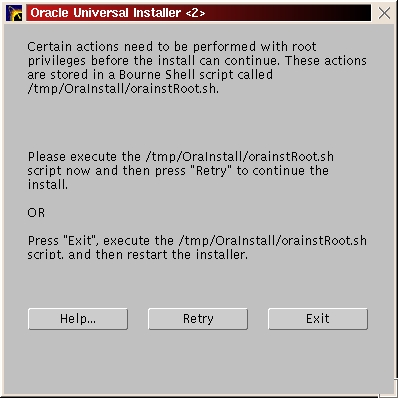
You should see a welcome screen like Figure 29. Click “Next”. You will be prompted for the location of the installation jar file and your Oracle home directory. Make any necessary changes and click “Next” (Figure 30). Enter the dba group you created in the previous step (Figure 31) and click “Next”. You will be prompted to run /tmp/OraInstall/orainstRoot.sh (Figure 32). After you run it, you should see the following lines of output:
Creating Oracle Inventory pointer file (/etc/oraInst.loc)
Changing group name of /u01/app/oracle/product/oraInventory to dba.
Return to the pop-up window and click Retry.
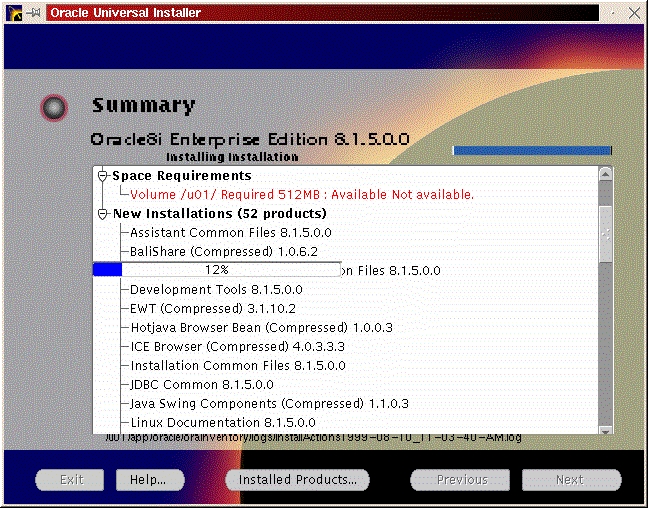
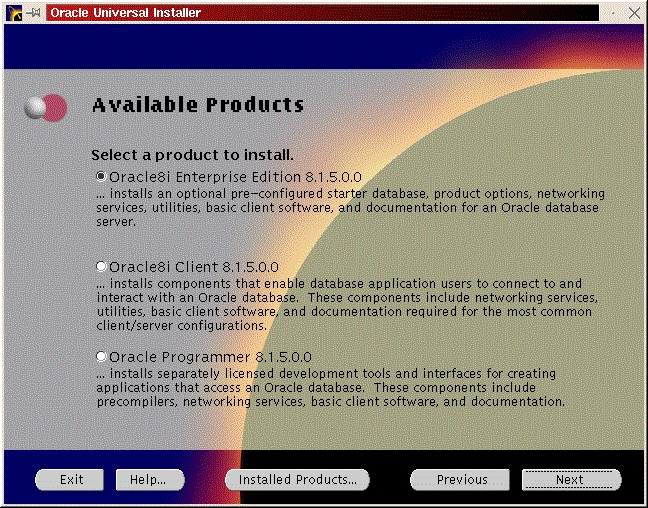
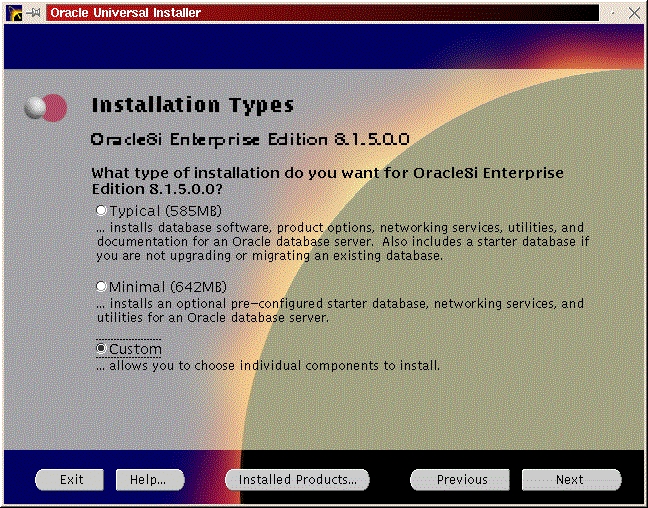
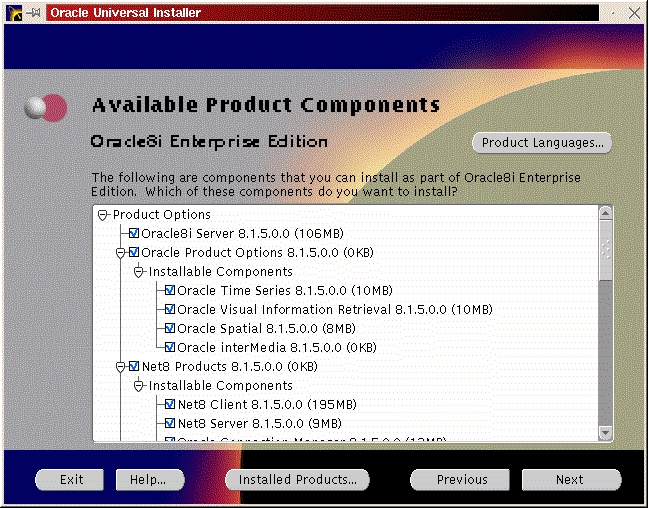
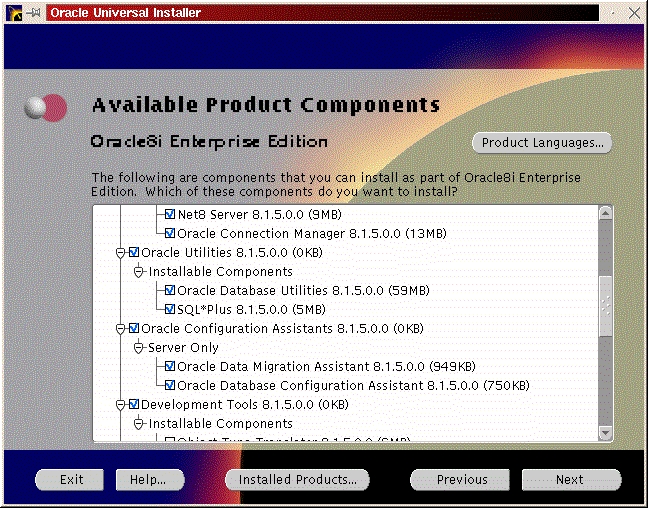
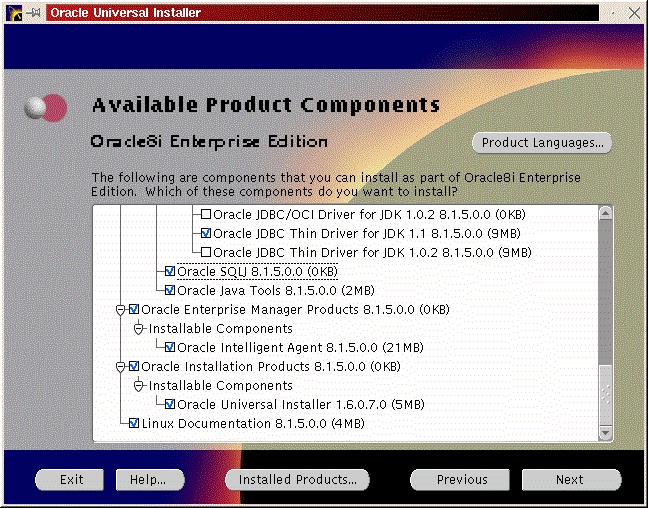
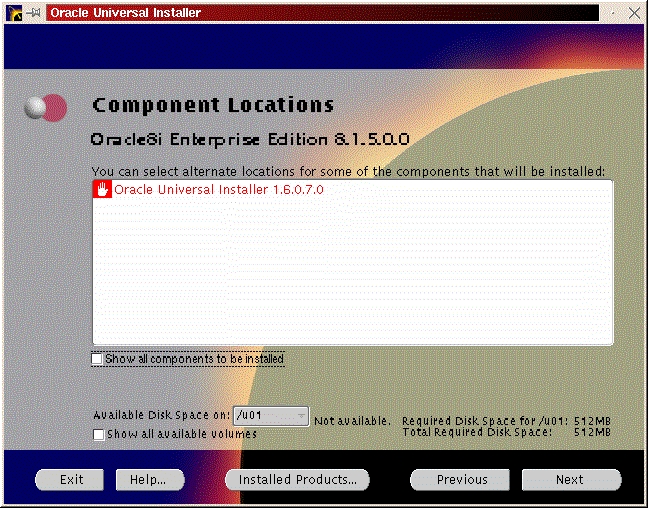
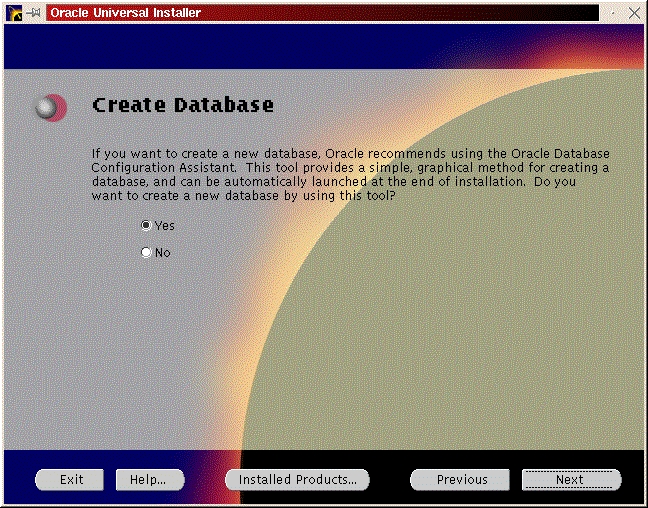
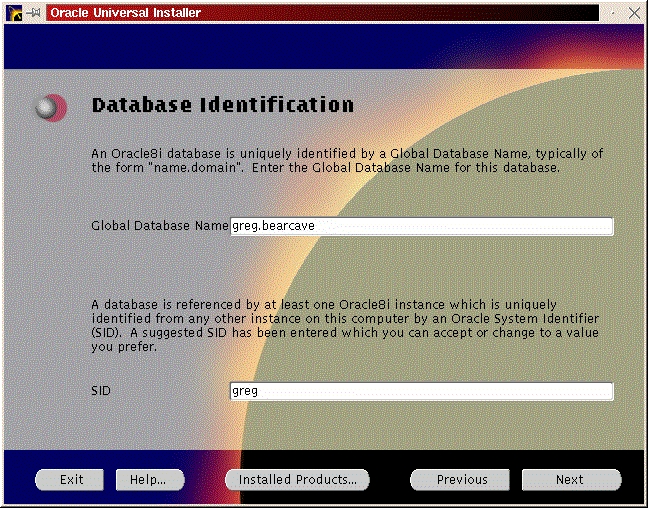
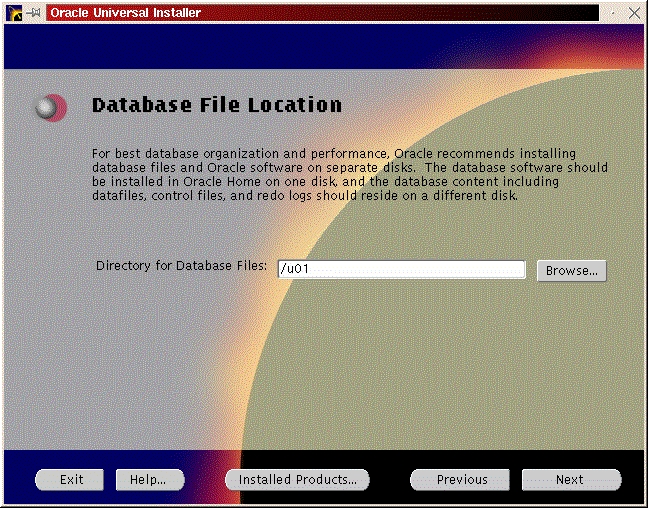
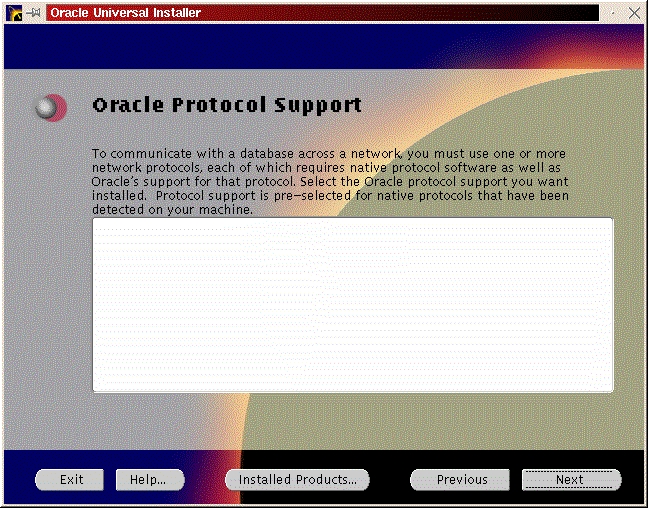
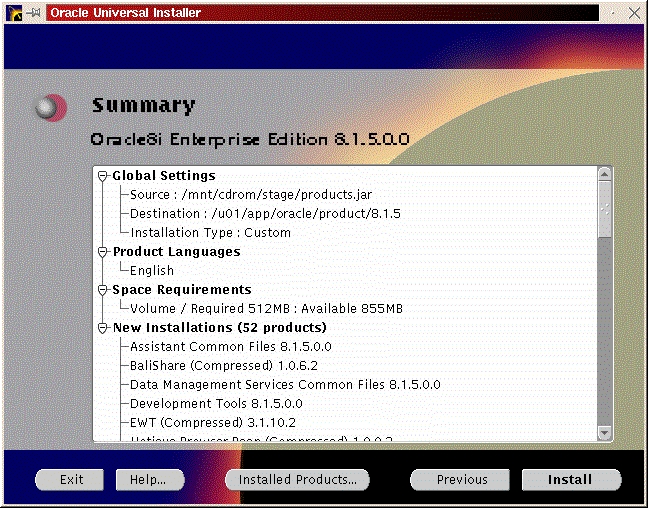
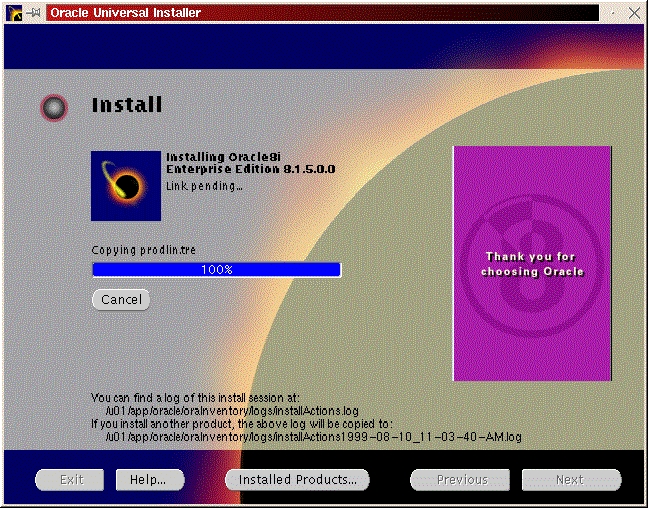
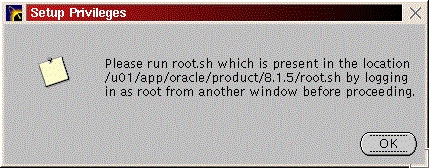
You will be prompted to install the Oracle8i Enterprise Server, Oracle8i Client or Oracle Programmer. Select the “Enterprise Serveri” (Figure 47) and click “Next”. You will be prompted for the type of install. Select “Custom” (Figure 33) and click “Next”. You will be prompted for which products you want to install (Figures 34, 35, 36). After you have selected the products to install, click “Next”. You can change the locations the products will be installed in or click “Next” to take the defaults (Figure 37). You will be prompted to create the database using the Oracle Database Configuration Assistant (DBCA). Select “Yes” and click “Next” (Figure 38). You will be prompted for the Global Database Name and the SID. Modify the screen capture to reflect your names (Figure 39). You will be prompted for the location of your database files. In my example, I used the mount point /u01 (Figure 40). You will prompted to select which network protocol(s) to install based on which protocols are present on your machine (Figure 41) click “Next”. You will see a summary of your install options. This will allow you to use the “Previous” button to change any settings that are incorrect (Figure 42). When you are ready to begin the install process click “Install”. The install screen will list where the log file from the install is being written (Figure 44). This information will come in handy if something goes wrong during the installation. When the install is complete, you will see a pop-up window (Figure 45). Note the location of the script to run as root, change to the directory where the root.sh script is located and run it. You may have to change the permissions on it to make it executable.
cd /u01/app/oracle/product/8.1.5
export ORACLE_OWNER=oracle
export ORACLE_SID=greg
chmod 700 root.sh
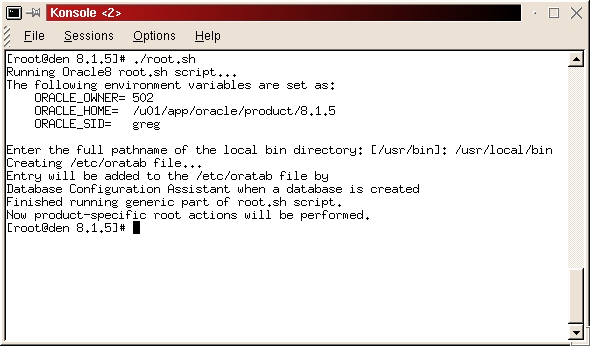
 ./root.sh
After the root.sh script successfully executes (expected output in Figure 46) return to the pop-up message and click “OK”. At this point the installation is complete, and you can click “Next”, then “Exit”. The testing and automation procedures are the same as in the previous section for Oracle 8.0.5.
All listings referred to in this article are available by anonymous download in the file ftp.linuxjournal.com/pub/lj/listings/issue67/3572.tgz