
Boot with GRUB
May 1st, 2001 by Wayne Marshall in
GRUB: it's neither larva, fast food nor the loveliest of acronyms in the GNU herd of free software. Rather, GRUB is the GNU GRand Unified Bootloader. And, it is truly the greatest loader for booting Linux and practically any other OS—open source or otherwise—you may have scattered on your platters.
GRUB is independent of any particular operating system and may be thought of as a tiny, function-specific OS. The purpose of the GRUB kernel is to recognize filesystems and load boot images, and it provides both menu-driven and command-line interfaces to perform these functions. The command-line interface in particular is quite flexible and powerful, with command history and completion features familiar to users of the bash shell.
GRUB is in its element with the multiboot, multidisk systems typical of Linux and open-source adventurers who may simultaneously test or track several Linux distributions, the BSDs, GNU/Hurd, BeOS and perhaps that vestigial partition for Mr. Bill. Even if you stick with LILO as your system's primary boot loader, it's smart to keep a GRUB boot floppy handy as the best and fastest way to get your system back if you otherwise cream your master boot record (MBR). If you have done any number of multiboot installations, you know exactly what I'm talking about. Should you need any more reasons for considering GRUB, check out the sidebar, “Why GRUB”. Let's get started!
Installation of GRUB is a two-step process. The first step is to install or build GRUB in a host OS environment, and for this we will, of course, use Linux. The second step is to install and configure GRUB as the boot loader for your system.
The first step is the usual: download the source archive, untar it, configure and make install. Assuming you have found a source mirror (see www.gnu.org/software/grub/grub.html) and downloaded the source distribution into a suitable working directory, continue with:
tar -xzvf grub-0.5.96.1.tar.gz cd grub-0.5.96.1 ./configure make make install
This should create the executables: grub, grub-install and mbchk; install support files in /usr/local/share/grub/i386-pc/, and install the GNU information manual and man pages.
For the second step of installation, we will first build and work with a GRUB boot floppy. This way we can use GRUB to learn about its features while testing various configurations for our particular system. After getting comfortable with the GRUB setup on floppy, we will then install it onto the MBR of the system's first hard disk. Even if you decide not to install GRUB on your hard disk right away, no harm done: you will now have your own GRUB boot floppy available to rescue systems with trashed boot loaders.
GRUB recognizes a number of different filesytem types, including Linux ext2fs, Reiser, MINIX, BSD's ffs, as well as FAT, so it is possible to make a GRUB boot floppy with any of these filesystems. We will stick to FAT for this example, however, because it is the lowest common denominator, and most OSes have tools for mounting and reading/writing files on FAT floppies. That way, we will always be able to get to its menu configuration file if we need to.
Scrounge around in your junk drawer for some unused floppy (a new one would be even better), and give it a fresh format and FAT filesystem:
fdformat /dev/fd0 mkfs -t msdos /dev/fd0
We are going to put some files on this disk, so go ahead and mount to your usual floppy mount point (here I use /floppy):
mount -t msdos /dev/fd0 /floppyNow install the directories and files GRUB will need:
mkdir -p /floppy/boot/grub cp /usr/local/share/grub/i386-pc/stage* /floppy/boot/grubThe floppy can then be unmounted, umount /floppy, but leave it in the drive. The GRUB floppy is prepared and ready for the final installation, which is to install the GRUB boot loader in the MBR of the floppy itself. For that, we will use the grub executable we have built with our Linux installation. Start the executable at the Linux command prompt: grub.
This brings up an emulator of GRUB's command shell environment, which looks like Figure 1. We will discuss the features of this shell in more detail a little further on. For now, enter the following series of commands at the grub prompt:
grub> root (fd0) grub> setup (fd0) grub> quit
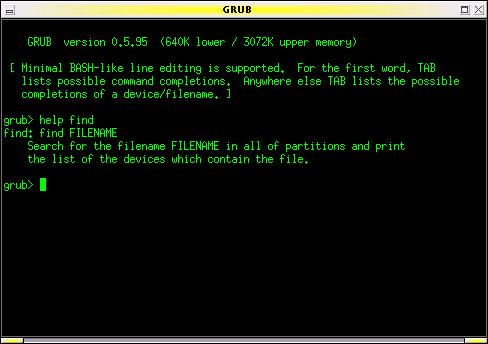
Figure 1. GRUB in command-line mode. Note the on-line help (here the GRUB emulator is running under Linux in an xterm window).
And that's it! This sequence of commands completes the installation of GRUB on the floppy disk. It is now bootable and will allow us to boot any other OS on our system.
To see how GRUB may be used to boot a multitude of different operating systems, consider this example setup:
First Hard Disk (SCSI, Linux /dev/sda): 1st primary partition: Win982nd primary partition: Linux-Slackware3rd primary partition: Linux-Debian4th primary partition: Linux SwapSecond Hard Disk (SCSI, Linux /dev/sdb)1st primary partition: FreeBSD2nd primary partition: OpenBSD3rd primary partition: BeOS
Note that although GRUB and Linux are capable of dealing with installations in extended partitions, here we show a preference for using primary partitions whenever possible. Filesystems in primary partitions are often mountable by other operating systems, whereas cross-OS mounting filesystems in extended partitions is often not supported.
This system has two hard disks with six different operating systems using seven partitions. As you probably know, each OS has its own nomenclature for naming devices and partitions. For example, the Slackware installation would be known to Linux as /dev/sda2 (with swap on /dev/sda4), while FreeBSD would recognize its filesystem on /dev/da1s1a. Alternatively, if the system were configured with IDE hard disks, Slackware would be on /dev/hda2, and FreeBSD would refer to its root directory on /dev/ad1s1a. You get large helpings of this alphabet soup whenever maintaining any multiboot setup.
Since GRUB also needs to be capable of loading any of these systems, it has its own OS-neutral naming conventions for referring to devices. Hard disks are all hd, floppy disks are fd, device numbering starts from zero, partition numbering starts from zero and complete device names are enclosed in parentheses.
With these naming rules, the floppy disk is (fd0), the Win98 partition is (hd0,0), and GRUB recognizes the Slackware and Debian partitions respectively as (hd0,1) for slackware and (hd0,2) for debian.
The BSDs further subdivide their own partitions (or “slices” in BSD terms), and GRUB would refer to the root mount for the FreeBSD system on (hd1,0,a).
Okay, ready to give GRUB a taste? Slide the GRUB floppy in the drive and reboot your system (with your system's BIOS configured to boot from A: drive). You should see GRUB's terse boot messages and then find yourself in the GRUB command-line environment as shown in Figure 1.
To start, let's boot Slackware. Enter the following commands at the grub prompt:
grub> root (hd0,1) grub> kernel /vmlinuz root=/dev/sda2 ro vga=791 grub> boot
Badda-bing, badda-boom, that postage-stamp-sized Tux appears in the upper-left corner of your screen (yes, Slackware is configured to use the framebuffer device), and Linux bootstraps its jolly way into glorious being.
Another example. Reboot the system again with the GRUB floppy, and enter the following commands at the grub prompt:
grub> rootnoverify (hd0,0) grub> makeactive grub> chainloader +1 grub> boot
Now your screen turns into a vague blue cloud, and you think you have made some horrible mistake. Then you realize it's only Windows and you remind yourself to expunge this partition one day soon.
Let's take a closer look at these examples. In the Slackware boot, we first used the GRUB root command to specify the device for GRUB to access. If the device has a filesystem recognized by GRUB (that is, one of ext2fs, reiser, ffs, etc.), it attempts to mount it and get its partition information, then reports its success following the command. Thus, you would see the following command/response dialog on your screen:
grub> root (hd0,1) Filesystem type is ext2fs, partition type 0x83
Next, we used the GRUB kernel command to specify the boot image for GRUB to load. The argument to the kernel command is the filename of the boot image relative to the device specified by the root command above. The kernel image file can also be specified in explicit (device)/filename terms as follows:
grub> kernel (hd0,1)/vmlinuzThe kernel command gives you great flexibility for specifying the boot image you wish to load. For example, if we saved a previous version of a kernel to the file /vmlinuz.old, we could specify it with this command (which shows GRUB's response):
grub> kernel /vmlinuz.old root=/dev/sda2 ro vga=ask [Linux-bzImage, setup=0xe00, size=0xfad30]The arguments following the name of the boot image are passed to the target kernel and aren't related to GRUB. For Linux, these kernel arguments are pretty much what you would specify them to be in lilo.conf. In our example, we tell the kernel what device to mount for the root partition (root=/dev/sda2 ro), using the device nomenclature expected by Linux. Note here that we also use the ro flag to mount the root filesystem read-only initially while it performs its filesystem check. The other kernel argument in our example simply demonstrates setting another kernel variable (vga=791) to use a particular vga mode for the framebuffer display.
Finally, the last command is grub> boot. The kernel image specified is now loaded and sent rolling down the royal road to bootdom.
The second example, using Win98, demonstrates the use of GRUB's chain-loading mechanism. This method of booting loads the target OS's own boot-chain-loader rather than a kernel image of the OS. In this instance, we specified:
grub> rootnoverify (hd0,0) grub> chainloader +1
First, the rootnoverify command is for OS filesystems not specifically recognized by GRUB, so that GRUB will not try to mount the partition. Next, the chainloader command will use the first sector of the partition of device (hd0,0) and attempt to boot whatever it finds there. This is a common means of booting OSes that install their own boot loaders in the first sector of the partition where they are installed (this is sometimes called the partition boot sector or PBR).
Finally, the makeactive command sets the active flag in the partition table for the device specified by the root command, as some operating systems, like Win98, require.
The GRUB command line is easy and fun, and you should boot the different OSes on your system a few times to get the hang of it. While you are testing, be sure to keep any notes specific to getting your particular kernels successfully loaded. This information will be useful later when you configure the menu system of GRUB to perform these command-line steps automatically.
But before we leave the command line, here are a few more GRUB commands to look at.
The help command will display a list of the 40 or so commands available in GRUB. Typing the name a particular command after help will produce on-line help for that particular command. So grub> help kernel will tell you all about using the kernel command.
The cat command can be used to view the contents of a file. For example, grub> cat (hd0,2)/etc/fstab will show the contents of the /etc/fstab file in the Debian installation. This is a very handy way of pulling out system configuration information if your normal boot loader gets whacked. Note also as you are using the GRUB command line that, like bash, up and down arrows will scroll through command history, and a tab will complete the name of a GRUB command or filename.
Finally, you can call up a specific menu interface with the configfile command as in:
grub> configfile (fd0)/boot/grub/menu.lst
This will switch GRUB into its menu mode with an interface defined by the file, menu.lst. We haven't created that file yet, but—look out, segue coming!—that's exactly what we will do next.
Using the GRUB command line is cool, but after a few thousand system starts, you will probably get a little tired of entering the same commands at the GRUB prompt and long for something a little more automated. Good news from the GRUB gang: you get a fully configurable menu interface at no extra charge! The GRUB boot menu gives you point-and-shoot boot selection, unattended default boot after a configurable timeout, any number of fallback boots if previous boots fail, toggle between command-line and menu modes, and interactive editing of menu selections and password protection. These features give GRUB an ease of use to match its tremendous functionality.
When GRUB boots, it automatically looks for the /boot/grub/menu.lst file on its boot device (the last three letters are “ELL ess tee” and not “one ess tee”). If the file is found, GRUB automatically enters its menu mode and presents the user with a stunning interface, as shown in Figure 2.
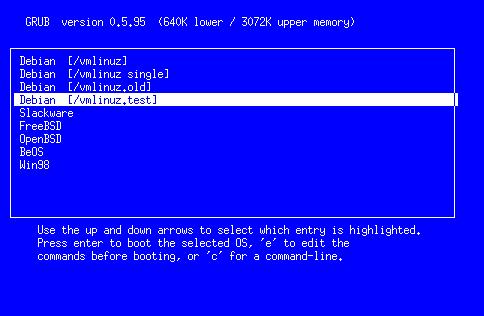
Listing 1 [found at LJ's web site] shows the configuration file responsible for this demonstration menu. As you can see, it is a simple text file typical of many UNIX configuration files, where lines starting with hashes (#) and blank lines are ignored.
The first set of commands sets general configuration variables. The timeout command sets the time in seconds to wait for the user to make a selection before proceeding automatically to the default boot. The default command sets which of the following boot stanzas GRUB should attempt to boot automatically. Boot stanzas are numbered implicitly, starting from zero, according to their order of appearance in the configuration file. This order is also how they will be listed in the menu.
The fallback command specifies which of the boot stanzas to load if the default should fail. It is possible to set more than one fallback, as is shown in the example.
The color command lets you breathe a bit of life into the text-mode menu screen. The syntax for the color command is
color foreground/background [ hilite-fg/hilite-bg ]
where each of the foreground/background colors is specified with a name from the set of black, blue, green, cyan, red, magenta, brown and light-gray; dark-gray, light-blue, light-green, light-cyan, light-cyan, light-red, light-magenta, yellow and white. Among these colors, only the first eight are used for the background. The optional highlight color pair, if specified, will be used to show the current menu selection. When not specified, GRUB will use the inverse of the normal colors.
The rest of the configuration file consists of the boot stanzas for our demonstration system. The title command marks the beginning of a new boot stanza, and its argument is the label that will be displayed for its entry in the menu, from the first non-white-space character to the end of the line. The remaining commands in each stanza are identical to those used when working from the GRUB command line. The exception here is that we no longer need to give a boot command; GRUB does this job without asking.
This example configuration gives only a sample of the many flexible uses of the GRUB boot loader. Besides multiple OSes, you can use GRUB to set up menu selections for test kernels, rescue kernels, different kernel options and so on.
All in all, the GRUB configuration file will be very similar to your /etc/lilo.conf. And after working with the GRUB command line and these examples, it should be a simple matter of firing up your favorite text editor and creating a menu configuration file suitable for your own system and preferences. Don't worry if it's not perfect the first time; you will see that you can make changes interactively, and the GRUB command line is always available as a fallback.
Once you've got your configuration file, mount your GRUB floppy again, and copy the file (say it has been saved as mygrub.conf) into the magic location:
cp mygrub.conf /floppy/boot/grub/menu.lst
Now when you boot with your GRUB floppy—presto!—you will be greeted with a lovely boot menu like the one in Figure 2. If you like, just stare at it for the few seconds it needs to count down from the timeout setting, and then it will automatically boot into your default OS. Or, use the arrow keys to highlight the OS you want to load and press return. Or, type c to go to the now-familiar GRUB command prompt. From the command prompt, press ESC to go back to the boot menu again.
It is also possible to edit the entries displayed in the menu. Typing e will open a simple vi-like editor interface for the highlighted entry. This allows you to adjust or add any settings to the configuration before booting. Any changes made here will then remain in effect for the duration of the GRUB session. To make permanent changes, you will later need to edit the configuration file on the boot disk, saving the changes with your text editor.
Play with your GRUB floppy configuration until you have it set up the way you like. After just a few system boots, you'll be slinging through GRUB like hashbrowns in a diner.
By this time you may be thinking, “Okay, GRUB has got it goin' on. But do I have to keep booting from this lame floppy all the time?” Of course not. Booting from floppy is for weenies.
The operation for installing GRUB on the master boot record of your hard disk is similar to the creation of a GRUB floppy. The one difference is that our floppy has all the resources GRUB needs in one place. That is, the boot image, support and configuration files are all on the floppy device MBR and /boot/grub/ directory. In a hard disk setup, you can choose where you want these resources to be.
For example, you could set up a /boot/grub directory on the first partition of your first hard disk and copy all GRUB's files into it as we did in our floppy setup. In our demonstration system, this would be the Win98 partition, and you may choose to do it that way if you want. But you can also set up the /boot/grub directory up in any device/partition on your machine with a filesystem supported by GRUB. In practice it is usually best to install this support directory in your most frequently used and/or most stable partition; that is, one that you aren't reinstalling all the time.
For this example, we will use the Slackware partition since this stays pretty stable, and I tend to do more tracking and installations in the Debian system. Once this decision is made, everything else is simple. First, boot into Slackware, create the /boot/grub directory and copy GRUB's files into it (these are all the files that the GRUB build installed in the /usr/local/share/grub/i386-pc directory). Make sure to put your handcrafted menu.lst configuration file in here, too.
Next, start GRUB, either with the grub executable you built in Linux or by rebooting with the GRUB floppy. If GRUB starts in menu mode, press c to go to command-line mode. Enter the following commands at the grub prompt:
grub> root (hd0,1) grub> setup (hd0) grub> quit
You're done. Your system is now fully GRUB'd, installed in the MBR of your hard disk. Type reboot as root (or take the floppy out and jab the keyboard with the old three-prong) and watch just how fast GRUB comes up now!
A few words of explanation about these installation commands. The first, root (hd0,1), tells GRUB to mount this device, in this case the partition with the Slackware installation. All files will now be relative to this device, so the GRUB installer will know to look for its support files in the /boot/grub directory we created in the Slackware partition.
The second command, setup (hd0), is a simplified front end to GRUB's install command. Note in particular that we specify the device as (hd0) and not (hd0,0). Device (hd0) results in GRUB's installation to the master boot record, which is what we want. If we had instead used (hd0,0), GRUB would be installed to the boot sector of the first partition, rather than the MBR. The difference is crucial; your technical writer makes mistakes like this so you don't have to. While each partition can have a boot sector, your hard disk will have only one master boot record the BIOS loads every time you start your machine. Unless you are doing some kind of funky boot-chaining, like using LILO to boot GRUB, you will usually want to install GRUB in the master boot record.
When GRUB installs itself on a device, it first copies a small piece of itself to the MBR, which it calls stage1. Then it follows stage1 with just enough information about where to find the rest of GRUB. In our example, GRUB will put stage1 in the MBR, followed by a blocklist that points to the Slackware partition. GRUB will then find the rest of what it needs (its stage2 files) in the /boot/grub directory.
To check this setup, just edit the menu configuration file in Slackware's /boot/grub/menu.lst at any time. Any changes will be reflected in the next boot.
If you should foul up the hard disk installation somehow or want to uninstall GRUB from your system, here's what you need to know.
First, if you ever want to clean your MBR from whatever is installed there, the canonical method is to use the fdisk program from an MS-DOS boot floppy:
A:> FDISK /MBR
Of course, this isn't necessary if you just want to go back to LILO as your system's boot manager. In that case, simply make sure your /etc/lilo.conf file has a line that reads boot=/dev/hda. Then, when the rest of the lilo.conf file is the way you want, just rerun LILO. This will put LILO back on the MBR of your system.
If you install GRUB in the boot sector of a partition, instead of the MBR (such as specifying setup (hd0,0) instead of setup (hd0)), you may need to reinstall that OS's boot loader. In the case of DOS/Windows, this means running the sys command from your DOS/Windows boot floppy: A:> SYS C:.
If, this is a Linux partition, it is again effective to rerun LILO, where /etc/lilo.conf has a line in the boot stanza that reads root=/dev/hda1.
In general, most OSes will have a way to reinstall their partition's boot sector without doing a full reinstallation from scratch. (For FreeBSD, see boot0cfg(8); for OpenBSD, see installboot(8).)
In practice, especially if you followed through on the GRUB floppy examples, you should find that GRUB itself is one of the best rescue and system recovery tools in your toolkit. For example, if you have ever made a screwup in your lilo.conf file, you know you can be in for some major pain if your system won't boot. With GRUB, you always have a miniature, self-contained operating system that can recognize and mount different filesystems, find files, locate kernels and boot them, bringing your system back to life so you can work on it. At times like these, GRUB can save your bacon.
As is typical of GNU software, GRUB is rich with capabilities beyond what are described here. Some of these include:
Remapping disks and partition hiding, so you can even run multiple versions of DOS/Windows, on other than the first hard disk.
Network booting with BOOTP and DHCP protocols, to support multiboot schemes across a network and diskless operation.
Keyboard remapping, disk geometry access, memory reading, I/O port and processor probes, password protection, decompression support, etc.
See the GNU information manual for more information on these topics. GRUB is under active development, and even more features are planned for future releases.
In this brave GNU world, with vast acreage of cheap hard disk and a glut of great free OSes available, you really need a flexible and user-friendly boot loader to manage them all. Grab GRUB and give it a go.

Special Magazine Offer -- 2 Free Trial Issues!
Receive 2 free trial issues of Linux Journal as well as instant online access to current and past issues. There's NO RISK and NO OBLIGATION to buy. CLICK HERE for offer
Linux Journal: delivering readers the advice and inspiration they need to get the most out of their Linux systems since 1994.
Sorry, offer available in the US only. International orders, click here.
Subscribe now!
The Latest
Featured Videos
Email is one of the least private and least secure forms of communication, although few people realize this. MixMaster is one way to allow secure, anonymous communication even over the very public medium of email. This tutorial will get you started with MixMaster quickly and easily.
In case you were wondering about the fun side of Linux World Expo, we thought we'd give you a peek at our shenanigans. We at Linux Journal love what we do so much, that we can't help but have a ball wherever we go.
Recently Popular
From the Magazine
September 2008, #173
Feeling a bit like a Thermian? Never give up, never surrender! Someday, you could go from underdog to top dog. Just take a look at a few of the underdogs we highlight in this issue: Mutt, djbdns, Nginix, Gentoo, Xara and the program voted mostly likely to fail just a few years back—Firefox. If Firefox not radical enough for you, check out Chef Marcel's column for some more alternatives. Having trouble mapping your program data to your relational database? If so, Rueven Lerner shows you some tricks in his At The Forge column.
Need to run GUI applications on your server in the next state? In his Paranoid Penguin column, Mick Bauer shows you how to do it securely. Kyle Rankin keeps hacking and slashing and shows you a few split screen secrets you may not be familiar with. Finally, we all know what happens next February, but only Doc knows what happens afterward.


Delicious
Digg
Reddit
Newsvine
Technorati


GRUB on Serial Console
On July 22nd, 2008 Marian Marinov (not verified) says:
First let me say that this is a great article.
However I have commonly seen people who are unable to configure grub for working on serial console and they tend to argue that this is even possible.
Here is a simple way how you can configure GRUB to work on the serial console:
First you need to specify the serial port and the options for this port:
serial --unit=0 --speed=9600
Valid options for serial are:
[--unit=unit] [--port=port] [--speed=speed] [--word=word] [--parity=parity] [--stop=stop] [--device=dev]
Unit is usually 0-3 as com1 trough com4.
Second you have to setup the terminal for this port:
terminal --timeout=3 serial console
Valid options for terminal are:
[--dumb] [--no-echo] [--no-edit] [--timeout=secs] [--lines=lines] [--silent] [console] [serial] [hercules]
Reference: http://www.gnu.org/software/grub/manual/html_node/Serial-terminal.html#Serial-terminal
Grub boot floppy doesn't work - gets kernel panic
On January 30th, 2008 Larry (not verified) says:
I use Kubuntu Gutsy with root partition on sata /dev/sda1 and /home on /dev/sda5.
When I issue the boot command at grub prompt, computer locks up after these two lines:
Please append a correct "root=" boot option; here the available partitions
Kernel panic - not syncing: VFS: Unable to mount root fs on unknown-block(8,3)
When I prepare the floppy and
sudo cp -pPv /usr/lib/grub/i386-pc/stage* /media/floppy/boot/grub
the files state1 and stage2 copy over properly but stage2_eltorito copies over as stage2-e.
I presume this truncation is because of the msdos format. Should I try vfat or does it not matter?
When I boot with the grub floppy, stage2 runs and I get a grub prompt.
I then issue: "root (hd0,0)"
but this does not give the expected informational message like
"Filesystem type is ext2fs, partition type 0x83".
I then issue: "kernel (hd0,0/boot/vmlinuz)" and "boot"
and the system appears to start but ends up in the kernel panic.
Does the fact my drives are sata make any difference? I tried "root (sd0,0)" but got an error.
My vmlinuz is a soft link to vmlinuz-2.6.22-14-generic in /boot and I tried the longer name many times but got tired of typing it.
I am able to view a file with something like "cat (hd0,0)/etc/fstab"
Since grub is installed on this system it can boot normally without a grub floppy but I'm testing the process on this computer.
Something is missing in my setup - can anyone please help me find it?
Larry
You need SATA Driver
On May 4th, 2008 Anonymous (not verified) says:
You need SATA Driver sata_nv.
linux
On October 2nd, 2007 enigma rising tide patch download (not verified) says:
Does spammed? get the list . Best regards.
linux
On October 2nd, 2007 enigma boot hill mp3 download (not verified) says:
copy protection? doesn't Wine well How come work with . Bye.
Thanks
On August 23rd, 2007 Anonymous (not verified) says:
Thanks
Grub Menu Not Coming up
On July 30th, 2007 Kunjal (not verified) says:
Hi ,
I had Windows Vista on my Laptop with 120 GB HDD Capacity.
Windows partition is of 15 GB. I installed Red Hat Linux with Dual bootloader in Next 15 Gb. The other space on Hard drive was free. I formatted 20 GB for my work on Windows.
Now when i restart , i dont get the Grub Menu and it shows me prompt.
If i give few commands i can get into both of this operating system but the default menu to select any operating system has vanished.
Any help on this is highly appreciated.
Thank You,
Kunjal.
How about Windows Vista?
On July 13th, 2007 Anonymous (not verified) says:
Can GRUB work together with Windows Vista? Vista has a new bootloader and do not use Boor.ini. I tried this on a Vista machine where the disk is a SATA disk, and it did not work. I was using Ubunto Linux to do the job for me.
Yes it works fine.
On July 30th, 2007 Kunjal (not verified) says:
Hi ,
Yes it workds fine no problem at all. But if you make changes like formatting a free space in hard drive you may loose control of either operating system. also you will have to learn grub commands to boot any operating system.
Thank You,
Kunjal.
Great info - Worked first time
On April 24th, 2007 lynnevan (not verified) says:
When FC3 came along, they said you couldn't make a boot floppy anymore because vmlinuz was too big. I've been using mkiso & burning boot CDs (as backup 'cause you never know). But floppys are so much easier. Even the iso using stage2_eltorito + grub was never bigger than 400K, so why couldn't you use a floppy anymore? Finally followed your recipe w/ the floppy and worked first time: xp, suse & centos. Zero problems. This is one of those rare items that you keep handy forever.
Thanks and thanks again!!
lynnevan
Thank's for the info
On December 14th, 2006 Aji Setiabudi (not verified) says:
You have just saved my beloved Tux. I am no good on managing boot loader, and often end with screwed up hard disk. :)
xp&fc5 reboot and enter grub
On October 31st, 2006 ayhan (not verified) says:
hi i have a proble i installed xp and thenfedero core 5.0 i used sometimes but i didnot look at linux since 2 öonth and today when i restart my machine it enters grub i did not remember grub files..and i have alot off importad info..
how can i get rid of this grub thanks
Can't make the floppy, can't boot XP
On October 3rd, 2006 Sparklight (not verified) says:
1. Making the floppy EXACTLY per your instructions: grub "setup" command checks for stage1, yes; stage2, yes; fat_stage1_5: no - and then it installs and reports success. Afterward there is still no fat_stage1_5 on the floppy. That's if I unmounted the floppy. If I didn't unmount the floppy before running grub it complains, "Error 31, File is not sector aligned." In either case, booting the floppy gets me the word
GRUB
and then no further action.
I'm using Foresight Linux, a distant derivative of Red Hat.
2. So I tried using the grub that is already installed on my Foresight partition, just to try stuff out.
> rootnoverify (hd0,0) // that's my Windows XP partition
> makeactive
> chainloader +1
> boot
NTLDR menu shows up, I pick main Windows. Boot process gets quite far along. Then just after the keyboard lights flash and a mouse cursor would normaly appear, I get a blue terminal screen:
"AUTOCHECK program not found, skipping autocheck"
and then in a moment, on a black screen:
"0x0000021a system fatal error..." and other stuff I can't see because it lasts half a second.
And then a spontaneous reboot.
Anybody seen this one? BTW, this Windows boots fine via Norton's BootMagic; it was to get around BootMagic problems that I was trying to use grub to begin with.
triple boot with grub
On August 23rd, 2006 new to linux - ubuntu (not verified) says:
Hello, I found this very helpfull, but I need to do one more thing with grub, but how???
first of all I have 3 OS-s (2 of them are win xp and third is Ubuntu 6.06)
Questions:
*How to hide one xp partition from another with grub?
**Is it possible to do so if I have only one hard disk?
fedora core 6 test1 instal problem
On August 21st, 2006 somendra (not verified) says:
I've loaded win-xp2 on first partition then leave 2 partitions for fat32 then on free space I install fedora core 6 test1 but I loaded grub on first boot sector of /boot partition now my system loads win-xp2 only how can I boot fedora now. and I want to configure my Grub on MBR, so what I have to do now.
just do it...
On August 14th, 2007 Ravi (not verified) says:
by using same CDs of FC6 upgrade that GRUB i.e grand unified boot loader it loads GRUB and ur both OS will works fine....
install on first boot sector of a partition
On September 18th, 2006 Pascal Valois (not verified) says:
when doing this, you rely on the boot sector of the bootable disk to hop to grub.
in fact, the basic boot sector search for the active partition, and then load the boot sector of it to ensure the OS boot.
in your case, using windows, with the fdisk tool, make your /boot linux partition bootable (active).
then reboot, and it should works
Thanks
On July 20th, 2006 Atiq (not verified) says:
I m really thankfull to you ... coz due to this i saved lots of my important data... thanks.
tri-boot with RH, XP, and Ubuntu?
On August 1st, 2006 Anonymous (not verified) says:
dual boot with RH, XP, no problem. boot into grub and it worked. with all the hype in the office about ubuntu, i attempted and failed to tri-boot the machine. RH>Grub, Ubuntu>LILO, anyone try to throw a Debian in the mix?
thanks in advance... end up reinstalling RH because Ubuntu screwed my partition already :(
problm in installing GURB
On May 20th, 2006 pkg (not verified) says:
after installing UBUNTU
it com restarts & it writes "grub is loding please wait..."
and after that it has taken hours but nothing is working after word.
winXP is also not working
reinstall ur grub if nt
On August 22nd, 2006 Anonymous (not verified) says:
reinstall ur grub
if nt able to load windows u must write the code snippet
chainloader(+1)
Thanks!
On May 11th, 2006 Anonymous (not verified) says:
I'd just like to say thank you very very much for this tutorial. It explained the situation much better than anything else I found online, including GRUB's own paltry documentation. My computer now boots again, and I am happy. Make sure this page never 404s.
grub still left on HD after disk recovery performed
On May 4th, 2006 pqaul (not verified) says:
I "inherited" this computer from my son and had to perform system recovery. Now the machine does not want to reboot properly. Just after powering up instead of normal Windows XP loading process to take place all I get is a grub prompt.
I learned from this forum that Linux must have been loaded into a partition on my hard drive. And Grub must have been used to achieve this goal. Why the system recovery process does not wipe out everything clean? Why Grub persists and lingers somewhere on my machine?
I used the command chain: rootnoverify (hd0,0)/makeactive/ etc, etc and it gets me to Windows. But now i have to do it every time I start the computer.
Is there a way to get rid of Grub? I don't need it since I will only run Windows XP on this machine?
BTW, Grub does not seem to be installed properly anymore. If it is installed ok how can I get it change default=0 to default=saved as one of the post suggested to stop it from looking for other booting options.
Thanks for any help.
Paul
grub error
On April 12th, 2007 geezer99 (not verified) says:
cannot 'unload' GRUB anymore...it ends up with ERROR 22 does not want to enter BIOS so I am pretty much stuck in here...
any hints?? please..
Linux bootloader entries
On December 1st, 2006 GrumpyGrampa (not verified) says:
All of the boot loaders apparently add bits and pieces to the Master Boot Loader. If you have a problem with this, it is because the MBR remains even thru changes in the partition table. I finally resorted to using the disk manager for my HD to give it a new MBR and strictly avoided installation of an overlay.
Fstab
On March 27th, 2006 Dhanraj (not verified) says:
Hi Sir,
when i go to see the contents of fstab file,it gives message that "couldn't open file fstab"
sir please could u tell me the solution?
Grub vs Lilo
On March 27th, 2006 Sajjad (not verified) says:
The main reason I still (yes, still) stick to LILO is the test kernel feature (-R, default kernel for next reboot). The last I checked, Grub didn't support this.
Ok, not everyone needs to install new kernels on remote systems, but that feature has saved me a number of times when the new kernel failed to load and all I had to do was ask to have the machine rebooted. The spartan interface is a small price to pay for the simplicity and this feature of Lilo.
Re: Grub vs LiLo (testing new kernels)
On April 10th, 2006 Anonymous (not verified) says:
The "Making your system robust" section of the grub manual talks about setting up fallbacks for remote booting.
grub
On March 22nd, 2006 kees (not verified) says:
Exellent explanation how GRUB works, and more..
You saved a newbie from loosing his documents after a try of Linux.
I'll stay with you
gr
kees
Excellent Info
On March 12th, 2006 sarathy (not verified) says:
The information that was given here by Marshall was excellent. Hat's Off to Wayne Marshall. I breathe a lot easier with grub now. Happy Grubbing .....
:-)
Grub is realy the ugliest
On February 20th, 2006 Anonymous (not verified) says:
Grub is realy the ugliest piece of software that I ever instaled on my machine. I am a "newbie" to linux and so have done a little stupid thing, adding a new partion without telling Grub. The result was that I had to reinstall that ugly shit, without having access to internet. It was not before few terrifying hours that I had a disc with linux in my hands supporting that shit Grub, so I could restore my machine and get access to my stuff...
I personalyhate that thing
Ugly attitudes
On June 20th, 2007 AnonymousRefrain (not verified) says:
I'd stay anonymous too with such an attitude.
Cant Blame u. Grub is ugly
On April 21st, 2006 Anonymous (not verified) says:
Cant Blame u. Grub is ugly but very much powerful as compared to lilo.
You should have still had the command line
On April 10th, 2006 Anonymous (not verified) says:
I appreciate that even if I do make a mistake, I don't just get:
LI
With grub, unless I wiped out the boot sector, I still get:
grub>
any help
On April 12th, 2007 Anonymous (not verified) says:
just screwed a HDD with grub, getting an error and want to change/delete the MBR or just simply want to boot from DVD...any chances??
Hard Road
On April 8th, 2006 Anonymous (not verified) says:
With this attitude, learning Linux is going to be a long hard road for you. With power, comes flexibility and sometimes having to learn something new. Windows XP has it's own bootloader which has sent uncountable administrators into cardiac arrest and it's not OS independent. Your struggle with Grub might have more to do with not not yet having a good foundation in other areas. If you continue with your studies, hopefully you will one day look back and realize you just didn't have the whole picture.
grub boot floppy on Fedora
On January 23rd, 2006 Mark Nienberg (not verified) says:
Two things you might need to know for making a boot floppy disk for Fedora Linux. Tested on Fedora Core 4, probably true for all versions.
Fedora doesn't use "menu.lst" for the menu file. It uses "grub.conf". You can't put "grub.conf" on a msdos floppy due to the 8.3 filename restrictions. So in the directions above use:
"mkfs -t ext2 /dev/fd0" instead of "mkfs -t msdos /dev/fd0"
and of course change the mount option to "-t ext2".
Then make a menu file named "grub.conf" and put it in the "/boot/grub" directory.
--
Mark Nienberg
booting
On January 12th, 2006 pradeep (not verified) says:
I have a problem with dual booting. I have 2 hard disks. On one I have installed win Xp and on other I have installed Fedora 4. now if want to booth either of the operating system. I go to bias settings disable the drive which has other operating system and then reboot. But this is a awkward and inconvenient all the time. I know GRUB entry can solve this problem. Could you please guide me on this? The drive on which fedora is installed is partitioned into 8 each containing /, usr, home etc… both the hard disk is 120GB. My expertise level as Linux user is beginner so please be explicit in your guidance.
Expecting your answers as soon as possible.
Thanks a lot,
Sincerely
--Pradeep
booting
On July 12th, 2006 Simon G. (not verified) says:
I had the same problem, but I got it fixed like that.
Fedora can only be instaled on the master drive (if you have IDE) but afterwards you can plug it back to slave. Grub will be automatically installed on the drive where you have your Fedora system on.
this drive is hd0 in Grub. So trying to boot your WinXp install on the other drive needs following section in your menu.lst :
title Windows XP Pro
rootnoverify (hd1,0)
map (hd0) (hd1)
map (hd1) (hd0)
chainloader +1
I hope this also works with your system, for me it worked fine
Re booting
On January 27th, 2006 William Estrada (not verified) says:
This might add some insight to your problem.
http://64.124.13.3/hacks/USB_Boot_using_GRUB.html
Recovering from deleting a LINUX partition from WINDOWS
On November 27th, 2005 AJ (not verified) says:
Thanks Wayne. This stuff has been very useful.
I wanted to repartition the hard drive. But the existing Linux partition was after C Drive and before D drive of windows. I had deleted the linux partition via windows and claimed the space.
However this resulted in a stage2 grub boot problem.
Having struggled for 4 Hrs (I am an amateur in Linux & Grub) I figured out the following:
1) Create a partition at the end hard drive and format it to FAT32.
2) Create the following folder structure
E:/boot/grub
3) Download the STAGE1 & STAGE2 executables from the website ftp://alpha.gnu.org/gnu/grub/
grub-0.94.-i386-pc.tgz
Created the following files:
E:/boot/grub/menu.lst
Saved the following files from the zip:
E:/boot/grub/stage1
E:/boot/grub/stage2
3) Issued the following command when grub was failing to load the STAGE2
install (hd0,2)/boot/grub/stage1 (hd0,2) (hd0,2)/boot/grub/stage2 0x8000 p (hd0,2)/boot/grub/menu.lst
4) Walla!! I am up and running without floppy disks or CD's.
AJ
GRUB/ Booting changing monitor resoluton
On November 15th, 2005 Jas (not verified) says:
I really screwed up -- I changed the monitor resolution settings in GNOME beyond the scan lines of the monitor attached to the box. What can I do from the grub prompt to reset the monitor resolution and boot? Anyone at all? Thanks. -J
Boot into a recovery mode
On April 10th, 2006 Anonymous (not verified) says:
If you don't have any chance to get to the console with this problem (ctrl-alt-f1 for example) try booting into a recovery mode via Grub. If your grub menu doesn't include a recovery option, you'll have to switch to the command line. Try a kernel line like:
kernel /boot/vmlinuz-versioninfo-blah root=/dev/whateverlikehda1 ro single
The 'single' option should drop you into the console as root.
Grub and Windows XP
On October 13th, 2005 Hal Harrison (not verified) says:
Getting Grub to boot XP without "dd"ing anything.
Just to share what worked for me. After moving and resizing XP and its Recovery partitions on a cheap preloaded CPU box and installing Linux RH 9 in extended partitions, Grub would not boot XP with the normal "rootnoverify ..., chainloader +1, makeactive" comamnds, like XP had to have the MBR.
I made an XP boot floppy as instructed at the MS site--"format a:" in XP--then copy the three files (ntldr, ntdetect.com, boot.ini). But sure the floppy boots XP. (XP's format command evidently puts something in the floppy's boot record.)
I moved XP partitions one more time (Partition Magic 8.0 diskettes) to make room for a small (30Meg, could be smaller) Partition 1 at the beginning of the hard file. Edit boot.ini on the floppy, bumping the "...partition(X)" number by 1. Boot XP from the floppy.
Do the same thing to tiny Partition 1 you did to the floppy, "format :", copy three files including the working boot.ini from the diskette.
Now the "rootnoverify (hd0,0), chainloader +1 ..." sequence to the tiny partition works. At some point above you may want to CD boot Linux and use "fdisk" to be sure the partitions are in consecutive order.
I welcome any comments. Someone may know a reason why this procedure is bad. Please let me know.
The GRand Unified Boot grief of GRUB
On November 6th, 2005 Emilio (not verified) says:
Sorry, I just can find better words to put it :-). Back in 2002 I tried Grub on a system upgrade and it totally screwed my system, no linux and no windows!!!. That happened in two ocassions in spite of me having extensive LILO experience and having done countless linux upgrades and installations.
LILO was a bit cryptic but it was relatively simple and worked all the time. GRUB has a nice interface to select but to get that working you have to endure cryptic nomenclature that is confusing considering the standard that was already set forth (HDA1, HDB2, etc.).
FDISK /MBR ? well, let me tell you, that does not always work. At least it didn't when GRUB gropped my MBR. The Windows rescue console (XP installation CD)? my God, stay away from it for your own sake! it only made things worse.
My advise: before making any Linux/Grub installation make yourself a favour, make a bootable floppy (as shown in this article), Go to the Symantec site and search for 'head.zip', download that wonderful DOS utility and use it to back up your MBR and your first head safely to the same floppy disk. If anything goes wrong (and with GRUB I would say the chances are great) you can use the same utility to put back the original MBR (and it always works).
Back then since my MBR was already fried it was "late" to use the utility. I had to use a Linux rescue CD to use the dd command to copy the backup boot sector (I forgot what the offset is) and manually copy it to the active boot sector. Then I got my Windows (and by God I was never so glad to see my WinXP boot screen, and without GRUB!!!) running, a fresh resurected MBR and used the utility to back it up just in case things turn sour one day.
NOw 2-4 years later I was hopping GRUB had overcome those things, WRONG!!! I think it only serves to scare newbies (and oldies!) away from Linux. GRUB people & DIstro makers, get that monster more fool proof.
So far I have not found answers to my new attempt: WinXP on SDA (1st SATA) and Fedora Core 4 on SDB (2nd SATA). I certainly do not want to undergo the same nightmare and grief again.
WinXP and Fedora Booting
On August 3rd, 2006 mrjohnpc (not verified) says:
I was wondering have you figured out to boot xp and fedora - xp on sda and fedora on sdb(2SATA drives)?
This has me stumped and I'd be grateful for any help.
Thanks.
HEAD.EXE is no longer available
On June 4th, 2006 Anonymous (not verified) says:
The greedheads at Symantec must have gotten wind that their little utility was useful, because it is no longer available. But check around, anyway; it may be available on one or more of the MBR and partition hackers' sites. There are also several "clones" of the program that predate Symantec's use of it. Generally speaking, they're either scripts to the XNIX "dd" command, or disk image copiers.
I'm sure HEAD.EXE will be available again from Symantec as a $49.95 megaprogram with about 500 MB of bloatware.
Symantec: We know that amateurs developed it. We know it's in the public domain. But we recompiled it, so pay up, suckas!
Symantec still has HEAD.ZIP
On August 25th, 2006 juntel (not verified) says:
Symantec still has HEAD.ZIP freely available:
ftp://ftp.symantec.com/public/english_us_canada/tools/pq/utilities/head.zip
The utilities folder has other former PowerQuest tools.
Want to run screaming back to LILO
On April 27th, 2006 Doug McMahon (not verified) says:
Boy I am so agreeing with you about GRUB. What strangeness. I was all over setting up dual boot configs with LILO, now this. I had to work hard to change my FC5 install so that GRUB didn't eat a partition. Then there was the problem that the default boot-up after Linux install was to Linux, not XP. Because of the GRUB graphical command interface, the short default timeout of 5 seconds would expire before my LCD could sync to the image (character command interface of LILO never had this problem). I had to learn a lot about GRUB in a hurry to restore my ability to boot into XP (editing grub.conf). FC5 install never prompted me to make a boot floppy, in fact never gave me the option not to mess up my MBR, it just trashes the MBR with GRUB.
Now I would like to run screaming back to LILO, but can't seem to get it to work. Installing the LILO rpm is no problem. However, making a boot floppy with LILO seems to just put my machine into an infinite reboot loop. Using LILO on the hard drive makes Linux unbootable (and it can't be repaired without reinstalling Linux, fortunately XP is still bootable under LILO). I can't figure out what's wrong - I use the exact same LILO setup I've used a hundred times, but it leads to a kernel panic during boot. I can't run it solely from the floppy either, because vmlinuz is now too big to fit on a floppy. Fedora seems to be moving in the wrong direction on this.
Help?
WinXP on SDA (1st SATA) and Fedora Core 4 on SDB (2nd SATA)
On February 6th, 2006 Anonymous (not verified) says:
Need to help to load WinXP on SDA (1st SATA) and Fedora Core 4 on SDB (2nd SATA). Already Win XP is up and running on SDA, having problem in installing Fedora Core 4.
Emilio Any luck on this?