
Tesseract: an Open-Source Optical Character Recognition Engine
I play with open-source OCR (Optical Character Recognition) packages periodically. My last foray was a few years ago when I bought a tablet PC and wanted to scan in some of my course books so I could carry just one thing to school. I tried every package I could find, and none of them worked well enough even to consider using. I ended up using the commercial version of Adobe Acrobat, which allows you to use the scanned page as the visual (preserving things like equations in math books), but it applies OCR to the text so you can search. It ended up being quite handy, and I was a little sad that I was incapable of getting any kind of result with open-source offerings.
Admittedly, the problem is very hard. Font variations, image noise and alignment problems make it extremely difficult to design an algorithm that can translate the image of text into actual text reliably.
Recently, I was looking again and found a project called Tesseract. Tesseract is the product of HP research efforts that occurred in the late 1980s and early 1990s. HP and UNLV placed it on SourceForge in 2005, and it is in the process of migrating to Google Code (see Resources).
It currently is lacking features, such as layout recognition and multicolumn support; however, the most difficult part, the actual character recognition, is superb.
Version 1.03 was the latest version at the time of this writing, and the build and install process still needed a little work. Also, integration with libtiff (which would allow you to use compressed TIFF as input) was configured by default, but it was not working properly. You might try configuring it with libtiff, as that would allow compressed TIFF image input:
# ./configure
If you later find that it doesn't recognize text, reconfigure it without libtiff:
# ./configure --without-libtiff
The build is done as expected:
# make
Configure for version 1.03 also indicated that make install was broken. I managed to figure out the basics of installation by trial and error.
First, copy the executable from ccmain/tesseract to a directory on your path (for example, /usr/local/bin):
# cp ccmain/tesseract /usr/local/bin
Then, copy the tessdata directory and all of its contents to the same place as the executable (for example, /usr/local/bin/tessdata/...):
# cp -r tessdata /usr/local/bin/tessdata
Finally, make sure your shell PATH includes the former (/usr/local/bin).
First, you need access to a scanner or scanned pages. Sane is available with most Linux distributions and has a nice GUI interface called xsane. (I discuss more on scanning near the end of this article.)
Tesseract has no layout analysis, so it cannot detect multicolumn formats or figures. Also, the broken libtiff support means it can read only uncompressed TIFF. This means you must do a little work on your scanned document to get the best results. Fortunately, the steps are very simple; the most common ones can be automated, and the results are well worth it.
This is what you need to do:
Use a threshold function to drop lighting variations and convert the image to black and white.
Erase any figures or graphics (optional, but if you skip this step the recognizer will give a bunch of garbled text in those areas).
Break any multicolumn text into smaller, single-column images.
I recommend using a graphics program, such as The GIMP, to get a feel for what needs to be done. The most important step is the first one, as it drastically will improve the accuracy of the OCR.
The GIMP has a great function that easily can remove lighting variations in all but the worst cases.
First, go to the Image→Mode menu and make sure the image is in RGB or Grayscale mode. Thresholding will not work on indexed images. Next, select the menu Tools→Color Tools→Threshold. This tool allows you to drop pixels that are lighter than a specified cutoff value, and it converts all others to black. A pop-up (Figure 1) lets you select the threshold. Make sure image preview is turned on in order to get an idea of how it affects the image. Slide the threshold thumb left and right to choose the cutoff between white and black. You may not be able to get rid of all of the uneven lighting without corrupting the text. Find a good-looking result for the text, then erase the rest of the noise with a paint tool. The transition from the first part to the second part in Figure 2 shows a typical result of this step.

Figure 1. Threshold dialog in The GIMP. Slide the triangle left and right to choose what pixels should be white and what pixels should be black.
You should experiment and zoom in over a portion of the image while you play with thresholding, so you can see things closer to the pixel level. This lets you see more of what Tesseract will see and gives you a better feeling for how to get the best results. If you can't recognize the characters, Tesseract surely won't.
This page had handwritten notes, underlining and a section of lighting that threshold could not get rid of without compromising the rest of the image. Use a brush to paint over any easy-to-fix areas. I would not recommend spending much time on cases where the extraneous information (figure, noise and so on) has some distance from the text; Tesseract might insert a few garbled characters, but those are usually quicker to fix in a text editor. The resulting image should look something like the third part of Figure 2.
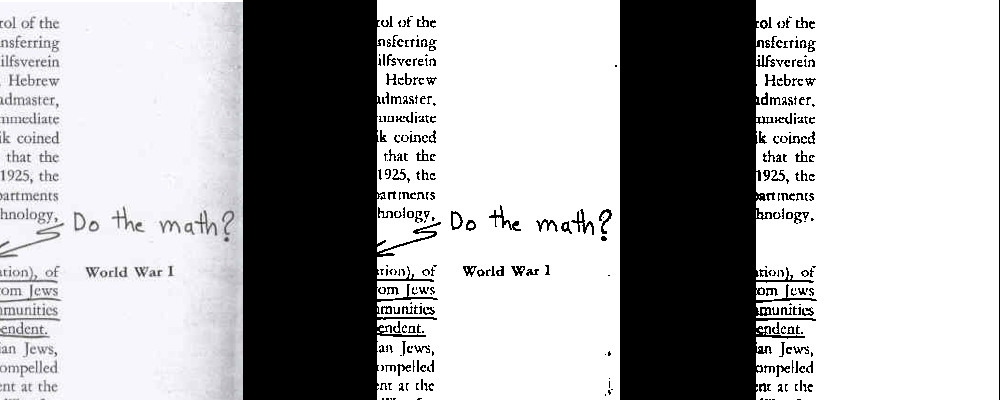
Figure 2. Zoomed view of image preparation, from left to right: the original scanned image, the image after applying threshold, and the image after applying threshold and some manual cleanup.
Now, switch the image to indexed mode (using the menu selection Image→Mode→Indexed), and choose black and white (one-bit palette). Also, make sure dithering is off. Save the image as an uncompressed TIFF image, and you are ready to do recognition.
The recognition part is easy:
$ tesseract image.tif result
The third argument is the base name of the output file. Tesseract adds a txt extension automatically, so in this example, the recognized text would be in result.txt.
The underlining in this example ended up significantly affecting the OCR. A few of the lines were recognized moderately well, but two of them were completely unintelligible after processing. This underscores the importance of using a clean source if possible. Manually removing the underlining drastically improved recognition, but it took more time than simply entering the text manually.
I certainly wanted to do some experiments that would give me an idea of the power of Tesseract. I also wanted to compare those results to another open-source OCR system: ocrad.
I started off by running some tests to see how well Tesseract would do. My initial test took a 200dpi screen capture of text that included bold and italic fonts. Obviously, the screen capture was completely free from any kind of noise or error introduced by a physical scanner.
Tesseract performed flawlessly, recognizing 100% of the characters. It even got the spacing right. Unfortunately, ocrad did not fare as well. It missed several spaces (causing words to join erroneously), and it missed several letters. The overall recognition rate for ocrad on a perfect input was 95%.
Next, I decided to try some torture tests to see how well Tesseract would do under more adverse conditions. I have used Adobe Acrobat to do OCR on scanned documents, and it requires 150 DPI. It manages to fix things like varying lighting (as we did in GIMP earlier) and linear distortion (for example, due to book bindings pulling the edge of the paper away from the scanner). It also handled skewed pages where the page was not aligned well on the scanner bed.
So, I found a 72dpi scanned image that contained most of these glitches. Note that 72dpi is half the resolution that Acrobat will even try. The left margin was dark gray and bled into the letters, and the left edges of the lines were bent. The original image was not skewed.
I tried the unaltered image and the results were poor. I then used GIMP thresholding to remove the lighting variance and saved it as described above. I did nothing to correct the bent lines, nor did I increase the dpi in any way.
To my surprise, Tesseract managed a 97% recognition rate! Many of the errors were mistaking e as c (which were difficult for me to distinguish in the original image), and many of the errors were around the areas where the worst linear distortion occurred.
Next, I used The GIMP to rotate the image as far as I could without clipping the text. This corresponds to someone slapping pages on a scanner with little regard for alignment. Surprisingly, Tesseract still managed a 96% recognition rate. In fact, the rotation inadvertently helped with the linear distortion, and the recognition errors were less clustered than before.
Now I was curious as to how ocrad would fare. It did not fare well. In fact, it failed miserably. ocrad did more poorly on the best quality input than Tesseract did on the worst. The results and comparison are shown in Table 1.
The tests above indicate that the recommended inputs I have seen for Acrobat are quite sane. I recommend scanning your documents at 150dpi or higher. You also might try putting your scanner in black-and-white mode; the threshold routines in your scanner actually may give better results than the manual thresholding described in this article.
Perfect alignment does not seem to affect recognition rates drastically, but distortion due to book bindings did seem to cause some minor problems. Many professional scanning companies remove the pages from the binding if possible.
The GIMP gives you very fine control over image editing, but if you have a consistent scanning environment and a lot of pages, you really will want to automate the image cleanup as much as possible.
I recommend using Netpbm for this purpose, preferably version 10.34 or later, as those versions come with a more powerful threshold filter. Unfortunately, this is not considered a super-stable version, so many systems will have an older version.
If you are using an older version, you might get acceptable results with a pipeline of commands like this:
$ tifftopnm < scanned_image.tif | \
  pamditherbw -threshold -value 0.8 | \
  pamtopnm | pnmtotiff > result.tif
This chain of four commands reduces the color palette to black and white and saves the result as an uncompressed TIFF image. The number passed to the -value parameter of pamditherbw defaults to 0.5, and can range from 0 to 1, and it corresponds to the slider used earlier in The GIMP. In this case, higher numbers make the image darker.
Netpbm 10.34 and higher includes a more-advanced threshold utility, pamthreshold, which can do a better job on images where the lighting varies over the page. In this case, the command chain would be:
$ tifftopnm < scanned_image.tif | \
  pamthreshold -local=20x20 | \
  pamtopnm | pnmtotiff > result.tif
There are several alternatives for options of pamthreshold. The -local option allows you to specify a rectangular area that is used around each pixel to determine local lighting conditions in an attempt to adapt to changing lighting conditions in the image. You also may want to try:
$ tifftopnm < scanned_image.tif | \
  pamthreshold -threshold=0.8 |
  pamtopnm | pnmtotiff > result.tif
to get results similar to the older dither utility. See the Netpbm documentation for more details.
If your input images are in a format other than TIFF, you can, of course, substitute the appropriate Netpbm tool (such as jpegtopnm) in the pipeline:
$ jpegtopnm < scanned_image.jpg | \
  pamthreshold -threshold=0.8 |
  pamtopnm | pnmtotiff > result.tif
Netpbm also includes utilities that allow you to clip out portions of an image. Note that most multicolumn formats are very consistent in positioning the columns, which means you can automate the translation of multicolumn text pretty easily as well. For example, if you have a two-column article scanned at 200dpi, you can use The GIMP to locate the x coordinates of the column boundaries. Say the first column starts at about 200 and ends at 700, and the second column starts at 800 and ends at 1200. You could add the following to your processing pipeline:
$ tifftopnm < input.tif | \
  pamcut -left 150 -right 750 | ...
  pnmtotiff > output_left.tif

$ tifftopnm < input.tif | \
  pamcut -left 750 -right 1250 | ...
  pnmtotiff > output_right.tif
and automate the extraction of the columns. Place the combination in a shell script with some looping, and you can process a lot of pages very quickly.
Tesseract is a bare-bones OCR engine. The build process is a little quirky, and the engine needs some additional features (such as layout detection), but the core feature, text recognition, is drastically better than anything else I've tried from the Open Source community. It is reasonably easy to get excellent recognition rates using nothing more than a scanner and some image tools, such as The GIMP and Netpbm.
The Tesseract team currently is working to integrate features such as layout analysis and a GUI interface. It looks as if a commercial-quality open-source OCR solution is finally on the horizon.
Resources
Tesseract: code.google.com/p/tesseract-ocr
The GIMP: www.gimp.org
Sane: www.sane-project.org
Netpbm: netpbm.sourceforge.net
Netpbm Docs: netpbm.sourceforge.net/doc/directory.html
Anthony Kay has been a systems programmer, programming instructor, technical writer and application developer. He is currently a computer science graduate student at the University of Oregon in Eugene, Oregon.
