
Work the Shell - Displaying Image Directories in Apache
Most of the time when I write shell scripts, it's to solve what I consider a lightweight problem. Yes, I admit it, if you need to forecast weather, geomap 50,000 data points or create an on-line shopping cart, a shell script is probably not the optimal tool!
Nonetheless, when I encounter problems or opportunities for simplification in my daily work, the first tool out of the box is a shell script. For some of you, it might be Perl or some fancy PHP coding, but because anyone who can type commands on the Linux command line is ready to start scripting, I have to say I still believe shell scripts are a good starting point.
What's surprising is just how much you can accomplish in a short segment, and this month I share a script I cobbled together to address what might be a common problem on your Web server too—a huge “Images” directory.
To be perfectly candid, the directory listings that are generated by Apache and other Web servers stink. They're basically ls -l with no additional information, no previews, nothing. Most of the time it doesn't really matter, because most of your site is probably seamless, and people aren't exposed to the back end.
But, the directory where you might collect all the images, graphics and photos on your site is most likely a different story. Whether it's called “Images”, “Graphics”, “Photos”, “Art” or what have you, odds are that your directory is like my own: 1,400 graphics files.
A text-based listing capability is useful if the files have highly mnemonic names, but wouldn't it be far more useful to have thumbnails of all the images shown along with their names, rather than only file size and last-modified dates?
That's what this script does, and like all scripts that are actually working as CGI scripts, it has to start out by pushing the appropriate header information immediately:
#!/bin/sh

echo "Content-type: text/html"
echo ""
Now that that's out of the way, the rest of the content can be generated in a loop. In fact, the first skeletal version of the script just duplicates the file listing capability already in your Web server:
for name in *
do
  echo "$name <br>"
done
Of course, this output isn't all that interesting. At a minimum, we can change it so that the filenames are clickable:
echo "<a href=$name>$name</a><br>"
But, even that's not particularly interesting. Let's add some conditional code so that images are displayed while everything else just garners a link. Rather than testing the filename though, let's do something more interesting and use the unsung command file.
When just run against the contents of a typical image directory, here's the kind of output you can expect:
$ file *
aol-safety-menu.png:       PNG image data, 161 x 230,
 8-bit/color RGB, non-interlaced
apple-ipod-enter-code.png: PNG image data,
 268 x 202, 8-bit/color RGB, non-interlaced
archos-av700.png:          PNG image data,
 567 x 294, 8-bit/color RGB, non-interlaced
empty.jpg: empty
hentai-manga-example.gif:  GIF image data,
 version 89a, 358 x 313,
index.cgi:                 Bourne shell script
 text executable
teamgeist.jpg:             JPEG image data,
 JFIF standard 1.02, aspect ratio, 100 x 100
Nice command, eh? It includes the type of the image, dimensions, depth and any other characteristics it can ascertain.
Most important, notice that “XX image data” appears consistently with these images, whether they're PNG, JPG or GIF images. By using this, we can avoid all the hassles with JPG vs. JPEG, JPG vs. jpg, Gif vs. GIF and on and on.
Now, the little loop looks like this:
for name in *
do
  if [ ! -z "$(file $name | grep 'image data')" ] ; then
    echo "$name <br>"
  fi
done
This is enough so that the files that aren't images, even empty.jpg, which is a zero-byte file, are skipped automatically:
$ sh index.cgi
Content-type: text/html

aol-safety-menu.png <br>
apple-ipod-enter-code.png <br>
archos-av700.png <br>
hentai-manga-example.gif <br>
teamgeist.jpg <br>
Finally, we're getting somewhere, because now we can differentiate between the files that actually are images, and the files that are other sorts of data.
One last refinement before I wrap this up: instead of just showing the links as clickable, let's actually output clickable links for non-images, and make the images themselves clickable. This can be done as follows:
for name in *
do
  if [ ! -z "$(file $name | grep 'image data')" ] ; then
    echo "<a href=$name><img "
    echo "src=$name></a><br>$name<hr>"
  else
    echo "<a href=$name>$name</a><hr>"
  fi
done
If the images aren't too large, this starts to look pretty nice, as you can see in Figure 1. If they are big images, however, it doesn't work quite as well. So, next month I'll show you some refinements to this script, including how we can have more than one image appear on a line.
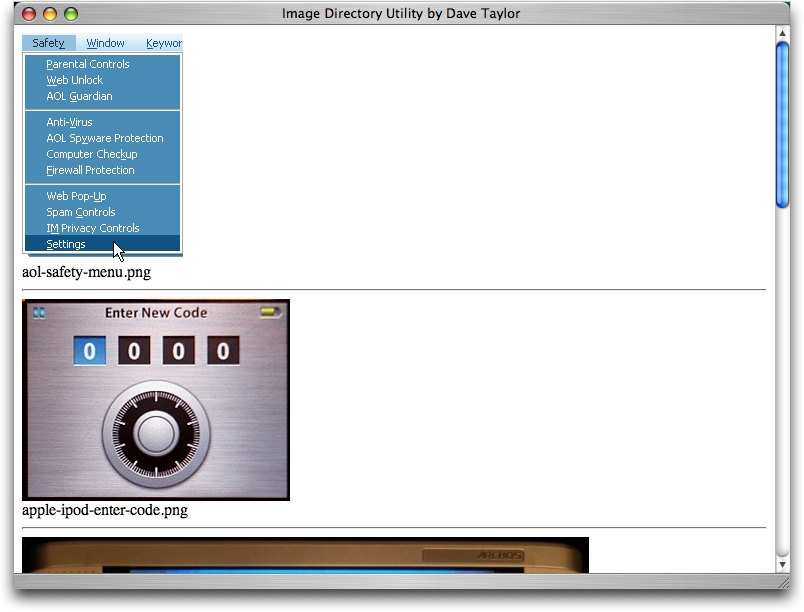
Figure 1. Script in Action
Dave Taylor is a 26-year veteran of UNIX, creator of The Elm Mail System, and most recently author of both the best-selling Wicked Cool Shell Scripts and Teach Yourself Unix in 24 Hours, among his 16 technical books. His main Web site is at www.intuitive.com.
