
The Ultimate Linux Desktop
When determining the basic specifications for what the Ultimate Linux Desktop should be capable of, one thing Editor in Chief Nicholas Petreley and I agreed on was that it should have at least two NVIDIA SLI GPUs. If you're not familiar with SLI (Scalable Link Interface), this technology allows you to run two or four GPUs (Graphics Processing Units) either on a single card or a pair of cards to increase video performance. It works by splitting the processing work to render video among the GPUs for each frame.
Why care about something fancy like SLI? Aside from the cool factor, the Ultimate Linux Desktop needs to run modern games made available for Linux. Doom 3, Quake 4 and Unreal Tournament 2004 all are capable of taking advantage of this powerful feature, so why miss out? Aside from games, SLI also benefits those doing high-end graphics work, especially 3-D graphics. Any application that uses OpenGL graphics can take advantage of this feature. However, for high-end graphics workstations, you're more likely to go quad SLI (four GPUs) rather than dual (two GPUs).
In conjunction with SLI, the motherboard needs SLI support. For the rest, it was mainly a wish list of what most people would like to see in a desktop computer: plenty of fast RAM, fast networking, great audio, front-panel USB, dual-core CPU and more. Oh, and of course, all of it has to be supported by Linux. Another stipulation was the machine has to come with Linux pre-installed, or if the user has to install Linux themselves, it can't be a difficult operation.
For the Ultimate Linux Desktop, we were going for ease of “set up and go”. We weren't considering anything that required hand-tweaking hardware or installs, except for very basic operations. Why be this fussy for the Linux Journal, the home of Linux geeks? The desktop is where the Linux community is still getting its legs, and the ability to order a Linux box pre-installed is definitely a helpful boost to beginners. Linux is no harder to install than Microsoft Windows, but average users never install Windows on their own. Many would rather purchase a new machine than try it.
So, enough with the introduction. You want to know what machine won and why.
The Ultimate Linux Desktop comes from Puget Custom Computers (www.pugetsystems.com). From its High End Gaming Computer category, the setup we received includes a number of desirable features (Figure 1). This particular configuration costs $2,882.17 US before tax. There is no monitor, keyboard or mouse included.
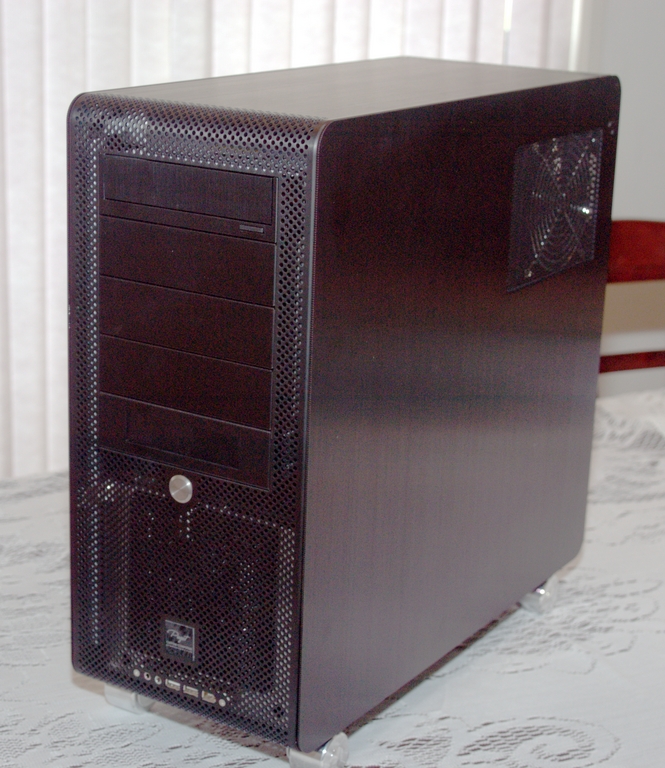
Figure 1. A custom-built machine from Puget Custom Computers is our Ultimate Linux Desktop.
The CPU is an AMD Athlon 64 X2 4400+, which runs at 2.2GHz. This isn't the newest or fastest processor in its series, but it's at the juicy price point for most users. This dual-core CPU allows programs built to take advantage of SMP (Symmetric Multiprocessing) to split their processing tasks among the two cores. In general, it's designed for those who use a lot of multimedia or do a lot of multitasking, which pretty well describes the job of an Ultimate Linux Desktop.
The motherboard is an ASUS A8N-SLI Premium, which is designed to make it simple to activate or deactivate SLI support when needed. On many early SLI-based motherboards, you have to open the computer and change a switch setting in order to accomplish this task. The ASUS A8N-SLI Premium allows you to do this in the BIOS instead or by using a Microsoft Windows XP utility (unfortunately all of the utilities for this motherboard are for Windows or DOS). You won't find any serial port on this motherboard, so if you need support for older hardware, you have to pick up a separate card. There also is no floppy drive.
The ASUS A8N-SLI Premium offers support for AMD Cool 'n' Quiet Technology, which adjusts the CPU speed, voltage and power consumption, depending on what the system is doing. Although this motherboard is more than a year old, its feature collection is still impressive, including:
HyperTransport Technology (www.hypertransport.org), which speeds up communication between integrated motherboard components.
Dual-channel DDR (Double Data Rate) RAM.
Serial ATA (SATA) II hard drive interfaces.
Dual RAID controllers.
PCI Express controllers.
S/PDIF (Sony/Philips Digital Interface) Out to allow digital-to-digital transfer of audio between devices.
IEEE 1394a (FireWire), which is now supported under Linux.
USB 2.0 connectors.
Two Gigabit Ethernet interfaces.
For RAM, this box has two Corsair XMS CMX1024-3200C2 PC3200 1,024MB low-latency sticks. The XMS (Xtreme Memory) product line from Corsair is designed for overclockers and gamers. Rather than choosing the flashy option of the RAM sticks with the LED displays along their tops, Puget Custom Systems went with the less-flashy (and therefore less-expensive) option. We were hoping for fast memory, so this is a real plus—and we encouraged vendors to go more for practical than “bling”.
The included hard drive is the Western Digital SATA Raptor 74GB. This drive might be a bit small for what many people want, but you can choose another size if you want a bigger one—and are willing to pay more for it. However, this hard drive is 10,000 RPM, so it flies when it's in use.
When it comes to the video cards, specifically what's included are two eVGA 7900GT CO 256MB SLI cards. These aren't the highest model available for eVGA's NVIDIA 7900 series cards, but again, you can customize the order to go up to the GTX if you want to spend around $1,000 US more on your computer to get the bleeding edge.
One small drawback may be the Seasonic S12 Series 500W power supply. If you want to add many more components to this system, you'll want to upgrade to a larger wattage. On the plus side though, this power supply series is extremely quiet and has split rail technology, meaning that the various devices on your system are all drawing their power from, in a way, multiple smaller power supplies. This feature prevents devices from interfering with each other. On an SLI system, you definitely want this feature in your power supply.
Everyone has heard about things like people being able to cook inside modern computers. If you've run into problems with intermittent crashes while playing high-end games, you also know the pain of video cards and other components that overheat. Although we would have loved a liquid-cooled box, and they will build you one, it can add more than $1,000 US to the price. Without liquid cooling, however, Puget Custom Systems still provides a machine where much thought was put into how to keep it from overheating (Figure 2).

Figure 2. Part of the Cooling Setup for the Ultimate Linux Desktop
First, there's the Swiftech MCX159-CU Chipset Cooler. It's a small heat sink and fan that is sandwiched, in this case, between the two video cards (top left). Then, there's the monster Thermalright XP-90 Heatsink with 92mm Papst Fan, which is attached to the CPU (bottom middle). This particular solution is a combination fan, a set of radiating fins and a set of heat-conducting pipes that can radiate as well. There's another fan bolted into a metal frame (upper right) to help cool the video cards as well, and there's a heat exhaust fan (bottom right) to blow hot air out of the case. Not shown in Figure 2 is another fan for air intake at the front of the case.
The case's design also helps keep the system cool (Figure 3). This Lian-Li V1000B Mid-Tower case is broken into three compartments: one for the hard drives (lower left), one for the power supply (bottom right) and then the upper compartment for the rest of the system. This breakdown creates three separate cooling zones, using small slots to pass cables through without letting too much heat travel within the machine as well.
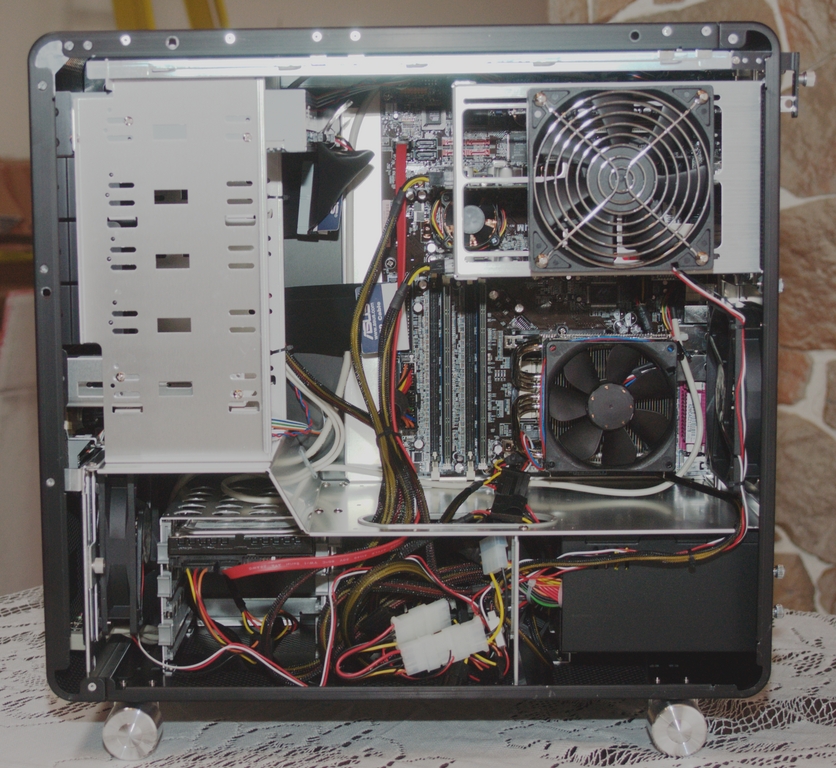
Figure 3. The other part of the cooling setup is the actual case layout.
Many spots on the outside of the case are made of a metallic mesh, allowing heat to pass through easily. You would think that such a setup would make the machine noisy, but in fact, this is a fairly quiet system, mostly because the fans are so large. The bigger the fan, the quieter it tends to be.
Within the case, as you can see in Figure 3, the cables are wonderfully managed so that the computer doesn't look like someone dropped a bunch of spaghetti into it. The hard drive is installed in the lower left, sideways so you can easily access the important areas—not to mention making it far simpler to pull a drive out or push it in without banging it against other important components.
The front panel (Figure 4) offers a power button (the big silver disc), audio jacks, two USB ports and a FireWire port. If you've ever had to crawl around under desks to get to the back of a machine just to plug in your USB thumbdrive, you know what a pain that can be. Of course, if you keep this case on the floor, you'll still have to get onto the floor to access these controls, but it's better than having to go around to the back.
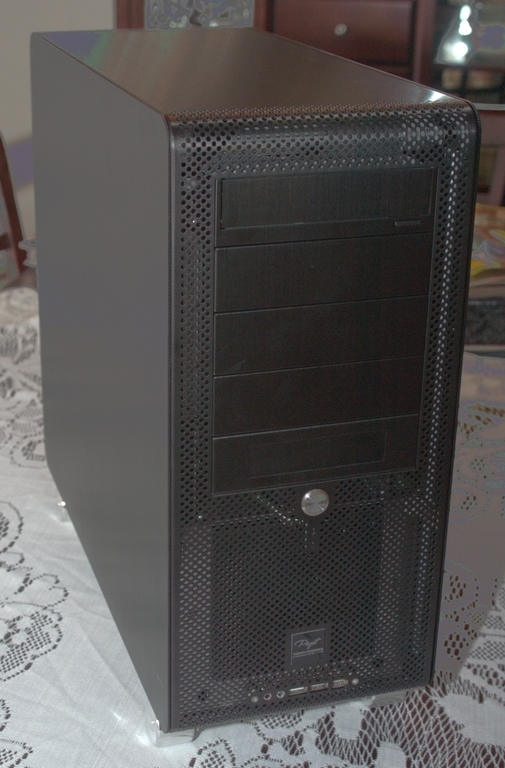
Figure 4. The front panel is along the bottom of the machine. You also can see the mesh mentioned earlier.
On the back panel (Figure 5), you can see at the top the connectors for both video cards. Below and on the right are the 5.1 analog audio connectors, the two Gigabit Ethernet jacks, four USB ports, a FireWire port, a parallel port, PS/2 mouse and keyboard jacks, and both coaxial and optical S/PDIF jacks for digital audio and features, such as 5.1 surround sound.
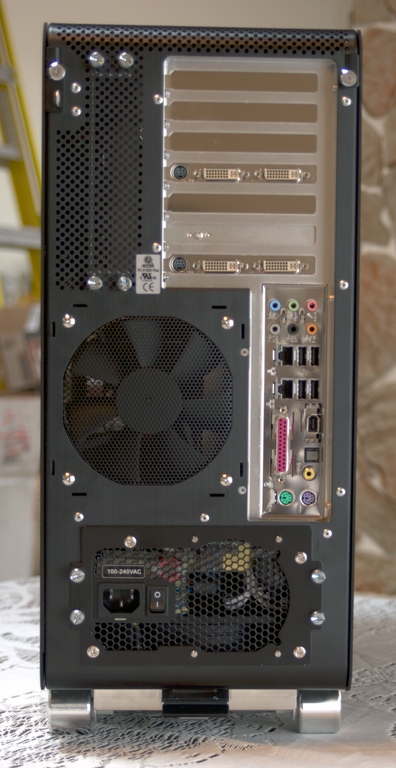
Figure 5. The back panel offers most of the hookups, along with many spots for ventilation, including mesh and cut-outs for fans.
One of the perhaps smallest, but most wonderful features of the case is the single screw lock mechanism for removing the side panel. You simply have to twist one large screw by hand (no tools needed) to unlock the panel and pull the panel off. That's it. Then to put it back, slide the panel into place and re-lock the screw.
You also receive a box containing all of the unused parts and bits that came with the hardware included in the machine. There's a sheet that shows where many of the components plug in to the back. There's also a sheet showing you the warranty information for any components that offer them, and this particular box came with a one-year warranty as well. In the box, I also found all of the manuals and CDs involved in the process, including a DVD of Fedora Core 5 (more about that in a moment).
This is ultimately a practical machine for today, and today's games in particular, hitting all of the best price points. However, if you are especially into games, you might prefer to push further into the bleeding edge and higher costs so you won't have to upgrade any time soon. The flexibility of Puget's customization interface—and the fact that if you ask them to add something to the machine that isn't available on their official list, they'll do so—should take care of those users.
The box arrived with 32-bit Fedora Core 5 pre-installed. SLI was enabled, as verified in the X server logs. The collection of yum repositories recommended by FedoraFAQ.org were in place as well. Flash wasn't installed, but it was a minor annoyance because the repository was already set up. Other than that, everything worked like a charm under both an older 17" CRT monitor and a newer 24" wide-screen LCD.
To check out the performance under pressure, I tried both Unreal Tournament 2004 and Quake 4. Both of these games played smoothly with the absolute highest video resolutions and effects settings. In fact, Quake 4 was set to 16x anti-aliasing with anisotropic filtering and 1920x1200 resolution and still played perfectly smoothly.
They have the firewall on with SSH enabled by default, which is a sane option. SELinux is on as well, so users would have to go out of their way to unsecure the machine. I can't think of any real complaints here aside from Flash. The system worked out of the box with Linux in place. Mind you, the installation was 32-bit instead of 64-bit. I could only speculate as to why at this point, so I won't make wild guesses—and I'm sure if I had specifically asked them to install 64-bit, they would have done so.
Really, other than that it just worked, and worked well; you can't ask for more than that from the Ultimate Linux Desktop.
Dee-Ann LeBlanc (dee-ann.blog-city.com) is an award-winning technical writer and journalist specializing in Linux and miniature huskies.
