
Hide and Go Seek with Writer Content
Why would you want to hide content in an OpenOffice.org Writer document? The most common reason is to maintain two similar versions of a document within the same file. For instance, if you are a teacher preparing an exam, you might want to use the same file to print a version of the exam to distribute to students, and another one, complete with answers, to give to markers. If necessary, you can view the complete document on the screen, but when printing or sharing files, you can hide or reveal content depending on what you want each audience to see. By using Writer's hide functions, you no longer need to worry about multiple versions of a document remaining in sync.
Another reason to hide content is if you are commenting heavily on a document, either as a collaborator or an editor. As many people have found, a note is inconvenient to use in Writer, because you have to click on a small, often hard-to-see field to read it. Rather than using a note, you might prefer to use hidden content instead.
Whatever your reason for using hidden content, you have three possible methods: using fields, sections or styles. The features of each of these methods overlap, but each has pros and cons that you'll need to know so you're not hopelessly frustrated as you hunt for the content you've hidden and set up the file for each audience.
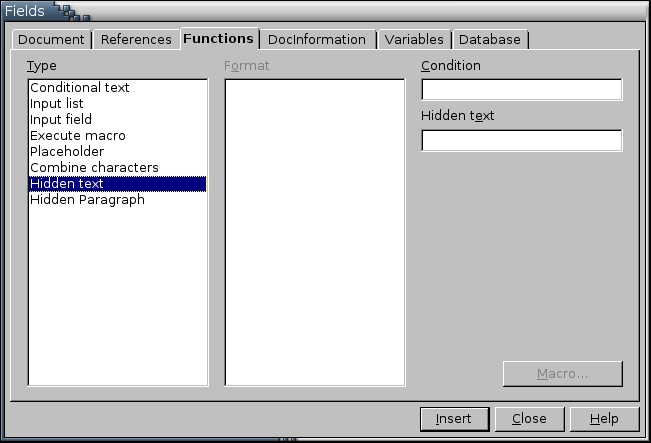
Figure 1. You may see fields used for hiding content, but consider them deprecated features because of their awkwardness.
Until version 2.0, fields were the most versatile way to hide content. From Insert→Fields→Other Functions, you can choose Hidden text to conceal less than a paragraph and Hidden Paragraph to hide a complete paragraph.
Setting up either type of field is relatively easy. In both cases, the content is revealed by setting the condition in the field's dialog box to 0, and the content is hidden by changing the field to 1. If you want to hide the field more deeply, you can set the condition using Boolean logic and the properties defined in Files→Properties→Description or the user listed in Tools→OpenOffice.org. For example, if the title listed in Files→Property is Introduction, you can set the condition for a field or section to TITLE EQ Introduction. By changing or removing the title before you distribute the document, you can be reasonably sure that nobody else will ever read your hidden text or paragraph.
However, in other ways, both fields are awkward to use. For one, despite the names, the two types of fields function differently. Using hidden text, you either highlight the text you want in the field or type it in the dialog box. By contrast, a hidden paragraph field is a marker you can place anywhere in a paragraph. In addition, as you use either one, you need to know that Writer can be set to display either type of field, regardless of the conditions set if you select Fields: hidden text or Fields: hidden paragraphs in Tools→Options→OpenOffice.org Writer→Formatting Aids. You'll want to remember the formatting aids option if the fields don't seem to be working, and possibly to turn them on and off while you are setting up the fields. But, unless you're using both types of fields regularly, all these quirks can be frustrating.
Each of these fields also has its own limitations. To use hidden text fields successfully, remember to put the spaces on one side of the hidden text so that the rest of the paragraph is set out correctly when the field is hidden. Moreover, as should be obvious from the name, hidden text does not work properly when the field extends over the end of a paragraph. Nor are hidden text fields the easiest to find and edit when fields are set to display in the default gray--although, once you find one, you can use the Previous and Next arrows in the dialog to move among them. Hidden paragraph fields are just as awkward to edit, requiring that you turn on the formatting aid option to view them.
But perhaps the worst feature of both is that managing a large number of them is almost impossible. Neither hidden text nor hidden paragraphs can be arranged in groups, such as text that you want to activate only in the teacher's copy of an exam. Instead, each must be managed separately. This limitation makes either type of field impractical for any wide-scale use.
My advice is to avoid using either type of field for hiding text. You should know that these options are available, because they might be used by others, or in older documents, but, if you are using version 2.0 or higher, consider them deprecated features. If you are using Writer in a business setting with sophisticated users, you also should discourage their use in the office style guide. With later versions of OpenOffice.org, you can get the same functionality in other features with fewer difficulties.
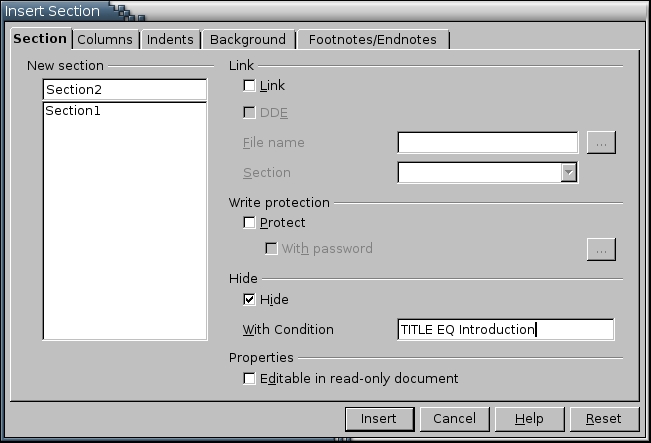
Figure 2. Sections are more versatile than fields for hiding content, but need to be at least one line long.
Sections are portions of a document, at least one line in length, that are formatted differently from the rest of the document. They are added using Insert→Section, and existing ones are edited using Format→Sections. The same options are available from each location. In both cases, you can hide a section by selecting the Hide option on the Sections tab of the dialog window. Optionally, you can set conditions in the same way as for a field, although the only reason for doing so is for added security.
Using sections to hide text has several advantages over using fields. First, sections can be named on the Section tab. If you have several different circumstances under which you might want to hide text, you can make your administration easier by including a common element in each company's section names. For example, the unique sections for Penguins, Inc., might all start with the general prefix Penguin and end with a specific identifier, such as Bio. By using such a system, you will easily know which sections to enable for Penguins, Inc. You also can press F5 to open the Navigator and see all the sections in the document, with their names grayed out if they are currently hidden. When you want to unhide a section, you can use Format→Sections without actually moving the mouse to the section you are editing, which is useful, because nothing but the mouse position actually reveals a hidden section, and you can't open one by clicking it.
Just as important, no option to view hidden sections exist, giving you one thing less to worry about while setting them up. Also, selecting a check box with the mouse is far easier and quicker than changing a condition.
Overall, sections are a far more efficient option than fields for hiding text. The only disadvantage is that they are not practical for hiding less than a line.
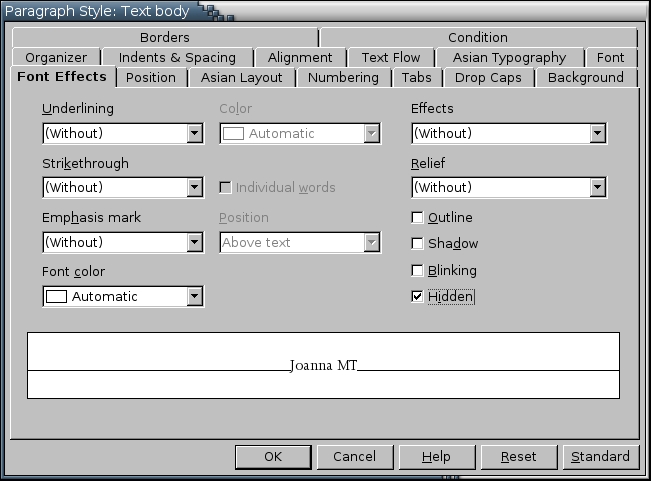
Figure 3. Both characters and paragraph styles are the easiest way to hide content.
Since the introduction of version 2.0, the easiest way of hiding text is to use styles. The Font Effects tab of both character and paragraph styles now includes a check-box option to hide the style. Although you cannot set up a more elaborate condition than on/off, the way you can with hidden fields or sections, for most users, this option should be more than enough.
The same option is available from Format→Character--although not from Format→Paragraph. However, as always, the advantage of using styles over manual format is the ease of administration. As with sections, you easily can set up character and paragraph styles with names that indicate the sort of information they are used for. Then, as you reveal and hide different blocks of text in preparation for printing, all you need to do is press F11 and select or de-select the Hide option on the Font Effects tab for each style as needed. Even with a complicated setup, you can be ready for printing in a matter of minutes--all without ever bothering to visit the individual blocks of text.
Like hidden fields, hidden character and paragraph styles always can be viewed on the screen if the right options are chosen. However, these options are much more complicated for character and paragraph styles. Not only does Tools→Options→OpenOffice.org Writer→Formatting Aids→Hidden text need to selected (and not confused with Fields: Hidden text or Fields: Hidden paragraphs, but View→NonPrinting Characters as well. Then, just to complicate things further, viewing hidden paragraph styles also requires selecting View→Hidden paragraphs. The reason for this complexity frankly baffles me, but because you can easily reveal and hide styles without it, you can ignore it if you choose.
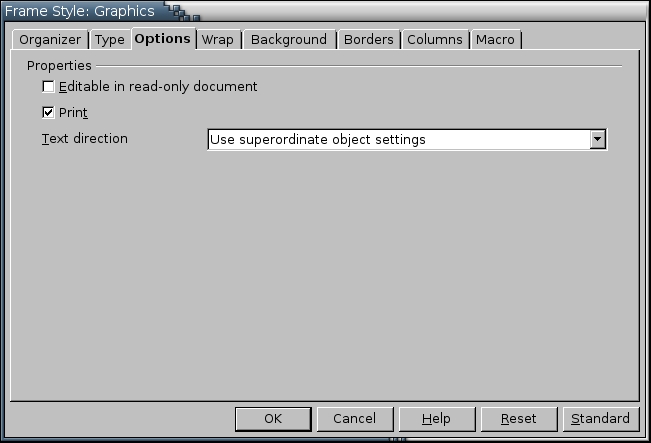
Figure 4. The Printing option provides a way to hide contents in a frame.
As well as characters and paragraphs, you also can use styles to hide material in frames, such as pictures or formulas. Each frame style can be hidden by de-selecting the Printing check box on the Options tab. However, unlike character or paragraph styles, a frame style and its contents continue to be visible on the screen. You see only the result of de-selecting the box when you select File→Print Preview or actually print or export the file.
Using styles to hide content has its own inconsistencies. However, they are fewer than those for fields or sections, so my recommendation is to use styles for hiding content in preference to any other method.
No matter which method you use for hiding content, one last problem remains: when a numbered paragraph is hidden, numbered lists are not automatically renumbered. The easiest way to overcome this problem is not to use numbered lists in hidden content at all. However, if a numbered list is unavoidable, you can overcome the problem by creating two paragraph styles with identical formatting, one for ordinary content and one for hidden content. Set both styles to use the same numbering style on the Numbering tab, then each time you hide content, set the style for hidden content not to use any numbering style.
Mentioning this workaround underscores the importance of organization when working with hidden content. Although I recommend styles, making sure you that you hide or reveal the way you want requires a consistent work flow. Knowing the quirks of each method is important, but you also need to be systematic, setting conditions you remember, naming sections and styles in a way that eases the work, and above all, checking your work before you print or export it. Otherwise, you may find your clients reading abusive comments made by other employees, or exam-takers getting the answers--and you becoming embarrassed or unemployed because you got careless with an advanced feature.
Bruce Byfield is a computer journalist and course designer. His articles appear regularly on the Linux Journal and Newsforge Web sites.
