
OOo Off the Wall: Combining Documents with OOo
A couple of weeks ago, the OpenOffice.org User's List featured another round of explaining to a former WordPerfect user why OpenOffice.org Writer didn't have a Reveal Codes feature that showed the raw encoding of the document for troubleshooting. This time, the thread was started by a poster who insisted that he needed the feature when he had to merge several documents into one. The discussion made me realize that, although I tend to talk about features in this column, sometimes work flow is more important. Often, the problem isn't the tools, it's how you use them. After lurking for most of the thread, I ended it with a suggestion about how to use the tools in OOo to combine documents much more efficiently than you could hope to do with Reveal Codes. What follows is an expanded version of my suggestion that reinforces, yet again, the advantages of using styles in many situations.
WordPerfect veterans raise the idea of a Reveal Codes feature for Writer every couple of months. In response, a macro that gives the appearance of Reveal Codes without the functionality has been written. However, the feature isn't likely to appear in any upcoming version of Writer. For one thing, while WordPerfect is a code-based word processor, in which every piece of formatting is embedded in a manner not too different from HTML tags, Writer is a frame-based one processor. That means the characteristics for a selection of text are defined separately from the text itself. As a result, no direct equivalent of Reveal Codes is possible.
Another reason why Writer won't have a Reveal Codes feature is Writer is style-oriented, while Reveal Codes works best when users rely on manual overrides. If you use styles religiously, you don't have the problem of tracking down stray bits of formatting, because Writer doesn't allow you to apply more than one character or paragraph style to a selection. Instead, all you need to do is open the style dialog to see how the selection is defined. For cases in which you need to see more than what is on the screen, View -> Non-Printing Characters generally is enough. Otherwise, if you want more, you're probably better off using TeX than a graphical word processor. For most purposes, Writer already has all the tools it needs for troubleshooting formatting.
So, how should you go about formatting a document composed of several different original documents? Ideally, you would start by enforcing a company or project policy of using the same templates and encourage people to use styles all the time. However, that's not only building castles in the air, it's expecting to see your name and titles in the next release of Debrett's. In practice, at least three-quarters of any group are likely to use Writer as though it was a typewriter, ignoring styles and manually adding formatting as the whim occurs to them.
You can find out if this is the case by opening each of the documents, pressing F11 and then setting the view to Applied Styles for characters. By browsing through the format of each document and selecting portions, you soon will be able to see whether manual overrides are being used. You can tell this by whether a change of formatting corresponds to a change in the highlighted style in the Styles and Formatting floating window. However, if you assume the worst, you'll probably be right more often than not.
Before going further, you also should create backups of every file you are working with. This is an elementary precaution, but it can't be repeated too often. The one time you think this effort isn't worth the time is the one time that something goes wrong.
Then, you can follow these steps:
1. Create a new document that has all of the necessary styles.
Starting with a new document gives you the advantage of knowing what you're dealing with. Before copying and pasting, go through all the component documents and see for which character and paragraph styles you need to recreate the formatting. Don't worry about how the original writers applied their formatting--the goal is not to play detective but to reproduce the appearance. So long as it looks the same, no one will care how you got the effect. You also should give your new styles names that aren't shared by any of the styles in the component documents, just to keep your life simple. A piece of text that uses a style whose name already is in a document to which it is pasted automatically is reformatted--a potentially handy step, but one that sometimes can create as many problems as it solves.
You might use a copy of one of the original documents for the combined one, but it's probably better not to do so. Unless, of course, you have a good idea of how it is formatted.
Another alternative is to create a new master document and add all of the component files to it. This option is especially attractive if the component documents also are going to be used independently. However, using a master document with different formatting from its sub-documents requires a strong understanding of Writer. Thus, it may not be practical unless you can teach the mechanics to everyone that is likely to use the documents.
Whether you're using a regular Writer file or a master document, copy and paste the component documents only after all the styles are defined. Then, keep them open in case you need to refer to them.
2. Use Find & Replace for the first round of formatting.
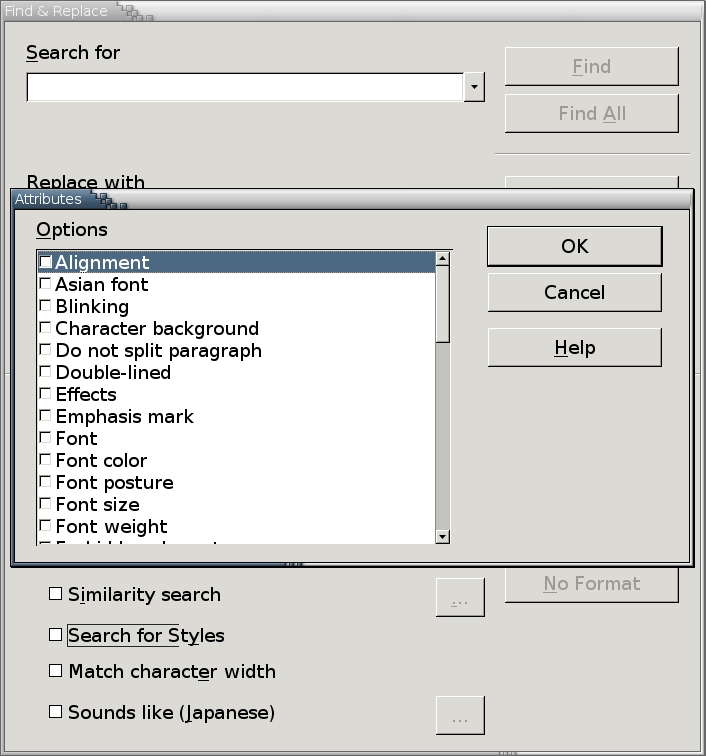
Figure 1. Attributes and Format are two of the search tools that can simplify the task of reformatting several documents into one.
Edit -> Find & Replace contains two tools that can help you format your new document. If any of the component documents contain manual overrides, use the Attributes or Formatting buttons to search for a specific piece of formatting. For example, if some of the documents use italics for book titles, search for italics. When you find a match, strip out the manual overrides by putting the mouse cursor in the paragraph. Then, use the Styles and Formatting floating window to apply the character style for the situation.
Figure 2. When the search tool finds a match for a style, the same style is highlighted in the Styles and Formatting floating window.
If any of the documents use styles, select More Options -> Search for Styles from the Find & Replace window. Consulting the Applied Styles view in the Styles and Formatting floating window, replace all applied styles with the character and paragraphs styles you've created to replace them.
3. Check the results and houseclean.
At this point, all that usually remains is to compare the new document to each of its components. In some places, you may need to create new styles, because you've overlooked some necessary piece of formatting. In others, you may need to select View -> Toolbars -> Drawing to create a diagram or to take a screenshot of a complicated piece of formatting from a component document and then insert it as a picture into the new document. However, if you were careful about creating the styles for the new document, you generally should have little to do at this point.
As a final step, however, you might want to clean up the document by deleting any of the styles from component documents. You also might want to create new versions of the component documents from the new combined document, making them as clean as possible as well. By following these steps, you make it easier to deal with all of the documents in the future.
This isn't the only work-flow model that you could follow. Some people prefer to select the whole of the new document once the components have been pasted in, strip out all of the formatting using Ctrl+Alt+Backspace and then apply their own styles with constant references to the original documents. Such a method may be appealing especially to those who want to control every aspect of their work. Although it may be a surer method, this model also is much slower than the steps outlined above.
Some might argue that people used to manual overrides deserve to work the way that they prefer and deserve a Reveal Codes feature. As deserving as this argument is in theory, in practice it seems perverse. It means ignoring the differences between Writer and WordPerfect. Furthermore, in this case, it means preferring to take two or three times the work to get the results you want, because you don't understand the tools at hand. OpenOffice.org is far from perfect, and I like to think I'm among the first to criticize it when necessary. However, in this case, it has all the tools needed for the task--if only people would bother to take the time to learn how to use them.
Find all of Bruce Byfield's OpenOffice.org articles here.
Bruce Byfield is a computer journalist and course designer. His articles appear regularly on the Linux Journal and Newsforge Web sites.
