
A Linux Terminal Server offers any business an elegant and cost-effective way to integrate the power of open source. In this article, I review some basics of network topology and offer suggestions about how to install a prototype server. I top it off with some tips for business-specific installations and configuration guidance.
A Linux Terminal Server allows almost any business to gain the benefits of open source and the power of Linux immediately. What makes an LTS distinct is that it integrates well, without burden to infrastructure or people. Moreover, the performance of an LTS dramatically showcases Linux power. One LTS can serve graphics and applications to many desktop PCs simultaneously.
By placing the LTS into an existing subnet, colleagues can access the many useful applications and features with almost no effort—and at their convenience.
A great deal of effort has been put into the Linux Terminal Server Project (LTSP) to make it seamless. LTS simplifies installation by isolating the integration work exclusively on the server.
With an LTS, even the most hesitant users experience the benefits of open source in their organizational context. No re-installs are required. No major licensing or policy changes. And most important of all, the financial costs are negligible.
As an illustration, I recently found that a local real-estate company had needs that perfectly matched with an LTS. Among the many available applications, I demonstrated the ease of The GIMP to alter photos downloaded from the agents' cameras. Then I included simple bash scripts to automate the uploading of the enhanced images to their Web site. The GIMP exemplifies the many outstanding open-source programs they could access easily through the LTS.
This simple example demonstrates how a business that never considered Linux or open source could quickly gain access to applications with very little cost in time or money. Above all, the agents could access the LTS from their own desktops without any alterations.
Now, let me share some of the basics of integrating an LTS into your business.
First, choose your network topology and server based on your specific business context. Next, choose your method of installation and follow the on-line instructions. Finally, configure your server to support thin-client connections. You'll find that most installations work smoothly and quickly. To help guide your steps, I include tips for some of the more essential configurations.
If you look at most of the existing installations of LTS, you'll find that they implement a closed subnet configuration. In such a configuration, the LTS serves thin clients within its own controlled subnet and provides routing to the overall organization's network through a second Ethernet port.
Utilize this closed subnet configuration to isolate thin clients, such as in a work lab. Sometimes, this configuration also provides a reasonable solution for business, where a team or department needs the access and features of an LTS.
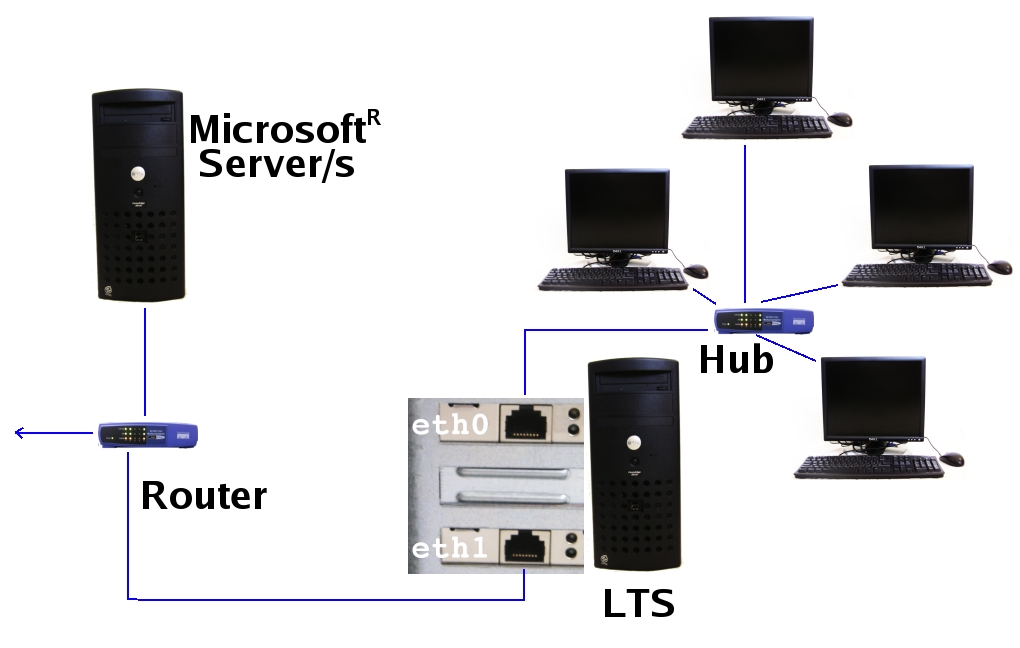
This is a superb solution when your business starts a new department and wants to manage hardware and software licensing costs tightly, or when capital budgets could better be used for staffing. In this scenario, the business gains dramatically as LTSP does not require robust desktop PCs.
They may exist as outdated PCs or as simple diskless workstations. Often such connectivity costs less than $300 per seat. Ironically, it costs more per seat just for software licensing in most business situations.
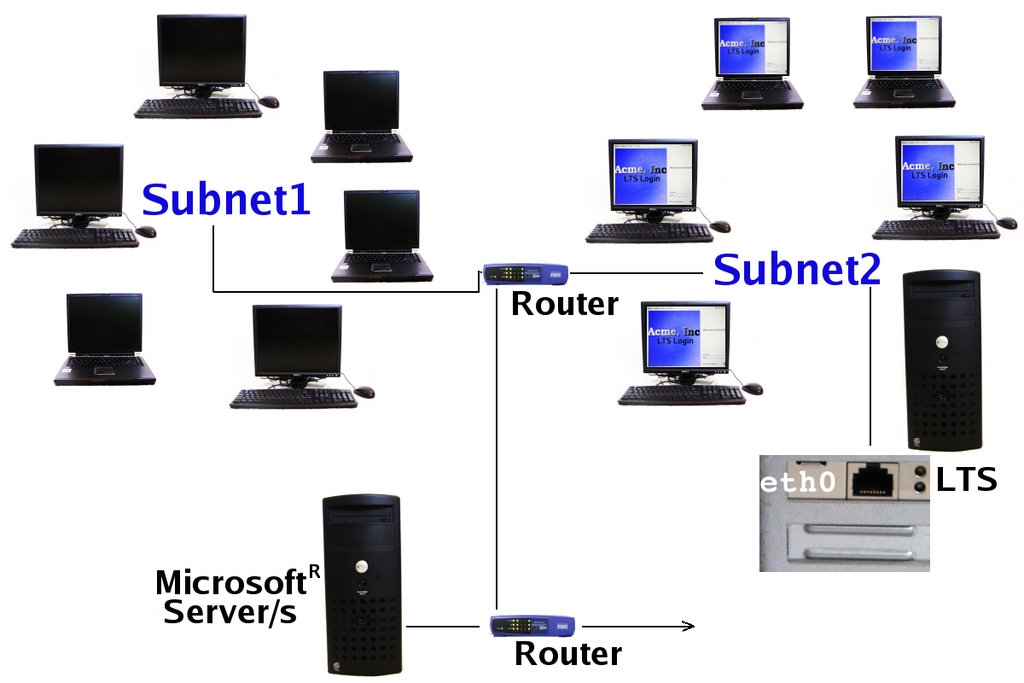
As shown in Figure 2, the LTS also can benefit an organization when installed into an existing subnet. The other computers do not rely on the LTS, but they gain access to the LTS and its many applications and features.
I assume in both cases, your LTS sits snuggly behind your business firewall. Also, both examples allow authentication servers, network file stores and broadband connectivity through additional tools like Samba and WinBind. However, I recommend you begin with a simplified installation. You always can adjust or expand the LTS' role and features once operational.
Figure 2 represents a prototype LTS that offers anyone on the subnet access while remaining largely “invisible” to the other servers on the network. In most cases, this setup requires only one Ethernet connection and reserved IP addresses for a particular subnet.
Now, I'll share some specifications that will help you choose a reasonable business server.
For every simultaneous thin client you want to connect, you should have about 128MB of RAM. The more the better, but this provides a good start. For a real-world example, I've seen that a thin client running KDE with OpenOffice.org Writer and a Firefox browser will use about 115MB.
I recommend that you use at minimum a 7,200rpm disk drive with a decent onboard cache. SATA or SCSI are standard for most business servers, and you should use these if possible.
Obviously, if you can acquire a more powerful processor or dual-processing capability, so much the better. I've even seen 2.4GHz processors with plenty of RAM (2GB+) do quite well. If you must make a choice, place emphasis on RAM over processor speed.
The folks at the LTSP.org have done a phenomenal job of supporting volumes of configurations and flavor variances. However, as a basic guide, using PCI cards and Digital Signal Processor (DSP)-based sound cards will ensure an easier integration.
Once you've decided on the topology and server, choose your installation method.
You can set up an LTS for your business in two core ways.
The first option, an LTSP install, requires more hands-on editing of configuration files. The benefit is that you control every aspect and the Linux flavor used. This is important if you already have an existing Linux server and want to add the power of LTSP.
The second option, a complete distribution install, consumes less time. It also offers the simplicity of including almost every necessary library and package. Two popular options include:
The K12LTSP.org version, which uses the latest Fedora Core.
The Edubuntu.org version, which uses Ubuntu (a Debian-based distribution).
If you don't already use one particular Linux flavor and if you are new to server administration, I strongly recommend that you use one of the ready distributions.
Skip to the next section if you want to use a Complete Distribution of LTSP.
However, for those who are well versed with their flavor of choice, I offer this section. It's a brief summary of tips that may help you over some installation hurdles, regardless of which flavor you've chosen.
Begin your installation by first visiting the LTSP.org Web site and wiki. They include some excellent details regarding various flavors and appropriate installation guides.
The LTSP Installer, on the LTSP.org Web site, works well and expedites the installation process. If you have an Internet connection to the LTS, this offers an optimal solution.
Have the following information ready prior to the installation:
Ethernet device name (eth0, eth1 and so on).
Ethernet MAC address(es).
Server's IP address (to be reserved in the DNS in most cases).
Subnet mask.
Subnet information (you may need to reserve a subset of IP addresses for LTS).
Router IP for your local area network (not the broadband router).
The libwww-perl package and others—you may need to address the libwww-perl dependency, which Jim McQuillan documented on the LTSP.org Web site. This runs the Perl file that actually installs and preps your LTS (ltspadmin).
Be careful which one you download; numerous iterations exist. For example, there are currently 75 RPMs just for the libwww-perl.
Please use your flavor's package manager—RPM, Synaptic PM or YaST—to add this and a number of other essential packages. This allows you to get many dependencies resolved in one fell swoop.
Set your temptations aside and try not to skip steps in the configuration menu (11 steps total). Some of the steps create essential config files that you will then need to edit or rename. To start, choose Show the status of all services from the main tool menu.
Your LTS must run in runlevel 5 to allow your thin-client connections to use graphics. If your server does not boot into runlevel 5, edit this file: /etc/inittab.
Edit the initialization default line to read:
id:5:initdefault:
When running in text mode, most flavors make available both vi and nano editors.
Ensure that you start all services prior to LST configuration. I'll use the DHCP service as an example, because it serves an essential role for an LTS, and you need to familiarize yourself with its configuration.
To force-start the DHCP process, you usually use the commands:
cd /etc/init.d ./dhcp3-server start
On some flavors, you may need to force-start the process with something similar to this:
/usr/sbin/dhcpd
Now, check your syslog to find out whether DHCP generated any errors:
cd /var/log tail syslog
DHCP will fail if you've incorrectly configured your subnet information.
Edit your DHCP configuration file:
nano /etc/dhcp3/dhcpd.conf
On some flavors, the file may be located here:
nano /etc/dhcpd.conf
I offer some more details regarding declaring a subnet in the Final Prototype Configuration section below.
With some flavors, you also may need to edit a file to declare your network device. Edit the line in /default/dhcpd3-server to include your specific Ethernet card(s), for example:
INTERFACES="eth0"
Most installations and configurations go smoothly without a lot of tinkering. But in case you run into hurdles, I include some of the key file locations below.
LTSP configuration files:
/usr/sbin/ltspcfg: the LTSP configuration tool.
/opt/ltsp/i386/etc/lts.conf: the primary configuration file.
DHCPD on some flavors:
/etc/init.d/dhcp3-server: executable script to start/stop service.
/etc/default/dhcpd3-server: default declaration of Ethernet device.
/etc/dhcp3/dhcpd.conf: the configuration file.
/var/lib/dhcp3/dhcpd.leases: the lease file associating IP leases.
DHCPD on other flavors:
/etc/init.d/dhcpd: executable script to start/stop service.
/etc/dhcpd.conf: the configuration file.
/var/lib/dhcp.leases: the lease file associating IP leases.
Hopefully, this section provided tips for a smooth installation. Now, jump ahead to the Final Prototype Configuration section.
Using a Complete Distribution offers one of the easiest and fastest means of integrating an LTS. In many cases, I've been able to install a server within an hour. I also save a lot of time as I do not have to install individual applications that I find useful.
For instance, the K12LTSP.org release, although intended primarily for schools, includes everything a business server requires and then some. Some of the packages in this release include:
Samba: file-sharing tools for integrating in a Microsoft environment.
OpenOffice.org 2.x: complete office suite of tools useful in business.
Rdesktop: remote desktop sharing with Windows Terminal Services.
Prior to installation, take time to read some of the documents and errata available on the LTSP.org Web site, and be sure to familiarize yourself with your business network and server hardware.
On occasion, I've seen video driver failures on the server. This has nothing to do with thin clients and their video. It also does not require any setting changes in the lts.conf file. Instead, the easiest solution and one that circumvents a lot of video issues is to install the package with this parameter at the boot prompt: linux skipddc. This is a failsafe, and you should use it only when you cannot reconcile the server's video issues. This removes any graphical capabilities from the server itself and performs a text-only installation. It automatically starts the server at runlevel 3.
Once you have completed the installation, you can force the run level to 5 using this command:
init 5
For further guidance, please look back over the Installation section above.
You may disable SELinux to allow proper installation and configuration. You always can restore some of the SELinux functions later.
I strongly recommend that you include nearly everything except the educational and gaming packages. If you prefer to slim down the install, leave out a few server options you know you won't need, such as a News server, but try to include some of the development tools. I know you'll need them eventually.
The Complete Packages come with a number of logos that you may change to reflect your business. For example, you may want to change this graphic: /opt/ltsp/templates/k12linux/k12ltsp.jpg. Using GNOME, type the command: gdmsetup. Using KDE, type the command: kcontrol.
In the KDE Control Center, select System Administration, then the Login Manager.
Hopefully, you now have a ready LTS!
Whether you used the Installation process or chose to go with a Complete Package, you should now have an operational server.
For most business situations, you also must make a few minor configuration changes to the dhcpd.conf and lts.conf files.
In the lts.conf file, ensure that the IP address correctly matches the address of your server.
In the dhcpd.conf file, ensure that you choose one of the options to declare your subnet and to allow thin-client connections. For example:
subnet 192.168.0.0 netmask 255.255.255.0 {
range dynamic-bootp 192.168.0.243 192.168.0.253;
use-host-decl-names on;
option log-servers 192.168.0.254;
The basic example above allows the dynamic assignment of IP addresses from the business DNS for a particular subnet. The range assigned to the LTS for thin clients is 243–253, allowing up to ten thin clients connectivity. In this example, I assigned my LTS as 254.
Once you set up your network configurations properly, connect a thin client.
Reboot the LTS, or restart all of your LTS-related services. Then, connect to the LTS via a laptop or desktop on the same subnet and login as root.
Most PCs today include a Boot Order menu. Press the F12 key or something similar on the thin client to access the menu. On older systems, you need to enter the full BIOS configuration (F2 or Del key) and choose Boot Up Configuration.
On older systems, you also may need to choose the MBA (Managed PC Boot Agent) and configure it for PXE protocol.
Now, choose Network Boot. After a few seconds, the LTSP software should enable the thin client.
At this point, you'll see the graphical login screen.
After you log in, add a few test users directly to your LTS.
I always recommend that you create several user logins to test the prototype server and to avoid using root. It's also a good first step before getting into the minutia of configuring Samba (smb.conf file), ADS authentication and other features.
Now you are ready to connect other PCs on the same subnet to the LTS.
I experience one of my favorite joys when I watch multiple thin clients log in to the LTS and open applications. My adrenaline always flows when I witness the sheer speed of many thin clients simultaneously starting an application like OpenOffice.org. A few seconds, and every screen shows the application ready for use.
I hope that this article encourages you to try out the power and elegance of the LTSP in your business or home office.
Once you open the door and get your LTS up and running, you can integrate many other powerful features. You can include network printer support, automatic backups, file sharing and much more. An LTS may provide just the key your business needs to enter the beneficial world of Linux.
Special Magazine Offer -- 2 Free Trial Issues!
Receive 2 free trial issues of Linux Journal as well as instant online access to current and past issues. There's NO RISK and NO OBLIGATION to buy. CLICK HERE for offer
Linux Journal: delivering readers the advice and inspiration they need to get the most out of their Linux systems since 1994.
Sorry, offer available in the US only. International orders, click here.
Subscribe now!
Recently Popular
| Linux HOWTO: Video Editing Magic with ffmpeg | Jul-23-08 |
| Building a Call Center with LTSP and Soft Phones | Aug-25-05 |
| Google Gadgets for Linux | Jul-21-08 |
| Man vs. Myth: Greg Kroah-Hartman and the Kernel Driver Project | Jul-21-08 |
| Review: HP 2133 Mini-Note | Jul-16-08 |
| Boot with GRUB | May-01-01 |
Featured Videos
Non-linear video editing tools are great, but they're not always the best tool for the job. This is where a powerful tool like ffmpeg becomes useful. This tutorial by Elliot Isaacson covers the basics of transcoding video, as well as more advanced tricks like creating animations, screen captures, and slow motion effects.
Shawn Powers reviews the HP Mini-Note portable computer.
Thanks to our sponsor: Silicon Mechanics
Silicon Mechanics is a leading manufacturer of rackmount servers, storage, and high performance computing hardware. The best warranty offerings available are backed by experts dedicated to customer satisfaction.
From the Magazine
August 2008, #172
There's nuttin like a Cool Project to give you some relief from the summer heat, so get out your parka cuz we got a bunch of em. First up is the BUG, not a bug, The BUG. It's got a GPS, camera and more, in a hand-sized package that's user programmable. The BUG does everything. It's both a floor wax and a dessert topping. Get one now. Need a software version of a Swiss Army knife? Take a look at Billix, and don't leave home without it. Then, chew on this one, an X server on a Gumstix device driving an E-Ink display. Need more storage? How about 16 Terabytes? Can do.
And, of course, we have the usual cast of characters: Marcel, Reuven, Dave, Kyle, Doc, plus the new kid on the block Shawn Powers. But it doesn't stop there: build a MythTV box on a budget, build your own GIS system, set up the tools to monitor your enterprise and more. Finally, remember The War of the Worlds? Now you can play too.


Delicious
Digg
Reddit
Newsvine
Technorati


Problems with S3 Trio 3D
On October 25th, 2007 Dušan (not verified) says:
HI,
Linux Terminal Server Project is fine for using old computers. I use some on our Primary School and they do their job. But although we have problems with using old computers with S3 Trio 3D grphic card. Local machines can't run in X windows. Can you give me some help with that?
edubuntu as clients
On January 27th, 2007 Anonymous (not verified) says:
I did not know one could use edubuntu as clients in a business environment ?.
what do the people at edubuntu think about that ?
Another LTS to explore
On July 7th, 2006 jwattspc (not verified) says:
Great Article.
In addition to LTSP, K12LTSP and Edubuntu, you also use FreeNX which is based on NoMachine's code and provides some X performance enhancements.
Use in production
On July 3rd, 2006 Craig ringer (not verified) says:
I've been using LTSP in production for more than two years now and I've been really happy with it. The main suggestions I'd make here are:
- DON'T use the auto-setup unless you're using a server dedicated to just LTSP. You're much better off understanding what settings are required and making the necessary changes yourself. This will help with any future troubleshooting and upgrades, and also helps ensure the LTSP config doesn't step on the toes of anything else.
- Get fast thin clients. These machines don't run apps, but that doesn't mean they do no work. In particular, you want video hardware with decent XFree86/Xorg RENDER extension performance and you want a thin client with a decent amount of RAM. The former helps ensure snappy display performance especially when handling a fair bit of text, and the latter will boost speed and improve stability with apps that use lots of server side resources (like firefox). Remember that the thin client _does_ need to render the app's GUI, so just because 32MB P100s will work doesn't mean they're a good idea.
- Get thin clients with DVI and decent monitors. Seriously.
- If your server is going to support more than a few clients, or the clients do much more than use email, a web browser, and an office suite, strongly consider getting an NCQ enabled SATA disk on the server or a decent SCSI disk. Disks optimised for multi-user loads help a *LOT*.
- There is no such thing as "too much RAM" for any server, something that holds true for LTSP servers as much as any other. Make sure you have at least enough RAM, but if you can get more, do so. You won't regret it when Firefox 2.0 comes out with the latest in Memory Hog(TM) technology.
In terms of client hardware, personally I'm really happy with the Via Mini-ITX board based thin clients I'm using. Video is snappy, 256MB of RAM is plenty (yet still almost free given modern RAM prices), the 600MHz Via Eden is more than enough CPU grunt to drive a nice 1280x1024 panel, they're cheap, they come in tiny, silent and fanless chassis with no moving parts to fail, the network interface is reliable, and they're well supported by everything.
Now, a few comments on parts of the article:
"Your LTS must run in runlevel 5"
This is not quite right. On red hat derived distros where the display manager is run from inittab at runlevel 5, that's right, though of course all that really matters is that hte display manger is running. On debian derived distros it has little to do with runlevel, as the display manager managed by System V init, not inittab, and runs by default at the normal multi-user runlevel (2). Users of debian-derived distros should NOT alter the default runlevel; instead just make sure the display manager is started at your runlevel using update-rc.d .
Debian users should also be sure to use dhcp3d not the older 2.x version. This has its config in /etc/dhcp3/ so don't get confused.
You should never need to check the logs to see if the DHCP server failed to start due to config errors. If your distro's init scripts are worth anything, they will run `dhcpd -t' to validate the config before restarting the server. If they don't, then you should test the config manually BEFORE restarting dhcpd (and file a bug with your distro too).
I find it very useful to set up static IPs locked to MAC address in DHCP for all the thin clients in an address range outside the default allocation range. By also giving them informative reverse DNS entries (I use `ltsp-BEEF' where BEEF is the last 4 digits of the client's MAC address) it's also easier to tell what client is active where, using what network resources, etc. You can also tell at a glance if a machine is an LTSP thin client or some other workstation.
Reverse DNS entries are also important for fast, reliable NFS. Make sure they're defined on your network, and match the forward lookup.
Anyway, that's about it for me. Hope these comments have been handy.
Extra note
On July 3rd, 2006 Craig Ringer (not verified) says:
One other thing - the use of "Hub" in the diagram above hopefully refers to a switching hub, ie "switch". You don't want to use a dumb broadcast hub in an LTSP environment. Traffic isn't normally heavy, but if you have a couple of people on flash-heavy websites, viewing huge images in their mailboxes, or working with the GIMP (yes, it works great over remote X11) you will start to run into collision problems with a hub.
10/100 switches are really cheap even for large port counts. Get one.
Also, remember that while X11 isn't too demanding in terms of bandwidth, latency is absolutely critical because of the stupid number of round trips made by current X11 clients. I wouldn't want to run them over even a fast WAN for this reason.
Standard in product and service lines ISP next to IP-TV
On June 30th, 2006 Pundit (not verified) says:
All internet service providers should offer the ltsp desktop in their product- and servicelines.
It's real easy to setup and install a 10,100,1000, 10000 and more of computers (clusters), in a few minutes, hours.
A winning product-.serviceline has a line wifi-,net-,prowerline-bootable ltsp desktop.
1. ltsp grahical desktop
2. IP-tv
3. high-speed connection
The thin client only needs a simple low-tech 1 Watt net-CPU, optimized for encoding/decoding multimedia and data.
Design a smart and fair franchisable support-organization around the product- and servicelines and you have the next IPO, and facilitate world-wide channelmembers giving optimal support to their local customers with uniform support and fair supportrates.( no outrageous expensive phone numbers for customersupport). One person/employee can support and monitor the administration tasks of 10,hundreds, thousands millions of systems. That is scalable administation and scalable manageability.
The business could change the face of the earth, because a big advantage for the early and late majority of consumers, the other 5 billion not connected people, is they don't need to buy the next generation energy guzzling antiquated cpu/os combination and safe a lot on the electricity bill. Connecting 5 billion people with the unsophisticated 'commercial hit' technologies of today would require some more Three Gorges Dams ( 18 billion Watt equivalent to 18 normal nuclear power plants ), Hoover Dams (2 billion Watt) or many nuclear power plants world-wide.
LTSP services
On July 4th, 2006 Craig Ringer (not verified) says:
A few issues arise here:
- Current X11 clients are not good at handling significant latencies due to the number of round trips made. This can be improved, but it does make running X11 thin clients over a WAN less than ideal at present.
- Streaming would need to be done with an LTSP local app; X11 can only draw raw video, so it'd be VERY bandwidth heavy to rely on a remote player. Given that, why bother with LTSP, rather than a cut down local computer? A little Via Eden box or a Geode system uses very little power, can be booted from solid-state storage, and would fit the bill quite nicely with a little ASIC to accelerate common video decoding tasks. Such an accelerator would be required in an LTSP based model too, unless you want a powerful CPU in the local client.
As I've noted earlier I use and like LTSP. I just don't think this is a useful or practical use of it.
Unclear Section: "First Time Login as Root"
On June 30th, 2006 Anonymous (not verified) says:
This section starts out instructing the reader to login on the LDS as root from a client PC. How do I do that? Telnet?
In the next paragraph it talks about changing the boot order of the client PC. What does logging in to the server as root have to do with changing the boot order on the client? Why log in to the server and then immediately reboot my client?
Overall a good article. But this section leaves me confused.
Readers may also be interested to know that Windows users can also easily log in to a Linux server by installing an Xserver on their computer. This will provide a complete Linux environment. The user cannot distinguish that he is not actually running Linux on his/her PC. I have found the free Xserver "Xming" to be very useful for this.
"Readers may also be
On July 3rd, 2006 Craig Ringer (not verified) says:
"Readers may also be interested to know that Windows users can also easily log in to a Linux server by installing an Xserver on their computer. This will provide a complete Linux environment. The user cannot distinguish that he is not actually running Linux on his/her PC. I have found the free Xserver "Xming" to be very useful for this."
One such X server is the Cygwin X server, an XFree86 port to win32 that's available free as part of Cygwin.
Unfortunately, I've found that many Linux apps assume you're using a recent XFree86/Xorg, and cope poorly with servers that behave in any way differently, support different extensions, etc. Some apps even run into problems with Cygwin's X server, for example, despite it being based on fairly recent XFree86 (even Xorg now?) code.
Consequently I don't tend to recommend use of X11 apps on win32 without testing the app with the desired X server and making sure it behaves its self.
Unclear section on login with thin-client
On June 30th, 2006 MarkRais (not verified) says:
I appologize if there was some confusion in the section. Perhaps a component of what/how the LTS and thin-clients work needs to be clarified.
The LTS serves thin-clients on the existing subnet. In other words, you are actually connecting through your thin-client to the LTS.
In the section referenced above, you ask "how do I do that? Telnet?" which misses the point. If you BOOT UP your laptop, or desktop PC on the same subnet as the LTS and use NETWORK boot as specified, it will actually become a thin-client and link to the LTS.
The, while viewing the LTS login screen on your PC, you can simply type the login and password and enter the LTS.
"What does logging in to the server as root have to do with changing the boot order on the client?"
Again the question is derived from the point above. If you do not change the boot order of another PC or laptop connected to the same subnet, then it can not be served by the LTS and won't become a thin-client connection. Only by changing the boot order to allow the PC to boot using PXE protocol, will it connect properly as a thin-client to the LTS.
Once this happens, of course, you will instantly gain access to all features and functions of the LTS.
It's well worth trying this out in a micro-scale with a prototype server and then seeing what I mean.
hope this helps,
mark
I got it. Thanks!
On July 2nd, 2006 Anonymous (not verified) says:
I get it. Thanks!
RAM requirements
On June 29th, 2006 Chris de Vidal (not verified) says:
Excellent article! Just one problem: You said, "For every simultaneous thin client you want to connect, you should have about 128MB of RAM."
Fortunately, libraries and binaries are shared in memory. I recall reading an LTSP article years ago that said for example the first OpenOffice user brings it up slowly and the rest are lightning quick because libraries and binaries are shared. They had something like 1GB of RAM for 150 users running Netscape and OpenOffice.
So the actual RAM requirement per user might be in the order of say 20MB.
Someone want to confirm this? I was amazed when I read it so I do think that is correct.
Kind-of
On July 3rd, 2006 Craig Ringer (not verified) says:
The initial RAM footprint for a session can be that small, yes. If you start actually _USING_ it you'll find lots of apps keep caches, or demand-load more of themselves, etc. The session tends to grow considerably. I'd consider 50Mb/session an optimistic estimate for a modern desktop, and be strongly inclined to allow more.
The only effective way to test is to bring up one session, measure RAM usage, then bring up another session, USE it for a few hours, and measure RAM use again.
Low memory usage
On June 30th, 2006 Pundit Wekker (not verified) says:
Absolutely correct. Because of shared libraries, memory usage on the server can easily be optimized to 20MB for each client.
The diskless client comes usually installed with 32MB to run the X server but 4MB, 10MB and 16MB installed should be no problem. In a work environment you furnish a productive desktop pleasant. simple and non-distracting with the lightning fast fvwm window manager.
Because of the very low power consumption of the diskless thinclient, low heat dispensation (saving on airco) and steadily rising price per kWh electricity the payback period of your investment is dramatically reduced. Also your daily operational cost will be reduced . For example the net bootable VIA mini-ITX you can buy with many different kind of computer covers/cases and consumes 11 Watt only.
If you are still using hubs in your network I advise you to upgrade them to switches. Switches will speedup every client because with switches no collisions between tcp/ip packets occur.
For ready made thinclients Neoware is a good choice.
Yes, you can get per-client RAM use down
On July 3rd, 2006 Criag Ringer (not verified) says:
Yes, you can get per-client RAM down a fair way. On the other hand, apps like Firefox, OO.o and Thunderbird are absolute pigs for memory (let alone Evolution, which I've clocked at >500MB), and tend to bloat as they fill caches and load more of themselves as they are used. This means that session start-up RAM use measurements are useless, you MUST consider RAM use after the session has been in active use for some time.
excellent article, thanks
On June 29th, 2006 Anonymous (not verified) says:
excellent article, thanks
If you call this a new
On July 7th, 2006 Nicholas (not verified) says:
If you call this a new solution, you must have been in hibernation for the last 30 years or something...
Terminals are not really something new, but tried and true technology from the Unix dinosaur age!