
OOo Off the Wall: Domesticating Autocorrect
Few users are neutral about OpenOffice.org Writer's Autocorrect tool--they either love it or hate it. Those who hate it tend to be long-term users of either GNU/Linux or advanced word processing features, who value being in control of what they do. And it's no wonder they hate it. Turned on by default, Autocorrect turns Writer into a monster with a mind of its own, one that constantly interrupts your flow of thought and makes changes that you don't want. With customization, however, AutoCorrect can be tamed and made into a useful tool. And, if you really want, you can turn it off altogether.
Available from the Tools menu, how Autocorrect is applied depends on the language and the Autoformat option selected. The language used is selected from the combo box at the top of the Autocorrect window. If a language's dictionaries have been installed using File > Wizards > Install new dictionaries, then some Autocorrect entries already are included. If no entries are included, you can add your own, but they will be overwritten if you ever install the dictionaries for that language.
Format > Autoformat sets how Autocorrect selections are applied. The default is While Typing. However, if you un-select the default, you can choose Apply to have all Autocorrect settings take effect or Apply and Edit Changes, which applies them interactively. Either of these two options may be enough to tame Autocorrect for you.
No matter how it is applied, the main purposes for which you can use Autocorrect are:
Enhanced spell-checking
Macro-like storage for reusable text
Automatic word completion
Automatic formatting
Unfortunately, the Autocorrect window is not designed to make these purposes as clear to the user as they might be. Still, by jumping between tabs, you soon can understand how to use Autocorrect your own way.
Tools > Autocorrect has two tabs for enhanced spell-checking, the Replace and Options tabs. The Options tab enables the Replace tab but otherwise plays no other role in enhanced spell-checking.

The Replacement tab is a table of common mis-spellings and correct ones. It is turned on when tools > Autocorrect > Options > Use replacement tables is selected. The existing replacement table is extensive, but you can add your own entries by highlighting a correct spelling in a document and then opening Autocorrect and entering a mis-spelling in the Replace field at the top of the tab. Most of the time, you probably will want to select the Text only box, a slightly cryptic option that makes a replacement take on the formatting of the text around it. Once the new entry is made, selecting the New button adds it to the table.
You also can delete any entries from the replacement table. Entries must be deleted one at a time, but deletion is another way to gain more control over how AutoCorrect functions.
One defect of the replacement tables is it is not case-sensitive. That means that, if a word that starts with a capital is replaced, you need to go back and insert the capital. But, in English, at any rate, this defect usually does limited damage, especially if the Capitalize first letter of every sentence box is selected on the Option tab.
One of the ways you can use the replacement table is as storage for reusable text, such as a paragraph that describes your company or special characters that you use often. (The other options for this are Edit > Autotext and Tools > Macros > Record Macros, followed by assigning the macro to a menu, keyboard shortcut or toolbar using Tools > Customize).
In both cases, the procedure for using Autocorrect as reusable text storage is the same as for adding a word to the replacement table. Highlight it in a document and then open Tools > Autocorrect. The only difference is in the Replace field, where you enter a code that you can type when you want to insert the reusable text. For example, I use "e1" to add é
If you are adding a paragraph, one disadvantage is it appears on a single line, and you need to scroll. However, if Autocorrect has an upper limit to the number of characters that the replacement table accepts, it's over a hundred words.
This feature acts much like an entry in Edit > Autotext. You also could use Edit > Autotext and Tools > Macros > Record Macros, followed by assigning the macro to a menu, keyboard shortcut or toolbar using Tools > Customize. Using Autocorrect's replacement table is quicker, though, and just as handy.
Word completion is an auxiliary tool for the spell-check. As you type a word, word completion makes suggestions about how to complete it the same as most Web browsers suggest a URL. By default, the suggestion appears as highlighted text on the current line, but you also can set it to show as a tip, which is mouseover text with a yellow background.
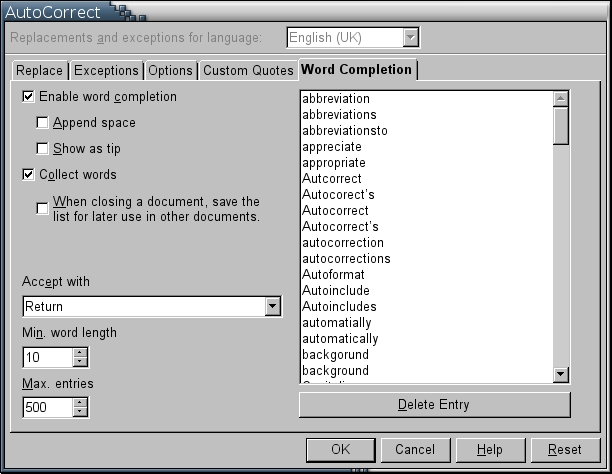
Word completion is enhanced by the ability to collect words to add to its dictionary. By default, the list is saved in OpenOffice.org for use with other documents. From Autocorrect's Word Completion tab, however, you can set the list to apply only to the current document. You also can keep the size of the list manageable by setting the length in characters of the words to collect. You also can set a maximum number of entries to the list. Generally, you don't want the length of words to be less than about eight characters, or you risk constant suggestions interrupting your typing.
Another important option for word completion is the Accept with field. This field sets the key you press to accept a word completion. The default is the Enter key. However, in many cases, pressing the Enter key starts a new paragraph. To avoid confusion, another choice might be better. For instance, when I have Autocorrect enabled, I set it to use the Tab key. Since I obsessively use styles and tables, I rarely use the Tab key for its normal purpose in Writer. So, for me, it's a good choice.
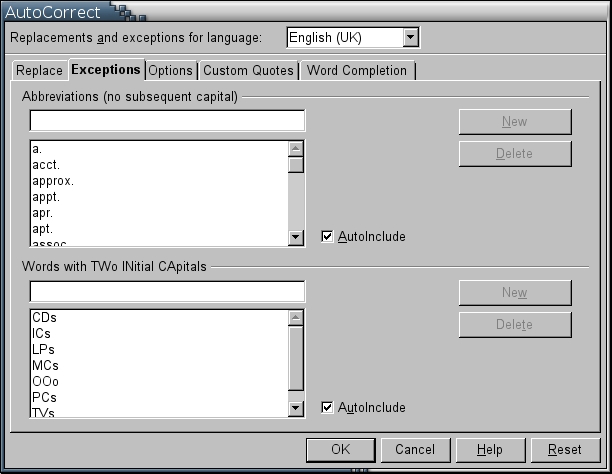
You can control word completion further by adding abbreviations to the table in the Exceptions tab of the Autocorrect window. If the Autoinclude option is selected, entries in the abbreviation table are not generated suggestions for completion.
When a word completion is suggested, you have four choices:
Ignore the word completion and keep typing.
Accept the word by pressing the key set in the Accept with field. By default, the key is the Enter key.
Select Ctrl+Tab to change to the next possible word completion.
Select Ctrl+Shift+Tab to change to the previous possible word completion.
Word completion should be avoided on machines with under 128MB of RAM, as it noticeably affects performance. Similarly, if you're a touch-typist inputting from hard copy, you may never see the suggestions. You may as well save memory by turning it off.
Many of Autocorrect's features do not involve spelling so much as document formatting. These features are listed on the Custom Quotes and Options tabs.
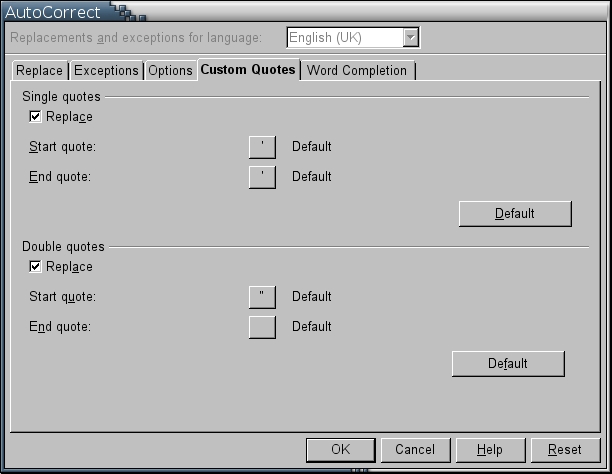
The Custom Quotes tab is Writer's kludge for a limitation of the keyboard. Continuing the tradition of the typewriter, modern keyboards continue to have keys for straight quotes but not for rounded or true quotes. Although this setup is convenient for coders, it is less so for those who want their documents to meet typographical standards. On the Custom Quotes tab, you can set both single and double straight quotes to be replaced by true quotes.
For some reason, a similar option called Replace standard quotes with true quotes exists on the Options tab. Although I've never figured out the relation between this option and those on the Custom Quotes tab, I've always enabled all of them together to avoid any trouble. It seems to work.
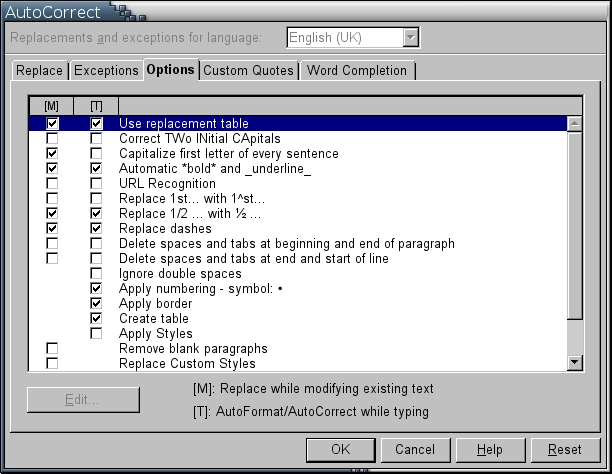
On the Options tab, you can set other formatting features. Most of these features can be enabled for two different circumstances, to replace while you are modifying existing text and when you are typing. In most cases, you probably want to enable both, if only to spare yourself the trouble of remembering which is which.
As with those on the Custom Quotes tab, several selections on the Options tab help to enhance the typography of your documents. Selecting Replace dashes, for instance, converts a hyphen into an en dash. Other options add proper fractions, replacing, for example, 1/2 with 1/2 or converting the suffixes of ordinal numbers to superscript, replacing 1st with 1st.
Whether other selections on the Option tab are useful depends mostly on your purposes and preferences. URL recognition, for one, may be useful for writers of on-line documents, while writers of hard copy may not want URLs to be underlined automatically and colored blue. Similarly, users who format manually may appreciate the ability to format a characters in bold by placing an asterisk at its start and end. Other options might be to create a bullet list using an asterisk or have blank paragraphs removed. By contrast, users of styles have little use for such options.
Other options seem of questionable value--at least, to me. The Capitalize the first letter of every sentence or COrrect TWo INitial CApitals options might seem useful. Yet in practice, both can be inconvenient unless you maintain the WOrds with TWo INitial CApitals table on the Exceptions tab--and that seems more work than is worth the possible time-saving. As for the options to replace custom styles or to combine short paragraphs, well, all I can say is if I use custom styles or short paragraphs, it's because I want to, and no program is going to tell me otherwise. Still, other users no doubt feel differently and have a use for these options.
For some users, Autocorrect quickly becomes an essential editing tools. For others, it's a disruption to their thoughts and represents a loss of control. If you fall into the second camp, you can guarantee that Autocorrect never can return to haunt you by turning it off:
Tools > Autocorrect > Options > Use replacement table (and all other options)
Tools > Autocorrect > Custom Quotes > Replace (both boxes)
Tools > AutoCorrect > Word Completion > Enable word completion and Collect Words
Format > Autoformat > While Typing (or any other selection)
However, most users probably will find a middle ground more useful. Simply turning off the replacement table and word completion will allow many to live with Autocorrect. Careful selection of other options also may help you domesticate Autocorrect enough to make it useful.
In the end, how you use Autocorrect is a matter of choice. Having all its features enabled by default may be overwhelming, but with a little customization, Autocorrect has something for just about any user.
Bruce Byfield is a computer journalist and course designer. His articles appear regularly on the Linux Journal and Newsforge Web sites.
