Peter van der Linden's Guide to Linux: A Lesson in Encryption, Part 3
Editor's Note: The following is an excerpt from chapter 11, "Keeping
Your Data Private", of
Peter
van der Linden's Guide to Linux, published
August 2005 by Prentice Hall, ISBN 0-13-187284-2.
This is the third and final part of my series of articles on
public key encryption in Linux. In this article, I describe
how to integrate GnuPG with the Thunderbird e-mail client so you can
send and receive secure private e-mail. Part 1 of this series is
available
here, and Part 2
is here.
Encrypting E-mail
Thunderbird is a popular e-mail client based on just the e-mail part
of the all-in-one Mozilla program, itself a descendant of the
Netscape Navigator suite. You add a small library plug-in called
Enigmail to the Mozilla or Thunderbird mail client to provide
seamless integration with GnuPG (GPG). Other e-mail clients can work
with GnuPG too; consult their documentation for details.
The name Enigmail relates to the German Enigma encryption device
used in WWII, which was cracked by a brilliant Polish mathematician
and exploited by the British to track and sink Nazi U-Boats. Enigmail
provides secure communication by scrambling e-mail text with GPG so
only the intended recipient can read it.
Get the Mailer Version Number
You need to find out the version number of Mozilla or Thunderbird that
you are using. There are different Enigmail versions for the different
Mozilla versions, and the wrong one will fail with a mysterious and
unhelpful error message.
- In Mozilla e-mail, choose Help > About Internet Suite and find the
Internet Suite version number. It will likely be 1.5, 1.6 or 2.1.
Make a note of it. - In Thunderbird, choose Help > About Mozilla Thunderbird, and check
the version number. The current version is 1.0.6 but it changes
frequently.
Download the Mailer Extension
Now that you know your mailer version number, browse the Enigmail
download page at
enigmail.mozdev.org/download.html.
If you scroll down the page, you'll find several versions of the
downloads for different operating systems and different mail clients.
Make sure that you are on the part of the page that shows Downloads for
Linux x86-32.
You are going to download and install an Enigmail module. If you're
still using Mozilla mail, the installation will be slightly different,
and you also might need to download an Enigmime module.
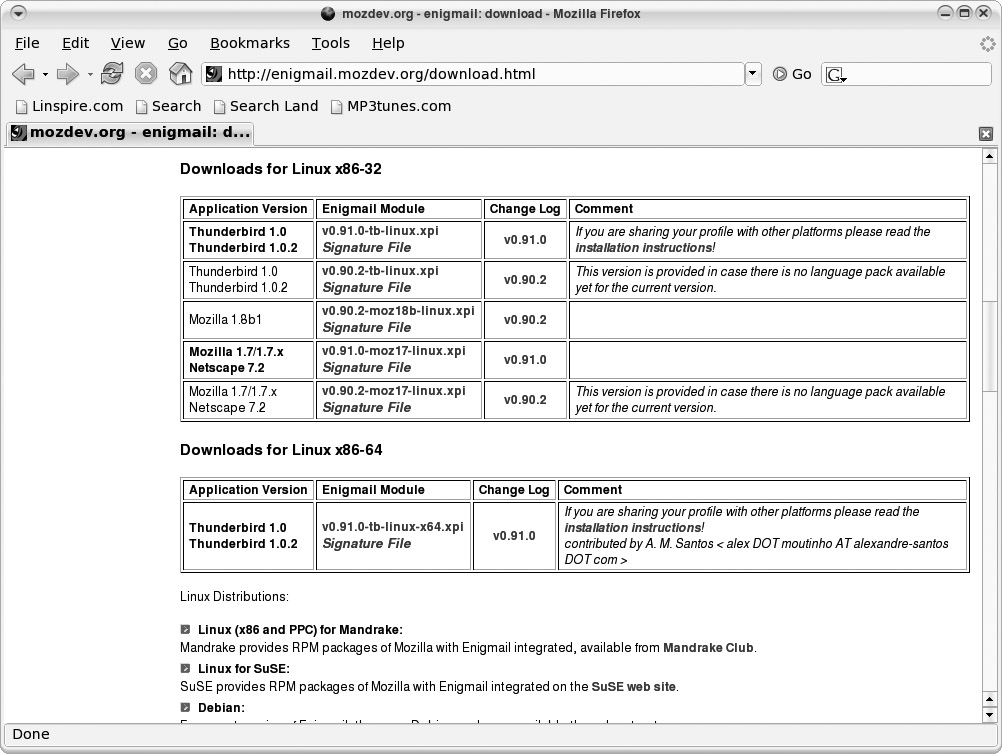
Find the Enigmail module that matches your operating system and
mailer application version, as shown in figure 3-3. The Web page
has improved a lot recently but still can be confusing.
Figure 1. The Enigmail Download Page
It is very easy to download the wrong version of the file.
If you do, the mailer will not be able to handle encryption, and
you will not get any sensible error messages. If things aren't
working, this is the first thing to double-check.
Right-click on the link for that Enigmail module and select Save
Link As. Save the linked file to your desktop so it is easy to
find again.
The downloaded file will have a name like enigmail-0.92.1-tb-linux.xpi.
An ".xpi" file is a Mozilla format for mailer and browser add-ons.
It's just a ZIP archive that contains several Javascript files with
a bunch of instructions that tell the Mozilla application how to
add new menu items and what programs to run when the new menu items
are clicked. If an Enigmime module is listed, download that too.
Install Enigmail into Thunderbird E-mail
You're ready to install the downloaded Enigmail file (and Enigmime
if it is listed in that part of the Web page). Start Thunderbird,
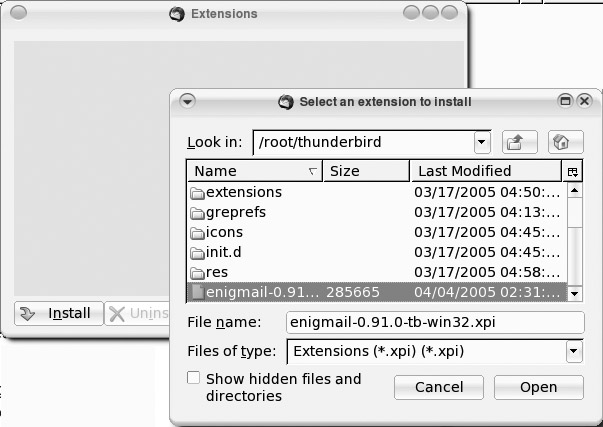
then choose Tools > Extensions > Install. Browse for the Enigmail
".xpi" file you just downloaded and install it, as shown in Figure 2.
Finally completely exit and restart Thunderbird to make
Enigmail available.
Figure 2. Click Open to Install an .xpi File
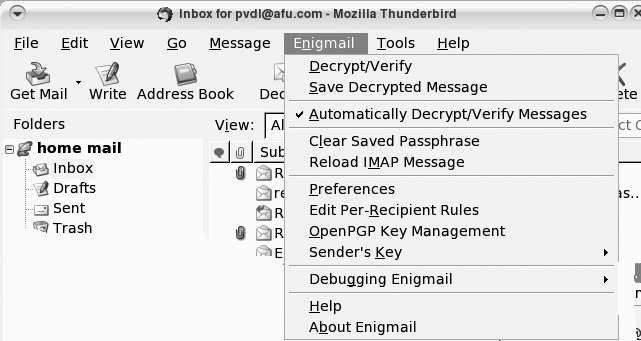
When you restart Thunderbird mail, note that there is a new menu item,
Enigmail, shown in Figure 3.
Figure 3. Thunderbird's Enigmail Menu
You now need to complete a very small amount of configuration to be
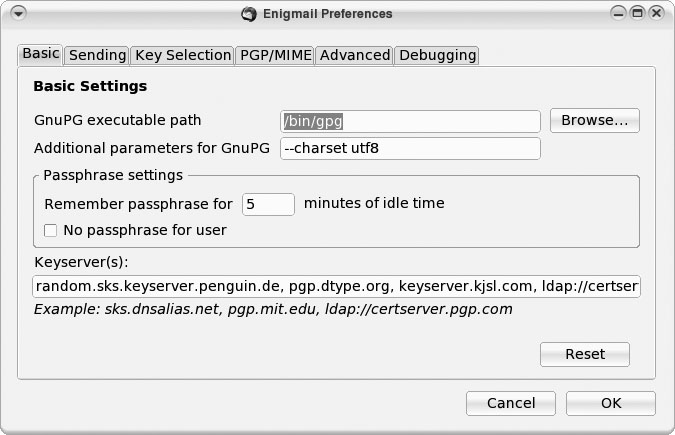
able to process encrypted mail. Choose Enigmail > Preferences to
bring up the window shown in Figure 4.
Figure 4. Thunderbird's Enigmail Preferences Menu
Enter the path to the program in the GnuPG executable path field
and click OK. If you can't recall where it was installed, use your
file manager to search for GnuPG by name.
Testing GPG with Thunderbird
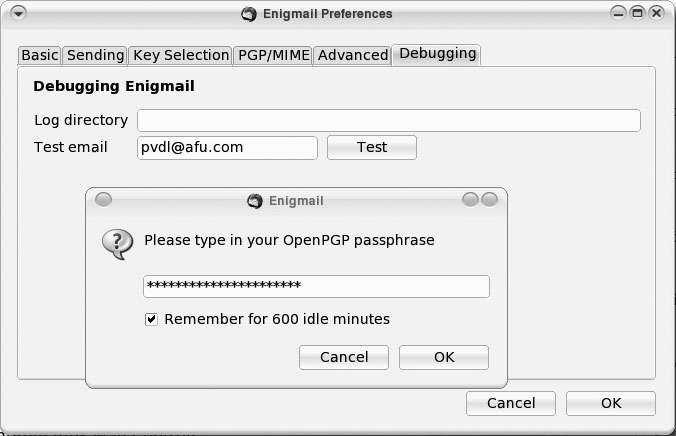
Bring up the Thunderbird Enigmail Preferences panel in Figure 5
and click the Debugging tab shown there. Fill in your own e-mail address
in the Test e-mail field, and click the Test button. You will be
prompted for your GPG passphrase.
Figure 5. Test the E-mail Integration
The test button doesn't actually send mail (so it is a bug to label
the button "test em-ail"), but it goes through the motions of making
sure that Thunderbird can talk to GPG. If everything is working
together, you will see a dialog box indicating that is so.
This message means the mailer and GPG are talking to each other.
If the mailer can't make contact with the Enigmail library, it will
pop up a different dialog. That's usually because you installed a
version of Enigmail or Enigmime that doesn't match your e-mail client.
Uninstall Enigmail by choosing Tools > Extensions > Uninstall button,
and try again.
Sending Encrypted Mail
The last part of configuring Thunderbird for encrypted mail is to tell
Thunderbird what your GPG identity is. The easiest way to do that is to
compose an e-mail, ask for encryption and let it prompt you for the
information it needs.
In Thunderbird, hold down the Shift key and click Write to compose
a new mail message. The shift key turns off HTML formatting for
the e-mail. When you're encrypting a message, you don't want all
kinds of HTML markup littered throughout it.
You can turn off the use of HTML in mail for good, by choosing Edit
> Account Settings > Composition & Addressing > Compose messages in HTML
format.
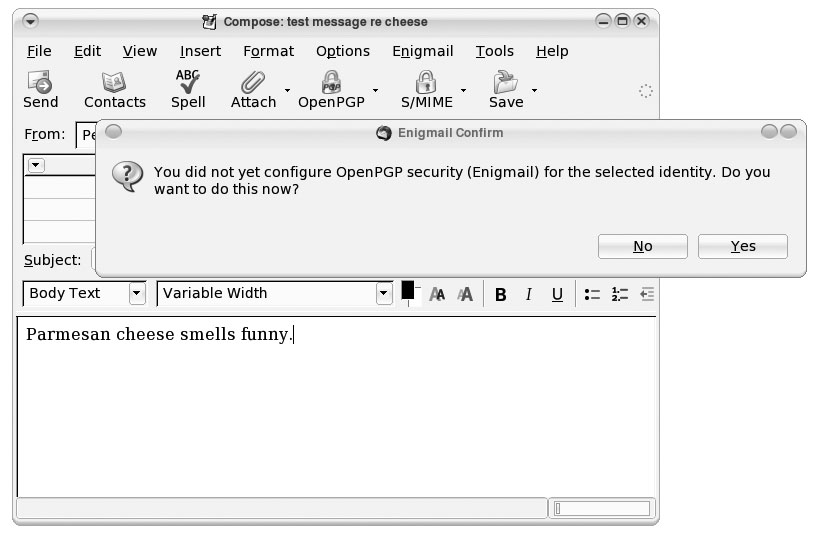
In the new compose e-mail window, fill in the fields To, Subject and
Body, then click OpenPGP. The message in Figure 6 will appear. Click Yes.
Figure 6. Thunderbird Prompts You to Configure Security
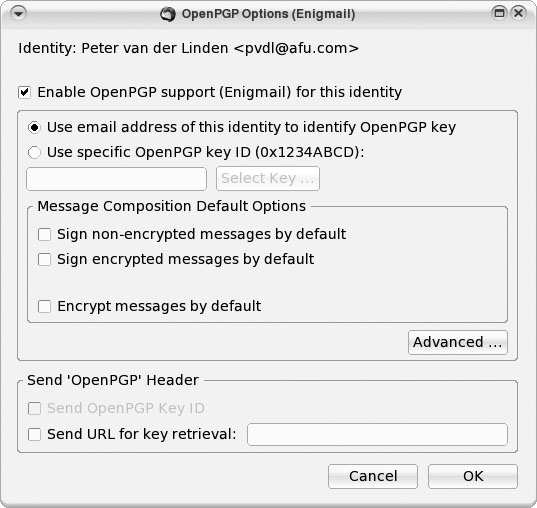
The window shown in Figure 7 will appear.
If the e-mail identity you are using in Thunderbird matches the e-mail
identity that you used when you set up your GPG key, select Enable
OpenPGP support (Enigmail) for this identity.
Figure 7. Telling Thunderbird Your GPG Key ID
If the mail addresses are not the same, select Use specific OpenPGP key
ID. Then click Select Key and select the appropriate key ID from the
list that appears. When you have made those settings, click OK.
The configuration screens will disappear, leaving your compose
window and a small dialog window offering you several choices,
including Encrypt Message. Make your selection, then click OK.
Finally, click Send to send the mail. Only the body and attachments
of the email will be encrypted, so don't give your secret plans
away in the subject line.
Receiving Encrypted Mail
As an e-mail is sent across the Internet to its addressee, anyone who
administers any host that it passes through can make a copy of the mail.
If the email is encrypted, this copy will look something like the mail
shown in the following example. It is effectively immune to
casual eavesdropping efforts.
An encrypted e-mail as seen by an eavesdropper:
From pvdl@gmail.com Mon Apr 4 23:41:12 2005 +0000
Message-ID: <4251D097.70701@gmail.com>
Date: Mon, 04 Apr 2005 16:41:11 -0700
From: Peter van der Linden
User-Agent: Mozilla Thunderbird 1.0.2 (X11/20050317)
X-Accept-Language: en-us, en
To: Peter van der Linden
Subject: test message re cheese
X-Enigmail-Version: 0.91.0.0

-----BEGIN PGP MESSAGE-----

Charset: ISO-8859-1
Version: GnuPG v1.4.1 (GNU/Linux)
Comment: Using GnuPG with Thunderbird - http://enigmail.mozdev.org
hQEOA7XFUy1wsQ8yEAQAsh+0abSkGnGZV2DiLESQ9Wl5pwGx1ApDUh2bMCHjwWw9
FGzT3keACkmFUJfo+eSMpcdX6zDMzeG0N/eGjuHACYbQZjBDBDUd/+o2pP6GuGmA
D6ZwnNXi8NDWDXlyqHefPDKDCFuX3D8ZDkzmowepzJTCtsFvpGB6aMkAIx75OQgD
/RX8FvYd6v+clYGOzS+FwyncwHRjRw5uyKXwb/PGZd4yZ2wyVkNTIxqlS2gtTdx9

-----END PGP MESSAGE-----
After the one time setup, when mail comes in for you, Thunderbird
and Enigmail work together to decrypt it automatically. Thunderbird
tells Enigmail "Hey, I have an encrypted mail here." Enigmail looks
to see if it was encoded with the public key of the user who is
reading the e-mail. If so, it decodes it with the private key and
hands the result back to Mozilla. The resulting clear text is
automatically displayed. If Enigmail doesn't have the private key
to decode the mail, it displays a small key icon with the key in
two broken pieces.
Signing E-mail and Files
Encryption can be used to guarantee e-mail authenticity, as well as to
conceal messages. Just as you sign a bank check or a letter written on
paper to guarantee that it was issued by you, you can use PKE to "sign"
an e-mail message to assure readers that it came from you. You can sign arbitrary
files (programs, operating system patches, word processor files) to
assure readers that they came from you.
The system is designed so that public key and private key are symmetric.
You can use either one to encode and use the other to decode. If someone
encrypts a file with his private key, anyone can decode it using the
sender's public key. The only key that will decode the file correctly is
the sender's public key, so you know that the file really did come from
the sender (or someone with access to the sender's private key).
Encryption falls short of an absolute guarantee of authenticity because
codes can be broken, people bribed, keyboards tapped, etc. But you can
put a lot more trust in the authenticity of signed e-mail compared with
unsigned.
For convenience of readers, you might send an e-mail in plain text, with
an attachment containing the encrypted version. The recipient can read
the plain text immediately and check that it is accurate by decrypting
the attachment and comparing it to the plain text.
You don't even have to encrypt the plain text. It's enough to get a
checksum summary of the plain text (known as a message digest) and
encrypt that. For e-mail, the message digest is typically in two pieces
added before and after the body of the e-mail. With non-e-mail files, the
message digest typically is kept in a separate file, but with a name
that relates it to the file for which it is a summary.
When a file has been signed, the recipient has an easy way to check if
the file contents have been altered at all after the signing. Calculate
the digest of the message that was received. There are several popular
digest programs: SHA1, SHA2 and MD5. Use the sender's public key to
decrypt the digest that was received. Calculate the checksum using the
same checksum program that the sender used. If the message has been
altered, the decrypted message digest will not exactly match the
calculated message digest.
Signing is the reason we don't refer to a public key as a locking key,
nor to a private key as an unlocking key. Depending on whether you are
encrypting or signing, you will process the message with the recipient's
public key or your private key. When I want to send Alice a confidential
message, I use her public key to encrypt the message.
But if Alice wants to sign a reply to me, she will use her private key
to encrypt it. If she wants to encrypt a reply to me, she will use my
public key to encrypt the message. Both public and private keys can be
used for locking and unlocking. Whichever key you used for locking, you
use the other key for unlocking.
Enigmail gives an option to sign e-mail as well as encrypting it. You can
also sign files with GPG commands. If you have a file called
contract.txt, you can sign it with this command:
gpg --armor --clearsign contract.txt
That will leave the original file unchanged and create a new file,
contract.txt.asc, that contains the old file plus the signature
information. When the other party gets that contract.txt.asc file from me, she can
verify that she is reading the same thing that I signed by running this command:
gpg --verify contract.txt.asc
The output from the command will say whether the signature matches the
text or not, and hence whether it has been tampered with or not.
People often sign files or e-mail that they encrypt. That way, only the
intended recipient can read it, and the recipient knows that you are
definitely the person who sent it, too. Computerized signatures based on
encryption are far more reliable than written signatures that are forged
on a daily basis by people with criminal intent. But computerized
signatures are only as good as the encryption scheme and key length you
use. For GPG, that's a pretty good assurance, until you start to look at
all the interfaces outside GPG that can be subverted.
GPG is the strongest part of a system that has weak parts
where humans are involved. Rather than encrypting individual files, the
approach should be to transparently encrypt entire filesystems at block
level. Some products do this, but they are not yet in widespread use.
One is sourceforge.net/projects/loop-aes.
You might have found GPG to be somewhat inconvenient to use. That's a
common reaction. In practice the barrier of GPG is high enough
that the program is not in use by the majority of Linux users. It's
quite rare to get encrypted mail. A program called seahorse
(seahorse.sourceforge.net)
is a GUI for GPG key management. It's good as far as it goes, which isn't far.
The lack of a good, simple user interface for GPG definitely is
holding back widespread adoption of public key encryption. In
contrast, the HTTPS protocol is trivial to use and virtually
universal in e-commerce. Perhaps GPG is not the right starting
point when looking for easy-to-use encryption. Or perhaps the right
way to look at it is that you endure the one-time pain of GPG setup
and then Thunderbird makes mail encryption easy.
References
There are more features to GnuPG than I have covered in this series.
You can find out about these features by reading the references.
You should be careful looking at the Mozilla mail documentation for
encryption, as it can be misleading. Because Mozilla is an
everything-at-once combined e-mail client, news reader, HTML editor and
browser, the documentation that you reference from the e-mail help menu
may actually take you to a file that was intended for the Web browser
help.
This happens in Mozilla 1.5 if you search for encryption. You get some
totally inapplicable material talking about certificates, which really
relates to how the browser deals with HTTPS. It has
nothing to do with e-mail encryption. This is yet another reason why
three or four small fast applications with shared libraries are usually
better than one big multifunction application.
Here are some links to further sources of information.
- The GNU Privacy Guard home page, at
www.gnupg.org, has the
latest software for download and also a section on documentation.
It includes the GNU Privacy Handbook, which is, frankly, more of a
reference manual than an introductory handbook. - Mozilla with Enigmail and
GnuPG Mini Howto is a fuller
tutorial on
using GPG with e-mail on Linux. This is one of the better Web
tutorials on the subject. - Bruce Schneier's Applied Cryptography is a very readable guide to
the whole field of cryptography, although it is intended for
practitioners, not laypersons. The book is published by Wiley and
the ISBN is 0471117099. - David Kahn's The Codebreakers is an excellent, very readable
review of codes and code breaking through the ages, down to the
present day. It is published by Scribner with an ISBN of
0684831309. Although the list price is $70, you can sometimes find
cheaper used copies on Amazon.
Peter van der Linden currently works in Silicon Valley as a software
consultant who specializes in Linux and open-source software. A graduate
of Yale, van der Linden also is author of The Official Handbook of
Practical Jokes, Expert C Programming
and Just Java.