
OOo Off-the-Wall: Back to School with Bibliographies
A bibliography, also known as "Works Cited" or "Reference List", is a list of sources for ideas contained in a document. Typically, the list is accompanied by citations, brief references within the body of the document, that direct readers to detailed information in the list. Depending on the format used, both the sources of ideas and of direct quotations may be used in a bibliography.
Bibliographies are used commonly in academic or research papers. In that form, they are considered to be not only proof of honesty but also an acknowledgment of the author's intellectual debt to others.
Whether you are using the Chicago, Modern Languages Association or American Psychiatric Association style for bibliographies and citations, OOo Writer's bibliography tools are flexible enough to handle your needs. However, the process of creating the bibliography is confused by two things. For one, bibliographies are lumped together with indexes and tables of contents. Second, OOo Writer provides misleading samples for its bibliography database. For this reason, it is worth walking through the process step by step to avoid confusion.
Information for Writer bibliographies may be stored in a database. There is a single database for each user of OpenOffice.org on the system. Called biblio.odb, it is located in the /.openoffice.org2/user/database folder in each user's home directory. It is based on the file of the same name in the /presets/database directory of the main installation in the /opt directory. When assembling a bibliography, you have the option of using this database or of storing bibliographic information within the current document.
Within a document, bibliographies consist of two parts:
The list of works at the end of a document. This list can be built by using records in the bibliographic database for the document or from records created when a text citation is entered.
The citations within the text of the document. These citations guide readers to the complete reference in the list at the end of the document. In Writer, they are made from the Short Name (Identifier) for a record. They are roughly equivalent to the entry markers used for other tables and indexes, but they are only one field in a database that has additional entries.
Writer's database includes sample entries. Unfortunately, these samples need to be replaced, because they confuse more than they help. They are misleading or incomplete in several ways:
The Identifier, which is called the Short Name in Insert > Indexes and Tables > Bibliography Entry, is the content for the text citation or bibliographic entries. However, the sample entries use a meaningless code that is useless for citations unless they are changed.
The fact that which fields you need depends on the bibliographical style and the type of source you are using is obscured by the fact that all the samples are books. In fact, in any given record, many of the fields are going to be blank.
The samples use the fields incorrectly even for books. For example, they use the Title column, which is supposed to be for articles and shorter works, rather than the book column. Similarly, they use the Page field to list the number of pages in each book. In fact, the field is intended to list either the starting page or the range of pages covered by an article or smaller work. These errors could cause false results if you were searching for information.
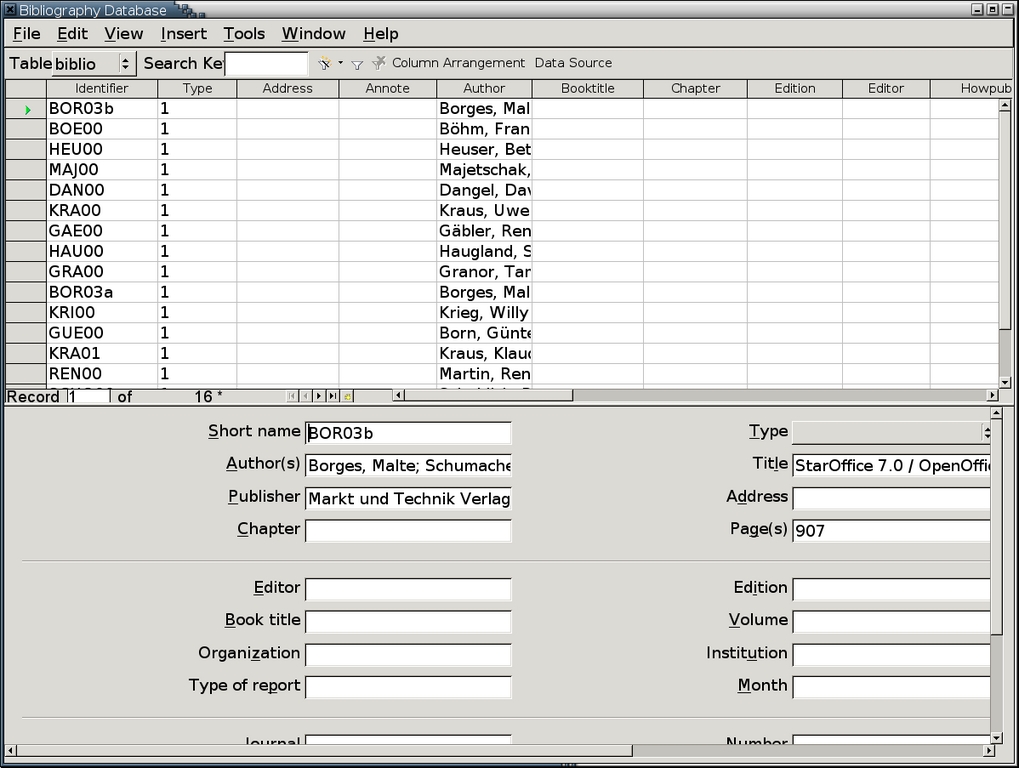
These errors are worth noting, because you might spent long minutes puzzling how to apply the example of the samples. You can't, so delete the samples instead of wasting your time.
To add or edit a bibliographic database:
1. Select Tools > Bibliography Database. The bibliography database opens. Sample records are included.
2. If you are editing an existing database, use several buttons on the toolbar to help you find a record to edit:
The Autofilter arranges rows in alphabetical or numeric order according to the column you select. Using Author is often the most useful filter.
The Standard filter allows you to set custom filters based on the column, the condition and the value. For example, if you set the filter to Type=14, only unpublished sources would show.
The Remove filter button returns the display to the default setting of showing all records.
The Column Layout button sets the order of columns, starting from the left side of the table.
Each column head has a right-click menu that you can use to Hide the column to simplify the table. You can unhide columns by selecting Show Columns from any other column head.
3. Do one of the following:
To add a new record, select Insert > Record. A new row is added to the table. It has an arrow in the row header.
To edit an existing record, click anywhere on its row. The currently selected row is listed in the status bar of the database table.
The easiest place to add or edit information for a record is in the fields at the bottom of the screen. The fields correspond to the tables at the top of the screen.
You do not need to fill in all of the available screens. Instead, enter only the definitions you require for the form of citation you are using. A book, for example, requires different fields from a magazine article or an Internet site. Consult a guide to the bibliographical style that you are using for information about exactly what information each type of article needs.
Remember that each record must have:
A Short Name, called the Identifier in the database table. This field is the content for any text citations to the record. The structure for this field depends on the citation style and the type of record you are using.
A Type, such as book or unpublished.
For most citation formats, you also need to enter the Author, Book Title or Title for an article or shorter work, year of publication and the publisher. In some cases, you also may want to use one of the User-Defined fields for the city.
4. Add or edit any other records.
You do not need to worry about the order of records as you enter new ones. When you are finished, you can use the Autofilter button to arrange them in the order you prefer.
5. When you finish, close the bibliographic database window.
You do not need to save the database with a command. It is saved automatically when closed.
Twenty years ago, when the Chicago style dominated, most text citations were in the form of footnotes or endnotes. More recently, footnotes and endnotes have tended to be reserved for asides or for additions to the original text. In recent years, only the Chicago style continues to use footnotes or endnotes for citations in the text.
Increasingly, all three styles tend to use parenthetical or in-line citations within the text. Parenthetical citation gives information in brackets, while in-line citations give the information as part of the sentence structure. Both give just enough information that readers can locate full information in the bibliography about the source being mentioned. Furthermore, they give the information with minimal disruption to the text, and they can be skipped easily if a reader is not interested in them. At times, an even more informal style is used, in which numbers refer to the order in which items appear in the bibliography.
The following table gives the more common formats for text citations in each style. The information given in each format shows what is important to the users of each style. For example, dealing in literature, users of the MLA style want exact page references. By contrast, in APA style, the timeliness of the information is an important factor in judging it, so the year is more important.
| Citation Style | Common Formats |
|---|---|
| Informal | Numbers refer to the order or entries in the bibliography. |
| Chicago | (Author, Year, Page) |
| In a footnote or endnote, using the same structure as in the bibliography, except that the writer's name is given first name first. | |
| MLA | (Page Number) |
| (Author, Page Number) | |
| (Article, Page Number) | |
| APA | (Author, Year) |
| (Year) | |
| In-line (all) | Macdonald (2003) proves ... |
| In a recent study, Macdonald (2003) ... | |
| In 2003, Macdonald ... |
In Writer, a citation is called a bibliography entry by analogy to the markers used for other types of indexes and tables. However, this choice can be misleading. The process of adding a citation differs from adding any other type of entry marker in at least three ways:
The citation uses the text of the Short Name, also called the identifier, store in the bibliographic record, rather than existing independently, like an index marker.
The bibliography entry is formatted from the Index/Table tab of the Insert Index/Table screen.
Like other entry markers, a bibliography marker may be used to generate the bibliography. However, you also can create a bibliography marker from the bibliography database.
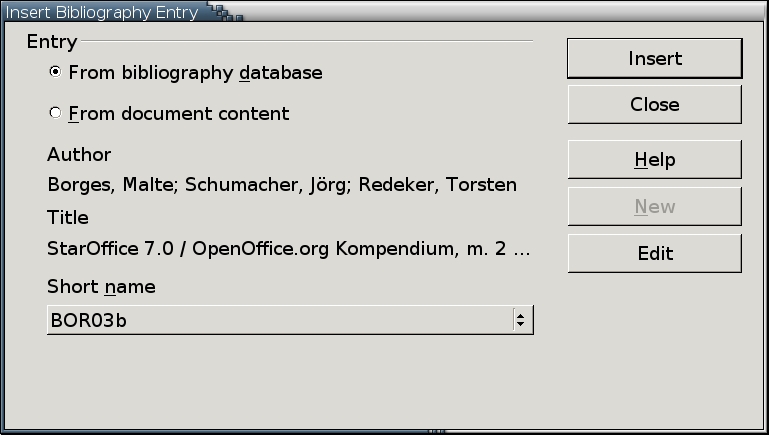
To add a citation or bibliography entry:
1. Place the mouse cursor where you want the citation.
In the Chicago style, citations generally go into foot notes or end notes. In both the MLA and APA styles, citations generally go at the end of a sentence or at least at a natural pause, such as a comma. However, depending on the citation style and who you are writing for, an internal citation is sometimes acceptable. For example, instead of adding (Smith, 1999) at the end of the sentence, you may prefer to write something like, "According to Smith . . ." with Smith as your citation.
2. Select Insert > Indexes and Tables > Bibliography Entry.
The Insert Bibliography Entry screen opens.
3. Select the entry source:
From bibliography database: the Short Name (identifier) for a record in the bibliography database is used.
From document content: a bibliography record is created and stored within the document rather than in the database.
Your choice depends on your work method. Those who keep careful lists of their sources probably will find the database to be more convenient. By contrast, those who are less organized or wish to avoid sorting through sources related to other documents may prefer to add to entries to the document.
4. If you select From bibliography database, select the Short Name from the drop-down list at the bottom of the screen. Then, select the Insert button to add the citation.
5. If you select From document content, select the New button.
The Define Bibliography Entry screen opens. You do not need to fill in all of the available screens. Instead, enter only the definitions you require for the form of citation you are using.
From Writer's viewpoint, you need to enter:
The Short Name: the text for the bibliographic entry.
The Type: the type of source you are citing.
For most citation formats, you also need the Author, Book Title or Title for an article or shorter work and Year of publication. In some cases, you also may want to use one of the User-Defined fields for the city.
6. Select the OK button when you are finished. Then, use the Insert button to add the bibliography entry to the document.
Note: Formatting for a bibliography entry is set from the Index/Table tab of the Insert Index/Table screen. Until you have added the bibliography, the entry many not be formatted in the way you prefer.
Broadly speaking, bibliographies are structured in the same way as other indexes and tables. The major differences are that more code buttons are available for bibliographies and a sorting order is available.
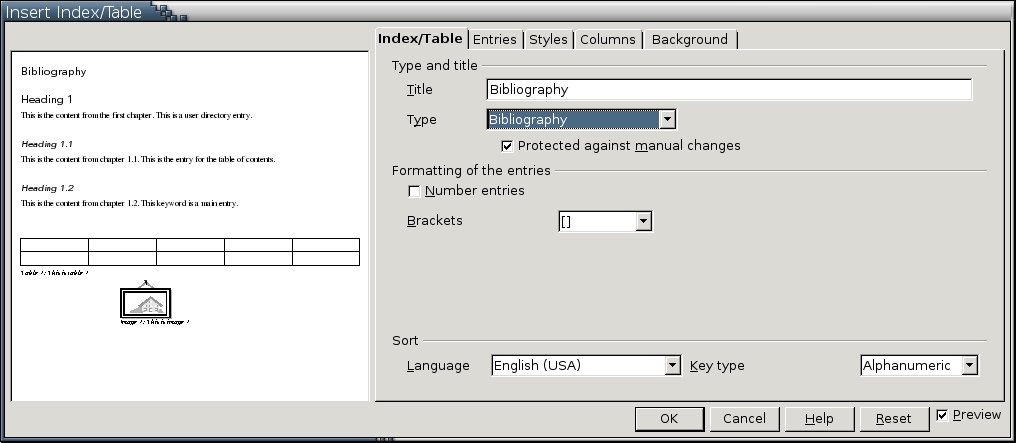
To structure a bibliography:
1. Do one of the following:
If you are creating a new bibliography, select Insert > Indexes and Tables > Indexes and Tables > Entries.
If you are editing an existing bibliography, select Edit Index/Table from its right-click index. Then, select the Entries tab.
In either case, the Insert Index/Table screen opens.
2. Set the title for the bibliography.
Tip: You may want to re-title the bibliography Works Cited if you are using the MLA style or Reference List if you are using the APA style--or if you simply prefer these alternatives.
3. Select the type of bibliography item from the Type pane. The types include five User-Defined items.
4. If you haven't already, begin structuring the entry (or entries) by selecting code buttons from the drop-down list below and to the left of the structure line. (see below)
Tip: The structure line can be confusing at first. The easiest way to design the entry is to delete everything and then add the building blocks in the order that you want.
For each code button, you can set the character style from the list of pre-defined styles.
5. Select the sort order for entries. Bibliography entries can be sorted by Document position, the order in which they appear in the document, or by Content, alphanumeric order.
If Content is chosen for the sort order, then you also can choose up to three sorting keys. The options for sorting keys are the same as for code buttons.
You also can select whether, within the key, entries are sorted in ascending (A-Z, 1-9) or descending order (Z-A, 9-1) by selecting one of the two buttons beside each key.
If no key is selected, entries are sorted in the order in which they appear in the bibliography's data source.
6. Once you have structured the entries, formatting a bibliography continues in the same way as for any other index or table.
Note: If you are using the APA style, edit the Bibliography 1 paragraph style so that there is a half-inch indent before the text and a negative half-inch indent for the first line on the Indents and Spacing tab. These settings give all lines except the first line an automatic indentation.
7. If you choose, set the number of columns in which the bibliography displays from the Column tab and the background color or graphic from the Background tab.
8. Select the OK button to add the bibliography at the current mouse position.
9. If you choose, you can edit the Bibliography Heading and Bibliography paragraph styles to change the look. These styles are not listed in the Automatic view of the Styles and Formatting window until they are used by Writer to create a bibliography.
10. To edit or update the bibliography, right-click and select the appropriate item.
Unlike other entry markers, bibliography entries are formatted as you create the bibliography:
1. Select Insert > Indexes and Tables > Indexes/Tables > Index/Table > Type > Bibliography.
The Insert Index/Table screen opens. The options for bibliographies display.
2. If you want to use numbers as text citations, select the Number entries box.
This choice sets up an informal but widely used alternative to the Chicago, MLA and APA styles. In this style, citations in the body of the document are numbered, and the numbers correspond to the order of items in the bibliography.
3. Select the type of brackets, if any, that you want to use around bibliography entries.
Each style has its own methods of citations. The type you prefer to use affects which brackets you use or whether you use any at all.
Note: The formats you have chosen are applied when you add the Bibliography to the document.
At this point, an obvious fact emerges: setting up a bibliography in Writer is a lot of work. For this reason, once you know the style of citation that you are likely to use most often, consider setting up a template. Figure out the types of citations you are likely to need, and then format them ahead of time using Insert > Indexes and Tables > Indexes and Tables > Entries--after first carefully setting the Type to Bibliography on the Index/Table tab. That way, you won't have to recreate the format each time, and your bibliographies can become a timesaver rather than an exercise in database input.
