
At the Sounding Edge: FreeWheeling
A few years ago, one of my students performed a rather unique original piece at a local coffee house. He used one guitar, one bass, his voice and a foot-controlled hardware device called a loop sampler. The sampler recorded brief segments played on the guitar or bass and then fed them back out as repeating audio loops. The sonic result was a texture of seven looping guitar parts and two looping bass parts. When the texture was built to his liking, he then added his vocal, singing a non-looped song over the looping sounds. At the climax of the song, he simply stopped the sampler on an appropriate beat, and the crowd went wild.
JP Mercury's FreeWheeling program is the software equivalent of that loop sampler. Of course, features have been added that are possible only in software, making FreeWheeling a powerful loop-based performance tool. In this month's column, I take a look at the latest version of FreeWheeling and consider its basic capabilities. FreeWheeling has features I haven't explored yet, but even its basic use shows off FreeWheeling's musicality.
An audio loop is a sound or part of a sound that is played repeatedly until stopped by an internal or external control. In musical terms, a loop is a kind of ostinato, a repeating figure that may function alone or in combination with other ostinati. Stravinsky's "Rite Of Spring" includes excellent examples of layered ostinati. Layering audio loops can enable quick construction of complex musical textures in the studio or in live performance.
The tape loop echo boxes of Ye Olde Days were the original audio looping devices, but the modern audio looper truly begins with the hardware samplers and drum machines of the 1980s. These machines offer looping capabilities that have been put to creative use by musicians in various genres, including hip-hop, rap and techno. As sampling shifted to software running on general-purpose computers, a genre of powerful music composition software evolved from the basic hardware implementations. Programs such as Fruity Loops and Sonic Foundry's Acid are excellent examples of audio loop sequencers, adding enhancements such as timed loops and high-quality time stretching and pitch shifting.
I'm often asked whether Linux audio software includes anything similar to Acid. I freely confess that Linux audio development has yet to come up with an Acid competitor, although Ardour might be warped into service. However, Linux-based musicians do have access to some impressive loop-based music software, and so we come at last to FreeWheeling.
I built and tested FreeWheeling 0.5pre4 on Red Hat 9 and Fedora Core 3 installed from the Planet CCRMA ISO CD images (see Resources). Compiling the program was a straightforward task, with only two special considerations. The excellent SDL (Simple DirectMedia Layer) libraries and headers are required for FreeWheeling's GUI, including the SDL_gfx and SDL_ttf components for graphics and TrueType font support. The second consideration was the option to provide internal support for the FluidSynth soundfont synthesizer, allowing direct play and record with FreeWheeling.
My Planet CCRMA installations already supplied the main SDL and FluidSynth systems. However, during the configuration process, I discovered that the Planet had not installed the SDL_gfx and SDL_ttf devel packages. After installing those packages, FreeWheeling compiled and installed without complaint.
To fully configure FreeWheeling to your personal tastes, you need to learn the details of its .fweelin.rc file. By default this file is installed in your home directory and in /usr/local/share/fweelin. The file in your home directory has preference, and it's there that you customize FreeWheeling. We look closer at .fweelin.rc later, but for now let's get started with the program set to its defaults.
FreeWheeling is a JACK-aware application, so you need to start the JACK audio server before opening FreeWheeling. After starting JACK, open an xterm, type fweelin at the prompt, and gaze in awe as your screen fills with messages as FreeWheeling starts up. Figure 1 shows part of that message stream, along with my JACK audio connections and the FreeWheeling default display. FreeWheeling does not autoconnect to any other JACK client, so you need to make your connections with jack_connect or a GUI such as Rui Capela's QJackCtl. Of course, thanks to JACK, you can route FreeWheeling's audio I/O to and from any other JACK client, for example, attaching the audio output from an external softsynth to FreeWheeling's audio inputs. FreeWheeling is also an ALSA sequencer client, which means it can send and receive MIDI messages to and from any other ALSA sequencer client, such as that external softsynth.
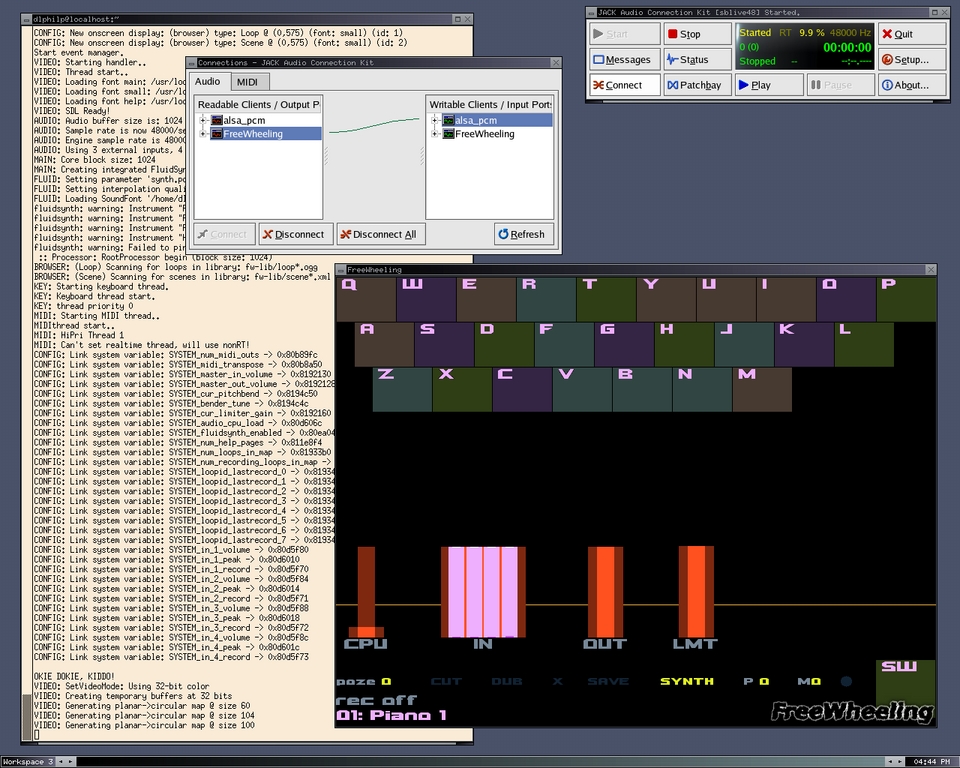
Figure 1. FreeWheeling
Press the / key to call up FreeWheeling's help screen that lists the current key bindings and control commands. FreeWheeling is essentially a keyboard-controlled audio loop sequencer, designed for maximum personalization through the .fweelin.rc file. Again, I must delay further explanation of that by-now mysterious document in order to proceed to the hands-on operation of the program.
Basic operation of FreeWheeling is easy. Audio input can come from a record-enabled mixer channel, an OGG-encoded soundfile or the internal synthesizer. The main display shows the input sound as it passes through FreeWheeling (Figure 2). By default, four input channels are defined with separate volume control by pressing the up or down arrow key and the input channel number (1,2,3,4). Press a QWERTY key to record a segment and then press it again to play the recording as a loop. Repeat this basic procedure with other keys, using any previous loop as real-time accompaniment. The u key deletes the last recorded loop, Space+[key] deletes the loop at [key] and Alt-Space deletes all current loops. F8 saves the last recorded loop as an OGG file, while F7 saves an entire collection of loops as a scene. Synth patches, audio loops and scenes all are selectable from FreeWheeling's browser. The b key rotates the browser through its loadable types, the keypad + and - keys scroll the available items for each type and the Enter key selects and loads an item.
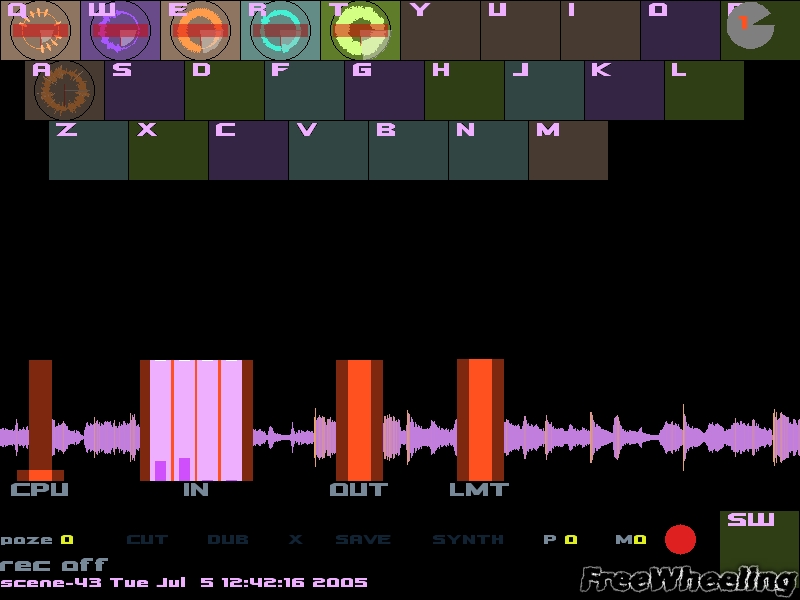
Figure 2. Recording into FreeWheeling
Recording may be freestyle, timed to a prerecorded loop or coordinated with FreeWheeling's metronome. A tap tempo feature provides a neat way to set the metronome. During playback, loops can be toggled on and off by pressing the associated key. Loops can be muted and unmuted with the keypad - and + keys, plus the loop key. Volume control is available per I/O channel and per loop, giving the performer finer control over the overall balance.
I've recorded some simple examples demonstrating these features and placed them on-line here. They're not especially musically valuable, but they should give you an idea of what can be done at even FreeWheeling's most basic levels.
Now we go a few steps further in our explorations and look into the .fweelin.rc file. This file is an XML-based configuration file through which FreeWheeling's features can be customized extensively, including its interface layout, keyboard bindings, MIDI control assignments and more. You'll need to spend a little time to learn the configuration syntax, but the file, which is also FreeWheeling's primary documentation, is written clearly and is definitely worth the effort.
The easiest way to use .fweelin.rc is to change some of the default values, restart the program and check out what changes were made. For example, I changed this setting :
<!-- Soundfonts to load. Soundfonts without a path load
 	from /usr/local/share/fweelin/. -->
	<fluidsynth soundfont="basic.sf2"/>
with this line:
<fluidsynth soundfont="/home/dlphilp/soundfonts/8mbgmsfx.sf2"/>
to load my preferred soundfont for FreeWheeling's internal FluidSynth.
This simple example sets FreeWheeling's display size more to my liking:
<var resolution="1024,768"/>
The next example presents a more interesting use of .fweelin.rc, binding MIDI key numbers to toggle loop recording and playback. First we go to the Variables section and set the noterange variable to the desired range of MIDI note numbers, in this instance, the lowest octave of my CZ101 MIDI keyboard:
<declare var="VAR_noterange" type="range" init="36>47"/>
In the video section, we find this layout design:
<layout id="1" name="MIDI Keyboard" scale="0.35,0.55" pos="0.00,0.00"
 label="0" elabel="0" namepos="0.02,0.02" show="0">
The Tab key toggles between the PC keyboard, layout id 0 and the MIDI keyboard displays. By default, FreeWheeling opens with the PC keyboard layout, but that also can be redefined.
The startup section of .fweelin.rc defines the map between my CZ101 keyboard and FreeWheeling's MIDI layout:
<!-- Sub 0: Startup - do startup stuff -->
<binding input="go-sub" conditions="sub=0"
 ...
 output2="video-show-loop"
 parameters2="layoutid=1 and loopid=VAR_noterange+VAR_loopid_pianostart"
 ... />
The video-show-loop event defines the range of loops displayed. Each recorded loop is assigned a unique ID number, loopid, created by summing the value of the received MIDI note number and the value of the loopid_pianostart variable. The pianostart variable also is defined in the Variables section:
<declare var="VAR_loopid_pianostart" type="int" init="350"/>
Figure 3 shows off FreeWheeling recording an audio input while playing back loops assigned to the MIDI keyboard layout. When I press the lowest key on my CZ101, a loop is recorded and assigned to the corresponding key in FreeWheeling's MIDI layout. Pressing the key again plays the assigned loop, as seen in Figure 3.

Figure 3. FreeWheeling's MIDI Keyboard Layout
The MIDI key binding is defined in the Trigger Loops section:
<binding input="midikey"
 conditions="notenum=VAR_noterange and keydown=1"
 output="trigger-loop"
 parameters="loopid=notenum+VAR_loopid_pianostart and vol=velocity/127"/>
If a MIDI key press occurs that equals a note number defined within VAR_noterange, then the conditions are met and a trigger-loop event takes place, either recording or playing a loop on the MIDI key layout.
As I said, it takes some effort to get your mind around FreeWheeling's customization options and syntax, but it does start to make sense and it does result in a highly personalized instrument.
As mentioned above, the main source of documentation for FreeWheeling is the .fweelin.rc file. FreeWheeling's author also has provided a direct introduction to FreeWheeling in a series of AVI videos. A demo and three tutorials currently are available from the FreeWheeling Web site, and a fourth tutorial should be on-line soon. The FreeWheeling mail-list supplies another source of information about the program and how its users work with it. In addition to this documentation, a number of demonstration soundfiles are available on the FreeWheeling Web site.
FreeWheeling is very musical software, inviting users to play in a powerful real-time composition environment. It also is still-maturing software: I crashed RH9 and FC3 a few times while stumbling around FreeWheeling's keyboard controls. In addition, there are some user-level enhancements I'd love to see, such as JACK transport synchronization and the ability to rename loops and scenes within FreeWheeling. Fortunately, programmer/musician JP Mercury is dedicated to improving FreeWheeling and welcomes suggestions for expanding its capabilities. I must confess that I almost had too much fun with FreeWheeling even at its elemental levels, and as I learn more about it, I also see its deeper possibilities. If you want to play with a real-time loop-based performance instrument, then you need to check out FreeWheeling.
Next month I'll continue my review of Linux audio looping software by looking into Jesse Chappell's SooperLooper.
