
At the Sounding Edge: Using QSynth and QJackCtl
In last month's column, I introduced seq24, a minimal but powerful MIDI sequencer. The final screenshot for that column shows off seq24 at work here in Studio Dave. In that screenshot you can see two of my favorite Linux audio programs, Rui Nuno Capela's QJackCtl and QSynth. In this month's column, we look at those applications more closely to learn what they do and how you can use them in your own Linux MIDI music workstation.
QSynth and QJackCtl are GUI front-ends for other software. QSynth provides a friendly user interface for the fluidsynth soundfont-based synthesizer. QJackCtl supplies a similar interface for the JACK audio server/transport control system. Both applications use a recent version of the Qt graphics toolkit and up-to-date versions of their other required components. Complete instructions for installing and configuring QSynth and QJackCtl can be read on their respective Web sites (see Resources), and most of the necessary software is included in mainstream Linux distributions. JACK and fluidsynth typically are not found in mainstream distros, but the QSynth/QJackCtl Web sites include URLs for those and all other required parts.
When I refer to a feature of QSynth or QJackCtl in many instances the feature really belongs to the underlying application. The GUIs organize the available functions of fluidsynth and JACK for easier access and control, so for convenience I've written as though QSynth and QJackCtl are complete in themselves.
JACK is an audio server and transport control system designed for low-latency and robust performance up to professional levels of use. Given a properly tuned base system--low-latency kernel, optimized disk throughput and so on--client applications can be routed and connected freely, sharing audio data without dropouts and potentially working with synchronized transport control. The system has been adopted throughout the Linux audio development community and has become a necessary part of any modern Linux-based music and sound production system.
JACK can be launched and controlled from the command prompt. But, when working in X, it's much nicer to use a GUI to configure the parameters of the JACK system. QJackCtl provides that GUI.
If you're running an audio-optimized Linux system, such as AGNULA/Demudi or Planet CCRMA, QJackCtl either is activated by default or is available as a menu item. If you start QJackCtl from the command prompt you can add the --help option to see a few possible startup options.
Figure 1 shows off QJackCtl's main panel. Its buttons control the JACK system active state (start/stop/quit), messaging and status reports, device connection management, transport control (play/pause), the setup configuration and a program information pop-up. The main panel also includes a visual display of the information reported by the status button.

Figure 1. QJackCtl
Click the Setup button to open the system configuration dialog shown in Figure 2. This article is not about JACK, so I am going to skip a detailed explanation of JACK's parameters. QJackCtl attempts to configure itself with sensible defaults, but you will be able to tune JACK for better performance as you learn more about its capabilities. (See the JACK reference materials for more information).
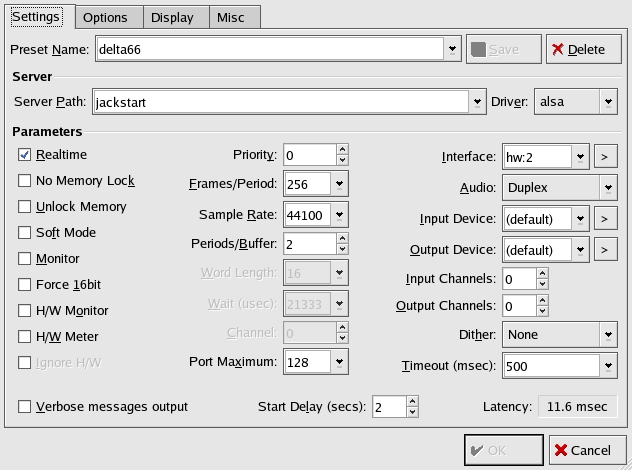
Figure 2. The Settings Tab
The Setup panel contains tabs for startup/shutdown scripts, font display settings and some miscellaneous options. The Display tab includes two items of special note, an option for connections to be drawn as Bezier curves and an option for renaming the clients and their ports. They may not seem so remarkable, but they are thoughtful and useful touches.
Assuming you have a working system, you now can click on the Start button to start using JACK. Figure 3 demonstrates QJackCtl at work with my M-Audio Delta 66. JACK typically handles only one soundcard at a time, so I have separate server configurations for my SBLive and Delta 66 cards. Figure 3 also shows the system status represented by the status panel and its visual display.
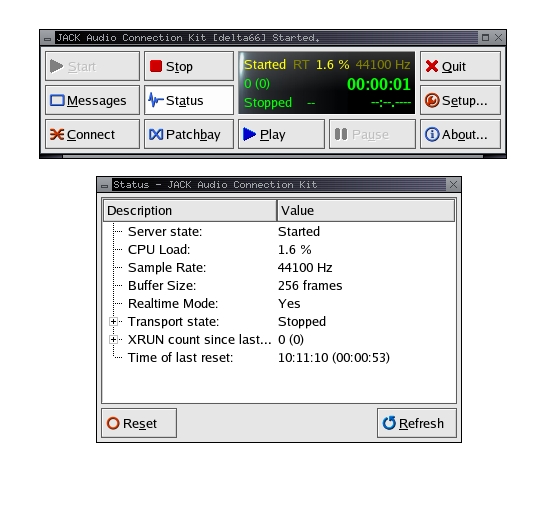
Figure 3. QJackCtl with the M-Audio Delta 66 Soundcard
Now that we have a running JACK system, we can use it with QSynth. However, before making the connections, let's look at QSynth.
The fluidsynth project provides Linux musicians with a free and open-source soundfont-based synthesizer. A soundfont is a soundfile format combining audio data and performance control data. Soundfonts are not merely played back, they require an engine (synthesizer) designed to apply the performance controls to the raw audio data. fluidsynth is such an engine.
Like JACK, fluidsynth can be run from the command line, but its configuration at the prompt can be a bit complicated (see 'man fluidsynth'). QSynth is the GUI solution to that problem.
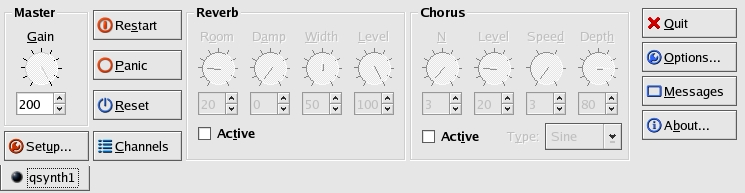
Figure 4. QSynth
Figure 4 shows QSynth's default appearance. The main panel is arranged clearly and is comprehensible. As with QJackCtl, QSynth employs helpful tooltips to clarify the function of each interface component.
Again, we start our little tour with the Setup panel. Options here include tabs for audio and MIDI driver configuration, soundfont bank selection and a summary of QSynth's default and current settings. QSynth supports audio and MIDI drivers for ALSA and OSS, a MIDI-only driver for MidiShare and an audio-only driver for JACK. In Figures 5 and 6, QSynth has been configured as an ALSA sequencer client and as a JACK audio client, respectively.
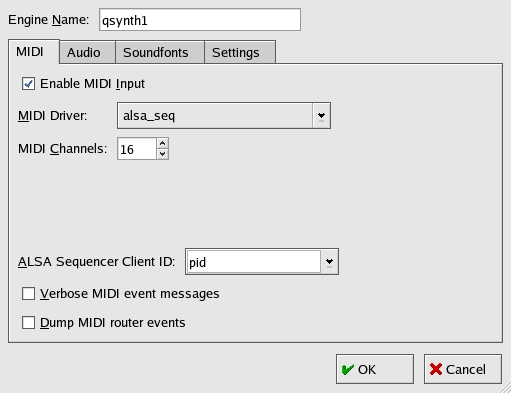
Figure 5. MIDI Options
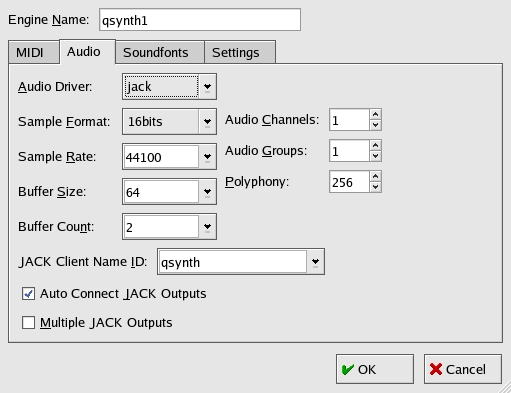
Figure 6. Audio Options
Click the Soundfonts tab to specify the soundfont banks you want to assign to the QSynth engine. As Figure 7 shows, you can list multiple banks, but only the last font listed is active.
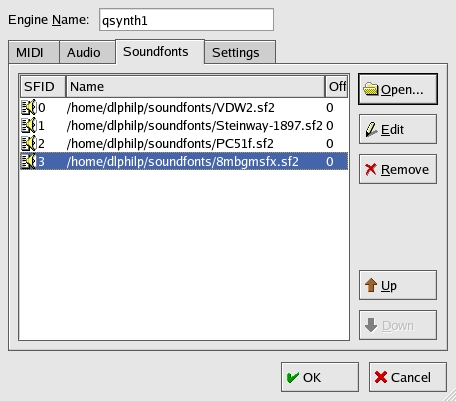
Figure 7. Soundfont Selector
Close the Setup panel and click on the Channels button to open the channel/instrument assignment panel shown in Figure 8. The maximum number of channels is determined in the Setup/MIDI tab, with a default of 16 channels to the allowable maximum of 256, all in increments of 16. Right-click on an entry in the Channels dialog and select an instrument from the soundfont instrument list seen in Figure 9. Repeat per channel as necessary.

Figure 8. Channels Dialog

Figure 9. Instrument Selector
QSynth is a multitimbral synthesizer, meaning that you can assign a different instrument to each channel for a mixed ensemble of independent players. Alternatively, you can assign a single instrument to multiple channels to create rich layered sound textures. Or, you can mix all of these methods as you please. To use different soundfonts at the same time, right-click on the engine selector tab at the bottom left corner of the main panel--labeled qsynth1 in Figure 4--to add another instance of QSynth to the fun. Each engine can access a different soundfont, with independent master gain and effects settings. With the right fonts, you might find that QSynth is all the synthesizer you'll ever need.

Figure 10. Multiple QSynth Engines
By the way, if you want to expand your collection of soundfonts, be sure to check out the listings at Hammersound (see Resources), which link to some excellent free fonts. You might also want to peruse the Linux Audio Users mail list archives for links to free fonts. Some list members have designed fonts for truly free redistribution, but the community still needs a truly free and open-source general MIDI soundfont.
At this point, return to QJackCtl and start the JACK server if it isn't already running. Click on the Connections button and select the Audio tab to make your JACK audio connections. Figure 11 illustrates one arrangement of multiple QSynth engines with independent output ports connected to the ALSA PCM input ports; it's a good example of how QJackCtl simplifies complex routing arrangements.
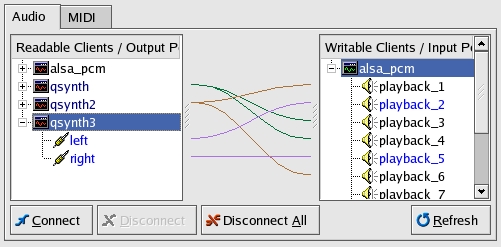
Figure 11. Audio Connections in QJackCtl
Now select the MIDI tab to set your MIDI connections. Here we find the same flexibility found in the audio tab, as shown in Figure 12. In that screenshot the input from my physical MIDI port--SBLive with adapter connected to a Casio CZ101 MIDI keyboard--is routed to the first QSynth engine. The first ALSA virtual MIDI port is connected to the second QSynth engine and to the EMU10k1 synthesizer on the SBLive. Finally, the last virtual MIDI output port is connected to the third QSynth engine and to the EMU10k1 synth. Again, a complex configuration is simplified by using QJackCtl.
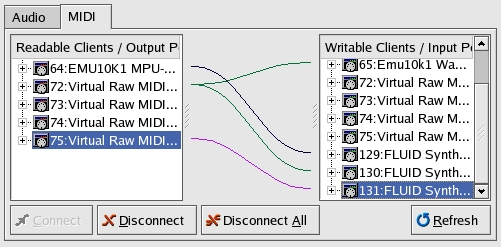
Figure 12. MIDI Connections in QJackCtl
Click the Patchbay button to view, edit and save/load your audio and MIDI connections as user-defined presets. Figure 13 illustrates this neat feature, showing the Patchbay preset defined for the connections in Figures 11 and 12.
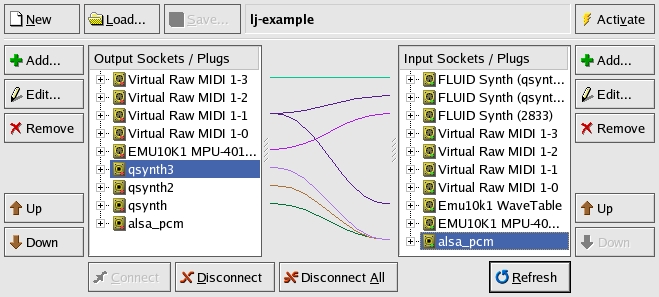
Figure 13. QJackCtl Patchbay
We've made QSynth's audio and MIDI connections, so now it's time to put them to use. Figure 14 illustrates seq24 using QSynth with multiple engines, with each engine driven by a separate sequence in seq24. Remember, seq24 makes its MIDI connections internally, there's no need to use the MIDI Connections tab in QJackCtl. QSynth autoconnects to the ALSA PCM input ports, but you need to reconnect if you want to route QSynth's output elsewhere. Figure 14 also demonstrates such a connection, with one engine's output routed to a LADSPA effects processor in the JACK Rack, the output of which is sent to the ALSA PCM ports.
By the way, the screenshot in Figure 14 is included for demonstration only. QSynth's own effects processors, reverb and chorus, are quite serviceable, but they're not going to equal the performance of a dedicated software or hardware processor.
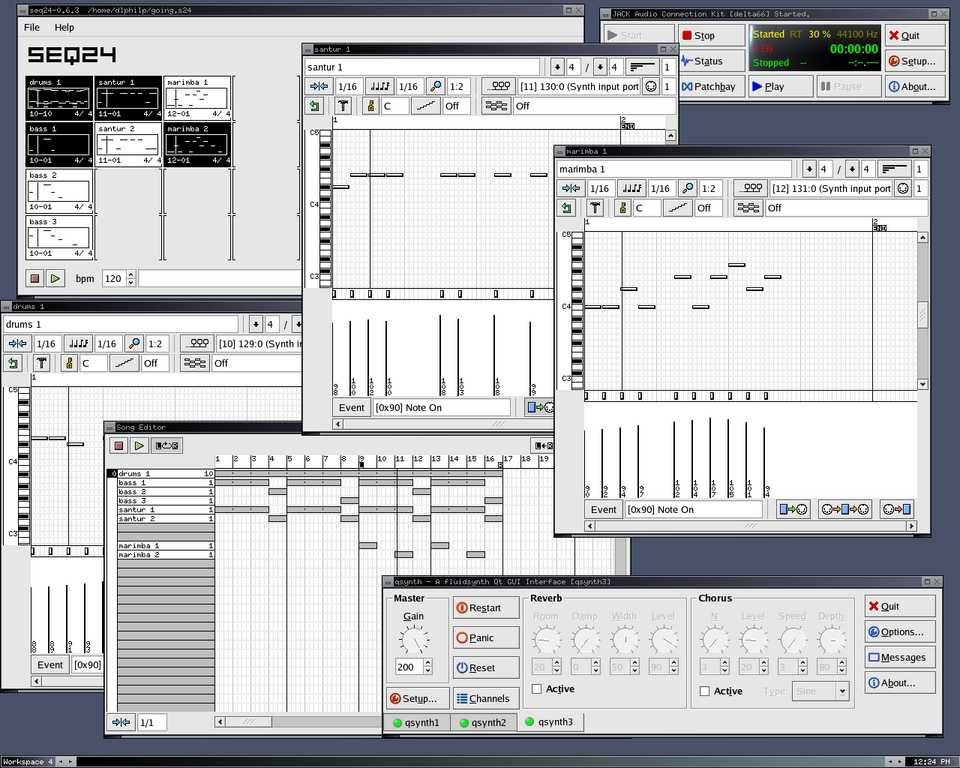
Figure 14. A Complete Mini-MIDI Studio for Linux
QSynth and QJackCtl are essential components of my Linux sound studio, and I certainly can't imagine working in X without them. Yes, you can do everything with their host applications at the command prompt. But, these helpful GUIs make the work much easier, which means I get to make music with less hassle in configuring the gear.
These applications are easy to learn and use, and they serve their humble purposes simply and directly, so there's not much to criticize in QSynth or QJackCtl. I'd like to see MIDI activity indicators in QJackCtl, perhaps in the MIDI connections tab, but that's hardly a pressing need.
So how does this little studio sound ? Check out the demos and let me know what you think. Personally, I'm impressed by the power now available to Linux musicians. I hope this article has revealed some of that power to you.
The author wishes to thank Peter Hanappe and all the other developers of fluidsynth for that marvelous software. Vast thanks also to Paul Davis and all JACK developers for one of the finest achievements in open-source audio software. And of course, great thanks to Rui Nuno Capela for his work on QSynth and QJackCtl.
