
OOo Off the Wall: Tabling the Notion, Part 2
Table formulas--or should I say formulae?--are one of OpenOffice.org Writer's unique features. Writer uses a formula bar similar to the one in OpenOffice.org Calc, but with a more limited set of options. The syntax for table formulas is similar to spreadsheet formulas, with just enough differences to be frustrating to a spreadsheet expert. Yet, despite these apparent shortcomings, table formulas are a welcome addition to the Writer toolbox. As a practical example can show, with a little planning, you can use Writer's table formulas to build surprisingly complex documents and, more importantly, to reduce the boredom of routine tasks.
Formulas are entered in Writer tables using the formula bar. The formula bar is available by selecting View -> Toolbars -> Formula bar. More likely, though, you will find pressing the F2 key to be a more convenient way to access the formula bar. The formula bar can be used for adding a formula either to a table cell or to regular text.
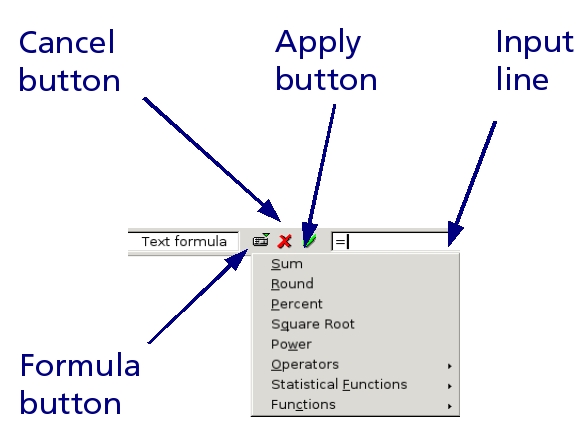
Figure 1. The formula bar in Writer closely resembles the one in Calc.
The formula bar consists of four items:
The input line, in which formulas are entered either manually or through your selections.
The Formula button, which opens a drop-down list of basic formulas, such as Sum, Percent and Square Root. Several categories of formulas also are available. In all, some two dozen formulas are available. They include most of the functions that basic users are likely to want. In addition, you also can enter manually +, -, * (for multiplication) and / (for division).
The Cancel button, which closes the formula bar. Anything in the input line is lost when you select this button.
The Apply button, which either gives the result of the formula or an error message. Unfortunately, the error message is simply Expression is faulty rather than an explanation of what you did wrong.
Writer table cells and formulas behave much the same as spreadsheet cells, but with a number of important differences. Like spreadsheet cells, table cells have addresses that consist of a letter for the column and a number for the row. In both cases, addresses begin in the top left cell, which is A1. In both cases, too, you can enter a range of addresses by entering the start and end address with a colon between them. For example, A2:D4 includes all the cells between A2 and D4 inclusive.
Whereas a spreadsheet is forgiving if you enter addresses with lower-case letters, however, Writer tables require upper-case letters only. If you enter a2:D4, OpenOffice.org Calc reads it without problem. Writer, however, returns an error message.
As in a spreadsheet, Writer formulas begin with an equal sign (=). So long as a range of addresses is used, the formulas look much the same. For instance, if you wanted to add the results of cells A1 and A2 in Calc, the formula in both Calc and a Writer table would be =SUM(A1:B1), although Writer for some reasons would enter it without capitalizing the first letter. However, if you wanted to total two cells that were not next to each other, in Calc the formula would be =SUM(A1;A5), but in a Writer table it would be =sum <A1>+<C2>--and would need to be entered manually.
These differences can be frustrating if you're used to working with spreadsheets. The trouble is the differences are slight enough to forget but important enough to cause difficulties. And with some Writer table functions, such as Round, the syntax is different enough that you probably will need the patience to learn through trial and error and to refer to the on-line help. Why the syntax isn't identical to that of Calc is uncertain, but be aware that it can savage you, especially when you're in a hurry.
To see the practical use of formulas in Writer tables, imagine that you run a home repair business for computers. When you bill a customer, you ordinarily send out a two-page document. The first page is a general letter, with varying degrees of politeness, depending on how late the bill is. You could use an input list field, if you wanted, to select the phrases for each stage of lateness. On the second page, you would present an itemized invoice. If you chose, you manually could enter the number of hours for each service and the hourly rate, adding them with a calculator. However, you can save time by automating your invoices with the following process:
Create a table with 4 columns and 12 rows. In OOo version 1.x, the command is Insert -> Table. In version 2.0, it's Table -> Insert -> Table.
From left to right, label the column headings Service, Hours, Hourly Rate and Cost.
Select the Hourly Rate and Cost Columns. Then, set the number format to currency by selecting Number Format from the right-click menu. Be sure to select a format with two decimal places.
If you are using OOo 2.0, select the Hours column and set the number format to Number. You don't need this step if you are using version 1.x, because it has number recognition turned on by default. The default was changed in version 2.0 because it often frustrated new users.
In the last three rows of the Hourly Rate column, enter from top to bottom Subtotal, Sales Tax and Total. Right-align the three entries either by defining a paragraph style for them or by using the manual Align Right button in the tool bar.
Enter the Hourly Rate in C2, the second row of the Hourly Rate column. For this example, let's assume a standard rate of $65 per hour. Notice that because the number format is set you need to enter only 65. The dollar sign and decimal points are entered for you.
The Cost is the number of hours multiplied by the hourly rate. To have Writer calculate the Cost for you, place the mouse cursor in D2, the second row of the Cost column. Then, press F2 to open the formula bar.
Select table cell B2 with the mouse. <B2> is entered in the input line of the formula bar. Add an asterisk (*) in the input line, then select cell C2, followed by the Apply button, the green check mark next to the input line.
Cell D2 now contains the result of multiplying the contents of cells B2 and C2. The formula is =<B2>*<C2>.
Since B2 is empty, D2 reads $0.00. If you change either the hours (B2) or the hourly rate (C2), then D2 is updated automatically.
Next, add the formula to each row in which a service can be itemized. Select cells B2, C2 and D2. Then select Edit -> Copy. Finally, select cells B3 through D9 and select Edit -> Paste.
This operation copies the formula into the other rows. Because addresses in table cell formulas are relative, it also updates the formula in the row. For example, if you pause the mouse over cell B4, you can see that its formula refers to row 3, not row 2.
In a spreadsheet, as you may know, you could select the cells and drag with the mouse on the lower-right corner to achieve the same result. However, Writer table cells are less versatile than spreadsheet cells are.
To create a formula that tallies the cost for each service, place the mouse cursor in D10, the cell to the right of the Subtotal heading, and press F2 to open the formula bar. Select Sum from the drop-down list available from the Formula button. Then, select cells D2 to D9, followed by the Apply button.
Cell D10 now contains the formula =sum <D2:D9>. The colon between the cell addresses indicates a range of cells, that is, D2 to D9 inclusive.
This is a second-generation formula composed of the results of all the other formulas in column D. If any hour or hourly rate in the table changes, the subtotal is updated automatically.
Don't worry if some of the rows for services are blank. If no hours are entered, the formula in that row is set to zero.
Assuming a sales tax of 7%, you can calculate the sales tax by a third formula in Cell D11: =<D10>*.07.
Finally, the grand total can be tallied by entering in Cell D12 the formula =sum <D10:D11>.
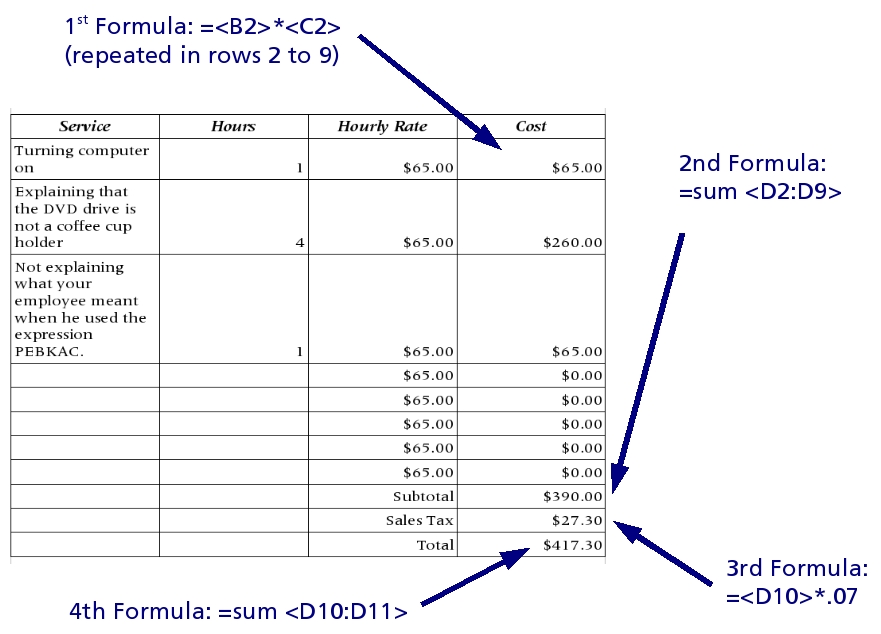
Figure 2. Writer includes only basic formulas, but they are enough to create many complex, time-saving documents.
The table now has four generations of formulas. Each is updated automatically when the number of hours or the hourly rate is changed.
This is a lot of work to do each time you create an invoice, so naturally you want to save the document containing the invoice as a template, using File -> Templates -> Save. That way, the table is ready any time you need it. In each case, you simply need to enter the hours and hourly rate--no calculations are necessary.
If you ever need a longer invoice, all you would need to do is add extra rows above the Subtotal and then copy and paste one of the existing rows, as you did when originally creating the invoice.
Formulas in Writer tables are limited compared to spreadsheets and different enough that experienced spreadsheet users often find them hard to use. In fact, if you need anything more than basic functions or only use them occasionally and don't feel like relearning them each time, you may prefer to use Insert -> Object -> OLE Object to import a spreadsheet into your Writer document instead. With a few formatting options, such as making cell borders visible, the imported spreadsheet can look identical to a Writer table.
However, if your needs are simple or you're one of the many for whom spreadsheets seem too overwhelming to consider, Writer tables may be all you need. Unlike importing a spreadsheet, using table formulas doesn't require maintaining two separate documents. And, with a little patience and a template, they are another useful tool for automating your work.
Bruce Byfield is a freelance course-designer and instructor. He is a regular contributor to Linux Journal and Newsforge.
