
OOo Off the Wall: Fielding Questions, Part 3
The Functions tab of the Fields window (Insert > Fields > Other > Functions) contains tools for working with content. Some of the fields on the tab are useful for writing drafts and editing. Others are useful for maintaining different versions of a document in a single file. To maintain multiple versions, you can choose from several fields, each with a different strategy--varying content according to condition, selecting from a list or hiding and revealing content as needed.
Many of the fields on the Functions tab can take time to set up. For a document that is printed once, they probably are not worth bothering about. It is when you are building templates that many of these fields come into their own. With a bit of planning, you can have your templates serve multiple purposes, making them even more useful than they already are.
Several of these strategies for controlling content by way of fields require the setting up of a condition. This requirement confuses many users without a background in mathematics. The concept isn't well-documented in the OOo on-line help, and some users may confuse it with Conditional Styles, an altogether different concept.
The concept of a condition, however, is less complicated than many users fear. All that a condition does is set when or whether a piece of content defined in a field appears in a document.
In versions of OpenOffice.org released prior to the 2.0 beta, a condition could be almost any mathematical or logical expression. A condition also could be set with the user data entered. For example, the condition user_initial="BB" used with a hidden paragraph would prevent anyone with any other initials from seeing let alone printing the paragraph. However, although such conditions provided another level of security, they were needlessly complex, and few people probably used them.
As of the 2.0 beta version, conditions have been simplified. The only settings apparently valid for conditions are 0 or False and 1 or True. By opening the Fields window and changing the condition, you can choose whether content defined as part of the field appears in the document. This concept should become clearer as we discuss the different types of fields.
Placeholders are fields that mark where missing content should go. Placeholders are a simple tool, but they are useful in a number of situations:
When you are writing, starting with the first paragraph and writing each paragraph in order often is the hardest way to write. You may know the points you want to write but not how to introduce them.
Often, you are more prepared to write one part of a document than another.
You may be missing information needed for one part of a document.
Somebody else may be writing part of a document.
In these or similar circumstances, a placeholder can mark the missing the contents, freeing you to write the parts you know and return to the missing parts later.
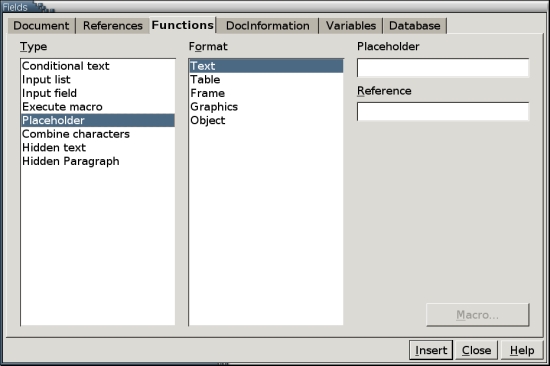
To add a placeholder, click Insert > Fields > Other > Functions > Type > Placeholder. From the Format field, choose the type of content that eventually will replace the placeholder--Text, Table, Frame, Graphics or Object. You also may want to add temporary text in the Placeholder field and mouseover text in the Reference field. For example, if you were working with a group of writers, you might use the mouseover text to identify who should add the content.
When you are ready to add content, click the placeholder. If you specified Text as the format, what you type replaces the placeholder. If you specified any other format, the dialog box for importing that type of content appears.
An input field is an editing tool one step up from a placeholder. With an input field, you have content already but want to mark it for possible editing.
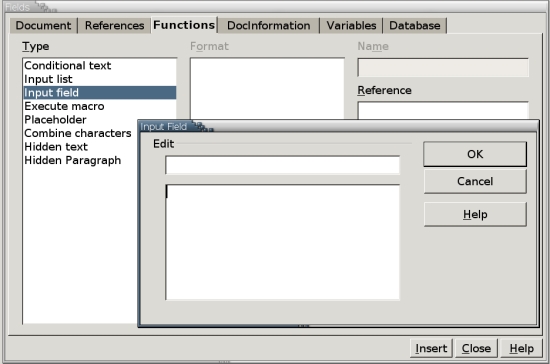
To add an input field, click Insert > Fields > Other > Functions > Type > Input field. Although the Reference field is available for a mouseover, you can ignore it because it has no effect. Instead, click the Insert button directly. When the Input window opens, type the text for the input field into the large text box, not the Edit field.
To change the input field, click the field and change the text in the large text box.
Input lists are suitable mainly for small lists of variable content. For example, if a company has three separate divisions, it could use an input list in a template so that all three divisions could use the same letter template. When employees printed a letter, they could use the input list to change the name of the division, as appropriate.
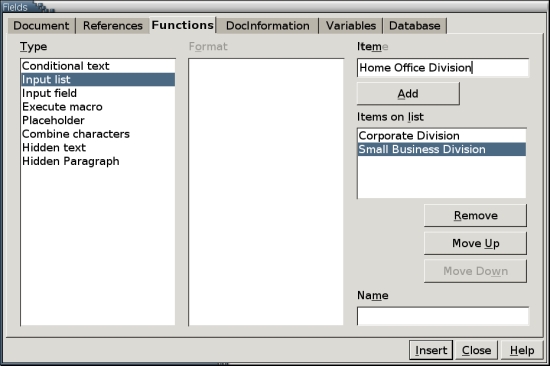
Input lists are created in Insert > Fields > Other > Functions > Type > Input list. Variables are added one at a time by typing them into the Item field and then clicking the Add button. Each item is visible in the Items on the list field, and the order of items can be changed by using the Move Up and Move Down buttons, so that more commonly used items are higher on the list.
In the document, the first item on the list is displayed by default. Whenever you want to change the item displayed in the document, double-click on that field and choose another item from the Window that opens. You also can click the Edit button to add or remove items from the list.
Input lists are useful but are limited mainly to small lists. If you need to use more than about half a dozen items, create a database and then press F4 to display its content. You then can drag items into the document; alternatively, creating a merge document might be more efficient.
As with input lists, conditional text is a way of organizing variable information. The main difference is that conditional text includes only two items. Which item appears in the list depends on the condition set.
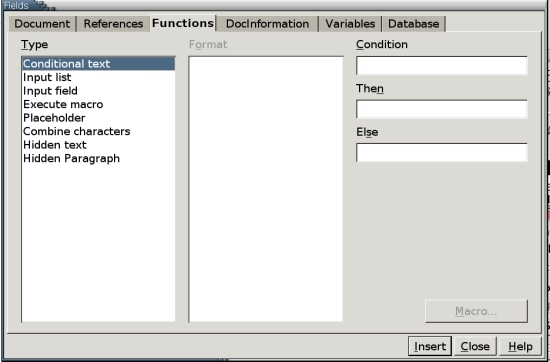
Conditional text is set by clicking Insert > Fields > Other > Functions > Type > Conditional text. Setting up conditional text really involves building a simple logic statement. The statement has three parts, each with a field:
The condition sets which item is used. By changing the condition, you change the item that appears in the document.
The Then field contains the first alternative. This is the text used if the condition is set to 1 or True.
The Else field contains the second alternative. This is the text used if the condition is set to 0 or False.
To change which text is used, click the field and change the condition.
Hidden text and paragraph fields are useful for maintaining two slightly different versions of the same document in one file. For example, teachers might use them to include answers and teaching notes in the same file as a class exercise. After printing the entire file for themselves, they then could turn on the hidden text or paragraphs to distribute copies for students--and, with luck, not confuse the two.
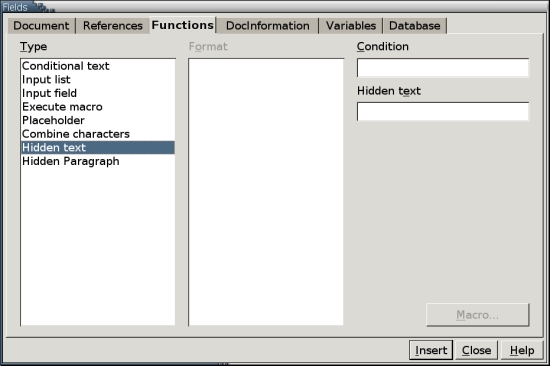
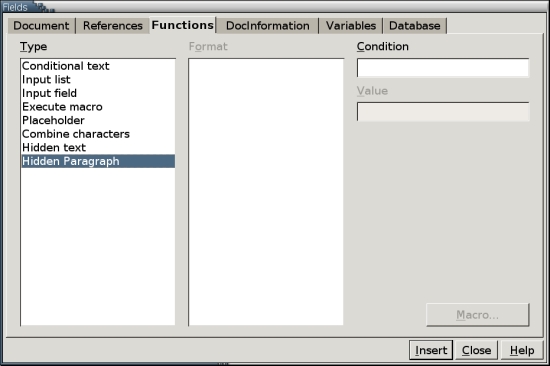
Both types of field are available from the Functions tab of the Field window, and both are alternate forms of conditional text. They confuse many users, not least of all because the on-line help says little about them. In practice, though, both are easy to use once you understand them.
A Hidden text field is applied to selected characters and spaces. Alternatively, you can type the text in the Field window. By contrast, a Hidden paragraph field is a marker that can be placed anywhere in the paragraph. Except for this detail, the two types of fields work in exactly the same way.
One reason why these fields can be confusing is you can set them up, yet still see on screen the material you are trying to hide. As a result, you might conclude that you haven't set up the fields properly. In fact, all that is wrong is the Display of Fields: Hidden text or Fields: Hidden paragraph boxes are selected on Tools > Options > OpenOffice.org Writer > Formatting Aids. Once you uncheck the appropriate box, the text or paragraph is hidden, as desired. Alternatively, you can leave each box selected and use File > Page Preview to see how the document looks with the text or paragraph hidden.
The second reason these fields confuse is they both use a Condition field. When the field is set to 0 or False, the text or paragraph is visible when the document is printed. When the field is set to 1 or True, the material is hidden.
Hidden text and Hidden paragraph fields are included in version 2.0 of OpenOffice.org. However, with this release, they have become a legacy feature, included largely for those who might have documents that contain them. If you want text that you can hide or reveal as needed and are using version 2.0, you probably want to use the Hidden feature on the Font Effects tabs of Character and Paragraph styles instead. With this feature, instead of setting a condition, all you need to do is check or uncheck the Hidden box. By doing so, you can instantly hide or reveal all material that uses the style, rather than going through the document and changing the condition on each field individually. Best of all, a Hidden Character style automatically detects any hidden text fields, and a Hidden Paragraph style automatically detects any hidden paragraph fields. Unless you're secretive enough to want an unobtrusive way to conceal material or mulish enough that you refuse to use paragraph styles, as of version 2.0, you probably don't want to use the individual fields for new documents at all.
The fields on the Functions tab do have several shortcomings. For one thing, the input fields for variable content seem to assume that only brief entries will be made. If, for example, you put two long paragraphs into the Else and Then fields for Conditional Text, you can have trouble editing them. In addition, although the Fields window includes arrow buttons for moving sequentially between fields of the same type, tracking down fields to edit them still is a slow and unwieldy task. Moreover, it is only with version 2.0 that the on-line help has reached the stage where beginners have any hope of understanding how to use fields without investing a lot of time in experimenting. However, once you understand the Functions tab fields, you'll find them small but handy additions to your toolbox.
Note: In "OOo Off the Wall: Fielding Questions, Part 2", I mentioned the inadequacies of Writer's cross-reference tools. What I forgot to mention is two macros are available to provide remedies: Ian Laurenson's ReferenceManager and OutlineCross-Referencer. If cross-references are important in your writing, you'll want to look at both of them.
