
OpenLDAP Everywhere Revisited
Many readers have used our December 2002 article, “OpenLDAP Everywhere”, to achieve unified login company-wide. Since then, OpenLDAP and Linux have progressed. Here, we demonstrate the use of OpenLDAP as the core directory service for a mixed environment. The LDAP server provides a shared e-mail directory, login for Linux and Microsoft Windows clients, automount of home directories and file sharing for all clients. A simple mixed environment used in the examples in this article is shown in (Figure 1).
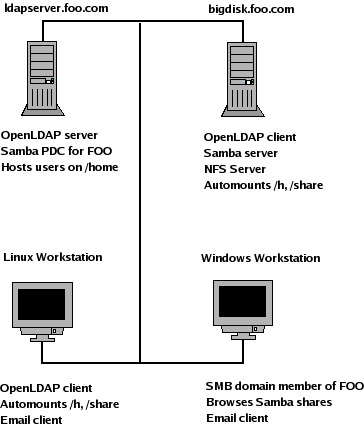
Figure 1. In the mixed environment, both Linux and Windows clients use a common LDAP infrastructure.
The LDAP server we discuss was installed using RPM binary packages and openldap-2.2.13-2 on Fedora Core 3. The nss_ldap package also is required. For the most recent source from openldap.org, see the on-line Resources. Edit the server configuration file, /etc/openldap/slapd.conf, as shown in Listing 1. Lines beginning with whitespace are interpreted as a continuation of the previous line, so it's not necessary to use a backslash at the end of a long line.
Listing 1. The slapd.conf file includes important settings for running LDAP securely.
# slapd.conf
# schemas to use
include     /etc/openldap/schema/core.schema
include     /etc/openldap/schema/cosine.schema
include     /etc/openldap/schema/inetorgperson.schema
include     /etc/openldap/schema/nis.schema
include     /etc/openldap/schema/samba.schema
include     /etc/openldap/schema/redhat/autofs.schema

# database definition
database   ldbm
suffix     "dc=foo,dc=com"
rootdn     "cn=Manager,dc=foo,dc=com"
# Cleartext passwords, especially for the rootdn,
# should be avoided.   Use strong authentication.
#rootpw     secret
rootpw     {SSHA}xxxxxxxxxxxxxxxxxxxxx
directory  /var/lib/ldap

# Indices to maintain for this database
index     objectClass,uid,uidNumber,gidNumber,
          memberUid eq
index     cn,mail,surname,givenname eq,subinitial
index     sambaSID eq
index     sambaPrimaryGroupSID eq
index     sambaDomainName eq

# Users can authenticate and change their password
access to attrs=userPassword,sambaNTPassword,
      sambaLMPassword
      by dn="cn=Manager,dc=foo,dc=com" write
      by self write
      by anonymous auth
      by * none
# All other attributes are readable to everybody
access to *
      by self write
      by dn="cn=Manager,dc=foo,dc=com" write
      by * read
The LDAP schema defines object classes and attributes that make up the directory entries. Red Hat's autofs schema fits our needs and was packaged with the RPM installation. If you find that you need to add an objectClass or an attribute to your directory, see the OpenLDAP admin guide.
We use the default database type ldbm. Our example uses the LDAP domain component. So, foo.com becomes dc=foo,dc=com.
The Manager has full write access to LDAP entries. Create the manager's password using /usr/sbin/slappasswd. Paste the encrypted password into the rootpw entry in slapd.conf.
The index lines enhance performance for attributes queried often. Access control restricts access to the userPassword entry. The user and manager may modify the entry. For all other entries, the manager has write access, and everyone else is granted read access.
Each entry in the directory is identified uniquely with a distinguished name (dn). The dn for foo.com is dn: dc=foo, dc=com. The organizationalUnit (ou) provides a method for grouping entries. The directory structure is shown in Listing 2.
Listing 2. LDAP distinguished names are organized into a tree of organizational units.
+ dc=foo,dc=com
|- ou=People                  Persons
|  |- ou=contacts,ou=people   Email contacts
|- ou=Groups                  System groups
|- ou=auto.master             Automount master map
|- ou=auto.home               Automount map
|- ou=auto.misc               Automount map
|- ou=Computers               Samba domain members
|- cn=NextFreeUnixId          Samba Next Free ID
|- SambaDomainName            Samba domain info object class
We create the top level entries in LDAP Interchange Format (LDIF) and save them to top.ldif, as shown in Listing 3.
Listing 3. Create the top of the LDAP tree, top.ldif, manually in the simple key: value LDIF format.
dn: dc=foo,dc=com
objectClass: dcObject
objectClass: organization
o: Foo Company
dc: foo

dn:ou=People,dc=foo,dc=com
objectClass: organizationalUnit
ou: People

dn:ou=Groups,dc=foo,dc=com
objectClass: organizationalUnit
ou: Groups

dn:ou=contacts,ou=people,dc=foo,dc=com
associatedDomain: foo.com
ou: contacts
ou: people
objectClass: organizationalUnit
objectClass: domainRelatedObject
Add the top-level entries to the directory with ldapadd:
ldapadd -x -D 'cn=manager,dc=foo,dc=com' \
-W -f top.ldif
Then, test your work with an ldapsearch command that retrieves all entries:
ldapsearch -x -b 'dc=foo,dc=com'
At this point, we have enough structure in LDAP to put it to real use. We start by sharing our e-mail contacts. To simplify the process, you may be able to export your e-mail address book in LDIF format. For example, in Mozilla Thunderbird, you can export in LDIF from the Tools menu on the Address Book window. You do need to process the resulting file so it looks like our contacts example below. We suggest using Perl for the task.
Contacts are identified uniquely by their e-mail addresses. Here is the dn for a contact:
dn: uid=someone@somewhere.com,ou=contacts,
↪ou=people,dc=foo,dc=com.
With all of the attributes, the full entry for a contact looks like:
dn: uid=someone@somewhere.com,ou=contacts,
↪ou=people,dc=foo,dc=com
mail: someone@somewhere.com
uid: someone@somewhere.com
givenName: Someone
sn: Youknow
cn: Someone Youknow
objectClass: person
objectClass: top
objectClass: inetOrgPerson
Separate each contact entry with a blank line and save it to a file called contacts.ldif. Add the contacts to the directory with ldapadd:
ldapadd -x -D 'cn=manager,dc=foo,dc=com' \
-W -f contacts.ldif
Then, test with an ldapsearch command, as shown above.
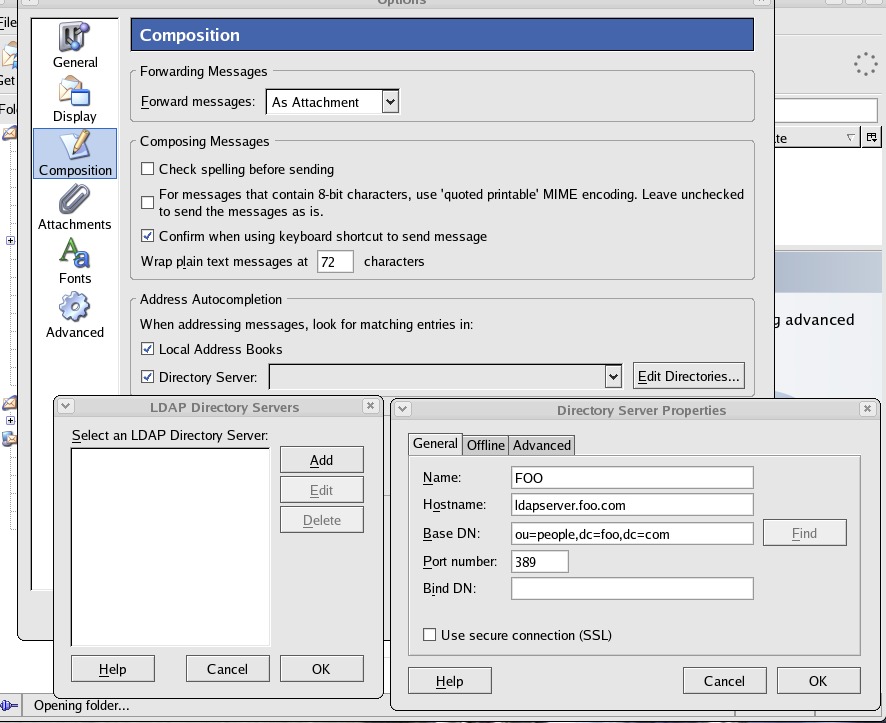
Figure 2. To use the company address book, fill in the information on your server in Thunderbird's Directory Server Properties.
Next, we configure Mozilla Thunderbird to use the new LDAP server (Figure 2). From the Tools menu in Thunderbird, select Options. In the Composition tab, select Directory Server, Edit Directories and then Add. Fill in the Directory Server Properties with:
Name: FOO
Server: ldapserver.foo.com
base DN: ou=people,dc=foo,dc=com
In the Advanced tab, increase the number of results returned to fit your directory size. For foo.com, we selected 1,000 results.
Test your settings by composing a message to one of your contacts in your LDAP directory. The address should auto-complete as you type. Another test is to search the LDAP directory from within the Thunderbird Mail Address Book. Search in the FOO address book for “Name or Email contains: *”. That should return all of the contacts entries.
By storing user account information in LDAP, you can use the same user name and password at any Linux console. To start, you must decide which user names should be entered in LDAP. Table 1 shows our user scheme for UID/GIDs.
Table 1. User Scheme for UID/GIDs
| Type of account | UID |
|---|---|
| System accounts | UID < 500 |
| Samba special accounts | 499 < UID < 1,000 |
| Unified login accounts | 999 < UID < 10,000 |
| Local users and groups, not in LDAP | > 10,000 |
This user scheme allows for 9,000 LDAP unified login entries, while also allowing local users and groups that do not interfere with LDAP UIDs and GIDs. The user scheme also allows for the accounts required by the Samba Primary Domain Controller.
A user login entry is identified by the login name as uid. Login users are members of ou=people, resulting in this dn:
dn: uid=gomerp,ou=people,dc=foo,dc=com
The full entry contains attributes that are needed to control account access, as shown in Listing 4. The full entry also includes attributes needed by the Samba configuration that is discussed below.
Listing 4. A user login entry contains the password information needed to log in, along with Samba configuration.
dn:uid=gomerp,ou=People,dc=foo,dc=com
uid: gomerp
cn: Gomer Pyle
sn: Pyle
givenname: Gomer
mail: gomer.pyle@foo.com
objectClass: top
objectClass: inetOrgPerson
objectClass: posixAccount
objectClass: shadowAccount
objectClass: sambaSAMAccount
uidNumber: 5000
homeDirectory: /h/gomerp
loginShell: /bin/bash
description: Gomer Pyle
displayName: Gomer Pyle
gecos: Gomer Pyle
gidNumber: 513
userPassword: {SSHA}xxxxxxxxxxxxxxxxxxxxxxxx
sambaLogonTime: 0
sambaLogoffTime: 2147483647
sambaKickoffTime: 2147483647
sambaPwdCanChange: 0
sambaSID: S-1-5-21-1400792368-3813960858-1703501993-11000
sambaPrimaryGroupSID: S-1-5-21-1400792368-3813960858-1703501993-513
sambaLogonScript: gomerp.cmd
sambaHomeDrive: H:
sambaHomePath: \\LDAPSERVER\gomerp
sambaLMPassword: XXXXXXXXXX
sambaAcctFlags: [U]
sambaNTPassword: XXXXXXXXXX
sambaPwdLastSet: 1097240543
sambaPwdMustChange: 1105016543
OpenLDAP ships with migration utilities that can extract the user account information; see /usr/share/openldap/migration. To convert an existing /etc/passwd file to LDIF, start by checking migrate_common.ph. Edit the file to include your domain name, default base and enable extended schema:
# Default DNS domain
$DEFAULT_MAIL_DOMAIN = "foo.com";

# Default base
$DEFAULT_BASE = "dc=foo,dc=com";

# turn this on to support more general object classes
# such as person.
$EXTENDED_SCHEMA = 1;
Extract the user account information from /etc/passwd:
/usr/share/openldap/migration/migrate_passwd.pl \
/etc/passwd > people.ldif
Review the resulting LDIF file. You should remove entries for system accounts such as root and for local users' private groups that do not need to appear in LDAP.
Add the user entries to LDAP and test with an ldapsearch command, as discussed above:
ldapadd -x -D 'cn=manager,dc=foo,dc=com' -W \
-f people.ldif
Because the login users belong to ou=people, you now may look up their e-mail addresses within your e-mail client.
You need to make a group entry for each group to be shared between multiple Linux computers. Each user also needs a group entry for the user private group. A group entry is identified by cn, and each group belongs to ou=Groups. For example:
dn: cn=gomerp,ou=Groups,dc=foo,dc=com
A user private group would look like this:
dn: cn=gomerp,ou=Groups,dc=foo,dc=com
objectclass: posixGroup
objectclass: top
cn: gomerp
userPassword: {crypt}x
gidNumber: 5223
A shared group would look like:
dn: cn=web_dev,ou=Groups,dc=foo,dc=com
objectclass: posixGroup
objectclass: top
cn: web_dev
gidNumber: 5019
memberUid: gomerp
memberUid: goober
memberUid: barneyf
Extract the group information from /etc/group:
/usr/share/openldap/migration/migrate_passwd.pl \
/etc/group > group.ldif
Review the resulting LDIF file. You should remove entries for system groups and for local system users that do not need to appear in LDAP.
Add the group entries to LDAP and test with an ldapsearch command:
ldapadd -x -D 'cn=manager,dc=foo,dc=com' -W \
-f group.ldif
With unified login, users have a single home directory that is shared by way of the Network File System (NFS). We host our home directories from ldapserver.foo.com and share /home, but the file server and OpenLDAP do not need to run on the same machine. Details on NFS are outside the scope of this article, but here is the line from /etc/exports that works to export home directories:
/home *.foo.com(rw)
Linux LDAP clients mount the user's home directory at login, using automount and NFS. The LDAP use of automount is a replacement for NIS (network information service) automount maps. Replace the automount maps for auto.master, auto.home and auto.misc. To do so, we create a new organizational unit for auto.master:
dn: ou=auto.master,dc=foo,dc=com
objectClass: top
objectClass: automountMap
ou: auto.master
An auto.master entry is identified by cn. The automountInformation attribute instructs automount to look for the map in LDAP:
dn: cn=/h,ou=auto.master,dc=foo,dc=com
objectClass: automount
automountInformation: ldap:ou=auto.home,dc=foo,dc=com
cn: /h
While we're at it, let's create an auto.master entry for other NFS shared directories:
dn: cn=/share,ou=auto.master,dc=foo,dc=com
objectClass: automount
automountInformation: ldap:ou=auto.misc,dc=foo,dc=com
cn: /share
Create the automount entries in LDIF format, save as auto.master.ldif and add the entries to LDAP:
ldapadd -x -D 'cn=manager,dc=foo,dc=com' -W -f auto.master.ldif
Next, we create a new organizational unit for auto.home:
dn:ou=auto.home,dc=foo,dc=com
objectClass: top
objectClass: automountMap
ou: auto.home
A home directory entry is identified by cn:
dn: cn=gomerp,ou=auto.home,dc=foo,dc=com
objectClass: automount
automountInformation: ldapserver.foo.com:/home/gomerp
cn: gomerp
Create auto.home entries for each user in ldif format, save as auto.home.ldif and add the entries to LDAP:
ldapadd -x -D 'cn=manager,dc=foo,dc=com' -W \
-f auto.home.ldif
When automounted from a Linux LDAP client, your home directory, ldapserver.foo.com:/home/gomerp, is mounted on /h/gomerp. Other NFS shares may be entered in LDAP and automounted as needed. The auto.misc organizational unit holds these automount maps, which have the form ou=auto.misc.
We've already created an auto.master entry for /share, as shown above. Now, we create the ou=auto.misc entry:
dn:ou=auto.misc,dc=foo,dc=com
ou: auto.misc
objectClass: top
objectClass: automountMap
Create entries for the NFS shares under ou=auto.misc:
dn:cn=redhat,ou=auto.misc,dc=foo,dc=com
objectClass: automount
automountInformation: bigdisk.foo.com:/pub/redhat
cn: redhat

dn:cn=engineering,ou=auto.misc,dc=foo,dc=com
objectClass: automount
automountInformation: bigdisk.foo.com:/data/engineering
cn: engineering
Save the entries as auto.misc.ldif and add the entries to LDAP:
ldapadd -x -D 'cn=manager,dc=foo,dc=com' -W -f auto.misc.ldif
When automounted from a Linux LDAP client, your shared directory bigdisk.foo.com:/data/engineering is mounted on /share/engineering.
To begin configuring the Linux LDAP client, you need to install the name switch service package, nss_ldap. The Red Hat tool /usr/bin/authconfig is handy for configuring the client. Select Use LDAP and fill in the fields so that they read Server: ldapserver.foo.com and Base DN: dc=foo,dc=com. Authconfig writes to these files: /etc/ldap.conf, /etc/openldap/ldap.conf and /etc/nsswitch.conf.
Verify that /etc/nsswitch.conf has the following entries:
passwd:     files ldap
shadow:     files ldap
group:      files ldap
automount:  files ldap
Verify that /etc/ldap.conf has these entries:
host ldapserver.foo.com
base dc=foo,dc=com
Verify that /etc/openldap/ldap.conf has these entries:
HOST ldapserver.foo.com
BASE dc=foo,dc=com
The user's password and group entries must be removed from the password and group files on the NFS server where home directories live. Create backups and then edit /etc/passwd, /etc/shadow, /etc/group and /etc/gshadow to remove the LDAP real people entries. In our case, /etc/passwd should have no accounts left with a UID from 1000 to 9999.
To test, log in to a Linux LDAP client using an LDAP user name. You should see the appropriate login shell and home directory for the user. To test auto.misc shares, you must access the share by name, for example:
cd /share/redhat
Automount only mounts NFS shares as they are used, so the directory /share/redhat is not visible until it has been accessed.
The main purpose of using Samba and LDAP together is to achieve unified login for Microsoft Windows clients. What this means to your organization is a user will be able to log on to your network from any workstation and have access to all shared folders, files and printers.
The first step to unified login starts by configuring Samba as a primary domain controller (PDC). The full configuration details on how to set up Samba as your PDC are outside the scope of this article. Please visit the Idealx Web site for a great HOWTO (see Resources). The folks at Idealx have made great contributions to the Samba Project, and you should become familiar with their tools if you plan on using Samba.
Assuming you already have experience with setting up Samba domain controllers, this Samba configuration file should get you up and running with our directory example in the article (Listing 5). The full file is available from the Linux Journal FTP site (see Resources).
Listing 5. Excerpts from a Samba smb.conf file configured to work with the OpenLDAP directory.
[global]

...
  obey pam restrictions = No
  ldap passwd sync = Yes
  ldap passwd sync = Yes
...
  passdb backend = ldapsam:ldap://ldapserver.foo.com/
  ldap admin dn = cn=Manager,dc=foo,dc=com
  ldap suffix = dc=foo,dc=com
  ldap group suffix = ou=Groups
  ldap user suffix = ou=People
  ldap machine suffix = ou=Computers
  ldap idmap suffix = ou=People
  ldap ssl = no
  add user script = \
    /usr/local/sbin/smbldap-useradd -m "%u"
  ldap delete dn = Yes
  delete user script = \
    /usr/local/sbin/smbldap-userdel "%u"
  add machine script = \
    /usr/local/sbin/smbldap-useradd -w "%u"
  add group script = \
    /usr/local/sbin/smbldap-groupadd -p "%g"
  delete group script = \
    /usr/local/sbin/smbldap-groupdel "%g"
  add user to group script = \
    /usr/local/sbin/smbldap-groupmod -m "%u" "% g"
  delete user from group script = \
    /usr/local/sbin/smbldap-groupmod -x "% u" "%g"
  set primary group script = \
    /usr/local/sbin/smbldap-usermod -g "%g" "%u "
The remaining piece of the puzzle involves setting up LDAP to take advantage of Samba's advancements made in the past couple of years. This should be similar to the LDAP setup above, but with updated features added in for Samba. With the new Samba 3 version, we now are able to store all Samba account information inside the LDAP directory. This is beneficial because now all the information is stored in a centralized location.
One difference in the LDAP/Samba combination setup is the additional accounts and LDAP entries that need to be populated for the two to work together. Several well-known Windows domain user accounts and domain group accounts are required for your unified login server to function. Special LDAP OU entries also are required for the server to store domain account information. Fortunately, a script called smbldap-populate is available that does all of this for you. This script is part of the Idealx smbldap-tools package that can aid you in setting up both your PDC and your Samba Enabled LDAP directory. Listing 6 is sample output of what you should see when you run the smbldap-populate script.
Listing 6. The smbldap-populate tool automatically adds the accounts required to make your OpenLDAP server work with Samba.
[root]# smbldap-populate
Using builtin directory structure
adding new entry: dc=foo,dc=com
adding new entry: ou=Users,dc=foo,dc=com
adding new entry: ou=Groups,dc=foo,dc=com
adding new entry: ou=Computers,dc=foo,dc=com
adding new entry: ou=Idmap,dc=foo,dc=org
adding new entry: cn=NextFreeUnixId,dc=foo,dc=org
adding new entry: uid=Administrator,ou=Users,dc=foo,dc=com
adding new entry: uid=nobody,ou=Users,dc=foo,dc=com
adding new entry: cn=Domain Admins,ou=Groups,dc=foo,dc=com
adding new entry: cn=Domain Users,ou=Groups,dc=foo,dc=com
adding new entry: cn=Domain Guests,ou=Groups,dc=foo,dc=com
adding new entry: cn=Print Operators,ou=Groups,dc=foo,dc=com
adding new entry: cn=Backup Operators,ou=Groups,dc=foo,dc=com
adding new entry: cn=Replicator,ou=Groups,dc=foo,dc=com
adding new entry: cn=Domain Computers,ou=Groups,dc=foo,dc=com
If you examine the sample output of this populate script, you should notice that it has added several new users, groups and OUs to the directory. For example, the script adds the well-known Domain Admins and Domain Users groups to the directory. The NT-based versions of Microsoft Windows all are preconfigured with specific user and group entries. Each one of those has a relative identifier (RID) associated with it. What this means to LDAP is the corresponding LDAP user or group entry must be assigned to the respective RID of the Windows user or group. Using the smbldap-populate script takes care of making the relation for you. The well-known user and groups RIDs that are required are:
Name          RID
-----------------
Domain Admins 512
Domain Users  513
Domain Guests 514
Aside from the new user and group entries, several new OU entries can provide further domain functionality. The first of these is ou=Computers, which is used to store all machine accounts for member servers and workstations on the domain. Second, the ou=Idmap is used if Samba is being used as a domain member server of a Windows server controlled domain. The last new entry is ou=NextFreeUnixId. This entry is used to defined the next UID and GID available for creating new users and groups.
After your LDAP directory is populated and Samba is set up correctly, you are ready to start adding users and groups to populate your directory. The Idealx command-line utilities can take care of this job nicely for you. Some PHP-based directory managers are available that can be useful here as well. Consider using phpLDAPadmin and/or the LDAP Account Manager (LAM) to take on this task. Both are helpful, providing a graphical view of your directory. Each also provides the ability to view and edit LDAP entries in a user-friendly graphical environment (Figure 3). The LDAP browser, which is Java-based, is another option for viewing and editing your directory.
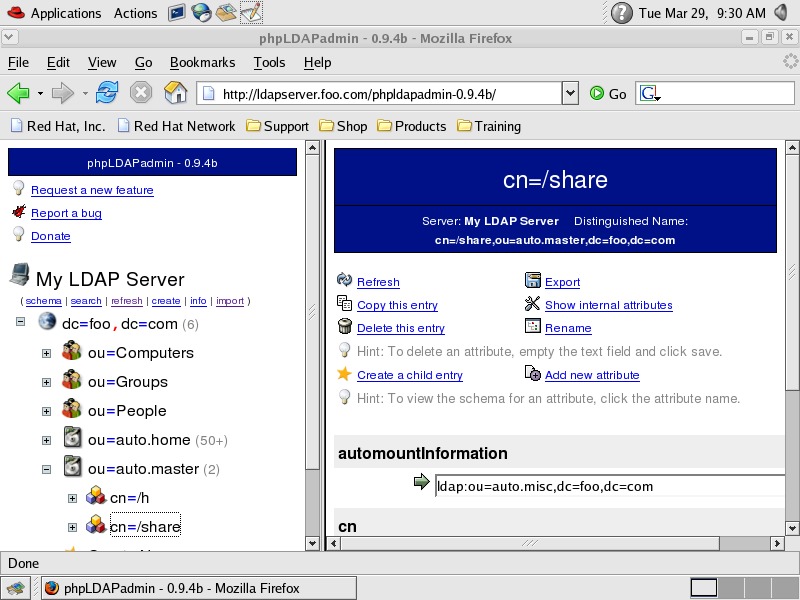
Figure 3. Get a Web view of your directory with phpLDAPadmin.
Since the December 2002 article, we have seen much improvement in Samba with the 3.x releases. Moving to the new version should mean greater control over accounts and improved group mapping functionality, thus giving you greater control over your domain.
We strongly suggest that you use simple authentication and security layer (SASL) and transport layer security (TLS) to secure your new LDAP directory. See Resources for details.
Congratulations! Your LDAP server is up and running with shared e-mail contacts, unified login and shared file storage that is accessible from any client.
Resources for this article: /article/8267.
Craig Swanson (craig.swanson@midwest-tool.com) designs networks and offers Linux consulting at SLS Solutions. He also develops Linux software at Midwest Tool & Die. Craig has used Linux since 1993.
Matt Lung (matt.lung@midwest-tool.com) provides network and computer systems consulting at SLS Solutions. He also works at Midwest Tool & Die as a Network Engineer.

