
OpenOffice.org Off-the-Wall: ToCs, Indexes and Bibliographies in OOo Writer
Indexes and tables is the phrase that OpenOffice.org Writer uses for tables of contents (ToCs), indexes and bibliographies. The term also covers ToC variants, such as lists of illustrations or tables. At first, the need for the phrase seems momentarily puzzling. If you're like most people, you probably are used to thinking of ToCs, indexes and bibliographies as separate pieces with no relation to one another. That's how most word processors treat them. Roughly half the time, that's how the Writer interface treats them, too.
However, the term exists because Writer doesn't distinguish between these pieces of contents. Lists of figures, tables of contents, indexes, bibliographies--in Writer, all indexes and tables are treated as variations on the same structure. No matter what particular type you are creating, the procedure is identical:
Tag contents in the body of a document for inclusion.
Format the index or table.
Move the cursor to the position for the index or table and create it.
Each step has variations, depending on the type you are creating and, at times, your own preferences. But in each case, the basic procedure is the same.
The first step in creating an index or table in an OOo Writer document is to tag its content in the body of the document. The includes titles that appear in a ToC, the words that appear in an index or the scholarly references that appear in the bibliography. In each case, entries can be tagged automatically or manually.
If a document uses styles throughout, then tagging contents for a ToC is easy. By default, Writer ToCs treat all of the outline levels defined in Tools -> Outline Numbering as tagged content. You can select additional styles to be tagged automatically on the Styles tab of Insert -> Indexes and Tables -> Indexes and Tables. Lists of figures and similar ToC variants also have options on the Index/Table tab, many of which also also based on styles. As always, Writer pays dividends to those who use styles. You don't have to use styles to create a ToC, but doing so is by far the simplest choice.
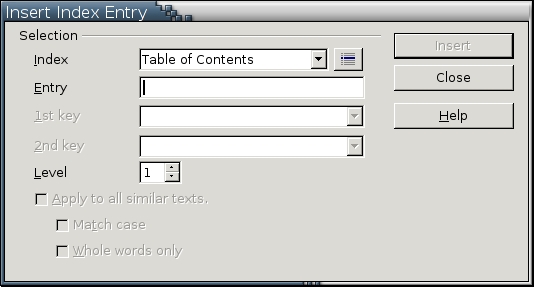
If a document doesn't use styles or if you have a particular style you want to use for a List of Figures or Tables, ToC entries can be tagged manually by selecting Insert -> Indexes and Tables -> Entry. This is the same technique used to add words manually to an index. The main difference is the type you select from the Index field of the dialogue box. Whether you're doing the grunt work for a ToC or an index, you still need to provide the text for the entry, which is the text in the actual body of the document. This entry can be added by selecting text before opening the dialogue box or by typing within the box. You also can select the level of the entry and whether all entries with the same text also should be tagged.
For index tags, you can make the entry a sub-entry. For example, if you already had tagged GNU/Linux, you could make Debian a subentry beneath GNU/Linux. Index contents also can be automated by selecting Alphabetical Index as the Type when you select Insert -> Indexes and Tables -> Indexes and Tables -> Index/Table. From there, select the Concordance file option. A concordance is a list of key words to tag automatically. Setting up a concordance in a manner that is useful takes more planning than you might think at first, but it is an ideal way to index a long project.
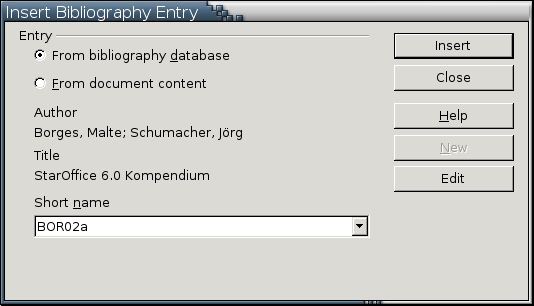
Bibliographical entries are added by selecting Insert -> Indexes and Tables -> Bibliography Entry. A bibliographical entry, however, is the citation that appears in the text. For instance, in the APA citation style, the entry in the body of the document might be (Smith: 1999). Unfortunately, the sample bibliographical database that comes with Writer offers misleading examples, but this citation is the short name for the item. Other information can be filled in according to the citation style and whether the source is a book, journal item or some other medium. You don't need to use--and in many cases, can't use--all the fields available for a bibliographical entry. This information can be stored within the document or within a separate bibliographical database.
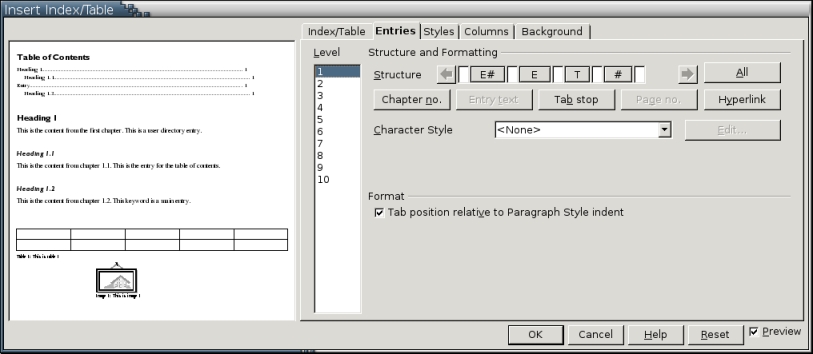
Unlike some word processors, Writer does not include any autoformats for indexes or tables. However, it does include options for formatting indexes and tables in almost any way you can imagine. Most of these options are available from Insert -> Indexes and Tables -> Indexes and Tables or Edit Index/Table on an index or on a table's right-click menu. The Columns and Background tab sets the look of the index or table in general ways, but the most important formatting options are available on the Entries tab.
The most important part of the Entries tab is the Structure diagram at the top. The rest of the tab contains options appropriate for whatever type of index or table you are producing, but the Structure diagram is where individual entries are laid out. For those familiar with FrameMaker, the Structure diagram is analogous to the TOC entries on the Reference pages of the document.
The Structure diagram consists of building blocks that you arrange to form an entry. For example, the building blocks for a ToC include the Entry text, Page number and Tab stop. Buttons for the building blocks available for a particular type are arranged below it. You can add building blocks to the Structure diagram in any order by placing the mouse cursor in a vacant spot in the diagram and then clicking the button. Most buttons are grayed out once they are added in order to keep you from using them again. If you want to delete a building block, select it and then press the Delete key.
Many building blocks also offer formatting options. Character styles, for example, can be used to format the Entry text differently from the rest of the entry. You also can choose the fill character to use in a Tab stop. By default, this fill character is set to a period to produce the leader dots that MS Word has conditioned everyone to consider the norm. In fact, leader dots between a ToC entry and its page number is proof of poor design and easily can be replaced by a design that places the page number a few spaces before the text entry.
If the document is intended for on-line use, you can use the Hyperlink building block to place a link start (LS) and link end (LE) button in the structure. By default, adding either of these buttons formats the link using the Internet link character style, formatting text in blue with an underline. If you prefer, however, you can set the character style to default, while still having the links.
Entries for different levels can be structured differently. More likely, though, you want to select the All button on the right side of the Structure diagram to give all levels the same structure. Some indexes and tables also have other options below the Structure diagram that you can use.
In addition, all levels of an index or table have their own paragraph style. These styles have obvious names. Content styles, for example, are used for standard ToCs, and Illustration Indexes are used for lists of graphics. If an index or table has levels, separate styles exist for each level, such as Bibliography 1 or Index 3. Each type also has a Heading style. Unfortunately, all the styles for all types of indexes and tables are children of the single Index style. You easily could create a template, however, in which all Content styles, for example, are subordinate to Content 1 for convenience. Do so by using the Linked With field on the Organizer tab of Content 2-10. All of these paragraph styles appear in the Automatic view the first time that a table or index is created.
When all contents is tagged, creating a basic index or table a is straightforward task:
Place the mouse where you want to position the index or table. If you are using a master document, the index or table can be in the master document rather than being a separate sub-document.
Select Insert -> Indexes and Tables -> Indexes and Tables -> Index and Table.
Select the Type from the drop-down list.
To prevent casual editing, select the Protected Against Manual Changes box. This option means that the index or table can be changed only by using the current dialogue box and not from within the body of the document.
Select any other options. The available options depend on the type of index or table selected. However, most choices have to do with the contents included.
Select the OK button to create the index or table. The index or table is a field, so it appears in a gray background.
If you want to edit the index or table later, place the mouse cursor anywhere in the index or table. Then, use the right-click menu to update, delete or revise it. If the index or table uses hyperlinks, place the cursor in the heading.
If you have trouble wrapping your mind around the way that Writer lumps ToCs, indexes and bibliographies together, think of them as variations on cross-references. Like a cross-reference, an index or table entry requires a source and a reference to the source. This sounds like a blazingly obvious statement, yet it is one that other word processors have missed altogether. By uniting several separate actions under the same conceptual framework, Writer simplifies all of them. The result is an easy-to-use and highly customizable set of tools.
