
OOo Off the Wall: The Outlining and the Ecstasy
September 8th, 2004 by Bruce Byfield in
Outlining is the arrangement of sections within documents. The process of outlining includes re-positioning paragraphs and making decisions about what level in the hierarchy a heading should be.
Outlining is not writing, but it is a core part of the writing process. Despite this fact, many people begin to write with almost no outlining. Perhaps they are in a hurry to get started. Perhaps, if they attended high school in North America, they think of an outline as something they cobbled together after they finished writing the paper simply to satisfy a teacher's arbitrary demands. Whatever the reason, many people plunge into a document and discover its structure as they write. This practice usually is inefficient, because they are trying to do two things at the same time, write and organize. They don't know where they are going, which makes writing a prolonged and painful process.
It is true that a handful of professional writers never outline or outline only long and complex documents. Far more professionals, however, use some sort of outlining technique. For some, the physical act of writing accounts for as little as 10 to 20% of the time spent on a document. The rest is spent outlining and editing.
Judging from the habits of most professionals, then, outlining benefits most writers. However, each writer needs to discover how much outlining he or she need to do and what form that outlining should take. Sometimes, an outline can be a simple scribbled list or a brainstorming session on a white board. At other times, it's a formal document with headings and subheadings.
For those who prefer the formal approach, OpenOffice.org's Writer program offers a de-centralized set of tools. Writer uses:
Paragraph styles, specifically headings, to set up the overall structure of the document.
Tools > Outline Numbering, which sets up outlining for use within a document.
The Navigator (Edit > Navigator) for actual outlining.
Users of MS Word often leap to the conclusion that Writer has no outlining tools. In fact, Writer does have such tools, but they are arranged and function differently. Out-of-the-box (or out of the tar file), the tools are less functional than MS Word's, but with a little ingenuity, you can wrench almost the same functionality out of them.
The purpose of outlining is to structure your document. That means your document's format also needs to be structured if you are going to outline in Writer. And that, in turn, means using heading paragraph styles. If you format manually, there simply isn't enough consistency for Writer's outlining tools to work with.
Heading styles, numbered 1-10, are intended to indicate levels of organization. In other words, a heading at a higher level should contain the subject matter of a heading at a lower level. To give a simple example, if a document discusses the solar system, then the second-level headings might name individual planetary systems. Below the headings for planetary systems, the next level of headings might be each planet's moons.
Writer recognizes all other paragraphs as belonging to the same topic until the next heading at the same level appears. If the heading is moved during outlining, so are the other paragraphs, including any subheadings.
By contrast, the most you can do in a manually formatted document is single-style outline numbering (see "It's Numbering, But Not As We Know It". Single-style outlining is useful in the early stages of planning, when you have no content. But, if you find formal outlines useful in the first place, single-style outlining probably is too limited for you. Although you can promote or demote paragraphs easily enough by using Tab and Tab+Shift, moving sections of text requires you to copy and paste. Although you can get by using these methods, you'll probably find that copying and pasting distracts you from thinking about the structure of your document. In addition, a single-style outline ordinarily is not visible in the Navigator.
Here's where it gets confusing. If you use styles in Writer, you probably know that numbering styles can be applied to paragraph styles. Yet, in addition to numbering styles, Writer has a second system for numbering paragraph styles, located in Tools > Outline Numbering. I call this system multi-style outlining, as opposed to single-style outlining. Both are called outline numbering, yet the two systems are completely independent of each other.
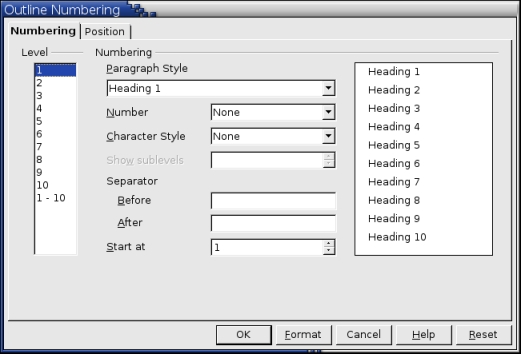
Figure 1. Despite its name, Tools > Outline Numbering is as much about managing how other Writer tools use styles as it is about outlining.
Then, to make matters worse, multi-style outlining uses paragraph styles that it describes as levels. By default, these levels correspond to the paragraph styles Heading 1-10--but they don't have to. Moreover, if any of the paragraph styles used in multi-style outlining are formatted using paragraph styles, or even if a manually formatted list uses the headings, Tool > Outlining is overridden and has no effect whatsoever.
Why does Writer work this way? Why does the software encourage the use of paragraph styles in every other way and then muddy the waters with Tools > Outlining? The answer is simple:
Nobody knows.
My theory is Tools > Outlining was added by a programmer ignorant of styles back in the Jurassic Age when OpenOffice.org was StarOffice and owned by StarDivision. That is only a guess, but what else explains the duplication?
It may help if you think of Tools > Outlining as a means of managing how styles are used by other tools throughout Writer rather than as a means of setting style characteristics. Multi-style outlining sets the styles used:
to outline.
to create a table of contents with Insert > Indexes and Tables.
to create an autoabstract by using File > Send > Create AutoAbstract. An autoabstract is a summary of the document in a separate file. By default, it shows the first paragraph beneath each heading. You also can select File > Send > AutoAbstract to Presentation, but you should read about the role its MS Word counterpart, the Autocontent Wizard, played in making the Gettysburg PowerPoint Address before using this feature. You may decide that this feature, like a grammar checker, can do more harm than good.
to add a chapter number in a cross-reference or to insert the chapter name automatically using Insert > Fields. The chapter number or name is read from the last occurrence of the paragraph style assigned to Level 1 in Tools > Outlining.
By default, the numbers assigned to each level's style are formatted the same as the rest of the paragraph. If you choose, though, you can use the Character Style on the Numbering tab of Tools > Outlining to give them a different format. You also can insert a separator automatically, such as a period or a parentheses before or after the number, as well as the numbering system, the starting number and the position and spacing for the number.
Perhaps the most important setting is the paragraph style. Because Tools > Outlining has ten levels and uses Headings 1-10 by default, you can be lulled into thinking no other arrangement is possible. The truth is, you can assign any paragraph style to any level. Because you rarely need more than four levels of headings, you can assign the main body text to one level and have it displayed in the Navigator. You can't read all of the body paragraph, though, because the Navigator uses a single line for each level. Most headings are short, so that's all that normally is needed. But by dragging the Navigator window wider, you should be able to see enough that you can work with the body text. Be sure, however, that the level to which the body text style is assigned isn't included when you set up a table of contents.
If outlining features in your work methods, create a template in which multi-style outline numbering is set up. However, be careful to include text that uses each of the outline levels have configured. Through some oversight, multi-style outline settings are not preserved in a template unless they actually are used.
The Navigator lists all the elements of your document. In Writer, over a dozen types of objects, including headings, graphics, tables, cross-references and draw objects are listed in the Navigator. You can click on any instance of one of these objects to jump to it. This ability especially is useful if you give each instance a meaningful name instead of using the default names, such as Graphic1 or Table1.

Figure 2. The Navigator, set to the content view and ready to start outlining
Yet, as useful as this feature is, the Navigator really comes into its own in outlining. To use the Navigator in outlining, press the F5 key to open its floating window. Of all the objects listed in the Navigator, headings are the only ones you need, so select Headings in the Navigator's list, then select the Contents View button in the Navigator tool bar second from the top. This selection displays only the currently selected type of object, giving you more window space in which to work. When you are finished, you can press the Contents View button again to display the complete list of objects.
If you have never done much with the Navigator, you also should drag on a corner of the window to make it bigger. The default size of the Navigator usually is too small to be used conveniently for outlining.
Each heading level is indented further than the one above it. You can change how many heading levels are visible by selecting the Heading Levels Shown button. The button is third from the right on the Navigator's second tool bar.
Unfortunately, Navigator offers no provision for hiding a single paragraph. You can, however, select Insert > Fields > Other > Functions > Hidden Text to hide a paragraph. Because an open Field window does not keep you from using the main editor window, this is a workable kludge, but only so long as you have a large enough screen for all the open windows.
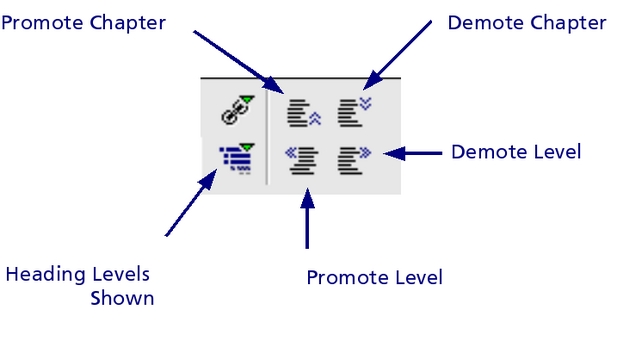
Figure 3. The Navigator's Outlining Buttons. Promote Chapter and Demote Chapter are on the top right; Promote and Demote Level on the bottom right. On the bottom left is Heading Levels Shown.
Around the Heading Levels Shown button are the other tools you need for outlining:
Promote Chapter: Raises the heading and all sub-headings and other paragraphs below it in the hierarchy one position closer to the start of the document.
Demote Chapter: Moves the heading and all headings and other paragraphs below it in the hierarchy one position farther from the start of the document.
Promote Level: Raises the heading one level in the hierarchy of headings set in multi-style outline numbering. For example, if the heading uses a Heading 2 paragraph style, it becomes a Heading 1 style.
Demote Level: Lowers the heading one level in the hierarchy of headings set in multi-style outline numbering. For example, if the heading uses a Heading 1 paragraph style, it becomes a Heading 2 style.
Contrary to many users' first inclination, trying to drag headings around with the mouse doesn't work. You must use these buttons instead.

Figure 4. The Navigator also can be used for outlining in master documents. Only the buttons have been changed, to protect the inconsistent.
In a master document, the Navigator works much the same way. Acting like a table of contents in a floating window, in a master document, the Navigator acts similarly to a book file in FrameMaker. In a master document, however, the Promote and Demote Chapter buttons are replaced--for no good reason except inconsistency--with the Move Up and Move Down buttons.
Serious outliners have complained that OpenOffice.org's outline tools are basic. They have a point. Although workarounds exist for the most important deficiencies, they require more than a beginner's knowledge of Writer to set up. Still, even when used with default settings, Writer's outlining tools are preferable to repeated cut and pastes.
If you're not in the habit of outlining, give it a try--single and multiple style outlining both. Once outlining becomes part of your routine, you'll probably find that you spend more time preparing for but less total time on each document. Who knows? It even may give you enough confidence that you look forward to writing instead of avoiding it.
--
Bruce Byfield (nanday)
Subscribe now!
Breaking News
| AMD Calls Out Intel...We Think. | 6 hours 35 min ago |
| Bye-Bye TorrentSpy, So Long MPAA's Money | 8 hours 35 min ago |
| Sun Finds the Keys to Unlock MySQL | 2 days 2 hours ago |
| New Powers on the Throne – or Heads on the Block – at OLPC | 3 days 2 hours ago |
Featured Video
Linux Journal Gadget Guy, Shawn Powers, takes us through installing Ubuntu on a machine running Windows with the Wubi installer.
Live From the Field
The latest posts from the Linux Journal team.
Delicious
Digg
Reddit
Newsvine
Technorati


Personally, I prefer a core s
On May 19th, 2005 Java script Dude (not verified) says:
Personally, I prefer a core single panel outliner like Ecco, OmniOutliner or NoteTaker (OSX). I tried outliner view in Word and it is too unfriendly to be useful.
For an outliner to be efficient, it must have excellent keyboard access. If the outliner requires a mouse to uses functionality, it will not be used effectively and as such not be used.
When I use Ecco or Omni, the workflow is so smooth that I don't have to waste time thinking of how I will manage the data but just what data I want to capture and how I want to categorize it.
I pray that Open Office does take a bold step to include an Outliner GUI framework like that of Ecco.
BTW - Ecco will be going OpenSource soon so why not borrow the code (if the license is good enough) ... :]
How about ASCII?
On February 19th, 2005 Anonymous (not verified) says:
Anyone know how to make the output from OO look the same when you "save as" ASCII? For example, I have an outline in OO but my editor wants to see plain text.
I want to see the same numbers and some whitespace between paragraphs. Some indentation would be nice too.
Right now, save-as removes all my whitespace and uses only a newline for a paragraph break. It's rather useless if you ask me.
BTW, Abiword has similar problems in ASCII.
Re: OOo Off the Wall: The Outlining and the Ecstasy
On September 23rd, 2004 Anonymous says:
The article talks about the outlining "tools" and options but doesn't go about as to how to build an outline in OOo.
Talk about surpression of painful memories.
To use Navigator to manage an outline, the entries must be formatted using Headings paragraph styles. To do that, you can setup OOo to apply formats automatically or apply them manually. To do it automatically Tools -> AutoCorrect -> Options -> Apply Styles. Then, you have to ensure there is empty line above, begin the sentence with a capital letter, do not end it with a punctuation and add an extra line after it to automatically apply a Headings style.
Which results in some thing like [enter](Creates empty line above)This is level one [enter][enter] (Autoformat kicks in here) [enter](An extra line to setup the next line)[tab](to demote) This is level two [enter][enter][enter][tab]Another level two[enter][enter][enter]... and so on and so forth. So many keystrokes and yet all I got was three lines of text.
Noticed that to maintain the same level at "Another level two", [tab] was needed. No auto-indenting here. Kinda reminds you of a mechanical type writer. I apologise for being born after the electric typewriter was invented.
Try use it further you'd find that if you applied numbering styles to paragraph styles, the numbers run consecutively across indents even though the numbering styles says otherwise. Meaning it goes like A., 1,2,3, B. 4,5, C., 6,7 etc.. You can restart numbering by pressing the restart numbering at the Object bar but that would just be another distraction and reaching for the mouse.
I have found that the easiest way (not the best, though) is to use the outline numbering under Format->Numbering/Bullets->Outline. At least numbering flow as it should and a little management is available via the Object bar which has a outlining sub-bar. Once all is done, manually apply headings style and then generate the table of contents. Unlike the earlier method, movement of points with sub points using the Object bar is supported. To achieve the same thing, you have to use the Navigator (which was the whole point anyway).
So the choice with outlining in OOo is either build using numbering's outline first, manage with Object toolbar and format later OR build using the automatic style apply (adding keystrokes enough to give your fingers a stroke) which automatically formats and manage with Navigator.
Hmm Devil or Deep Blue Sea...
Re: OOo Off the Wall: The Outlining and the Ecstasy
On September 22nd, 2004 Anonymous says:
This article would have been much more useful with the addition of a single, short paragraph explaining how to apply paragraph styles to existing paragraphs.
The Apply Style dropdown in the object bar only lists styles currently in use.
Digging through the menus to find Tools->Stylist (huh? do I need my hair done?) to access the full range of defined styles is not the most intuitive of actions. Until you apply Heading styles to paragraphs the Navigator only shows a blank -- rending the rest of the article mysterious.
Re: OOo Off the Wall: The Outlining and the Ecstasy
On September 22nd, 2004 Anonymous says:
Large Documents --
I am writing a 300-page book. I would love OO to support having the outline in one document and the "chapters" saved separately but recallable at will. Working with the entire document all the time is sometimes slow, as I must open Dragon Naturally Speaking, a database, and KeyNote at the same time.
This should be easy in one of two formats, either saving the main document using hypertext links, or with reference to OO's built-in MYSQL database capacity, which now can work like a charm to do footnoting, if you program it right.
Re: OOo Off the Wall: The Outlining and the Ecstasy
On October 6th, 2004 Anonymous says:
You want to set up a Master Document. In the Master Document you essentially set up links to separate Chapter documents. The Master Document displays the whole work, but you edit each Chapter separately. You don't have to have the Master Document open to edit a separate Chapter. See http://www.taming-openoffice-org.com/writer/masterdoc.htm for a simple tutorial.
External outliners may be a better solution
On September 16th, 2004 Anonymous says:
There are several good outliners out there, Free and otherwise. I use JOE (Java Outline Editor) myself. Many outliners can export (or in JOE's case, work directly with) an XML doctype called OPML -- it shouldn't be hard to write a translator to bring OPML outlines directly into OOo. I use XSLT to convert JOE's OPML to groff (-mm format) and a home-rolled XML doctype for structured FrameMaker.
Do it the Un*x way: use the best tool for the job and then make it easy for the tools to work together.
Re: OOo Off the Wall: The Outlining and the Ecstasy
On September 12th, 2004 Anonymous says:
I don't think you should consider "Tools - Outline Numbering" and "format Numbering/Bullets"/numbering styles as just two different ways of numbering paragraphs. I feel both serve a very different purpose
* "format Numbering/Bullets" serves at creating numbered lists, i.e. itemized lists within your document. When referring to 'outlining', we shouldn't even be mentioning this function. Indeed, numbered lists can have a hierarchy and I thing there is the cause of the confusion: that particular numbering style is called "Outline" in the "Numbering style" or the "Numbering/Bullets" dialogues, while it shouldperhaps be called "hierarchical". Use that for lists only, not for outlining.
* "Tools - Outline Numbering" is the one single tool you should be using to number outline headings. It is in Tools - Outline Numbering that you assing a paragraph style its special meaning as an outline level. It is also there that you eventually assign it a number.
Re: OOo Off the Wall: The Outlining and the Ecstasy
On September 18th, 2004 Bruce_Byfield (not verified) says:
What you say makes sense. However, maintaining the distinction has several difficulties.
To start with, you *can* create an outline list with Format > Numbering > Bullets (or, better, with a numbering style). In the early stages of planning, before you have any content, there will be no difference between the outline made this way and one made using Tools > Outline Numbering except the tool you use.
For another, if you make a list using a style or manual formatting, it interfers with Tools > Outline Numbering.
Just as importantly, both have features called Outline Numbering.
For these reasons, the two tools can't be kept distinct. OpenOffice.org doesn't make them that way.
Re: OOo Off the Wall: The Outlining and the Ecstasy
On September 10th, 2004 Anonymous says:
I recommend you check out OpenOffice.org Writer -The Free Alternative to Microsoft Word ISBN: 0-596-00826-0.
Please do not degrade Linux Journal into a word tutorial.
Don't!
On November 18th, 2005 Anonymous (not verified) says:
> Please do not degrade Linux Journal into a word tutorial.
This article was very useful to me today. I hope LJ continues to publish didactic texts like this.
Thanks!
Problem with tables in OO
On September 10th, 2004 Anonymous says:
How can i insert a table in a cell of another table using OO Writer (without using frames) ? I can't import such documents from MS Word and i can't creat such documents using Writer.
I hope to see a response in the next article. Thanks.
Re: Problem with tables in OO
On September 17th, 2004 Anonymous says:
I believe this is coming in version 2.0, due out next year.
Display only outline headings, print outline numbers
On September 9th, 2004 Anonymous says:
Tell ya what I really really really want to know how to do:
1. Display and print only the outline headings. This is easy to do in other word processors; you can collapse or expand an outline to any level your lil heart desires.
2. Print the friggin' outline numbers!! Whenever I print an outlined document, the numbers for the numbered headings do not print. Why why why? I love OO, but outlines are driving me to drink.
Re: Display only outline headings, print outline numbers
On September 12th, 2004 Anonymous says:
Generating and printing the TOC would functionally be equivalent. Your outline numbers not printing is an issue, and you better bring this to an OOo user forum.
Re: Display only outline headings, print outline numbers
On September 13th, 2004 Anonymous says:
Thank you! and like everything in OO, it's easy- after you know how. :)
Doing Something Fancy
On September 9th, 2004 Anonymous says:
Is there a way to tweak the outline, say, for example, like numbering ala...
1.1000
1.1100
1.1200
... etc.
There are some documents (particularly some with specific requirements of government agencies) that require a sequential outline but with a fixed set of digits. OpenOffice doesn't have a facility for doing that. You can, for example, specify the leading characters and trailing characters (like [001] [002], but this falls apart when you go from 9 to 10 (i.e., [009] [0010]). Having some mechanism for a little more inteligence in the outline would go make OpenOffice far more attractive to those offices that deal with government agencies.
A solution would, for example, use regular expressions to define what the output would look like. Alternatively, you could select a call statement that would call a macro that would return the formatted outline identifier given the index.
Re: OOo Off the Wall: The Outlining and the Ecstasy
On September 9th, 2004 Anonymous says:
When do we get to the "Ecstacy" part? ;-)
Outlining (and numbered/bulleted lists in general) in OOo routinely confounds me. Beyond the most trivial cases, they are genuinely maddening to use. I was hoping this article would be the 'aha!' that I needed to get my head around the underlying concepts. Sadly, it only confirmed that there is no underlying concept. I've really enjoyed this series, but this time I came out more confused than when I started.
OOo is already an amazing set of tools and 'good enough' for a lot of work, but I despair of it ever becoming top shelf, something you really enjoy using. I despair because there is so much potential buried under a mountain of bad UI design (or simply no design), yet all the development seems bent toward piling on features to make a 'better Office than Office', giving it dancing toolbars and such.
Are we stuck forever with such a poor design?
Re: OOo Off the Wall: The Outlining and the Ecstasy
On September 18th, 2004 Bruce_Byfield (not verified) says:
I've got to say that the logic escapes me, too. I've managed to find a reason for just about everything else that gives people trouble in OOo, but the existence of Tools > Outlining frankly baffles me.
That's one reason why I wrote the article: to make clear that it doesn't make sense, even to long-time users. I'd like to be able to rationalize its use, but, failing that, the best I can do is to tell people not to beat their heads against the wall because they can't see the sense that isn't there to see.
As an aside, it seems to me that Tools > Outlining would be improved if:
- It used the numbering set for a paragraph style, rather than its own.
- It was an option setting that allowed you to set the styles used in outlining levels, and wasn't a first-level menu item at all.
Outlining in OOo Writer 2.0
On January 22nd, 2006 Alexandre (not verified) says:
Found this page while looking for ways to work with both Ecco Pro and OpenOffice.org Writer. Though this article seems to have been written before OOo 2.0 was released, it seems like the outlining features have remained pretty much the same. Meaning, they're incredibly confusing, especially for a OOo newbie! ;-)
Apart from trying to understand the logic behind this design, where can one find a straightforward tutorial on how to use OOo Writer's "outlining" features? Better yet, how can Writer be used with actual outliners?
Yes, importing an OPML file would be a good solution. Is there a filter/XSLT available for this?
How about a template?
And how are these outlines converted to Impress, and vice-versa?
Before moving (temporarily) to Windows XP, was using OmniOutliner, LaTeX, Keynote, and TextEdit on Mac OS X. Can still use LaTex, of course, but the integration with outlining tools isn't that obvious.
Been producing lesson plans (to be used as class presentations) in OOo Impress. Wanted to transform them into RTF so students could have printable copies. Impress doesn't export to text formats and pasting Impress content in Writer produces awkward results. Surely, there must be a better way to do all this!
Thanks for any help!
Alexandre
"And how are these outlines
On November 6th, 2006 Anonymous (not verified) says:
"And how are these outlines converted to Impress, and vice-versa?"
I just noticed the following in the User Guide available from the OOo website (pg. 472 of version [0.21]):
"In a text document use File > Send > Outline to presentation to create an new presentation document that contains the headings from the text document as the outline. The headings must be formatted with a corresponding Paragraph Style before the user can see this command."
Might be worth a try.
MS-Word Outliner is Preferable
On August 3rd, 2006 Harvey Karten (not verified) says:
My work requires preparation of publishable reports with clear subsets. The simple reality is that MS-Word has long had an excellent outliner for more than 20 years (Yep! It has been around for a long time). It is well integrated into the word processing, with clear ability to nest headings, or to nest text (non-heading), change levels, show only headings, etc. After using the MS-Word outliner for many years, and then trying to fathom the design of OOo, I finally reverted to MS-Word. MS Word does it beautifully. I wish that OOo could do the same. The deficiencies are not addressed in the program, and the work-arounds do not provide equal utility at this time.