
Power Upgrades with apt4rpm
Keeping your system current with the latest and greatest can be a full-time job. Package management tools have simplified many installation tasks, but what package management system you use always has been distribution-dependent.
If you're running Red Hat, SuSE or Mandrake, you have been running the sturdy and well known Red Hat package manager (RPM). Certainly easier to deal with than compiling from source, it too can be fairly complicated to use.
If you've ever had experience with a Debian-based system, you know that keeping a system updated is little more than a command away. The Advanced Packaging Tool (APT) simplifies things immensely. Simply type apt-get update to see what's new and apt-get install package to get it. Is a new version of your distribution out? Type apt-get dist-upgrade, and you're on your way. What many folks don't know is it is indeed possible to have the best of both worlds. Thanks to the magic of free software and a terrific team of Brazilian developers, you can use APT with your RPM-based distribution.
APT for RPM (apt4rpm) began when Conectiva S.A. in Brazil decided to create a new distribution. The idea was to use RPMs, yet have the simplicity and dependency checking that APT offers. So apt-rpm was born, the method Conectiva uses to update its distribution.
The chief advantage APT has over RPM is this: how many times have you downloaded what seemed to be a perfectly good RPM and discovered during the install that you didn't have all the dependencies? This is not an issue with APT. Before the download even begins, APT checks a package's dependencies, compares that list to what's on your system and downloads any additional packages that you need.
What makes this system work is the idea of the package repository. This is a single place where all your software needs can be met. Single RPM packages can exist nearly anywhere on the Net, so when you download one package from one place, there's no guarantee that all of that package's dependencies are stored in the same place. This is when you wind up with a failed dependency error when you try to install your RPM.
The other advantage APT offers is intelligent installs of multiple packages. When you talk about updating something like a desktop environment or Perl, there can be dozens of RPM packages to download—but which package do you run first? APT takes care of this, offering seamless downloads and installs.
The key here is making sure to use the right repository for your distribution. The APT tool itself is distribution-independent and works the same regardless of which distribution you're running, but the packages themselves can install and/or run differently depending on which one you use. Although the differences between distributions are narrowing, it's always best to use applications properly tuned for your system.
I use APT on at least a weekly basis to get current stuff for my SuSE 8.0 system, but I've always been an update fiend. This article outlines the update steps for SuSE; check the Resources section for the proper references for your distribution.
Installation is pretty simple. Odds are you already have the necessary dependencies in place. Your first step to apt nirvana is a visit to Germany, in this case linux01.gwdg.de/apt4rpm. The APT for SuSE site has almost everything you need to get going. Look it over carefully, even if SuSE isn't your distribution. Scroll down to the Software Installation section and go to the download page for the current version of apt4rpm (0.5.4 at this writing; 0.5.5 may be out by the time you read this). Install the RPM. To confirm the install, run:
rpm -qa | grep -E "^apt-0"
from the command line. The result should display in apt-0.5.4 etc. You're almost ready.
Several GUIs work with APT, but SynAPTic is another Conectiva project that works with RPMs and is easy to use. SuSE users can download it from the same location as the APT client. Even better, once you have APT working, use it to install SynAPTic as a test of the system. Before doing this, you need to set up your repositories.
Before you can start updating, you need to identify the location(s) of your repositories, so APT knows where to get its packages. These repositories are comprehensive sources for current packages for your distribution. The primary SuSE APT repository is a mirror (updated several times daily) of the same SuSE FTP server that YaST on-line update uses. But a volunteer can set up a repository site with only some packages. You even can set up your own repository with the server-side apt-rpm tool.
APT checks sources.list (stored in /etc/apt) for current repositories. The APT for SuSE site offers a default sources.list file that points to the APT mirrors. Other major repositories can be found at the project page, apt4rpm.sourceforge.net, and individuals regularly announce new repositories on the mailing lists.
sources.list includes the URL (both FTP and HTTP sites are valid) of the repository and the directories included in the repository. You can choose which directories to include in your updates. Some types of packages can put your system at risk, though. For example, SuSE mirrors give APT users access to some experimental and pre-release packages directly from SuSE developers through the SuSE-People and Mantel-Kernel directories. This is okay if you are used to living on the bleeding edge and know what to do when something breaks, but if stability is your goal, you may want to leave out this one. SuSE users can add this repository to sources.list to ensure that APT and SynAPTic are always current (only include the second line if you want the source RPMs):
rpm     http://linux01.gwdg.de/apt4rpm apt-0.5.4 tested
rpm-src http://linux01.gwdg.de/apt4rpm apt-0.5.4 tested
Play with sources.list to see what items work best for you. Feel free to add new repositories as you hear of them. You can edit sources.list from the SynAPTic GUI if you like.
One caution to the Debian-savvy: don't try to add the Debian unstable (or stable, for that matter) servers to your sources.list. You cannot use apt4rpm to retrieve .deb packages for your RPM-based system.
Now, let's try out APT by getting SynAPTic from the APT repository. Once you have your source repositories identified, working with APT is quite straightforward. Get on-line and open a terminal. If you're dealing with a modem connection, it's best to leave the pipe open for your update, so turn off any file-sharing programs; it's also best to run APT after you've pulled down your mail.
Every time you run APT, make sure you have access to the latest packages. This is especially important the first time, so type apt-get update to check in with your repositories. APT downloads a file list from every directory listed in sources. Once that's done, it builds a list of file provides and reports any problems with connections to the server or the packages themselves.
To download and install SynAPTic, type apt-get install synaptic, and APT confirms that the package is there (if you added the apt4rpm lines above to sources.list), tells you how many other packages need to be downloaded and states what the total download size will be. Confirm the install and walk away. In short order, SynAPTic will be installed.
If you're addicted to the command line and don't want SynAPTic cluttering up your drive, you also can use APT to remove any installed package, whether or not you used APT to install it. In this case, type apt-get remove synaptic and in moments it is gone. Here's another advantage to APT: if the package you want to remove provides a file that another package depends on, APT warns you. If removing the first package sets off an unfortunate chain of events, it won't even let you remove the first package. In other cases, it removes the second package along with the one you asked to remove.
APT isn't only a tool for obtaining the occasional new and updated package. With two commands, you can update everything on your system with current packages or move to the next version of your distribution. To update everything on your system to the version in your repository in one fell swoop, type apt-get upgrade. After describing what packages it will download and install, with an estimate of how many kilobytes are necessary to download, apt asks you to confirm your request. It then proceeds to get every package with a new version and saves them in /var/cache/apt/archives. This can, of course, take time.
If your connection drops at some point, however, you do not have to start over. In the case of a dropped connection, APT asks if it can install what it already has downloaded or if it should wait until things are complete. This is your option. Running the upgrade command a second time picks up the process where the first one stopped.
Do you want to upgrade to the next version of your distribution? With a big enough pipe, this is eminently possible with APT. If your sources.list currently points to the SuSE 8.0 packages, for example, you can point to the v8.1 packages with a few keystrokes. Once that's done, go back to the xterm, run apt-get update, and you should have links to the v8.1 packages. To upgrade the system, type apt-get dist-upgrade, and you're in business. This is best done with a broadband connection, as you're probably looking at a few CDs worth of package downloads. In case you're wondering, dist-upgrade handles changing dependencies better than plain upgrade, so this is much better for changing your base distribution files.
These are powerful commands, so some caution is required when running upgrade and dist-upgrade. When the upgrade is complete, it's a good idea to run mk_initrd and LILO before rebooting. Keep a boot disk handy, just in case.
apt4rpm also uses virtual RPMs that let you update your whole KDE and GNOME desktop environments with one command, apt-get install kde gnome2. Of course, you don't need to do both simultaneously. For those with some APT experience, know that you can use all APT commands (apt-get, apt-cache, apt-cdrom) with apt4rpm.
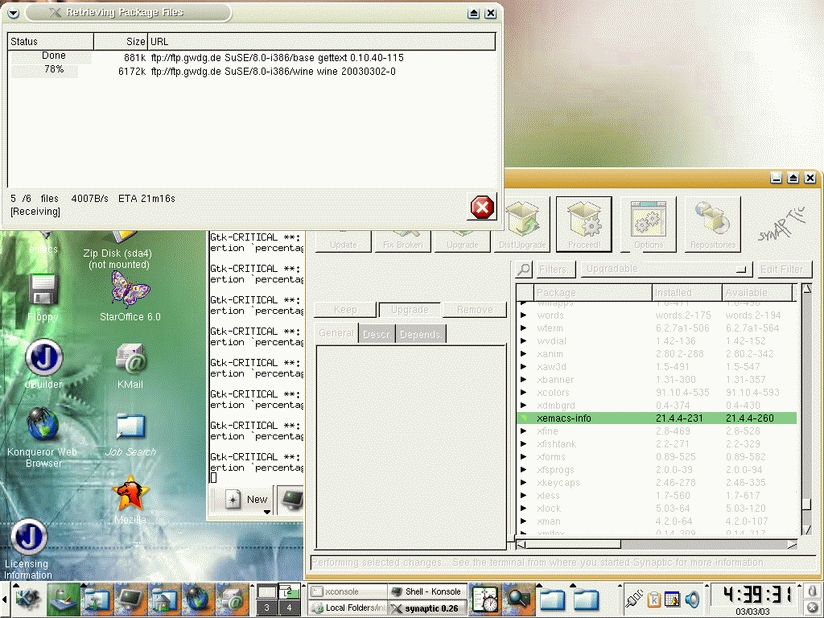
Figure 1. SynAPTic is an easy way to search and select new packages.
SynAPTic simplifies much of the process of using APT, whether in the RPM environment or in Debian itself. One big plus is you can run it as a user (as long as you have the root password) by typing sux -c /usr/sbin/synaptic at the command line.
What I like most about SynAPTic is the ease with which you can see what's new in the repository. SynAPTic uses filters to display relevant packages. When you launch SynAPTic, you see All Packages available to you. Click the middle button above this list to see the list of default filters. To see only your installed packages with updates available, click Upgradable. Now you can scroll down the list to select packages to update/upgrade.
The package window tells you what version you have and the new version waiting at the repository. Click on a package name and a tabbed description of that package appears in the left window, coming from the apt-cache command. Select the package(s) you want to install and click the Upgrade button on top of the left window (not the toolbar button). The basic information (how many packages to download, approximate download size, etc.) appears in the Info line at the bottom of the screen. If something looks odd—if APT tells you it is removing some packages—click on the Programmed Changes filter to see what packages will be affected if you complete this upgrade. When things are settled to your satisfaction, click Proceed! from the toolbar to start the download.
SynAPTic puts all the power of APT at your disposal in an easy-to-understand interface. You can edit sources.list simply by clicking the Repositories toolbar button. Find specific packages with the Search tool. Create and edit filters to display exactly what you want. Learn more about each package on your system.
Resources
Regardless of which distribution you use, you'll find much help for apt4rpm in the APT for SuSE HOWTO at linux01.gwdg.de/apt4rpm, including links to the APT HOWTO.
To find a list of repositories for your distribution, visit the project page at apt4rpm.sourceforge.net/repos.html. The SourceForge site also is the place to go if you want to create your own APT repository.
Additional information on apt-rpm: moin.conectiva.com.br/AptRpm.
The apt-rpm list is hosted at Conectiva. Developer Gustavo Niemeyer announces new builds and helps users with problems on any distribution. List archives are at distro.conectiva.com.br/pipermail/apt-rpm. Go to distro.conectiva.com.br/mailman/listinfo/apt-rpm to subscribe.
Apt4rpm-SuSE and Apt4rpm-Users are separate low-traffic lists. The first was created to handle APT questions, because SuSE does not officially support APT on their lists. The second was created for APT questions for other RPM-based distributions, but the SuSE list welcomes these issues as well.
Mike McCallister is a freelance writer focusing on Linux desktop applications. He fell in love with APT almost from the first moment he installed Corel Linux. He lives in Milwaukee, Wisconsin. Send comments and brickbats to workingwriter@prodigy.net.
