
The GNOME 2 Desktop Environment
The GNOME Foundation (gnome.org) released GNOME version 2.0 last summer and version 2.2 in January 2003. These releases mark a move toward a standardized desktop and a commitment to scheduled releases. GNOME has become an excellent choice for first-time and nontechnical users. “With the exception of some specialized applications, one can be fully productive in business with the GNOME desktop. That's something that has only occurred with free software in the last 12 to 18 months”, says Tim Ney, GNOME Foundation executive director. With the improvements made in GNOME 2, Linux's chances of increasing its market share rose significantly.
The transition for GNOME 1.x users to GNOME 2 will involve a few minor annoyances that can be expected when upgrading a desktop. Going from one learning curve to another is common in Linux; however, in upgrading my personal computer to GNOME 2, I was surprised to realize GNOME 1.4 had given me a certain level of comfort I did not want disturbed.
The people at the GNOME Foundation told me they were looking to streamline the desktop and cut down on the multitude of choices—to make workstations simpler and reduce the learning curves for new users. As a result, many minor applications, especially redundant ones, have either been eliminated or moved to a submenu labeled Extras. GNOME 2 also provides a more consistent look and feel from one program to another, thanks to an improvement in themes and fonts. “We're trying to strike more of a balance—setting standards while at the same time keeping the flexibility of Linux”, says Havoc Pennington, GNOME developer and Foundation board member.
Despite how content some of us may be with Linux in the rough, nontechnical users don't always appreciate the struggle. To compete for larger markets, GNOME has simplified the desktop. Pennington says, “It's not about removing choices but giving you a default choice to get you started quickly and easily.” So, instead of offering the user five different browsers and three different word processors, there's one of each. If you don't like the ones picked out for you—which were designed with the new GNOME 2 libraries—you can always find the RPM on the Web and load it.
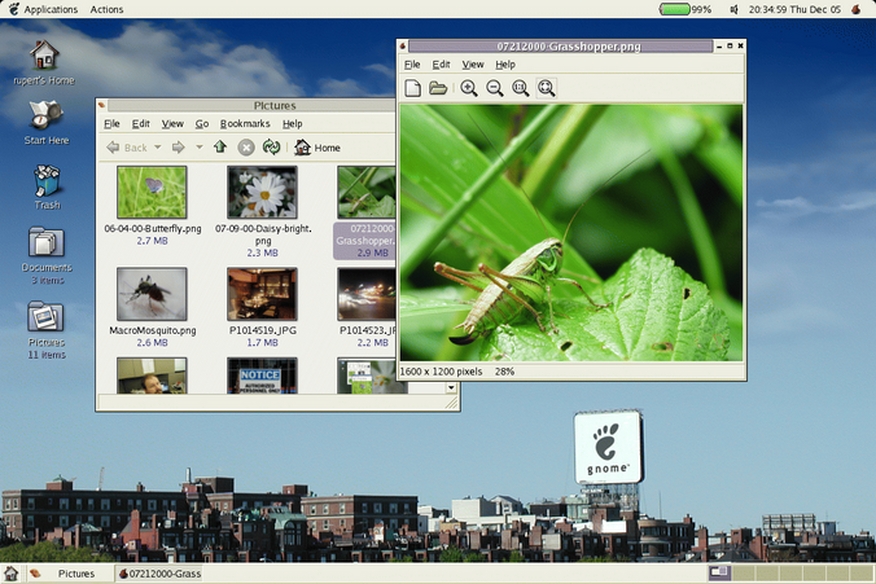
Figure 1. GNOME Desktop
Thanks to a usability study conducted by Seth Nickell of the GNOME Project, the program menus have been nicely reorganized. GNOME no longer buries utilities under several layers of submenus or within other programs. It also does not require the user to make command-line changes or to edit configuration scripts directly. Instead, GNOME 2 provides graphical interfaces for just about all system settings in easy-to-find places under main menus.
GNOME comes with many applications and utilities. Because I cannot cover all of them, I review a few key components from each section to help those new to GNOME get started. Some components are new to GNOME 2, and others have been included in GNOME for some time.
As is common with some desktop environments, GNOME provides users with panels for launching and managing programs, as well as for monitoring their systems. Panels can be placed at the top, bottom, left and right margins of the desktop. More than one panel per margin can be set up, and panels can be floating so that they can be placed anywhere on the desktop. They can be configured to remain open, to hide automatically, or they can resize themselves as needed depending on the number of running applications. A panel also can be set up with a button for extending and retracting the panel.
Initially, one panel is set up along the top margin with a menu for launching programs. Another panel is placed along the bottom margin with icons for launching each major component of OpenOffice, which is now the default office suite for GNOME 2. It also has links to the web browser, Mozilla, and the default e-mail client, Ximian's Evolution. All things considered, these are good choices for the average Linux user and especially for nontechnical users. If you don't like these choices, however, you easily can remove or add program launchers to the panels. Simply right-click on an icon and choose Remove from the panel to remove it. To add an item, right-click on an open section of the panel, select the Add to panel menu, and pick the application you want to add from one of the submenus.
The bottom panel initially contains a workspace switcher or pager. This isn't unique to GNOME, but it's a useful component of the desktop, allowing you to have multiple virtual desktops running simultaneously. You can open a couple of related applications on one page and have another page with another set of applications, so you can switch between them quickly without having to minimize and maximize. For example, when using a program like The GIMP, which opens each image and tool in a separate window, it's handy to be able to switch to another workspace to check for e-mail without disturbing The GIMP windows.
Depending on your computer, certain applets already are placed on the panels, but several others may be added. By default, the clock applet is installed. However, the choices for faces are now limited to a single digital one. The old GNOME provided a half-dozen or so, including some stylish analog clock faces. For laptops, a battery monitor applet is placed on the panel. You can add a dictionary form, a weather report applet, a scrolling marquee stock ticker, modem indicator lights, an e-mail box notifier, a CD player and audio volume controls, and a floppy disk mounter—something useful for users who don't know the mount command to save their data.
One very useful feature of a fully integrated desktop environment is the ability to copy and paste text between applications. In recent years, this has been possible in GNOME, but it was fairly spotty and not very dependable. However, this no longer seems to be much of a problem. You now can copy from a web browser to a terminal window running vi to a word processor and so on. Resolving this bug has greatly added continuity to the GNOME environment.
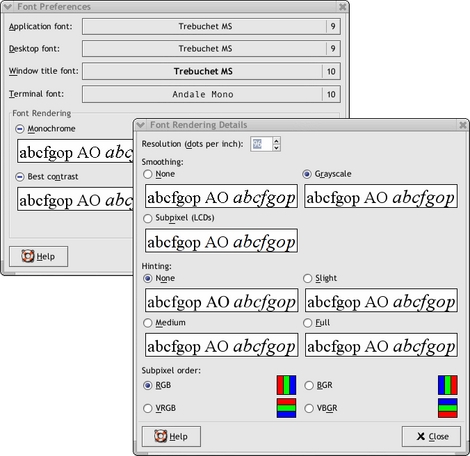
Figure 2. GNOME 2.2 Really Cleans Up the Fonts
Another continuity achievement is the improvement in screen fonts. In the past, screen fonts had a jagged look. That's all changed, says GNOME Release Coordinator Jeff Waugh of Sydney, Australia:
With GTK+ 2.0 [used in GNOME 2.0], we gained Pango, a font layout, rendering and i18n library. But with GTK+ 2.2 [used in GNOME 2.2], it now supports new font configuration software written by Keith Packard, fontconfig. This really cleans up the fonts. They span all desktop applications in GNOME because everything is based on GTK+.
The result is a desktop with a consistent, professional look throughout.
An integral part of GNOME is Nautilus, a graphical interface for managing files and configuring Linux. The simplest way to access Nautilus is by double-clicking on the Home icon on the desktop. Nautilus is a comprehensive drag-and-drop file manager. You can copy and move files by key strokes, by dragging and dropping a file's icon from one window to another or by right-clicking on a file's icon and selecting a choice from the pop-up menu. The pop-up menu also provides a screen for modifying permissions and ownerships. You also can now add graphical markers to icons associated with specific files to earmark them (e.g., important or personal).

Figure 3. Emblems Screenshot
If, like me, you've accumulated hundreds of data files on your computer, within dozens of directories going down several levels, you'll appreciate Nautilus' bookmark feature. Simply browse your way to a directory you use often, click on the Bookmarks pull-down menu and select Add Bookmark. The next time you want to get to that directory, click on the icon created for it in the Bookmarks menu and you're there.
Nautilus is also a graphical interface for configuring both GNOME and the underlying OS. You can reach the GNOME utilities and configuration programs through the menus or by clicking on the Nautilus pull-down menu labeled Go and choosing Start Here. A window then opens with four program group icons that read, Applications, Preferences, Server Settings and System Settings. Incidentally, the desktop had an icon for it in version 1.4, but it has been replaced by the configuration menus.
The Applications menu group connects to all the applications that appear in the main menu on the menu panel. Here you can launch programs or add application launchers to the menus. However, this doesn't work in version 2.0, which was shipped with Red Hat 8.0. It has been fixed in version 2.2.
Under the Preferences menu group, you can modify a variety of settings such as the background, the default font and the mouse settings. You can pick a different theme or change the focus behavior of windows here. Those who are more keyboard- than mouse-prone will appreciate the Keyboard Shortcuts utility. With it you can create key combinations to do things like open favorite programs or switch workspaces. Many are already set up in this utility, but they can be modified.
The Server Settings program group provides links to utilities for configuring server applications such as Apache's web service. This program group will have more or fewer utilities depending on what's installed on a system. At a minimum, though, there is an interface to the xinetd services located in the /etc/rc.d/init.d directory. These are the same system services that are accessible from the old setup program.

Figure 4. Nautilus System Settings
The System Settings program group has all the good stuff for configuring a computer. Many of these utilities are coming from Red Hat but have been developed for GNOME. This includes an interface for date and time and a utility for changing the video display settings. Incidentally, this is now where you adjust your X configuration; it's no longer part of the setup program, in case you were frustrated not to find the X configurator there. With version 2.2, support for multiheaded display with multiple video cards and monitors was simplified. Waugh says, “Nautilus will manage both desktops with the same process, and panels will be able to display on both heads, etc. There's even support for migrating applications between displays and such.”
Clicking on the Network icon in the System Settings window will open a utility (neat) for configuring network cards and the hosts file. The printer utility (printconf-gui) allows the user to add printers, set print drivers and restart the printer dæmon.
The improvement in GNOME 2 that will most directly affect increasing free software's desktop market share is accessibility for people with disabilities. “The US government can now use open-source desktop solutions, which wasn't going to happen otherwise because of government regulations”, says Pennington. He adds:
It also benefits normal users in a lot of ways. For instance, one of the accessibility requirements is full keyboard navigation [mentioned above]. You can do just about anything from the keyboard now. Also, themes have been enhanced because of accessibility regulations: color contrasts, default font size and so on.
With the accessibility barrier eliminated, Linux's target market has been expanded greatly, and options for all users have been improved in the process. Pennington says, “Sun Microsystems first brought accessibility to GNOME's attention. It was a huge project involving a couple years of work and about 20 developers. We're very excited about it and we're proud of what has been accomplished.”
Besides the system configuration menus mentioned above, in the main menu there are several other menus for launching applications. A menu labeled Accessories includes a calculator, a dictionary and a simple text editor (gedit). Under the menu labeled Office, OpenOffice is included along with Dia for creating organizational charts and flowcharts, along with MrProject for project management. The Graphics menu provides links to The GIMP and a few other image manipulation programs. The Games menu includes many games, some of which utilize the GNOME libraries: a couple solitaire games, a few popular line-up-the-dots games, a GNOME version of Minefield, Mahjongg and several others. I can't list all of the applications installed by default, but as you can see, streamlining the GNOME menus did not short-change the user.
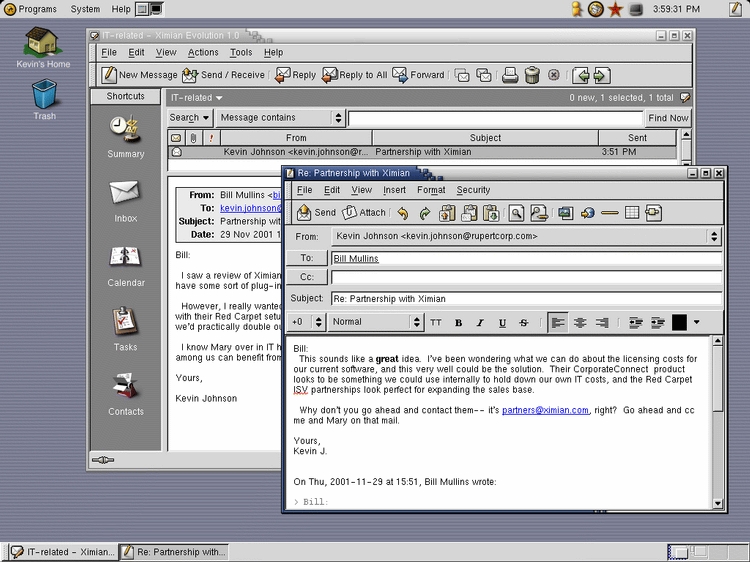
Figure 5. Ximian Evolution
Probably the best application that makes use of the GNOME libraries is Ximian's e-mail client, Evolution. It was rated by Linux Journal in November 2002 as one of readers' favorite e-mail clients available for Linux. Evolution allows for multiple POP and IMAP accounts. It comes with e-mail filtering, spell checking and the ability to attach binary files. Although it works with standard POP and IMAP servers as is, with the addition of Ximian's proprietary Connector, users can connect to a Microsoft Exchange server for group address books and appointment planning—an important compatibility component.
One feature of Evolution that other e-mail programs don't have is virtual folders. “V-Folders allow the user more flexibility and ease of organizing e-mails—they're contextual views of your messages. That is something completely unique to Evolution”, says Christine McLellan, senior product manager for Evolution. For example, in addition to a view of e-mail shown in the inbox in which messages can be sorted by date, subject or sender, a virtual folder is provided that shows only the unread messages. This virtual folder can make working through new messages quick and easy. Virtual folders also can be set up for messages with certain subjects or from certain people. A word of caution though, if you delete a message in a virtual folder, it's deleted from all folders at the same time.
The GNOME Foundation has made fabulous improvements to the desktop, and they have achieved much-needed consistency and stability with GNOME 2. “None of this would have happened without our developers, hundreds of which aren't paid by GNOME and are not sponsored by their employers”, says Ney. At this point, the Foundation's plans are to release stable updates every six months, with the next one (v. 2.4) scheduled for June 2003. Version 2.4 will include a Nautilus drag-and-drop CD burner function and more improvements to fonts. With their commitment to scheduled improvements to the desktop, GNOME has become a desktop environment that can be relied on by businesses, users and developers.


