
Creating Web Pages with OpenOffice.org

August 25th, 2002 by Ralph Krause in

The basic OpenOffice applications have built-in HTML functions; here's how to find and use them.
Your rating: None Average: 4.1 (8 votes)

OpenOffice.org is an office suite based on Star Office and released as open source. The suite contains standard office applications, such as a word processor and programs for spreadsheets, drawings and presentations. All of these applications can be used to create web pages, and this article will introduce their HTML capabilities.

Writer

Perhaps the most common application used to create web pages is OpenOffice.org's word processor, Writer. Writer's HTML capabilities include saving existing documents as HTML, creating new documents as HTML and creating several different types of web pages using a wizard.

The easiest way to create HTML documents is to start with an existing Writer document. You can view it as it will appear on a web page by selecting Online Layout from the View menu or by clicking on its toolbar button.

Links can be inserted and modified using the hyperlink editor. Display the editor by clicking on its toolbar button or clicking Hyperlink on the Insert menu. From the Hyperlink window (see Figure 1), you can choose the type of link, as well as specify the link's address, text and how it should be displayed (e.g., in a new window). To edit an existing link or turn existing text into a link, simply highlight it before opening the Hyperlink window. You have to click Apply to insert the link into your document before closing the window.
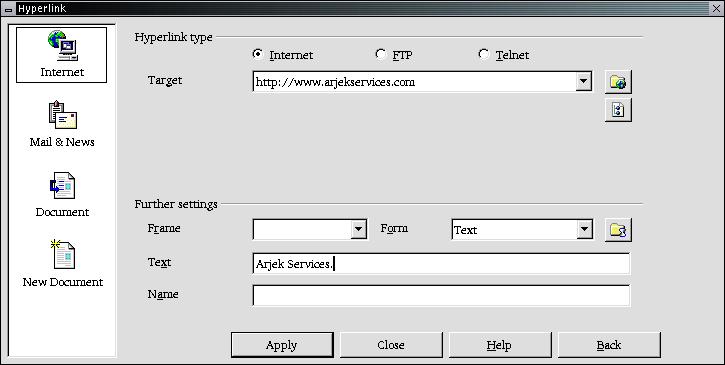
Hyperlink Window

If you are satisfied with how your document looks in the Online Layout, select Save As from the File menu and specify Web Page as the file type. I saved several files as HTML, including ones with tables, and Writer did a pretty good job with them. One thing that Writer didn't do properly was replace multiple spaces in the original document with the HTML code for non-breaking spaces.

If you have a large document, Writer can save it as a series of HTML files with a table of contents page. To do this, decide which headings in the document should be on separate pages and make sure that they have the same formatting style (e.g., Heading 2). Then select Send on the File menu and click on Create HTML Document. A dialog box will appear allowing you to specify the file name to save the pages under and which style indicates a new page. Click Save to create your multipage HTML document. According to the DOCTYPE tag inserted by OpenOffice.org, the resulting HTML files conform to the HTML 3.2 standard.

In addition, you are not limited to dealing with files that reside on your computer. According to OpenOffice.org's help file, it is possible to specify a fully qualified URL or FTP address in the Open dialog and retrieve a document over a network. I have successfully opened a document using a URL, such as http://www.netperson.net/~rkrause/index.html, but I haven't been able to get the process to work with an FTP address.

When I tried suppling an FTP address a window appeared asking me for my user name followed by an error window. The OpenOffice.org Bugzilla database lists problems with transferring documents using FTP (IDs 3726, 3728), but there is no clear indication it has been fixed. There is also an unanswered letter in the User's forum addressing a problem transferring files with FTP.

OpenOffice.org's wizard, called AutoPilot, allows you to create several types of standard web pages. To use the AutoPilot, click AutoPilot and then Web Page... in the File menu.

A window will open (Figure 2) allowing you to select a template and layout to use. Templates define the structure of the web page, while layouts determine font styles, colors and page background. Some templates included with OpenOffice.org are A list with table of contents, Contact Form, Photo Album and Single column with subheading. The standard template provides a document with a page heading in large text, example links, space for body text and a line indicating when the document was last changed.
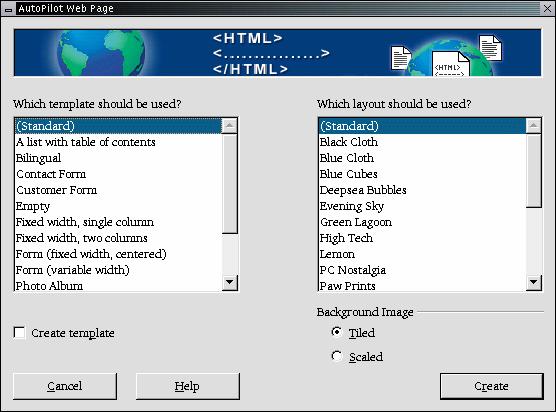
Web Page AutoPilot

Changes in the template and layout selections are reflected in the document immediately so you can preview them. Occasionally the document doesn't update properly when a new layout is chosen, but choosing the Empty template and then selecting your original template takes care of this.

You can create a template based on your selections by placing a check in the Create template box. You then can use this template in the future by selecting Templates and Documents under New from the File menu.

Clicking the Create button closes the window and allows you to edit the document. If you elected to create a template, the Templates window will appear where you name your template.

Although Writer does a decent job of converting documents into HTML, there are times when you might have to tweak the code by hand. You edit the document's underlying HTML code by clicking on HTML Source on the toolbar or the View menu.

Calc

The OpenOffice.org spreadsheet, Calc, also can save its files as HTML documents. If the file contains more than one sheet, the additional sheets will follow one another in the HTML file. Links to each sheet will be placed at the top of the document. Calc also allows you to insert links directly into your spreadsheet via the Hyperlink dialog.

Draw

The drawing program allows you to turn your drawings into a series of web pages. These web pages are created by using the Export command from the File menu. Select Web Page as the file type, supply a name for the resulting HTML file and click Save. The HTML Export window will open (Figure 3) allowing you to select whether to use an existing design for your web pages or create a new one.

HTML Export Window

Clicking Next allows you to select the type of web pages to create. The types available are Standard HTML format, Standard HTML with frames, Automatic and WebCast. You also tell OpenOffice.org to create a title page for your presentation if you want one.

Picking Standard HTML generate a series of pages, each page containing one slide. Navigation links are available to move from slide to slide. Selecting Automatic for the publication type generates a series of pages, each with the Refresh meta tag set that causes a browser to automatically cycle through each web page. The final option, WebCast, generates an ASP or Perl application to display your slides. After selecting the type of publication to create, select whether to convert the slides to GIF or JPG files and what resolution should be used.

If you elected to create a title page in the second step above, you supply the information for it on the next page. The title contains an author name, e-mail address and home page, along with any additional information you wish to display.

The next page of the HTML Export wizard allows you to choose between text or graphics for the links used to navigate through the slides. If you opt to use graphical navigation buttons, you can select from several styles to use.

Next you can select the color scheme to use for the web pages. Available schemes include the document's existing scheme, one based upon browser colors or a completely user-defined scheme.

Clicking the Create button generates the HTML files required for your type of publication. The HTML and image files are placed in the same directory, so you might want to create unique directories for each drawing.

Impress

Exporting presentations from OpenOffice.org's Impress application is similar to exporting a drawing from Draw. You use the Export command from the File menu and select Web Page as the file type. The only difference is that you are offered the option to display each slide's notes along with the slide.

Conclusion

OpenOffice.org contains many features to create and edit web pages. Although these applications may not meet the needs of high-level site designers, they offer other users the ability to create decent web pages.

After using the OpenOffice.org applications to edit your web pages, you will have to use other applications to update and maintain your site. OpenOffice.org offers the ability to load web pages by supplying a URL, but I was unable to transfer files over FTP.

Resources

OpenOffice.org

Ralph Krause is a writer, programmer and webmaster who lives in Michigan.

__________________________


Special Magazine Offer -- Free Gift with Subscription
Receive a free digital copy of Linux Journal's System Administration Special Edition as well as instant online access to current and past issues. CLICK HERE for offer

Linux Journal: delivering readers the advice and inspiration they need to get the most out of their Linux systems since 1994.

Comment viewing options

Select your preferred way to display the comments and click "Save settings" to activate your changes.
Pietroschek's picture

I have a different problem with OO in Linux

On September 8th, 2009 Pietroschek (not verified) says:

Greetings,

when one looks at my file "Zealot Priest Career" or many others, then it is quiteobvious, that I am not fully skilled with the INSERT -> Section -> Background -> *.jpeg

I get it done, yet if I do it for the complete page, then all format is away, including all tabulator settings.

I want the outer part to be artful while the part behind the writing should be paper-like or papyrus-like. That without having to manually place tabulators, as I have to finish a larger text as a project leader...

If RTFM, then please, which one and is there a legal way to download it freely?

Hints are welcome, please do not spam my account.

My regards

Andrè M. Pietroschek

rajamaniM's picture

XHTML file extension

On January 26th, 2009 rajamaniM (not verified) says:

XHTML file format is possible on Open office 3.0? ..

juvena's picture

comment from indonesia

On November 14th, 2006 juvena (not verified) says:

button hyperlinks with linux in ooo 2.0 are like shit...

OpenOffice has pretty good html editing capability but I'd been stumped on how to save the file back to the webserver once I'd made changes. I'd looked several times on the web and never found direct instructions, although I'd found several postings that said that they couldn't get it to work.

I worked it out tonight.

First you have to lose the Windows-based file dialogs :
Go to Tools/Options/General and Select "Use OpenOffice.org dialogs"
Click OK.

Now do a file open and enter an http://... URL for the document you want to edit.
Make your changes.
Do a File/Save As
Enter the URL ftp://<usrname>@domain.name.com
You will be prompted for a password for <username>.
You will be logged into the webserver.
Use the navigation buttons on the file dialog to move to the correct directory.
Enter the desired filename and Click 'Save'.

Voila!

I have used OpenOffice to convert Word docs to HTML and it does an acceptable job. The current MS HTML export filters are awful! The old Word 97 era ones weren't robust but were usable.

OpenOffice also opened the last Excel file I wanted to look at.

It converts very easily but the graphics are terrible. I have exisiting Word ( tech guides) I created and when convert the screen shots are horrible. Any suggestions?

Anonymous's picture

Re: Creating Web Pages with OpenOffice.org

On August 26th, 2002 Anonymous says:

Here's what I don't get: if OOo formats its output as XML files, how come there's a difference between how they look as OO files and Web files?

Anonymous's picture

Re: Creating Web Pages with OpenOffice.org

On August 26th, 2002 Anonymous says:

XML is a data description language. OOo can choose to display/edit them one way. Of course, as XML is extensible, not everything that OOo knows about can be rendered as valid HTML 3.2.

Now, if the export did HTML4 and stylesheets, you'd be much more likely to have WYSIWYG.

Anonymous's picture

Re: Creating Web Pages with OpenOffice.org

On September 5th, 2002 Anonymous says:

This is a really good idea, you should submit it as a request on http://www.openoffice.org

Anonymous's picture

Re: Creating Web Pages with OpenOffice.org

On August 25th, 2002 Anonymous says:

For serious web page makers, I would recommend Front-Page, Dream Weaver, or a text editor. When I tried OpenOffice for html development, not only was it unable to make it look the way I wanted, but it also messed up the code I manually typed into the html source, thereby eliminating any hope of making it look the way I intended.

John Bowling's picture

Don't use any software from MS for web page creation

On June 10th, 2008 John Bowling (not verified) says:

They insert IE only non-standard functions, which only screw up the page for any other browser.

Also, they use the MS unique character set - which is NOT w3c standard compatable - resulting in garbage on the screen in anything but IE.

So, run screaming from that garbage, unless you can absolutely guarantee that the web pages will ONLY be accessed by Windows users using IE.

Or, be prepared to do a lot of fixing using a text editor. More hours than you would spend using a fully standard web page creation tool (none of those from MS)

Anonymous's picture

Re: Creating Web Pages with OpenOffice.org

On September 29th, 2002 Anonymous says:

Yes of course. I am using AceHTML and i am very happy. :)))

Anonymous's picture

Re: Help Creating Web & FTP

On September 6th, 2002 Anonymous says:

Please forgive me if I'm going about this the wrong way. I'm new to this arena and your article reply's are as close as I've been able to come to finding some answers. The people on this site seem very knowledgeable and I really need help.

Will you please recommend some direct links, sites or personal contacts that have VERY SPECIFIC, STEP-BY-STEP INSTRUCTIONS on how to set up FTP & WEB sites in LINUX. Man pages, Linux for dummies, The Linux 7.3 Bible, bookstores and dozens of sites that I've visited have been of no help. Over 40 hours into this and I'm still at square-one.

I'm very new to LINUX and can't even figure how to find or open Executable files. Needless to say, it's been frustrating.

I'll e-mail some details if you're interested.

Thanks,

Scott Ferguson

capitalmanagers@comcast.net

Anonymous's picture

Re: Creating Web Pages with OpenOffice.org

On August 30th, 2002 Anonymous says:

Mozilla Composer does a decent job for quick web pages without having to write HTML code. I recommed it if you don't want to write HTML by hand. Otherwise try Bluefish or Quanta. I haven't tried OpenOffice so I can't comment on it.

But I would certainly not recommend Microsoft FrontPage to anyone. Even if you are a newbie to web development, FrontPage is the worst tool to use. It generates bad code, it tempts you to use bad sample templates, and you have no control over your own website. Try Mozilla's composer instead. If you are serious about web development, then learn HTML. Your favorite text editor can be the perfect too. Dreamweaver is great if you are developing on Microsoft Windows or the Macintosh.

Anonymous's picture

Re: Frontpage?!

On August 27th, 2002 Anonymous says:

Front-Page?!

Pfft! Used mostly for people "having ago" at webpage authoring.

I'd definately recommend Bluefish, that and weblint (which can be called from within Bluefish) to check your HTML makes sense.

I'd rather use vim than front-page, or failing that notepad :) But Bluefish definately makes life easier.

ferrol

Anonymous's picture

Re: Creating Web Pages with OpenOffice.org

On August 26th, 2002 Anonymous says:

uh.. front page? serious web page makers?

Sorry, but that's just too funny.

Apart from the nasty bloated html it produces, it has the even nastier drawback of being tied to ms win doze...

I know a guy who used his company standard dream weaver in a windows session running under vmware on his linux desktop. It worked really well for him.

But, vi and a web browser is what works best for me!

Anonymous's picture

Re: Creating Web Pages with OpenOffice.org

On August 26th, 2002 Anonymous says:

I can't believe someone suggest front-page for "serious web page makers". Front-page produces some of the nastiest HTML I have ever seen and too often requires manual clean up.

Anonymous's picture

Re: Creating Web Pages with OpenOffice.org

On August 25th, 2002 Anonymous says:

I usally use Quanta(http://quanta.sf.net) or Bluefish(http://bluefish.openoffice.nl/).

Post new comment

Please note that comments may not appear immediately, so there is no need to repost your comment.
The content of this field is kept private and will not be shown publicly.
  • Allowed HTML tags: <a> <em> <strong> <cite> <code> <pre> <ul> <ol> <li> <dl> <dt> <dd> <i> <b>
  • Lines and paragraphs break automatically.

More information about formatting options

Newsletter

Each week Linux Journal editors will tell you what's hot in the world of Linux. You will receive late breaking news, technical tips and tricks, and links to in-depth stories featured on www.linuxjournal.com.
Sign up for our Email Newsletter

Tech Tip Videos

From the Magazine

December 2009, #188

If last month's Infrastrucuture issue was too "big" for you then try on this month's Embedded issue. Find out how to use Player for programming mobile robots, build a humidity controller for your root cellar, find out how to reduce the boot time of your embedded system, and if you're new to embedded systems find out the basics that go into one. You can also read about the Beagle Board, the Mesh Potato and a spate of other interestingly named items. And along with our regular columns don't miss our new monthly column: Economy Size Geek.


Read this issue