
VNC, Securely: Part 2
In Part 1 of this series, we learned how to set up transparent usage of a VNC desktop both remotely across a network and on a console, via a display manager, in such a way that the same desktop (and its desktop state) is available from both types of locations. In Part 2 we talk about making this ubiquitous access more secure. We'll be using OpenSSH from www.openssh.org, but other implementations of SSH may work as well.
Our goal is to access our VNC desktop in a secure manner from any location. By secure, we wish to have both strong authentication, thus ensuring only authorized individuals can access the desktop, as well as privacy, so that no one can see the contents of our desktop or what instructions we are sending it.
This article will use Linux computers as both the clients and the server. We will concentrate on using the VNC client called vncviewer and the OpenSSH implementation of the SSH Secure Shell protocol.
As per the first article, we have a VNC-based desktop running on our server. We'll refer to this server as "myhost". Also on this server is sshd, the SSH server. On the client we need to have the SSH client, ssh.
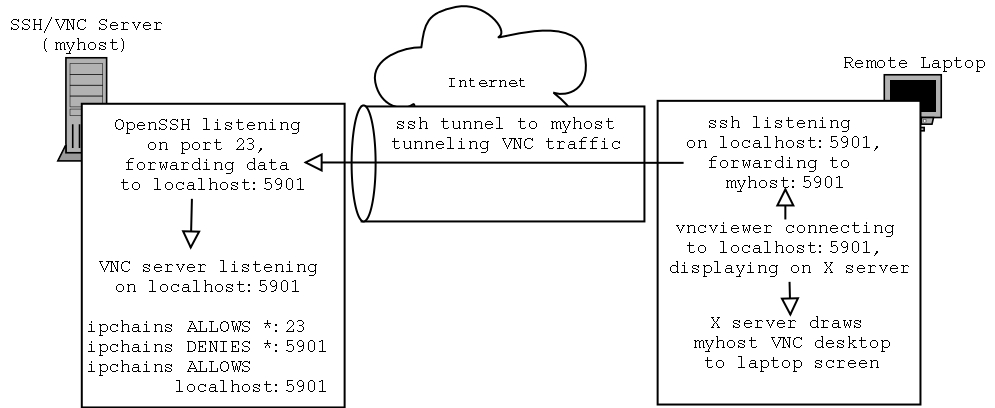
Figure 1. What is Going On
As figure 1 shows, we'll use ssh on the client machine to create an encrypted and authenticated tunnel between client and server. Then we'll configure vncviewer to use that tunnel to show the desktop on the client.
Please refer to "The 101 Uses of OpenSSH: Part I & Part II" by Mick Bauer (Linux Journal, December 2000 and January 2001) for proper setup of OpenSSH, if it hasn't been set up already. My Red Hat 7.1 install has it preconfigured.
As described in those articles, you'll want to configure your client system to use either "null-passphrase" keys or an ssh-agent to cache your passphrase. If you prefer use only passwords, you will not be able to automate the SSH tunnel for our remote VNC desktop via a script.
You might be asking "Is VNC insecure?" As always when dealing with security, the answer is "It depends." The factors it depends on are: what is the likelihood of penetration or exploit, and how bad would it be to be exploited?
The VNC protocol is not without its own defenses. It uses a DES challenge-response handshake for authentication, which is better than sending passwords, like Telnet or FTP do. But with the power of today's commodity computers, DES is not very secure against brute force attacks. Besides this, VNC tries to secure only authentication; it does not make the connection private. SSH can do that for us.
Recall from the first article that we configured VNC to start up in the file /etc/sysconfig/vncserver (on an Red Hat 7.1 system). We added this line:
VNCSERVERS="1:jdimpson"(where jdimpson is your own user name).
The number prepended to the user name, 1 in this case, tells the server what VNC session number is mapped to each user.
For each session number, VNC will listen on three different network sockets. If N is the session number, VNC server will listen on 5800 + N for HTTP connections, on 5900 + N for VNC RFB connections and on 6000 + N. This last port allows X applications to connect to the VNC server. So in our case, the ports that VNC uses are 5801, 5901 and 6001.
We want to prevent any connections to the VNC server from a remote or external client. We do want local applications to be able to connect, though. To do this we will use Linux's built-in firewalling utilities. There are currently two such utilities. On my Red Hat 7.1 box, ipchains and iptables are installed. Although iptables is the newer and more powerful implementation, Red Hat seems to favor the usage of ipchains.
If you know something about firewalls, and have already configured your system so that the default input rule is DENY, you can skip this section. But you must make sure that you ALLOW SSH traffic (port 22). Otherwise, you should run the following commmands:
        ipchains -A input -s 0.0.0.0/0.0.0.0 -d 0.0.0.0/0.0.0.0 5801:5801 -p 6 -j DENY -l
        ipchains -A input -s 0.0.0.0/0.0.0.0 -d 0.0.0.0/0.0.0.0 5901:5901 -p 6 -j DENY -l
        ipchains -A input -s 0.0.0.0/0.0.0.0 -d 0.0.0.0/0.0.0.0 6001:6001 -p 6 -j DENY -l
If your server is a gateway to an internal LAN, and you want to allow hosts from the internal LAN access to VNC without needing to use SSH, you can add the flag -i ethX (where ethX is the network interface on any external, untrusted network).
It might be easier (and more secure) to block all ports from 5800 to 6010. Then you can start as many VNC (and X) sessions as you wish, without worrying about reconfiguration:
ipchains -A input -s 0.0.0.0/0.0.0.0 -d 0.0.0.0/0.0.0.0 5800:6010 -p 6 -j DENY -l
(Note: when I configure firewalling rules and set up a rule for a TCP connection like above, for symmetry I usually also set up a similar rule for UDP traffic. You can accomplish this my running the ipchains commands again, using -p 17 instead of -p 6.)
The flag -l says to log data to syslog, so you can look at /var/log/messages (or similar) to see if it works. Test by using a VNC client (like vncviewer) to try to connect. You should see log messages like those in Listing 1.
Listing 1: ipchains' Log Messages in /var/log/messages Showing Blocked Connections to Port 5901
Now only VNC clients that are running locally are able to connect to the VNC server.
Remember that unless you do something about it, these rules will be put back into place on reboot. Some systems (like Red Hat 7.X) let you save ipchains configurations by running /etc/init.d/ipchains save. Otherwise, see the man page for ipchains-save.
If you use iptables, the rules you want are
        iptables -A INPUT -p tcp --sport 5801 -j DROP
        iptables -A FORWARD -p tcp --sport 5801 -j DROP
        iptables -A INPUT -p tcp --sport 5901 -j DROP
        iptables -A FORWARD -p tcp --sport 5901 -j DROP
        iptables -A INPUT -p tcp --sport 6001 -j DROP
        iptables -A FORWARD -p tcp --sport 6001 -j DROP
See netfilter.filewatcher.org for more information.
The myhost server is running OpenSSH and the VNC server, and it is protected with the above ipchains rules.
On myclient (the remote laptop or other Linux machine), make sure you can start an SSH session to myhost. You should be able to log in and run command-line applications.
Make sure that AllowTcpForwarding is set to yes in /etc/ssh/sshd_config on myhost. (If AllowTcpForwarding is absent from the file, then it defaults to yes.)
In part one of this series, we ran vncpasswd on the server system, which set a password for VNC. On the client machine, do the same, giving it the same password.
First, let's set up the encrypted SSH tunnel. I recommend that you run this next set of commands under a normal X session on myclient. At a command prompt, run:
ssh -f -L 5901:localhost:5901 myhost sleep 20 < /dev/null
(Note: once everything works, go back to this step and add the -C flag for compression. Depending on the processing speed of myclient and the speed of the network link between myclient and myhost, this flag may or may not make the connection faster.)
If you look at the man page for SSH, you'll see that the -L command is used for putting up SSH tunnels. The first number is the local port that SSH should listen on. The next name and the next number (localhost:5901 in this case) is the host that SSH should connect the other end of the tunnel to. Note that if you said "myhost" instead of "localhost", it will fail. The firewalling rules will prevent any connections to myhost:5901, but not to localhost:5901.
You might be worried that running this command on your client machine will allow anyone to connect to port 5901 of myclient and access the VNC desktop. Recent versions of OpenSSH forbid this, and only allow it if you supply the -g flag.
If you wish to also have usage of the HTTP server that is part of VNC, add this flag, -L 5801:localhost:5801, to the SSH command (be sure to leave all the other arguments, including the other -L flag, there as well). Now instead of running vncviewer, point a Java-capable web browser at http://localhost5801/.
After running the ssh command, you have 20 seconds to run the following command, otherwise you will have to execute the ssh command again.
With the SSH tunnel started, run the VNC client: vncviewer -encodings "copyrect hextile" -passwd $HOME/.vnc/passwd -shared localhost:1
The -encodings flag tells vncviewer and the VNC server what sort of encodings to use. Usually there is no need to state explicitly what encodings should be used. However, because vncviewer thinks it is connecting to localhost, and similarly VNC server think that the connection is coming in from localhost, they both think they can use an encoding (called raw) that works well only when the client and the server are running on the same machine (which is usually the case when you are talking about localhost). They both think the connection is to localhost, but really the SSH tunnel is connecting the localhost port of one machine to the localhost port of another, over the network.
(Note: add the flag -bgr233 to vncviewer for better network performance at the cost of image resolution.)
If all goes well, you should see your VNC desktop (running on myhost) show up in a window on myclient. If you get an error message like this:
vncviewer: ConnectToTcpAddr: connect: Connection refused
then vncviewer wasn't able to connect. Either the SSH didn't work or 20 seconds had passed. Make sure that the ports listed in the ssh command are all correct. Also look at /var/log/messages for hints. You can also supply a -v flag to ssh to get more debugging information.
If you run gdm on myclient, then you can put the following lines into $HOME/.xsession. If you start X by typing startx, put them line in $HOME/.xinitrc. (But in both cases make sure the command executed is started with exec.)
        ssh -f -L 5901:localhost:5901 myhost sleep 20 < /dev/null
        if [ $? = 0 ]
        then
                # success
                exec vncviewer -encodings "copyrect hextile" -passwd $HOME/.vnc/passwd -fullscreen -shared localhost:1
        else
                echo "Can't connect to 'myhost' VNC via SSH, running local X session"
                exec fvwm2
                # or whatever your preferred window manager is
        fi
This script tries to set up the tunnel. If it succeeds, then it launches the vncviewer command. If it fails, then either the client is not on a network, or at least not on a network capable of communicating to myhost, and a regular window manager gets started.
If you added the second -L flag when you ran the ssh command, then your .xsession or .xinitrc file can look like this:
        ssh -f -L 5901:localhost:5901 -L 5801:localhost:5801 myhost sleep 20 < /dev/null
        if [$? = 0]
        then
                netscape http://localhost:5901/
        fi
        exec fvwm2
        # or whatever your preferred window manager is
This will start the tunnel, a web browser that will open a VNC desktop (if the tunnel was created successfully), then the window manager.
Instead of using SSH to provide data privacy and user authentication, we might use Secure Socket Layer (SSL). A tool called stunnel is designed expressly for the purpose of creating SSL tunnels. By using SSL we have the option of using it purely for encryption and letting VNC take care of the authentication, or allow it to authenticate us, using client-side X.509 certificates.
If you're starting from scratch, stunnel is just as secure and just as taxing to set up and configure as OpenSSH. But more and more Linux and other UNIX distributions have SSH clients and servers shipping with them, and it's becoming more likely that users already have keys and agents setup, using it as the preferred remote login mechanism, so using SSH tends to be simpler.
Jeremy Impson is a senior associate research scientist at Lockheed Martin Systems Integration in Owego, NY. There he's a member of The Center for Mobile Communications and Nomadic Computing, where he uses open-source software to develop mobile computing systems.
email: jeremy.impson@lmco.com
