
Developing C/C++ Applications with the KDevelop IDE
The aim of this article is to enable you to create an application with the KDevelop Integrated Development Environment (IDE) on a Linux/UNIX system running KDE 2. We explain this process by creating a sample application that gives some insight into the development framework and how it works. This might require getting your development environment set up correctly, so that you can work efficiently when getting started with your very own application or extension for the KDE 2 Desktop.
An IDE provides the user with a complete set of tools that integrate into one graphical environment. It's an enormous bonus for developers if the environment remains flexible enough to handle things separately or outside of the IDE, so they are not forced to use the IDE's features where they think other tools are more appropriate.
Although IDEs on other platforms, especially on Microsoft operating systems, come with all the tools bundled into one package, it's very different on a UNIX system. With UNIX, the compiler, which is needed to create applications from the programming code that can be run on a machine, is part of the operating system. Various tools that can be used in conjunction with the compiler, like make or the GNU tools, are delivered as separate packages, and an IDE makes use of these tools internally.
The KDE Project, comes with an IDE called KDevelop. This IDE can be used on any UNIX system to develop software, especially KDE software, but not limited to it. Many experienced UNIX programmers use it for plain C and C++ programming.
If you're using a popular Linux distribution, you should encounter few problems when setting up the IDE; especially when it already ships with KDevelop and takes over the installation of all the tools needed. What you need, in any case, is a C/C++ compiler, such as the current version of gcc that ships with current distros.
The next task is installing the GNU tools autoconf and automake and the package-building utility make.
For finding program errors, you need to install a debugger installed, which is called gdb, the GNU debugger. To complete your environment, the version control management utility, CVS, can be helpful, as well as source code documentation software, such as kdoc and doxygen.
The last package you need is KDevelop itself; it can be downloaded from the KDE web site at www.kde.org or from your distribution's web site.
If these requirements are all met, you still might be missing at least one very important part of your development environment, especially for KDE programming: the header files of the libraries that you intend to use. These files contain the API (application programming interface) that the compiler needs to have in order to look up which functionality you want to use while compiling your application.
The header files (also known as include files) should be located in your $KDEDIR/include (KDE header files) and your $QTDIR/include (Qt header files) directories. Make sure you have these installed; usually they're in packages with names such as kde-devel and qt-devel.
Further, there is the Qt Designer, a graphical user interface builder that is easy to use and works together with KDevelop to create KDE/Qt applications, so make sure that you have it installed as well.
Note: the KDEDIR and QTDIR environment variables should point to the directories where your KDE 2 and Qt 2.x installations are located, e.g., in your ~/.bashrc: export KDEDIR=/opt/kde2; export QTDIR=/usr/lib/qt-2.3.0.
As a programming beginner, it is crucial to have a successful experience. Let's start with creating your first KDE application. Open up KDevelop and make yourself comfortable with the environment.
In the treeview on the left side, you should see some books that you can unfold and that contain documentation included with KDevelop--almost 500 pages that can help you in almost every development situation. The second folder in that tree contains books with the API documentation of the Qt and KDE libraries.
In case you don't see them, set the appropriate paths in KDevelop through Options-->KDevelop Setup in the Documentation section. The other windows in the treeview will be used during development, and we will refer to them later. The right-hand window contains three tabs: two editor windows and a browser window, which will display the HTML documentation you select on the left treeview (see Figure 1).
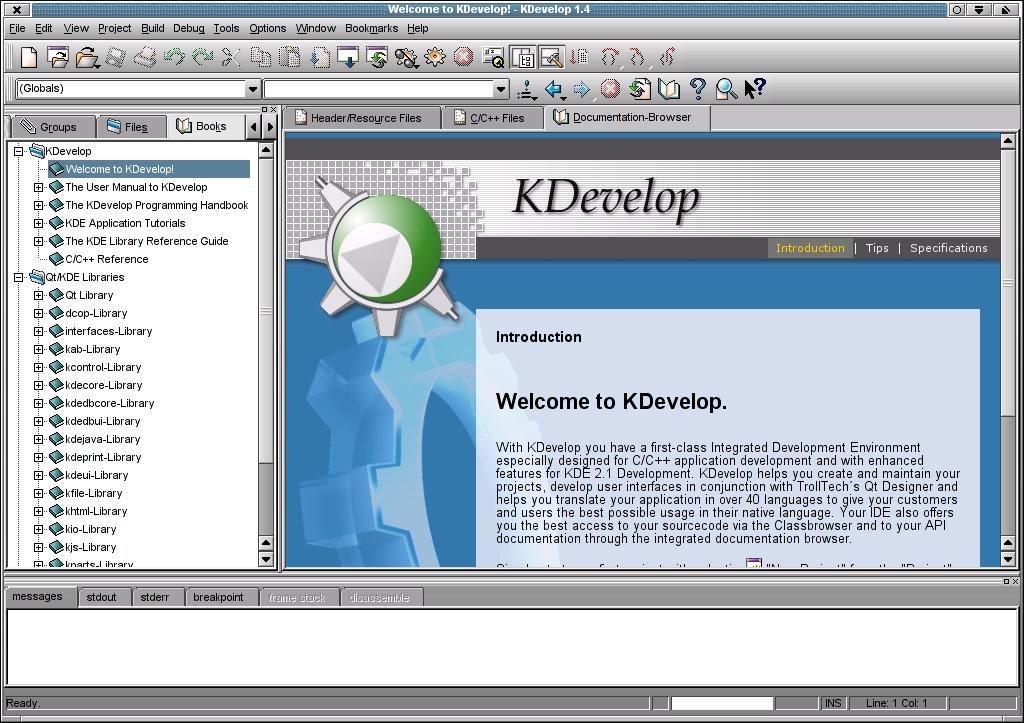
Figure 1. Welcome to the Desktop
The window on the bottom will be used to inform you about what your environment is currently doing; it will show the compiler output later on and display any error messages.
For this article, I've tried to come up with a useful example that will be simple to follow but still complex enough to provide the facilities to enhance it on you own at a later time.
To build something unique I thought about my early days with UNIX--I had a total lack of understanding of what an environment variable was. Every book maintained it, but I just didn't understand its simplicity.
Now, I don't want to make any assumptions about whether all readers know this, so, as a basic explanation, an environment variable is just a name that the shell, say bash, interprets as a synonym. A well-known variable is the PATH variable that contains all the directories containing programs that you want to call directly, without the directory name. Other good ones are the KDEDIR and QTDIR variables. To set these up permanently, edit your .bashrc (assuming your shell is the bash shell) located in your home directory. A little frontend that will give you an insight as to what your current values are, and being able to add or edit these and even to disable/enable them would be great.
To start your very first project, select Project-->New Project from the menu. You'll then see the KDE Application Wizard (Figure 2).
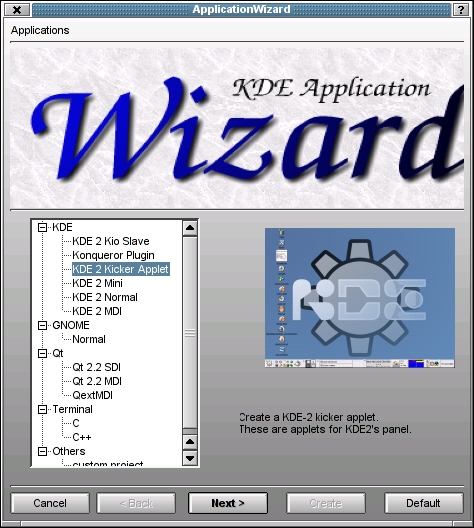
Figure 2. KDE Application Wizard
Here, you're offered a whole variety of application templates. First, a whole set of KDE application and library types, a simple single-window application (KDE2-Mini), a full-featured framework application containing a menubar, toolbar and statusbar (KDE2-Normal), and another one using the MDI (multiple document interface) system. There are also templates for a KDE panel applet, a Konqueror/KParts plugin using the KDE 2 component system, and a KIO-Slave component that utilizes KDE 2's architecture to define a protocol and write a handling implementation based on the KIO library. Examples are the HTTP and the FTP I/O-slaves among others, but as a user you're already familiar with these if you're using, for example, KDE 2's filemanager and the Konqueror web browser.
Other project templates you'll find here are Qt-only application types, a GNOME template for programming with the GTK+ toolkit and plain C and C++ templates for writing console applications. Select the KDE 2 Mini application type as your first step in our example application; then click on the Next button on the bottom of the page to go to the next step. Here, enter the project name in the first edit line. As we want to write a good sample application that can be of some use later on, we should first think about a useful name.
As most KDE applications start with a K, like Konqueror or KMail, let's choose KEnvEdit as the project's name. The rest of the page should be filled out already; if not, please fill in the empty fields for your name and e-mail address. These should be filled out because all files will contain your name and address, so that everyone knows that this code is copyrighted by you. Press the Create button to generate the project. When the build process is finished, you can leave the wizard by selecting Exit.
KDevelop will now load the new project; in fact, you're ready to start off with actual code. As a short test, press the button that looks like a wheel on the toolbar; this will compile your application and run it for a test.
The compiler will show all the messages in the output window. This is important to know in case you run into compiling errors. When everything is working, either close the application window or press the Stop button in KDevelop. On the left you can see that your IDE contains a class browser that displays the contents of your source files sorted by their class and function names.
Make yourself comfortable with browsing the three files of your application that you already have: the KEnvEdit class declaration, the implementation heads for the constructor and destructor and the main() function.
Next, we will create the graphical user interface for our program. This is the fun part of application construction, so let's move on.
After you've finished with generating the project, your graphical user interface is far from being complete--it consists of a single, empty mainwindow. We will extend this by designing the user interface of the main dialogue with the Qt Designer, so please make sure that you have it installed and working (click on the Dialogeditor button for a test; the Designer should come up). Then, select File-->New in KDevelop. The new file dialogue will have some templates listed, among which you'll see a Qt Designer file. Select this entry and enter kenveditdlg.ui as the filename, then press OK.
The file is now generated for you, and the Qt Designer will show up with a dialogue to select a template for your dialogue. Choose Dialog and press OK. When you've reached this step, you're done for the most part--the GUI construction itself can even be done by someone who never even touched a C++ book. Now, you can see what our first dialogue will look like (Figure 3).
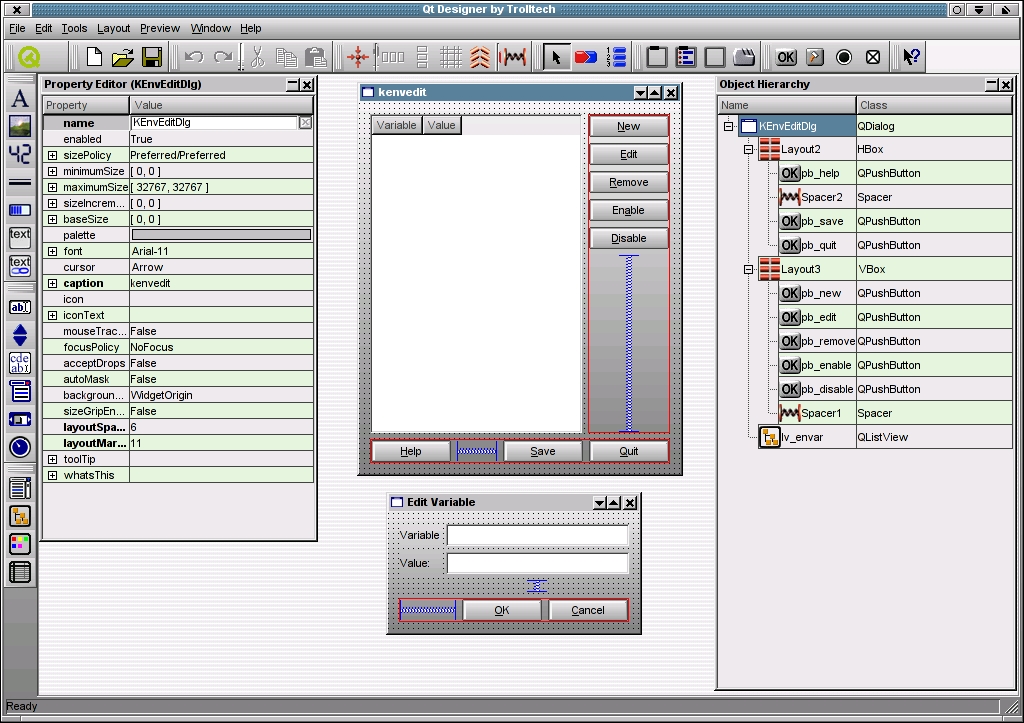
Figure 3. Qt Designer by Trolltech
The upper part of the dialog is the main window of our application; the lower one is a helper dialog that we also will have to create so that users can add new entries or change some of those that are already there. They are both shown here so you can play with Designer until you have the same look in your dialogue when following this tutorial.
What things should you watch out for especially? First of all, give the items that you need to access later with code useful variable names. Also, the dialogue's name item in the box on the left must be changed to KEnvEditDlg because that's the name of the class that will be generated out of this user interface by the template framework. Then, in KDevelop, change the inheritance of the class KEnvEdit from QWidget (the base class for all user interfaces in Qt/KDE) to KEnvEditDlg.
Now, back in Designer, connect the appropriate buttons with the connect signals/slots to the main window by dragging a line from the button to the main window. Both will be marked with a purple frame so you can see which item you connect to which widget. In the connections dialogue, you have to connect the signal clicked() with the appropriate functions (slots); as the dialogue template only offers two slots, accept and reject, we have to define our own. Use the name slotQuit(), for example, for the Quit button. An accelerator key (marked with an underline beneath the letter that you would use on the label of a button) can be set with an ampersand placed in front of the letter you are using.
So how is this supposed to work? In Designer, you're defining your user interface graphically and assigning functions to signals of items that you want to catch and react to. From the Designer file, the uic (UI compiler) will generate a C++ class that you should not edit, as it will be overridden when you change the dialogue again. Therefore, the slots you assigned to signals are declared virtual. In a class that inherits from your generated class, you're overriding these slots and filling in your code. What's left to do is to add another dialogue, KEnvAddDlg, in a ui file called kenvadddlg.ui, where you can add and edit values, a process shown in the Designer screenshot.
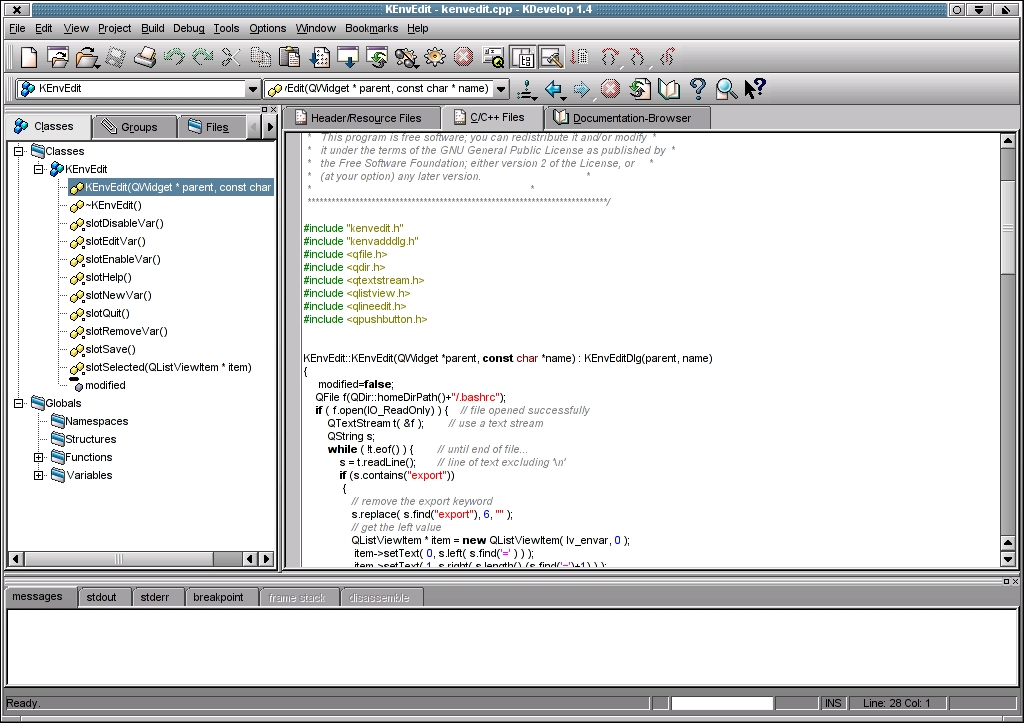
KDevelop in Action
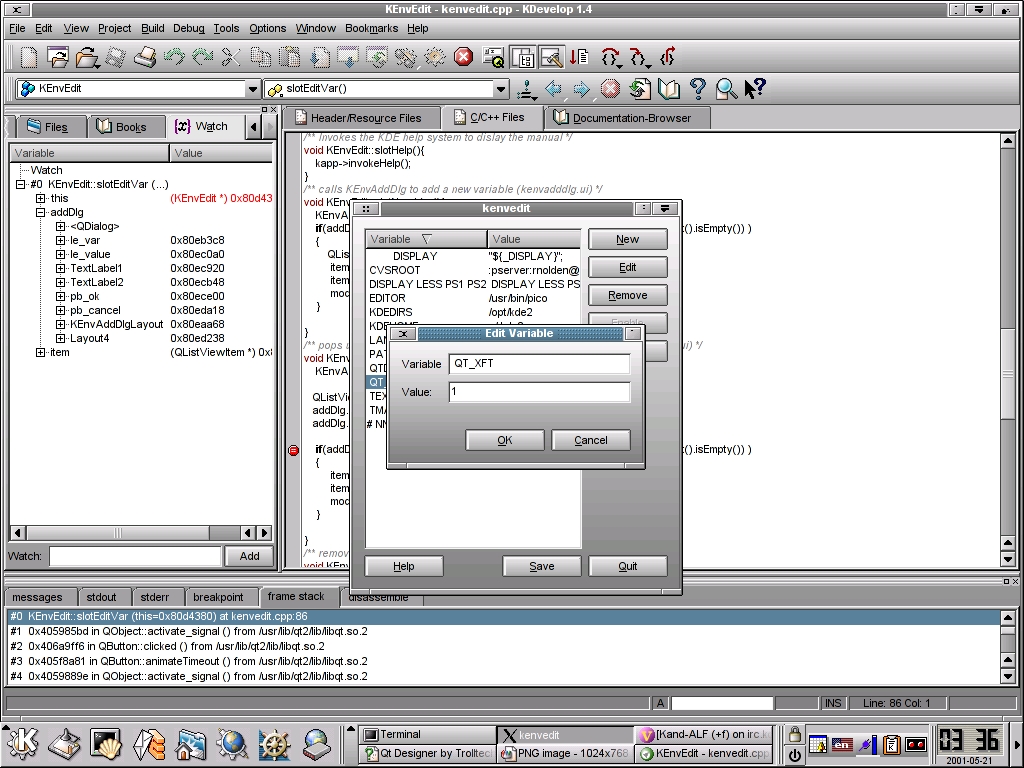
More with KDevelop
Listing 1. Example Implementation Code
The example's implementation code is available in Listing 1. Some items that need to be finished that are not exactly trivial, but I'm sure you'll get to it--this is the challenge to take when everything else is done. Feel free to send me your code at nolden@kde.org. I'll probably make a KDE control center module out of it, and it will go into the KDE distribution--things like this make the project go on and improve what we have, as well as add more value to it. Maybe you'll have so much fun programming this KDE application that you'll show up on the KDE mailing lists and on #kde at our IRC server irc.kde.org.
Ralf Nolden has been addicted to KDE for years and currently is involved in quality management and PR for KDE as well as maintaining KDevelop. He is still a student of electrical engineering at the RWTH Technical University of Aachen, Germany.
email: nolden@kde.org
