
Coding between Mouse and Keyboard, Part I
The days when writing GUI applications was a matter between you and your favorite text editor struggling with a compiler and make are long gone. Even without an integrated development environment (IDE) like KDevelop, a lot of helper applications promise to make C++ GUI programming as painless as possible.
Whoever expects the KDE-proven Qt toolkit to be a tarball consisting of one library will be disappointed when fetching more than 14MB from ftp.trolltech.com/pub/qt/source. Though Qt was known for its good quality in previous versions, Qt 3.0 had so many bugs that since its first appearance in mid-October 2001, already the fourth maintenance release has come out. It is expected that more will be following. Therefore, it is strongly recommended to choose the latest version.
The qt-x11-free-3.0.x.tar.gz (we used Qt 3.0.4) archive includes not only the class library and documentation in HTML format but also several tools that promise to make life easier for everyone involved in a GUI application project.
Let's pick the new version of Qt Designer to create the graphical interface of a simple text editor application. [The entire code for this editor is available at www.trish.de/pub/linuxjournal/ljeditor_qt3.0.4.] With it comes the user-interface compiler, uic, that converts the Designer's XML output format into C++ code. In Part II of this article we'll actually write some C++ code with your favorite editor and fill the GUI framework with life.
Then, we'll use a new member of the Qt family, Qt Linguist, to localize the program. Like Qt Designer, this is a GUI application using an XML format for input and output. To create the XML list of phrases requiring translation, it ships with a command-line tool named lupdate. Once they have been translated, another command-line tool, lrelease, converts the XML into the binary format required at application runtime.
Writing Makefiles for Qt applications is not really a trivial thing. Older versions of Qt did not ship with a helper application, but Qt vendor Trolltech offered a tool called tmake for separate download. The Qt 3.0 tarball includes the new qmake utility that comes in handy to create the Makefile for the project. This again we leave for Part II of this article.
With the g++ compiler we have all necessary tools together and should think about the text editor application itself. What should it be able to do?
Obviously we want it to offer the usual tasks: opening a new editor window, opening a file, saving its contents, saving it with a different filename, closing the current editor window and quitting the entire application. Moreover, it should support copy, cut and paste, undo and redo. We want the program to be able to switch font characteristics to italic, bold, underlined and any combination of these. In an About widget, the editor (let's call it ljedit) should reveal some information about itself.
Apart from the changing of font characteristics, all tasks should be available via a File, an Edit or a Help menu. The italics, bold and underline toggling should be done via a submenu in the toolbar populated with additional icons for opening and saving a file, undo, redo, cut, copy and paste.
Each of these icons should open a balloon help when the user hesitates over it with the mouse. Apart from the Save As and the Exit action, all other tasks should be available via keyboard shortcuts.
To avoid users losing data unexpectedly, opening and closing a file as well as exiting the application should be backed by a user dialog that asks whether the old data should be saved or discarded, or whether the user wants to stay with the old file. While most of the above-mentioned tasks can be done with the Designer, this last bit will have to wait until next issue.
If more than one version of Qt is installed on the system, the QTDIR variable should first be set to the directory containing the relevant Qt version. Next, it's time to fire up the Designer with a designer & in a shell. In case the directory $QTDIR/bin has not been included in the search path or several Qt versions are available, the absolute path must be added to the command. To start a new project choose New from the File menu. In the upcoming dialog, click the C++ Project icon and confirm your choice with the OK button. Now we have the opportunity to create a new qmake project file by choosing name, location and adding a project description (Figure 1).

Figure 1. First Step: Creating a Project
Next, we choose the New entry from the File menu once again in order to create the first (and for the purposes of this article only) GUI widget of our editor. Thus, Main Window is the right entry to choose from the New File dialog. We're happy with the default Insert entry that makes it a part of our new project.
This opens the Main Window Wizard. With the first questionnaire (see Figure 2) we feel that yes, Designer should create menus and the toolbar for us. It should provide us with a code framework for the functions used and connect these functions to the relevant actions.
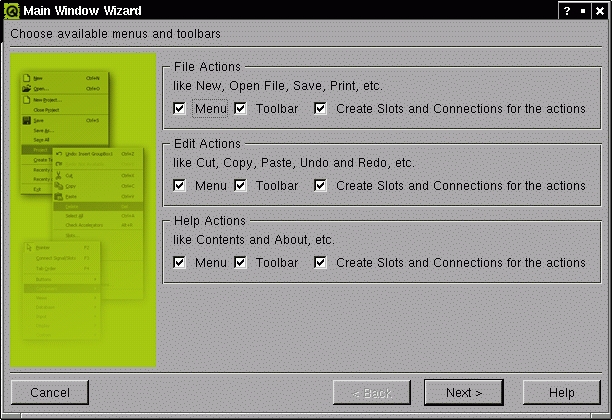
Figure 2. Creates Menus and Toolbar: the Main Window Wizard
The Next> button brings us to a setup dialog for the toolbar. From the File Category, we choose Open and Save and add them to the Toolbar list using the arrow to the right. Then we choose the Edit Category and add the Undo, Redo, Cut, Copy and Paste actions, plus Separators (Figure 3). The last wizard dialog does not leave any work for us to do; it simply finishes the widget form. This leaves us with a Designer looking like Figure 4.

Figure 3. Filling the Toolbar with Actions
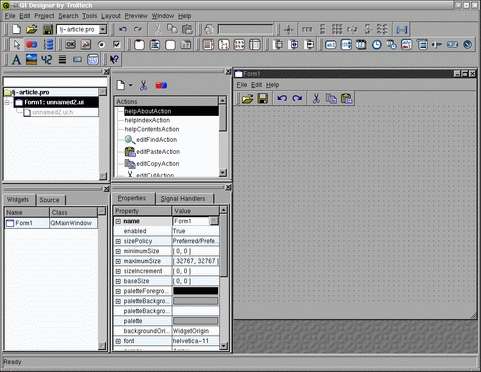
Figure 4. The Designer with a New Main Window
All the new widget is missing in order to look like a proper editor is a nice name in the window caption (currently reading Form1) and the text edit canvas. To solve the first task we need to have a look at the Properties tab in the Property Editor window. It always fills itself with the characteristics of the current widget (i.e., the one last clicked on the form); to begin with this is the form widget.
By changing the property name to “ljeditor” we define the class name of the widget we're creating. On the other hand, caption defines the window caption and should be set to the new application's name, “ljedit”.
Now, let's add the editor canvas. Click on the Richtext Editor icon (in Figure 4, the fifth icon from the right labeled “abcde”), then click on the rastered background of the ljeditor form, and the new editor canvas can be resized by pulling it in shape with the blue handler points. Let's baptize it “TextEdit” in the Property Editor.
All we have to do now is adjust functionality. First we remove the actions we don't want to implement from the Action Editor (see Figure 5) by clicking on the scissors icon or the Delete Action entry in the context menu available with a right-click onto the marked action. In this example, we can do without helpIndexAction, helpContentsAction, editFindAction and filePrintAction.

Figure 5. The Action Editor
In return, an editor needs some new actions to change the font characteristics. In the menu descending from the Action Editor's Create New Action icon (the little paper sheet on the left-hand side) we choose New Dropdown Action Group as a container for them and edit its properties. First, the action group is named “fontCharacter” in the name line of the Property Editor. Then we choose an appropriate icon using the “...” button next to the clicked iconSet property. Using the Add... button, it is possible to add icons stored somewhere in the filesystem.
Its text, automatically used for the menuText and the various tips (see Glossary), should read “Font Characteristics”. We change the tooltip and the statustip to “Choose font characteristics”, and most importantly, we set the exclusive property to False. This means that the user will be able to combine italics, bold and underlined font if needed. An exclusive action group would allow for only one of them at a time.
With a right-click on the fontCharacter action group in the Action Editor and subsequent decision for New Action in the context menu, we add the italics action with Ctrl-I as accelerator key and Italics as text. Because the user can toggle italics on and off, it is important that the property toggleAction reads True. To begin with, italics should be off; therefore, the on property must have the value False.
We define the other two child actions of fontCharacter the same way, bold (Ctrl-B) and underline (Ctrl-U).
To add the entire fontCharacter action group to the toolbar, we simply drag it from the Action Editor to the form and drop it onto the toolbar. A right-click into the toolbar allows us to add a separator (Insert Separator).
By now, these actions don't do anything when playing with the preview available by pressing Ctrl-T. To let them actually do what they promise, we once again mark the italics action in the Action Editor, click on the red-blue Edit Connections icon and choose the toggled(bool) signal from the Signals list. Instead of connecting it to an ljeditor slot, we choose TextEdit in the Slots drop-down menu and subsequently setItalic(bool) in the list of slots provided by the QTextEdit class of which TextEdit is a member. No additional click is needed; with the appearance of the connection in the Connections: window, everything is done (see Figure 6), and the OK button is our friend.
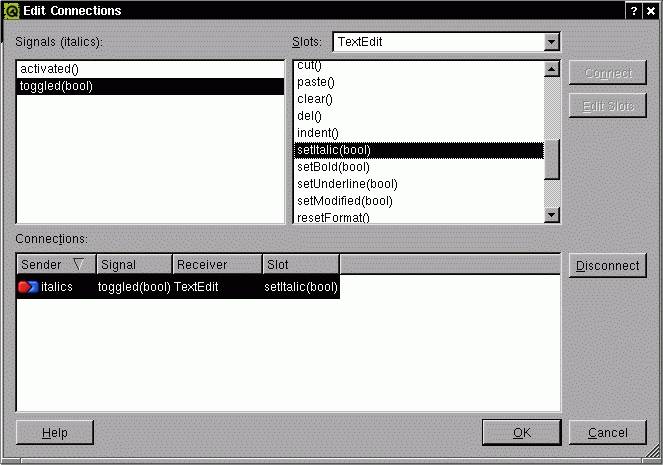
Figure 6. When the italics action is toggled, ljedit writes italics or stops doing so.
Then we repeat the same procedure with the bold action's toggled(bool) signal and TextEdit's setBold(bool) slot. We connect the underline action to TextEdit's setUnderline(bool) slot. After this the preview reacts to Ctrl-I, Ctrl-B and Ctrl-U as wanted.
This encourages us to edit the connections of the predefined actions; these can't be toggled. Instead, they launch a user command like “save current data” when activated (i.e., clicked or chosen). That's why we connect the activated() signal to the appropriate slot.
For editRedoAction this is TextEdit::redo(). We disconnect the connection with the default ljeditor::editRedo(); it would be the right choice if we didn't want to rely on QTextEdit's redo() function. The same way, editUndoAction's activated() signal is connected with TextEdit::undo() and disconnected from the respective ljeditor function skeleton. We repeat this step with editPasteAction and the TextEdit::paste() slot editCopyAction and the TextEdit::copy() slot, and editCutAction and the TextEdit::cut() slot.
The remaining predefined actions (helpAboutAction, fileExitAction, fileSaveAction, fileSaveAsAction, fileOpenAction and fileNewAction) stay connected with the predefined ljeditor slot skeletons that we later have to fill with code.
One action is still missing: the one that the user activates to close the current editor window (as opposed to fileExitAction, which quits the entire application).
The work flow is a familiar one: we choose New Action from the Action Editor's Create new Action menu. The new action is named “fileCloseAction” in the Property Editor and is equipped with Close as text and Ctrl-Z as the keyboard accelerator.
However, we're missing a slot to connect its activated() signal. We fix this by opening the Slots... menu item in the Designer's Edit menu. Figure 7 shows the dialog that is opened now.
We add a slot with the function name fileClose(), the Return Type void and the Access type public. The Edit Slots dialog does no magic, it simply creates a function skeleton in the class definition of the ljeditor class.
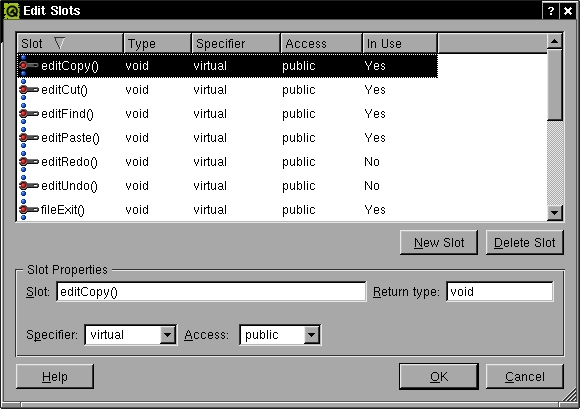
Figure 7. A new function skeleton comes into being.
Now we can connect the fileCloseAction's activated() signal to ljeditor::fileClose() in the Edit Connections dialog provided by the Action Editor. As this action should be available via menu only, we simply drag and drop it into the File menu of the ljeditor form.
Closing a widget in Qt is easy: every Qt widget inherits a close() function from the mother of all Qt widgets, QWidget. This is not really much code, so it would be nice if we could fill the fileClose() slot with this one line.
A right-mouse click on the ljeditor form opens a context menu. The choice of its Source... entry does the trick. A code editor window appears and allows us to fill in the one-liner (see Figure 8):
void ljeditor::fileClose()
{
     close();
}

Figure 8. Simple code lines are easily added to the slot skeleton.
So why not fill the fileExit() slot as well? To quit the entire application, the application object's closeAllWindows() function is called:
void ljeditor::fileExit()
{
     qApp->closeAllWindows();
}
As the Designer usually does not deal with QApplication objects itself, qapplication.h (which provides the qApp proxy for the real application object) is not included by default, and the code generated from the ui description would not compile.
Fortunately, the Object Explorer allows us to include additional header files. By default it shows the Widgets tab (see Figure 4, bottom left), but we need the Source tab right now. Right-clicking the empty Includes (in Implementation) folder allows us to add a header file (New). Don't forget the <> brackets around a global include like <qapplication.h> (Figure 9).
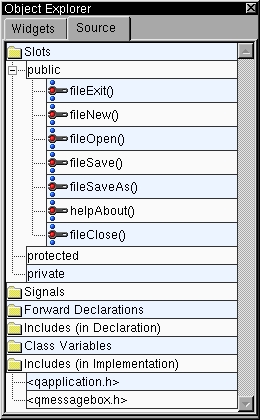
Figure 9. The Object Explorer allows one to include additional header files.
Another slot we can fill with life without being afraid of getting too many compilation errors is helpAbout(). It is called when the user opens the About... entry in ljeditor's Help menu and simply pops up a message box with the caption About ljedit and some information about the program. By surrounding all text strings with tr() we make sure that the program can be localized painlessly, a task we will fulfill in Part II. For example:
void ljeditor::helpAbout()
{
    QMessageBox::about( this, tr( "About ljedit" ),
        tr( "A tiny text editor.\n"
        "(C) 2002 Patricia Jung for Linux Journal\n"
        "Using Qt 3.0.4 and Qt Designer." ) );
}
To be able to use QMessageBox::about(), we have to include <qmessagebox.h> the same way we did with <qapplication.h>. We add the remaining functionality in a subclass next time. Thus, all we have left to do with the Designer is clean up the new GUI.
Before we leave the Designer for good, we check that none of the assigned keyboard shortcuts has been used twice. This is done by choosing Check Accelerators from the Edit menu.
Additionally, we clean up all the ljeditor slots that we weren't going to implement anyway or that we used TextEdit slots for instead. By choosing Slots from the Edit menu (one way to do it), we open the dialog that allows us to mark editUndo() and remove it with a mouse click on Delete Slots (Figure 7). The same fate applies to editRedo(), editCut(), editCopy(), editPaste(), editFind(), helpIndex(), helpContents() and filePrint().
Furthermore, we check the GUI preview for separators that don't fit. As we decided against using the editFindAction, a single separator can be found at the end of ljeditor's Edit menu: once upon a time there was a Find entry below. To erase the separator, right-click on it in the form and choose Delete Item. The same applies to one of the two separators above the Exit entry in the file menu.
All GUI elements are in their place—time to let Qt adjust the widget proportions. Once again, we choose the entire form and select Lay Out Vertically from Layout in the main menu. If a user adjusts the application window size now, the TextEdit widget will follow. If we wish to place widget elements differently onto the form, we need to break the layout first.
Last but not least, we want this GUI to be stamped as ours. To do this we fill in the Author name and a description in the dialog raised by choosing Form Settings from the Edit menu (see Figure 10). Here it is possible to decide whether we want to store the icons in a subdirectory of our project directory or whether we include them directly in the user-interface description.
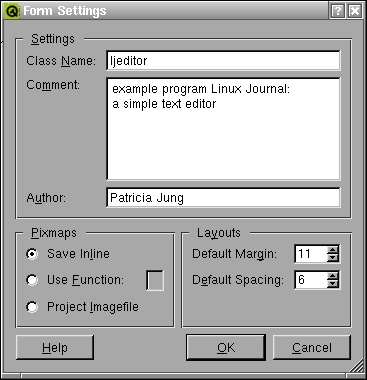
Figure 10. Let the world know who designed this GUI.
A final selection of Save all from the File menu and an XML file with the user-interface description (best named after the relevant class, e.g., ljeditor.ui) along with ljeditor.ui.h, the file storing the code we typed into the code editor, becomes part of the project.


