
A Toolbox for the X User
Under Linux, you can do virtually everything from the command line. For the administrator of a Linux server, this is extremely useful for two reasons:
All administrative tasks from any site in the local network can be done via a simple TELNET session.
A lot of administrative work can be easily automated via shell scripts.
However, for those who use Linux as their desktop OS, many operations would be easier with a GUI than by typing cryptic commands at the shell prompt. Even for the conservative user who is not yet ready to exchange his laboriously customized FVWM for KDE, Linux offers many graphical tools for common tasks.
For information on a specific command, you need to read its man page, which can be done by typing man at the command line. A more comfortable way, however, is to use a man page viewer such as xman or tkman. While xman is an ugly grey mouse from the early days of the X Window System, tkman by Tom Phelps is a truly nice GUI for browsing man pages.
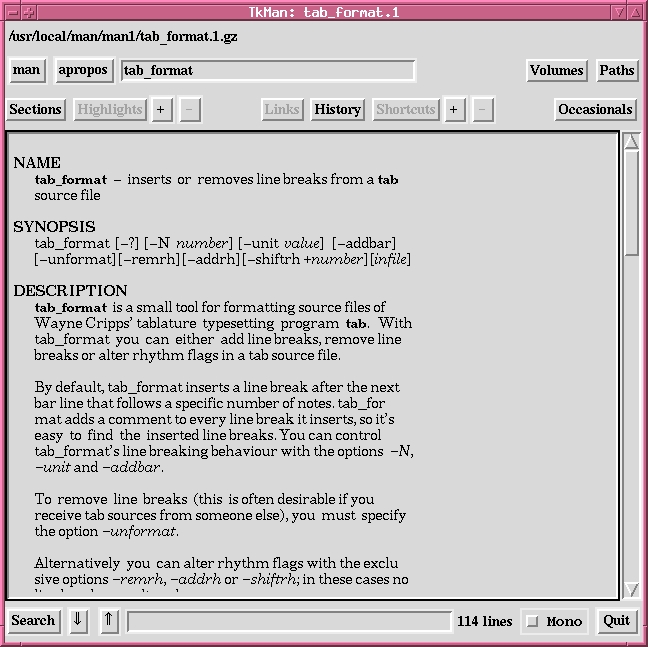
Figure 1. Manpage Viewer tkman
tkman displays man pages in a pleasant way (see Figure 1), knows hypertext links to other related man pages, allows regexp searches within the man page and has a built-in apropos command that offers man pages for a given keyword. If you want to read a man page from a specific section, you must add a dot and the section number in the command entry field; e.g., if you want to get help on the C library function printf (man page section 3) rather than the shell command printf (man page section 1), you must enter man printf.3.
Moreover, you may print out the displayed man page, but printing is a bit tricky to get working. Printing is started from the menu “Occasionals”->“Kill Trees”->“lp”, which invokes the man page text processor groff with the options -Tps for PostScript output and -l to send output directly to the printer. The latter option will not work unless the print command is specified in groff's configuration file /usr/share/groff/font/devps/DESC. Hence, you will need to consult groff's man page if printing from within tkman does not work.
Another source of information is hypertext info pages, which consist of nodes with an internal hierarchical structure. While man pages are more appropriate for the documentation of simple shell commands, info pages are more appropriate for programs or libraries that need extensive documentation—theoretically. In reality, some crazy programmers decided to move the documentation of elementary shell commands like ls or rm from man pages to info pages; hence, everyone needs an info reader.
On the command line, you can read info pages with the info command, which fires up Emacs in its info mode. Alternatively, you can use tkinfo by Kennard White and Axel Boldt as a graphical info page viewer. When started without any command-line argument, tkinfo displays the “dir” info node under which the GNU utilities reside. If you do not like tkinfo's display font, you can add a tkinfo*Text.font resource in your .xresources or .xdefaults file. Although tkinfo has a better-organized display and is more intuitive to use than Emacs' info mode, it also has a serious drawback. Most nodes entered in the “File”->“Goto Node” menu are not found. For example, tkinfo cannot find the node “ls”, even when invoked via tkinfo ls on the command line. To reach the node “ls”, you must navigate through the info hierarchy, a time-consuming maneuver.
Fortunately, most commands are documented completely in their man page as well; hence, there is often no need to bother with info pages.
qps by Matthias Engdegard is a graphical incarnation of ps, top and kill and is based on the Qt toolkit. qps is an attractive and powerful tool. You can use it as an advanced version of top by selecting “All Processes” from the “View” menu, specifying the “Update Period” in the “Options” menu and clicking on “CPU” in the header line of the process list to make qps sort the list by the used CPU time. This will reveal which processes are eating the processor time on your system (see Figure 2). Or you can use qps as a combination of ps and kill by selecting a process from the process list and sending a signal from the “Signal” menu.
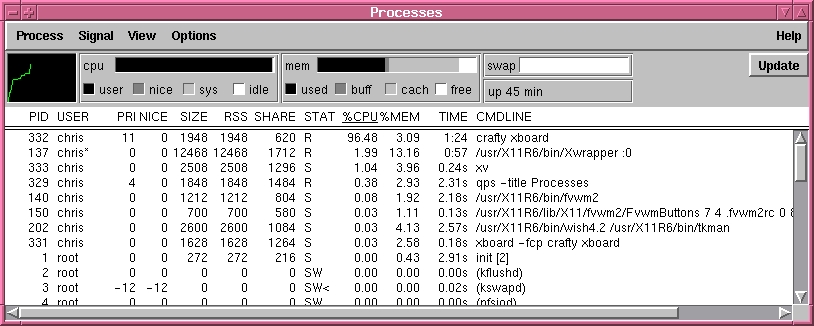
Figure 2. Process Control with qps
At first glance, the wide variety of file managers (xfilemanager, xdtm, mfm, xfm, xgroups, et. al.) that comes with every Linux distribution seems to be promising. However, almost all of these tools are either very basic, very ugly or both. TkDesk by Christian Bolik is the only exception I have encountered.
Actually, TkDesk is much more than a simple file manager (see “Introducing TkDesk” by John Blair in LJ, March 1998). By default, it even starts a separate button bar that reigns over the desktop. This obtrusive behaviour is easily turned off via the menu “TkDesk”->“Toggle Appbar”. When I started using TkDesk, it often stuck for indefinite intervals with no obvious reason. It took me some time to realize that it was trying to create sound effects not supported by my system. If this default setting causes trouble, it can be turned off in the menu “Options”<->“Use Sound”.
I use TkDesk primarily for browsing files that are buried deep in my system directory trees. This can be done very fast, since TkDesk has a built-in file browser/editor. Moreover, it displays files in three directory list boxes, making it easy to change directories back and forth. Three is the default, but you can change it to any number you wish.
Often, there is a need to check the differences between two versions of a file. You can use the shell command diff for this purpose, but the output of the graphical tools mgdiff or tkdiff is much easier to read.
mgdiff by Daniel Williams can be invoked like diff with two file names as command-line parameters. Alternatively, it allows interactive file selection from the “File”->“Open” menu; hence, it is possible to invoke mgdiff from your window manager's program menu. mgdiff displays the selected files in two boxes and shows an overview of differences in a small bar on the right (see Figure 3). Changes, insertions and deletions are highlighted in different colors, which can be customized by the corresponding X-resources in your .xresources or .xdefaults file; see mgdiff's man page for details. Moreover, you can easily merge the compared files into a new file simply by clicking on the respective versions of the differences and saving the result with the “File”->“Save As” menu.
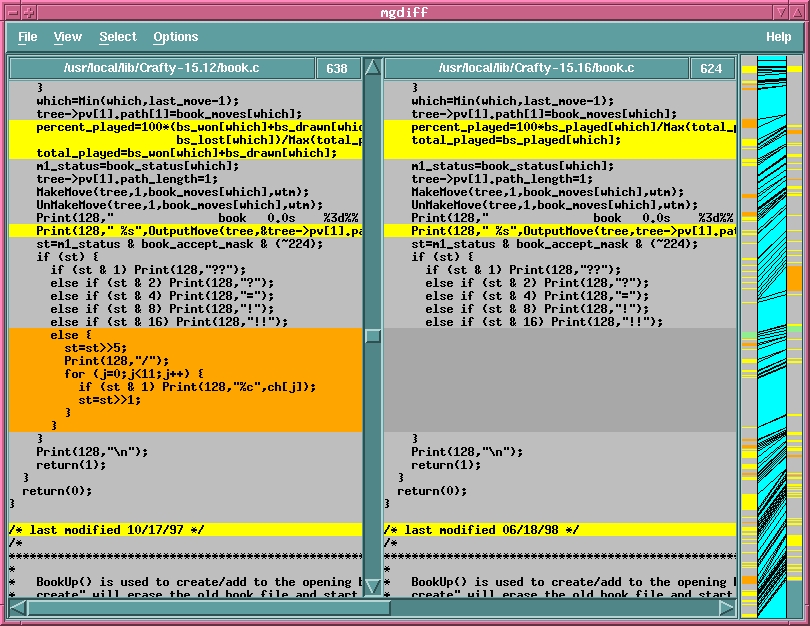
Figure 3. Differences Made Visible with mgdiff
For programmers using a version control system, tkdiff by John M. Klassa is another useful difference tool. In contrast to mgdiff, tkdiff can be invoked only from the shell prompt because it requires file names as command-line arguments. tkdiff has an internal help function but no external man page, which occasionally makes it inconvenient to get usage information. Beside these trifles, tkdiff offers the same functionality as mgdiff. Moreover, you can check a file versus different versions of that file registered in a version control system (RCS, CVS or SCCS). For example, the command tkdiff -r filename compares filename with the revision most recently checked in.
The standard data exchange format between different UNIX computers is the tape archive format (tar). Additionally, these archives are often compressed with compress (commercial UNIX systems) or gzip (Linux), resulting in tgz files. You can use the shell command tar to create, extract or list the contents of a tar file. Alternatively, xtar and tkzip provide graphical front ends to tar.
xtar by Rik Turnbull can only list and extract archives, but normally that is all you need. When you open an archive with xtar, it displays a list of all files in the archive. A double click on a file in the list starts a built-in file browser. This is very useful for new software packages, because you can read the installation instructions and README files before unpacking the archive.
If you prefer a graphical tool for creating archives, you need a more elaborate package such as TkZip by Robert Woodside. In my opinion, TkZip is too elaborate: each mouse click opens a new window, which quickly becomes confusing, and my eyes cannot get accustomed to the colored frames and buttons.
When fired up, TkZip displays a list of the files in the current directory; archive files can be opened with a double click on the respective file. As with xtar, you can browse text files by clicking on the files in the archive list. However, you must first specify a graphical viewer (e.g., xless) from the viewer list; otherwise, TkZip will write the contents of the file to standard output.
Creating archives with TkZip is a bit more involved, since it requires hopping through a suite of file selection dialogs:
From the main window, select “File”->“New Archive”.
Enter the archive type and the archive file name and choose “Create”.
Click on “Add” in the pop-up archive-list window.
Select single files for the archive by clicking on files in the next window and choose the “Add” button.
Clicking on “Close” in the archive-list window eventually writes the archive file.
Compared to the tar shell command, creating an archive with TkZip is much more intricate and can save time only in the rare situation when you want to pack several files from different ends of your file system into one archive. In the more common case, when you simply want to pack files from one or two directories, the shell command is both faster and easier to use.

