
qvplay and the Casio QV-10 Camera
In the continuing battle with the Evil Empire, I have recently reduced my dependence on “Them” by one program—I discovered a way to use my Casio QV-10 digital camera with Linux.
This article is a simple HOWTO on the method I used—hopefully to encourage more people and Casio to use Linux.
One of these days, every peripheral will ship with Linux drivers and support software—until then, let's “share and enjoy!” (Douglas Adams, Hitchhiker's Guide to the Galaxy).

Figure 1. Casio Camera
Describing the camera in full is probably best left to Casio but suffice it to say that it:
has fixed focal length lens (no zoom)
has fixed resolution of 320x240 pixels in 24-bit colour
stores up to 96 shots in Flash memory (immune from low battery power)
takes 4 AA alkaline cells or an optional, external power source, but not NiCad
has a serial link to a PC
has a separate printer available, driven directly by the camera
can also output to TV/video
has CAM default file format, proprietary to Casio
sells for about $400 in Singapore (about $263US), although I paid a lot more than that last Christmas—prices have dropped.
The resolution of the pictures is adequate for simple web pages but nowhere near as fine grained as some of the models recently on the market. By comparison, a Kodak PhotoCD image digitised from a 35mm slide or film would be about 3000x2500 pixels—more than 100 times the number of pixels. On the other hand, while the resolution is so-so, the 320x240 jpeg files that are produced are reasonably fast to download with current modems.
It is quite possible that Casio's proprietary CAM format is superior to others for certain purposes (I am no graphics expert), but it is no good for web pages, which need JPEG or GIF files. The Windows software that Casio provides makes converting more than one or two files to JPEG format very difficult. No filter is provided for batch conversion of files to other formats. The process for each conversion is:
Open CAM image on PC (10 seconds on my 486)
Pull down File|Export menu or press ctrl-E
Pull down Format|JPG
Type in new file name (.jpg extension is provided automatically)
Select OK
On one file this is manageable, but on 96—forget it.
qvplay was written by ken-ichi HAYASHI and Jun-ichiro “itojun” ITOH to control the QV-10 and is really great. Itojun also wrote a filter called cam2jpeg to convert CAM files to JPEG. (I haven't tested this program yet.) With qvplay running on Linux you can:
Download individual or groups of pictures to or from the camera in JPEG, BMP, PPM, RGB or CAM formats.
Instruct the camera to take a picture.
Delete pictures from the camera's memory.
Instruct the camera to display a certain picture (or 4 or 9 thumbnail pictures).
Protect or UN-protect specific pictures from deletion.
It seemed to me that the quality of the pictures from qvplay was better than from the QV-LINK software provided with the camera—apparently, some older versions of QV-LINK do some automatic re-touching of the pictures which seems to make things worse. Also included in the package were two utilities:
qvrec: send CAM files to the QV-10 camera.
qvalldel: clear the camera's memory.
I used version 0.92 of qvplay. Just use your favorite search engine to find qvplay-0_92_tar.gz and download from the site nearest you.
Configuration couldn't be easier. Expand the distribution file and follow the instructions. A setup script is provided that worked just fine “out of the box”. I use Red Hat Linux 4.1 with a 2.0.18 kernel. One thing you might want to tinker with is the default serial port for qvplay to use. I changed the supplied default of /dev/cua1 to /dev/cua0. Once it's working, use strip on the executables to remove extraneous lines such as debug commands and run the command make install.
I have written man pages for the qvplay, qvrec and qvalldel software (not in the original distribution). These pages are available at http://home.pacific.net.sg/~bhepple/qvplay/qvplay.html.
According to the source code, qvplay appears to support the following cameras:
QV-10 in its various flavours, e.g., QV-10a
QV-11
QV-30
QV-100 (including the fine resolution)
QV-300 (including the fine resolution)
The only camera I have tested is the QV-10.
Once I got the hang of qvplay, I wrapped it up in a couple of simple scripts to do the things I normally do without reading the manual pages. These two scripts are:
One weird thing that you have to do is fix the size of the JPEG images (see the get_a_pic script). I must confess I don't fully understand what's going on here but apparently the images come across as 480x240 pixels and you must change them to an aspect ratio of 4:3 or 320x240 pixels. You can do this with the xv program or using the Independent JPEG Group's commands, djpeg and cjpeg, along with the Poskanzer portable bitmap utilities. These utilities are normally found in the various Linux distributions. For example:
qvplay -g 1 | djpeg | pnmscale -xsize 320\
        -ysize 240 | cjpeg > foobar.jpg
You can view your JPEG files quite nicely with xv(1) or with a WWW browser such as Netscape. In the latter case, you might want to generate HTML index files for your shots using something like the following automatic procedure.
Assuming your JPEG files are sitting in a directory—e.g., I keep all the files from one day's shooting together under a directory labelled with the date, something like ~/photos/971128/*.jpg—I then run the following script on them to create an index page viewable by the browser. This could be put into a Makefile:
(cat hdr
ls $i*.jpg |sed "s/^/<IMG SRC=\"/" |sed
"s/$/\">/"
cat tlr) > index.html
The file hdr simply contains a standard HTML startup:
<HTML>
<HEAD>
  <TITLE>Photo viewer</TITLE>
  <META NAME="Author" CONTENT="Bob Hepple">
</HEAD>
<BODY>
<H1>Photo viewer</H1><HR>
Similarly, the file tlr contains your standard HTML wrap-up script:
<P>
<HR>
<ADDRESS>
<A HREF="mailto:bhepple@pacific.net.sg">Bob
Hepple</A> <P> Copyright © 1997 Bob
 Hepple. All rights reserved.
</ADDRESS>
</BODY>
</HTML>
qvplaytk is a Tcl/Tk wrapper for qvplay which provides a GUI interface. Figure 2 is a screen shot of the program which can be found at its author's (Mr. Amano) home page at http://www.bekkoame.or.jp/~tormato/qvplayk.htm.
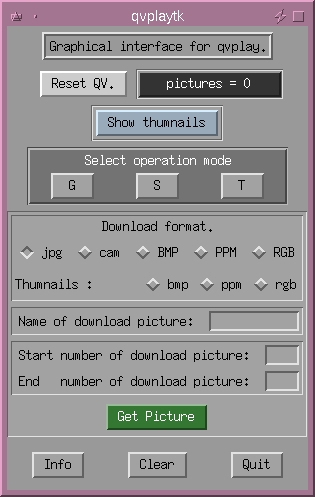
Figure 2. Screen shot of qvplaytk
As a Tcl/Tk script, qvplaytk is very easy to configure and adapt. For example, you might like to change the obscure “G”, “S” and “T” buttons to “Get”, “Save” and “Take”.
One very nice feature of qvplaytk is that the “Take” mode allows you to take a photo every N seconds—this could be used in a remote monitoring application. Perhaps it could be used for one of those strange web sites which offer a changing view of the level of the coffee in the kitchen, or for keeping an eye on your kids in the next room.
Apart from qvplay, qvplaytk requires Tcl 7.4 and Tk 4.0 or Tcl 7.5 and Tk 4.1. It also relies on xv for the viewing functions.
Itojun wrote cam2jpeg (sometimes written as camtojpeg) as a filter to batch convert CAM files to JPEG or PPM formats. It works with a whole range of Casio products that output the CAM format such as the QV-10, 10A, 30 and 100. It can also be found through ken-ichi HAYASHI's home page at http://www.asahi-net.or.jp/~xg2k-hys/.

Figure 3. Singapore River

Figure 4. Lau Pau Sat Food Centre

