
Power Printing With MagicFilter
Printing with Linux can be a daunting experience—it needn't be. If you really want to become a printing expert, check out the Linux Printing HOWTO, the Linux Printing Usage HOWTO and the lp family of man pages. However, if you just want your Linux box to print text, PostScript, graphics and other formats you throw at it today, read on.
When something sounds too good to be true, it usually is. The one exception to that rule is MagicFilter-1.2, by H. Peter Anvin. It's an extensible, customizable print filter that enables just about any kind of printer to print just about any kind of file automatically.
MagicFilter has two jobs. First, it detects the type of file being printed. It does this by searching for key strings at specific offsets in the file. It does not rely on file names or extensions as indicators of file type. For instance, if the file's first two characters are %!, it's processed as a PostScript file. Other file types, such as gifs, bmps, etc., are detected by similar rules. MagicFilter's second job is to call an appropriate conversion utility to print the file on your specific printer. If you happen to try to print something unprintable, like a binary file, the job is aborted, and you'll be advised (via e-mail) that your file couldn't be printed.
The obvious benefit is that with MagicFilter installed, you can enter the command:
lpr first.txt second.ps third.gif fourth.jpeg\
        README.gz
at the prompt, and all five files will spool up and print in fine style. Another perhaps greater benefit is that most packages for Linux come preconfigured with lp or lpr as the default printer. With MagicFilter installed, all of your favorite programs like Pine, Netscape, Applixware, etc. should print fine right out of the box. I'll go into more detail on printing with applications later.
Before you can build MagicFilter, you're going to need some supporting packages. At a minimum, you need the gcc compiler. MagicFilter's Makefile is generated by a script called configure, that scans the directories in your path and caches the locations of any conversion utilities that it finds. If configure doesn't find some of the utilities, MagicFilter will build anyway, but without the ability to print some file types. Table 1 shows the support packages needed for varying levels of file printing ability.
The staircase effect mentioned in Table 1 occurs when a printer omits the carriage return from end-of-line sequences. If you want to see the staircase effect in action, send a short text file directly to your printer device by running this example (substituting your lp device name):
cp /etc/group /dev/lp1
Decide what level of robustness you need in MagicFilter, install those supporting packages, then build magicfilter. I have listed some sources for these packages at the end of this article.
All right, let's assume you have all your support packages identified and installed somewhere in your path. You've obtained the file magicfilter-1.2.tar.gz and as root, moved it to a suitable location. (I always use /usr/local.) Unpack the file with this command:
tar -xzf magicfilter-1.2.tar.gz
This command unpacks MagicFilter into the newly-created directory /usr/local/magicfilter-1.2. Change directory to magicfilter-1.2, and run the configure script. Note the output displayed on your screen; you will probably see a few packages that configure didn't find. Peter Anvin assures me that if you have all the packages shown in Table 1 installed and in your path, you will build a fully-functional magicfilter program. Some of the packages searched for have been replaced (in functionality, at least) by newer ones in the support packages. Anyway, now run make; next, run make<\!s>install. Afterwards, the directory /usr/local/magicfilter-1.2/filters will contain about 40 scripts for just about any printer you are likely to encounter. The actual magicfilter binary may be in /usr/local/bin. What you do at this point is copy or move the script(s) for your printer(s) to /usr/local/bin. For example, if you have a Canon BJ-200ex printer, your script is bj200-filter. Some printers may not have a script per se, but there should be a script that works for almost any printer.
Optionally, you can run make<\!s>install_filters, and all the scripts will be copied to /usr/local/bin. It's worth noting at this point that /usr/local/bin (or wherever you've installed MagicFilter) does not need to be in your path. When we reference these files next, we will use absolute path names.
Since I'm writing about Linux, which uses the BSD printing system, I will only address the Linux-specific installation in the /etc/printcap file. Be advised that not all flavors of Unix implement this printing system. Edit the /etc/printcap file and weave in a call to your printer's script as an input filter. Here is an example for a system with two printers, a HP LaserJet 4 and a HP DeskJet 550C on /dev/lp1 and /dev/lp2, respectively:
pencil|lp|PostScript|ljet4|HP LaserJet 4:\
        :lp=/dev/lp1:sd=/var/spool/lpd/pencil:sh:mx#0:\
        :if=/usr/local/bin/ljet4-filter:
crayon|dj550c|color|HP DeskJet 550C:\
        :lp=/dev/lp2:sd=/var/spool/lpd/crayon:sh:mx#0:\
        :if=/usr/local/bin/dj550c-filter:
The syntax for the /etc/printcap file is a subject in itself. See the Linux Printing-HOWTO a complete description. Peter points out, “Note the alias `lp' for the default (text) printer, and `PostScript' for the preferred PostScript printer.”
Next, kill and restart your lpd (print demon). Mine killed okay, but it wouldn't restart properly; so, I rebooted. Following the reboot, lpd was indeed running again.
Now it's time for some tests. First, try printing a normal text file from your prompt; something short, like:
lpr /etc/group
Your printer should print the file without the staircase effect. Assuming no problems here, try printing a PostScript (.ps) file. Next, try a graphics file like a .gif or .jpeg. If you have one handy, try printing a .dvi file. All these files should produce perfect output. Finally, try printing a binary file like /bin/sync. You should not get any output from your printer, and, if you're running sendmail, smail or other mail agent, you should get an almost immediate e-mail from bin@your.localhost explaining why your file could not be printed. If you're not running a mailer, your $ prompt will return, and you will get no output from your printer. MagicFilter does not display error messages on the console.
At this point, it's worthwhile to print a listing of the actual filter scripts for your printer. You'll notice that it's an interpreted script with MagicFilter as the interpreter. It's laid out in three vertical columns. Column one is the offset from the file's beginning, column two is the string of characters searched for and column three is the facility for dealing with each type of file. Reading down the column, you can see all the different types of files that MagicFilter can handle and how it handles them, as well as the ones it can't. Note the pipe and fpipe methods in column three. That method's output is fed back into MagicFilter for a second or subsequent pass. This is necessary in the case of .dvi files, for example. First dvips runs on the .dvi file, and the resulting temporary PostScript file is fed back into MagicFilter where ghostscript then performs the actual printing—pretty slick.
This popular e-mailer requires a little tweaking to work properly. If you leave Pine's default printing mechanism set to lpr, you may find that e-mails of more than one page will lose the last 2 or 3 lines of text on some printers. This is due to the fact that some printers, Canon ink jets for one, can't print more than 63 lines per page, and lpr thinks they ought to have 66 lines per page. To fix this, create a short script called print, containing these two lines:
#!/bin/sh
pr $1 | lpr
Put this script in your home directory, or somewhere in your path, then install it as Pine's printing command. From Pine's main menu, select as follows: S (setup), P (printers), then arrow down to “Personally selected print command”. Set “Printer List” to /dev/lp1 (or whatever your printer device is named) and your print command (on that same line) to ~/print. To make these changes, enter C-N (change, name) and then C again (change command). Save your changes when prompted.
This printing setup will run your e-mail through the pr utility for formatting before spooling to print. This is kind of neat, because your pages of output will have a date/time stamp and page number on the top of each page. You can modify pr's behavior with command line switches to produce the appearance you wish (see man(1) pr).
You should be able to print from Netscape without any tweaks at all. To test it, fire up Netscape and load a challenging document. From the File menu, select Print and observe the dialog that opens up. From the top of the dialog, verify that the “Printer” button is pushed, that your “Print Command” is lpr and that the rest of the print settings make sense for your printer and paper. Then, press the “Print” button. Figure 1 shows how this should look.
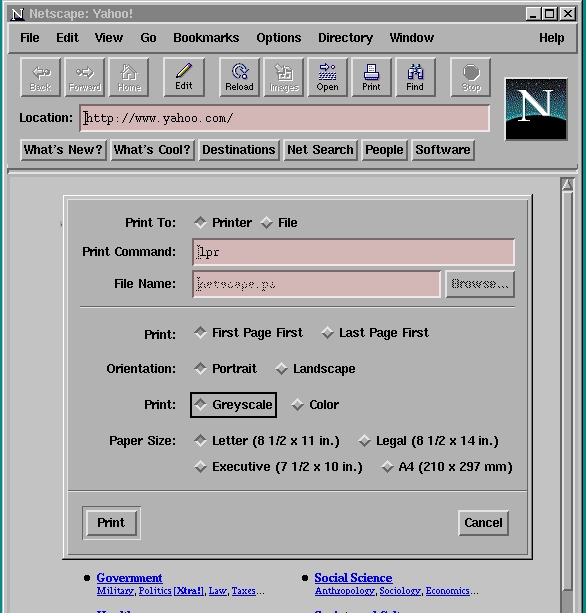
Figure 1. Netscape Dialog
You should get a printout of exactly what's on your browser screen, graphics and all. Of course, this assumes you have a graphics-capable printer and that you built MagicFilter with at least ghostscript support. Netscape defaults are stored in a file called ~/.Netscape/preferences. You can check that file to make sure your print command is lpr and adjust it, if necessary.
You can even use Netscape as a sort of kludgy word processor. From the File Menu, select “New Document -> Blank”. The Netscape Editor will open up with a blank screen, ready to copy. This editor is geared toward HTML; it's great for writing WWW pages, but for producing letters, etc., it leaves a lot to be desired. With Netscape's editor, what you see on the screen usually does not exactly match the printer output.
For real, actual word processing, I don't think you can beat Applixware, especially since its price just dropped to $199US a copy. As a matter of fact, I'm typing this article on the Applixware word processor. It's only officially supported on Red Hat Linux, but it works fine on Slackware 96, too. When installing, be sure to set your DISPLAY environment variable to:
export DISPLAY=:0
On a 486 platform, commenting out Speedo and Type I fonts in the /etc/XF86Config file allows Applixware to load fast enough to prevent the X server connection from timing out. This tweak makes Netscape load much faster, too. Also on a 486, Applixware works in an X-only environment, i.e., restart /sbin/init at level 4 instead of the usual level 3. Finally, to run Applixware in general, have a whole lot of RAM.
To print a project with Applixware, push the print icon on the top menu bar and note the print dialog that follows. Just press on lp under “Printers”, set “Class” to PostScript (should already be there), make sure the “Print to File” button is not pressed and click OK. With MagicFilter installed, Applixware should literally print right out of the box. Figure 2 shows how the print dialog appears just before printing.
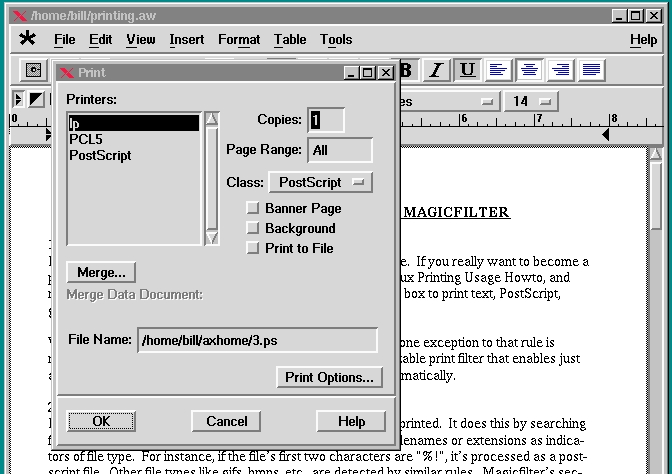
Figure 2. Applixware Dialog
Ordinarily, printing a .tex file is a three-step procedure. First, you run tex on the .tex file, then dvips on the .dvi file and then ghostscript on the .ps file. With MagicFilter, you just run TeX or LaTeX on your document file, shoot the resulting .dvi file straight to lpr and let MagicFilter handle the rest. One caveat here—if the .dvi file contains references to PostScript figures, you must run dvips manually and send the generated .ps file to lpr. Since the default for dvips is to send the output to the printer, you can simply think of it as running dvips to send the document to the printer. This is not a MagicFilter flaw, but rather it's a “miss-feature” in the way .dvi files handle embedded PostScript.
After using MagicFilter for a while, I thought it would make a great addition to commercial Linux packages as part of their initial installation. But on second thought, this would be easier said than done, given the many kinds of printers and file formats we have today. One of MagicFilter's strong points is the fact that it is tailored to your personal system, printer and printing needs. To try to integrate it into a distribution's installation process might turn out to be counterproductive. MagicFilter and its supporting packages are easy to build, and they're readily available. It's probably best to leave things the way they are. If you've never compiled software on your own system, MagicFilter makes a great first project and could be a big confidence builder for a new Linux user.
Brian McCauley makes the point in the Linux Printing-HOWTO that MagicFilter prevents the user from printing a listing of, for example, a binary file, and he's right. However, I think most people would prefer to turn off MagicFilter, if this situation ever came up, print the listing and turn MagicFilter back on. It just makes life so much simpler.

