
Organize Your Life with Nepomuk
When you build a house, you cannot start with the paint, fancy windows and doorbell. Instead, you spend a lot of time digging in the ground, disturbing the neighbors and making little visible progress while you lay the foundation. It has been much the same with Nepomuk, the Semantic Desktop technology of the KDE platform. Work has been going on for a long time beneath the surface, causing occasional disruption—such as file indexing slowing down the rest of your desktop—with little visible progress. However, the foundations now are solid, the main structures are in place, and KDE's developers are adding features that make Nepomuk useful for you, right now.
So, what can Nepomuk actually do for you?
The first thing Nepomuk offers is file searching integrated into your KDE applications. If your distribution has enabled Nepomuk, files also can be tagged and rated from KDE's Dolphin file manager. You can search for files simply by typing a query into Dolphin's search box, which brings up results and a panel of basic options that make it easy to refine the search. These enable you to limit searching to the current folder and let you choose whether to search everything, text documents (including OpenDocument texts and PDFs), images or filenames. When you have identified the files you want, you can use the Save button to add the search query to your Places panel on the left of the Dolphin window, making the search available in the future via a single click. The saved search also is available in the file chooser dialog of all KDE applications.
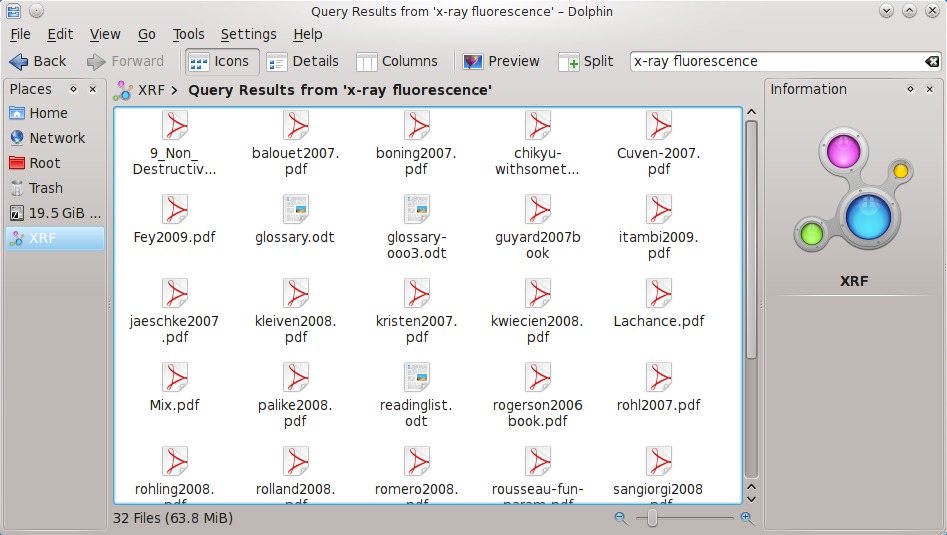
Figure 1. You can access saved searches from the Places sidebar.
What Is This Thing Called Nepomuk?
Nepomuk (also known as the Networked Environment for Personalized, Ontology-based Management of Unified Knowledge) began as a research project funded by the European Union to explore better ways of managing, understanding and sharing desktop information. It attracted participation from corporations, such as IBM and Linux vendor Mandriva, in addition to involvement from the National University of Ireland.
The initial project ran from 2006 to 2008, during which time a reference implementation was written in Java. Mandriva and KDE have since worked on integrating the ideas into KDE software, retaining the name Nepomuk.
Practical use of the technology required a high-performance file indexer and query database. Initially, Nepomuk's own Java-based Sesame query framework was used in the KDE implementation, but its reliance on Java led to packaging problems for some distributions, and KDE switched to Virtuoso in 2009. No longer held back by these technical constraints, the main barriers to making greater use of Nepomuk in KDE software have been removed.
You can access additional search options in Dolphin 1.5 (part of KDE software compilation 4.5) by clicking the green + button. These provide filtering based on file modification date, size, tags or rating. You can continue to add and combine additional filters until you have isolated the exact files you want—for example, by limiting the search to files with a particular tag that have not been modified since a particular date. You also can use the filters directly without any search terms.
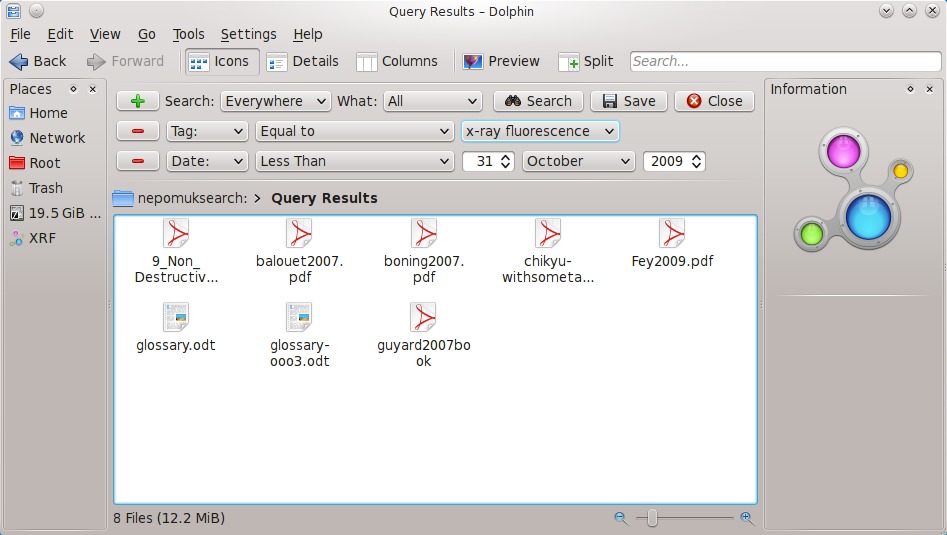
Figure 2. Dolphin 1.5 lets you combine filters to narrow your search.
When Nepomuk first came to KDE software, it lacked a good graphical search interface to expose its capabilities. Nepomuk always has offered the ability to construct complex search queries using a query language, such as SPARQL. You could, and still can, enter queries in this way using Dolphin. Click on the breadcrumbs above the search results to access Dolphin's editable location bar, view the query that was used to generate the results and edit it directly. However, many users do not have an intimate knowledge of the query language constructs and would consider such an approach better suited to the command line than a graphical file manager. The search interface in Dolphin 1.5 graphically exposed many of Nepomuk's search capabilities for the first time.
Peter Penz, Dolphin's lead developer, still sees problems with the search interface in Dolphin 1.5: “It just takes way too many clicks to specify a query.” KDE developers, including Peter and Mandriva's Sebastian Trüg have been grappling with the problem of making a good graphical interface that exposes the power of Nepomuk searches in a more convenient manner. In 2009, Alessandro Sivieri began work on “faceted browsing”, an approach to the problem that provides panels of search filters in the file manager sidebar, resulting in his Sembrowser prototype (see Resources). Now, these ideas have come together to provide a faceted browsing sidebar in Dolphin 1.6 (part of KDE software compilation 4.6) that appears when you start a search and makes additional filters available with single clicks. Faceted browsing also will be integrated into the KDE platform, making it available for other KDE applications to use.
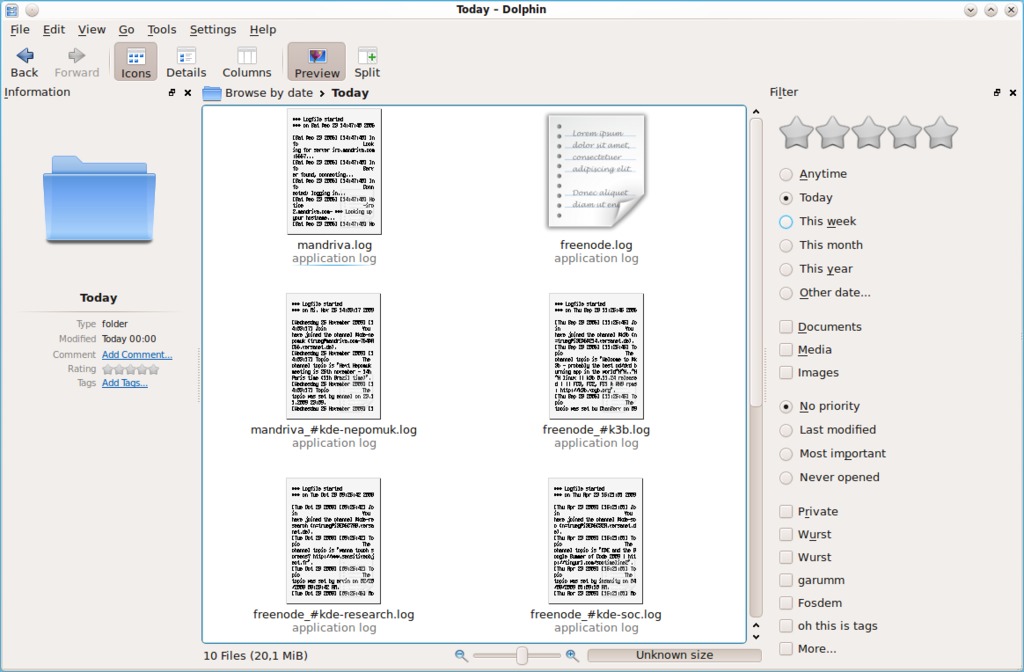
Figure 3. Faceted browsing makes it easier to combine filters in Dolphin 1.6.
Nepomuk's text searches rely on your computer having an index of files and their contents. This is created by the Strigi indexer, which claims to be the “fastest and smallest desktop searching program”. That may be true, but crawling and interpreting files always is going to be a resource-intensive task. KDE mitigates this by indexing files only when the processor load is otherwise low and suspending indexing when you switch to battery power. You also can suspend (or resume) indexing on demand using Nepomuk's system tray icon, which is visible whenever the indexing service is active. To suspend the indexer manually, just right-click on the tray icon and check Suspend File Indexing. In my experience, it is much more likely that you will find the indexer has been suspended automatically at times when you would not mind having it running than you will need to suspend it manually.

Figure 4. File indexing can be suspended with a couple clicks.
To gain full control over indexing, simply visit the Desktop Search page in KDE's System Settings configuration utility. Alternatively, you can access the configuration options directly from the right-click menu of the Nepomuk system tray icon. You have the choice of whether to enable Nepomuk and the Strigi file indexer at all, and you can specify which folders should be indexed. You also can exclude certain file types, such as backup files and partial downloads, and even set a limit on the memory used by the search database.
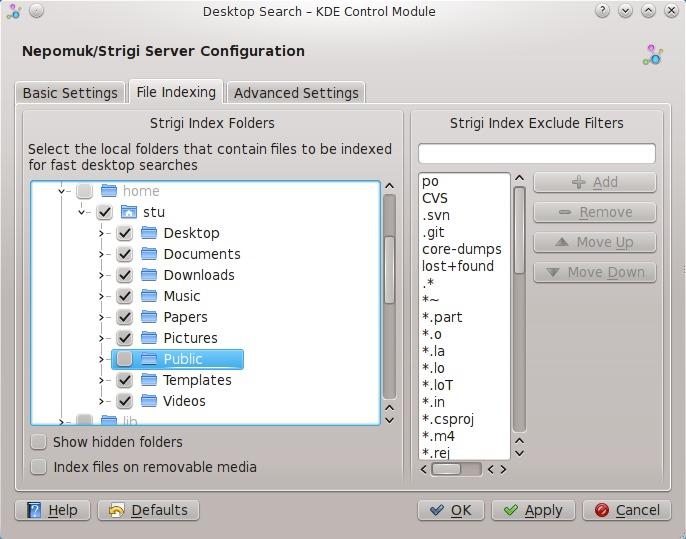
Figure 5. KDE System Settings gives you fine control over file indexing.
Once the file indexer has collected data for all of your files, it has to be able to search the data quickly and efficiently. This was a major problem facing Nepomuk when it first was included in KDE software, as the available databases either lacked performance, features or both. However, since the release of KDE software compilation 4.4 in February 2010, Nepomuk has used the Virtuoso database, and as Peter puts it, “Performance problems are nearly gone.”
Still, it makes sense not to index everything. After all, you probably won't often need to find one of the thousands of shared library or application files on your computer, and including them would waste resources. However, you occasionally might need to find one of those files. Before Dolphin 1.6, terms entered in Dolphin's search bar queried only the Nepomuk database, and it was necessary to use the separate KFind interface to search non-indexed files. This meant you had to know whether the file you were looking for was in an indexed location before deciding which search interface to use. In Dolphin 1.6, both search types are integrated in a single search box, so that the Nepomuk database is used for directories that have been indexed by Strigi, and KFind is used for other locations. In this way, you still get search results when you search in a folder that is excluded from indexing, it just takes a little longer.
Fast and customizable desktop search is the most visible and, at present, probably the most-used benefit provided by Nepomuk in a KDE workspace. However, the Nepomuk developers have much higher ambitions. Although computers are very good at indexing files, they are very bad at understanding the relationships between them.
Making meaningful relationships between files remains one of the major challenges for Nepomuk. If your friend Alice is getting married and you need to find the map you were sent that shows the wedding venue's location, you might look for e-mail messages from both her and her future husband, Bob. You instinctively would realize that information related to Alice may be found in a Web page or communication from Bob, because you understand their relationship. However, your computer would not give any special priority to files that had come from Bob.
One way of making your computer act a little smarter is to tag your files. This works in a similar way to how you tag music files, so your media player can present you with albums, artists and even genres to browse, instead of forcing you to navigate through directory structures. You can tag any kind of file simply by clicking on the Tags section of Dolphin's Information panel. This brings up a dialog to apply existing tags or create new ones. KDE image viewer Gwenview also enables you to use and edit the same tags and to browse images by tag rather than path. If you received a map from Bob relating to his wedding to your friend Alice, you could tag it with terms such as “Bob”, “Alice”, “wedding” and “map” and then easily find it using Dolphin's search box.

Figure 6. The Gwenview image viewer makes it easy to tag your photos.
There are other possibilities for tagging beyond making search more powerful. If you are working on a number of projects and some of your files are relevant to more than one of those projects, you can apply tags for each project, filter based on those tags in Dolphin, and then save that search as a “Place”. You then can access the files relevant to a given project in any KDE application quickly, without needing to copy any of the files into project-specific folders or set up links.
Of course, tagging your files manually could take a lot of time, and it is not information you would want to lose when you buy a new computer or re-install your operating system. With KDE platform 4.6, Nepomuk provides the ability to back up and transfer this human-generated metadata so you can always take it with you.
You also can use tagging and saved Nepomuk searches to have a selection of relevant files available right on your desktop when you log in. To do this, all you need to do is create a Folder View Plasma widget in your KDE workspace, and then use its configuration dialog either to enter a search query directly or select a search you already saved as a Place. For example, you could have folder views containing the files for each of the main projects you are working on. You even could restrict the initial view to only the most important files by rating them with five stars and filtering the results by rating.
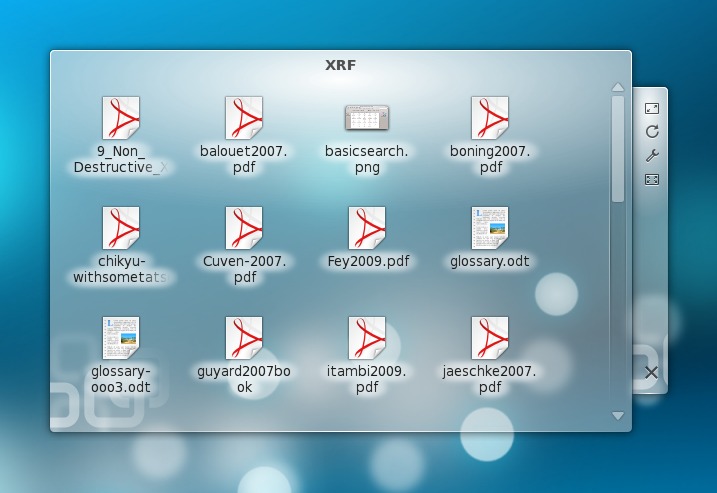
Figure 7. You can use saved Nepomuk searches to put relevant files on your desktop.
Tagging is, of course, in itself, nothing new. Media players and photo management applications have been using tags for years to enable convenient views of files that are freed from a single, rigid directory structure. However, these systems have been largely incompatible. You can read basic tags embedded in Vorbis music files in KDE's Amarok and in other music players, but you cannot easily transfer other metadata, such as ratings or playcounts, between music players. Neither do tags applied to images in KDE's photo management application, digiKam, appear in Dolphin or Gwenview. For some file types, it is not possible to embed metadata at all.
As more applications make use of tagging to simplify organization and retrieval of content, there is a danger of redundancy with the same data being collected and stored multiple times, so sharing storage and resources makes sense. To work together, applications not only need to have a way of sharing metadata but also a way of understanding it. One of the main jobs of the Nepomuk Project is to define these common ways of representing metadata of differing types. E-mail messages that came from your friend Alice are different from e-mail messages that mention her, and you want your computer to understand that difference.

Figure 8. Bangarang lets you browse using information from Nepomuk.
Within the world of KDE software, the most visible users of Nepomuk are the Dolphin file manager, Gwenview image viewer and the Bangarang media player. The last integrates browsing of media by type (movies, TV shows, short clips), rating, playcount and date of last play. Although use of Nepomuk in KDE applications is limited at present, Peter is optimistic about the future take up of Nepomuk due to improvements in the ease of accessing the technology: “searching and filtering—it gets easier and easier from applications in each release”.
If going through all of your files and manually adding tags and ratings is not your idea of fun, good news is coming for you.
Nepomuk developers are working on automatically identifying the files you use most often and prioritizing those in search results. File use also can be linked to Plasma Activities, so that you could be presented with different files depending whether you were using your computer for work or play. Nepomuk also is able to keep track of the source of files you find on-line, recording the original file location. This not only helps you find images you have downloaded from your friend's on-line photo album, but also could work the other way around, enabling you to find the Web site where you downloaded a favorite desktop background.
KDE's personal information and communication suite, Kontact, is being ported to a new storage system, Akonadi (see Resources). This will make it easier to maintain semantic information on items that arrive in messages—for example, by linking file attachments with the person who sent them—so that you can find an image your friend sent you two weeks ago.
KDE and Mandriva developers also are working on integrating technologies from Scribo (Semi-automatic and Collaborative Retrieval of Information Based on Ontologies). This aims to automate the extraction of meaningful metadata from files. For example, it should be possible to determine keywords and topics from text-based documents to suggest tags or even apply them automatically. Scribo also has the ability to extract text from images, so that a photograph including a road sign bearing the word “Paris” might be found in a search for “Paris” without the need for manual tagging. Capabilities like this are not yet integrated into the KDE platform, but experimental code has been included in the KDE source repositories.
If you are curious about possible future directions of Nepomuk, Mandriva Linux 2010 includes some experimental features. It has special versions of KDE's Konqueror Web browser and KMail messaging program that enable tagging of Web pages and e-mail so they can be retrieved in searches. It also has the ability to offer tag autocompletion—for example, suggesting the tag “John Smith” from your address book when you begin to type the word “John” as a new tag.
It would be wrong to describe Nepomuk as feature-complete or without any flaws. Its developers see much greater potential than that currently realized in KDE software. However, enabling Nepomuk and Strigi indexing in your KDE workspace today gives you unobtrusive, fast and flexible desktop search to find your files easily. You also can begin to organize your files using tags rather than being limited to rigid directory structures, and you can save search queries as Places for easy access from any KDE application. You even can have sets of your most important files waiting for you when you log in. The Nepomuk house is not complete, but the foundations are strong, and it is now safe to go in and take a good look around. If you do so, you may discover you like what you find.
Resources
Sembrowser: kde-apps.org/content/show.php?content=117692
Strigi: strigi.sourceforge.net
Akonadi: pim.kde.org/akonadi
Scribo: www.scribo.ws
Stuart Jarvis is a scientist and member of KDE's Marketing Working Group. He divides his time between losing data files, graphs and papers and finding them again.
