
The Popcorn Hour A-100
Linux-powered devices are everywhere. They're so ubiquitous that Linux often isn't even mentioned. It's just there. One case in point is the Popcorn Hour A-100. Linux isn't mentioned in the technical specifications of the device at all. What is mentioned are the formats and codecs and other capabilities of the device, and what a device it is.
The Popcorn Hour is a reference hardware implementation for a new Linux-based middleware layer from Syabas Technology called the Networked Media Tank. According to its Web site: “The Networked Media Tank (NMT) is a state-of-the-art integrated digital entertainment system that allows you to watch, store and share digital content on your home network.”
Think of tank in terms of fish, not Abrams or Sherman. The NMT is designed to be able to access all your media, no matter what computer or networked storage system it resides on, and display it on whatever television you connect to it. According to Syabas, other devices are in the works from other manufacturers that will be using the same NMT middleware and similar hardware.
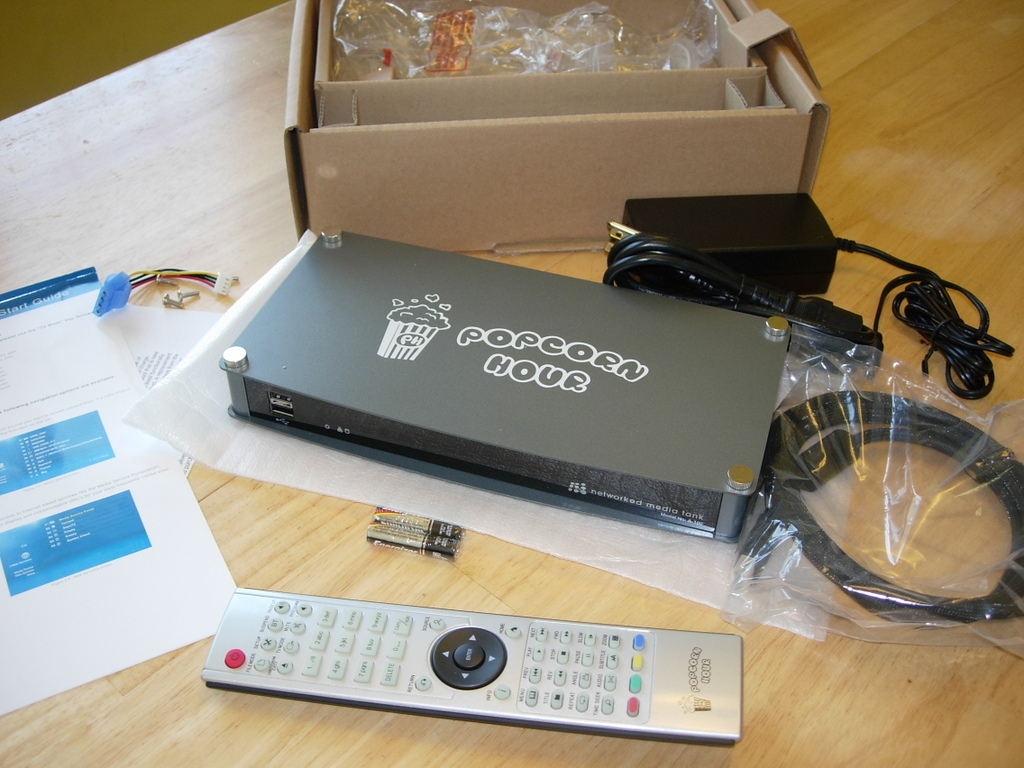
Figure 1. Popcorn Hour and Everything That Comes in the Box
The Popcorn Hour is not designed to compete with your TiVo or MythTV box; it can connect to on-line video streams and podcasts, but it doesn't do live over-the-air (or cable) television. The closest device it competes with, at least partially, is the Neuros OSD. The Neuros can encode video though, which is something the Popcorn Hour can't do—it's strictly a playback device.
For me, the encoding capabilities of the Neuros OSD are not needed. I've already digitized most of my DVD library. I have a mix of media in both MPEG-4.2 and H.264 formats, and the Popcorn Hour's support of both formats was one of the things that attracted me to it over the MPEG-4.2-only Neuros OSD. For more on the differences between MPEG-4.2 and H.264, see the When MPEG-4 Isn't MPEG-4 sidebar.
When MPEG-4 Isn't MPEG-4
Many people are familiar with what generically is known as MPEG-4 or MP4 video. Popular implementations of this are DivX and Xvid, both of which have found wide use on file-sharing sites. Technically though, DivX and Xvid implement MPEG-4 Part 2. Much like MPEG-2 before it, the MPEG-4 standard encompasses several different audio, video and file format standards. There isn't space to go into too much detail on MPEG-4 here, so see en.wikipedia.org/wiki/MPEG-4 for more information (a lot more). The main point I want to make about MPEG-4 Part 2 is that even though when the first implementations were released it was hailed as an excellent video codec that was far better than MPEG-2 video, MPEG-4 Part 2's two main modes are known as the Simple or Advanced Simple Profiles. In other words, they're the children of the MPEG-4 world. The “all-grown-up” video codec of MPEG-4 is Part 10, which is also known as MPEG-4 AVC (Advanced Video Coding). The International Telecommunications Union calls it H.264.
To avoid confusion, when I refer to MPEG-4 Part 2 in this article, I call it MPEG-4.2 instead of Xvid or DivX or the generic MP4. And, when I'm talking about MPEG-4 Part 10, I refer to it by the ITU name, H.264.
Much as MPEG-2 is the format used on DVDs, H.264 video is the preferred video format of Blu-ray discs. It also is becoming the preferred video format for small devices, such as cell phones. This is because H.264 was designed to provide video quality equivalent to MPEG-4.2 at half the bandwidth. This efficiency comes at an increased processing cost both to encode and decode, but since the standard was formalized a few years ago, several chipsets have been developed to do the decoding in hardware. Thus, even extremely small and low-power devices, such as cell phones, can play back H.264-encoded video easily.
This is exactly what the Popcorn Hour does. It utilizes a Sigma Designs SMP8635 chip, which, according to the manufacturer, provides MPEG-4.2, H.264, VC-1, WMV9 and MPEG-2 decoding at up to 1080p resolution.
Another thing that caught my eye on the Popcorn Hour were the various outputs, which include composite, component, S-Video and HDMI. I currently have a standard-definition television, but we plan on replacing it with an LCD-HDTV before the end of the year, and the Popcorn Hour will work on both. It can output NTSC, 480p, 720p, 1080i and 1080p among others.
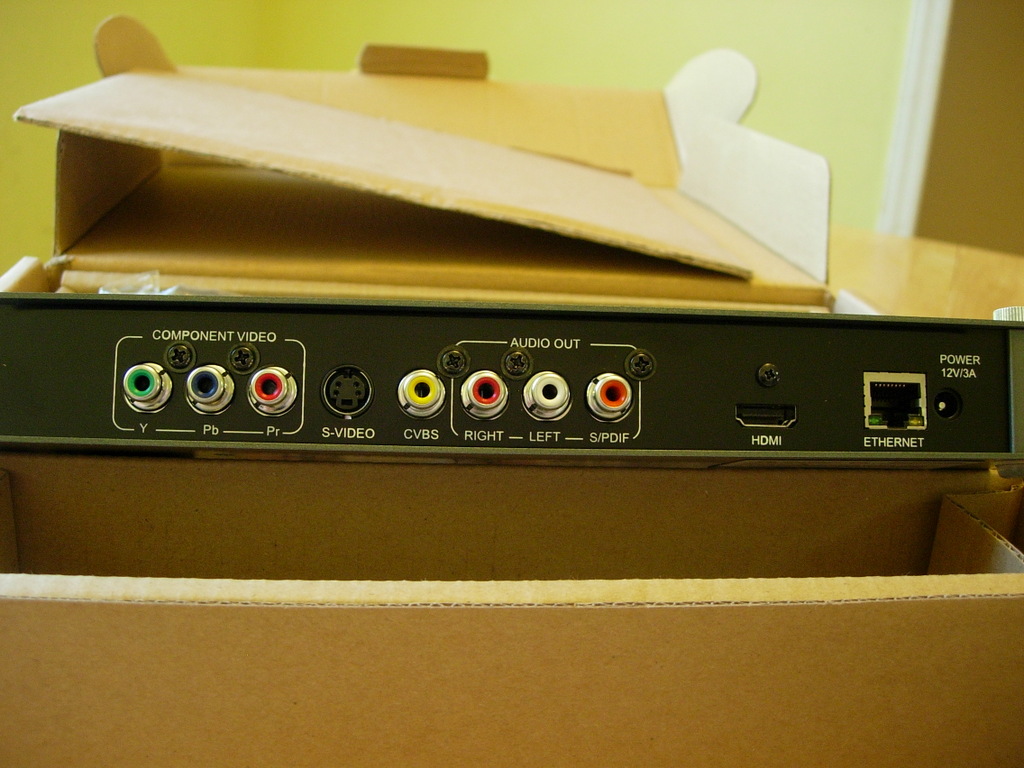
Figure 2. The Ports on the Back of the Popcorn Hour
The Popcorn Hour casing is sleek and rather empty inside. Only about one-third of the case is the actual hardware for the device. The other two-thirds is reserved for installing your own ATA hard drive.
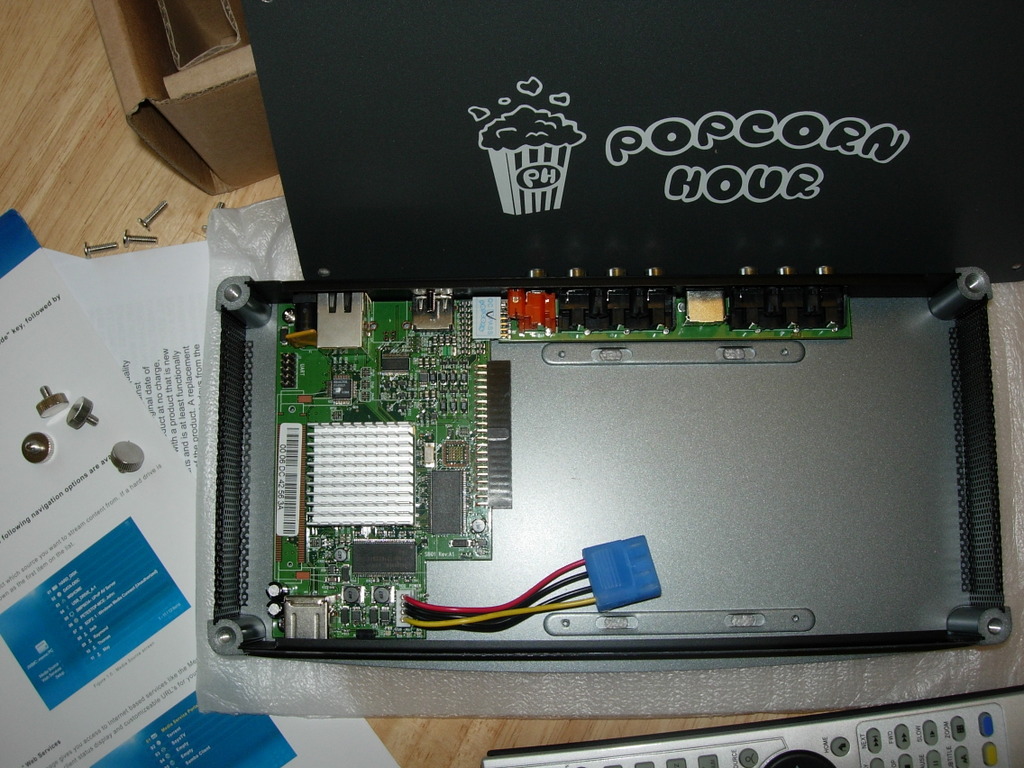
Figure 3. The actual hardware takes up very little of the case.
Under full operation, and especially with a hard drive installed, the Popcorn Hour becomes quite warm, so although the nice flat top of the unit seems to be begging for something to be stacked on it, it's probably a good idea to give it a little breathing room all the way around.
Installing a hard drive into the Popcorn Hour is essential if you want to use it as a file server or BitTorrent client. For those uses, there needs to be some sort of local storage. Installing a hard drive is as easy as sliding it in and screwing it to the bottom of the case. All of the necessary screws and cables are provided. One nice touch is that the top of the case is attached with thumbscrews, so accessing the interior is easy.
Setting up the Popcorn Hour is easy. For basic operation, you simply plug it in and turn it on. From the factory, the Popcorn Hour is set to detect the appropriate video output settings automatically, so after a few seconds of my television blinking, the startup screen appeared and the main interface loaded.
The Popcorn Hour interface is attractive, but it is not flashy or fancy. It is very serviceable, and it gets the job done.
If you have DHCP set up on your network, the Popcorn Hour will connect automatically. Otherwise, you need to put in the appropriate network settings manually. On my network, the Popcorn Hour was given the IP address 192.168.1.148, which I mapped in my /etc/resolv.conf file to popcorn, so in the examples in this article, that's what I use.
After the home screen appeared, my first step was to visit the Setup section to set my default output settings—so it doesn't have to scan for the correct setting every time it starts—and to install the extra apps to the hard drive along with setting other preferences.
The initial step of installing the apps to the hard drive involves making sure all firmware updates have been applied. The firmware upgrading process was easy and took only a few minutes. Once the firmware is at the latest version, the hard drive apps can be installed.
The apps can be installed over the Internet or from a USB key (if the Popcorn Hour doesn't have an Internet connection). After installing the apps, my next step was connecting it to my NFS server. The process was easy once I actually read the documentation for the proper URL formatting. By default, when specifying an NFS address, such as nfs://fileserver/mnt/files, the Popcorn Hour tries to connect over UDP. For my setup, I had to use nfs-tcp://fileserver/mnt/files, and then it worked.
For my setup, I installed the NFS server and BitTorrent client. There is also a Samba server option, but I don't have any Windows machines, so I didn't enable it. Once installed and started, I was able to mount the Popcorn Hour NFS share from any of my machines with the following:
mount -t nfs popcorn:/opt/sybhttpd/localhost.drives/HARD_DISK
 ↪/mnt/popcorn
The brief documentation that comes with the Popcorn Hour is Windows-centric, so I had to use the showmount command to discover what the export was called on the Popcorn Hour, like so:
danielb@d610:~$ showmount -e popcorn
Export list for popcorn:
/opt/sybhttpd/localhost.drives/HARD_DISK 192.168.1.0/
↪255.255.255.0
The on-line forum and wiki also came in very handy whenever I had similar questions.
One of my first orders of business after the initial setup was out of the way was to test the capabilities of the Popcorn Hour to see whether it could play all the formats advertised.
For video tests, I used Big Buck Bunny from the Open Movie Project. This Creative Commons-licensed animated short is available at bigbuckbunny.org in several video formats and sizes. The sizes range from 1920x1080 pixels (1080P) at the high end down to 320x180 pixels at the low end. For each size, there is a selection of container formats, including AVI, Ogg, M4V and MOV. Each container format has a different video format inside it, including MPEG-4.2, H.264, MS MP4 and Theora. The audio is in MP3, AAC, AC3 and Vorbis formats. These various versions provide a pretty good test suite for the capabilities of any video player.
The only container format it doesn't have is Matroska (.mkv). This, however, was not an insurmountable problem, because it is simple to create it, thanks to mkvmerge. For more on this and the Matroska container format, see the Matroska sidebar.
Matroska
According to the Matroska home page, “Matroska aims to become the standard of multimedia container formats.” A lofty goal to be sure, but it's making progress due to the tremendous flexibility the container format has.
The main trick that Matroska has over other container formats is that it can support multiple audio and video streams inside a single file. This enables you to, for example, have multiple selectable languages to go along with the video portion of the file. If you think that sounds like a DVD, you're on the right track. Many people feel that the era of physical formats, like DVDs and Blu-ray discs, is coming to an end. In fact, many of them feel that Blu-ray is the last physical format. The only problem with this line of thinking is that if the world moves away from physical formats, whatever replaces them should be able to do everything (or almost everything) they can do. This includes multiple languages, alternate video streams, subtitles in various languages and other features. The LGPL-licensed Matroska is trying to become that format.
Matroska containers can contain nearly any audio and video format, and one of the ways for putting those formats into a .mkv file on Linux is with mkvmerge. The mkvmerge tool can be downloaded as part of the mkvtools package from www.bunkus.org/videotools/mkvtoolnix/downloads.html. Follow the directions for your distribution to install it.
To change the container of any video file from whatever it is to Matroska, simply launch the mkvmerge GUI, and click the Add button to open the file you want to convert. By default, it will save the output .mkv file to the same directory. If you want to change that, click on the Browse button in the lower-right corner of the window, and choose where you want to save it. Finally, click the Start muxing button, and mkvmerge will begin the process of extracting the audio and video from the existing container and putting it all into a Matroska container. Because the tool is not converting the audio or video to a different format, the process is lossless and does not take long.
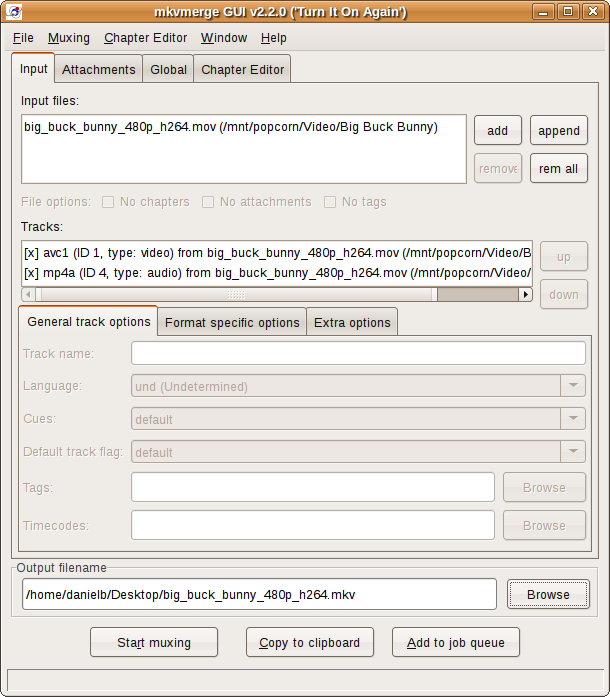
The mkvmerge program is very easy to use.
If you want to do the muxing from the command line, the GUI tool offers a Copy to Clipboard button that gives you the command and all of the options that it will do when you press the Start muxing button. The general command is this:
mkvmerge -o "destination-file.mkv"  -a 1 -d 0 -S
 ↪"original-file.avi" --track-order 0:0,0:1
At the end of the process, you will have a Matroska container with whatever audio and video you copied out of the other container inside of it.
For more on Matroska, see matroska.org.
The most dominant video format of the past ten years (or more) has been MPEG-2, the format DVDs use. Thankfully, the Open Movie Project has me covered there too. Big Buck Bunny can be downloaded as a DVD ISO file from Archive.org (www.archive.org/details/BigBuckBunny), which can be burned to a DVD or simply opened by the Popcorn Hour (more on playing ISO files later).
The Fast Forward button on the remote works as advertised for all supported video files. Rewind works with varying levels of success on .avi, .mov and .m4v files. Rewind did not work at all with the .mkv files I have. Hopefully, a firmware upgrade will fix this.
All the video formats I tried worked with the exception of Microsoft's implementation of MPEG-4.2 (msmp4) and the Theora-encoded version. I also noticed some slight jitteriness with the 1080p versions when I played them off my NFS server. They played without a hitch when the files were on the local hard drive. The scaling that the Popcorn Hour applied to the large files to shrink them down to my television screen looked flawless. There was pixelation (naturally) when I played the smaller versions that had to be scaled up, but they still were very watchable. Audio playback likewise was flawless.
For audio tests, I tried a variety of files, including MP3, FLAC, Ogg Vorbis and M4a. The Popcorn Hour had no problems with the MP3 and FLAC files, but it would not play the Ogg or M4a files. The failure of the M4a files was surprising, as both the M4a container and the AAC audio format are listed as supported. More than 95% of my music is in either MP3 or FLAC format (with FLAC being the preferred format), so the lack of M4a and Ogg support is not that big of a deal, but I hope they will be enabled at some point.
One thing I should note is that the Popcorn Hour does not play any sort of DRM-infected content. So, if you've been purchasing things from iTunes and/or similar digital stores that cripple their content, the Popcorn Hour probably is not a good purchase.
One of the big selling points of the Popcorn Hour is the built-in BitTorrent client. My experience with it has been mixed.
On one hand, the BitTorrent client works. On the other hand, it's very painful to use with the remote. I do like the fact that I can check on the status of torrents I am downloading or seeding right on my television, but anything more than that (like setting up the schedule) is difficult at best. Thankfully, there is a Web interface that is much easier to use.
The Web interface has all the features of the TV interface with the addition of an upload interface to add new torrents. To add torrents to the list, you first need to download the .torrent file to your desktop and then connect to the Web-based torrent front end and upload the file through that. The address for the Web-based front end is at popcorn:8883/torrent/bt.cgi.
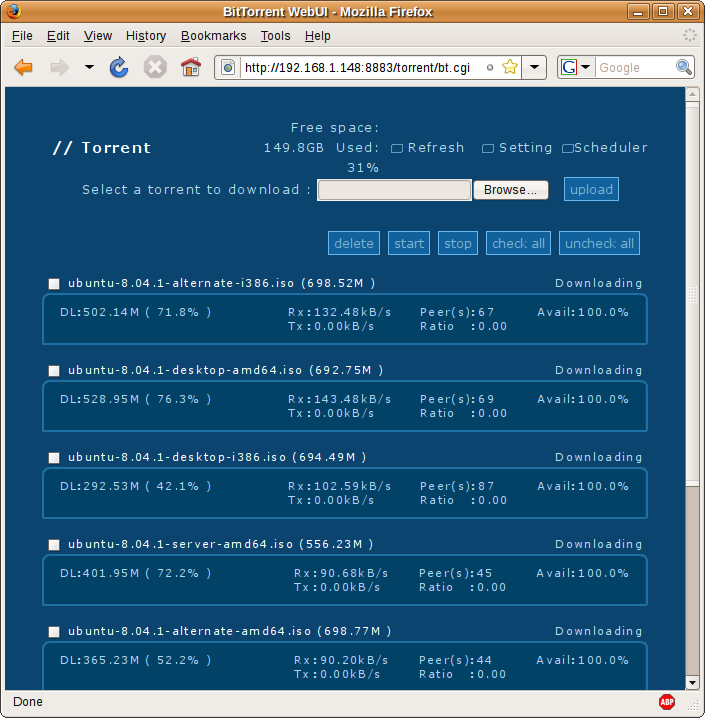
Figure 4. The BitTorrent service can be controlled via a Web front end.
The Online Services area has a lot of content preconfigured for it. The biggest section is the Media Service Portal, which is filled with dynamically updated content from various providers, such as YouTube, Revision3, DLTV, SayaTV, Vuze, Mevio and even a selection of podcasts from the NBC, CBS and CNN news networks.
There also are slots for adding podcasts (video or audio) of your own. Simply choose the Edit link from the Online Services page, and then enter the title of the podcast and the RSS feed URL. After saving your changes, when you select the newly created entry, the Popcorn Hour will fetch and parse the RSS and give you a link to the audio or video file. Select it, press the Enter button, and the podcast will play after a delay. The length of the delay is dependent on your Internet bandwidth and the size of the file you are downloading. In my testing with some large-format (480p and up) video podcasts, the Popcorn Hour had trouble downloading the files and even crashed a couple times. So, although it's nice that the Popcorn Hour can connect to RSS podcast feeds that I specify directly, a much more reliable solution for me is to download them on my local file server and then access them through the NFS share.
The Popcorn Hour can play DVDs either from a USB DVD-ROM drive plugged in to one of the USB ports or from a DVD ISO file. There is one huge caveat to this ability, however; it can't play encrypted DVDs, which basically covers nearly all commercial DVDs and ISO files of those DVDs. The only DVDs I found in my collection that can be played directly by the Popcorn Hour are the ones I purchased at the dollar store and Big Buck Bunny from the Open Movie Project.
Assuming you have some unencrypted DVDs or ISO files, playing them is similar to using any off-the-shelf DVD player. One note though: playing an ISO of a DVD off of a network share takes a lot of bandwidth, so you'll have your best luck with NFS and a wired connection as opposed to Samba and/or a wireless connection.
For people who don't want to go to the trouble of setting up an NFS or Samba server, there is another option for sharing media from your computer to the Popcorn Hour: myiHome. The myiHome application can be downloaded from www.networkedmediatank.com/download/myihome.html. There are versions for Windows, Mac OS and Linux.
For Linux, you simply download a tar.gz file. Untar it, and you will have a folder named something like myiHomeLinux-v5.0.2. Inside this folder is a startserver.sh script. Running this script starts myiHome. To stop it, simply press Ctrl-C, and it will quit.
Once the server is started, it shows up in the list of media sources on the Popcorn Hour automatically. On Linux, the server automatically looks in your home directory for folders named My Videos, My Music and My Pictures.
After connecting to a myiHome server, you can set various preferences from the television interface, such as selecting the photo folder to use as a slideshow source when playing back music and vice versa, among other things.
When navigating music or video folders on a myiHome server, you have the option to play the contents randomly with the Shuffle command. There also is a Search button that you can use to find specific tracks or photos.
Navigating with the remote is easy; you simply use the arrow keys on the remote and the Enter key to select things—much like navigating DVD menus. To go up a directory, use the Return key. The combination number/letter keys are used during initial configuration when setting network settings and configuring shares, and I haven't had much use for them since.
The DVD-specific keys (Menu, Title, Angle and so on) work as expected with DVDs, but are useless otherwise.

Figure 5. The Popcorn Hour Remote
My biggest complaint about the remote is the location of the Page Up and Page Down keys. They're way up in the top-right corner. A much better location would have been next to the arrow keys.
There is a Suspend BT button on the remote that the manual says is for suspending all BitTorrent traffic with one click. It does not work at the time of this writing, but the promise is that a firmware update will enable it (hopefully, by the time you read this). I hope it's sooner rather than later, because although it isn't hard to suspend BitTorrent traffic, it does take several clicks with the remote to do it, and you have to stop whatever you're watching or listening.
There also are some colored buttons at the bottom of the remote that don't do anything at the moment.
One trick I learned was that if you want to play everything in a folder, first navigate into the folder and then press the Play button. If you want to play only a single file, highlight the file and press the Enter button. Also, when playing a file, you need to press the Stop button before you can use the Return or Home buttons.
The Popcorn Hour is a very capable little box. It plays a wide variety of music and video formats—provided they aren't encumbered with DRM.
Right now, there are several unfinished pieces, but thankfully, firmware updates are coming regularly, and each one unlocks more functionality. Despite the rough spots, I have to admit I am perfectly happy with the core functionality, and I recommend it (as long as you don't have a lot of DRM-infected content). It is well worth the modest purchase price of $179.
Resources
Popcorn Hour Web Site: popcornhour.com
Networked Media Tank and Popcorn Hour Forum: networkedmediatank.com
The NMT Wiki: networkedmediatank.com/wiki
The NMT Quick-Start Guide: support.popcornhour.com/UserFiles/Popcorn_Hour/file/NMT_Quick_Start_Guide_Rev1_0.pdf
Syabas Technology: syabas.com
Details of Sigma Designs SMP8635 Chip: www.sigmadesigns.com/public/Products/SMP8630/SMP8630_series.html
Daniel Bartholomew lives with his wife and children in North Carolina. He can be found on-line at daniel-bartholomew.com.
