
Billix: a Sysadmin's Swiss Army Knife
Does anyone remember Linuxcare? Founded in 1998, Linuxcare was a company that provided support services for Linux users in corporate environments. I remember seeing Linuxcare at the first ever LinuxWorld conference in San Jose, and the thing I took away from that LinuxWorld was the Linuxcare Bootable Business Card (BBC). The BBC was a 50MB cut-down Linux distribution that fit on a business-card-size compact disc. I used that distribution to recover and repair quite a few machines, until the advent of Knoppix. I always loved the portability of that little CD though, and I missed it greatly until I stumbled across Damn Small Linux (DSL) one day.
After reading through the DSL Web site, I discovered that it was possible to run DSL off of a bootable USB key, and that old love for the Bootable Business Card was rekindled in a new way. It wasn't until I had a conversation with fellow sysadmin Kyle Rankin about the PXE boot environment he'd implemented, that I realized it might be possible to set up a USB key to do more than merely boot a recovery environment. Before long, I had added the CentOS and Ubuntu netinstalls to my little USB key. Not long after that, I was mentioning this in my favorite IRC channel, and one of the fellows in there suggested I put the code on SourceForge and call it Billix. I'd had a couple beers by then and thought it sounded like a great idea. In that instant, Billix was born.
Billix is an aggregation of many different tools that can be useful to system administrators, all compressed down to fit within a 256MB bootable USB thumbdrive. The 256MB size is not an arbitrary number; rather, it was chosen because USB thumbdrives are very inexpensive at that size (many companies now give them away as advertising gimmicks). This allows me to have many Billix keys lying around, just waiting to be used. Because the keys are cheap or free, I don't feel bad about leaving one in a server for a day or two. If your USB drive is larger than 256MB, you still can use it for its designed purpose—storing files. Billix doesn't hamper normal use of the USB drive in any way. There also is an ISO distribution of Billix if you want to burn a CD of it, but I feel it's not nearly as convenient as having it on a USB key.
The current Billix distribution (0.21 at the time of this writing) includes the following tools:
Damn Small Linux 4.2.5
Ubuntu 8.04 LTS netinstall
Ubuntu 7.10 netinstall
Ubuntu 6.06 LTS netinstall
Fedora 8 netinstall
CentOS 5.1 netinstall
CentOS 4.6 netinstall
Debian Etch netinstall
Debian Sarge netinstall
Memtest86 memory-checking utility
Ntpwd Windows password changing utility
DBAN disk wiper utility
So, with one USB key, a system administrator can recover or repair a machine, install one of eight different Linux distributions, test the memory in a system, get into a Windows machine with a lost password or wipe the disks of a machine before repurpose or disposal. In order to install any of the netinstall-based Linux distributions, a working Internet connection with DHCP is required, as the netinstall downloads the installation bits for each distribution on the fly from Internet-based mirrors.
Hopefully, you're excited to check out Billix. You simply can download the ISO version and burn it to a CD to get started, but the full utility of Billix really shines when you install it on a USB disk. Before you install it on a USB disk, you need to meet the following prerequisites:
256MB or greater USB drive with FAT- or FAT32-based filesystem.
Internet connection with DHCP (for netinstalls only, not required for DSL, Windows password removal or disk wiping with DBAN).
install-mbr (part of the mbr package on Ubuntu or Debian, needed for some USB drives).
syslinux (from the syslinux package on Ubuntu or Debian, required to create the bootsector on the USB drive).
Your system must be capable of booting from USB devices (most have this ability if they're made after 2005).
To install the USB-based version of Billix, first check your drive. If that drive has the U3 Windows software on it, you may want to remove it to unlock all of the drive's capacity (see the Resources section for U3 removal utilities, which are typically Windows-based). Next, if your USB drive has data on it, back up the data. I cannot stress this enough. You will be making adjustments to the partition table of the USB drive, so backing up any data that already is on the key is critical. Download the latest version of Billix from the Sourceforge.net project page to your computer. Once the download is complete, untar the contents of the tarball to the root directory of your USB drive.
Now that the contents of the tarball are on your USB drive, you need to install a Master Boot Record (MBR) on the drive and set a bootsector on the drive. The Master Boot Record needs to be set up on the USB drive first. Issue a install-mbr -p1 <device> (where <device> is your USB drive, such as /dev/sdb). Warning: make sure that you get the device of the USB drive correct, or you run the risk of messing up the MBR on your system's boot device. The -p1 option tells install-mbr to set the first partition as active (that's the one that will contain the bootsector).
Next, the bootsector needs to be installed within the first partition. Run syslinux -s <device/partition> (where <device/partition> is the device and partition of the USB drive, such as /dev/sdb1). Warning: much like installing the MBR, installing the bootsector can be a dangerous operation if you run it on the wrong device, so take care and double-check your command line before pressing the Enter key.
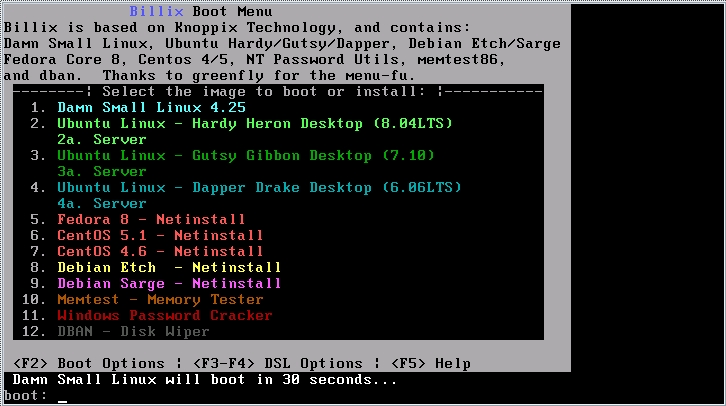
Figure 1. The Billix Boot Menu
At this point, your USB drive can be unmounted safely, and you can test it out by booting from the USB drive. Once your system successfully boots from the USB drive, you should see a menu similar to the one shown in Figure 1. Simply choose the number for what you want to boot, run or install, and that distribution will spring into action. If you don't select a number, Damn Small Linux will boot automatically after 30 seconds.
Troubleshooting Billix
A few things can go wrong when converting a USB key to run Billix (or any USB-based distribution). The most common issue is for the USB drive to fail to boot the system. This can be due to several things. Older systems often split USB disk support into USB-Floppy emulation and USB-HDD emulation. For Billix to work on these systems, USB-HDD needs to be enabled. If your drive came with the U3 Windows-based software vault, this typically needs to be disabled or removed prior to installing Billix.
If you're seeing “MBR123” or something similar in the upper-left corner, but the system is hanging, you have a misconfigured MBR. Try install-mbr again, and make sure to use the -p1 switch. You will need to run syslinux again after running install-mbr. If all else fails, you probably need to wipe the USB drive and begin again. Back up the data on the USB drive, then use fdisk to build a new partition table (make sure to set it as FAT or FAT32). Use mkfs.vfat (with the -F 32 switch if it's a FAT32 filesystem) to build a new blank filesystem, untar the tarball again, and run install-mbr and syslinux on the newly defined filesystem.
Damn Small Linux is a miniature version of Knoppix (it actually has much of the automatic hardware-detection routines of Knoppix in it). As such, it makes an excellent rescue environment, or it can be used as a quick “trusted desktop” in the event you need to “borrow” a friend's computer to do something. I have used DSL in the past to commandeer a system temporarily at a cybercafé, so I could log in to work and fix a sick server. I've even used DSL to boot and mount a corrupted Windows filesystem, and I was able to save some of the data. DSL is fairly full-featured for its size, and it comes with two window managers (JWM or Fluxbox). It can be configured to save its data back to the USB disk in a persistent fashion, so you always can be sure you have your critical files with you and that it's easily accessible.
All the Linux distribution installations have one thing in common: they are all network-based installs. Although this is a good thing for Billix, as they take up very little space (around 10MB for each distro), it can be a bad thing during installation as the installation time will vary with the speed of your Internet connection. There is one other upside to a network-based installation. In many cases, there is no need to update the newly installed operating system after installation, because the OS bits that are downloaded are typically up to date. Note that when using the Red Hat-based installers (CentOS 4.6, CentOS 5.1 and Fedora 8), the system may appear to hang during the download of a file called minstg2.img. The system probably isn't hanging; it's just downloading that file, which is fairly large (around 40MB), so it can take a while depending on the speed of the mirror and the speed of your connection. Take care not to specify the USB disk accidentally at the install target for the distribution you are attempting to install.
The memtest86 utility has been around for quite a few years, yet it's a key tool for a sysadmin when faced with a flaky computer. It does only one thing, but it does it very well: it tests the RAM of a system very thoroughly. Simply boot off the USB drive, select memtest from the menu, and press Enter, and memtest86 will load and begin testing the RAM of the system immediately. At this point, you can remove the USB drive from the computer. It's no longer needed as memtest86 is very small and loads completely into memory on startup.
The ntpwd Windows password “cracking” tool can be a controversial tool, but it is included in the Billix distribution because as a system administrator, I've been asked countless times to get into Windows systems (or accounts on Windows systems) where the password has been lost or forgotten. The ntpwd utility can be a bit daunting, as the UI is text-based and nearly nonexistent, but it does a good job of mounting FAT32- or NTFS-based partitions, editing the SAM account database and saving those changes. Be sure to read all the messages that ntpwd displays, and take care to select the proper disk partition to edit. Also, take the program's advice and nullify a password rather than trying to change it from within the interface—zeroing the password works much more reliably.
DBAN (otherwise known as Darik's Boot and Nuke) is a very good “nuke it from orbit” hard disk wiper. It provides various levels of wipe, from a basic “overwrite the disk with zeros” to a full DoD-certified, multipass wipe. Like memtest86, DBAN is small and loads completely into memory, so you can boot the utility, remove the USB drive, start a wipe and move on to another system. I've used to this to wipe clean disks on systems before handing them over to a recycler or before selling a system.
Expanding Billix
It's relatively easy to expand Billix to support other Linux distributions, such as Knoppix or the Ubuntu live CDs. Copy the contents of the Billix USB tarball to a directory on your hard disk, and download the distro you want. Copy the necessary kernel and initrd to the directory where you put the contents of the USB tarball, taking care to rename any files if there are files in that directory with the same name. Copy any compressed filesystems that your new distro may use to the USB drive (for example, Knoppix has the KNOPPIX directory, and Puppy Linux uses PUP_XXX.SFS). Then, look at the boot configuration for that distro (it should be in isolinux.cfg). Take the necessary lines out of that file, and put them in the Billix syslinux.cfg file, changing filenames as necessary. Optionally, you can add a menu item to the boot.msg file. Finally, run syslinux -s <device>, and reboot your system to test out your newly expanded Billix.
I have a 2GB USB drive that has a “Super-Billix” installation that includes Knoppix and Ubuntu 8.04. An added bonus of having the entire Ubuntu live CD in your pocket is that, thanks to the speed of USB 2.0, you can install Ubuntu in less than ten minutes, which would be really useful at an installfest. There is good information on creating Ubuntu-bootable USB drives available at the Pendrive Linux Web site.
Alternatively, a really neat thing to do (but way beyond the scope of this article) is to convert Billix into a network-boot (via Pre-Execution Environment, or PXE) environment. I've actually got a VMware virtual machine running Billix as a PXE boot server.
In closing, Billix may not make you coffee in the morning or eradicate Windows from the face of the earth, but having a USB key in your pocket that offers you the functionality to do all of those tasks quickly and easily can make the life of a system administrator (or any Linux-oriented person) much easier.
Resources
Billix Project Page: sourceforge.net/projects/billix
Damn Small Linux: www.damnsmalllinux.org
DBAN Project Page: dban.sourceforge.net
Knoppix: www.knoppix.net
Pendrive Linux: www.pendrivelinux.com
Syslinux: syslinux.zytor.com/index.php
Pxelinux: syslinux.zytor.com/pxe.php
U3 Removal Software: www.u3.com/uninstall
Bill Childers is an IT Manager in Silicon Valley, where he lives with his wife and two children. He enjoys Linux far too much, and probably should get more sun from time to time. In his spare time, he does work with the Gilroy Garlic Festival, but he does not smell like garlic.

