
Xastir—Open-Source Client for the Automatic Packet Reporting System
In the early 1990s, Bob Bruninga, an instructor at the United States Naval Academy in Annapolis, devised an interesting stunt: he wanted to track the Army/Navy game football on its travels from Annapolis to Philadelphia, about 150 miles away. To do this, Bruninga stuffed a small electronics package into a football helmet consisting of a GPS receiver, an Amateur Radio transmitter and a radio modem. At the time, GPS receivers were quite expensive (and a novelty), and cell phones still were quite new and incapable of doing data. Bruninga's real innovation, however, was to plot the received position reports on a computer map display and automatically track the position of the midshipmen carrying the game ball (see Resources).
That was one of the first uses of the Automatic Position Reporting System (APRS)—originally, Amateur Position Reporting System. APRS has evolved considerably in the decades since. The protocol has been greatly enhanced to include automated weather station reports, status messages and two-way text messaging. APRS communications systems have evolved beyond simple transmitters and receivers to sophisticated networks that encompass Amateur Radio satellites, digipeater (digital repeater) automatic relay systems and Internet gateways. APRS technology is not confined to Amateur Radio; it is used in numerous commercial applications as well.
APRS is intended to provide a situational awareness display or tactical display. Everything of note should be displayed easily on the map with additional detail and messaging available at a click. In emergency operations, a quick glance reveals what resources are available and where.
Note: APRS is a registered trademark of APRS Software and Bob Bruninga, WB4APR.
Imagine a map display on your laptop with moving symbols representing the current positions of your ham radio friends and acquaintances, while they can see your real-time position on their displays. Imagine being able to “instant message” any of them as well. These are a small subset of Xastir's capabilities, and they can be accomplished with a small amount of equipment and an entry-level Amateur Radio license (see sidebars).
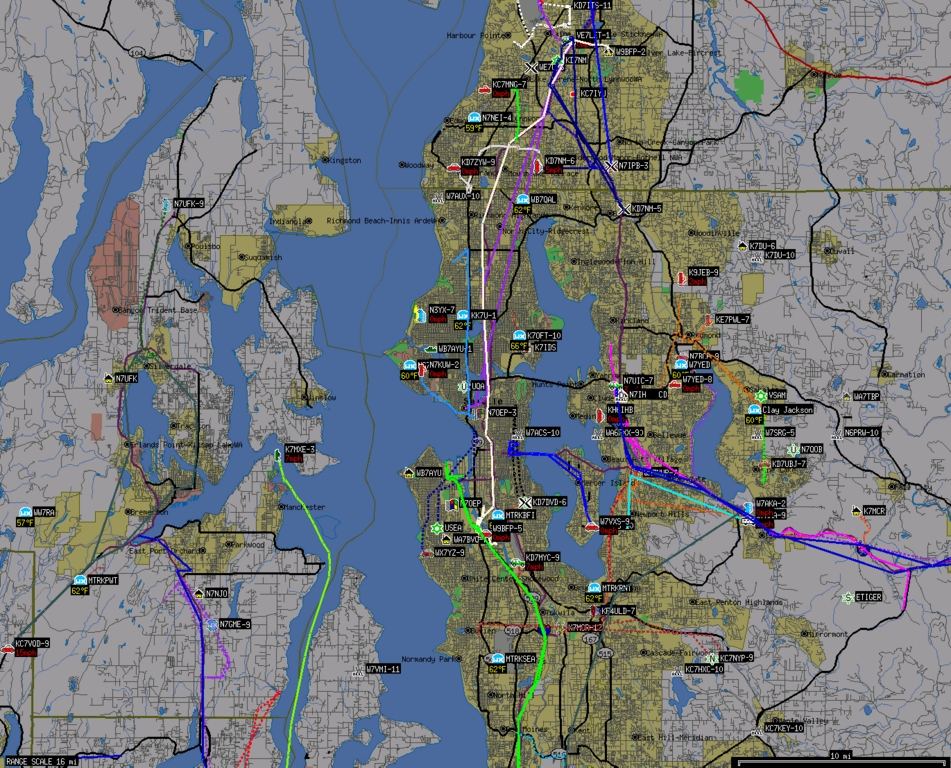
Figure 1. Xastir Centered on Seattle, Washington (Maps Courtesy of US Census Bureau Tigermap Server)
Xastir is open-source software, which aims to be compliant with and interoperable with the APRS protocol. Frank Giannandrea, KC2GJS, wrote the first version of X Amateur Station Tracking and Information Reporting (XASTIR) for Linux and released it under the GPL license. As with many open-source projects, even though Frank has retired from the project, a team of developers has continued and considerably extended Frank's original work. Xastir is arguably one of the most capable APRS implementations and has an active user community.
Xastir can be compiled and run on Linux, FreeBSD, Mac OS X, Solaris, HP/UX and even Windows. Today Xastir can display objects and their associated status (and messages) in real time on Internet-based or local maps, enable two-way messaging between stations and many more functions. Some Xastir users are involved in search and rescue (SAR), others in helping out at public service events or Amateur Radio emergency organizations, but many use it just for fun.
You can get started in Xastir with Internet-based maps and data streams. Advanced users have radio interfaces connected to laptops or touchscreen trunk-mount PCs in their vehicles where it gives a tactical display of nearby stations while providing mobile mapping and letting everyone know their current position. Xastir also can speak via the Festival speech synthesizer.
Note: although Xastir is described here as Amateur Radio software, nothing specifically ties its use to Amateur Radio. There are alternative radio systems that require no licensing and allow data transmissions between stations. Networks can be deployed using such systems and Xastir; however, you would lose access to the rich set of interconnected networks that exist in the Amateur Radio APRS system.
Info:
What are these odd groups of up to six letters and numbers after people's names? Amateur Radio call signs! Like television and radio stations, each ham has a unique call sign representing a transmitting station.
Linux is special and not just for the reasons most of you already know. Linux was the first operating system to have the Amateur Radio AX.25 packet protocol actually built in. Currently, it's a pluggable kernel module, but in the early days, we had to compile custom kernels to enable it.
AX.25 is based on ITU-T X.25, with a few additions that let us store and forward or digipeat (digitally repeat) a packet through multiple stations on RF (radio frequencies). This allows us to create a network from multiple radio stations on the same frequency. To the computer, an AX.25 port looks like any other networking port, so you must guard against sending out broadcast packets from some common Linux applications that can trash our low bit-rate radio channels. Firewalls or specific configuration of each errant dæmon are the fixes.
Once you set up an AX.25 interface, you can share it across multiple applications, run special digipeater or server software, or run multiple protocols across it. See the AX.25 HOWTO on the Xastir Wiki (see Resources) or the older AX.25 HOWTO for setup details.
Note: a simpler method for APRS only is to use the Serial KISS TNC interface within Xastir to talk directly to a serial port, USB→Serial adapter, or soundmodem terminal node controller (TNC). This method does not let you share the TNC across multiple applications, however.
For the TNC, there are several options. Software only (mostly?) options include the soundmodem driver on Linux/Solaris or AGWPE on Windows. See the soundmodem HOWTO on the Xastir Wiki for details (see Resources).
Most operators prefer a hardware TNC over the software solutions above. We recommend KISS mode for long-term reliability. The alternate TNC mode, command mode, was designed for human interaction and, thus, is prone to timing errors and commands getting lost or misinterpreted. KISS is a much simpler protocol; the computer does most of the protocol processing work instead of the TNC.
An entire tiered network of servers moves packets around the Internet and connects the various radio networks together, called the APRS-IS (APRS Internet Services). With proper gateways, two APRS stations anywhere in the world can exchange two-way messages. Alternative networks exist for Citizen's Weather (CWOP) data and for emergency-minded or weather-minded folks who wish to see more objects (Firenet.us). Firenet is one of Curt's interests; he contributes earthquake, weather, fire and river gauge scripts, also plotting positions of steam-train excursions.
Home stations can have a radio interface, can connect as clients of APRS-IS or Firenet, and optionally may choose to be a one-way or two-way igate (Internet gateway) between the Internet and radio. One-way igates (RF→INET) are welcome any time, but two-way igates are best coordinated so that they don't compete for limited airtime in one area. The typical two-way igate passes only APRS messages and ACKs/NAKs for stations it has heard recently on the local frequency. Mobile travelers can send and receive messages from their current locations, as the igates will route the messages appropriately. Xastir can function as such an igate, but if you need more advanced igate functions, other applications may be better suited.
Other important pieces of the infrastructure are Internet databases with Web front ends. See the Resources section of this article to find out more, specifically the info.aprs.net link, and click on APRS Internet System—it'll be well worth your time.
Compared to other APRS clients, Xastir really excels in the map department with 125 types of maps, including topo maps, street maps, aerial photographs, weather alerts and radar images. It can use on-line or local map sources, or combinations of both. Map stackups can be custom-designed by the user in nearly any combination.
We do not support or condone use of proprietary map formats, but there are plenty of free maps from which to choose. You also can grab screen captures of maps you own and easily georeference them for use with Xastir. For those coming from the Windows side, UI-View maps can be converted with our inf2geo.pl script for use with Xastir. This helps users outside North America immensely, as they often lack access to the free maps we enjoy here.
For contiguous topographic maps from USGS DRG maps, Xastir topo code crops the white borders and stretches the image into a rectangular shape while drawing. Maps are stitched together into a contiguous view.
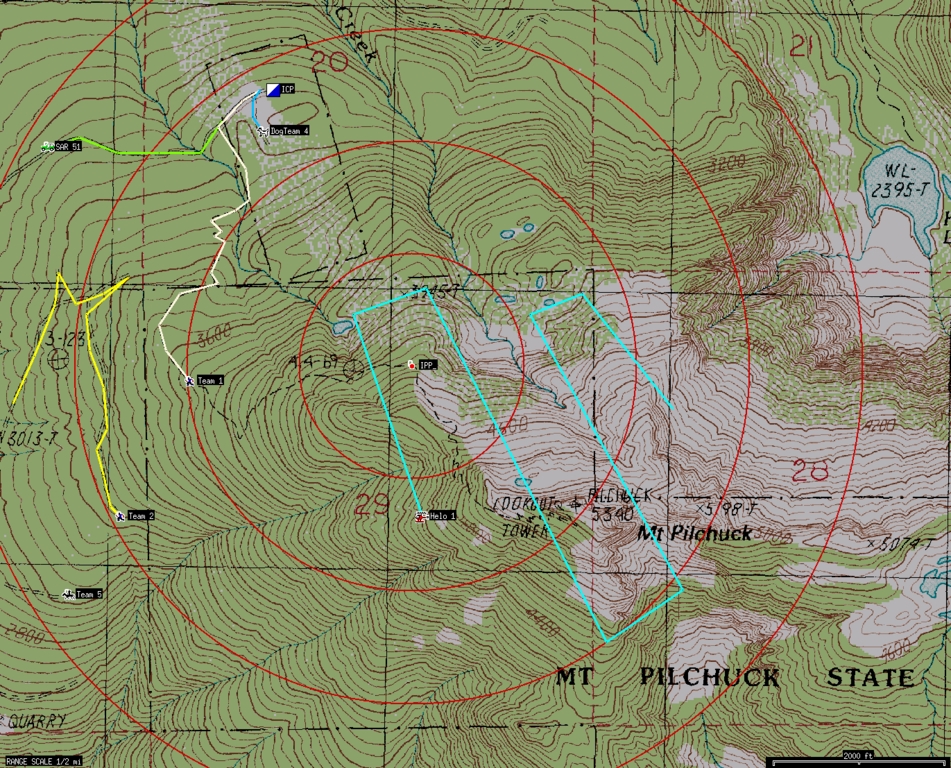
Figure 2. Xastir Topo Maps, Simulated SAR Mission, Mt. Pilchuck (Maps Courtesy of USGS)
Xastir supports direct or network connection to weather stations, GPSes and TNCs. Several coordinate grids/systems are supported: UTM/UPS, MGRS, USNG, Maidenhead grid and multiple latitude/longitude formats. A Coordinate Calculator is included that converts between many of these formats.
Menus can appear in any of seven real languages and five “not so real” languages. Curt took a bit of heat from other developers for adding those last five “languages”, but you know beer-fueled coding sometimes yields interesting results! All kidding aside, he was asked to support Talk Like a Pirate Day (September 19th every year). He found pirate-speak REGEX plus several other “languages”, so he added five in total. He's proud to be a supporter of Talk Like A Pirate Day, the only international holiday created from a sports injury!
Dig in to the menus, and you'll find some SAR-specific features, as well as features useful for public-service event tracking. Xastir is used for SAR, marathons, bicycle, motorcycle and car events.
Though Xastir and APRS are not well suited or intended for this application, one ham, when his vehicle was stolen, was able to tell police the car's current location, direction and speed. It does take some work though to explain to the police how you know this.
First and foremost, sign up on the Xastir users mailing list (see Resources). Many helpful experienced users and quite a few of the developers hang out there. Posting requires a subscription, so sign up before you need it. Lurking and “dumb” questions are fine. Everybody learns or relearns a bit, and newbies are not harassed there.
Check the Xastir home page (see Resources), specifically the “XASTIR Documentation” and “Text docs distributed with Xastir” sections for useful documentation. Of course, look in the Xastir source main directory or the default install location of /usr/local/share/doc/xastir/ for the text docs as well.
Run Xastir for the first time, and it takes you to the File→Configure→Station dialog to enter your call sign and location and to choose a symbol that will appear on others' maps. Some symbols have special significance, so if you have a question, please ask on the list.
Visit the File→Configure→Defaults dialog next. Note that antenna height is not height above sea level (ASL), but height above average terrain (HAAT). Curt once lived at 150 feet ASL but –450 feet HAAT due to surrounding hills, but the protocol doesn't allow for negative HAAT; perhaps they figured no ham would live under such conditions!
If you have Internet connectivity, go to Map→Map Chooser, click on Online/Tigermap.geo, then click OK. If you're located in or near the US and zoomed in sufficiently, you should see Tigermap street maps appear shortly. If you don't have connectivity or are missing libraries to fetch maps, stick to built-in vector map formats like ESRI Shapefile. A map of the world in ESRI Shapefile format is included.
Hint: start Xastir from an xterm to catch error and warning messages. Also, check File→Configure→Timing→Internet Map Timeout to ensure it's adequate.
You probably will want to see other stations, weather alerts and the like. Go to Interface→Interface Control. Click Add, then Internet Server, then Add. You should see a new Internet Server entry on the Interface Control dialog. Click on that entry and then Properties. Enter server and port information into the form. Try rotate.aprs.net port 14580 with filter parameters of m/600, which causes reports for all stations within 600km to appear on the map. Enter a passcode to log in to the server, and see the callpass program that comes with Xastir. Send a position to the server if using the range filter, or the server won't know which stations to send you.
Run this script as root to fetch Shapefile maps for weather alerts:
xastir/scripts/get-NWSdata
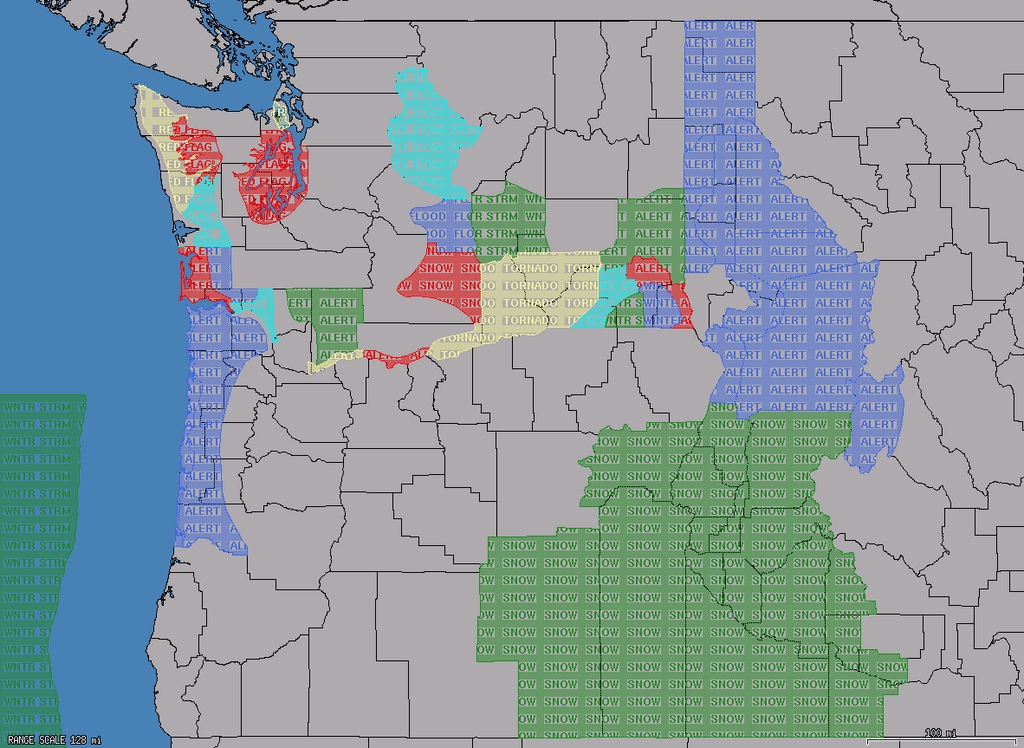
Figure 3. Xastir Weather Alerts (County Map Courtesy of National Weather Service)
For mouse functions, turn on emulate third button in your OS if you have a two-button mouse, as Xastir can use all three buttons of a three-button mouse. See the text docs distributed with Xastir for details on each function. Toggle buttons at the top of the screen change how the mouse buttons work, specifically Measure, Draw and Move. The cursor changes when in these modes to give visual verification. While we're at it, a few defines in xastir/src/main.c allow swapping mouse buttons and touchscreen operation, for those who aren't afraid to compile their own.
A few special keys include HOME (centers the map on your house or car), PageUp/PageDown (zoom keys), arrow keys (pan keys). Toggle buttons at the top of the screen provide most of these functions also.
The AX.25 protocol has multiple slots in the header of each packet for digipeater call signs, which APRS uses for a flooding protocol. One packet floods an area out to X digipeaters in all directions. Think of it as a time-to-live count or as a distance limit for each packet.
Currently accepted digipeater paths include WIDE2-2 or WIDE1-1,WIDE2-1 for home stations and WIDE1-1,WIDE2-1 for mobile stations. Either path will give you two hops outward in all possible directions. Never use WIDE1-1 as anything but the first digipeater call sign in the path; it triggers home station fill-in digis as well as mountain-top digis.
By following the above (currently only North American) recommendations, you can travel between RF networks without reconfiguring your tracker. High-altitude balloon or airplane-mobile trackers likely will need to reduce their paths to prevent interfering with many RF networks at once. Rocketry enthusiasts often run high packet rates on alternate frequencies due to their short flights (five or ten seconds); this avoids interference with the “normal” APRS network on 144.39MHz.
For “tin-foil hat” types, there are special path aliases for the end of your path to keep packets from being gated to the Internet: NOGATE and RFONLY. These are respected by most igate software.
Please stay abreast of the current national recommendations for your country—the above recommendations may not apply. If you're not part of the solution (and up to date), you're part of the problem, which definitely applies here!
A very useful recent addition to Xastir is the capability to assign tactical call signs to stations and to transmit them across RF or the Internet to other APRS clients (Xastir and APRS+SA are the only two clients that currently decode and display tactical call assignments).
We added this capability just prior to the Seattle Marathon in November 2008 and used it to great effect at that event. It allowed us to assign call signs, such as LEAD and TAIL, to APRS stations helping in the event, without having to change their tracker configurations. This aids reliability when we're not tweaking tracker settings before the event. The old “if it ain't broke, don't fix it” method really does work when dealing with mobile trackers. Don't touch a working tracker unless you have to.
Xastir also was used to good effect in the New York City Marathon. Officials love it for its instant and eye-catching tactical display. You'll see them hanging around the Xastir display when they're not otherwise engaged.
SAR tactical call signs provide similar advantages, assigning TEAM 1, HELO 2, DOGTEAM 3 and similar monikers to teams in the field. Special features have been added to Xastir to support SAR operations.
Example: Seattle Marathon
For the Seattle Marathon, I (Curt) sit in the net control vehicle with the “route” and “start/finish” radio guys. Xastir is running on a Linux laptop with Internet access, along with a remote LCD display for the radio operators to view the current event map. Bob Donnell, KD7NM, has a similar station several hundred feet away at the first-aid station. Trackers are assigned tactical call signs like SAG 1 prior to the event or at the beginning of their assignments.
I listen for runner pick-up or aid requests from the radio operators and send instant messages to Bob. Bob then dispatches vehicles (SAG wagons) via voice radios to pick up the runners. Positions of all SAG wagons appear on both of our maps.
SAG vehicles can't cross the course, so it's tricky getting them to the correct locations. The map display allows Bob to dispatch the vehicle that would be quickest to pick up the runners—you must know how to route vehicles when Seattle is bisected by this event.
We place trackers on the lead vehicles for both the full and half marathons—problematic due to the choice of electric vehicles, which so far haven't completed the mission. If these trackers become unavailable, we shift to monitoring voice reports on the route network and create objects to represent them on the map. The trailing vehicle is driven by a ham who usually can keep its tracker running, although we have the same fallback plan.
Event organizers use the trailing runner information to adjust support needs at the finish line, and we use the information to keep the volunteer hams up to date on the approach of the final runners. The volunteers then share this information with the rest of the marathon volunteers in their area. This helps ensure that we don't leave anyone behind on the course at the end of the day and lets us know when to open streets and when to pick up ham volunteers and equipment.
From its meager beginnings as a Linux-specific application, Xastir has grown significantly in capability but is still tied to OpenMotif or Lesstif for its widget set. Xastir is a large multithreaded and multiprocess program. Developers have talked about splitting Xastir into an SQL database back end plus a dæmon with multiple clients to handle user interface functions. Such clients could use different widget sets, such as Qt, GTK+ or WxWidgets, with correspondingly better integration with modern-day window managers. Rewriting to use Qt without the X11 layers underneath might allow for running on Qtopia embedded devices. In any case, whether we refactor Xastir, it has a bright future as its user base continues to grow and useful features are added continually. See you on the mailing list!
Note: the Open Group, Motif, Making Standards Work, OSF/1, UNIX and the “X” device are registered trademarks, and TOGAF and Boundaryless Information Flow are trademarks of The Open Group in the US and other countries.
Glossary
Amateur Radio has been doing digital communications literally since there has been wireless communications. We first used CW (Continuous Wave) or On/Off keying with Morse code. Abbreviations quickly became commonplace. After WWII, surplus teletypes (the heavy, loud electromechanical monsters you see in old movies) became available at reasonable prices and ham radio RTTY (radio teletype) was born, and keyboard shortcuts and abbreviations became even more commonplace.
We use a lot of abbreviations—Q-codes during voice and especially CW conversations (CW or Continuous Wave means Morse code). Even the word conversation has an abbreviation: QSO.
Quite a few of our abbreviations have roots in the Morse code world, spilling over into our e-mail and instant messaging. If we type “hi hi” to you, that means laughter. “QTH” equals location. This is similar to instant-messaging abbreviations that many of you use with SMS messaging or e-mail.
Here are some other common terms:
APRS: Automatic Position Reporting System.
AX.25: the packet radio link-level protocol we use.
digipeater: single-frequency store-and-forward digital repeater for radio.
KISS mode: Keep It Simple Stupid protocol. A simplified protocol used in a TNC for computer control (yes, that really is the name of the protocol).
soundmodem: software to turn a soundcard into a TNC.
TNC: Terminal Node Controller or radio modem.
tracker: a GPS/radio/TNC that emits positions while moving. It may or may not have two-way messaging or a map display.
Getting an Amateur Radio License
Many people think of Amateur Radio operators as old guys sitting in the basement in front of a radio with glowing tubes, tapping on a Morse code key.
The good news is that Morse code is no longer a requirement in the US. Tubes have been replaced by transistors, integrated circuits, embedded processors and software defined radio (SDR). We have satellites in orbit, had digipeaters on the international space station and (now expired) MIR, and do EME and EVE signal bounces (Earth→Moon→Earth and Earth→Venus→Earth). It's not your grandpa's ham radio anymore!
License types have been streamlined to three: Technician Class, General Class and Amateur Extra Class. Each license grants additional privileges, mostly in the form of additional allowed frequencies. The entry-level Technician Class allows you to participate in the APRS network described in this article along with many additional privileges.
Many barriers to getting a license have been removed. Tests are no longer given by the FCC field offices, but by volunteer examiners. In large urban areas, there may be multiple places to take a test each month. Practice tests are available on-line (try www.qrz.com and others). For more information about Amateur Radio licensing, or where to find testing in your area, go to www.arrl.org and click on Licensing.
Note: the information above is US-centric. Each country has a regulatory body governing Amateur Radio and often a national Amateur Radio organization. Contact your national organization or regulatory body for specific details regarding Amateur Radio licensing in your country.
Equipment Needed for Xastir/APRS
1) Minimum requirements: a live Internet feed, Linux (or another UNIX/UNIX-like operating system) and Xastir.
2) Adding Amateur Radio to the mix: Linux, a soundcard, the soundmodem package, a two-meter ham radio, a valid ham radio license and Xastir. It is possible to configure this setup with or without the Linux AX.25 library.
Note that it's completely legal to own Amateur Radio equipment without an Amateur Radio license, as long as you use the equipment only to receive. Transmitting on Amateur Radio frequencies without a license is blatantly illegal, and the community is capable (and motivated!) to hunt down troublesome rogue transmissions, and the FCC has a long tradition of prosecuting miscreants.
3) A more reasonable station: Linux plus a hardware TNC in KISS mode, a two-meter radio and a valid license. Again, one can configure with or without the Linux AX.25 library.
To build a portable or mobile tracker, many options exist that don't involve carrying around a full-blown laptop. Go to info.aprs.net, and click on Hardware to see loads of options.
Resources
Xastir Home: www.xastir.org
Mailing Lists: lists.xastir.org/mailman/listinfo
SourceForge Project: sourceforge.net/projects/xastir
Soundcard Wiki Page: www.xastir.org/wiki/index.php/HowTo:SoundModem
AX.25 Wiki Page: www.xastir.org/wiki/index.php/HowTo:AX.25
SAR Page: www.eskimo.com/~archer/xastir/SAR.html
APRS Main Pages: aprs.org
APRS Wiki: info.aprs.net
ARRL: www.arrl.org
Practice Tests: www.qrz.com
Naval Academy Radio Club's 2008 Army/Navy Football Run LIVE Tracking Page: www.aprs.org/football.html
Photo of the Original GPS Tracker Installed in the Football Helmet for Runners Who Traveled from an Annapolis Pep Rally to the Stadium in New York: www.usna.edu/Users/aero/bruninga/foot.html
APRS Tracking 1993 Football Run: www.usna.edu/Users/aero/bruninga/football.html
Curtis E. Mills, WE7U, became active in packet radio in the mid-1980s, creating a receive-only station from a radio, a single-chip interface circuit and custom assembly code. He's active in search and rescue and contributes to Firenet, Xastir, SmartPalm and gpsbabel development. Other interests are hiking and bow hunting when his kids aren't running him ragged. He's employed as an engineer at Fluke Corporation. Reach him at archer@eskimo.com or as WE7U-3 on APRS. He also can be found on Xastir, NWAPRS and APRSSIG lists.
Steve Stroh, N8GNJ, had his first experiences with TCP/IP networking via Amateur Packet Radio on the Puget Sound Packet Radio TCP/IP network (WETNet) in the late 1980s. From hanging out with that bad crowd of techies, Steve became a sysadmin (on systems lesser than Linux) and in 1997, began writing about broadband wireless Internet access based on his practical experience with wireless gained from being a ham. He's looking forward to some winter projects, including diving deep into open-source wireless mesh networks, embedded ARM-based Linux systems, running IPv6 over Amateur Packet Radio and getting a number of radios back on the air after a long absence. Steve can be reached at steve@stevestroh.net.
Laura Shaffer Mills studied engineering, but prefers writing software in any convenient language. She hopes to learn something new from every project and particularly enjoys solving problems that no one else had found. She relaxes with wire harp or tatting, since both are quite rare. Laura lives with her husband and three daughters and can be found at www.redwriteblue.com.

