
Turn Your Computer into a Phone with Skype
Want to use your computer as a full-fledged telephone, and be able to make free phone calls over the Internet or paid calls to any normal number? How about adding more features, such as instant messaging, file transfers and video conferences? How about being able to use it on Linux, Windows or Mac OS X? If these things interest you, you should install Skype.
Skype is a free, VoIP (Voice over Internet Protocol) program, created in 2003 by Niklas Zennstrom and Janus Friis. Two years later, eBay acquired it for more than 2.5 billion dollars (plus an unspecified extra amount depending on performance).
As of the beginning of 2008, it has more than 250 million users, both for its free and paid services, in practically every country on earth. When you connect to Skype, in the bottom-right corner, you will see how many other users are on-line at the same time. In my experience, it's usually around ten million, which is a hefty number indeed. Skype derives its income from paid services (including calling or receiving calls from landline or mobile phones, voice mail, call forwarding and so on), but you can use it without paying a cent if you call only other on-line users over the Web.
From Music to TV
Skype wasn't the first collaboration by Zennstrom and Friis, and it isn't their last. In 2000, they created Kazaa, a well-known peer-to-peer file-sharing program. Obviously, they were able to apply the P2P expertise gained there to Skype's own development. Kazaa had plenty of legal problems (similar to those of Napster) because of sharing copyrighted material, mainly music. In 2001, Kazaa was sold to Sharman Networks, which had to face several copyright-related suits. In July 2006, there was an out-of-court settlement, when its Web site seemingly was updated for the last time.
After selling Skype to eBay, Zennstrom and Friis turned to TV and created Joost: a system for distributing video (mainly TV shows) over the Web, once again using the same peer-to-peer technology used on Skype. Joost's development started in 2006, and currently (February 2008), it's at beta. If you want to test-drive this software, however, you are out of luck. For the time being, there are only Windows and OS X versions available. According to some reports, Wine isn't a solution either, though that might change.
Joost will be a free system, supported by advertising, just like traditional TV, aiming for full-screen, high-quality viewing. Though its technology isn't yet mature or fully reliable, it's an interesting concept and free of the legal problems that troubled the original Kazaa. There are some licensing aspects that still need work (most of the available content can be seen only in the US right now), but there's much promise ahead.
The program itself is free, but it's not open source. And, if you like running the best and latest versions of programs, prepare yourself for a disappointment. The current Windows version is 3.6, the current OS X version is 2.6, but Linux is trailing far behind with only a beta, called 2.0. Thus, plenty of features are missing from the Linux version (see the What's Missing in the Linux Version of Skype? sidebar), but Skype still is quite usable as is.
Skype's hardware requirements are pretty modest. You need a 400MHz processor or faster, 256MB of RAM and about 20MB of free disk space. If you want to talk (don't sneer; you can use Skype just for instant messaging), you need a microphone and either earphones or speakers. And, if you want to make video calls, you need a Webcam. Finally, you need to open an account, but you have to install the program first.
Installation should be quite easy. As far as I've seen, it's available for pretty much all distributions, so you should have no problem finding it in your repositories. Because I use Smart, getting Skype simply meant typing smart install skype. In any case, you should check that the version you get is not earlier than 2.0. (To do so, start Skype, click the S on the lower left, select About, and you'll see a window with the version information.) Because Linux lags behind Windows as far as versions, you just might have version 1.4, which would require an upgrade.
If your version is an older one (or if you just want to make sure to have the latest one), visit Skype's download site, and get whatever is correct for your machine. There are distribution-specific versions for Debian, Fedora, Mandriva, MEPIS, OpenSUSE, Ubuntu and Xandros. There also are some generic versions—the “static” one might be best for you.
After the download is ready, open a console, cd to the directory where you downloaded the software, and do sudo rpm -Uvh skype-2-XXX.rpm, and you should be ready.
When you open Skype, if you already have an account and a password, simply enter them to connect (Figure 1). However, if this is your first time ever, or if you just want to create a second or different account, click Don't have a Skype name yet?, and a window will open where you can create an account. Follow the instructions on the screen, and you'll be set (Figure 2). Skype won't allow passwords that are too short, but play it safe, and use a long one, preferably with numbers and special characters.
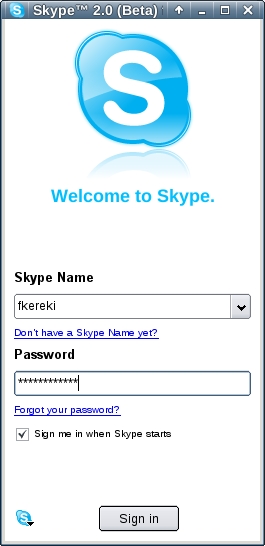
Figure 1. You need an account to use Skype. On Linux, checking Sign me in when Skype starts is safe to use.
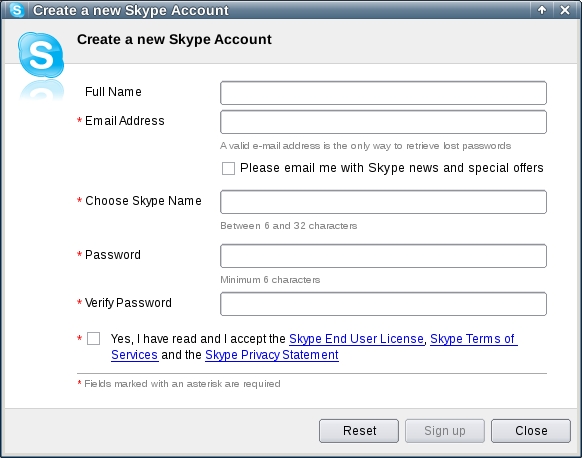
Figure 2. Creating an account is simple, but you must do it with Skype.
What's Missing in the Linux Version of Skype?
Skype for Linux is several versions behind the current Windows program and is still in beta. In later versions (keep your fingers crossed, but be prepared for a long wait), it could add:
Enhanced file transfer speed.
More stable video calls among users with Internet connections of different speeds.
Improved video and audio quality on low-speed Internet connections.
Call quality feedback and bandwidth indicators.
Safety and privacy improvements.
Support for MySpace.
High-quality video calls.
Video snapshots.
Auto redial.
Call transfer.
Private telephone numbers.
Import contacts from MSN, Yahoo and Gmail.
Skype Prime (calling lines that charge per minute).
Skype Find (a community-generated directory).
Sending SMS.
Ten-way conference calls.
Public chat rooms.
Predictive dialer.
Contact grouping.
Shared groups.
This is a (shortened) version of all new features in the release notes since January 2006, when version 2.0 for Windows came out, so there should be plenty forthcoming for Linux users.
The first time you run Skype, check its configuration. Click the S on the bottom left, and you'll see the Options window. Here are some of the possibilities:
General allows you to specify what happens when you double-click on a contact (either start a call or a chat), the timeouts (after how much time you will be shown as Away or Not Available) and the program language. Although Skype's Web site advertises almost 30 languages, it came with only 13. Spanish was noticeably missing.
Privacy lets you decide whether you will accept calls or chat invitations from anybody or only from people you specifically allow, whether you will answer incoming calls automatically (I wouldn't check that), and how long you want to keep the chat history.
Notifications allows you to assign sound bits to different events, such as an incoming call or an answered call, and whether you will be shown a pop-up notification. If you click Advanced View, you can specify scripts that should be executed on specific events, or a message that should be sent to the other party.
Chat permits you to define what will happen if somebody starts a chat with you, such as whether to use emoticons and whether other parties should be informed when you are typing.
Call Forwarding is a paid feature. When someone calls you, and you are not at your computer, you can have Skype call your mobile or landline phone, paying per minute at the regular call rates. (If you call people who forward their calls, you pay nothing.) You even can forward calls to more than one phone, answer whichever you want, and you will be billed accordingly.
Voice mail is another paid feature, available only with a Skype Pro subscription. Basically, it works as an answering machine, and you can listen to the calls you received whenever you are signed in.
Sound Devices lets you choose which devices should be used for sound. I'd suggest keeping the default devices, unless you know what you're doing. Click on Make a test sound to verify whether Skype can produce sound, and then click Make a test call to check whether your microphone is working. Then, follow the spoken instructions to see if everything's working.
Web Devices can be used to specify whether Skype Video will be used, whether video should start automatically, and whether you want to receive other people's video and let them know you have video capabilities. After you have set up your Webcam, use the Test button to verify that you can see yourself.
Advanced lets you select whether you want to check for updates when starting Skype (I'd suggest doing so), which port to use (leave it as suggested), and if you are using a proxy, its details.
Blocked People lets you manage your blacklist. If you don't want to receive calls from particular users, you can block them from Skype's main window. Right-click on users' names, and you will have the option to block them. If you want to restore (unblock) someone, you can do so here.
Play around with all options, but be sure to check, at the very least, the Sound Devices screen and do a test call. Otherwise, you might find that people call you, but you can't hear them, or that you speak, but nobody hears you.
After installing Skype, your first goal should be setting up your contacts list. The green plus sign icon in the lower-left corner lets you look for other Skype users (Figure 3). In the text box at the top, enter either the Skype name, part of the full name, or the e-mail address to search for someone. You can restrict the search further (probably necessary if the person you are seeking has a common name) to a specific country, state, city, language and sex. Click Search, and Skype runs through all users, looking for those who match and shows a window with the list. If the person you are seeking is on the list, click on the name to select it, and then click Add Contact. The contact will appear on your personal list.

Figure 3. Use the search form to look for people and add them to your contact list.
If you have purchased some credit, you also can call landlines. (In order to buy credit, visit Skype's Web site, and you'll find the link in the top-right corner.) You can pay with PayPal, Visa, MasterCard and a few other options. (Remember to use some of the credit; if you don't spend any of it in 180 days, your credit expires and you will lose whatever you had still remaining in your account.)
If you want to add a standard phone, in the Add a Skype contact box, click the bottom link, Add an ordinary phone, and you will be able to enter the name and phone number. These numbers will show up in your contact list with a blue (instead of green) icon, so you can recognize them at a glance (Figure 4).
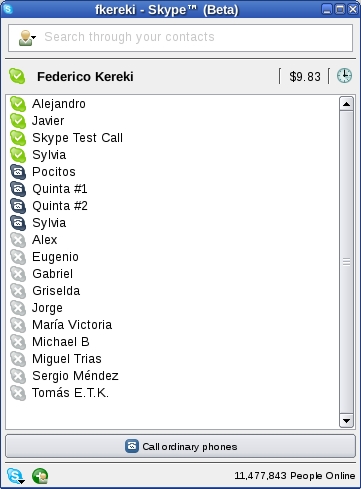
Figure 4. In your contacts list, green icons correspond to Skype users who are on-line, grayed-out icons indicate off-line users, and blue icons represent standard phones.
If you click on a user, you can see his or her picture (if you want to upload yours, click on your own name, and then click Edit Profile), and you will see three icons: a sky-blue Start Chat icon, a green Start Phone Call icon, and a down-pointing arrow that adds several more options, such as Send File, View Profile, Rename Contact (if you want to change the way the user appears on your list), and for unwanted users, Delete Account and Block Account. Another option is to click on Call Ordinary Phones, which shows a touchtone-type display, allowing you to key in any number from any country; remember this has a cost, and you must have enough credit for this.
During a phone call, you can right-click on the call window at any time and get similar options as described in the above paragraph. You even can start a chat, simultaneously with the call (you might want to do this should your connection prove a bit flaky). Another option is adding video, so you can send your image to the other party. You can do this automatically (depending on how you configured the video options, as described previously) or on demand (simply click the button). Click the red button at the lower right to hang up and finish the call.
The chat window is quite similar to all other IRC channels. You can add more people to the chat if you like; simply click the Add People button. To end a chat, click on Leave Chat or close the window.
Skype lets you turn your computer into a phone, capable of calling both Skype users and common phone numbers all over the world. Let's hope that the Skype developers speed up a bit, and let Linux users have more of the functionality available in other operating systems.
Getting Your Webcam to Work
The biggest enhancement in Skype 2.0 is the video capabilities, so I certainly needed a Webcam in order to write this article. I went to a nearby computer shop, and knowing there could be driver problems (most Webcams, if not all, come only with Windows drivers, and not even a peep regarding Linux), I applied my common sense, studied the options thoroughly and opted for the cheapest model—if it wouldn't work, at least it wouldn't cost much!
Even with the lack of support, there's a good source of drivers at the Libland Web site. Its owner, Michel Xhaard, is doing a great job in providing a free driver that works with more than 200 different Webcam models. Thus, as the model I bought wasn't exactly cutting-edge, I thought there would be a good chance it would work out of the box with this driver.
I installed the Webcam, and did lsusb, which produced a line reading Bus 001 Device 002: ID 0ac8:307b Z-Star Microelectronics Corp.. The first four characters (actually, hexadecimal numbers) after ID identify the manufacturer, and the last four characters specify the model. I then checked the list of supported Webcams, looking for these values, and didn't find them; however, I did find several other models from the same manufacturer, so I decided to give the driver a whirl. Because I'm running kernel 2.6.23, I needed the gspcav1 driver; for kernels below 2.6.11, scpa5xx is needed. I downloaded the package, and then as root, did the following:
tar zxf gspcav1-20071224.tar.gz
cd gspcav1-20071224
./gspca_build
The process ran seamlessly, so I tried the Webcam with Skype, and it worked. You might not be so lucky, but I recommend starting your search for a driver at Xhaard's site.
Resources
Skype: www.skype.com
Download Skype: www.skype.com/intl/en/download/skype/linux/choose
Joost: www.joost.com
Kazaa: www.kazaa.com
TIME article on “The Skype Guys”: www.time.com/time/magazine/article/0,9171,1187489,00.html
Libland Webcam Drivers: mxhaard.free.fr
List of Supported Webcams: mxhaard.free.fr/spca5xx.html
Federico Kereki is an Uruguayan Systems Engineer, with more than 20 years' experience teaching at universities, doing development and consulting work, and writing articles and course material. He has been using Linux for many years, having installed it at several different companies. He is particularly interested in the better security and performance of Linux boxes.
