
Paranoid Penguin - Security Features in Ubuntu
For a couple years, I resisted my friends' attempts to get me to check out Ubuntu. I thought, “What's the big deal? It's just another Debian derivative.” But, of course, I was wrong. Ubuntu is remarkably easy to install and use, and although it is indeed based on Debian, its emphasis on usability and simplicity sets it apart.
Furthermore, both the Desktop and Server editions of Ubuntu use dual-purpose live CDs that can be used either to install Ubuntu or run it from CD without affecting any other operating systems on your hard disk. This makes it easy to test-drive Ubuntu before installing it to your hard disk. (The live CD method of booting Linux has important, useful security ramifications; however, that will be the topic of an entire future column.)
So, I have been messing around with Ubuntu quite a bit lately and thought you might enjoy a survey of its security capabilities.
First, a quick note about the scope of this article—I'm sticking to Ubuntu Desktop; space doesn't permit me to include Ubuntu Server, but I might cover it in a future column. Suffice it to say for now that Ubuntu Server is a subset of Ubuntu Desktop, lacking the X Window System and most other non-server-related software.
I also do not explicitly cover Kubuntu, which simply is Ubuntu running the KDE desktop rather than GNOME; Edubuntu, which emphasizes educational applications; or Xubuntu, which is Ubuntu with the Xfce desktop. Everything I cover in this article should apply to these Ubuntu variants, but there may be subtle differences here and there.
Note also that Gobuntu, an experimental subset of Ubuntu consisting only of completely free/unencumbered software packages, probably has considerably fewer security features and packages than Ubuntu proper.
Ubuntu security isn't very far removed from Debian security; underneath the GUI, Ubuntu is very similar to Debian. In this sense, Ubuntu shares all of Debian's security potential, and then some. If a given security tool is available as a deb package that works correctly in the current version of Debian, it also can be installed in the current version of Ubuntu.
So, why dedicate an entire article to Ubuntu security? Two reasons. First, because it has been more than a year since my last article on Debian security. Second, Ubuntu has a few key differences from standard Debian: its status as a live CD distribution (which among other things makes it a good choice for running on untrusted hardware) and its ease of use, which on the one hand, doesn't yet much apply to Ubuntu's security features, but it does make Ubuntu more attractive to non-expert users than Debian proper, amplify the ramifications of Ubuntu security. Ubuntu also uses AppArmor, a powerful means of restricting dæmon behavior.
Software is the key difference between Debian and Ubuntu. I've long been of the opinion that Debian's staggering array of software packages is also one of its biggest challenges. Figuring out which of those thousands of packages you need can be confusing even for expert users. A key design goal of Ubuntu is, therefore, to support a smaller, carefully selected subset of Debian's packages.
Ubuntu, however, doesn't merely rebundle standard Debian packages. Ubuntu maintains its own versions, and according to Wikipedia, in many cases, Debian and Ubuntu packages aren't even binary-compatible. (The Ubuntu team has pledged to keep Ubuntu compatible with Debian by sharing all changes it makes to Debian packages, but the Debian team has grumbled about Ubuntu's team not being prompt enough in doing so.)
The biggest source of confusion I've experienced with Ubuntu personally is that Ubuntu uses a different package repository schema than Debian, and Ubuntu's own Web pages aren't terribly clear as to how it works. But, it's actually straightforward.
The main repository consists of fully supported, free (unencumbered) packages that are maintained by the Ubuntu team, the core of which is employees of Canonical Ltd. The main repository, therefore, is the heart of Ubuntu.
The restricted repository consists of nonfree (copyrighted) packages that are nonetheless fully supported and maintained, due to their critical nature. The majority of these packages are commercial hardware drivers that lack open-source equivalents.
The universe repository contains free software packages that are not considered part of Ubuntu's core, and therefore, they are not fully supported. The Ubuntu team takes no responsibility for security patches for these packages; unlike those in the main repository, security patches for universe are issued only when the software's developers issue them.
The multiverse repository contains commercial or otherwise IP-encumbered packages that are not part of Ubuntu's core, and it has the least amount of support from the Ubuntu team. As with universe, multiverse security updates are purely opportunistic.
In all four repositories, the vast majority of Ubuntu packages correspond with Debian packages. But, again, because all Ubuntu packages are maintained separately, don't assume it's safe to install a package from the universe or multiverse repositories just because it's fully supported in Debian. The Ubuntu team is committed to providing prompt security patches only for the main and restricted repositories.
In my opinion, this is a perfectly justifiable trade-off, just as it is in RHEL and CentOS—the fewer packages a distribution supports, the greater the feasibility of supporting them well, and the lesser the complexity of the distribution. High complexity and effective security seldom go together. However, the fact that you can't rely on timely security updates for universe and multiverse packages also means that Ubuntu may not be the best choice for you if you're going to depend heavily on packages from those repositories.
Now that I've explained how Ubuntu's repositories are structured, I can describe how to use them. Obviously, there's a lot more to system security than installing or not installing software. But, software is one of the biggest, if not the biggest, differentiators between Linux distributions, so it's a logical place to start.
One interesting thing about the Ubuntu Desktop installer is that at initial setup/installation, it doesn't ask you which software packages to install. It installs a static set of applications, and subsequently you can only add to or remove from it. Nor does the Ubuntu Desktop installer configure firewall rules or allow you to set any other security parameters, beyond creating the first nonroot user account.
Clearly, this installer emphasizes simplicity and speed. Luckily, Ubuntu is configured with reasonably good security by default.
For example, it isn't possible to log in as root. Instead, you log in using an account with administrative privileges, such as that initial account the installer creates for you, then you use the sudo command to execute individual commands as root. (You can use the Users and Groups applet in the System→Administration menu to grant or revoke administrative privileges to users.)
Using sudo prompts you for your own password (the root account on Ubuntu doesn't even have a password!), and then executes the given command. Graphical programs in Ubuntu automatically use sudo and prompt you for your password as needed.
Using sudo provides granular control over who can execute what privileged commands. It also logs all commands it executes. Having the root account present but essentially disabled also makes it somewhat more difficult for hostile code to gain root access. In short, I heartily approve of this design decision in Ubuntu. For more information, take a look at the Ubuntu RootSudo page (see Resources).
Once you've installed Ubuntu, you can install additional software packages as needed, using the Install and Remove Applications applet (Add/Remove... in the Applications menu) or the Synaptic Package Manager (in the System menu under Administration). Figure 1 shows the Install and Remove Applications applet.
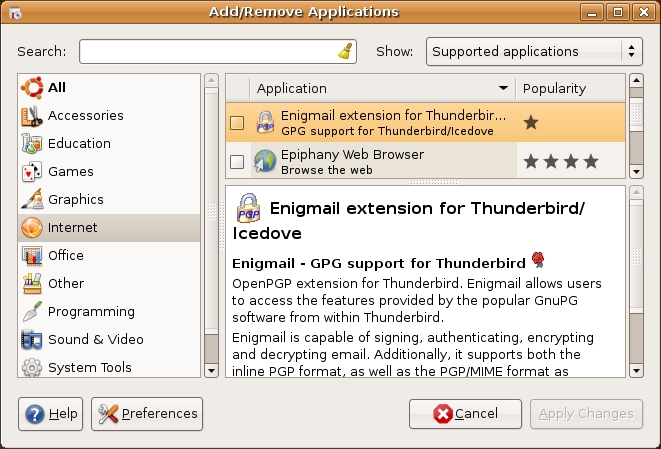
Figure 1. Install and Remove Applications Applet (aka Add/Remove Applications)
This applet is very simple to use, and it comes preconfigured with a set of Ubuntu repositories on the Internet. If you want to install packages from universe or multiverse, you need to enable this under Preferences. By default, only packages from main and restricted are shown.
Personally, I prefer the Synaptic Package Manager (Figure 2). It handles dependencies more gracefully and offers more options for filtering and listing packages. It also lists raw packages (all the individual deb packages that make up an application), whereas the Add/Remove Applications applet lists packages only by application name (which isn't as precise). If installing an application involves four separate component packages plus seven dependencies, I want to know it.
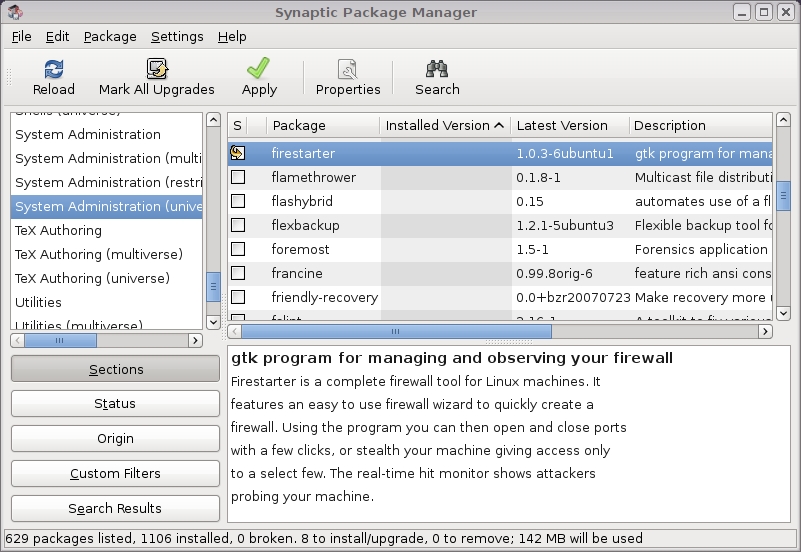
Figure 2. The Synaptic Package Manager
Note that both the Add/Remove Applications applet and the Synaptic Package Manager use the Software Sources applet to obtain current lists of available packages. You need to know this, because by default, neither the universe nor multiverse repositories are enabled, and the Software Source applet is where you enable them. In the Ubuntu desktop's System menu, open the Administration submenu to find the Software Sources applet. If you make changes in this applet, you'll be prompted to download fresh package lists before quitting.
Before I discuss actual packages, here's one more note about obtaining them: besides the Ubuntu repositories on the Internet, you also can install packages from the Ubuntu Desktop 7.10 CD. However, beyond the packages installed automatically, this CD contains only 29 additional packages from main and three from restricted. Therefore, in practice, you'll have to download most of the software you install after the initial system installation.
Ubuntu Desktop 7.10 automatically installs with a number of important security-related software packages. Table 1 lists some of my favorites.
Table 1. Security-Related Packages Installed by Default
| Package Name | Description |
|---|---|
| apparmor, apparmor-utils | Novell AppArmor, type-enforcement controls for selected applications. |
| fping (!) | Flood Ping, for probing ranges of IP addresses. |
| gnupg | GNU Privacy Guard, a free OpenPGP implementation. |
| libselinux1, libsepol1 | SELinux libraries (require user-space tools from the universe repository). |
| libwrap0, tcpd | TCP Wrappers, simple IP filtering for dæmons. |
| netcat | Netcat, a general-purpose port-forwarder. |
| openssh-client | A free SSH client. Note that ssh-server isn't installed by default. |
| tcpdump | Classic protocol analyzer (sniffer). |
| update-manager | GUI-based tool for automatic notifications and installing software updates. |
| wpasupplicant | WPA client for 802.11 wireless networks. |
I've mixed security-auditing tools (fping and tcpdump) alongside defense tools (gnupg, SELinux and TCP Wrappers). Obviously, you need to give some thought as to whether a given system is going to have an “offensive” role versus a “defensive” role with respect to security; security scanners can be dangerous!
The main repository contains a wealth of additional security software packages. Table 2 lists more of my favorites.
Table 2. More Security Packages in the Ubuntu Main Repository
| Package Name | Description |
|---|---|
| aide | Integrity checker similar to Tripwire. |
| auth-config-client | PAM (Pluggable Authentication Module) configurator. |
| checksecurity | cron jobs for security checking. |
| chkrootkit | Rootkit detection toolkit (though this is best run from read-only media). |
| cryptsetup | Tool for creating encrypted filesystems. |
| dovecot-imapd, dovecot-pop3d | Secure IMAP and POP3 dæmons. |
| exim4-daemon-heavy | SMTP dæmon with extended features. |
| gpgsm | GnuPG for S/MIME. |
| ipsec-tools | User-space tools for configuring IPsec tunnels. |
| kwalletmanager | Password vault for KDE. |
| libkrb53, krb5-doc | Kerberos runtime libraries. |
| logcheck | Scans log files for anomalies and sends admin e-mail notifications. |
| nessus, nessusd | Nessus security scanner. |
| opie-client, opie-server, libpam-opie | OPIE one-time password system (based on S/KEY). |
| shorewall | System for generating iptables firewall rules. |
| slapd | OpenLDAP server dæmon. |
| squid, squid-common | Web proxy with caching and security features. |
| vsftpd | The Very Secure FTP Dæmon. |
But wait, there's more! We've actually scratched only the surface. The universe and multiverse repositories contain many, many more security software packages. Table 3 lists a very small subset of these. Remember, the Ubuntu team offers no guarantee of timely security patches for these packages.
Table 3. Security Software in the Universe and Multiverse Repositories
| Package Name | Repository | Description |
|---|---|---|
| aircrack-ng | universe | WEP/WPA wireless network shared-secret auditor. |
| amavisd-new | universe | Antivirus/spam-filter helper dæmon. |
| avscan | universe | GUI for ClamAV antivirus system. |
| bastille | universe | Comprehensive system-hardening scripts. |
| chntpw | multiverse | Changes passwords on Windows NT/2K/XP systems. |
| clamav | universe | ClamAV, a free virus scanner. |
| djbdns-installer | multiverse | Secure domain name service dæmon. |
| firestarter | universe | An iptables GUI (GNOME). |
| flawfinder | universe | Source code security analyzer. |
| freeradius | universe | RADIUS server for remote access and WLAN/WPA authentication. |
| perdition | universe | An IMAP4/POP3 proxy. |
| spikeproxy | universe | Web client proxy for Web site probing/analysis. |
| tiger | universe | Security audit scripts. |
| tripwire | universe | The classic file/directory integrity checker. |
| uml-utilities | universe | User Mode Linux virtualization engine tools. |
| wireshark | universe | Graphical network packet sniffer/analyzer. |
| zorp | universe | Application-layer proxy firewall. |
As you can see, Ubuntu Desktop is an extremely versatile distribution. It contains a wide variety of security tools, representing many different ways to secure your system (and the network on which it resides).
Once you've installed a bunch of software, keeping it patched is easy. To configure automatic updates, run the Software Sources applet, and select the Updates tab (Figure 3). These settings determine the behavior of the Update Manager applet.
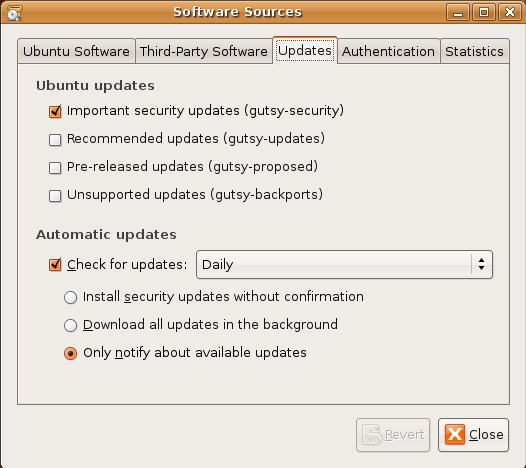
Figure 3. Setting Up Automatic Updates in Ubuntu Desktop
The Update Manager applet runs automatically in the background, but you also can start it manually from the System menu in the Administration section. You can configure it (from Software Sources) to do any of the following: 1) notify you of updates, 2) download patches automatically and notify you when they're ready for installation, or 3) download and install patches automatically.
Remember back in my August 2006 article “An Introduction to Novell AppArmor”, when I commented that despite its SUSE roots, AppArmor probably would be ported to other distributions soon? (No? Well, I did say that—you can look it up!) Sure enough, not only does Ubuntu have a port of AppArmor, but it's also installed and enabled by default.
If you're unfamiliar with it, AppArmor is an implementation of Type Enforcement, a type of Mandatory Access Control. What this means in English is that AppArmor lets you restrict the activities of system dæmons—what files they can read, which directories they can access, which devices they can write to or read from and so on. It is a powerful means of containing the effects if a protected dæmon is compromised—even if attackers succeed in hijacking a given process, they can't use it to execute arbitrary commands, read arbitrary files and so forth.
Perhaps surprisingly, given Ubuntu's very slick look and feel, AppArmor is configurable in Ubuntu only via the command line, using the aa tools (aa-status, aa-genprof and so on) in the apparmor-utils package. Visit the Ubuntu AppArmor page for more information (see Resources).
In the root/sudo discussion above, I mentioned the Users and Groups applet. This applet is deceptively simple to use. It's actually one of the more sophisticated front ends to adduser, addgroup and so on that I've seen. If you select a user, click Properties, and click the User Privileges tab, you can not only grant that user the right to “Administer the system” (that is, to execute commands as root using sudo), you also can select from a long list of other system privileges (Figure 4).
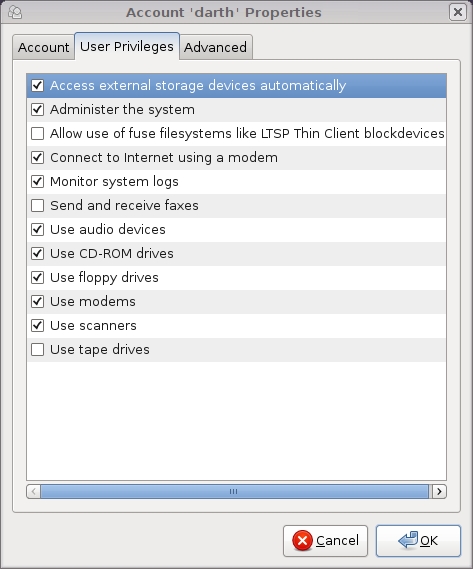
Figure 4. Setting User Privileges in Ubuntu
If you're an old-school sysadmin like me, you know that none of these privileges are handled directly by tools like adduser; the settings in this part of the applet simply determine to which groups the user belongs—groups that the Ubuntu team carefully has configured to correspond with real-world system administration-related commands and objects. This is a clever and simple way to manage administrative functions, especially in combination with sudo.
As you can see, Ubuntu's ease of use doesn't come at the cost of security—it has Debian's abundance of security-related software packages combined with straightforward but effective security design decisions, such as disabled root and AppArmor, and easy update management.
Resources
Official Ubuntu Home Page: www.ubuntu.com
Ubuntu RootSudo Page, describing Ubuntu's sudo implementation in detail: https://help.ubuntu.com/community/RootSudo
“Keeping Your Computer Safe”—simple security tips from Ubuntu 7.10's official documentation: https://help.ubuntu.com/7.10/keeping-safe/C/index.html
Security Pages in the Ubuntu User Community's Wiki: https://help.ubuntu.com/community/Security
AppArmor Page in the Ubuntu User Community's Wiki: https://help.ubuntu.com/community/AppArmor
The “Securing Debian Manual”, indirectly applicable to Ubuntu: www.debian.org/doc/manuals/securing-debian-howto/index.en.html
Mick Bauer (darth.elmo@wiremonkeys.org) is Network Security Architect for one of the US's largest banks. He is the author of the O'Reilly book Linux Server Security, 2nd edition (formerly called Building Secure Servers With Linux), an occasional presenter at information security conferences and composer of the “Network Engineering Polka”.

