
Paranoid Penguin - Customizing Linux Live CDs, Part II
Last month, I described a simple procedure for customizing the standard Ubuntu Desktop 7.10 live CD. We got as far as uninstalling software packages to make room for other things, installing some of those other things and updating all packages on the live CD image.
This month, I go a step further by creating a TrueCrypt-encrypted Documents directory that you can mount from a USB drive, in conjunction with your live CD. Although that's handy in and of itself, you'll be able to use the same method, with only minor modifications, to encrypt other important directories as well.
As with last month's article, here I use Ubuntu both as the master system to customize and repackage our live CD and for the source of the live CD ISO image we'll customize. It's a popular and surprisingly compact mainstream distribution. So, also like last month's column, much of what follows will apply directly to other squashfs-based distributions, such as Linux Mint, SLAX and BackTrack (not to mention Ubuntu variants, such as Kubuntu and Edubuntu), and indirectly to most other live CD distributions.
I'm going to avoid the temptation to make this article a ground-up tutorial on volume encryption in general or TrueCrypt specifically. Either topic would make a substantial article all by itself. Maybe I'll tackle those at a later date, unless I can persuade the Paranoid Penguin's Minister of Cryptographic Outreach, Tony Stieber, to tackle them for me. (You may remember Tony's articles “GnuPG Hacks” and “OpenSSL Hacks” in the March 2006 and July 2006 issues of Linux Journal, respectively). But, I will show you how to install TrueCrypt on Ubuntu systems, and how to create and mount TrueCrypt volumes.
Ubuntu 7.10 vs. 8.4
I based the customized live CD in this article's examples on Ubuntu 7.10, aka Gutsy Gibbon. When I wrote the article, 7.10 was current, but due to Linux Journal's printing schedule, by the time you read this, Ubuntu 8.4 (Hardy Heron) should be available. However, most, if not all, of the example commands herein should work fine with Ubuntu 8.4.
Note that Ubuntu 8.4 includes the packages easycrypt and gdecrypt, two graphical front ends for TrueCrypt, but no packages for TrueCrypt itself, on which both easycrypt and gdecrypt depend (though the latter, even without TrueCrypt, can create non-TrueCrypt-compatible encrypted volumes). So the instructions I give here on downloading and installing TrueCrypt itself still are applicable to Ubuntu 8.4.
Although I just disclaimed the intention of making this a TrueCrypt primer, a little introduction is in order. TrueCrypt is a free, open-source, cross-platform volume-encryption utility. It's also highly portable. The TrueCrypt binary itself is self-contained, and any TrueCrypt volume can be mounted on any Windows or Linux system on which the TrueCrypt binary will run or compile. TrueCrypt can be run either from a command line or in the X Window System.
TrueCrypt is becoming quite popular and is held in high regard by crypto experts I know (it appears to be a sound implementation of known, good algorithms like AES and Twofish), but its license is a bit complicated. For this reason, TrueCrypt hasn't yet been adopted into Debian or Ubuntu officially, even though Ubuntu 8.10's universe packages easycrypt and gdecrypt depend on it (see the Ubuntu 7.10 vs. 8.4 sidebar).
So, to install TrueCrypt on an Ubuntu system, you need to download it directly from www.truecrypt.org/downloads.php. When I was writing this article, TrueCrypt version 5.1 was current, and the Ubuntu deb file I downloaded was called truecrypt-5.1-ubuntu-x86.tar.gz, though by the time you read this, it may be something else. Besides an Ubuntu deb package, TrueCrypt also is available as a SUSE RPM file (that also might work on other RPM-based distros) and as source code.
Now, it's time to install TrueCrypt. You're going to need to install TrueCrypt in at least two places: on the master system you're using to create your custom live CD and either on the live CD image itself or on whatever removable media (such as a USB drive) you're going to keep your encrypted volume.
First, let's install TrueCrypt on the master system. Open a command shell, unpack the TrueCrypt archive in your home directory, and change your working directory to the directory that gets unpacked:
bash-$ tar -xzvf ./truecrypt-5.1-ubuntu-x86.tar.gz

bash-$ cd truecrypt-5.1
Next, use the dpkg command to install the deb file:
bash-$ sudo dpkg -i ./truecrypt_5.1-0_i386.deb
With TrueCrypt 5.1, only three files are installed on your system: its license and user guide, both in /usr/share/truecrupt/doc/, and the binary itself, /usr/bin/truecrypt. TrueCrypt doesn't require any special kernel modules; it's a monolothic process. This means that if you copy /usr/bin/truecrypt to the same Flash drive on which you keep your encrypted volume, you won't need to install it on your Ubuntu live CD.
You may prefer doing so anyhow. Here's how:
Follow steps 00–12 in the procedure I described last month for mounting your custom ISO and chrooting into it (see Appendix).
From a different, non-chrooted shell, copy the TrueCrypt deb package truecrypt_5.1-0_i386.deb into the ISO root you just chrooted into (isonew/custom/ in last month's examples).
Back in your chrooted shell, run dpkg -i ./truecrypt_5.1-0_i386.deb (no sudo necessary here, as you're already root).
Finally, follow steps 19–33 from last month's procedure to clean up, unmount and repackage your custom live CD image. And, of course, use your CD-burning application of choice to burn your image into a shiny new live CD
Now, you can create an encrypted volume. For our purposes here, it will be a simple “file vault” to mount as a subdirectory of your home directory. But, it just as easily could be an entire home directory that you mount over the one your live CD uses. Come to think of it, you also could do that with /etc. For now, however, I'll leave it to you to explore the technical subtleties of those usage scenarios (see Resources for some pointers on home directory encryption).
TrueCrypt can be run either in text mode, via the truecrypt -t command (followed by various options) or in graphical mode. For now, let's stick to graphical mode. To start it, simply type the following from within a terminal window:
bash-$ truecrypt &
And, you should see what's shown in Figure 1.
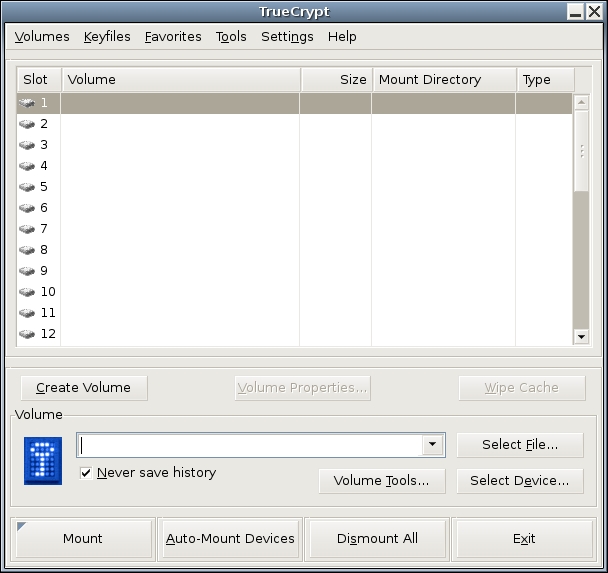
Figure 1. TrueCrypt 5.1 GUI for Linux
Click Create Volume to start the TrueCrypt Volume Creation Wizard. We'll create a standard TrueCrypt volume, not a hidden one (you can hide one TrueCrypt volume inside the “empty” space of another, as all unused space in a TrueCrypt volume is filled with random characters). So, click Next.
In the wizard's next screen, you can specify the path and name of the file in which your encrypted volume will be stored or the name of an entire disk partition to encrypt. Here, we're creating a file-hosted volume, and in our example scenario, this file will be /home/ubuntu/realhome2 (no file extension is necessary). After typing that path, click Next.
In the wizard's third screen, we must specify the volume's size. In this example, I'm creating a 500MB volume.
After clicking Next, you can choose an Encryption Algorithm and a Hash Algorithm. The defaults, AES and RIPEMD-160, respectively, are good choices. You also can click the Test button to make sure TrueCrypt's built-in cryptographic functions work properly on your system.
The next step is to set a volume password. Choose a strong one! You also can specify and create keyfiles—files that TrueCrypt will look for every time you mount this volume. If any keyfile is missing, or if its contents have changed in any way since you created the volume, TrueCrypt won't mount the volume. Properly used, keyfiles can provide another level of authentication to your encrypted volume. But, we aren't going to use any in this example. Enter a password (twice) and click Next.
Important note: TrueCrypt has no back doors of any kind. For this reason, if you forget your volume's password, or if any of its keyfiles are lost or corrupted, you will not be able to recover the contents of your encrypted volume. By all means, choose a difficult-to-guess volume password, but make sure you won't forget or lose it yourself!
Now we come to the Format Options screen, which asks a subtle question: which filesystem? The choices here are FAT, which is actually the Windows 95 vfat filesystem (MS-DOS FAT16 with long filenames), and None. If you select FAT, TrueCrypt will format your new encrypted volume for you. However, vfat isn't a journaling filesystem; it isn't very resilient to file corruption and other filesystem errors.
Worse, strange things can happen if you store certain kinds of Linux system files on a vfat partition, because vfat can't store certain Linux file attributes. The only reason to choose vfat is if you intend to use the volume with both Linux and Windows systems. If you're going to use it only on Linux, especially if you're going to use it as a home directory (or /etc), you should choose None, and formate the virtual partition yourself, which I'll show you how to do in a minute.
For now, click Next to proceed to the Volume Format screen. This is your chance to generate some entropy (randomness) with which TrueCrypt can initialize its crypto engine, pursuant to encrypting your volume. To do so, move your mouse randomly within the window a while, and then click Format.
That's it! You've created /home/ubuntu/realhome2 and now are ready to format it. Click Exit to close the Volume Creation Wizard.
My personal favorite native-Linux journaling filesystem is ext3, so that's what we use here. Before we format our new volume though, we need to have TrueCrypt map it to a virtual device. This isn't really mounting per se, but that's the TrueCrypt function we need to use.
Back in the TrueCrypt GUI (Figure 1), type the full path of our new volume (/home/ubuntu/realhome2) in the text box next to the key icon (or navigate to it using the Select File... dialog), and click Mount. In the box that pops up, enter your volume's password, and then click Options >. Here's where things get a little strange. Click the box next to Do not mount (Figure 2). Now you can click OK.
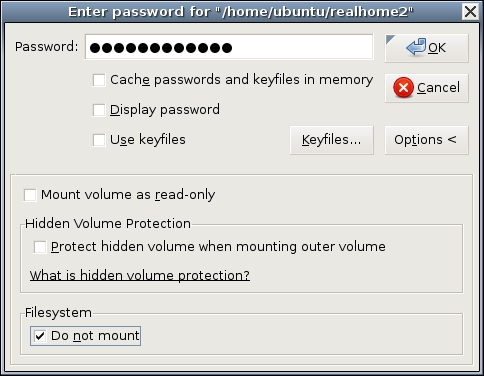
Figure 2. Not Mounting Our Unformatted Volume
Why, you may wonder, are you telling TrueCrypt “do not mount” in the middle of the Mount dialog? Because, of course, you can't mount an unformatted partition. But, TrueCrypt can map it to a virtual device, and this is, in fact, what TrueCrypt has just done.
Back in the TrueCrypt main screen, your volume file now should be listed in Slot 1. To find the virtual device to which it's been mapped, click Volume Properties. As shown in Figure 3, realhome3 has been mapped to /dev/loop0.
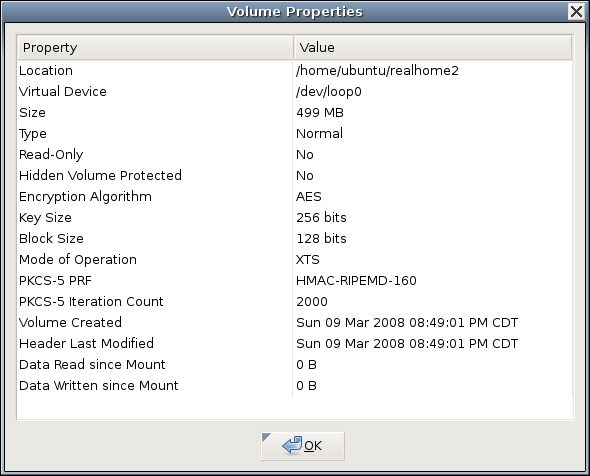
Figure 3. Volume Properties
Now, we can format the new encrypted volume. In your terminal window, type:
05-$ sudo mkfs.ext3 /dev/loop0
Voilà! You now have a mountable, usable encrypted virtual volume! If you want to test it or begin populating it with confidential data you intend to use with your live CD, you can mount it “for real” by going back to the TrueCrypt GUI, clicking Dismount, and then clicking Mount (the same button; it's context-sensitive). (This time, do not select the Do not mount button.) If you don't specify a mountpoint, TrueCrypt automatically creates one called /media/truecrypt1.
Note that if you mount different TrueCrypt volumes in succession, the mountpoints will be named /media/truecrypt1, /media/truecrypt2 and so on, where the trailing digit corresponds to the Slot number TrueCrypt uses in creating virtual device mappings (Figure 1). Note also that when mounting a TrueCrypt volume from the GUI, you may need to click on an empty slot number before clicking the Mount number, if one isn't selected already.
By default, TrueCrypt mounts your ext3-formatted TrueCrypt volume with root ownership. Depending on how you plan to use it, that may be appropriate. But, as a matter of principle, you don't want to use root privileges for ordinary tasks like word processing. If you're going to use this volume as your Documents directory, it's going to need to be usable by some unprivileged user.
The custom live CD image we created last month has only the default Ubuntu accounts on it. For now, let's stick with those—that way, you'll be able to use this encrypted volume with any Ubuntu 7.10 live CD, not just your custom image. Here's how to make your volume usable by the default live CD user account ubuntu.
First, create, map, format and mount your volume as described above. I'll assume that TrueCrypt mounted it to /media/truecrypt1.
TrueCrypt 5.x Idiosyncracies
With version 5.0, TrueCrypt added a GUI to the Linux version that is very similar to that of the Windows version (in prior versions, TrueCrypt for Linux was command-line-only). But, TrueCrypt versions 5.0 and 5.0a for Linux both had serious limitations and bugs, including the omission of the -c option that allows you to create TrueCrypt volumes from a command line and of the TrueCrypt man page.
Toward the end of the day that I submitted this article for publication, TrueCrypt 5.1 was released, and the -c option has been restored in this version. Other bugs in 5.0/a may or may not be fixed (some users have complained of performance problems and even TrueCrypt-induced system crashes with the Linux version). Although I have changed the filenames in this article's examples to reflect the new version, I didn't have time to test version 5.1 myself, so I can't tell you how significant an improvement it is.
So, be forewarned. On the one hand, there doesn't appear to be any serious security issues with TrueCrypt 5 for Linux. Obviously, as I've devoted most of this article to it, I think it's useful and trustworthy enough for the purposes described herein.
But, TrueCrypt historically has been a very Windows-oriented project, and this still appears to be the case. So, as with anything, be sure to test TrueCrypt thoroughly before depending on it in any kind of production or mission-critical context. One alternative to consider is TrueCrypt version 4.3, a known, stable release that's still available (at the time of this writing) on the www.truecrypt.org Web site. But, it's seldom a good idea to trust obsolete software for too long.
Open or switch to a terminal window. If you do an ls -l of /media, the listing for your volume should look like this:
drwxr-xr-x 3 root root 1024 2008-03-09 23:21 truecrypt1
As you can see, only root can use this directory. Because we want it to be usable by our live CD's ubuntu account, and because that account's user ID (UID) and group ID (GID) are 999 and 999, respectively, we issue this command:
05-$ sudo chown -R 999:999 /media/truecrypt1
This performs a bit of magic. The user/group ownerships you just specified are now embedded in your TrueCrypt volume's filesystem. From this point on, wherever you mount this volume, regardless of the mountpoint's ownership and permissions when it isn't in use, your volume will be mounted with UID and GID both set to 999.
If you subsequently mount the TrueCrypt volume on a system on which some user or group other than ubuntu has a numeric ID of 999 (per its local /etc/passwd and /etc/group files), then that user or group will own the mounted volume, even if that system has an account or group named ubuntu. And, if on that system the UID 999 doesn't correspond to any user, you'll need to be root in order to use the mounted volume. (But, in that case, you'll be no worse off than if you had skipped the chown exercise!)
And now, the moment of truth. To use your encrypted TrueCrypt volume with an Ubuntu live CD, such as the one we modified last month, simply boot a system off that CD; insert the USB drive; execute the truecrypt binary from the USB drive or from the CD, if you installed TrueCrypt on your custom image; and mount your encrypted volume, specifying a mountpoint of /home/ubuntu/Documents (Figure 4).
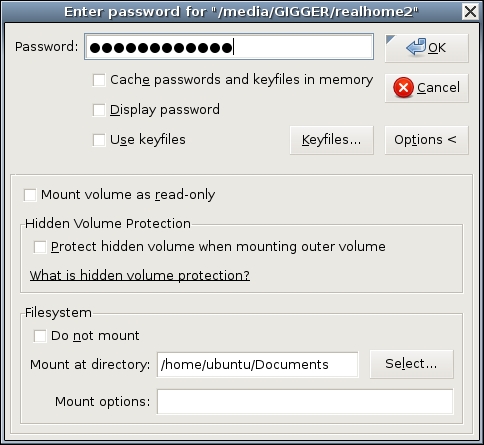
Figure 4. Mounting Your Volume on /home/ubuntu/Documents
If TrueCrypt prompts you for an administrative password, leave it blank and click OK. By default, the ubuntu account on Ubuntu CDs has no password.
This brings me to the topic of next month's column: further securing and customizing your encrypted-Documents-enabled live CD image. Until then, be safe!
Appendix
Here's the complete procedure I described last month for adding and removing packages in a custom Ubuntu live CD, in the form of a raw list of all commands described in this article. The $ prompts indicate commands executed as an unprivileged user; the # prompt shows commands that are executed by root:
00-$ dd if=/dev/cdrom of=./ubuntu-7.10-desktop-i386.iso

01-$ mkdir -p ./isomount ./isonew/squashfs ./isonew/cd
↪./isonew/custom

02-$ sudo mount -o loop ./ubuntu-7.10-desktop-i386.iso ./isomount/

03-$ rsync --exclude=/casper/filesystem.squashfs -a ./isomount/
↪./isonew/cd

04-$ sudo modprobe squashfs

05-$ sudo mount -t squashfs -o loop
↪./isomount/casper/filesystem.squashfs ./isonew/squashfs/

06-$ sudo rsync -a ./isonew/squashfs/ ./isonew/custom

07-$ sudo cp /etc/resolv.conf /etc/hosts ./isonew/custom/etc/

08-$ sudo cp /etc/apt/sources.list ./isonew/custom/etc/apt/

09-$ sudo chroot ./isonew/custom

10-# mount -t proc none /proc/

11-# mount -t sysfs none /sys/

12-# export HOME=/root

13-# apt-get remove --purge `dpkg-query -W --showformat='${Package}\n'
↪|grep openoffice`

14-# apt-get remove --purge `dpkg-query -W --showformat='${Package}\n'
↪|grep gimp`

15-# apt-get update

16-# apt-get install tor privoxy

17-# apt-get dist-upgrade

18-# apt-get clean

19-# rm -rf /tmp/*

20-# umount /proc/

21-# umount /sys/

22-# exit

23-$ chmod +w ./isonew/cd/casper/filesystem.manifest

24-$ sudo chroot ./isonew/custom dpkg-query -W --showformat='${Package}
↪${Version}\n' > ./isonew/cd/casper/filesystem.manifest

25-$ sudo cp ./isonew/cd/casper/filesystem.manifest
↪./isonew/cd/casper/filesystem.manifest-desktop

26-$ sudo mksquashfs ./isonew/custom
↪./isonew/cd/casper/filesystem.squashfs

27-$ sudo rm ./isonew/cd/md5sum.txt

28-$ sudo -s

29-# cd ./isonew/cd

30-# find . -type f -print0 | xargs -0 md5sum > md5sum.txt

31-# exit

32-$ cd ./isonew/cd

33-$ sudo mkisofs -r -V "Ubuntu-Live-PrivateSurf" -b
↪isolinux/isolinux.bin -c isolinux/boot.cat -cache-inodes -J -l
↪-no-emul-boot -boot-load-size 4 -boot-info-table -o
↪~/Ubuntu-Live-7.10-PrivateSurf.iso .
Resources
The TrueCrypt Home Page: www.truecrypt.org
Tombuntu's “Disk Encryption with TrueCrypt 5 on Ubuntu” HOWTO: tombuntu.com/index.php/2008/02/07/disk-encryption-with-truecrypt-5-on-ubuntu
Some hints on automatically mounting a TrueCrypt 5.0 volume as your home directory on Ubuntu systems: ubuntuforums.org/showthread.php?t=645247
Mark Longair's enlightening “HAL and Device Management”, a concise and helpful introduction on how GNOME automounts devices: www.mythic-beasts.com/~mark/random/hal
Mick Bauer (darth.elmo@wiremonkeys.org) is Network Security Architect for one of the US's largest banks. He is the author of the O'Reilly book Linux Server Security, 2nd edition (formerly called Building Secure Servers With Linux), an occasional presenter at information security conferences and composer of the “Network Engineering Polka”.

