
How to Use Quanta Plus, the Web Developer Tool with Everything but the Kitchen Sink
Many Web developers spend their entire coding career looking for the perfect Web development tool. Many Windows and OS X users have found it in Adobe's Dreamweaver. However, Dreamweaver doesn't have a native Linux version and runs spottily on Wine. Additionally, Dreamweaver is closed source and costs about $399. Luckily, the Open Source world has produced a viable alternative: Quanta Plus.
Quanta Plus originally was created by a Linux corporation called theKompany as an open-source Web development tool. Unfortunately, theKompany abandoned Quanta Plus in favor of its own commercial product, Quanta Gold. Fortunately, Quanta Plus was picked up by the KDE Web Development team and continued its life as an open-source product.
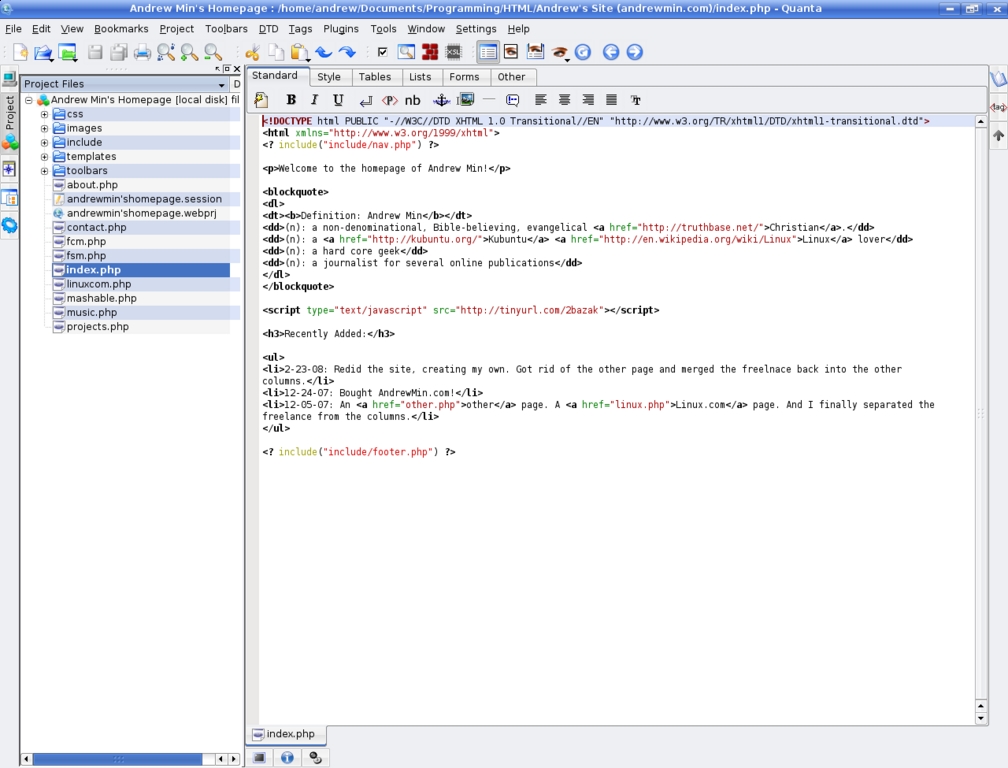
Figure 1. Quanta Plus Editing My Home Page
If you're a KDE user, Quanta Plus is most likely installed already, as it comes as a part of the kdewebdev package. But if you aren't a KDE user or you don't have it pre-installed, you probably can find it in your operating system's repositories (for example, Ubuntu users can install it by using apt-get to install the package quanta). If you can't find it or your distribution doesn't have a package system, you can compile it from source easily. Simply download the .tar.bz2 release from the Quanta Plus home page, and follow the INSTALL instructions. Note that you'll have to install the whole kdewebdev shebang instead of just Quanta Plus if you're compiling from source.
The first time you open Quanta Plus, it runs a wizard to help you set up your first project. At the first window, you can name your project and choose where the files are stored. If the Web pages are created on your hard drive, use the default, Local. You also can specify FTP if the working files are created on an FTP directory, fish if they are stored over SSH, or any of the other protocols. You also must choose a main directory (your working directory) and a folder for your templates and toolbars. At the next set of screens, you can change the default DTD for the project, the encoding, author details and much more. When you are done, click Finish to go back to the main Quanta Plus interface. If you want, you can configure more advanced properties under Project→Project Properties (or by pressing Shift-F7).
Now that you've created a project, you easily can create, add existing, or edit existing Web pages in your project. All your existing files (if any) in the working folder should be in the project manager already (access it by clicking the Project tab on the sidebar). If they aren't, you can add them by right-clicking on your project in the Project tree and selecting Rescan Project Folder... To create a new file, click File→New (or press Ctrl-N), and save it. Once you do, you will prompted whether to add it to the project. If you do, it will show up nicely in the project manager.
Quanta Plus defaults to the hand-coded view, where it shows the complete (X)HTML source of the page. At first, you may not think this is much better than using a plain-text editor like Notepad. However, if you're used to using Notepad for your coding, you'll find some nice surprises. First, Quanta Plus offers code highlighting. Different tags in your code are highlighted to create a more readable feel (for example, in a simple link tag, the <a part is in bold, the href= is in green, and the http:// is in red). It's a very helpful way to make your code a lot easier to skim.
Another nice feature is the automatic tag completion. Usually, you have to type all the code by hand and without forgetting to close all the tags. But with Quanta Plus, your end tag is inserted automatically as soon as you close your beginning tag (so when the > in <a href="http://www.google.com/"> is inserted, a </a> is inserted automatically). Additionally, a lot of the tag itself is generated automatically (when you type <a , the href="" part of the link tag is inserted).
There's also a terrific tag toolbar that Quanta Plus ships with, located right above the document. Clicking one of the buttons (for example, the Bold button) inserts the appropriate tag set (for example, <strong></strong>). You also can highlight text and click the button to change the formatting for the highlighted words (for example, highlighting the word firefox and clicking the Bold button puts firefox between a <strong> and a </strong> tag). And, you aren't limited only to the bold, italic, underline, new line, paragraph, nbsp, anchor, image, hl, comment or align tags. You also can get into advanced formatting by switching from the default Standard tab to the Style, Table, List, Form or other tabs on the toolbar.
Unfortunately, we're not all HTML-savvy. Sometimes, all you want to do is create a Web page without having to jump through all the HTML/CSS hoops. In Dreamweaver, many people fell in love with the great WYSIWYG (What You See Is What You Get) editor built in to the powerful Web developing tool. Quanta Plus has a similar (if not quite as good) mode called VPL (Virtual Preview Layout). To activate it, go to View→VPL Editor or press Ctrl-Shift-F9. You'll be presented with a simple WYSIWYG editor with support for basic formatting using the tag toolbar mentioned above. You also can split the screen between the VPL and source by going to View→VPL & Source Editors or by pressing F9. It's a great way to get an instant preview.
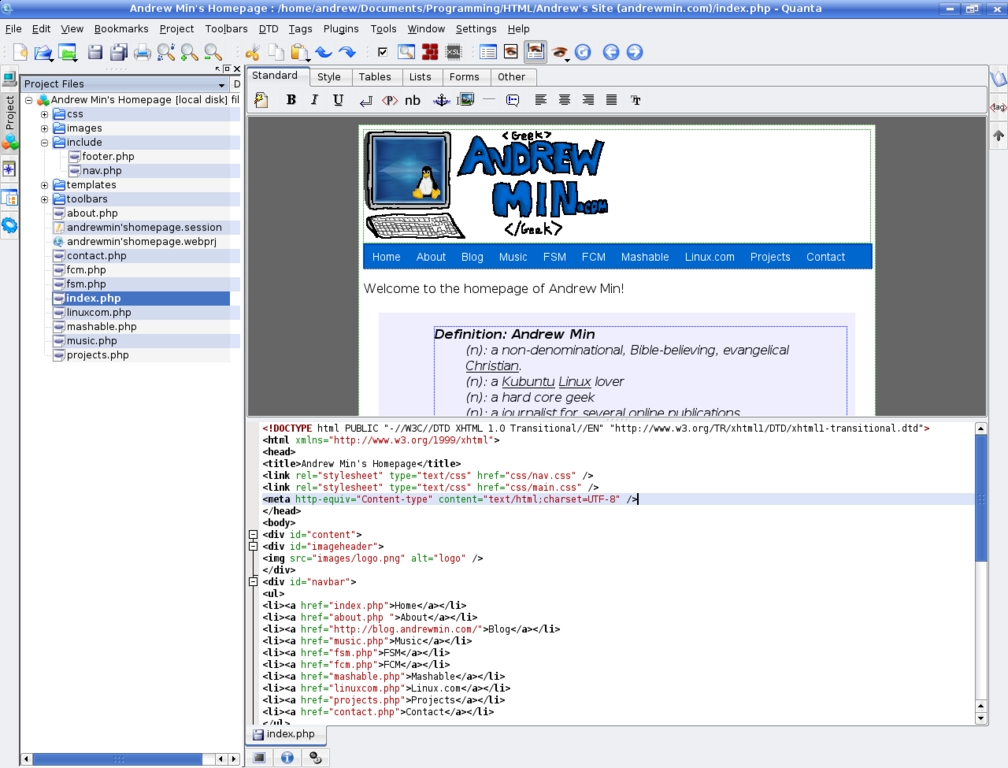
Figure 2. The VPL Split Screen
Of course, a project that sits on your hard drive is basically useless. Luckily, Quanta Plus offers a handy FTP uploader. To set it up, go to Project→Project Properties (or Shift-F7) and then to the Upload Profiles tab. Click the Edit Profiles button and then the New button. Give it a name (like Dreamhost), a hostname (like andrewmin.com), a user name (like andrew) and a password. You also may want to put in a path, such as /andrewsapps.com/, if the root of your FTP site isn't the root of your Web site. If you're not uploading over FTP, change the protocol to the appropriate KIO protocol (like fish for SSH). Then click OK and go back to the main Quanta Plus window. Now, simply click over to Project→Upload Project (or press F8). Make sure your profile name is selected at the top, and then click the Proceed button. Your project will be uploaded and should become live instantly.
Quanta Plus also has a lot really nice advanced features. For example, there is the nice built-in bookmark feature. To use it, simply select the line you want to bookmark, and then click Bookmarks→Add Bookmark. Every time you want to go to that line again, simply click the bookmark (under the Bookmarks menu), and you'll jump to that location automatically. This is especially useful for those times when you need to debug something but can't do it right away.
Of course, Quanta Plus can't do everything by itself. However, that's where the powerful plugins come in. For example, there is the HTML Tidy plugin that comes with Quanta Plus. To activate it, run Tools→HTML Tidy Syntax Checking (or Ctrl-Alt-T). This essential tool debugs your code, pointing to all those nonstandard-compliant code bits that you just happened to leave out (or leave in). Another powerful plugin I frequently use is KFileReplace (Plugins→KFileReplace). Quanta Plus has a decent Find and Replace program built in, but it searches in only the current document. However, I often want to find and replace a certain word in every file in my project. For example, if I change my domain from andrewmin.net to andrewmin.com, I want to replace all instances of andrewmin.net with andrewmin.com. That's when KFileReplace comes in. Just run it, type in what to search for (like andrewmin.net) and what to replace it with (like andrewmin.com), the location and the filter (maybe you don't want to replace andrewmin.net in your HISTORY.TXT file) and click Search Now. KFileReplace will hunt down every string that includes your search term and replace it with your term. There are many more (look under the Tools menu and Plugins menu to see most of them).
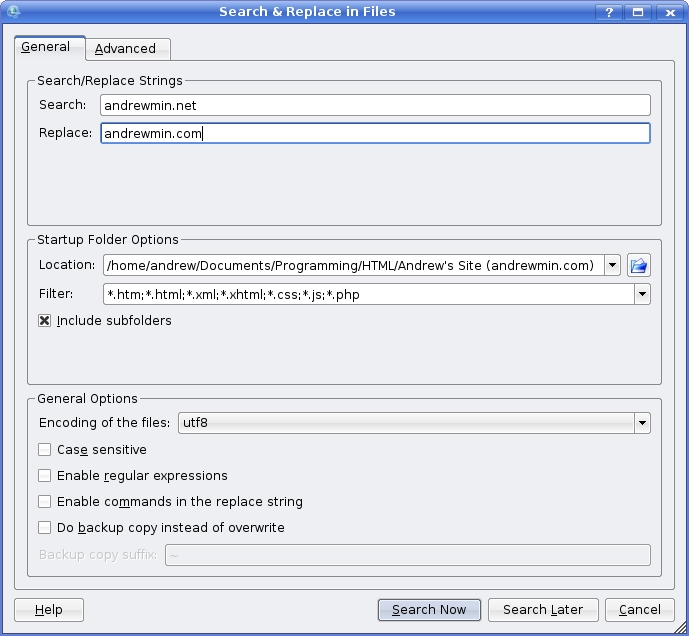
Figure 3. The Find and Replace Dialog
Obviously, no Web development tool is perfect. And one day, perhaps there will be a perfect tool that will do everything you want it to do and then some. When that day comes, I'll be the first to download it. Until then, you can find me right here, using my wonderful Quanta Plus.
Resources
Quanta Plus Home Page: quanta.kdewebdev.org
Mailing List: https://mail.kde.org/mailman/listinfo/quanta
theKompany (Original Developers): www.thekompany.com
Quanta Gold: www.thekompany.com/products/quanta
Andrew Min's been a geek since he threw his first tantrum over the Mickey ABC's: A Day at the Fair. He's also a freelance writer who has done work for several other technology publications, an evangelical Christian, a proud American and a New York Yankees fan. You can find out more about him at www.andrewmin.com.
