
Hacking the Eee PC
ASUS' diminutive sub-notebook, the Eee PC, has so far exceeded expectations and is sold out virtually everywhere. Its simple interface and wallet-friendly pricing have contributed to making the Eee the most popular gadget this season.
It's in the hands of the power user that the Eee really shines. With hardware support already taken care of, the Eee offers an opportunity for beginning-to-intermediate Linux users to customise themselves a flexible Linux-based tool using the Eee's easy or full desktop mode.
In this article, we take you through tweaking your Eee, although in the interest of preserving your warranty, most of the hacks here are focused on software. The first and most important hack is to read the manual that came with your Eee to make sure you're completely up to date on everything. When you read the manual (because you are going to read it, right?), you'll notice that ASUS mentions the keyboard shortcut Ctrl-Alt-T to launch a terminal. Gaining root on the default Eee install is as simple as issuing the command:
sudo -s
There is no password; any person who can open a terminal is able to gain root.
ASUS' easy mode uses a customised IceWM (www.icewm.org), a standard X11 window manager that's been around for a very long time. It's relatively easy to customise to your liking. The first step is creating a directory for local modifications. Open a terminal using the aforementioned keyboard shortcut, and type:
mkdir ~/.icewm
cp /etc/X11/icewm/* /home/user/.icewm/
This creates a local customisation directory and copies the ASUS IceWM configuration into it, ready for you to modify. As not all of the software that ships with the Eee is accessible through the easy mode launcher, the first useful thing to tweak on the Eee is to add the IceWM panel menu and edit it to add those applications that aren't exposed through the easy mode interface.
To enable the menu, edit ~/.icewm/config, and scroll down to the option named TaskBarShowStartMenu. Change the 0 in the uncommented value to 1, and save the file. You need to restart your Eee for the menu to show up:
#  Show 'Start' menu on task bar
# TaskBarShowStartMenu=1 # 0/1
TaskBarShowStartMenu=1
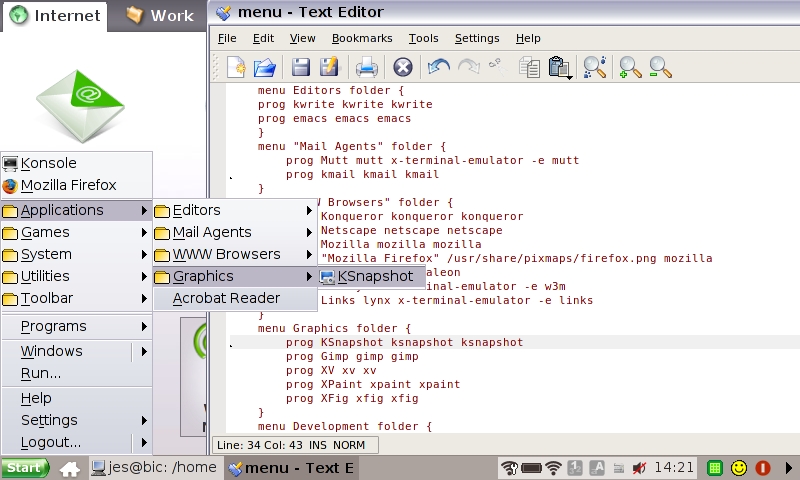
Figure 1. The IceWM Menu, with the Menu File in the Background
To edit the menu, open ~/.icewm/menu in your favourite editor. The menu format is pretty simple, following the syntax:
prog label icon command
where label, icon and command are replaced with the appropriate entries for the application you want to launch. For example, to add an entry that launches Konsole, the KDE terminal emulator, you would create an entry as follows:
prog Konsole konsole konsole
Submenus are described with the following syntax:
menu "Label" {

}
Program entries or further submenus are defined between the curly braces.
The first thing we all thought on using the Eee when we first received it was “the Windows XP theme doesn't look attractive on XP, let alone on Linux. How the heck do we change this abomination?”
You'll be pleased to know that this is extremely simple, now that the menu is enabled. The biggest theme repository for IceWM is at themes.freshmeat.net/browse/925, with hundreds of themes from which to choose. Once you've downloaded a theme, create the folder ~/.icewm/themes, and extract the theme to that folder. It will now be selectable from the IceWM menu under Settings→Themes.
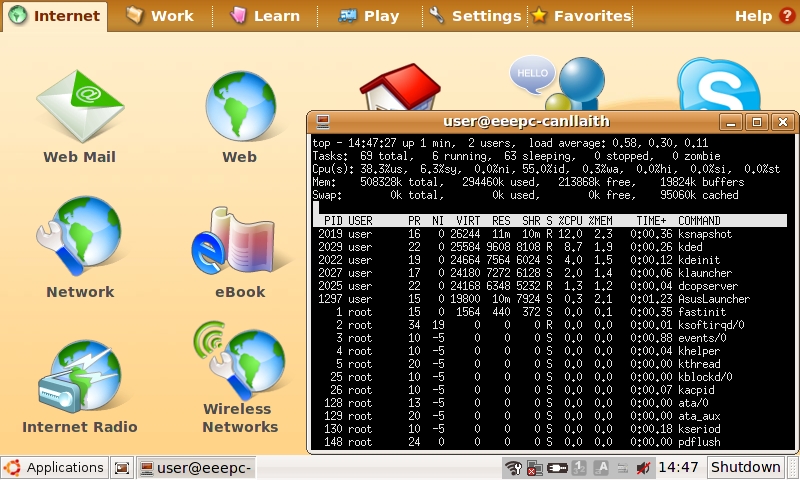
Figure 2. A broad selection of attractive themes are available for IceWM.
You can find a wide range of other customisations by reading the comments in the ~/.icewm/preferences file. Some notable ones are showing the workspace switcher on the panel and adding a CPU meter. Traditional window manager settings, such as focus model, are available as well.
With a built-in Webcam, it's a shame that the Eee PC didn't ship with the Linux beta of Skype that allows video calling. It is, however, easy to install by hand. Navigate to www.skype.com/download/skype/linux, and elect to download not the current stable version, but the beta. When it asks you to select your distribution, download the package for Debian Etch. Once you've downloaded it to disk, open a terminal and navigate to where the file was saved. Type the following to install the package:
dpkg -i skype-debian_2.0.0.27-1_i386.deb
The version number of the package may have changed since the time of this writing. As this upgrades the version of Skype already installed, the Skype launcher will launch the new version.

Figure 3. Some Linux mascots take time out from their busy schedule to test video calling for us.
During the course of adding applications to the menu, the observant will notice that the Eee ships with most of KDE installed. During its development phase, the Eee exposed an option to enable a full desktop mode with a complete KDE 3.4 desktop. The most elegant solution for enabling the full desktop is to install a package that does the configuration for you from wiki.eeeuser.com/howto:getkde. This package essentially downloads the packages for kicker and ksmserver, and modifies the ASUS startup scripts. It adds an option to log in to full desktop mode from the easy mode shutdown dialog. To get back into easy mode, there is an option in the K menu. This page also details the manual methods for enabling full desktop mode.
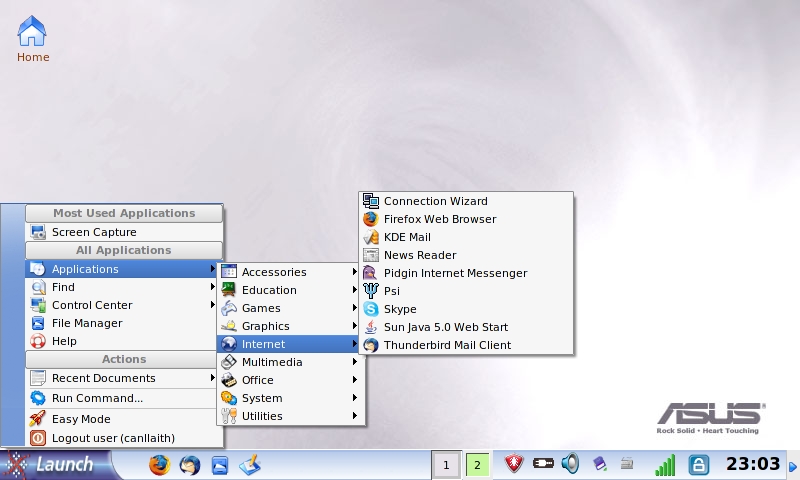
Figure 4. A Full KDE Desktop
Adding more software from a Xandros or Debian repository is the next logical step in customising the operating system that ships with the Eee. For us, the Eee requires only the addition of Emacs and Subversion to be a great portable hacking tool. You can use any Debian Sarge repository or a Xandros 4.0 one, as shown below. There are a few caveats though. As the Xandros running on the Eee is heavily customised by ASUS, it's very easy to end up with the Eee in an unbootable state if you allow apt to upgrade too much. Although it's not a complete solution, apt pinning can be used to ensure that the ASUS repository always takes priority for a package.
Add your repository to /etc/apt/source.list with your favourite text editor as root, either your local Debian Sarge repository or the Xandros one below:
deb http://xnv4.xandros.com/4.0/pkg xandros4.0-xn main
 ↪contrib non-free
Then, create the file /etc/apt/preferences, and add the lines:
Package: *
Pin: origin update.eepc.asus.com
Pin-Priority: 999
As apt sources default to a lower priority, this ensures that packages from the ASUS repository are prioritised. It's still possible though to break your Eee by installing packages willy-nilly. If it looks as though an action is going to upgrade a large number of packages, especially if it looks like what it's upgrading is all of KDE, cancel the change.
This limitation can be extremely frustrating if you want to make more drastic changes to your Eee PC's installed packages. Another option is to install a generic Linux distribution on the Eee. eeeXubuntu (wiki.eeeuser.com/ubuntu:eeexubuntu:home) is a version of the Xubuntu 7.10 distribution with Eee-specific drivers integrated and tweaks for low-resolution displays. It's an excellent choice if you want a more modern distribution on your Eee but would prefer not to compile the drivers from ASUS by hand.
The wiki page has in-depth instructions on how to create a bootable USB stick for your Eee. Boot your Eee from the USB stick by pressing Esc at boot time to get to the boot options menu, and from the GRUB bootloader, select the option to load eeeXubuntu with Eee-specific drivers and fixes. From there, it's all very familiar. Click the Install icon on the desktop once the live CD loads, and navigate your way through the Ubuntu installer.
If your Eee has 512MB or more of memory, you probably can get away with not creating a swap partition. In our testing, running Firefox, Pidgin and Thunderbird, the Eee was using approximately 300MB of memory, minus buffers/caching. If your Eee has 1,024MB or more of memory, you'll never notice the difference.
Opting out of swap, however, does have the side effect that hibernate to disk is disabled. The Eee does have suspend to RAM support under eeeXubuntu, but this level of suspend does consume a fair amount of battery. Leave your Eee suspended for 24 hours, and expect to see your battery down to half when you resume it.
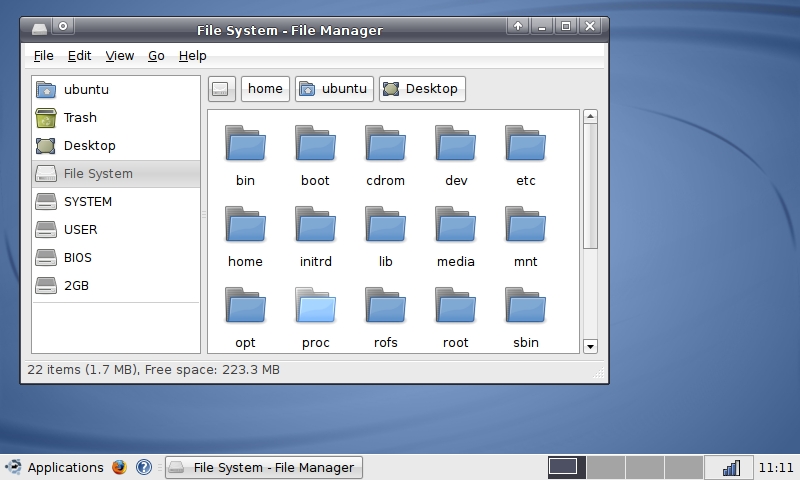
Figure 5. eeeXubuntu is a customised Xubuntu for the Eee PC.
The simplest and most rewarding Eee hardware mod is upgrading the built-in memory. Note: this mod requires removing a sticker that claims its removal will void your warranty. According to a public statement by ASUS at usa.asus.com/news_show.aspx?id=9223, this is not the case, and upgrading your memory will not void the warranty on your Eee. However, Linux Journal takes no responsibility for any damages to your Eee or loss of warranty incurred by following this advice.
The Eee PC takes a single SODIMM of DDR2667, in either 512, 1,024 or 2,048MB. That's right, the Eee PC can be upgraded to an impressive 2GB of memory.
To upgrade the memory on your Eee, you need a set of small electronics screwdrivers and a clean surface that's safe for handling static-sensitive equipment.
If you haven't installed memory before, Linux Journal recommends you enlist the help of a professional or a hardware-minded friend.
Ensure that the Eee is shut down (not suspended), and unplug it from the power. Turn the Eee upside down and remove the battery.
Using a very small Phillips screwdriver, remove the two screws in the memory panel. One is covered by a sticker that will tear easily if you simply remove the screw as though the sticker was not there.
Use a small flatblade screwdriver very carefully or a fingernail to lever up the memory compartment. Put the memory compartment cover and the screws to one side.
To remove the memory that shipped with your Eee, carefully use a pair of small screwdrivers or your fingers to lever the clips outward. The memory module will pop upward when it is free of the clips. Remove the module from the slot, taking care to touch only the very outside edges of the module.
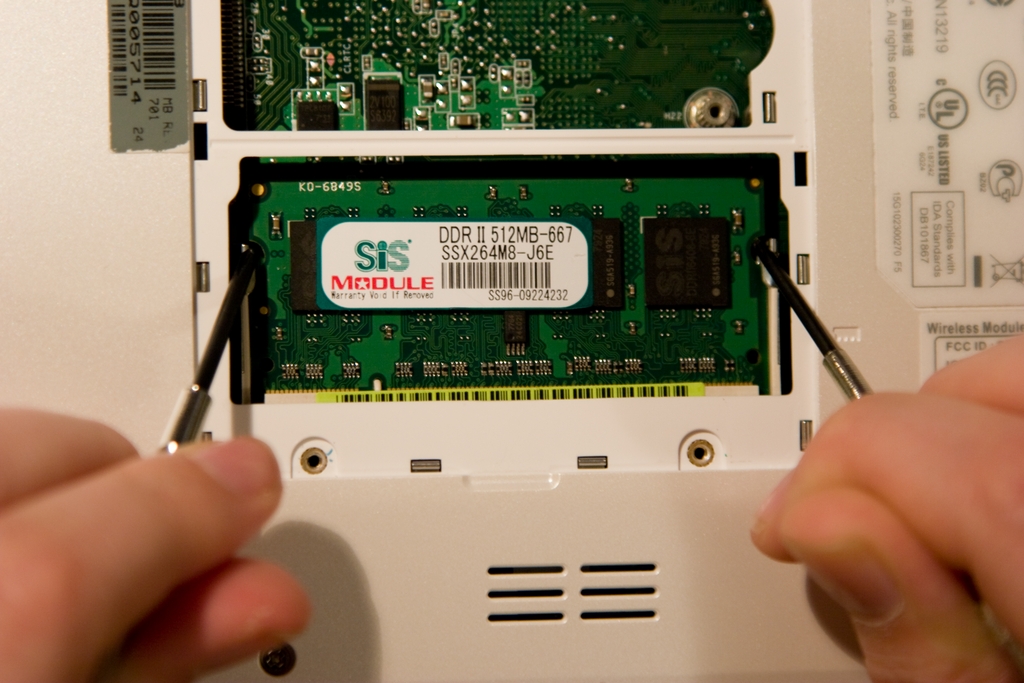
Figure 6. Removing the Module
Place the module aside in a static-safe place, and remove the new module from its packaging. Place it in the slot at a 45-degree angle, as shown in Figure 7, taking care that the notch on the module matches the key on the slot. When the module's base is securely slotted in, it can be carefully lowered into position by pushing the top corners of the module backward with your fingers, so that it lies flat against the Eee's motherboard. The metal clips should snap over the sides of the module with a satisfying click when it's properly in place. Once the memory is secure, replace the memory compartment cover and ensure that all sides have clicked down.
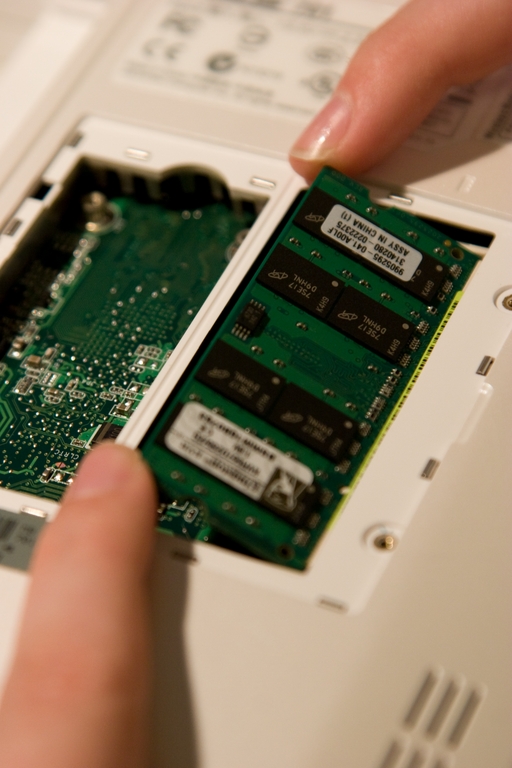
Figure 7. Installing the New Module
If you're anything like us, at this point, you'll hunt all over the desk searching for the screws only to find them 20 minutes later stuck to the magnetic closure on the MacBook. Replace the two screws to secure the memory compartment cover, and insert the battery again. It's always a good idea to run memtest86 over any new memory you install, which is an option from any recent Ubuntu live CD or the eeeXubuntu bootable USB stick if you made one earlier.
It's pretty easy to see how the Eee has taken the personal computer market by storm. It's cheap, friendly and oh-so-very hackable, with something for everyone. There are myriad other hacks not covered here, from installing Linux distributions and adding the drivers yourself to soldering additional gadgets to the motherboard. In fact, that's what we're off to do right after we submit this article—solder a mutilated Bluetooth dongle to the motherboard, as now we won't get in trouble if we break it.
Have fun hacking your Eee, but remember—installing Windows is cruel to Eee PCs and not endorsed by Linux Journal!
Jes Hall is a Linux Technical Specialist and KDE developer from New Zealand. She's passionate about helping open-source software bring life-changing information and tools to those who would otherwise not have them.
