
Hack and / - Do the Splits
Even with the high-resolution flat-screen monitors we have these days, screen real estate still can be at a premium. Of course, if you spend a lot of your time in a terminal, this is even more true. When you want to compare two files at the same time or monitor two different sessions at once, you either carefully position terminal windows or rely on tabs.
Tabs can be fine, but when I use terminals, I like to stick to the keyboard as much as possible. Plus, I don't know about anyone else, but for me, there are four main programs I run in terminals: mutt, vim, screen and irssi. Luckily for me, all of these programs support some form of split screens—the ability to divide the terminal either vertically or horizontally. Although these features aren't necessarily anything new, if you don't use them every day, it can be hard to remember how to split the screen, navigate between the sections, and then go back to a single screen. In this column, I discuss the split-screen features in my four favorite terminal applications and provide a simple guide to help us all commit them to memory.
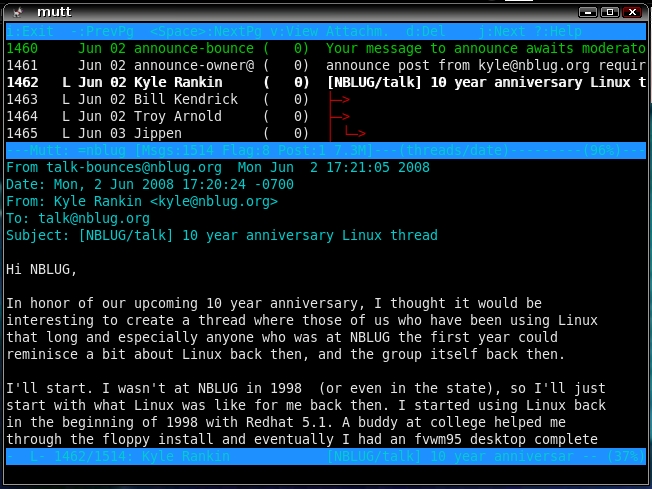
I suppose if you want to be technical, this isn't exactly the same as the split screens in the other tools, but while you are in the mutt pager (the part that lets you view the body of an e-mail message), by default, mutt fills the entire terminal with the e-mail. If you want, however, you can tell mutt to take a specified number of lines at the top and use them to display your index. This way, you can browse through the contents of an e-mail message but still be able to keep an eye on the other headers in your index. To use ten lines for this feature, simply add the following:
set pager_index_lines=10
Vim is my favorite text editor (I've used it for basically all of my writing), and its split-screen feature is especially useful for sysadmin work. I can't count how many times I've made a change in one configuration file or script that I've wanted to add to a second file. To enable split-screen mode for a horizontal split, type:
:split
And, for a vertical split, type:
:vsplit
By default, vim shows the same file in both panes. Press Ctrl-W, and then use the regular HJKL keys (or arrow keys if you aren't a home-row junkie like me) to navigate between panes. So, if I had made a horizontal split and wanted to open a new file in the bottom pane, I would press Ctrl-W J to move the cursor to that pane, and then I would type :open filename to open the new file. When you are finished with a particular pane, make sure the cursor is in that pane, and then save and close the file in the normal fashion.
Vim isn't limited only to two panes either—simply type the :split or :vsplit command again to add a third horizontal or vertical pane, respectively. You even can split the window horizontally and then type :vsplit to split that pane further into two vertical panes.
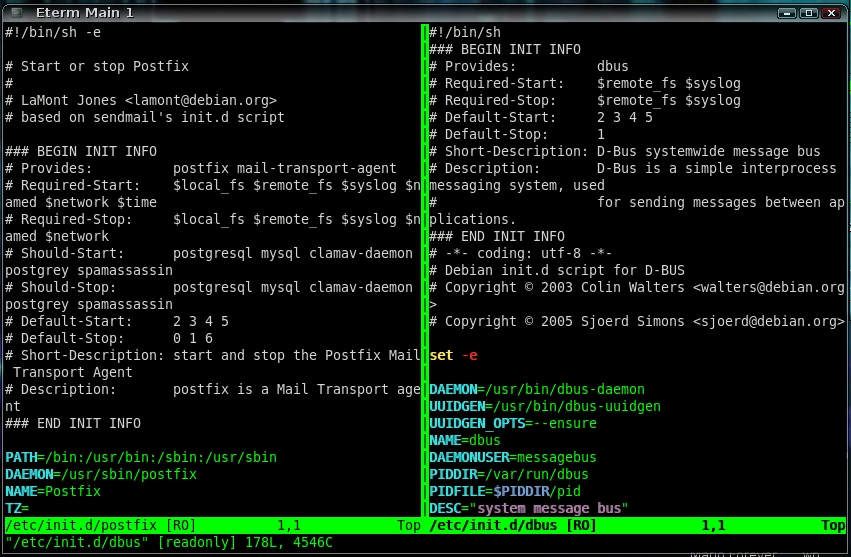
Figure 2. Vim with a Vertical Split
Screen is another one of those indispensable command-line tools. If you haven't used screen before, it essentially allows you to open multiple numbered shells, and you can switch to them with Ctrl-A <number>. Then, you can detach from your screen session and connect to it later, and in the meantime, all the shells you have opened within it keep their state. One way I commonly use screen is for irssi, a command-line-based IRC client. I open irssi within screen on a server that is always up. Then, no matter where I am, I can connect to the remote server and resume my irssi session, which always stays connected.
Beyond the standard screen features, screen also supports a horizontal split screen. This can be useful if you want to monitor IRC in one window and perform other commands in the second. Also, if you use a text editor or other tools that don't support split panes on their own, you can use screen's split feature as a supplement.
To split the pane within screen, press Ctrl-A Shift-S. Then, you can press Ctrl-A Tab to move your cursor between the two panes. You will notice that the bottom pane is empty at the beginning. Once you have moved the cursor to it, you either can switch to a currently open window with Ctrl-A <number>, or you can press Ctrl-A C to create a new window in that pane. Screen also supports multiple panes. Simply press Ctrl-A Shift-S a second time to split the session into three equally sized panes. When you are ready to close a pane, press Ctrl-A Tab until it has the cursor, and then press Ctrl-A Shift-X to close that pane.
Irssi is definitely my favorite IRC client, and I probably spend as much time in it as I do in any other command-line program. It also supports an interesting split-screen feature that takes some getting used to. Basically, each channel you join in irssi ends up in its own numbered window. On my setup, I always have particular channels set to open in a particular window, so when I press Alt-7, for instance, I always will go to #linuxjournal. Sometimes you have a lot of activity going on in more than one channel and want to monitor all of them. So, for instance, if I want to view both #linuxjournal (in window 7) and #nblug (in window 4), and I already am in #nblug, I could type:
/window show 7
Now the irssi screen splits in half with #linuxjournal on the top and #nblug on the bottom. If I want to chat in #linuxjournal, I press Alt-7 to make sure it is selected (the topic header on irssi updates to show the currently selected window). Then, if I want to chat in #nblug, I press Alt-4.

Figure 3. Irssi with Two Windows
Irssi split windows become interesting once you start switching beyond two windows. Going back to the example, if I press Alt-5 now (my #knoppix window), the bottom window changes to that channel. By default, irssi makes the top window in a split screen “sticky”, so that it appears no matter what other windows you switch to along the bottom. If I want to turn off sticky mode for that window I would type:
/window stick 7 off
Now, when I switch between windows with the Alt key, the top or bottom window switches, depending on which had focus last. If I want to stick #linuxjournal on the top again, I type:
/window stick 7
Once you are finished with your split screen (or if you are getting confused and want to turn it off), type:
/window hide
to hide the currently selected window. If that window is sticky, it won't be able to hide until you turn off stickiness with /window stick off.
Now, what would a column about splits be if I didn't show an insanely complicated nested set of split screens? Note that I don't advocate actually using a setup like the following on a daily basis, but Figure 4 shows what happens when you split screen into two windows, open a split irssi on the top window and a vertically split vim on the bottom. I hope these split-screen features help you stay organized and productive.
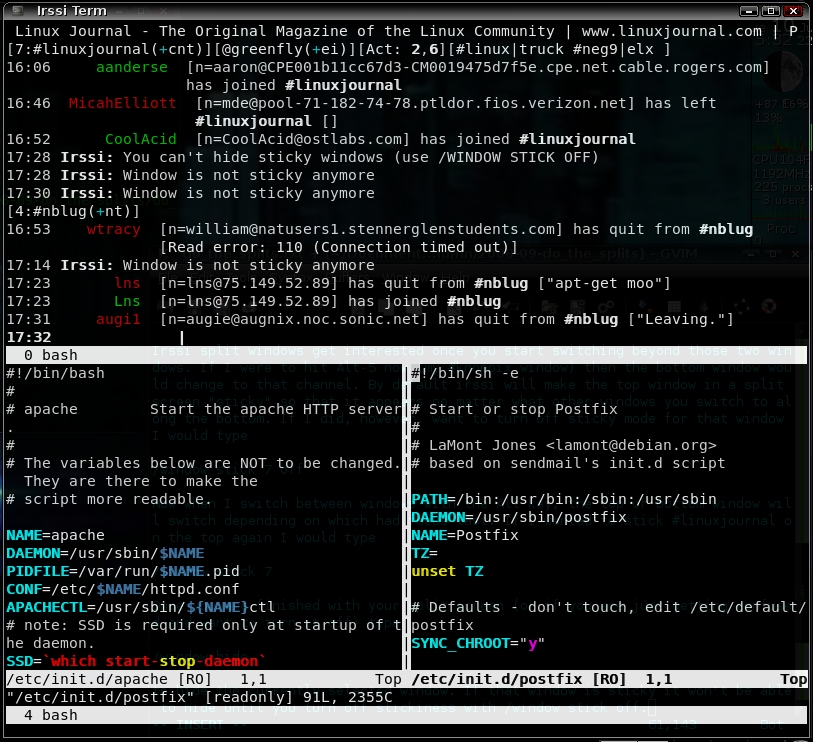
Figure 4. Screen Split with Two Panes, a Split Irssi on Top and a Vertically Split Vim on the Bottom
Kyle Rankin is a Senior Systems Administrator in the San Francisco Bay Area and the author of a number of books, including Knoppix Hacks and Ubuntu Hacks for O'Reilly Media. He is currently the president of the North Bay Linux Users' Group.

