
Fast App Launching with GNOME Do
There are many different ways to launch applications on a Linux system. For the longest time, I would alternate between the menu system that came with my window manager and typing the application in a terminal. Honestly, I found that half the time it was faster to launch an application inside a terminal than it was to navigate through a system of menus. At some point in my desktop use, I decided to give the default Ubuntu GNOME desktop a try. GNOME presents at least four main ways to launch applications:
Navigate the Applications menu at the top of the screen and find your program.
Copy frequently launched applications to the desktop and launch them from the desktop.
Copy frequently launched applications to the panel and launch them from the panel.
Press Alt-F2 to bring up a command window where you can type the command and press Enter.
I tried each of the four main ways, but I guess I'm a creature of habit, because ultimately, I found myself back to my old ways. When I wanted to launch a program, nine times out of ten, I just would go to an open terminal and type in the command from there. Every now and then, I would navigate the Applications menu. That was my habit, until I discovered GNOME Do. Now I've found I use GNOME Do when I launch the majority of my applications and use a keyboard shortcut, or occasionally, the terminal, for the rest. I don't really even need or use the Applications menu anymore.
GNOME Do is an application launcher tool inspired by the Quicksilver and GNOME Launch Box applications. It is available either as a package in your distribution or you can download the program from the official project page (do.davebsd.com). You launch GNOME Do in the background along with your desktop environment, and then press Super-Space to open the GNOME Do window when you want to launch an application (Super is the Windows key on many keyboards). After the window appears, type part of the name for an application; for instance, to open Firefox, type firefox. You will notice that the moment you press the F key, GNOME Do chooses an application or other result and refines it as you type. You might need to type only fi for Firefox to be displayed (Figure 1). In most cases, there also are alternate choices for your keyword, which you can reveal and select with the up and down arrows (Figure 2).

Figure 1. GNOME Do with Firefox Selected
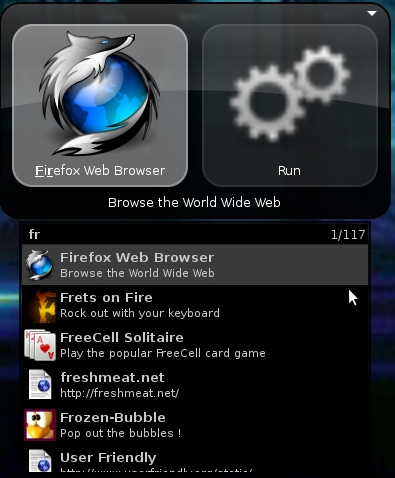
Figure 2. Alternate Keyword Choices
GNOME Do is a learning program, and as you use it, you will notice that it selects results based on your favorite, most-used choices. This means if you launch F-Spot more often than Firefox, F-Spot shows up first when you press F. GNOME Do also learns which actions (the items that show up in the right pane) you have performed on particular objects and gives those precedence. The ultimate goal is to make it fast and simple to launch applications, open files and interact with different parts of your computer via GNOME Do plugins (more on plugins later in this article).
While the left pane in the GNOME Do window lists objects, the right pane lists actions. An ordinary action for a program like Firefox might be Run, but if you press Tab you will highlight the right pane. Then, you can use the up and down arrow keys to cycle through alternate actions. These actions vary depending on the object, so for an application like Firefox, you might get only the option to copy your typed text to the clipboard or assign an alias. Different objects get a more complete list of actions, so for instance, if the Files and Folders plugin is enabled, it indexes the files in a list of directories. If I start to type a particular filename, it locates matching files. I then can press Tab, and when I press the down arrow key, I will see a number of actions, as shown in Figure 3. In this example, I have the option to open the file, reveal the file in the file manager, move the file to the trash, rename the file or perform a number of other file operations.
Figure 3 also shows that depending on the option you choose, GNOME Do might open a third pane on the right with more options. This often is used when you want to copy or move a file so you can choose its new location.
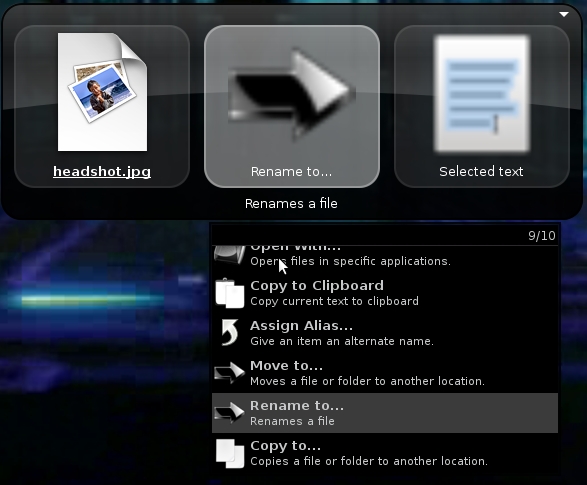
Figure 3. Alternate Actions
GNOME Do has a pretty shallow learning curve. The interface is easy to grasp, so before too long, you will find it easy to launch programs and interact with plugins and other features. Of course, to get to these features, you first need to go the Preferences window. In the top right-hand corner of the window, you will notice a small triangle. When you click on it, you'll see a drop-down menu with About, Preferences and Quit options. Choose Preferences.
The Preferences window is minimalist (Figure 4) and divides its settings into three tabs. In the first tab, you can change basic settings, such as whether GNOME Do starts at login, whether to show its notification icon and what theme to use. The second tab lets you configure keyboard bindings used with GNOME Do in case you want to change the defaults. The final Plugins tab is probably the most interesting. GNOME Do ships with a number of plugins, and additional third-party plugins extend GNOME Do's functionality.
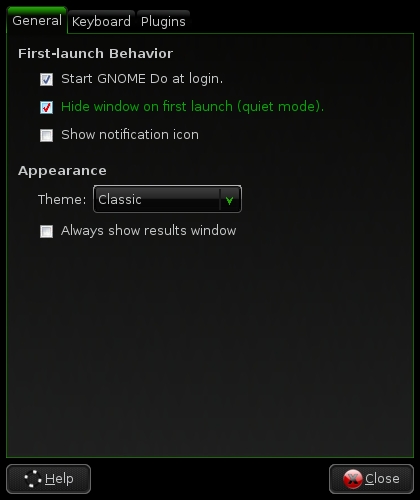
Figure 4. GNOME Do Preferences Window
GNOME Do's plugins are what move this program beyond a replacement for the Applications menu on your desktop into a blend between a launcher, desktop search tool and central interface for other desktop operations. Most of the plugins probably will be disabled by default, so to get this extra functionality, you need to go into the Preferences window and enable the particular plugin. Below, I highlight a few particularly interesting plugins.
A few different plugins turn GNOME Do into a file browser and search tool. The Files and Folders plugin indexes directories of your choice (highlight the Files and Folders plugin in your Preferences window, and then click Configure to set which folders it indexes). As you type, GNOME Do lists files it finds within those directories as results. You then can copy, delete, browse and perform a number of other options on the files, as shown in Figure 3.
In addition to the Files and Folders plugin is the Locate Files plugin. This plugin uses the GNU locate command, so instead of just searching through directories you specify, you can type a keyword and then select Locate Files in the actions pane. GNOME Do then returns the list of results so you can act on them (Figure 5).
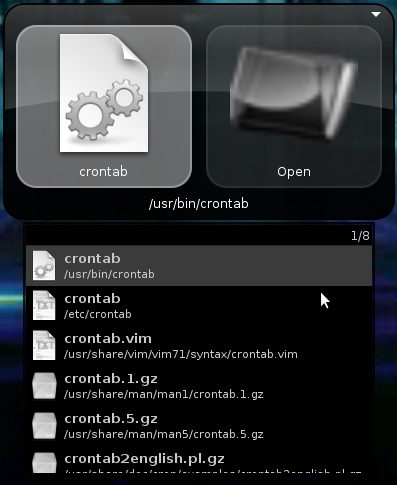
Figure 5. Locate Plugin Results
With a name like GNOME Do, you probably won't be surprised to know that there are a number of plugins that extend into GNOME functions. The GNOME Dictionary plugin provides a define action, so you can type a word, choose define and get back a definition. The GNOME Screenshot plugin adds a Take Screenshot result if you start to type that phrase. Then you can configure screenshots of the entire desktop, a specific window or even take screenshots after a timed delay. I used that particular plugin quite a bit while writing this article.
The GNOME Terminal plugin extends the traditional Alt-F2 command window in that you can not only run commands within the GNOME Terminal, you also can select particular GNOME Terminal profiles you have created. Figure 6 shows the result when I type mutt into GNOME Do. The Open Profile action represents my mutt GNOME Terminal profile.
Finally, the GNOME Session Management plugin gives you the same functionality as the power button at the top of the GNOME panel, so you can lock your screen, shut down, reboot and hibernate your desktop.

Figure 6. GNOME Terminal Profile Action
A number of plugins can query Google services. The Gmail Contacts plugin indexes your Gmail contact list and provides it as results to queries so you then can select actions, such as e-mail. You also can interface with your Google Calendar using the plugin of the same name and search through and even create new events. The Google Calculator plugin lets you perform the same calculations and conversions you can perform on the Google Calculator site, only within GNOME Do. Finally, with the Google Maps plugin, you can type in an address and select Map to submit the location to Google Maps.
GNOME Do includes so many great plugins, it's difficult to choose which ones to list. Some other useful plugins allow you to index all of your Firefox bookmarks or Evolution contacts, upload photos to Flickr or ImageShack, update your Twitter status, search through your Rhythmbox music collection, index Tomboy notes and even connect to remote hosts over SSH. And, that's just the list of official plugins. GNOME Do also has many third-party plugins that extend its functionality even further.
I have to say that after trying all sorts of different methods to launch applications, GNOME Do has won me over. If I'm already in a terminal, I still sometimes will launch an application there, but I've switched to GNOME Do to launch most of my programs and even use it as a replacement for a file browser when I want to open a file quickly. If you find that you have a number of key bindings set up to launch programs for you, or if you are tired of reaching for the mouse every time you want to run a program or open a file, I recommend giving GNOME Do a try.
Kyle Rankin is a Senior Systems Administrator in the San Francisco Bay Area and the author of a number of books, including Knoppix Hacks and Ubuntu Hacks for O'Reilly Media. He is currently the president of the North Bay Linux Users' Group.


