
Cooking with Linux - Languages Build Character, or Vice Versa
François, our guests will be here soon. What are you doing? Quoi? You are learning a language for this issue's theme? You might have picked a better time to study, mon ami, but I applaud you nonetheless. What language did you choose to learn? PHP? C++? Python? You chose Spanish? I am sorry, François, I am not laughing at you, I am just laughing in general. This issue isn't supposed to be about human languages; it's about computer languages. Now, don't fret. Let's hear a line of Spanish. You speak Spanish very good. Did you learn it from a book? Now, now, François, I promise. No more Fawlty Towers jokes. Besides, our guests will be here any moment. Head down to the cellar and bring back the 2003 Errazuriz Don Maximiano Cabernet from Chile. I'll finish getting the tables ready. Vite!
Ah, welcome everyone, to Chez Marcel, home of exquisite wines and super open-source software. Please, sit and make yourselves comfortable. François has gone to fetch the wine and will be back shortly. I have decided to make some last-minute changes to the menu in honor of my faithful waiter's well-meaning intentions. Tonight's menu will feature languages, or at least, dealing with the special characters that make up many languages.
Even if you don't speak any language other than English, there will be times when you find yourself needing to enter a special accented letter or character into your writing. This is particularly true if your name contains a letter with an accent at the end of it, as my own last name does. Sure, I could keep a document with these letters already written, handy and open on my desktop, select the letters, copy them and finally, paste that é into my text, but doing so can become amazingly time consuming.
If, like me, you spend a lot of time working with OpenOffice.org's word processor, Writer, the solution is fairly simple. Click Insert on the menu bar and select Special Characters from the drop-down menu. A window labeled Special Characters appears (Figure 1).
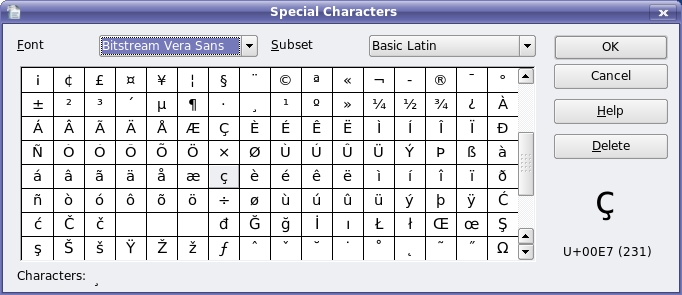
Figure 1. OpenOffice.org provides a dialog for entering special characters into your documents.
From the dialog, you can select your font and international character set—North and South Americans, Australians and most Europeans will work with the Latin subset. All in all, this is great solution, except that it works only with OpenOffice.org running and requires you to open the dialog every time you want to enter a special character. Furthermore, not all applications have a handy list of characters from which to choose. There are several ways to get around this problem, and I show you a few of them now.
Let's start with some KDE solutions. Fire up kcontrol, the KDE Control Center. Under Regional & Accessibility, select the submenu for Keyboard Layout. On the right-hand pane, you'll see a number of flags from different countries. Click Enable keyboard layouts to un-gray these choices. If you installed your system using US English as your language of choice, the default is to provide you with US English. Because my background is French Canadian rather than French from France, I am most familiar with a North American keyboard layout, including the French Canadian keyboard (I honestly have no idea how a French keyboard in France is laid out). Consequently, I always add Canada to that list (Figure 2).
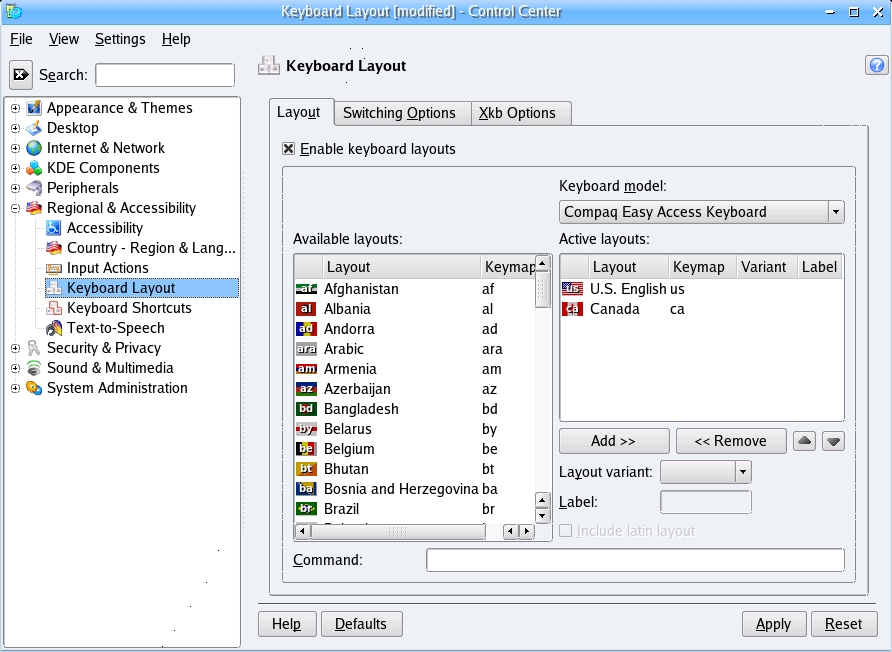
Figure 2. From the KDE Control Center, you can assign additional keyboard layouts.
When you click OK or Apply, a little icon that looks like a tiny flag appears in your icon tray. Clicking that icon switches between the various layouts (of which there are two at the moment). When you are on the alternate layout (for example, Canada), pressing different keys causes whatever character from the keyboard layout that the map presents to appear. This may require some experimentation on your part so you can discover what each key does—unless, of course, you happen to be familiar with your chosen layout.
In order to continue working normally, click the tray icon another time to switch back to the US English keyboard layout. This switching back and forth, however, isn't for everyone, and taking the time to learn an alternate keyboard layout when you need only the occasional character may not be the best approach. Another way around this problem is to use a tool called KCharSelect. You generally can find it in your KDE Utilities menu, but you also can run it with the command kcharselect. When the program starts, a table of all 256 available characters in your current locale appear (Figure 3).
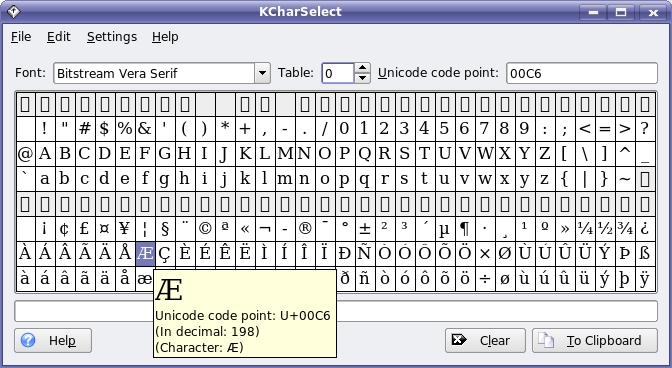
Figure 3. KCharSelect is like a buffet table for special characters.
Select a font from the drop-down list at top. Then, if necessary, select an alternate character table (the Latin set is at 0 on my system). If you hover your mouse pointer over a character, you'll see its Unicode and ASCII value. To use a character in an application (such as e-mail), click on that character, and it will appear in the text field at the bottom of the dialog. You even can enter multiple characters if you want. To use what you have selected, click the To Clipboard button, and then paste the result into your application of choice.
A similar application called Gucharmap exists for users of the GNOME desktop. You likely can find it under the Accessories submenu by clicking the Applications button on the top GNOME panel (as it is under my Ubuntu test system). The program name is gucharmap if you want to run it directly. When the window appears (Figure 4), you'll see that the concept is similar to the KDE KCharSelect tool, but there are some interesting differences. From the left-hand sidebar, select your character set or script (Latin, for most of us here), choose a font, then double-click on the character you want from the main display pane on the right. When you do so, that character appears in the Text to copy field at the bottom of the dialog. Click the Copy button, then paste the text into whatever application you are currently running.
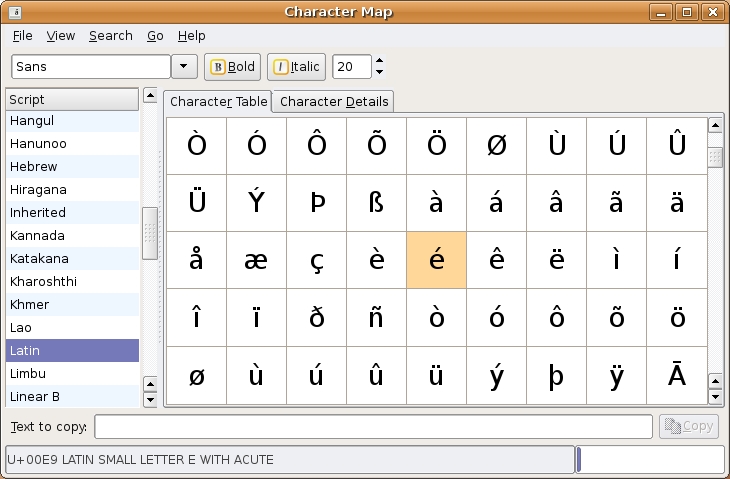
Figure 4. Gucharmap is a great GNOME way to select special characters.
Tools like KCharSelect and Gucharmap are wonderful to have at your disposal, but for some people, there is only an occasional need for entering special characters. As such, these programs seem to live a little large on the desktop, non? A tiny application, an applet that lives in your panel, might be more to taste for those of us who need to enter only a small number of characters. In the KDE environment, there are many applets, and one of these, the Character Selector, may be just what you need.
To add the applet, right-click on a blank section of your Kicker panel, and select Add Applet to Panel. The Add Applet dialog appears with a list of programs you can use to populate your Kicker panel (Figure 5). Each program (or applet) is listed alphabetically with a short description. Look for the Character Selector. To add the applet, simply click the Add to Panel button.
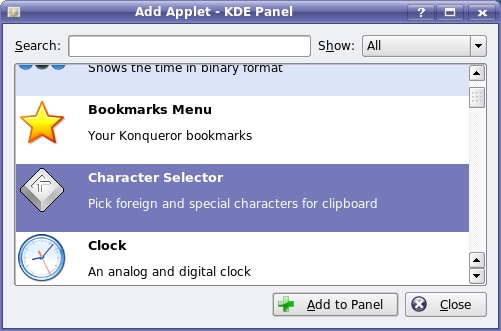
Figure 5. Adding applets to the KDE Kicker panel.
Your Kicker panel now should have a box containing a handful of special characters—12 by default. To use one of these characters in your text, simply single-click the character of your choice, and paste it into your application. It's that easy. That said, the set of characters provided by the application may not be quite what you want. To change that, right-click on the applet's handle (that little bar with the arrow to the left of the applet), and select Configure Character Selector from the pop-up menu. A configuration window appears above the applet (Figure 6).

Figure 6. By adding the Character Selector to your Kicker panel, special characters are always handy.
Modify the character list to suit your taste or need, then click OK. You may want to use KCharSelect, just this once, to paste in your list of characters.
Those of you who are running GNOME as your default desktop environment have a similar tool at your disposal, and it also is an applet. Right-click on the bottom (or top) panel and select Add to Panel. A window of the same name appears with a list of available applets (Figure 7). Scroll down until you see the Utilities section. There you will find an applet named Character Palette. Select it, then click Add or simply drag the applet to the panel in the location of your choice.
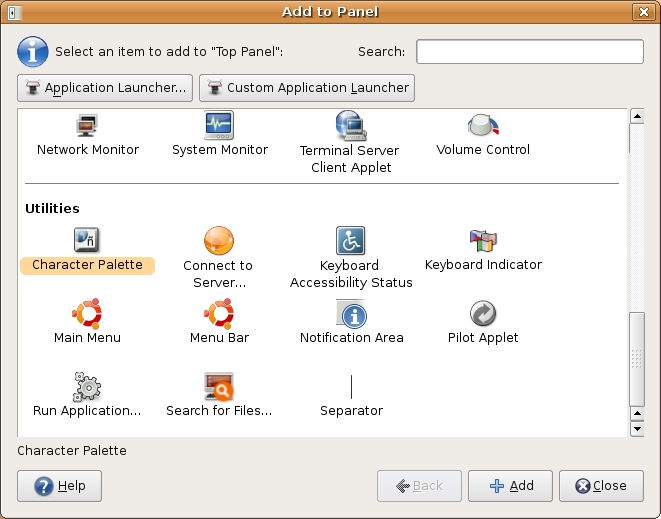
Figure 7. Add the GNOME Character Palette panel applet.
You will see a row of characters appear on your panel with a drop-down arrow to the left of those characters. To use any of these characters in a document (or e-mail message or chat session or other application) click the character of your choice, then paste it into your application. If you don't see the character you need, there's a good chance it already has been defined for you. All you need to do is switch palettes. Click the down arrow, and a selection of more than 20 predefined palettes appear; simply click to switch. As rich as this selection is, it still is possible that the characters you need on a day-to-day basis are not there. To edit the palette or add to it, right-click on the down arrow and select Preferences from the submenu. The Character Palette Preferences dialog appears (Figure 8).

Figure 8. So many special characters, so little time.
From this dialog, you can choose to edit a current palette, delete a palette or create something entirely new. To create a new palette, click the Add button and enter the characters into the dialog window that appears—of course, you may need to paste them from another character application, such as Gucharmap or OpenOffice.org.
Now, when François becomes a master of Spanish, he will be able to enter all the Spanish characters he wants. In the meantime, mes amis, it appears that it is nearly time to bid you all Adieu. Nearly, being the key word, or as François might now say it, casi. Quoi? You plan on learning Japanese next week? Why not. Until next time, please raise your glasses, mes amis, and let us all drink to one another's health. A votre santé! Bon appétit!
Resources
GNOME Web Site: www.gnome.org
Gucharmap: live.gnome.org/Gucharmap
KDE Web Site: www.kde.org
OpenOffice.org: www.openoffice.org
Marcel's Web Site: www.marcelgagne.com
The WFTL-LUG, Marcel's On-line Linux User Group: www.marcelgagne.com/wftllugform.html
Marcel Gagné is an award-winning writer living in Waterloo, Ontario. He is the author of the all-new Moving to Free Software, his sixth book from Addison-Wesley. He also makes regular television appearances as Call for Help's Linux guy. Marcel is also a pilot, a past Top-40 disc jockey, writes science fiction and fantasy, and folds a mean Origami T-Rex. He can be reached via e-mail at mggagne@salmar.com. You can discover lots of other things (including great Wine links) from his Web site at www.marcelgagne.com.
