
Chapter 10: Personalizing Ubuntu: Getting Everything Just Right
If you've read this book from Chapter 1, by this stage, you no doubt have become comfortable with Ubuntu. You've started to realize its advantages and are on the way to making it your operating system of choice.
Beginning Ubuntu Linux: From Novice to Professional by Keir Thomas

Apress, March 2006
ISBN: 1-59059-627-7
$39.99 US
4608 pages
That's what this chapter is all about. We look at personalizing Ubuntu so that you're completely happy with your user experience.
Ubuntu is similar to Windows in many ways, but the developers behind it introduced improvements and tweaks that many claim make the software easier to use. For example, Ubuntu offers multiple virtual desktops—long considered a very useful user-interface feature that seems to have passed Microsoft by. It also moves the programs menu to the top of the screen, leaving the whole width of the screen at the bottom to display taskbar buttons. This is very sensible, because the buttons don't look cramped when more than a handful of applications are open. However, if you're not satisfied with Ubuntu's out-of-the-box look and feel, you can change it.
You might be used to changing the desktop colors or wallpaper under Windows, but Ubuntu goes to extremes and lets you alter the look and feel of the entire desktop. Everything from the styling of the program windows to the desktop icons can be altered quickly and easily.
Ubuntu refers to the look of the desktop as a theme. Because it's built on the GNOME desktop, Ubuntu allows you to radically personalize your desktop theme. Several different themes come with the distribution, and you can download many more themes. Each lets you change the way the windows look, including the buttons and the icon set (although some themes come without additional icons).
However, unlike Windows themes, most GNOME themes don't change the fonts used on the desktop, and the wallpaper and color scheme will probably remain broadly the same. You can change these manually, as described in the “Setting Font Preferences” and “Changing the Wallpaper” sections a bit later in this chapter.
To alter the theme, select System→Preferences→Theme. Then it's simply a matter of choosing a theme from the list in the Theme Preferences dialog box, as shown in Figure 1. A useful hint is to open a Nautilus file browser window in the background (Places→Desktop), so you can see how the changes will affect a typical window.
Note: The default Ubuntu theme is called Human and is designed to represent the skin tones of the world's population. This is intended to reflect Ubuntu's mission of being accessible to everyone, no matter where or who they are.
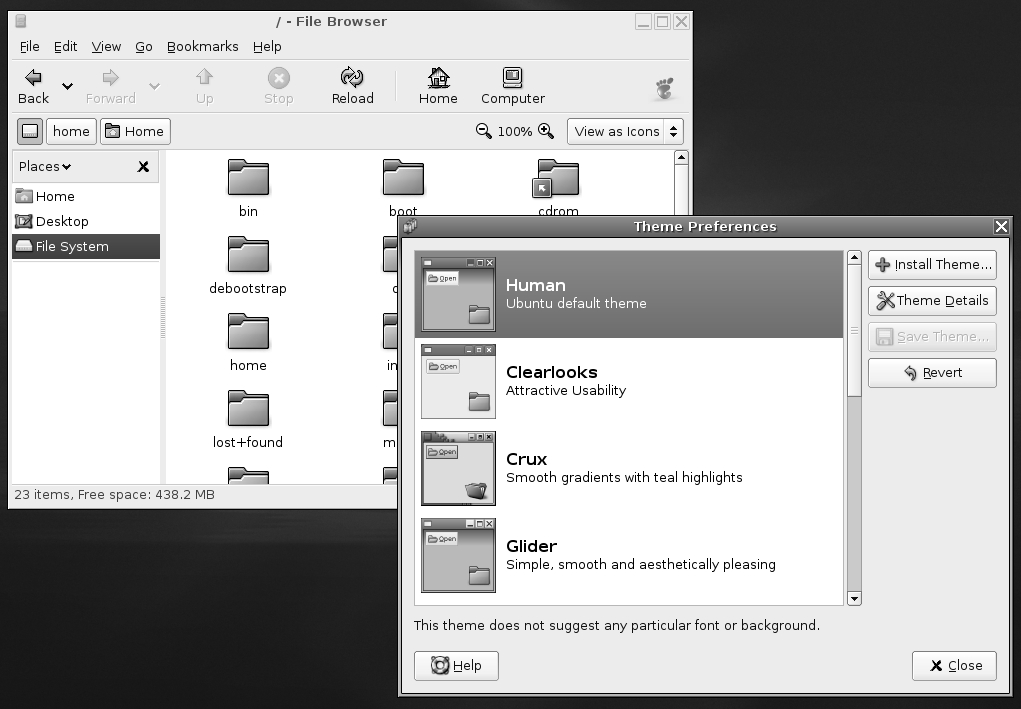
Figure 1. Ubuntu comes with several theme choices.
My favorite themes are Clearlooks and Mist, largely because they're simple and uncomplicated. Remember that you'll be working with the theme on a daily basis, so it should be practical and not too distracting. Those miniature close, minimize, and maximize buttons might look stylish, but they're useless if they're so small that you can't reliably click them with your mouse.
As well as changing the overall theme, you can also modify individual theme components, and even download more theme components.
You can alter the three aspects that constitute a GNOME theme: the controls (sometimes known as widgets), the window borders, and the icons. Controls are simply the elements you click within dialog boxes and windows: buttons, scroll bars, and so on. The window borders are, as seems obvious, the borders of program windows and dialog boxes, with particular attention paid to the top of the window, where the program name appears along with the minimize, maximize, and close buttons.
Note: To make matters a little confusing, some window borders have their own selection of close, minimize, and maximize controls, which can't be overridden with individual selections for controls.
To make changes to a theme, click the Theme Details button in the Theme Preferences dialog box (Figure 1), and then click each tab to see your choices, as shown in Figure 2. Unfortunately, there are no thumbnail previews of each style, but as soon as you click each option, it will be automatically applied to the currently open windows. To preview the effects fully, the best policy is to keep a Nautilus window open (Places→Desktop).

Figure 2. You can create a theme by choosing your own controls, window borders, and icons.
When you've made your choices, you can save the theme for further use. Simply click the Save Theme button in the Theme Preferences dialog box. You'll need to give the theme a name and, if you wish, a short description for future reference. If you don't save the theme, as soon as you select another one, the changes you made will be lost.
If you get tired of the built-in possibilities, you can download additional theme components, such as window borders and controls, to enhance your desktop experience. You have two ways of getting new themes:
Download themes from the official Ubuntu repositories.
Visit the GNOME Art web site (art.gnome.org) and download items from there.
To get theme components from the Ubuntu software repositories, you use the Synaptic Package Manager. Setting up Synaptic Package Manager to use the online repositories is described in Chapter 8.
Select System→Administration→Synaptic Package Manager, click the Search button, and enter gtk2-engines as a search term (gtk2-engines is how Ubuntu refers to theme components). In the list of results will be those gtk2-engines already installed, indicated by a dark green check box, and several that are available for download.
Icons rarely come in gtk2-engines packages, and instead are contained in their own packages. To find icons, use the Synaptic Package Manager to search for gnome icon theme (without any dashes).
Although each theme component comes with a description, you won't really know what it looks like until you see it. The best policy is to download all of them and audition them one by one. However, be aware that themes can be large, so they may take some time to download on a slower connection.
Caution: Unless you've already installed the KDE desktop, don't download gtk2-engines-gtk-qt. This is a piece of system software designed to give KDE applications the same look as GNOME applications. Selecting it will cause the entire KDE desktop subsystem to download, too.
Don't forget that you're downloading theme components, rather than entire themes. To use your new theme components, select System→Preferences→Theme, click the Theme Details button, and choose from the various lists.
Visiting the GNOME Art site (art.gnome.org), shown in Figure 3, gives you access to just about every theme ever created for GNOME. In fact, the site also contains wallpaper selections, icons, and much more besides. All of the offerings are free to use, and most of the packages are created by enthusiasts.
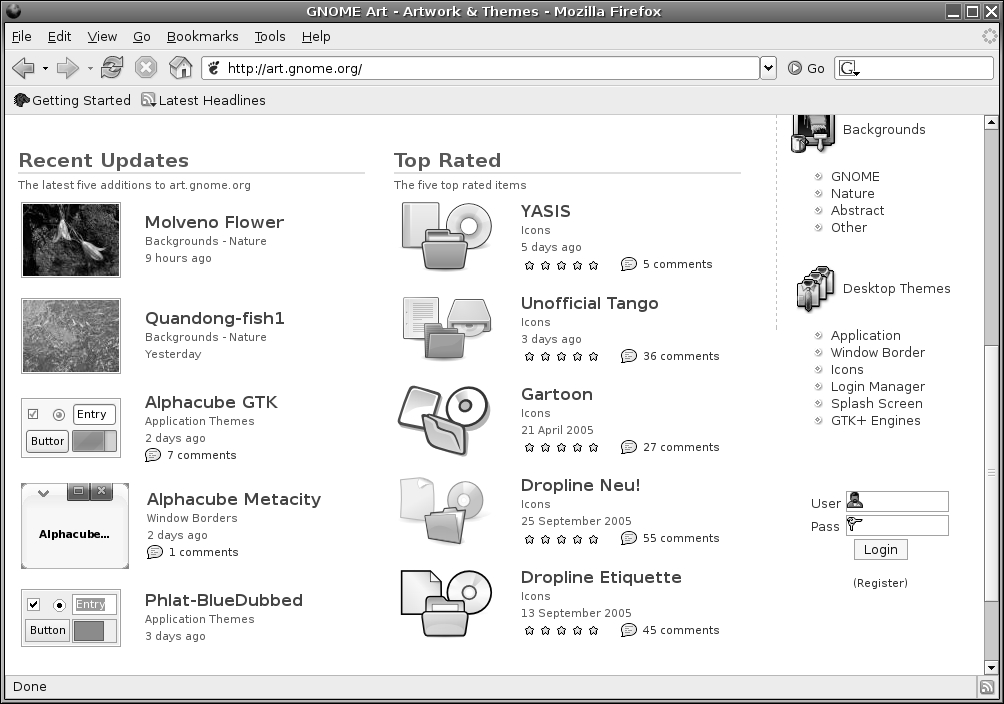
Figure 3. The GNOME Art site contains the latest themes, and you can use all of them with Ubuntu.
Installing new theme components is easy. If you wish to install a new window border, for example, click the link to browse the examples and then, when you find one you like, click to download it. It will be contained in a .tar.gz archive, but you don't need to unpack it. Simply select System→Preferences→Theme and click the Install Theme button in the Theme Preferences dialog box. Then browse to the downloaded theme and click Open. You can delete the downloaded file when you're finished.
Note: The same principle of sharing that underlines the GPL software license is also usually applied to themes. This means that one person can take a theme created by someone else, tweak it, and then release it as a new theme. This ensures constant innovation and improvement.
The default Ubuntu wallpaper, Lagoon, is a love-it-or-hate-it affair. Some find its emphasis on dark colors depressing; others appreciate its humanist metaphor. If you're one of those who prefer something different, it's easy to switch. Simply right-click the desktop and click Change Desktop Background. If you want to use a picture of your own as wallpaper, click the Add Wallpaper button, and then browse to its location.
In the Style drop-down list, you can select from the following choices:
Centered: This option places the wallpaper in the center of the screen. If the wallpaper is not big enough to fill the screen, a border appears around the edge. If it's bigger than the screen, the edges of the wallpaper are cropped off.
Fill Screen: This option forces the picture to fit the screen, including squashing or expanding it if necessary (known as altering its aspect ratio). If the wallpaper isn't in the same ratio as the screen, it will look distorted. Most digital camera shots should be okay, because they use the same 4:3 ratio as most monitors (although if you have a wide-screen monitor, a digital camera picture will be stretched horizontally).
Scaled: Like the Fill Screen option, this option enlarges the image if it's too small or shrinks it if it's too big, but it maintains the aspect ratio, thus avoiding distortion. However, if the picture is in a different aspect ratio than the monitor, it may have borders at the edges.
Tiled: If the picture is smaller than the desktop resolution, this option simply repeats the picture (starting from the top left) until the screen is filled. This option is primarily designed for patterned graphics.
Don't forget that the GNOME Art web site (art.gnome.org) offers many wallpaper packages for download.
Tip: Looking for some good wallpaper? Visit Flickr (www.flickr.com). This is a community photography site where many people make their pictures publicly available.
Ubuntu lets you change the fonts that are used throughout Ubuntu (referred to as system fonts). You can also alter how they're displayed.
To change a system font, select System→Preferences→Font. In the Font Preferences dialog box, shown in Figure 4, click the button next to the system font you want to change, and then choose from the list. You can also set the font point size so, for example, you can make the labels beneath icons easier to read.
By clicking the entries under the Font Rendering heading in the Font Preferences dialog box, you can change how fonts look on your monitor. This will alter the antialiasing and hinting of the font. Antialiasing softens the edges of each letter to make them appear less jagged. Hinting affects the spacing and shaping of the letters. Used together, they can make the on-screen text look more pleasant. Try each Font Rendering setting in sequence to see which looks best to you (the text in the dialog box will update automatically to show the changes). Nearly everyone with a TFT-based screen, including notebook users, finds the Subpixel Smoothing option best.

Figure 4. You can alter the way fonts appear on screen by using the Fonts Preferences dialog box.
Two font hinting subsystems are available under Ubuntu: Autohinting and Bytecode Interpreting. There's a lengthy debate about which produces the best results. Personally, I prefer to use the Bytecode Interpreter because I believe it leads to the cleaner fonts, but others say Autohinting is better in this regard.
Unfortunately, the Bytecode Interpreter is protected by patents in the United States (for more information, see www.freetype.org/patents.html). This means that individuals in the United States can't use it without paying a license fee to the patent holder (in theory, at least). Those in the rest of world should be fine.
It's easy to activate the Bytecode Interpreter. Follow these steps:
Open a GNOME Terminal window (Applications→Accessories→Terminal).
In the terminal window, type the following:
sudo dpkg-reconfigure fontconfig
On the first screen of the configuration program, select Native to activate the Bytecode Interpreter. Alternatively, you can choose Autohinting or even None, which will turn off the hinting system.
On the next screen, you can select whether subpixel rendering is activated. This is useful only for TFT screens (including notebooks), so either select Automatic or, if you use a TFT monitor and want to ensure the option is activated, select Always.
The third screen offers the option of using bitmap fonts. These are fonts that, unlike the TrueType fonts used within the rest of Ubuntu, don't scale beyond their original size. There's no harm in enabling them because they can sometimes be useful as system fonts.
Once the program has finished configuring the software, restart your X server by logging out and then back in again.
Mouse and key repeat speeds are personal to each user, and you may find the default Ubuntu settings not to your taste, particularly if you have a high-resolution mouse such as a gaming model. Fortunately, changing each setting is easy. You'll find the relevant options under the System→Preferences menu.
Select System→Preferences→Mouse to open the Mouse Preferences dialog box, which has three tabs:
Buttons: This tab lets you set whether the mouse is to be used by a left-handed or right-handed person. Effectively, it swaps the functions of the right and left buttons. Beneath this is the double-click timeout setting. This is ideal for people who are less physically dexterous because the double-click speed can be slowed down. On the other hand, if you find yourself accidentally double-clicking items, you can speed it up.
Cursors: On this tab, you can select from any mouse cursor themes that are installed. You can also activate the Locate Pointer option, which causes a box to appear around the mouse cursor when you press the Ctrl key. This can help you find the cursor on a busy desktop.
Motion: This tab, shown in Figure 5, lets you alter the speed of the mouse pointer, as well as the drag-and-drop threshold. Changes are made as each setting is adjusted, so to test the new settings, simply move your mouse. Here's what the settings do:
The Acceleration setting controls how fast the mouse moves. Whenever you move the mouse, the pointer on screen moves a corresponding amount. However, the cursor actually increases in speed the more you move your hand (otherwise, you would need to drag your hand across the desk to get from one side of the screen to the other). This is referred to as acceleration. If you set the acceleration too high, the pointer will fly around the screen, seemingly unable to stop. If you set it too slow, you'll need to ramp the mouse several times to make it go anywhere.
The Sensitivity setting controls how quickly the acceleration kicks in when you first move the mouse. Choosing a higher setting means that you can move the mouse relatively quickly before it starts to accelerate and cover more screen space. A low setting means that acceleration will begin almost as soon as you move the mouse. Higher sensitivity settings give you more control over the mouse, which can be useful if you use image-editing programs, for example.
The Threshold setting determines the amount of mouse movement allowed in a click-and-drag maneuver before the item under the cursor is moved. This setting is designed for people who have limited dexterity and who might be unable to keep the mouse perfectly still when clicking or double-clicking an icon. In such cases, a large threshold value may be preferred.
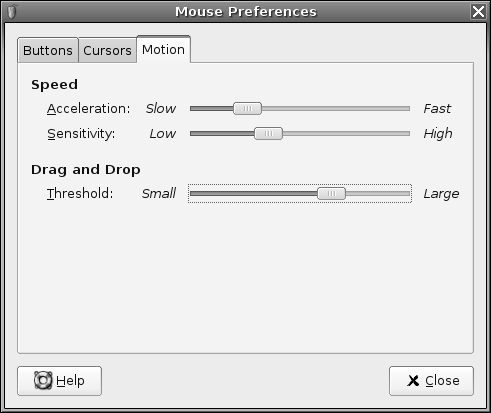
Figure 5. The Mouse Preferences dialog box lets you tame that mouse.
Select System→Preferences→Keyboard to open the Keyboard Preferences dialog box. This dialog box has four tabs:
Keyboard: Using the Keyboard tab, you can alter the rate of key repeat. This can be useful if you often find yourself holding down the Backspace key to delete a sentence; a shorter setting on the Delay slider and a faster setting on the Speed slider can help. However, if you get the settings wrong, you may find double characters creeping into your documents; typing an f may result in ff, for example. Beneath the Repeat Keys setting is the Cursor Blinking slider. Altering this may help if you sometimes lose the cursor in a document; a faster speed will mean that the cursor spends less time being invisible between flashes.
Layouts: On the Layouts tab, you can choose to add an alternative keyboard layout, as shown in Figure 6. For example, if you write in two different languages on your keyboard, it may be helpful to be able to switch between them. Click the Add button and select the second language from the list.
Layout Options: This tab lets you select from a variety of handy tweaks that affect how the keyboard works. For example, you can configure the Caps Lock key to act like a simple Shift key, or you can turn it off altogether. You can configure the Windows key so that it performs a different function, too. Put a check alongside the option you want after reading through the extensive list of options.
Typing Break: This tab features a function that can force you to stop typing after a predetermined number of minutes. It does this by blanking the screen and displaying a “Take a break!” message. Note that a notification area icon will appear before the break time to give you advanced warning of the lockout.
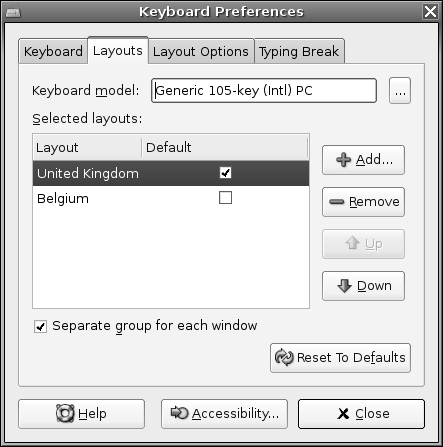
Figure 6. You can have more than one language setting in place for a keyboard, which is handy if you need to type in a foreign language.
Ubuntu lets you define your own keyboard shortcuts for just about any action on the system. To create a shortcut, select System→Preferences→Keyboard Shortcuts. In the dialog box, search through the list for the action you want to create a shortcut for, click it, and then press the key (or key combination) you want to use. For example, you might locate the Volume Up and Volume Down entries in the list, click each, and then press Ctrl+left arrow and Ctrl+right arrow. Then you will be able to turn the volume of your sound card up or down by holding down Ctrl and tapping the left or right arrow key, respectively.
Caution: Be careful not to assign a shortcut to a popular key. It might be nice to make Totem Media Player appear when you hit the spacebar, for example, but that will mean that it will start up several times whenever you type a sentence in a word processor! Also be aware that some key combinations are used by applications. Within OpenOffice.org's Writer, for example, the Ctrl+left/right arrow key combination moves you from word to word in a paragraph. If you define those combinations as shortcuts, you will no longer have this functionality.
I like to configure my /home folder to appear whenever I press the Home button on the keyboard. This can be done by locating the Home Folder option under the Desktop heading.
You can even personalize the login screen under Ubuntu. This is known technically as the GNOME Display Manager, or GDM. To access its configuration options, select System→Administration→Login Screen Setup. The dialog box has eight tabs:
General: In the Local drop-down list, you can choose the type of login screen: Themed Greeter, which is to say one that includes the Ubuntu graphic, or GTK+ Greeter, which is a basic login box into which you can type your details. By unchecking the Use Default Welcome boxes, you can type your own Welcome and Remote Welcome text (the remote text is what appears if someone logs in graphically via GDM across a network; it isn't something you should worry about). The Automatic Login heading lets you do away with the login box completely and go straight to the desktop from bootup. Simply put a check in the box and provide the login username. This presents obvious security issues, but if you're the only person using the computer and if it's located in a secure location, you might want to choose this option. The Timed Login option lets you select a user who will be logged in by default after a given period. This is useful if you want to present the opportunity to log in as a different user but also want to have the failsafe of logging in automatically, too.
GTK+ Greeter: Here, you can change the appearance of the simple GTK+ Greeter that will appear if you chose the relevant option on the General tab. You can change the picture by clicking the Browse button, or get rid of it completely by clicking No Logo. You can also alter the background so that there's a picture or color.
Themed Greeter: The Themed Greeter is the default under Ubuntu, and it makes the standard login page appear. You can select from a couple of other themes from the list on the left. Particularly handy is the Happy GNOME with Browser option, which shows a list of all users on your system during login. To log in, just click the appropriate entry and type the necessary password. Clicking the Install New Theme button lets you install a Themed Greeter theme from disk. You can download these from art.gnome.org.
Security: This tab lets you alter login settings that might present a security risk to your system. For example, if the Happy GNOME with Browser option is activated in the Themed Greeter tab, you can activate the Face Browser, which will show a picture on the login screen. This is considered a security risk, because it removes the need for people to type in their usernames, thus potentially handing valuable information to hackers. You can also activate the X Display Manager Control Protocol (XDMCP) for GDM, which will let users log in graphically using GDM from a remote computer (this requires the remote system to be specially configured).
XServer: This tab lets you specify settings that can be passed to the X server when it's started by GDM. In most cases, you can ignore this tab.
Accessibility: Here, you can allow activation of the GNOME Assistive Technology modules. You can also have GDM make sounds when various events occur, such as a bad login. This can help partially sighted people.
XDMCP: If you activated XDMCP for GDM in the Security tab, this tab lets you fine-tune various settings, such as the network port it listens on as well as the maximum number of remote sessions. Unless you have specifically activated XDMCP, you can ignore this tab.
Users: Here, you can specify which users are offered as choices within GDM if the Face Browser option is activated in the Security tab. Bear in mind that Linux has many system user accounts that aren't designed to allow logins. By default, all users who have a password are displayed, which is the best way of working (the system accounts don't have passwords because they aren't login accounts).
You might know about the Accessibility tools under Windows, which help people with special needs use the computer. It's possible to use an on-screen magnifier so that users can better see what they're typing or reading, for example.
Under the GNOME desktop, the Accessibility tools are referred to as Assistive Technology Support. To use them, you need to install additional software packages, and then enable them. Follow these steps:
Assuming the Synaptic Package Manager is set up to use the online repositories (see Chapter 8), open the program (System→Administration→Synaptic Package Manager).
Click the Search button and enter gok as a search term. In the list of results, click the check box alongside the gok entry, and then click Mark for Installation.
Click the Search button again and search for gnopernicus. Again, mark its entry for installation. Then click Apply.
Once the packages are installed, select System→Administration→Preferences→Assistive Technology Support. Click the check box alongside Enable Assistive Technologies.
Choose from the list the features you would like to use. They will then start automatically the next time you log in. The options work as follows:
The Screenreader uses a speech synthesizer to announce whatever you click on, as well as whatever you type. To alter its settings, click the Preferences button in the Gnopernicus dialog box, and then click the Speech button in the Preferences dialog box.
The GNOME Onscreen Keyboard (GOK) can be used by a mouse, but is most useful when an alternative input device is used, such as a touch screen. As well as presenting a virtual keyboard, it shows the options on screen as a large and easy-to-activate series of buttons. For more information, click the Help button when GOK starts.
The Magnifier divides the screen into two halves. The right side displays a magnified version of the left side. To learn more, click the Help button in the Gnopernicus dialog box.
Gnopernicus also includes support for Braille output devices. To learn more, click the Help button.
If you activate the Face Browser feature along with the Happy GNOME with Browser option, GDM will display a picture alongside your username on the login screen, as shown in Figure 7. You can then click this and type your password to log in. You might be familiar with a similar system under Windows XP.
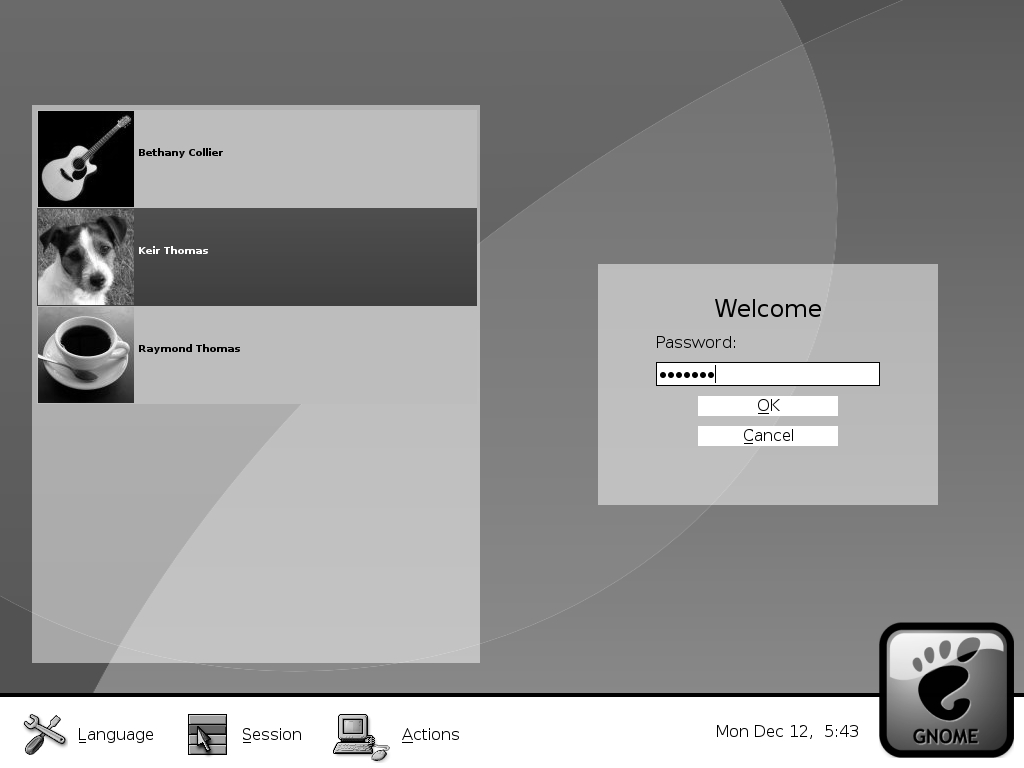
Figure 7. The Face Browser lets each user choose an icon to appear on the login screen.
You can choose your login picture by clicking System→Preferences→Login Photo. Ubuntu offers several pictures to choose from, or you can click the Browse button to locate your own. Ideally, the image you choose should be square and 96�6 pixels, although if the picture is too large, it will be automatically scaled down.
Virtually the entire Ubuntu desktop can be redesigned and restructured. You can move the Applications menu from the top of the screen to the bottom to be more like Windows, for example, or you can add numerous desktop shortcuts to popular applications and/or files.
Ubuntu's nearest equivalent to a Windows-style desktop shortcut is a launcher. An important difference, however, is that launchers are designed to run a certain command. Therefore, they can only point at programs (although you could create a launcher that contained a command chain required to run a particular program and file; to use The GIMP to open a picture, you might create a launcher that ran gimp picture.jpg, for example).
If you want to make a shortcut to a data file, such as a picture, you need to create a link. This is just as easy as creating a launcher.
You can create a launcher two ways. One way is to simply click and drag an icon from one of the main menus to the desktop. This effectively copies the menu's launcher to the desktop, rather than creating a new launcher, but the effect is the same.
Note: Not all menu items can be dragged and dropped to create launchers. In particular, most items on the System menu cannot be dragged and dropped.
The other way to create a launcher is to right-click the desktop and select Create Launcher. In the Create Launcher dialog box, you need to fill in only the Name and Command field; the others fields can be left blank. The Command field must contain a Linux executable program, command, or script. If you use a command-line program or script, you must check the Run in Terminal box. This will open a GNOME Terminal window automatically and run the command or script within it. The terminal window will disappear as soon as the command has finished.
To choose an icon for your launcher, click the Icon button in the Create Launcher dialog box. If you don't choose an icon, the stock GNOME one is used (the same icon as is used for unidentified and/or system files). You can select from several predefined icons or choose your own picture by clicking the Browse button, as shown in Figure 8.
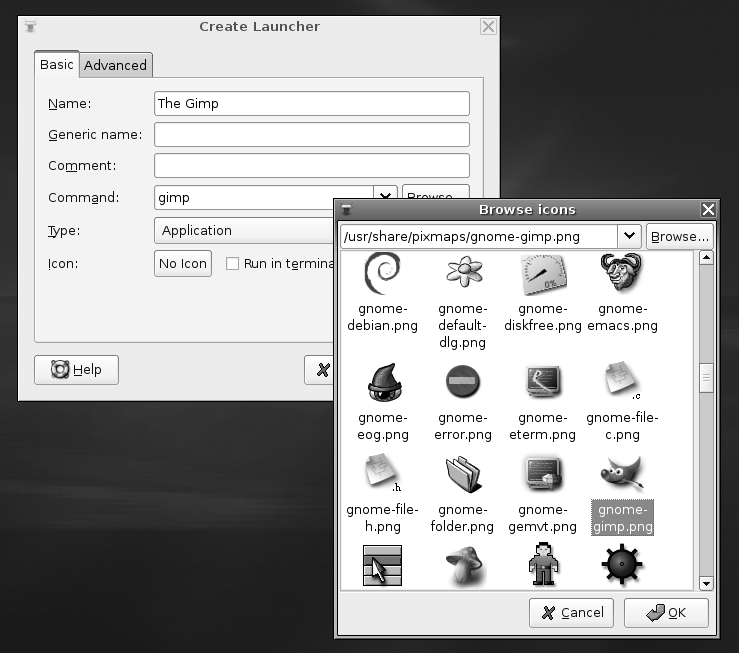
Figure 8. Creating a launcher is easy. Just fill in the Name and Command fields, and choose an icon.
Although you can create a link to a program, which will then work the same as a launcher, links are usually used to create shortcuts to files. If you then double-click the shortcut, the application associated with that file type will open the file. If you create a shortcut to a picture, for example, when you double-click it, the Eye of GNOME previewer will start.
To create a link, locate the file you want to create the link to, right-click it, and select Make Link. Then copy the new link to wherever you want it to appear, such as the desktop. You don't need to choose an icon, because the link inherits the icon of the original file. For example, if it's a picture link, it will inherit the thumbnail preview icon.
Note: If you find the Make Link option grayed out, it's likely that you don't have sufficient permissions to write the link to the directory in question.
You can add either the Applications menu or the entire set of menus (Applications, Places, and System) to the bottom of the screen. This can help those who long for the Windows Start button approach to access programs.
To add the Application, Places, and System menu to the Panel at the bottom of the Ubuntu desktop, follow these steps:
Right-click a blank spot on the bottom Panel and select Add to Panel.
In the dialog box that appears, click the Menu Bar option to add all three menus.
Click the Add button at the bottom of the dialog box.
When you add just the Applications menu, it appears as a single icon. To move it to the bottom-left side of the desktop, in the same location as the Windows Start menu, you need to delete and then re-create the Show Desktop icon and the Window List. Here are the steps:
Right-click a blank spot on the bottom Panel and select Add to Panel.
In the dialog box that appears, click the Main Menu option.
Click the Add button at the bottom of the dialog box.
Right-click the Window List's grab bar and select Delete.
Right-click the Show Desktop icon and select Delete.
Right-click the new menu icon, select Move, and relocate it to the bottom left.
Right-click the Panel and select Add to Panel.
In the Desktop & Windows category, select Window List, and then click Add.
Repeat steps 7–8 to add the Show Desktop button.
When you're finished, the Applications menu should appear as shown in Figure 9.

Figure 9. If you just can't do without that Start button, you can re-create one on your Ubuntu desktop.
Creating new instances of the menus won't delete the old ones. If you create a new Applications menu at the bottom of the screen, for example, the old Applications menu will remain at the top of the screen. In fact, you can have as many instances of the menus on the desktop as you wish, although this won't be a good use of desktop space!
To delete any menu, simply right-click anywhere on that menu and select Remove from Panel.
The developers who designed Ubuntu's desktop decided to keep the desktop clean of icons. This included relegating the Wastebasket icon to its own applet at the bottom-right side of the screen. Many people find using the applet a little difficult and miss the desktop trash can icon, which has been present on Windows and Mac OS desktops for more than 20 years.
The good news is that it's easy to get the trash can back. Click Applications→System Tools→Configuration Editor. In the program window that appears, click the down arrows next to Apps, then Nautilus, and then Desktop. On the right side of the program window, put a check in the trash_icon_visible entry.
Alternatively, in the Configuration Editor, click Edit→Find and enter trash_icon_visible as a search term. Make sure that the Search Also In Key Names box has a check in it. Then click Find. The results will be listed at the bottom of the program window. Click the /apps/nautilus/desktop/trash_icon_visible entry. Then make sure there's a check in the trash_icon_visible box.
Be careful when using the Configuration Editor program. It lets you configure just about every aspect of the GNOME desktop and doesn't warn you when you're about to do something devastating, so the potential for accidental damage is high!
Panels are the long strips that appear at the top and bottom of the Ubuntu screen and play host to a choice of applets and/or icons. You can add a new panel by simply right-clicking an existing one and selecting New Panel, or you can remove a panel by right-clicking it and selecting Delete This Panel.
Caution: If you delete a panel, the arrangement of applets it contains will be lost. Of course, you can always re-create the collection of applets on a different panel.
By right-clicking a panel and selecting Properties, you can change its size and dimensions. For example, by unchecking the Expand box, you can make the panel shrink to its smallest possible size. Then, when you add new applets (or, in the case of a panel containing the Window List, a new program is run), the panel will expand as necessary. This can be a neat effect and also creates more desktop space.
Selecting the Autohide feature will make the panel slide off the screen when there isn't a mouse over it. Choosing Show Hide Buttons will make small arrows appear on either side of the panel so that you can click to slide it off the side of the screen when it's not in use.
Almost everything you see on the desktop is an applet, with the exception of shortcut icons and the panels. A menu is a form of applet, for example, as is the Workspace Switcher.
Ubuntu provides many more applets that you can choose to add to the desktop to provide a host of useful or entertaining functionality. To add an applet, right-click the Panel and select Add to Panel. As shown in Figure 10, you have a wide choice of applets, divided into categories. Many require configuration when they've been created, so you may need to right-click them and select Properties. For example, you'll need to set your location in the Weather Report applet's properties so it can provide accurate forecasting.
To remove an applet, simply right-click it and select Remove from Panel.
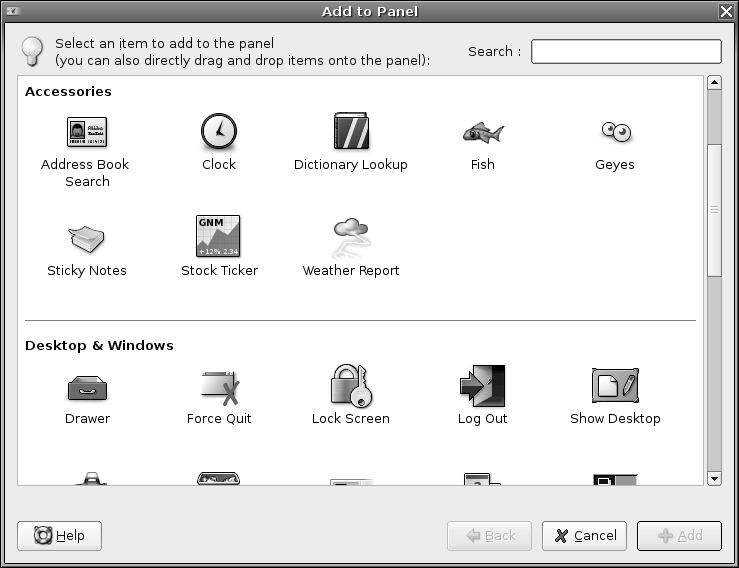
Figure 10. A wide variety of applets are available. Some are informative; others are just fun.
Ubuntu includes a number of features to use the power-saving features of your computer, including the ability to switch off the monitor after a set period of inactivity. However, some quick configuration is necessary to set up the system just the way you want it.
Tip: If your computer has a CPU that can adjust its clock speed on the fly, such as a mobile processor or an AMD chip with the PowerNow! function, Ubuntu will automatically install software that will make this work. To see the speed of your processor, right-click the Panel, select Add to Panel, and choose the CPU Frequency Scaling Monitor.
You can configure the monitor to go into standby mode after a certain amount of time has passed. This can save a lot of electricity should you happen to leave your computer unattended for long periods.
To configure this aspect of Ubuntu, select System→Preferences→Screensaver, and click the Advanced tab, as shown in Figure 11. In the Display Power Management section, make sure the Power Management box is checked. Set the desired timings in the Standby, Suspend, and Off boxes. Not all monitors support all three features. Consult your monitor's manual to determine which you should configure. If you're unable to find this information, simply set all three to similar values. For example, set Standby to 30 minutes, Suspend to 31, and Off to 32.
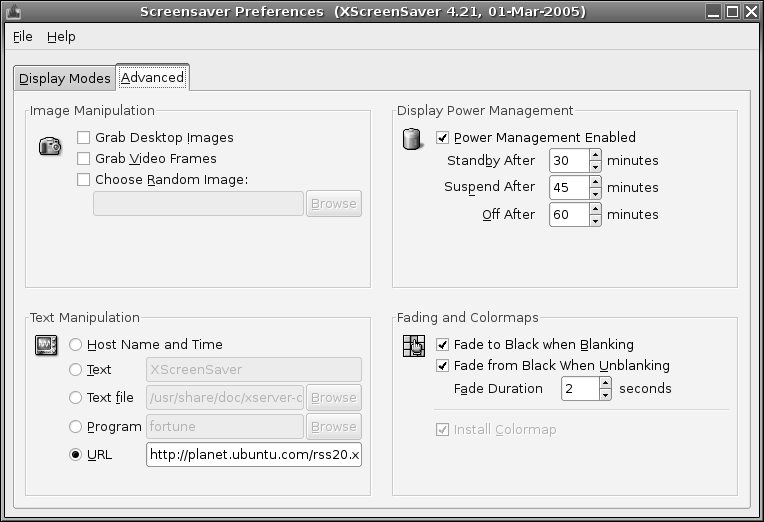
Figure 11. You can configure your monitor to automatically switch itself off after a certain period.
All modern hard disks come with the ability to spin down their motors to save energy. Then, when data is requested, the motors spin up again. There may be a slight delay while this happens, and some people dislike using disk spin-down because of this. However, on a notebook, it can lead to a substantial increase in battery life. On a desktop system, it's worth considering, because over the lifetime of a computer, it can save a lot of electricity (and therefore money!).
The spin-down settings are contained in the /etc/hdparm.conf file, which you'll need to edit by hand. Follow these steps to adjust the spin-down settings:
Open a GNOME Terminal window (Applications→Accessories→Terminal).
Type the following in the terminal window:
sudo gedit /etc/hdparm.conf
Click Search→Find and, in the box, type spindown_time.
Click the Find button, and then close the Search dialog box.
Change the line the Find routine has highlighted to remove the hash mark from the beginning, so it reads like this: spindown_time = 24. You can alter the value to anything you want. Each time unit is five seconds, so 24 equates to 120 seconds (24x5 seconds), or 2 minutes. To set a time of 20 minutes, enter 240 (240x5 seconds). If you specify a number above 240, the time units are increased to 30 minutes. In other words, a value of 241 will equate to 30 minutes, a value of 242 will equate to 60 minutes, and so on.
When you've finished, save the file.
Reboot for the settings to take effect.
An average computer draws anywhere between 100 to 500 watts of power. An average light bulb draws around 150 watts of power, so you can see that, relatively speaking, computers are low power consumers compared to many household devices. However, it's still worth considering employing power-saving techniques. You might not save yourself a lot of money, but if you switch on power saving, and your neighbor does too, and her neighbor does, then the cumulative effect will add up, and we can all contribute less towards global warming.
Try to avoid leaving your computer turned on overnight, or when you're away from it for long periods. As well as saving power, switching off your computer will avoid wear and tear on its components. Although the CPU can work 24/7 without trouble, it's cooled by a fan that's a simple mechanical device. There are other fans in your computer too, such as the graphics card fan and case fan. Each of these will eventually wear out. If your graphics card fan stops working, the card itself will overheat and might burn out. The same is true of the CPU fan. However, by shutting down your computer overnight, you can effectively double the life of the fans and radically reduce the risk of catastrophic failure. Isn't that worth considering?
In this chapter, you've learned how to completely personalize Ubuntu to your own tastes. We've looked at changing the theme so that the desktop has a new appearance, and we've examined how to make the input devices behave exactly as you would like.
In addition, you've learned how to add and remove applets from the desktop in order to add functionality or simply make Ubuntu work the way you would like.
Finally, we looked at the power-saving functions under Ubuntu and how you can avoid your computer wasting energy.
In the next chapter, we will look at what programs are available under Ubuntu to replace those Windows favorites you might miss.
