
SSHFS: Super Easy File Access over SSH
Tools like scp, sftp and rsync allow us to copy files easily and securely between these accounts. But, what if we don't want to copy the files to our local system before using them? Normally, this would be a good place for a traditional network filesystem, such as NFS, OpenAFS or Samba. Unfortunately, setting up these network filesystems requires administrator access on both systems.
Luckily, as long as you have SSH access, you can use SSHFS to mount and use remote directory trees as if they were local. SSHFS requires no special software on the remote side, just a modern SSH server with support for the SFTP extension. All modern Linux distributions support this extension, which was added to OpenSSH in version 2.3.0, released in November 2000.
SSHFS is built upon the FUSE user-space filesystem framework project. FUSE allows user-space software, SSH in this case, to present a virtual filesystem interface to the user. This is similar to how the /proc and /sys filesystems present kernel internals in the form of files in a directory tree. SSHFS connects to the remote system and does all the necessary operations to provide the look and feel of a regular filesystem interface for remote files.
I am using Fedora Core 4 on the workstation where I will be mounting the remote directories. The remote system is also Fedora Core 4, but any *NIX system running a modern SSH server with the SFTP extension will work. Your Linux kernel also must have the user-space filesystems feature enabled, either built-in or as a module.
All the software required for SSHFS is available as packages installable with yum for Fedora Core 4. Simply run:
$ yum install fuse-sshfs
This installs SSHFS, FUSE and the fuse-lib dependencies automatically. You also can build SSHFS from source, but more on that later.
Before you can use SSHFS or any other FUSE-based filesystem as a nonroot user, you must first add those users to the fuse group. In my case, my user name is matt. This can be done from the command line as root with the command:
$ usermod -a -G fuse matt
The fuse group lets you limit which users are allowed to use FUSE-based filesystems. This is important because FUSE installs setuid programs, which always carry security implications. On a highly secured system, access to such programs should be evaluated and controlled.
After installing and configuring the software, we are ready to give it a whirl. To demonstrate the basic functionality, I will make a connection to a remote system called my.randombox.com. The default operation for SSHFS is to mount the remote user's home directory; this is the most common use of SSHFS. Just like mounting any other filesystem, you need an empty directory called a mountpoint under which the remote filesystem will be mounted. I create a mountpoint named randombox_home, and then invoke the sshfs command to mount the remote filesystem. Here is how it's done:
$ cd $HOME
$ mkdir randombox_home
$ sshfs  matt@my.randombox.com:  randombox_home
matt@my.randombox.com's password: ************
$ ls -l randombox_home/
-rw-r-----  1 matt users     7286 Feb 11 08:59 sshfs.article.main.txt
drwx------  1 matt users     2048 Mar 21  2001 projects
drwx------  1 matt users     2048 Dec  1  2000 Mail
drwxr-xr-x  1 matt users     4096 Jun  8  2002 public_html
$ cp ~/my_web_site/index.html randombox_home/public_html/
That's it. My home directory on my.randombox.com is now mounted under the directory randombox_home on my local workstation. In the background, FUSE, SSHFS and the remote SSH server is doing all the legwork to make my remote home directory appear just like any other local filesystem. If you want to mount a directory other than your home directory, simply put it after the colon on the sshfs command line. You even can specify / to mount an entire remote system. You will of course have access only to the files and directories for which the remote user account has permission. Everything else will get “Permission denied” messages. An example of this is shown below:
$ cd $HOME
$ mkdir randombox_slash
$ sshfs  matt@my.randombox.com:/  randombox_slash
matt@my.randombox.com's password:
$ ls -l randombox_slash/
total 0
drwxr-xr-x  1 root root   4096 Nov 15 10:51 bin
drwxr-xr-x  1 root root   1024 Nov 16 07:11 boot
drwxr-xr-x  1 root root 118784 Jan 26 08:35 dev
drwxr-xr-x  1 root root   4096 Feb 17 10:37 etc
drwxr-xr-x  1 root root   4096 Nov 29 09:30 home
drwxr-xr-x  1 root root   4096 Jan 24  2003 initrd
drwxr-xr-x  1 root root   4096 Nov 15 10:53 lib
drwx------  1 root root  16384 Nov 11 10:21 lost+found
drwxr-xr-x  1 root root   4096 Nov 11 10:38 mnt
drwxr-xr-x  1 root root   4096 Jan 24  2003 opt
dr-xr-xr-x  1 root root      0 Jan 26 08:11 proc
drwx------  1 root root   4096 Mar  3 09:34 root
drwxr-xr-x  1 root root   8192 Nov 15 13:50 sbin
drwxrwxrwt  1 root root   4096 Mar  5 18:41 tmp
drwxr-xr-x  1 root root   4096 Nov 11 10:55 usr
drwxr-xr-x  1 root root   4096 Jan 20 08:16 var
$ cat randombox_slash/etc/shadow
cat: randombox_slash/etc/shadow: Permission denied
$ ls -l randombox_slash/root/
ls: reading directory randombox_slash/root/: Permission denied
total 0
$ ls -l randombox_slash/home/matt/
-rw-r-----  1 matt users     7286 Feb 11 08:59 sshfs.article.main.txt
drwx------  1 matt users     2048 Mar 21  2001 projects
drwx------  1 matt users     2048 Dec  1  2000 Mail
drwxr-xr-x  1 matt users     4096 Jun  8  2002 public_html
$
As you can see from the above examples, I needed to type my password to complete the SSH connection to the remote system. This can be eliminated by creating a trust relationship between the local and remote user accounts. This is not appropriate in all situations, because it essentially makes the accounts equivalent from a security perspective. Any malicious activity on one account can spread to other systems via the trust, so take caution and fully understand the implications of setting up trust relationships. To begin setting this up, you need to create an SSH key pair, which consists of public and private key files named id_rsa and id_rsa.pub, respectively.
The public key is copied to the remote system and placed in the $HOME/.ssh/authorized_keys file. Some systems may use the filename authorized_keys2 in addition to or instead of authorized_keys.
This allows any user in possession of the private key to authenticate without a password. We create the key pair using the command ssh-keygen. The files are placed in the proper locations automatically on the local system in the $HOME/.ssh directory. Because we already have my remote home directory mounted, appending the public key to the authorized_keys file is extra easy. Below are all the steps required (assuming you created the equivalent of the randombox_home directory and mounted it):
$ cd $HOME
$ ssh-keygen -t rsa
Generating public/private rsa key pair.
Enter file in which to save the key (/home/matt/.ssh/id_rsa): <ENTER>
Enter passphrase (empty for no passphrase):  <ENTER>
Enter same passphrase again:  <ENTER>
Your identification has been saved in /home/matt/.ssh/id_rsa.
Your public key has been saved in /home/matt/.ssh/id_rsa.pub.
The key fingerprint is:
fa:e7:7c:e1:cb:7b:66:8b:67:07:05:99:7f:05:b9:4a matt@myworkstation
$ mkdir randombox_home/.ssh
$ chmod 700 randombox_home/.ssh
$ cat .ssh/id_rsa.pub >> randombox_home/.ssh/authorized_keys
$ chmod 600 randombox_home/.ssh/authorized_keys
In the above example, we create the key pair with an empty passphrase, then append the public key to the authorized_keys file in the remote home directory and set the permissions. After this is done, I no longer need to type the password when connecting to the remote account. To test this, first we unmount the remote home directory with the following command:
$ fusermount -u randombox_home
To test the trust relationship, we can try to run the uptime command on the remote system:
$ ssh matt@my.randombox.com uptime
12:20:40  up 38 days,  4:12,  0 users,  load average: 0.11, 0.04, 0.01
Good, no password needed. The trust relationship is working properly. If you have trouble getting this trust relationship to work, check the permissions on the files in .ssh on both systems. Many times lax permissions prevent SSH from using key files. Also, take a look at the syslog log files. OpenSSH's sshd server logs messages into syslog, which often are helpful in diagnosing key file problems. You may have to increase the logging verbosity level in the sshd_config file, usually found in /etc/ssh/.
You also can debug the connection by running ssh in the above example with the -vvv option to turn up verbosity. Now, let's mount the remote directory again. This time it does not prompt for my password:
$ cd $HOME
$ mkdir randombox_home
$ sshfs  matt@my.randombox.com:  randombox_home
$ ls -l randombox_home/
-rw-r-----  1 matt users     7286 Feb 11 10:33 sshfs.article.main.txt
drwx------  1 matt users     2048 Mar 21  2001 projects
drwx------  1 matt users     2048 Dec  1  2000 Mail
drwxr-xr-x  1 matt users     4096 Jun  8  2002 public_html
In the last example, we configured and automated non-interactive mounting of a remote directory. Because we're no longer being prompted for a password, we can integrate SSHFS mounting into scripts, or better yet the GNOME desktop. To configure GNOME to mount our remote home directory automatically, we configure the SSHFS mount command as a session startup program. This is done from inside the Sessions preferences dialog. Navigate to Desktop→Preferences→More Preferences→Sessions->Add, and fill in the dialog as shown in Figure 1.
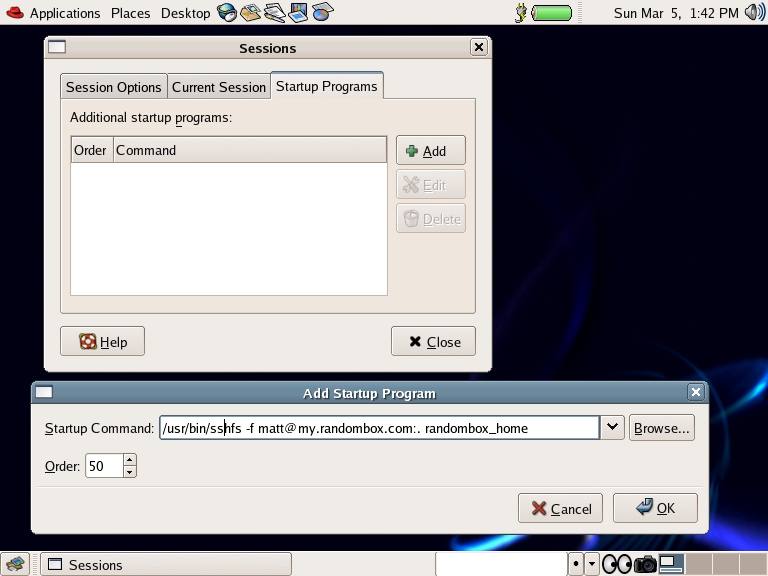
Figure 1. Set up a GNOME startup command to mount an SSHFS share.
Upon the next login, GNOME automatically mounts the remote directory for me, as you can see in Figure 2.
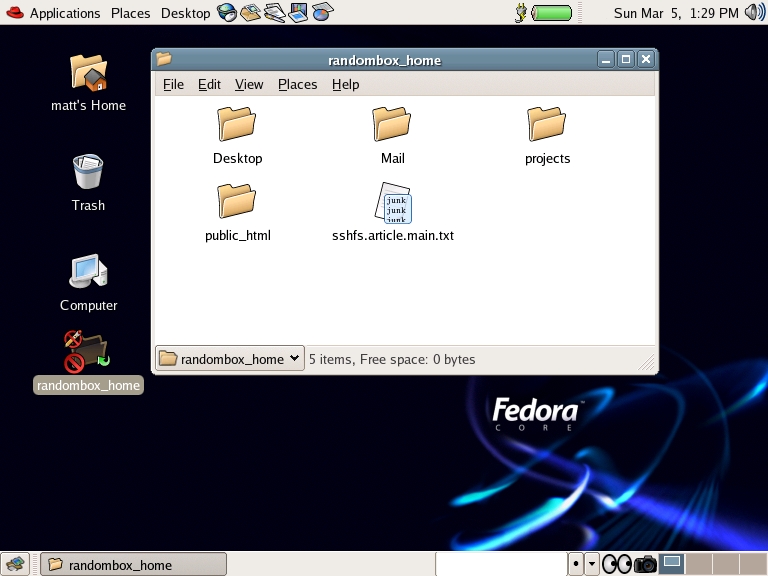
Figure 2. GNOME automatically mounts the remote directory.
Note that GNOME does not reliably kill this command upon exiting the session. You can unmount the remote directory manually using the fusermount -u randombox_home command. Another option is to automate the unmount by modifying the $HOME/.Xclients-default file to run the fusermount command as follows:
#!/bin/bash
# (c) 2001 Red Hat, Inc.

WM="gnome-session"
WMPATH="/usr/bin /usr/X11R6/bin /usr/local/bin"

# Kludged to run fusermount upon gnome logout.  20060301-MEH
for p in $WMPATH ; do
     [ -x $p/$WM ] && $p/$WM; fusermount  -u randombox_home; exit 0
done

exit 1
Be aware that the .Xclients-default file is rewritten every time you run the switchdesk utility. You have to modify this file every time you use use the switchdesk utility to change your default desktop windowing manager.
Finally, you can add the appropriate sshfs commands in the boot startup file that is appropriate for your distribution. This way, your system will mount all the SSHFS directories automatically each time you boot your desktop.
If your particular Linux distribution does not prepackage SSHFS, or if you simply want to build it from source, this also is pretty easy. First, confirm that you have installed whatever files or packages are required for kernel module development. You need these to build the FUSE kernel module. Then, download the latest source tarballs for both FUSE and SSHFS from SourceForge (see the on-line Resources). Place the downloaded tarball files in a temporary directory, then build and install using the following commands in that directory:
$ tar -xzf fuse-2.5.2.tar.gz
$ cd fuse-2.5.2
$ ./configure --prefix=/usr
$ make
$ su  -c "make install"
$ cd ..
$ tar -xzf sshfs-fuse-1.5.tar.gz
$ cd sshfs-fuse-1.5
$ ./configure --prefix=/usr
$ make
$ su  -c "make install"
After everything is installed, you are ready to perform any of the examples presented previously. After installation, the sshfs and fusermount commands are installed in /usr/bin.
SSHFS and FUSE allow any remote storage to be mounted and used just like any other filesystem. If you can log in with SSH, you have all the access you need.
As I said earlier, FUSE is a framework for creating user-space filesystems. SSHFS is only the tip of the iceberg. There are FUSE-based filesystems to encrypt your files (EncFS) transparently, browse Bluetooth devices (BTFS) or mount a CVS repository as a filesystem (CvsFS). Perhaps you were wondering what to do with all that free space in your Gmail account? Well, GmailFS allows you to mount your Gmail account and use it like a local filesystem. See the FUSE Web site for these and more great projects, or perhaps you would like to write your own. FUSE has language bindings for Perl, Python, TCL, C, C#, Ruby and others.
Resources for this article: /article/8943.
Matthew E. Hoskins is a Senior UNIX System Administrator for The New Jersey Institute of Technology where he maintains many of the corporate administrative systems. He enjoys trying to get wildly different systems and software working together, usually with a thin layer of Perl (locally known as “MattGlue”). When not hacking systems, he often can be found hacking in the kitchen. Matt is a member of the Society of Professional Journalists. He is eager to hear your feedback and can be reached at matt@njit.edu.

