
Zap Annoyances on the Web, Part II
Read Part I of this article here.
Now it's time to block some of those ads and Web bugs. I'm sure you have all heard the saying, “If it ain't broke, don't fix it.” Well, we're going to ignore that piece of advice completely and change our perfectly working Squid configuration. As mentioned above, Squid gives us the ability to redirect requests made from a browser to a secondary program and then process the results of that program. That program may return the original request (signified by a blank line), modify the request in some way or return something completely different. This functionality is completely transparent to the user—all you see is the end result. As you can guess, our next step is to modify our Squid installation to use a redirector.
The redirector we are going to use is called AdZapper (adzapper.sourceforge.net). AdZapper is a program that intercepts requests for many ads and Web bugs and replaces them with a request for placeholder images. The intercepted requests never get sent out to the Internet once the placeholder images are cached in Squid, saving you time while protecting you from Web bugs and other types of ads that track your path while you browse the Internet.
The first installation step is to download the AdZapper script from adzapper.sourceforge.net/scripts/squid_redirect. We save this script as /usr/bin/squid_redirect for this article, but you can place it in a different location if you want.
The next step is to find out where your Perl executable is located. You can do this by typing the command which perl in a terminal window. If you do not get back /usr/bin/perl, you need to update the first line of the squid_redirect file to match the location of Perl on your machine. If this is necessary, change the first line of the file from #!/usr/bin/perl to the location of your Perl executable. Be sure to leave the leading #! with no space before your path. After the file is set up properly, make it executable by typing chmod 777 /usr/bin/squid_redirect in a terminal window as root.
Now we tell Squid to use this program to filter our Web requests. Edit the /etc/squid/squid.conf once again (be sure you are doing this as root). Search for the line that reads:
# TAG: redirect_program
Remove these two lines and replace them with the following:
redirect_program /usr/bin/squid_redirect
If you did not save your script as /usr/bin/squid_redirect, you now need to change the above line to reflect the location of your script file.
It's time to test our new configuration. Restart Squid with the command /etc/init.d/squid restart, and browse to bannerblind.mozdev.org/testpage.html. If you do not have the Flash browser plugin installed, press Cancel when prompted to get the plugin. After the page loads you should see something similar to Figure 1. The original page can be seen in Figure 2. If you see the images that read This Ad Zapped, you've configured Squid to use AdZapper correctly. AdZapper does much more than blocking ads based on size; it also blocks requests based on the patterns at the bottom of the squid_redirect file.
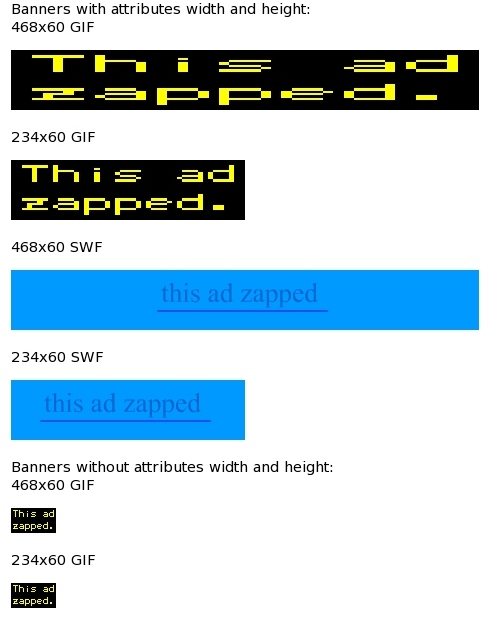
Figure 1. The AdZapper Test Page with Ads Zapped
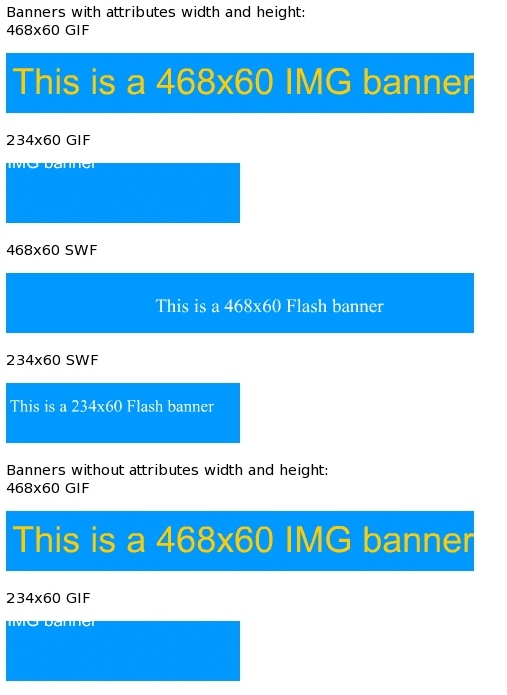
Figure 2. The Original AdZapper Test Page
So far we've streamlined our browsing experience significantly. We've also eliminated pop-ups and other JavaScript annoyances. But what if that's not enough? Let's take a look at the popular site Slashdot (slashdot.org). What if you don't want to view the images on the page, say the Slashdot logo and the images to search on the current topics?
This is where Mozilla's built-in ad blocking capabilities come in. To block images from a site, simply right-click on an image from the site you wish to block and choose Block Images from this Server. To see what Slashdot looks like after blocking the images, see Figure 3. Now that's a speedy download. Reversing this behavior is easy, too; right-click where the image usually would be and choose Unblock Images from this Server. You also can manage image permissions from the menu option under Tools→Image Manager→Manage Image Permissions. This screen can be seen in Figure 4. Blocking images in this manner also comes in handy when AdZapper misses ads. Mozilla doesn't hide images only from servers that have been blocked, but it also does not make the request at all. This has all the same advantages as AdZapper concerning speed and privacy.

Figure 3. Make your favorite sites load faster by blocking unneeded images.
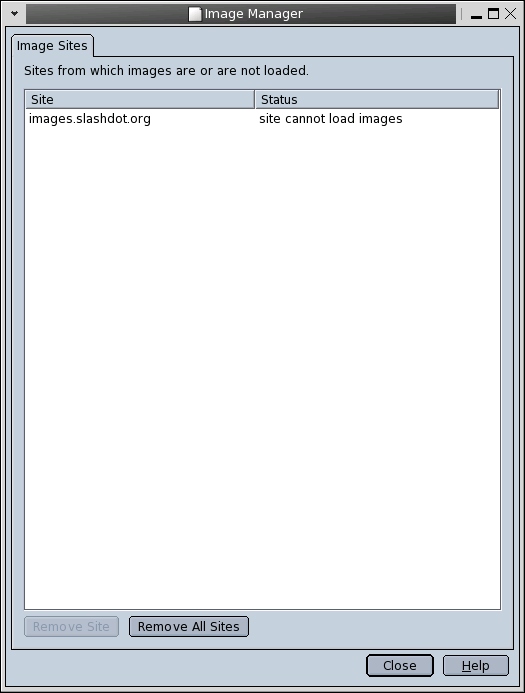
Figure 4. This Mozilla dialog lets you decide from which sites you want to see images.
If you do encounter pages where AdZapper is not blocking ads as it should, please consider e-mailing the maintainer of AdZapper with the page and image that was missed. You can find his e-mail address at the top of your /usr/bin/squid_redirect script. You can choose to receive e-mails when AdZapper is updated by joining the mailing list. Details can be found on AdZapper's home page.
By combining Squid and AdZapper with Mozilla's built-in functionality, it's easy to make your Web browsing experience quicker and much more enjoyable. Not only can you say good-bye forever to most ads and pop-up windows, you can increase your privacy at the same time. Setup is easy, and there's really no reason to not use these great tools to enhance your everyday Web browsing experience.
Frank Merenda is a systems architect for John Deere, where he writes J2EE applications on Linux, as well as a coauthor of the Linux site, uptime (uptime.steidler.net). He and his wife Jacq live with their seven dogs and five cats in rural Jackson County, Georgia, where they both are helping the Humane Society of Jackson County (www.hsjc.com) build an animal shelter. He can be reached at linux@frankandjacq.com.

