
Finding Your Way with GpsDrive
The Egyptians invented geometry, the mathematical basis of surveying. The Nile's annual floods removed markers and forced those tidy bureaucrats to re-measure roads, fields and other features of the landscape.
Gunpowder came to western hands, and long-range artillery was invented. This required precisely locating naval and artillery guns, as well as their targets. So, the military has had a longtime interest in the art of locating things, and they have refined the techniques that the Egyptians first pioneered.
In the 1970s, the US Department of Defense (DoD) started work on the Global Positioning System (GPS). This put a constellation of 24 satellites in low-Earth orbit. GPS allowed instantaneous fixes accurate to within a few tens of meters. The Soviets launched a similar system, Glonass, which Russia still maintains. And, the EU has begun work on an improved system of its own, Galileo, to be deployed in 2008.
The military is happy; they now can locate targets with much greater accuracy. However, as with another DoD project, the Internet Protocol, the civil spinoffs may far outweigh any military benefits. We can now use GPS to locate errant hikers, help distressed vessels and search for oil wells far more precisely and cheaply than with previous techniques. Indeed, the EU sees Galileo primarily as a commercial venture.
All three systems are based on atomic clocks aboard the satellites. The receiver uses time signals to tell its distance from each satellite. Spherical geometry tells us that three satellites give a fix in two dimensions. A fix in three dimensions requires a minimum of four satellites. Modern GPS receivers can track as many as 12 satellites, the most they can see at any one time.
Because of the frequencies and signal strengths at which GPS operates, the major constraint on GPS receivers these days is that one must be outdoors, or nearly so, or have a remote antenna, in order to track satellites.
GpsDrive is a program licensed under the GNU General Public License (GPL) for displaying one's position in real time. It operates on most laptops running Linux, and on Linux-driven PDAs, such as the Yopy and Zaurus. Currently, 12 languages are supported.
Before we begin, a word of warning: never consider GPS as anything but an adjunct or supplement to other tools of navigation. The advent of GPS is not occasion to dump your copy of Bowditch.
GpsDrive requires the Gnome Toolkit plus (GTK+), version 2.2 or higher, which comes with most Linux distributions. Anti-aliasing fonts are nice but not required.
MySQL can store waypoints, and GpsDrive will automatically use it if possible.
Kismet is a wireless sniffer, a tool for detecting Wi-Fi access points. As Kismet detects them, GpsDrive automatically turns the contact information into waypoints and stores them in MySQL. This turns GpsDrive into an excellent tool for wardriving.
Festival is a voice output program for Linux. GpsDrive uses it for voice delivery of comments as you approach waypoints. It is an excellent safety feature for mobile GpsDrive users. Flite is a stripped-down version of Festival.
Installing GpsDrive is straightforward for those familiar with typical package installation.
Get GpsDrive from its home page or mirrors indicated on its Web site (see the on-line Resources). You can get tarballs, md5sums and RPM packages for the latest stable versions. You also can get the latest work-in-progress quality version from anonymous CVS. The tarball version is the more flexible, as you can remove some of the components you don't plan to use.
To install a tarball, copy it to a suitable location. Then do the following:
tar -xvzf gpsdrive*tar.gz
cd gpsdrive
./configure
make
If you are using only the NMEA protocol and don't need the GARMIN protocol, configure GpsDrive with:
./configure --disable-garmin
You can append --enable-auto-optimization for optimized compiler flags.
Then, as root, install the program, the gpsd dæmon and the language files. Run:
make install
RPM installation is the usual:
rpm -ivh gpsdrive*.rpm
Once installation is complete, you should be able to read the man page, which has the latest information.
The first thing to do is to see if GpsDrive works with your GPS receiver. To test the system, fire up gpsd, a dæmon that serves the raw GPS data. It will listen on /dev/gps, unless you tell it otherwise on the command line with the -p option:
gpsd -p /dev/ttyS1
Because you should run GpsDrive and gpsd as a non-root user, make sure that user has read and write permission on the device.
Once gpsd is running, run:
telnet localhost 2947
When you get the connect message, press the R key, and gpsd will start feeding you raw NMEA sentences, like so:
[ccurley@charlesc ccurley]$ telnet teckla 2947
Trying 192.168.1.32...
Connected to teckla.
Escape character is '^]'.
r
GPSD,R=1
$PRWIRID,12,01.05,07/29/96,0003,*46
$GPRMC,235947,V,4333.1694,N,10812.0068,W,0.000,0.0,120895,13.3,E*42
$PRWIZCH,00,0,00,0,00,0,00,0,00,0,00,0,00,0,00,0,00,0,00,0,00,0,00,0*4D
ASTRAL
ASTRAL
$GPRMC,235949,V,4333.1694,N,10812.0068,W,0.000,0.0,120895,13.3,E*4C
....
GPSD,R=0
^]

telnet> quit
Connection closed.
This works even when the receiver can't get any signal, because the receiver will send data indicating that it doesn't have any signal.
Once you know which device your GPS receiver is on, make a symlink (as root) to /dev/gps so that gspd or gpsdrive can use the default:
ln -s /dev/ttyS0 /dev/gps
You can set the device name in the GpsDrive GUI, but gpsd won't use that setting.
If you are going to use MySQL for waypoint storage, which is required for Kismet, see the file README.SQL. You need to feed the file create.sql into MySQL's command-line client, so you must have appropriate permissions in MySQL. You can use any reasonable MySQL client to edit your waypoints, including OpenOffice.org.
Once you have GpsDrive and any optional software you want installed, and you know the GPS receiver is working, try GpsDrive. You will see a splash screen, then the main window. Then you will see one nag screen for the first and last time. The author, Fritz Ganter, pays for the server for the Web page out of his own pocket and would appreciate your contribution.
Once you close the nag box, you should see an image in the map section of the GpsDrive window. This is a placeholder until you get a map for yourself. The first thing to do is turn off simulation mode in the Preferences menu. While you are there, if you want statute or nautical miles, select that option.
To get your first map, determine the latitude and longitude of the center of your new map. Then put the program into position mode (lower-left area of the menu). Next, create a waypoint with the X key, and enter the lat and long of the map center. Use minus signs to indicate south and west (Figure 1).
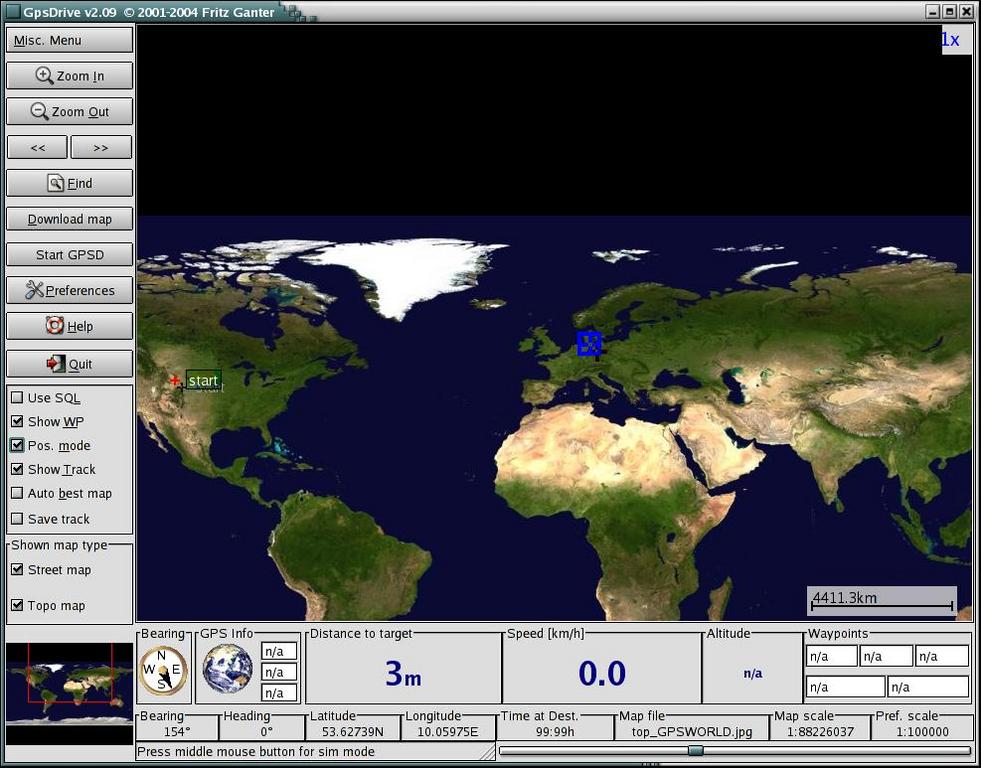
Figure 1. The Main Window on the First Use of GpsDrive
Use the find tool (upper-left menu) to go to the waypoint. Now, click the Download Map entry on the left side of the main window. You will notice that your lat and long are the defaults. Select your scale and source, and grab a map. Bingo! The new map is displayed immediately. If this is a location you use a lot, you may want to download several maps at different scales.
GpsDrive has three modes: position, normal and simulation.
Use position mode to move around on your maps. Enter position mode by checking Pos. mode on the lower-left side of the main window. Once you are in position mode, as you jump around by clicking on the map, GpsDrive shows you the distance and bearing from the current position (marked with a blue square) to the target (indicated by an alternating red and blue cross).
For example, once you have a small-scale map of a large area, you can move around and download selected large-scale maps for interesting locations. You also can define waypoints using position mode.
In normal mode, GpsDrive has a fix from a GPS receiver and is tracking the position indicated by the receiver. As the position changes, GpsDrive pans across its supply of maps. GpsDrive comes up in normal mode.
In simulation mode, GpsDrive generates a path from a starting point to one or more waypoints. To enter simulation mode, bring up Preferences, go to the first settings tab and check Simulation. This is a fun mode, as you get to watch an imaginary vehicle move at high speeds across the countryside.
You will want several maps in different scales. I recommend you get a very small-scale map that covers all of your normal travel area. With this in place, you won't fall off your map if you accidentally click outside your area in position mode. The NASA maps (if you have the disk space) or the default map do this nicely.
In the GUI, you simply select the parameters for the map you want, and the server, and then get it. That's the easy way. However, the results may not tile well. You can get US Geological Survey maps from Topozone.com or street maps from Expedia.com.
If you know the latitude and longitude of the center point and the scale you want, enter these into the download map dialog and go. You also can enter position mode and click on existing maps until you get to the center of a new map you want and then download it.
Then, there is NASA topographical data. See the file README.nasamaps for details and Figure 2 for an example.
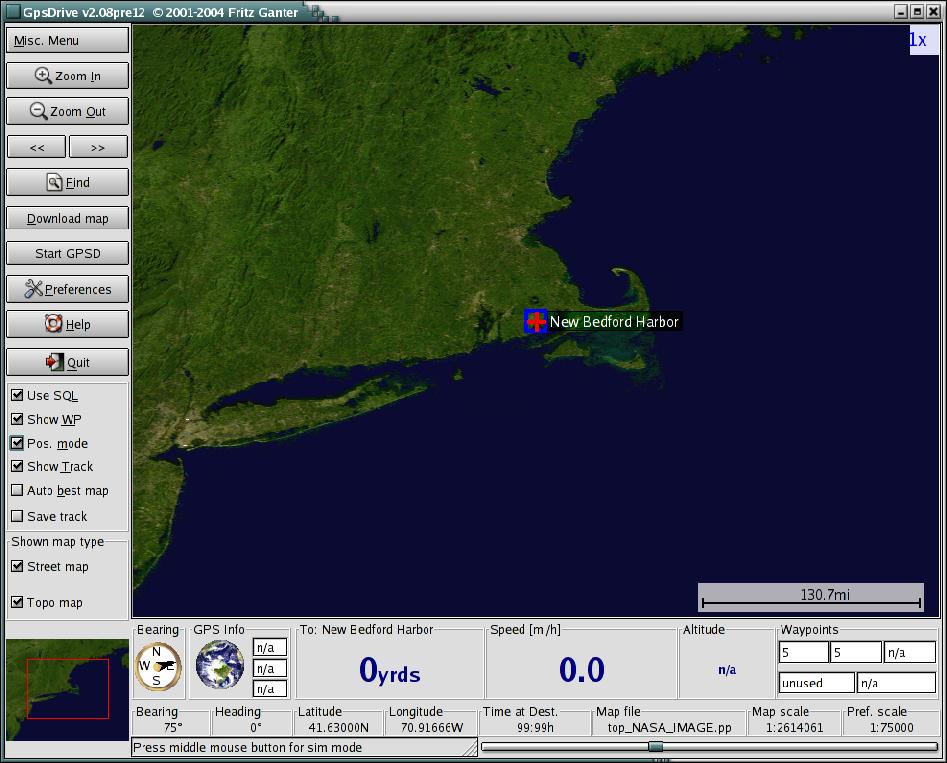
Figure 2. Southern New England shown by GpsDrive using NASA topographical data.
For a more systematic map collection, see the accompanying gpsfetchmap.pl.
Some of these map sources provide copyrighted data. Be sure you use the maps in a manner consistent with the permissions granted on the Web site.
You also can import your own maps. You need to know the latitude and longitude of the center point and the scale of the map. There is a druid to help you import maps under the Misc. menu in the top-left corner of the GpsDrive window.
Now that you have some maps, it's time to play around with your new toy.
GpsDrive is well supplied with tool tips, so we only cover the highlights of the display here.
Right below the map in the main window, GpsDrive displays navigation data. Distance to the next waypoint and current speed are obvious. To the right of those is some information on waypoints, mobile targets visible on your friend's server, and the current time according to the GPS receiver.
To the left of the distance to waypoint display is GPS information. With no GPS, a rotating globe is shown. When a GPS is present, the globe is replaced by a signal strength meter for visible satellites. Its background is red if there is no fix; green if there is a fix.
To the left of the GPS data is a compass. The top of the compass indicates your current heading or the course you are sailing. The black pointer gives a bearing to the next waypoint.
A lot of settings are handled in the Preferences menu, which you can select from the left side of the main window. You already know about selecting your units of measure. If you are operating with an older computer, you may want to limit the amount of CPU time GpsDrive takes up, and turn off shadows, which require extra processing to draw.
In the second settings tab you will find some GPS-related settings. For example, you may elect to have GpsDrive access the receiver directly instead of through gpsd.
The SQL tab lets you select certain types of waypoints to include or exclude from the display. This lets you organize waypoints into categories and decide which ones to display. I use this with a set of waypoints for my preferred gas station chain. I can turn them on or off on the display, depending on whether I am looking for gasoline or not.
Once you have maps in hand, there are several controls you can use to manipulate them. For areas where you travel a lot, you probably have maps of several different scales. There are several ways to select between them. The first is to check Auto best map in the lower part of the left menu. This tells GpsDrive to select the best (largest scale) map available for the current location.
Below that, right above the area map, you can check on street or topographical maps, or both. With both checked, GpsDrive moves between the two types, which gives you the most coverage for the maps you have.
Turn Auto best map off and you have several ways of selecting scale. In the upper-left area of the main window, you will find two arrows. Click on the left arrow to move to a larger-scale map, on the right to move to a smaller-scale map. You also can move the slider on the very bottom-right side for the same effect. This sets the preferred scale, and GpsDrive stays as close to that scale as it can.
Within a given map, you also can zoom in and out. Use the two magnifying glass controls on the upper left of the main window. The current magnification is indicated in the upper-right corner of the main map. GpsDrive keeps the same level of zoom when it changes maps, which can be disconcerting.
First, make sure you have waypoints turned on and that you are using SQL or not, as appropriate.
There are several ways to set waypoints. You can hand-edit them into the text file or MySQL database, you can use the program gpsbabel to convert from other file formats or you even can download them from Wayhoo.com.
In position mode, you can enter a waypoint at the current position by pressing the X key, or you can enter a waypoint at the current mouse pointer with the Y key. You always can edit the parameters before you commit the waypoint.
Wardriving is the sport of driving around searching for Wi-Fi access points. For more, see the article “Discovering Wireless Networks” in the September 2003 issue of Linux Journal.
GpsDrive comes equipped with a friends server. This lets several people display each others' positions on their systems. You can run your own, or you can use any one you can find on the public Internet. This is real-time plotting of multiple vehicles' positions. This makes GpsDrive a great adjunct to a car rally or search-and-rescue mission.
If a user falls off the Net temporarily due to Wi-Fi signal loss, the user's last known position is displayed. Once he or she is back on the Net, displays are updated in seconds.
About the only thing missing from GpsDrive is street-level routing. To do this, the program needs an open source of street-level data. Commercial data usually runs in the area of 10,000 Euros, which is a showstopper. If you know of such a data source, please let the author know.
GpsDrive is an excellent tool for displaying the positions of one or more GPS receivers in real time. It is suitable for several applications, from fun stuff like tracking a Sunday afternoon's exploration to serious work like search and rescue.
Resources for this article: /article/8068.
Charles Curley (www.charlescurley.com) teaches Linux at two Wyoming colleges. He also writes software and articles and books, using open-source software tools such as Emacs.

