
Bootable Restoration CDs with Mondo
The disaster recovery suite Mondo has become a vital component of the backup and restore plan for Midwest Tool & Die (MTD). With the addition of Mondo's backup tool, mondoarchive, to our backup plan, we gained disaster recovery from bare metal, quick rollback to known good configurations and easy duplication of Linux software loads. Mondo also has the ability to support the cloning of LVM, RAID, ext2, ext3, JFS, XFS, ReiserFS and VFAT filesystems.
At MTD, we rely on tape to back up company and user data. We have used several enterprise backup solutions, but disaster recovery has been an issue with each one. In the past, to recover from bare metal required re-installation of Linux from the distribution CDs. After the fresh installation, the tape backup client software was loaded. Finally, the system's specific software was restored from the tape backup.
Now, we create a bootable restoration CD that can recover an entire system with its specific drivers and application software. A tape restore then overwrites files that have changed since the CD was created. Whenever significant system changes have been made, a new rescue CD image is created to replace the existing copy.
Creating a rescue CD image is a straightforward process, so it can be repeated whenever a snapshot of a system is needed. With today's large hard disks, periodic backups are possible with mondoarchive. A cron job automation example to handle this is explained later in this article.
Here, at MTD, we use mondoarchive instead of tape to back up certain systems:
For Linux machines that serve static data, tape backup is not necessary. These machines can be backed up periodically with mondoarchive.
Sacrificial systems exposed to the outside Internet through a demilitarized zone. These systems must be segregated from the internal network and are not visible to the tape backup server. mondoarchive can maintain a good copy of sacrificial systems. If a system's security is compromised, restoration is quick.
Linux firewall routers having static configurations with no user accounts and high security. For this reason, routers are not accessible by our enterprise tape backup system. The router configurations change infrequently, so mondoarchive is a good fit.
In addition to backups, a rescue CD can serve as a bootable, restorable system snapshot. mondoarchive's ease of use has spawned several applications at our company.
Building a test bed is another easy task with mondoarchive. A system can be loaded from bare metal and the known good load can be restored at will. When the final system load is ready for production, a new CD image is created. This becomes the disaster recovery and quick rollback CD for the production server.
Mondo's restore utility is flexible. With the interactive restore utility, we resize and restructure partitions. This is a useful method for upgrading from an existing hard disk to a larger disk.
To duplicate an installed Linux system, create a rescue CD from the entire system. Then, restore it to another bare metal box. If the original system was configured to use DHCP for IP address assignment, the new system will do the same. For systems with static IPs, both systems now have the same hostname and IP address. So, make sure to load the clone while disconnected from your production network. We use a test bed network for this purpose.
As if these uses weren't enough, mondoarchive also includes an option to verify the archived files with your system; therefore, you can use the CD as a benchmark against the present system. This is useful for checking the integrity of static systems.
As you can see, mondoarchive is a flexible and useful archive and cloning utility. If you value your data and/or server configuration, read on.
The installation examples here pertain to Red Hat Linux 8.0, which is our tested environment. Several dependencies need to be satisfied before you can actually install mondoarchive. On Red Hat systems, check for these required packages: afio, cdrecord, buffer, mkisofs, syslinux and bzip2. If they all are installed, you can move on to installing the mondoarchive packages. If not, you have a little bit of prep work to do. In most cases you can find these packages on your Red Hat CDs. Alternatively, you could download them from Red Hat, rpmfind.net, or directly from the Mondo home page. When you have located all the packages, install them with rpm.
After you have satisfied the dependencies, you can install the packages themselves. Two packages specifically need to be installed for mondoarchive. The mindi and mondo packages can be downloaded from www.microwerks.net/~hugo/index.html.
mindi is the portion of Mondo that creates boot and root floppies/CDs. It basically makes sure that mondoarchive has everything it needs to boot the archival CD or floppies. Install mindi first with:
# rpm -Uvh mindi
You also have to install the mondo package. After mindi is installed, type:
# rpm -Uvh mondo
Many different types of systems can be backed up in various ways with mondoarchive. Here we describe only the situations we laid out earlier—to back up our servers and create clone systems.
In our environment, many servers perform various tasks, and each of them is configured differently. Some have multiple IDE or SCSI hard disks for massive storage, and some have only one IDE or SCSI drive. There even are some RAID systems. On some servers the data is ever-changing, and on some servers it hardly ever changes. It is possible to use mondoarchive to clone all of these systems.
First of all, it may be a good idea to look at your disk usage on a per-server basis. Pay close attention to what is being mounted, where and when. There is no need to back up noncritical information if it can be avoided; if you have large directories that do not contain critical data, you should think about excluding them. For example, we share data between servers over NFS and automount, and we have many of the same shares mounted on each server. What you don't want to do is ignore these mounted shares and have mondoarchive back up that data too. After you have identified the unnecessary mounted partitions or shares, you have the ability to exclude them with the -E option. The format of that option should be as follows: -E /a /b /c where /a /b and /c are directories. This will ensure exclusion of that data.
Now that you know exactly what you want to back up, let's examine the mondoarchive command and a few of its options. You have the ability to back up to CD, ISO images and an NFS share. In this article we discuss only how to back up to ISO images for burning to CD at a later time. For complete details on mondoarchive and its usage, read its man page.
Before you run the mondoarchive command, choose a place on your drive that has a lot of room to store a large ISO image file. Say we pick /home/mondo, and home is a 6GB partition. The command to use looks like this:
# mondoarchive -Oi -d /home/mondo -E "/home/mondo"
The -Oi option tells mondoarchive to back up the filesystem to an ISO image. Next, -d /home/mondo lets mondoarchive know the resulting ISO images should be put in the /home/mondo directory. Depending on the size of your system, you may have multiple ISO images created. Finally, -E /home/mondo excludes unnecessary directories. Here, we told it to exclude /home/mondo, which could contain other massive ISO images and cause your backup to grow unnecessarily.
In cases where disk space is low, you need to specify a scratch directory. This is a temporary directory that mondoarchive uses to build its ISO images before they are archived. In this situation, it is wise to tell mondoarchive to put its scratch directory in a large partition. Otherwise, mondoarchive most likely will fail when it runs out of room. In the example below, pretend /var/local/data is a large partition on your disk. To specify the scratch directory, run the mondoarchive command adding an -S option:
# mondoarchive -Oi -d /home/mondo \
-S /var/local/data -E "/home/mondo"
After running the command, mondoarchive checks your system, makes sure everything is okay and begins its backup process. It continuously shows its progress during the process (Figure 1) and may take a while to complete. When it finally is finished, it asks if you want to create boot disks. You can answer no, because the CD you burn will be bootable. If you want or need the disks, say yes.
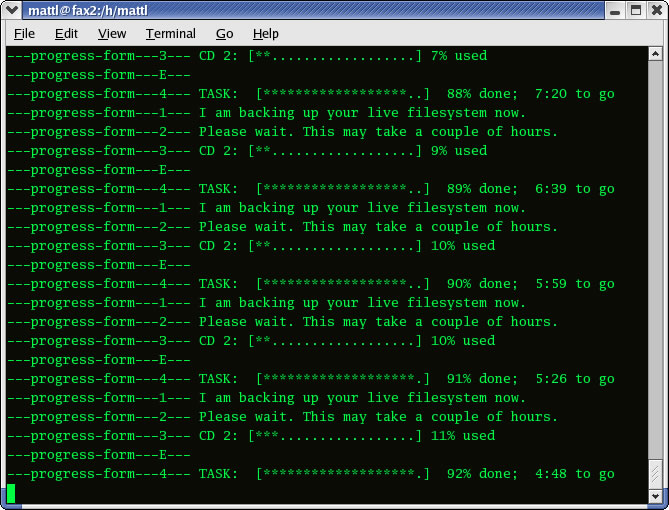
Figure 1. Mondoarchive Running
When it's complete, you'll have ISO images in /home/mondo or wherever you specified, from which you can burn CDs. You can burn them in many different ways, including using Xcdroast, Webmin or the cdrecord command. To do this quickly, run cdrecord -scanbus. This discovers your CD writer's bus, target and logical unit number (LUN), which is usually 0,0,0:
# cdrecord dev=0,0,0 speed=xx /home/mondo/1.iso
mondoarchive also can be run automatically at a time of your choosing by setting it up as a cron job. To set this up, first create a script similar to the following and place it in /etc/cron.daily/:
#!/bin/sh
mkdir -p /home/mondo/`date +%A` && \
mondoarchive -Oi -d /home/mondo/`date +%A` \
-E /home/mondo
When placed in /etc/cron.daily/, this script runs every day at the same time. Upon execution, it creates a folder in /home/mondo corresponding to the day. If you run the cron job seven days a week, there will be seven folders in /home/mondo, each named for a day of the week and containing the ISO images for that day's backup. Of course, if you want to have these on CD, you can use the cdrecord command again.
You're probably saying, “Great, I have a bunch of CDs; now what?” Because the CD you made is bootable, you can pop it right in your CD-ROM drive and begin your mondoarchive restore learning experience. Four different restore options are available: barebones (nuke), interactive, expert and advanced.
If you're using mondoarchive solely as an emergency restore utility, the only option you really need to worry about is nuke. After the CD boots, type nuke at the prompt and watch mondoarchive do its magic. After it is done restoring, your system comes back to the way it was before you ran mondoarchive. This can be handy in the event of a catastrophic server failure when you need to get back up quickly. It also can be helpful when you're building preproduction or test bed systems that you would like to roll back to a certain development point.
The interactive mode of mondoarchive also can be useful. This mode enables you to edit your partition table before restoring your system, and it can come in handy when building clone machines with different hard disks. Using mondoarchive in interactive mode enables you to change the size of the partitions to which you want to restore data. This is possible using a partition table editor provided in mondoarchive. mondoarchive is even nice enough to resize your partitions when running in nuke mode, but here you don't have control over the sizes it uses. mondoarchive also resizes partitions in interactive mode, but you have the ability to change what it suggests.
To use mondoarchive in interactive mode, boot to the CD and type interactive. A menu appears asking you how you want to restore (Figure 2).
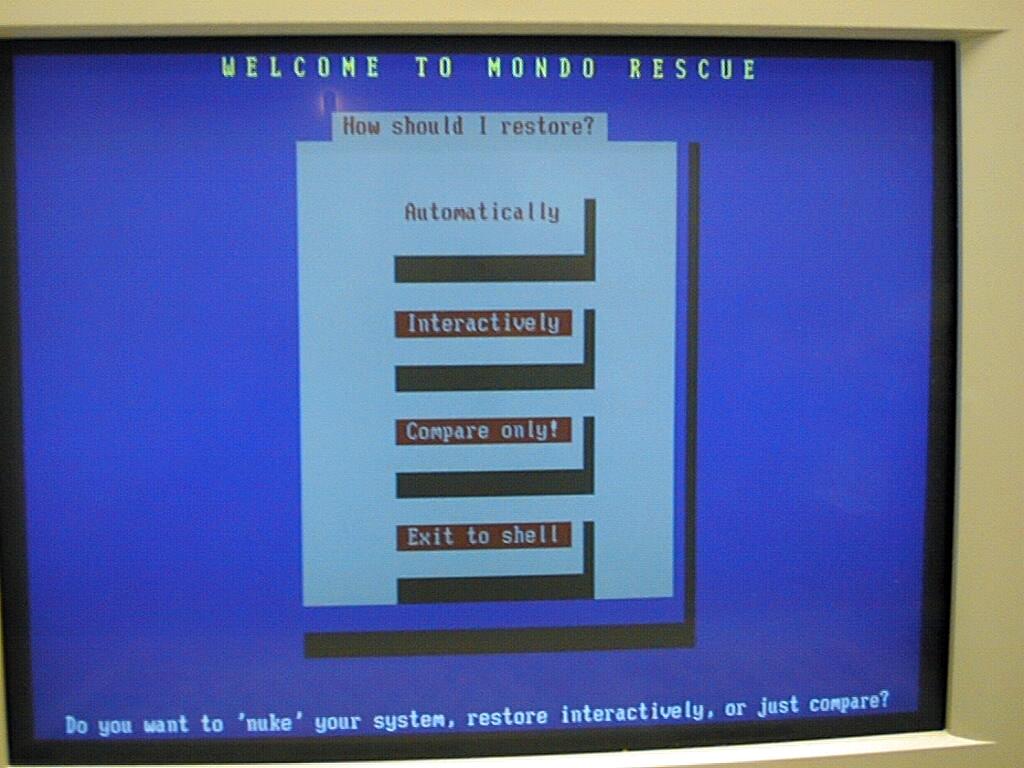
Figure 2. Mondo's Interactive Mode
Your options are Automatically, Interactively and Compare. The option we want to select here is Interactively. After making the selection, you are asked where your data should come from (Figure 3).
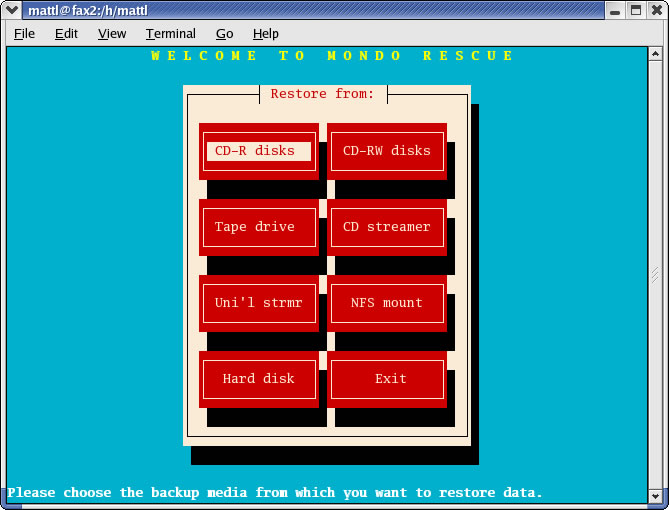
Figure 3. Selecting the Data Source in Interactive Mode
Select the appropriate location and continue. Next, a partition manager screen appears (Figure 4) from which you have the ability to edit partition information. You also can change the device name, mountpoint, filesystem format and partition size. After making your changes, click OK to continue.
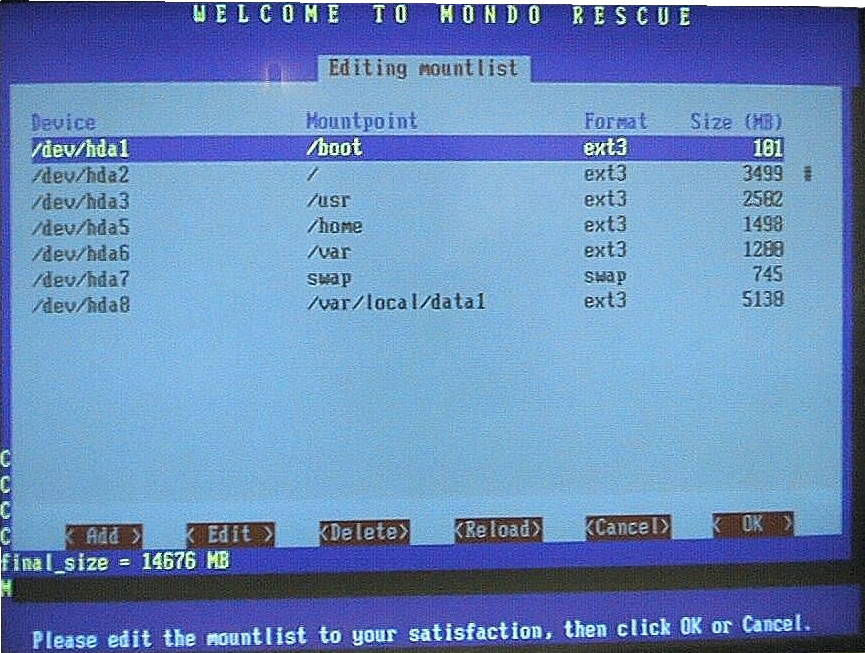
Figure 4. Editing Partition Information in Interactive Mode
From this point on, Mondo asks you a series of questions regarding the restore operation:
- Are you sure you want to save your
  mountlist and continue?  YES
- Do you want to erase and partition
  your hard drives?  YES
- Do you want me to restore all your data?  YES
- Initialize the bootloader?  YES
- Did you change the mountlist?  YES
- You will now edit fstab and lilo.conf/grub.conf,
  to make sure they match your new mountlist.  OK
Mondo then opens up /etc/fstab and lilo.conf/grub.conf for editing in vi. You should make changes accordingly so they match your new mountlist:
- Edit them again?  NO
- Label your ext2 and ext3 partitions
  if necessary?  YES
When Mondo is finished, it throws you back to a prompt for reboot. Press Ctrl-Alt-Delete to reboot.
In addition to a total restore option, mondoarchive also provides another function. In the event that the data on the machine you cloned is static, you probably don't want that data to change. This is the case at Midwest Tool & Die with our Linux routers. Using mondoarchive, we have the ability to verify a software load against the backup and discover whether any changes have been made recently. This is easy. First, reboot the system with CD #1 in the CD-ROM drive. Then type # compare.
When mondoarchive is finished, it puts the compare results in /tmp/changed.txt. There will be differences between the CD and the live filesystem you checked. Log files and most everything in /var, for example, are going to change all the time, so don't worry about them. What you probably want to look for are changes to anything located in directories such as /boot or /etc. The configuration files in those directories are system-specific and should not change much after the system is up and running. If you find changes to those files and you don't remember making them, you most likely have a problem.
The only problem with doing the compare is the fact that you have to bring down the system to verify it. Although this may not be a problem in some environments, you may be in a situation where your servers must be up 24 hours a day. In those cases, you probably are better off doing the verification during a scheduled downtime. An alternative to using mondoarchive to verify systems is the popular application Tripwire. I would recommend using Tripwire for static systems that need to be up all the time.
Now that you know the potential mondoarchive has for your disaster recovery plans, we recommend exploring it in more detail. In the event that something catastrophic occurs, you can recover quickly and completely. Please visit the Mondo Rescue home page at www.microwerks.net/~hugo/index.html and see what a great job Hugo Rabson, the author and maintainer of mondoarchive, does in maintaining mondoarchive. He is making our admin life a lot easier, and he could do the same for you.
Craig Swanson (craig.swanson@slssolutions.net) designs networks and offers Linux consulting at SLS Solutions. He also develops Linux software at Midwest Tool & Die. Craig has used Linux since 1993.
Matt Lung (matt.lung@slssolutions.net) works as a network engineer at Midwest Tool & Die. He also provides Linux consulting at SLS Solutions.

