
Introducing Linux into the Enterprise
Those of us who use Linux on a daily basis greatly appreciate its power and flexibility, not to mention its resistance to virus threats. Linux's raw performance, stability and incredible toolset all combine to make it an obvious choice for mission-critical servers in the enterprise. But in order to continue gaining acceptance into a primarily Microsoft world, we must continue to find ways to deploy Linux and exploit its robust capabilities, while at the same time help IT managers and system administrators realize its incredible benefits. This article discusses how our IT group was able to accomplish plugging Linux in to a once Windows-only environment and save thousands of dollars in the process. We look at using Linux as a platform for server consolidation, and if you stick with me, I promise to show you some cool tricks that will save you hours of work and subsequent administrative headaches.
If one can find a bright spot in the dot-com meltdown of 2000, it would have to be the renewed interest in emerging and cost-effective technologies. Server consolidation is one such technology that needed to be explored as a way to save money and keep businesses running--enter Linux and a special piece of software called GSX Server, from VMware Inc. in Palo Alto, California. VMware is not a newcomer to the Linux community, having released a workstation product several years ago that allows users to run multiple unique operating systems on a single computer, without the need to multiboot--an extremely useful tool for help desks and developers alike.
But VMware's GSX Server is quite a bit different from its workstation tool. Once installed, GSX runs on top of Linux, providing an environment that allows you to run multiple virtual server instances. In our case, we needed additional Windows NT 4.0 and Windows 2000 servers to provide development and test environments for new projects. Because tighter budgets did not allow for buying additional hardware, we decided to take a serious look at VMware's GSX Server. Can this thing work? Can virtual servers really replace individual chunks of hardware and provide acceptable performance and stability? Both of these questions could be answered only through thorough testing of the product.
We began by building GSX test servers with Red Hat 7.0 and GSX version 1.1 on an NCR S50 (550MHz quad) and a couple of Compaq DL380 and DL580 servers (733MHz and up, dual and quad processor). Early testing on some older hardware demonstrated that virtual server performance was not up to par on hardware with less than 500MHz processors. But with hardware running at 550MHz and above, the performance of our virtual servers proved to run at near native speed. Something to keep in mind when measuring performance is that virtual servers are accessible only to end users via remote access technology, such as VMware's included remote console, Microsoft Terminal Services or a product like pcAnywhere (my personal preference). As such, network latency needs to be taken into consideration when measuring virtual server performance. As for stability, there is a noticeable improvement as seen in fewer server crashes and blue screens while running Windows NT and 2000 servers in the GSX virtual environment. The real acid test, of course, is the end users. When they can't tell the difference and don't complain, life is good.
Needless to say, we were quite impressed with this technology and the performance of our virtual servers. We saved thousands of dollars on hardware by hosting six virtual servers on a single box, have less physical servers to administer and back up, and surprise--the virtual Windows instances are more stable than when installed directly on top of the physical hardware (fewer BSOD events; go figure).
Not long after we had begun testing the GSX 1.1 product, VMware offered to let us begin working with the newer 1.02 version of GSX Server. This allowed for testing of the new 2.4.x kernel in Red Hat 7.1 and provided for increased server memory from (2GB to 4GB) under the new GSX. Performance of the virtual servers and stability of the VMware remote console was much improved with the new version of GSX. In addition to the aforementioned improvements, we were also able to run additional virtual servers (now up to eight or more) due to the increase in maximum server memory.
Building a VMware GSX Server on top of Linux is easy. VMware offers a 30-day evaluation version that you can download from their web site and install. After completing a quick registration form where you provide your e-mail address and name, select the version appropriate to your distribution and download. For this article we will be using the RPM versions of GSX, but other packages are available for various distributions. Typically within minutes of registering with VMware, you will receive an e-mail with the 30-day license key attached.
As for your host server, you have a choice of Linux distributions, such as Red Hat, Caldera, Turbolinux and SuSE. During the installation of your particular distribution, you will want to consider a partitioning scheme similar to what is shown in Listing 1. The /var, /temp and /home partitions require additional space for log and temp files and, of course, the virtual instances themselves.
Listing 1. Partitioning Scheme
Because our servers came configured with 80GB of disk space that we set up in a RAID-5 array, we had a fair amount of disk space to work with. But in order to save additional disk space for the virtual servers, you may want to choose the custom build install option (Red Hat being the example here) and exclude unnecessary packages, such as games, multimedia, printing, DNS, laptop and so on. Be sure, however, to the include Apache, Samba, networking utilities, the X Window System, compilers and kernel source packages. Once the build is completed, copy the downloaded VMware files to the host server. You also should download the install and configuration documents from VMware's web site to refer to as we begin the GSX installation.
Working as the root user, first install the GSX engine as follows:
rpm -ihv vmware-gsx-1.0.3-1527.i386.rpm
The RPM packages will notify you of any missing dependencies you may need to resolve (a rare occurrence). Once the RPM installation is completed, change directories to the /usr/bin directory and run the GSX installer script:
./vmware-config.pl
This is a Perl script that will walk you through the installation of the GSX engine. You will be prompted to answer several questions regarding network configuration and file location. When prompted, answer Yes to Bridged networking and No to Host Only. Accepting the defaults for file locations is fine. When you are prompted to enter a serial number to register the product, refer to the license information sent to you by e-mail. Next, GSX will determine if it has precompiled kernel modules appropriate for your particular distribution. If it does not find compatible modules, GSX will attempt to compile them for you, prompting you for the location of the kernel source files (now aren't you glad you installed them?). After the script has completed this portion of the installation, change back to the directory that you copied the GSX files to (I use the /root directory) and type:
tar -xzvf vmware-mui-1.0.3-1527.tar.gz
After the tar extraction completes, you will have a new directory with the name vmware-mui. Change to the /vmware-mui directory and type:
./vmware-install.pl
Yet another Perl script will begin installing the rest of the GSX package, including necessary Perl modules and additions to the Apache configuration for the web-based administration interface to GSX. Once the Perl script has completed, you will have a working version of the GSX Server running on top of Linux.
One additional package you may want to install is the vmware-console-1.0.3-1527.i386.rpm. This package allows you to use the graphical interface to build virtual instances locally on the Linux server rather than only from a remote console.
Now that we have all the VMware GSX goodies installed, we need to verify that GSX is running. From the command line, cd to the /etc directory and type rc.d/init.d/vmware status or service vmware status. You should receive verification that the vmware dæmon is running and that a single instance of vmnet is also running (vmnet is the virtual network bridge that allows our Windows instances to talk through the Linux hosts' hardware, eth0, etc.).
Finally, bring up a web browser and point it to the host server's name or IP address followed by port 8222 (see Figure 1).
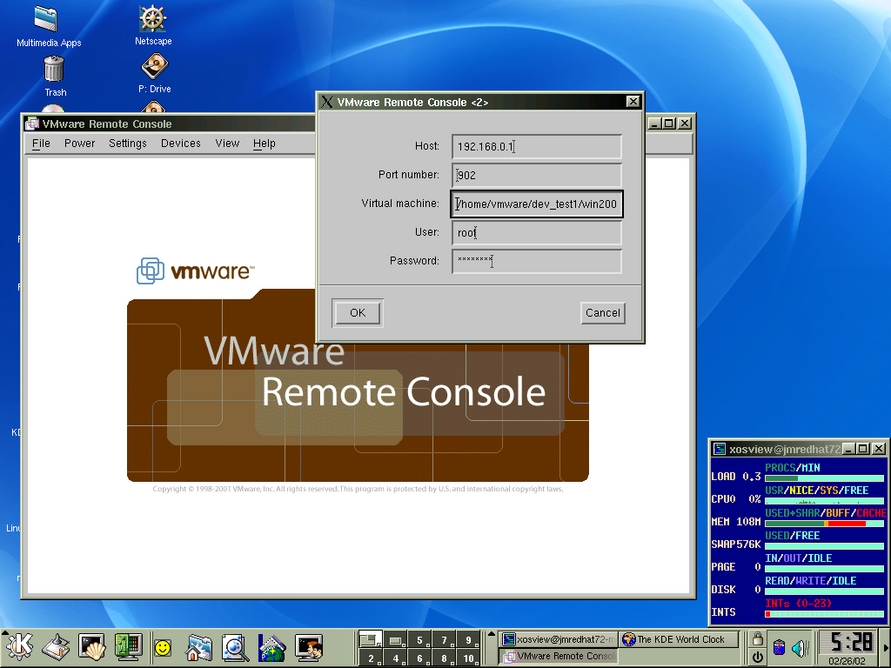
Figure 1. VMware Remote Console
You will be prompted to log in (as root) to the console where you will be greeted by a web interface. The GSX host console allows you to create new virtual servers and monitor existing ones as they run. You can also launch the remote consoles from within the web admin tool and log in to your virtual server instances once they are built. God love those geniuses at VMware.
All that is left to do is create servers in the new web console, then boot the virtual server to your install media. In the web console, click the New VM button to begin creating your virtual servers. You will need to provide a name for the instance, its location on the server (i.e., /home/vmware/win2k) and the amount of memory and disk space allocated to it. Be sure to enable networking and set video resolution to 8 bit (for better performance). Once the virtual instances have been created, place your bootable media in the appropriate drive on the host server and launch the GSX remote console. Just click the Power On button and watch the magic as a virtual computer comes to life, complete with Phoenix BIOS. If you are booting from CD, the next thing you will see is the installer program of the OS you have chosen. From this point on, it's business as usual.
So now it's time for some of those cool tricks I promised. Would you believe me if I said that you can build a complete Windows 2000 or NT 4.0 server in just a few minutes under GSX? Or, how about multiple servers at the same time in under an hour? Here's how it works. The first build of an operating systems in GSX takes the usual amount of time to complete and configure, but if you need multiple servers with the same base build or similar configuration, you can copy the files created after the initial build to subsequent virtual server directories. Simply create the new servers in the web admin console as before, copy the server files, then change a few lines of information (such as server name and the pointers to the new server's disk files, *.dsk) in a config file (i.e., win2000.cfg). After that, power on the new servers and change their IP address, machine name, etc. It's a good idea to tarball the files, name them appropriately and copy them off to a DLT, CD burner, etc. Now pat yourself on the back because you built multiple identical servers in minutes. At this point you can customize your servers to be SQL, web, e-mail, etc.
In addition, GSX gives you a fast way to build multiple servers and a much quicker way to recover from a serious crash. In the event of an unrecoverable OS failure (you were backing up, weren't you?), rather than having to rebuild the OS and then restore your data, copy the server files from the tarballs that you created. Now restore your data and calmly say to yourself, "life is really, really good".
So there you have it--a high-powered Linux server that can host as many virtual servers as you have the memory and the horsepower for. I encourage you to visit the VMware site and check out the GSX Server product (there is also an ESX Server product that runs directly on top of the hardware--no OS), and give the 30-day demo a spin. For our purposes, Linux combined with VMware's GSX Server have been a real blessing.
Jeffrey McDonald works as a systems engineer for a California-based Fortune 500 company. He has been working with Linux for the past five years and enjoys promoting Linux.
email: jsmcdon1@yahoo.com

