
Artist's Guide to the Desktop, Part 2
It's a simple fact of the desktop world: artists, like all other users, want lots of screen space. Enlightenment gives it to them, when they want it, and on their terms. Enlightenment, usually referred to as E, allows users more control of their desktop than just about any other window manager. Where Window Maker and AfterStep are highly configurable, E is downright malleable, bending and twisting to the delight of its users.
Window managers today share some common threads. They usually allow some level of configuration for the Title Bar. Most have some form of pager that allows the user to switch between virtual desktops and, in some cases, multiple pages within each desktop. They all support icons and most have either some form of icon box or a way of specifying where icons should be displayed on the desktop. All have menus for accessing applications and managing the system as a whole.
E takes all this a bit further. Perhaps you've seen the fancy window borders for which E gained its fame. Those are the themes you've heard so much about, the personalization that the Windows world calls “skins”. What you may not have seen are the various ways you can jump from desktop to desktop. You can drag windows between any page on any desktop, using the fully configurable pagers (one pager for each desktop). You can also slide desktops around, like giant sheets of paper, so that the top sheet only partially obscures the one below it. None of the other window managers has this particular feature. Some might call it fluff, but having quick access to your desktops in a point-and-click manner is a real joy for heavy users like me.
In this article, I will look at the configuration and use of E from the perspective of an artist—someone who wants to define not only his own unique look for the desktop, but also how the desktop should work. Although key and mouse bindings are completely configurable right from the desktop in E, I'm going to discuss configuration using the default bindings. I'll also use the default themes, just so you don't get too confused by my own unique world.
I will assume you are not afraid of compiling and installing from source-code distributions. E is a powerful system, but it's young and still in early development. You can find fairly recent versions of E with most recent Linux distributions, although you may specifically have to request to have it installed. Additionally, since E is young and in a constant state of being updated, you will want to be familiar with building and installing software if you plan on getting serious with E. Getting and installing E are discussed in the article “Enlightenment Basics”, which can be found in this month's “Strictly On-Line”.
Once you have the E environment ready, you can configure your login account to use it. The X Window System is arguably the most configurable user environment ever created (second only to Martha Stewart's kitchen). There are many ways you can configure your window manager after it's running, but determining which window manager to run can often be confusing. Big-name distributors of Linux desperately try to hide the apparent complexities of configuration from the user so that the desktop appears automatically configured. Fortunately, try as they might, it's easy to find a way around this.
The key comes in two parts: startx (and its compatriot, xinit) and the $HOME/.Xclients configuration file. startx is a shell script with a history that goes back to the early days of X. It's a fairly simple script, created to make using the more complex xinit (which is used to start the X server and any initial applications) easier for the typical user. Developers tend to build complex systems, only to spend the rest of their lives adding front ends and wrappers around them to simplify them for “the typical user”. xinit will exist on all Linux systems with X installed. startx should be on all systems, although a few distributors may remove it in favor of their own homegrown version. If you're using one of those, dump it. There are cases where keeping historical pieces of software available, even if more advanced pieces become available, is advantageous. This is one of those cases. You should be able to find both xinit and startx under /usr/X11R6/bin.
As long as you use startx/xinit to launch your X session, you can make use of the .Xclients configuration file to determine what X will start. xinit eventually reads this file, which should be located in your $HOME directory, starts the X server, then runs the commands specified in .Xclients. For example, you might specify that two xterms, xclock and xcalc all start up along with E. Such a configuration might look like this:
xterm &
xterm -bg black -fg wheat -geom 80x30\
   -font 7x13 &
xclock &
xcalc &<\n> enlightenment
Notice that this file looks like an ordinary shell script, but you don't have to specify the shell to use (i.e., there is no #!/bin/sh line at the top of the file) because the standard shell, /bin/sh, is used. Each line is a command to run, and, with the exception of the window manager line, each command must be placed in the background using the ampersand. The last command is normally the window manager of choice. No matter which command is last, it shouldn't be placed in the background. If it were, xinit (via startx) would then see that the commands file (.Xclients) has completed. This would cause xinit to exit, bringing your X session to an end and returning you to the text console.
Create an Xclients file like the one in the previous example. If X is already running, which is likely for most users who accepted the default configurations provided by their Linux distributions, you can still use any editor (I use vi) and save the file to $HOME/.Xclients. This won't affect your current X session, but when you log out and log back in the next time, you'll get the new configuration. Quick tip: if you get lost, rename .Xclients to .Xclients.orig and exit your X session. The next time you start your X session, you should be back to where you were previously.
Now you have a simple Xclients file and you're ready to start your X session. If you use a graphical login, you're all set. Your new configuration will start up on your next login. If you use a text console login and manually start your X session, just type startx. In either case, should you get lost or confused and want a quick exit, you can type CTRL-ALT-BACKSPACE to kill the X server and return to either the graphical login or text console. Quick Tip 2: remember that CTRL-ALT-F2 should take you to a text login console, and CTRL-ALT-F7 should take you back to your X session or graphical login.
The first time you start E, you'll see something like Figure 1. E comes with a built-in help system. The large window in the middle of the screen is the Document Viewer, which is used to navigate the help system. This window opens the first time you use E and will open each subsequent time until you exit the Document Viewer. The on-line help isn't difficult to follow, and you should read through it thoroughly at least once. If you look closely, you'll also see one of the informational dialogs from E. This one states that a default menu configuration has been built for you.
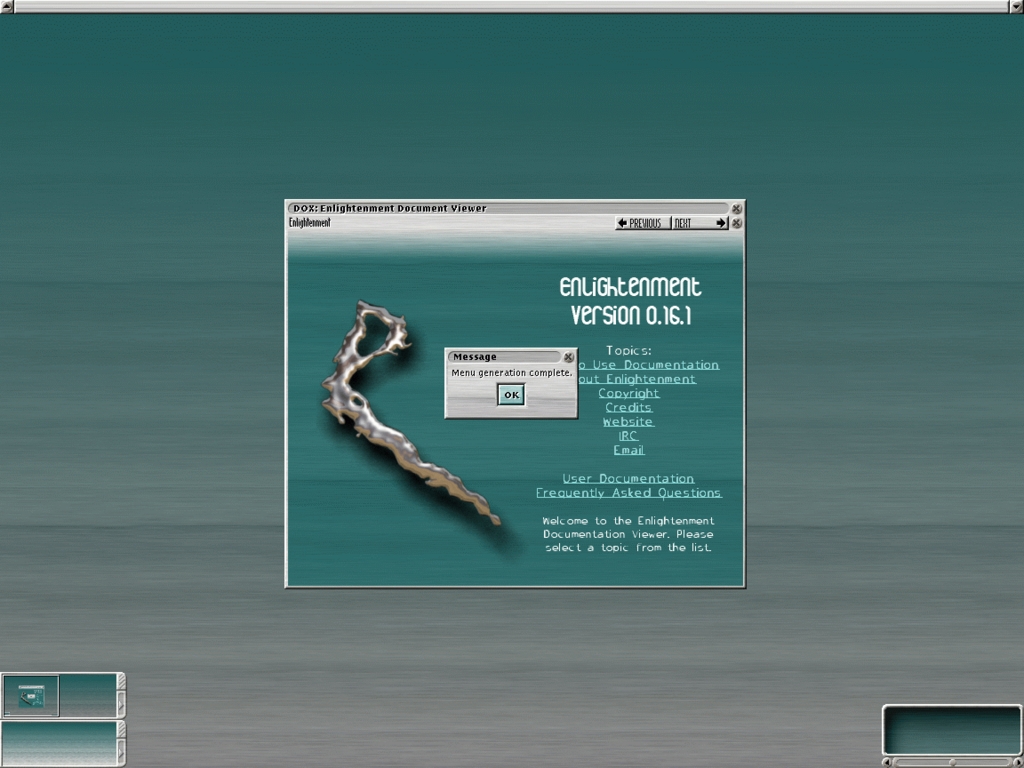
Figure 1. Default Desktop
“Enlightenment Basics” described the fnlib library. That library gives E access to some interesting fonts. The Document Viewer, showing the on-line help, shows the default font for this application. This is your first clue as to how E differs from other window managers. You can create some very unusual scalable fonts for use in E. The best way to learn how to do so is to examine the documentation provided with the fnlib source-code distribution.
What happens to the applications started with .Xclients? Most will exit once the .Xclients script exits, and that happens when you exit your window manager. But if some applications don't exit, you can add code (just like any shell script) to .Xclients to force those applications to exit. Remember that in an emergency, you can kill off your X session with CTRL-ALT-BACKSPACE, although once you become familiar with E's menu system, you should use the menu options provided for exiting.
Now, back to your first login. What you're looking at requires a little explanation. First, most modern window managers provide multiple virtual desktops. You start out with two desktops with E's default configuration. You can tell that there are two because you have two pagers (lower-left corner of Figure 1). Each desktop can have multiple pages. E's default provides two pages per desktop. The number of desktops and pages per desktop are all configurable using graphical interfaces (i.e., you don't have to edit configuration files manually to change these). We'll talk a little more about configuration a little later, after we've finished our tour of the E environment.
Across the top of Figure 1 is the drag bar. This bar is to desktops what the Title Bar is to windows; it allows you to drag desktops up and down. Unlike other window managers, you can actually view and work in two desktops at the same time with E.
In the lower-right corner of Figure 1 is the default Icon box. It has a slider along its bottom edge, which can be used to scroll icons left and right if there are more icons than can be displayed in the box. Like most things in E, the size of the icons, their arrangement (rows and columns), the number of icon boxes and many other items can be configured using graphical configuration utilities.
Desktop users often find that their biggest problem is having enough screen space for all the windows they need open at the same time. Linux users are fortunate in that X was designed to make adding virtual space possible in all sorts of ways, and E makes use of nearly all of them.
We've already mentioned pagers, a concept that has been around awhile. Most users have probably heard or seen them even if they have not actually used them. E takes saving screen space a little further by allowing you to “roll up” windows into their Title Bars. The animated effect looks a little like a drawer sliding into a chest. To roll up a window, click the middle mouse button on the Title Bar. Click it again to roll it back out. The animated movement of the window sliding into the Title Bar can be toggled on or off, which is useful on memory-limited systems. When disabled, the window simply disappears, leaving only the Title Bar visible. This rolling in and out of windows is called “shading”.
Shading works for just about any window in E. This includes the pager windows and the icon box. The only windows that can't be shaded are menus. Desktops don't get shaded per se, but they can be slid up and down using the drag bar. The position and direction of slide for drag bars is configurable.
While shading saves you space, you can manage your windows better by grouping them together. Shading a window that's part of a group will shade all other windows in that same group. Grouping windows is done using the Title Bar menu—click the left mouse button on the title to see this menu. Windows belonging to the same Window groups can be iconified, killed, moved and shaded all at the same time. Grouping of windows is a feature found in current versions of WindowMaker and Afterstep, two other popular window managers.
We can now take a look at the default menu configuration. I'm assuming you either use a three-button mouse or have your X server configured to simulate three buttons. The latter isn't difficult to do, but we're talking about E here, not the X server. Refer to your X server documentation for how to simulate using a three-button mouse.
Clicking the left mouse button over the root window (i.e., the background) will bring up the Enlightenment menu, which is where you can get access to the rest of the root menus. Become familiar with the Help system option in this menu. You'll be referring back to it on a regular basis.

Figure 2. The Default Enlightenment Menu
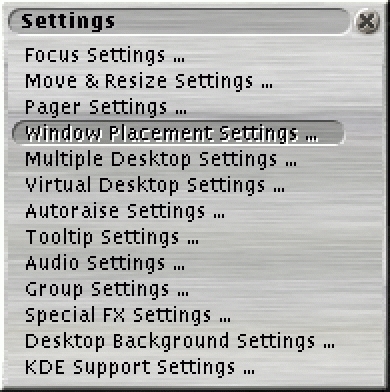
Figure 3. The Settings Menu
Clicking the right mouse button over the root window will open the Settings menu. This is where you want to be in order to configure some aspects of E. Options include window focus and auto-raise, desktop backgrounds, and special effects like animated shading of windows and window sliding. The last option causes windows to slide in from one edge of the screen when you change to the page and desktop where they live. Animation options should be turned off on low-end systems and ones with limited memory, to improve overall performance.
Title bars have menus which are opened with right mouse clicks in the title area. This menu allows you to force windows to be “sticky”, which means they are visible no matter what page or desktop is in focus. Here, too, you can set a given window's Window Group, stacking order and border style. You can also use this menu to close windows of applications which may be misbehaving.
Menus are available for many other E features. The icon box's menu can be opened with the right mouse button clicked along its edges or inside the box. One option in this menu is the Iconbox Settings window. Here you'll find many options, including changing the box's orientation (horizontal or vertical), automatic resizing of the icon box, showing or hiding the icon names and backgrounds, and whether or not to use a transparent background in the box.
The pagers have two menus which are also opened with right mouse clicks. Since pagers are just like any other application, their Title Bars (which are just as likely to be along a side as along the top of the pager window) have a menu like any other application's window. This differs from the pager's menu, opened with a right mouse click inside the pager itself. This menu offers you the option of setting high or low-quality display of windows and images in the pager, as well as a Pager Settings window. This window allows you to set a few pager-specific options. If you're on a low-end system, or one with limited memory (like a laptop), you will want to disable the continuous screen scan option in this window.
Finally, the drag bar has a small menu which allows you to jump directly to windows in other desktops. A middle mouse-button click on the drag bar will show titles of all windows in all desktops. Selecting a title will jump you to that window. If the window is in the current desktop page but hidden by other windows, it will raise that window to the top of all windows. If you left-click on the drag bar and drag down, you can expose lower-layer desktops. A window can be dragged between desktops (onto the same relative page) in this manner. For example, if the window is in the currently visible desktop and you pull the drag bar down a little to expose the next higher level desktop, you can drag the window's title bar into the next higher level desktop. When you release the mouse button, the window's desktop is moved. Again, E provides many different methods for accomplishing the same task. Moving windows between desktops can also be done using various menu options.
The drag bar is just another way of doing what the pagers do, but without taking up any extra screen space. You can disable the pagers completely and just use the drag bar to move around your desktops. The drag bar is long and thin—E works hard to save screen space—and can be configured so it sits along any edge of the display.
By default, E configures menus to be opened using an animated display. On slower systems or systems with limited memory, it is better to disable this feature using the Settings menu (right-click in root window).
Virtual screen space gives you added room to keep windows open. In essence, they are an alternative to iconizing windows. Icons are nice, but without meaningful icons to represent the real window's application, icons can be more confusing than helpful.
Pagers get around this ambiguity by simply leaving the windows open. You jump to and fro between virtual desktops with multiple pages. Think of each desktop as a desk in a different cube with multiple drawers. Each drawer would be a page in the desktop. The main difference is that it's easier to work on the virtual desktops than it is to swap papers to and from the desk and drawers.
E's pagers are fairly sophisticated, compared to pagers for other window managers. First, the background image used on a desktop can be displayed in each page of the pager, making it easier to delineate the pages. Each window in a pager is a miniature version of the real one, complete with window borders, window contents and images. The miniaturized windows in the pager can be zoomed when the mouse is over them, although for things like ordinary xterms, this isn't very helpful. What is useful is having the window title displayed when the mouse is over a window in the pager. This allows you to identify any window in any page of any desktop instantly—and a simple middle mouse button click on that window in its pager will jump you right to the window.
Having different backgrounds for each desktop is also supported. Figure 4 shows a desktop configured with 3 pagers along the right side, each with a different desktop background image and a 2x2 page configuration. A Netscape image and multicolored sticky notes are visible in various pages.
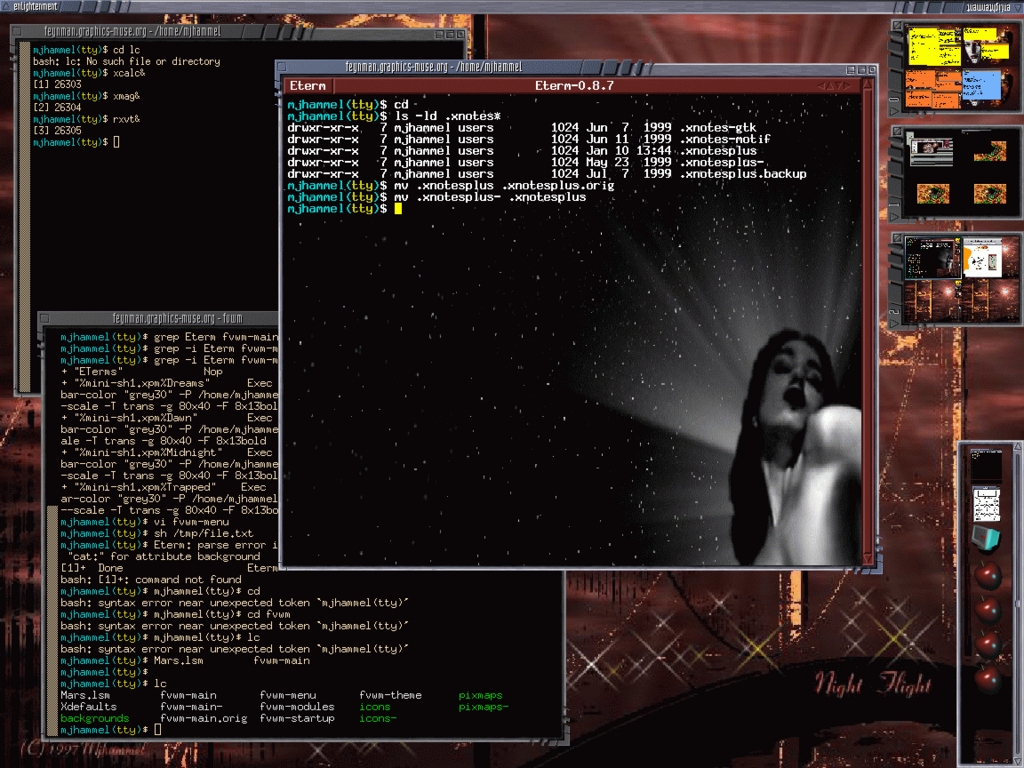
Figure 4. Example of Multiple Pagers
This example shows a modified configuration using a theme different from the default, personalized backgrounds and pagers with different configurations. Compare Figure 1 with Figure 4, and you'll see just how varied the E environment can look.
One of the newer features of E is its ability to support small programs, called epplets, to perform simple functions. The epplets are usually small C programs, but you can also create small scripts run by eesh, the Enlightenment shell. Epplets can be stand-alone programs which have their own user interface, or they can let E handle the user interface for them—a sort of embedded application.
Currently, there are only a few small epplets, provided mostly by loyal E enthusiasts. E itself comes with a few scripts, but no epplets. None of the epplets do anything overly interesting, although it's highly likely that functions like automatic connection to the Internet will be provided in the future using epplets. The most interesting of the epplets is probably gkrellm, an all-in-one epplet that displays system performance, time and other useful information. You can expect that future extensibility of E will come in the form of expanded support for epplets.
After all this, why should you consider E? In a nutshell-- configurability. E offers you the most options to making the desktop yours—your style, your feel, your world. You live on computers day in and day out. Why shouldn't it be a more personal place?
E has a considerable amount of graphical configuration support. In fact, nearly all features of E are configurable using simple graphical interfaces that you can access via the Settings menu or from feature-specific menus. The only parts of E that require manual intervention are adding menu options to the root menus and developing themes.
The Settings menu allows you to change the way the window manager works in many ways: opaque vs. transparent window moves, autofocus and autoraise for windows, desktop, tooltip and audio settings, and even a few special effects. It's important to scan through these settings, especially if you're running on a memory-limited laptop. Enlightenment is designed to allow you to add more flash to your desktop if your system has the CPU and memory to deal with it. But if it can't, E also allows you to disable some of the resource hogs.
Changing the root menus is fairly easy. Just edit the file.menu and/or user_apps.menu files under your $HOME/.enlightenment directory, which was created the first time you started E. You can add new submenus for the root menus in this way. The file.menu file corresponds to the User Menus menu (opened with a left mouse click on the root window). The user_apps.menu displays as the User Applications List menu, an option from the “User Menus” menu.
E checks the entries in these menu files to see if the program associated with a menu option can be found. If the program can't be found, then that entry won't be displayed in the menu. You can use fully qualified path names for programs. If the application is in a directory listed in your PATH environment variable, you just need to specify the program name.
Changing menus lets you have quick access to starting applications. How do you force an application to always start on a particular desktop page? E can remember open applications, but you have to specify manually which windows to reopen the next time you start an X session. To do this, hold down the ALT key while you right-click in a window; a menu will open. Select the “Remember...” option, and in the dialog that opens, select the options you want E to remember for this application. The next time you start E, it will start the application with the parameters you specified.
Note that this differs from how we started X the first time, using the .Xclients file. That file is used by xinit to start applications every time you start an X session—Enlightenment doesn't know anything about those applications. The ALT-right mouse click method just mentioned tells Enlightenment to restart an application after E is started. The choice here is whether to allow xinit or E to start your applications. To make life easier, the only line you want in your .Xclients file is the command to start Enlightenment; then, use E to manage the starting of any other applications.
Dragging windows can have many effects. Dragging a window from a pager over the root window will drop that window onto the current page and desktop. You can drag windows from the pager into the icon box to iconize the window without actually going to the desktop the window lives in. The icon box can be resized by holding down the ALT key and clicking the middle mouse button—not intuitive, but easy enough once you know what to do.
The background for any desktop can be set using the “Desktop Background Settings...” option in the Settings menu. User's backgrounds in just about any format (for example, TIFF, JPEG and PNG as long as your version of imlib was built to support these) can be copied to ~/.enlightenment/backgrounds. Changes to this directory will be recognized only if you restart E; however, this is easy to do using the “User Menus” menu.
How would someone go about figuring out how to change the themes? How do you find out how to create stylized buttons, Title Bars and so forth? This is the current limitation in E (and, actually, in many other Linux desktops). Simple themes can specify background images for windows and desktops, and images to use for icons. E allows more sophisticated control of the display by allowing you to specify window borders, title bars, edges, corners and various other bits and pieces. The bad news is there isn't yet any documentation anywhere that accurately describes how to do this. The good news is that whenever something minimal is provided by the developers, I'll be able to turn that into something more detailed for you.
Despite the lack of information on creating your own themes, many prepackaged themes are available for E from the official site for Linux themes: Themes.org. This site has sections devoted to the various window managers which support some form of themed environments. I looked through a number of the user-contributed themes for E that you can find here, but didn't find any that were visually more appealing than the BlueSteel theme provided in the default installation of E. Beauty, of course, is in the eye of the user.
Most of my research for this article and others in this series has been done on two systems: a Pentium II 400MHz box with 256MB of memory and an IBM ThinkPad i1410 (Celeron 200MHz) with 32MB of memory. By using two significantly different systems, I was able to compare some visible performance differences for the various window managers.
Performance on the Thinkpad was reasonable, even with animations turned on. The slide-show change to different desktops is a little jumpy, but not really slow. Translucent moves—windows appear partially transparent when being dragged around the desktop—were extremely slow, and shaded moves were nearly unusable. Use Shaded moves only if you plan on shading the windows first or have a fast CPU. Technical moves are fairly interesting visually and quite fast, since they draw only the boundaries of the windows. Box moves aren't as visually stimulating, but are quite fast. Box and Technical moves are the options of choice for slower, memory-limited systems.
Another thing to look at for performance issues is the Imlib Configuration tool. By default, you can get to this from the User Menus-->User Application List--> Imlib Settings option (left mouse click in the root window). From here, you can set the color quality of the window rendering, and the amount of cache to use for images and pixmaps. The Color Correction page is quite interesting, although its effect is not obvious unless you have high-quality background images. On lower-end systems, try reducing the Image Cache, Pixmap Cache and Shared Memory sizes to their lowest settings. Also, disable the High Quality mode for 15/16bpp systems. Many laptops are likely to run in 15/16bpp, so you'll want the High Quality mode disabled on these systems.
E is still in development, so it may possibly cause system lockups. I tried to access the Audio features from the Settings Menu, even though I had turned off the sound options during compilation, and this caused a segmentation fault. Interestingly enough, E caught this problem and offered me the option of restarting or continuing. Although the fault is a problem, it handled it gracefully.
E is cool and more than likely has a very interesting future to come. It's fairly stable—I had only two lockups in all my testing on both systems—but lacks end-user information to make serious use of all its features. It comes with one of the most interesting default interfaces available. Many people are recognizing the potential of E. It works happily in both the GNOME and KDE environments.
E is also resource-intensive—it can chew up memory fairly quickly. Because it's still in development, installation can be a pain for the inexperienced user. You need to understand how to build and install multiple software packages just to get it running properly. Configuration of menus can be complex and requires manual editing. Stylized, themed interfaces are possible, but it's not yet clear how to create these. There isn't any real documentation that begins to explain the process.
My purpose here was to talk about what the desktop environment can be to end users—distinctively personalized. E offers the potential for this more than any other window manager, but it's a long way from the simplicity that typical desktop users expect. Its complexity notwithstanding, if you've got the determination to experiment and research the default configurations on your own, you may find that E will have its place in your world.
Michael J. Hammel (mjhammel@graphics-muse.org) is a graphic artist wanna-be, a writer and a software developer. He wanders the planet aimlessly in search of adventure, quiet beaches and an escape from the computers that dominate his life.

